EN
Device User Guide
Function :
Scan QR Code
Display QR code
Octopus
Credit Card Payment
Instalment
EPS
DCC Sale
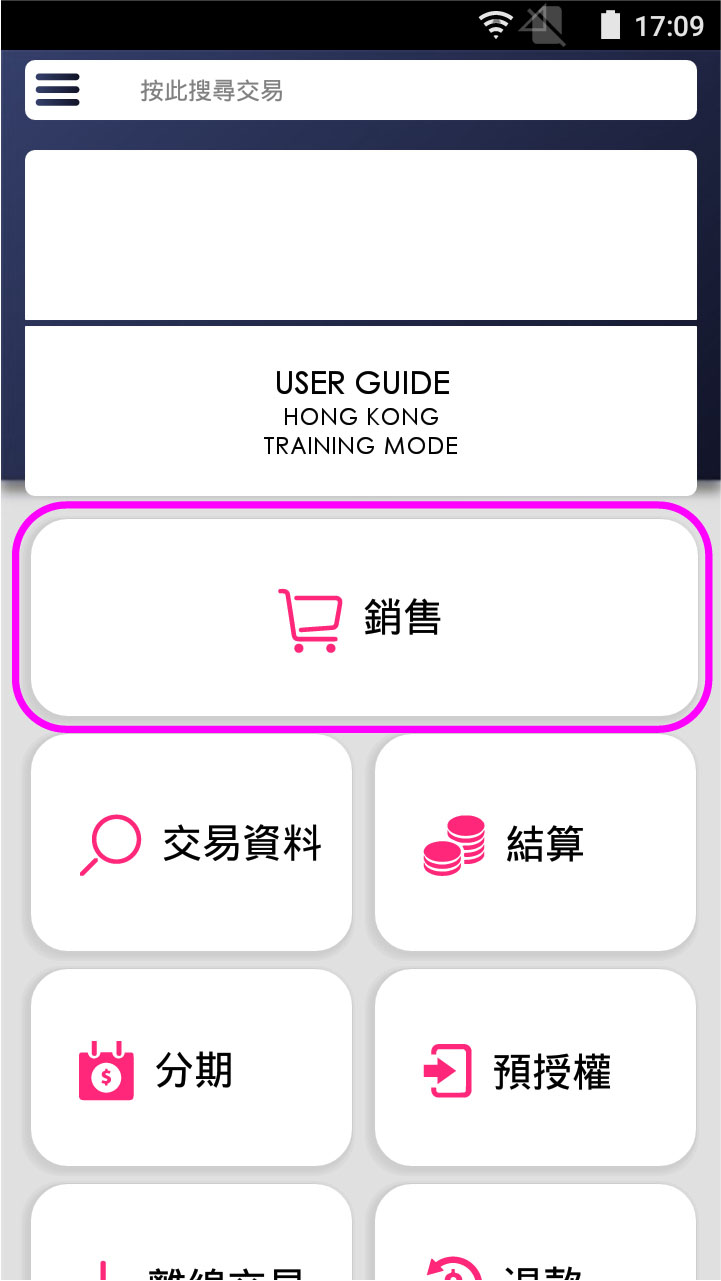
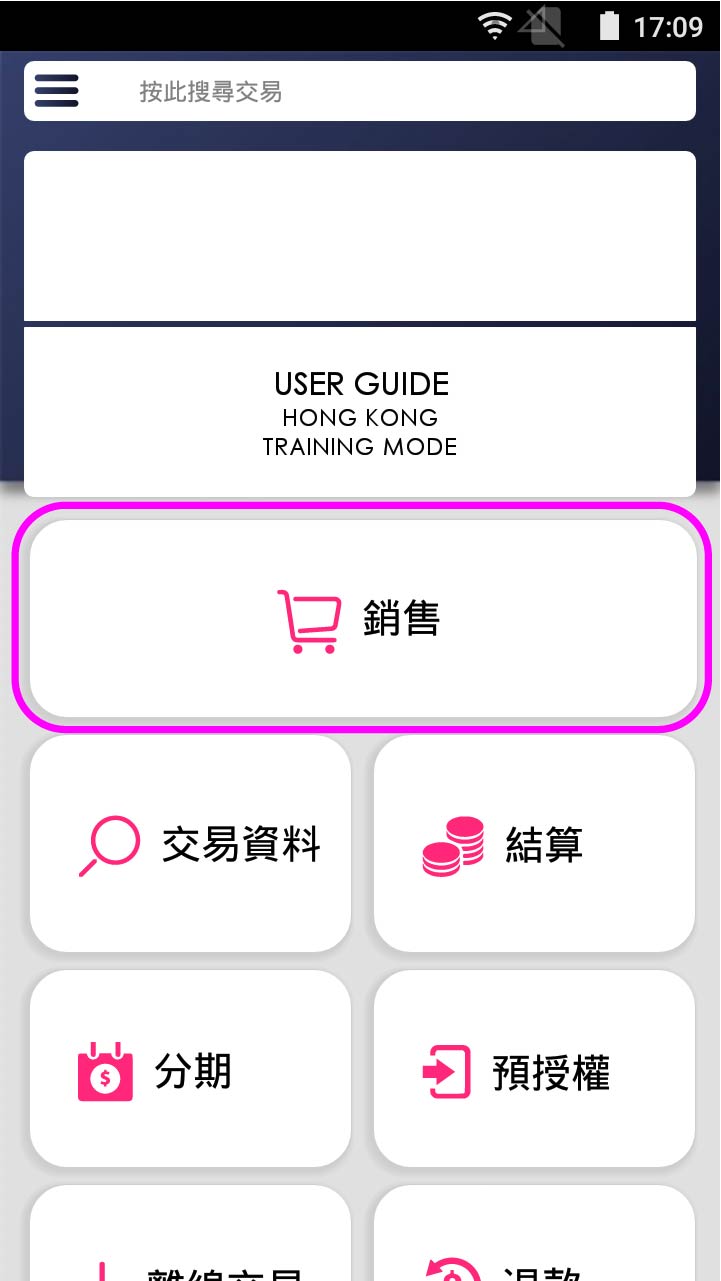
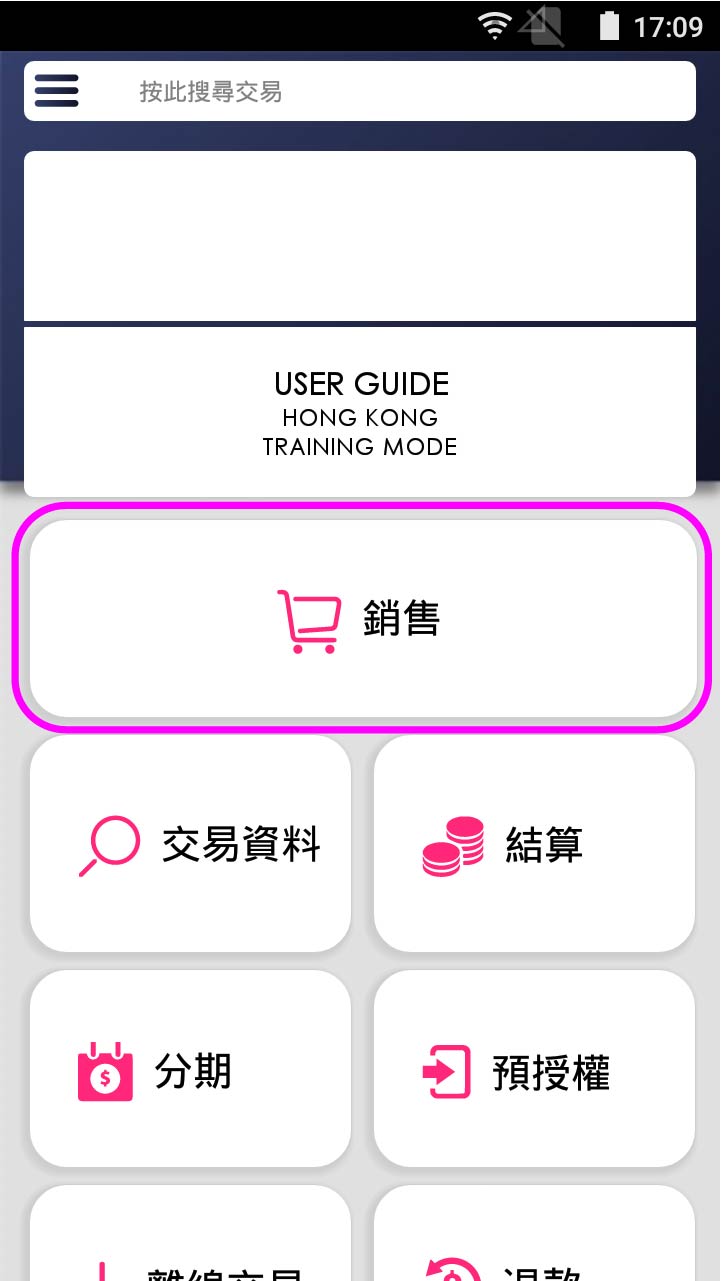
- Step 1 -
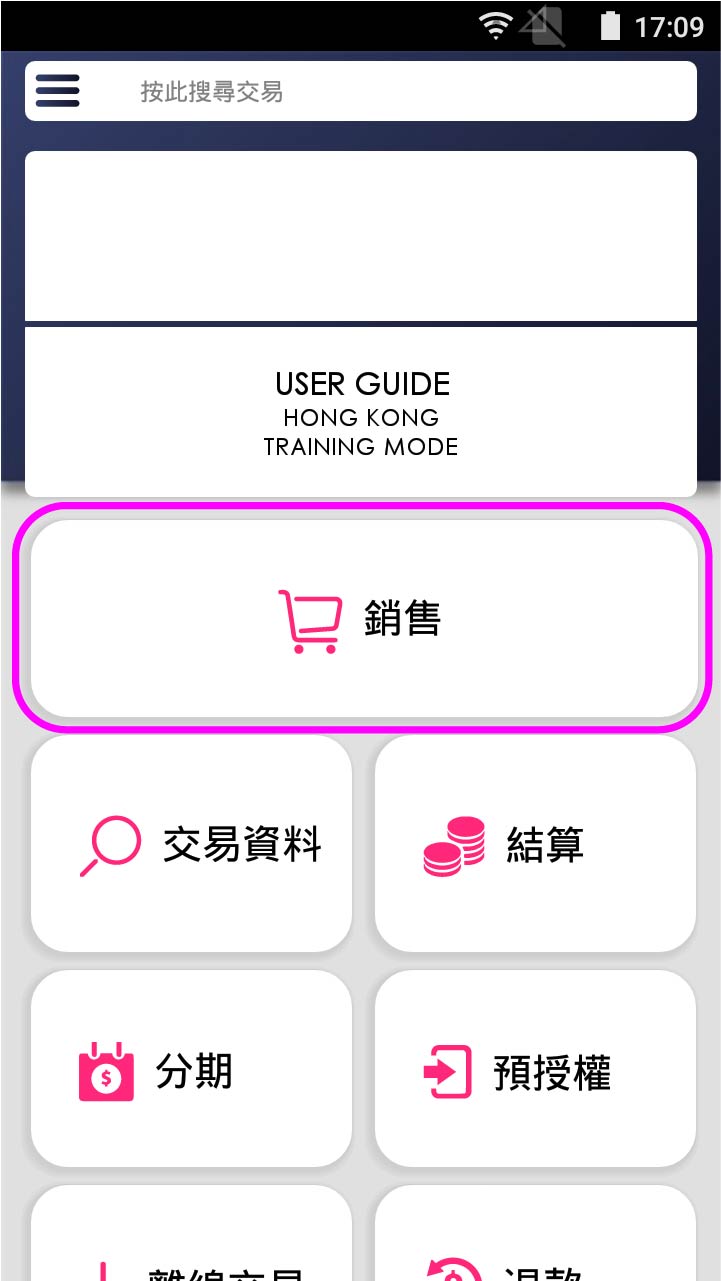
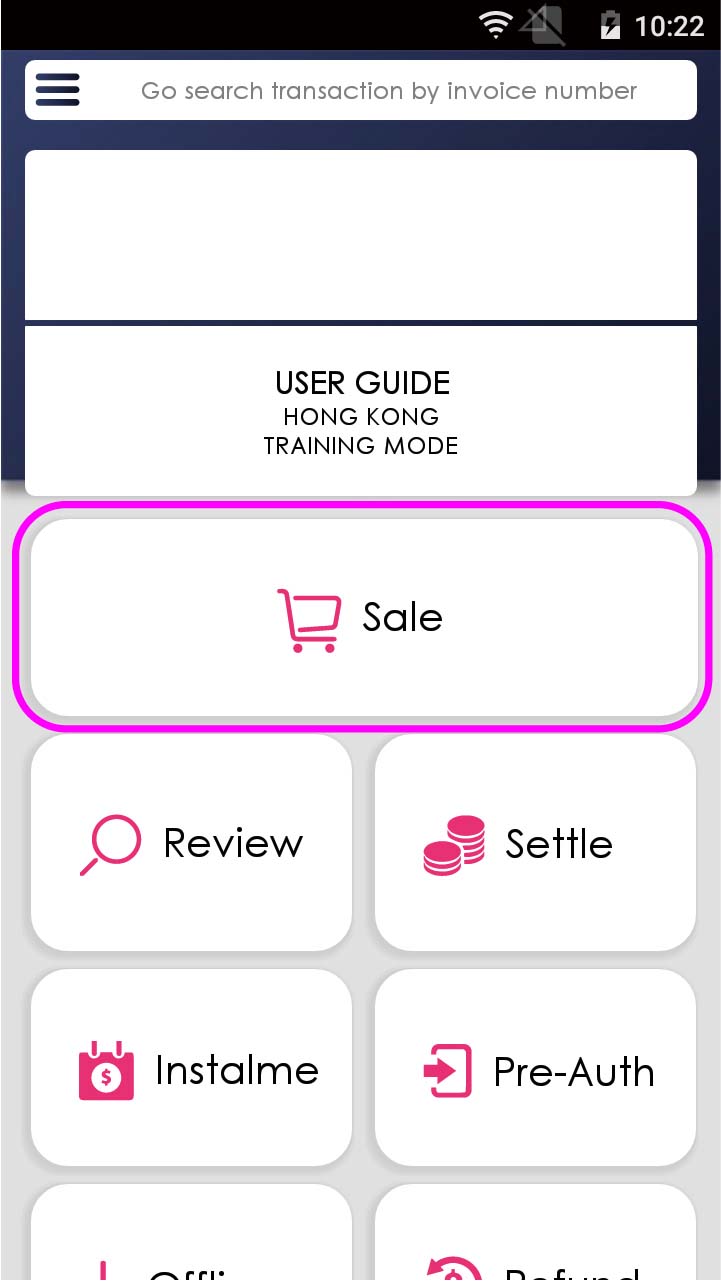
Press [Sale] on menu
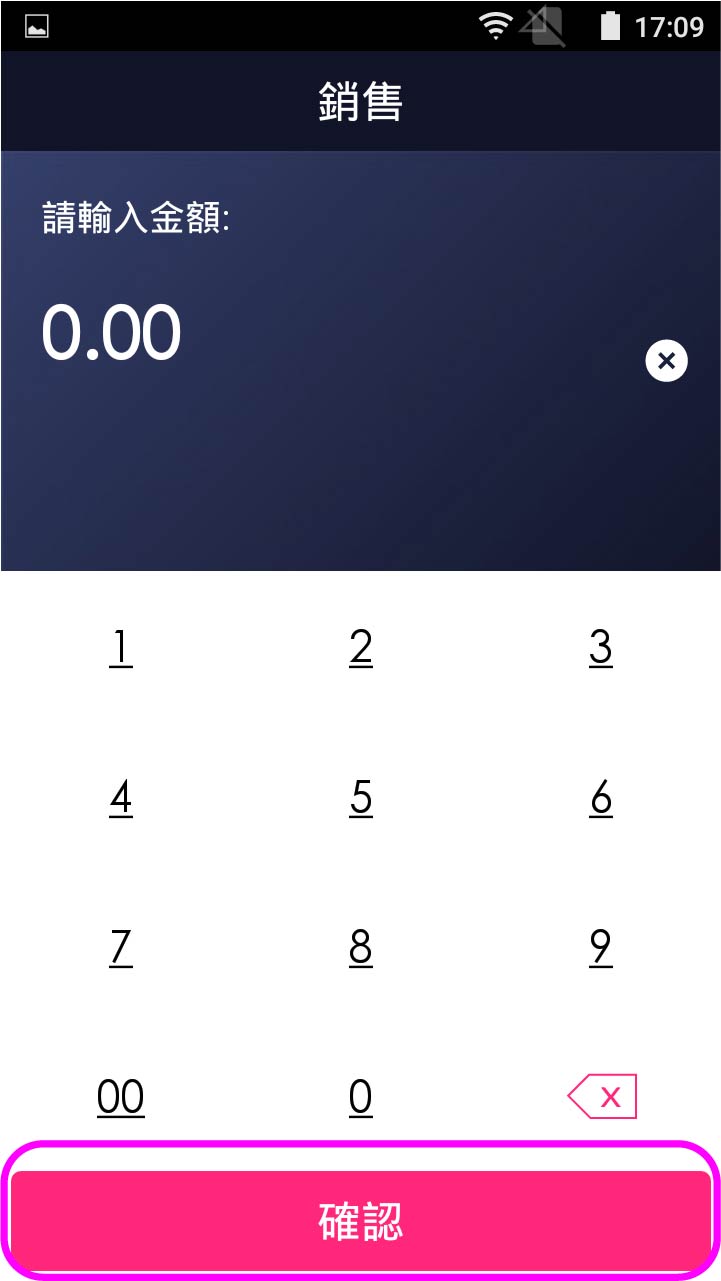
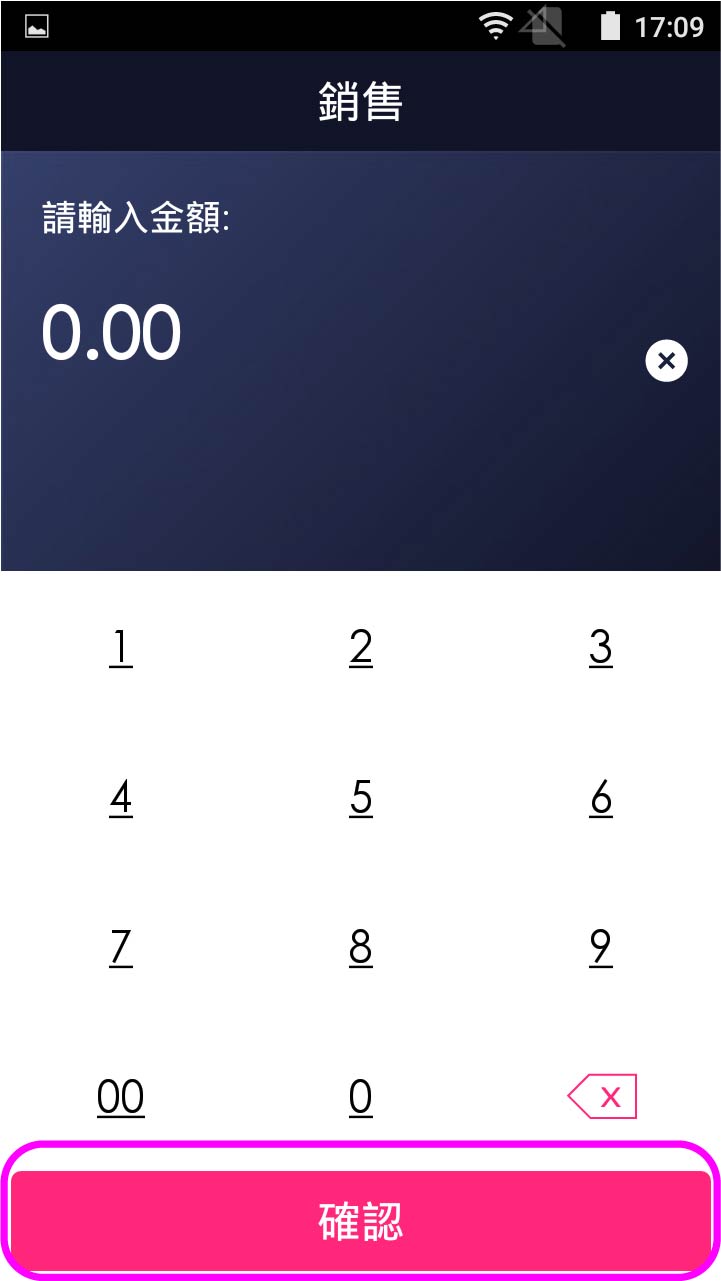
- Step 2 -
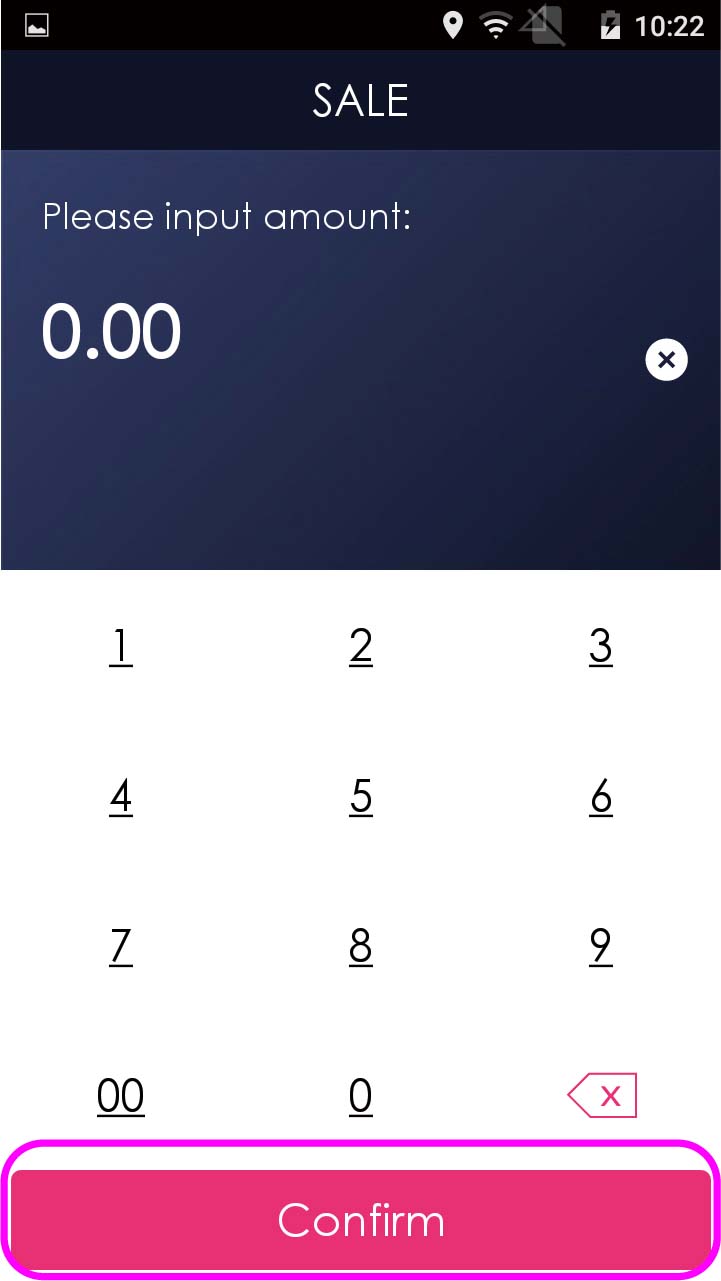
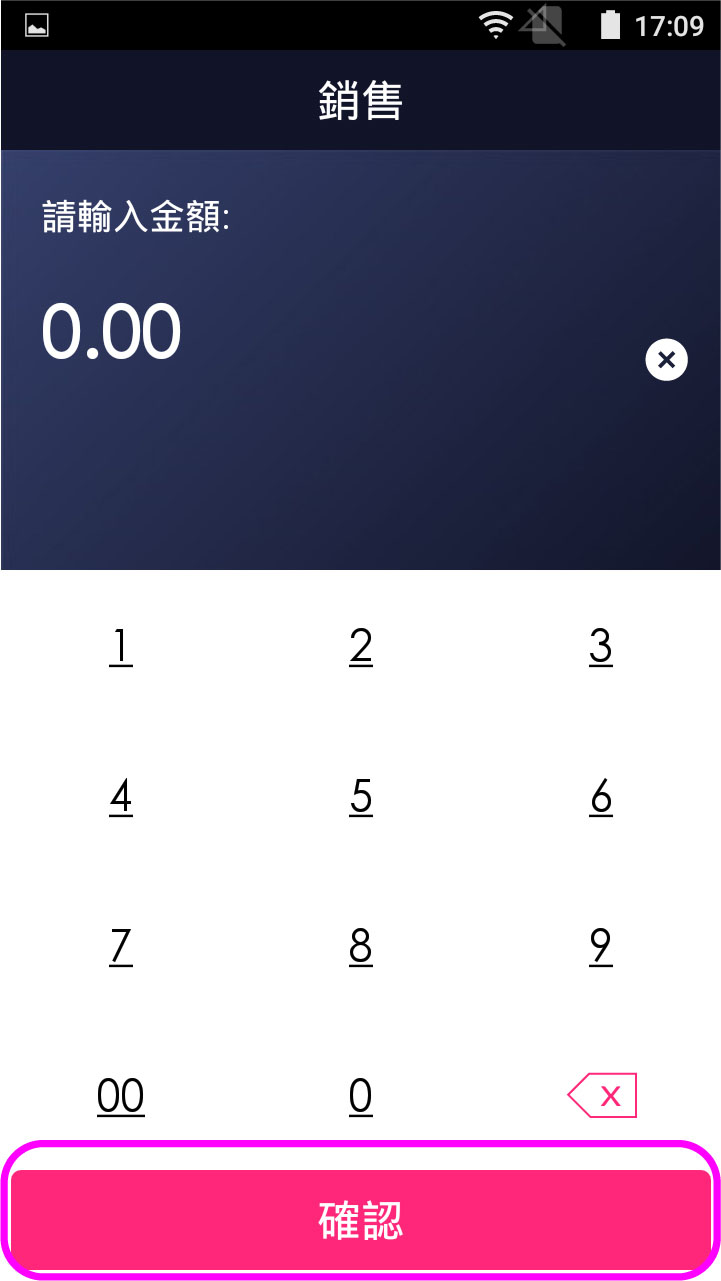
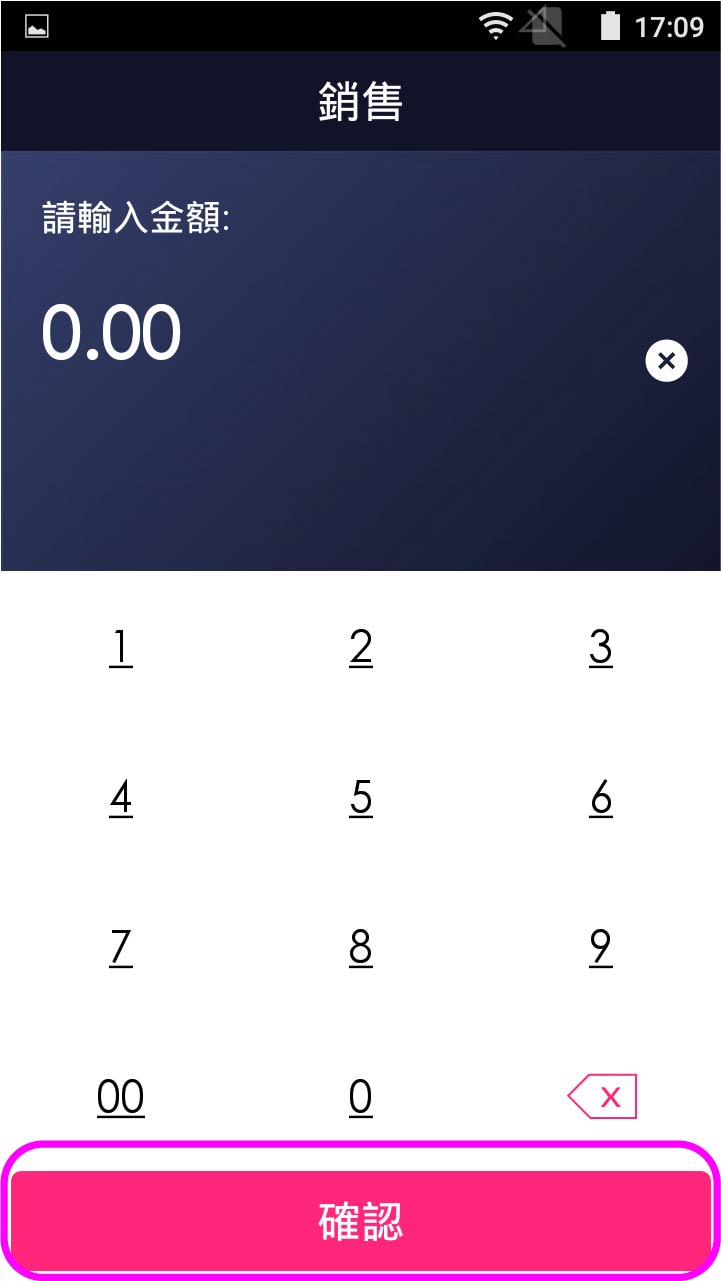
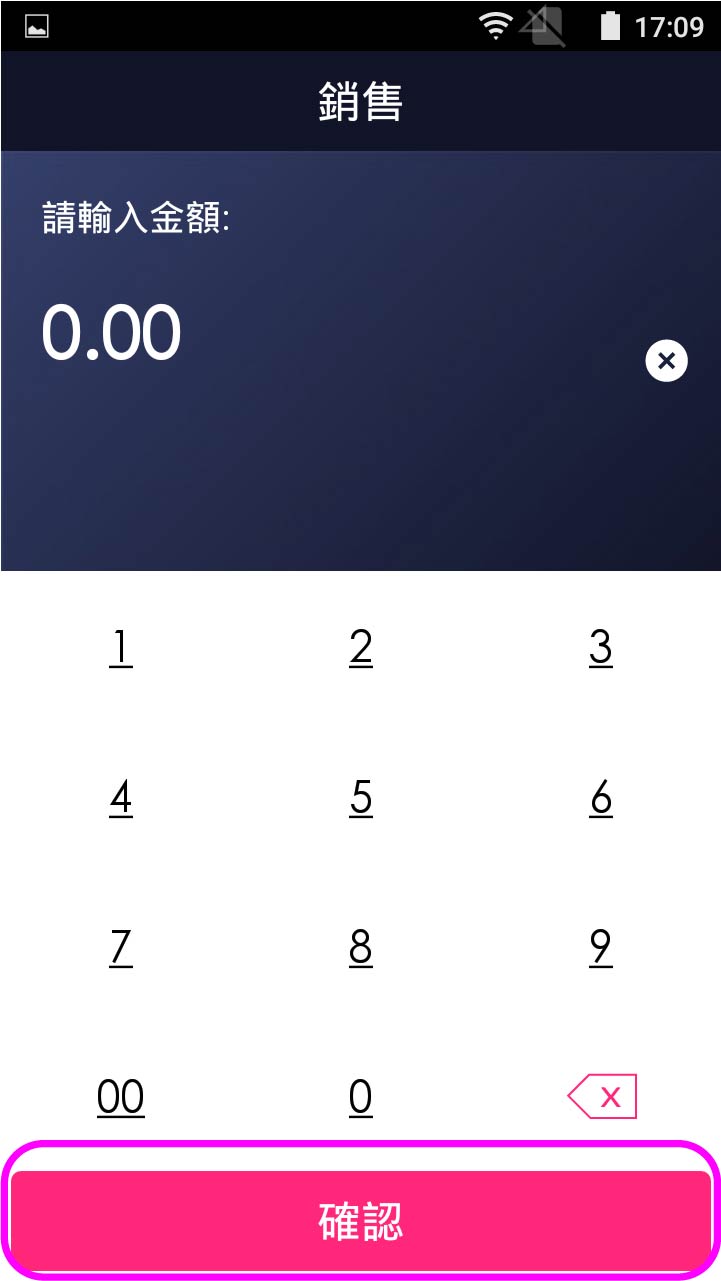
Enter sale amount, and press [Confirm]
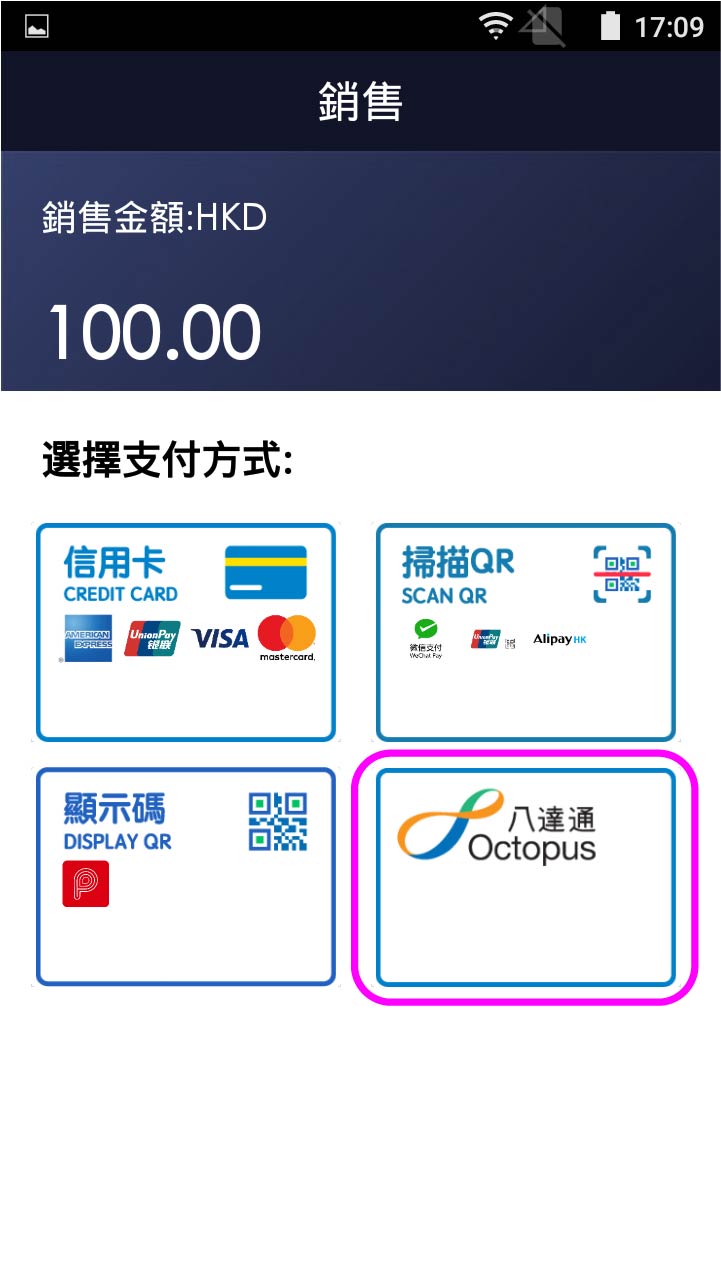
- Step 3 -
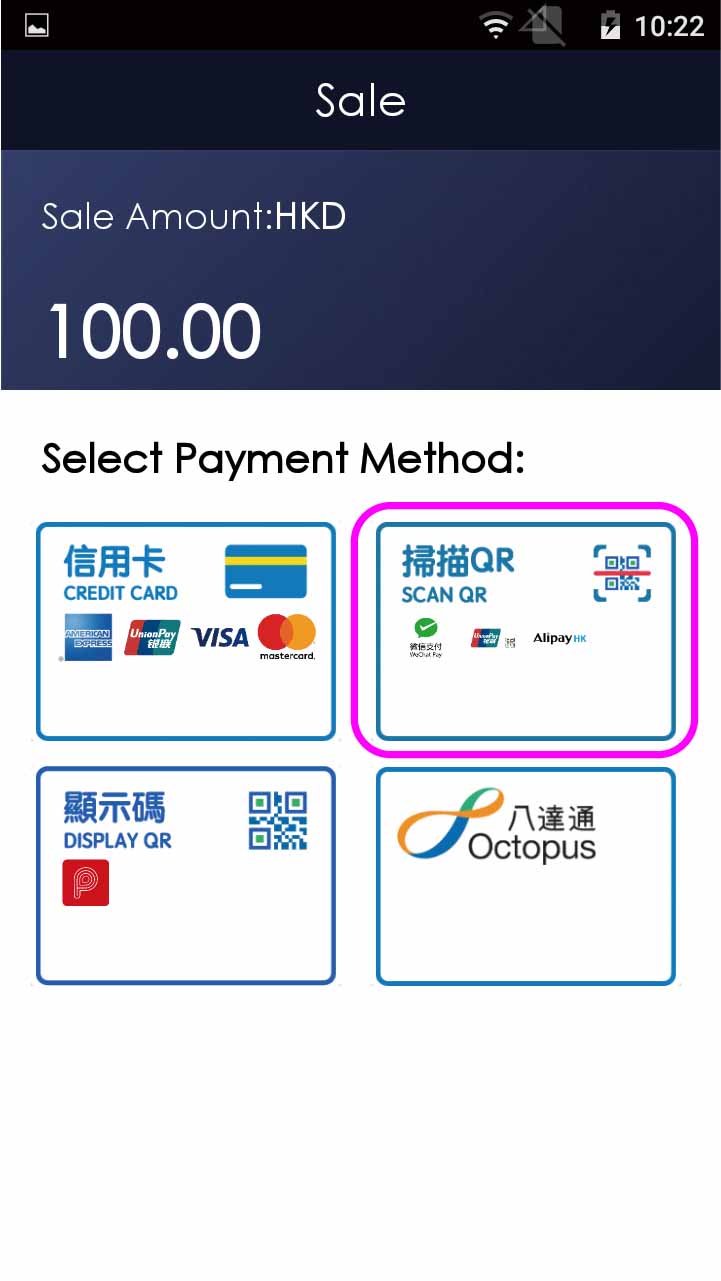
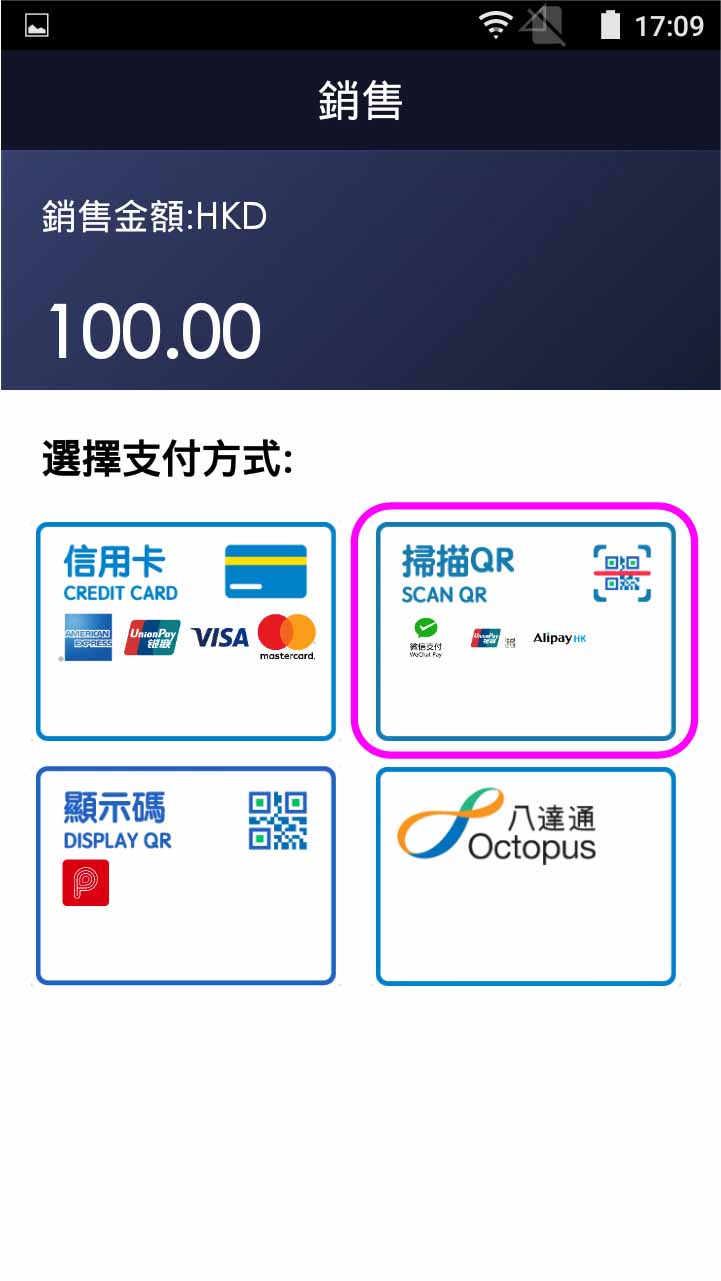
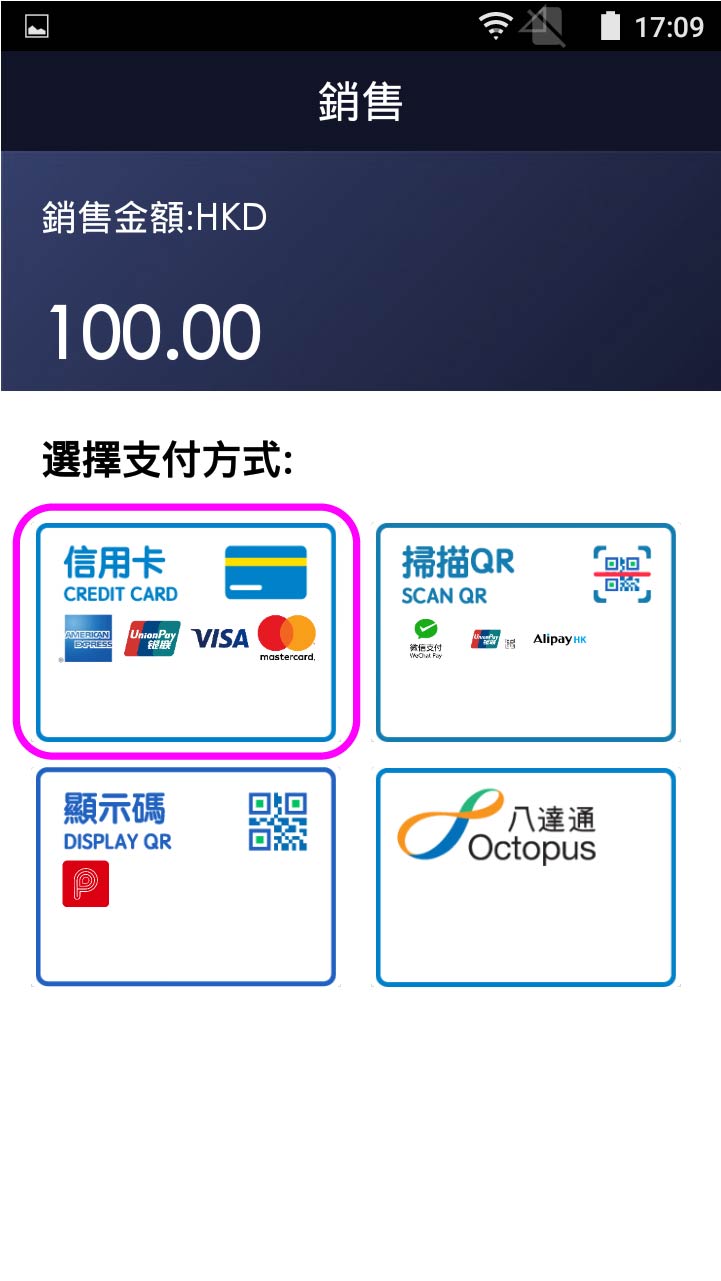
Select QR code payment
- Step 4 -

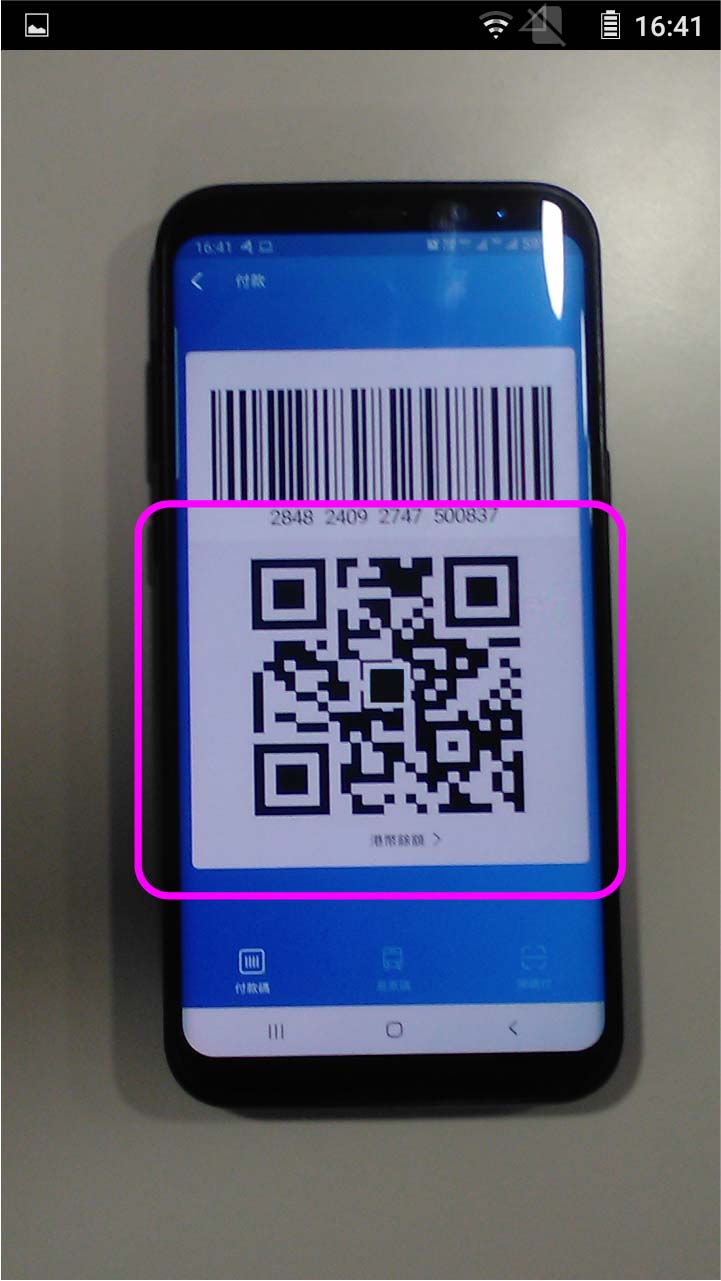
Scan QR code on client’s mobile
- Step 5 -
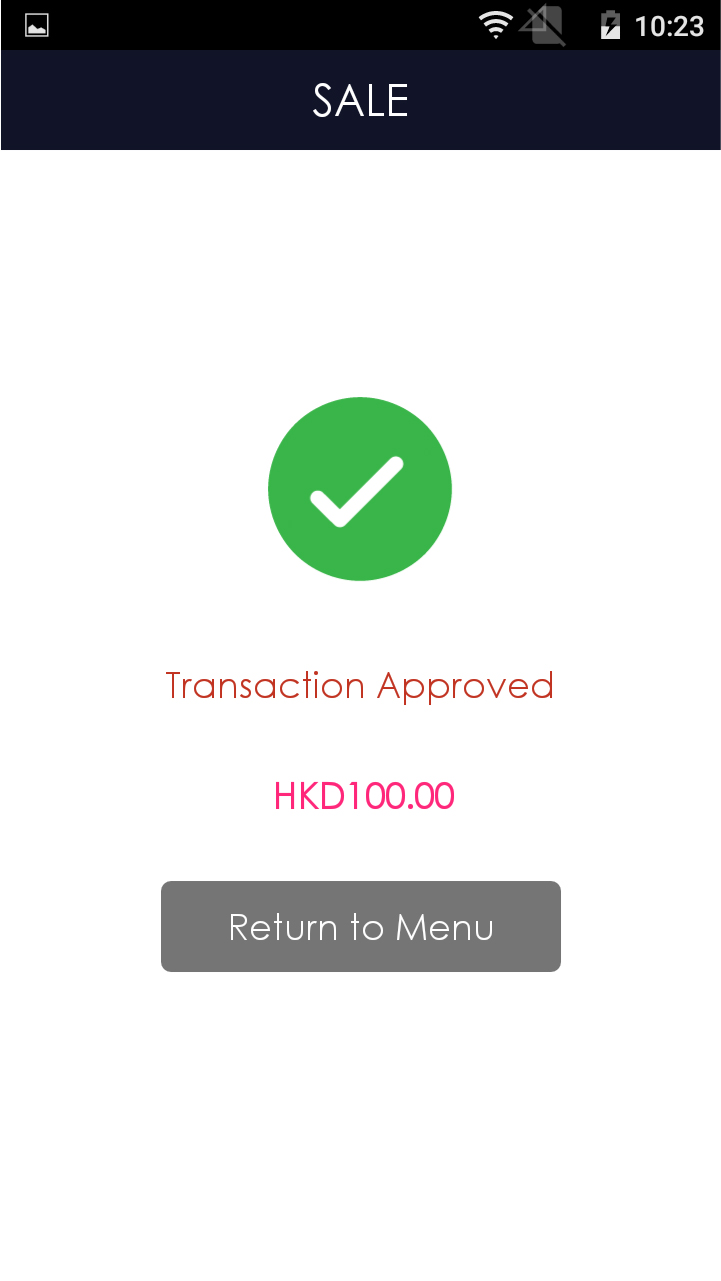
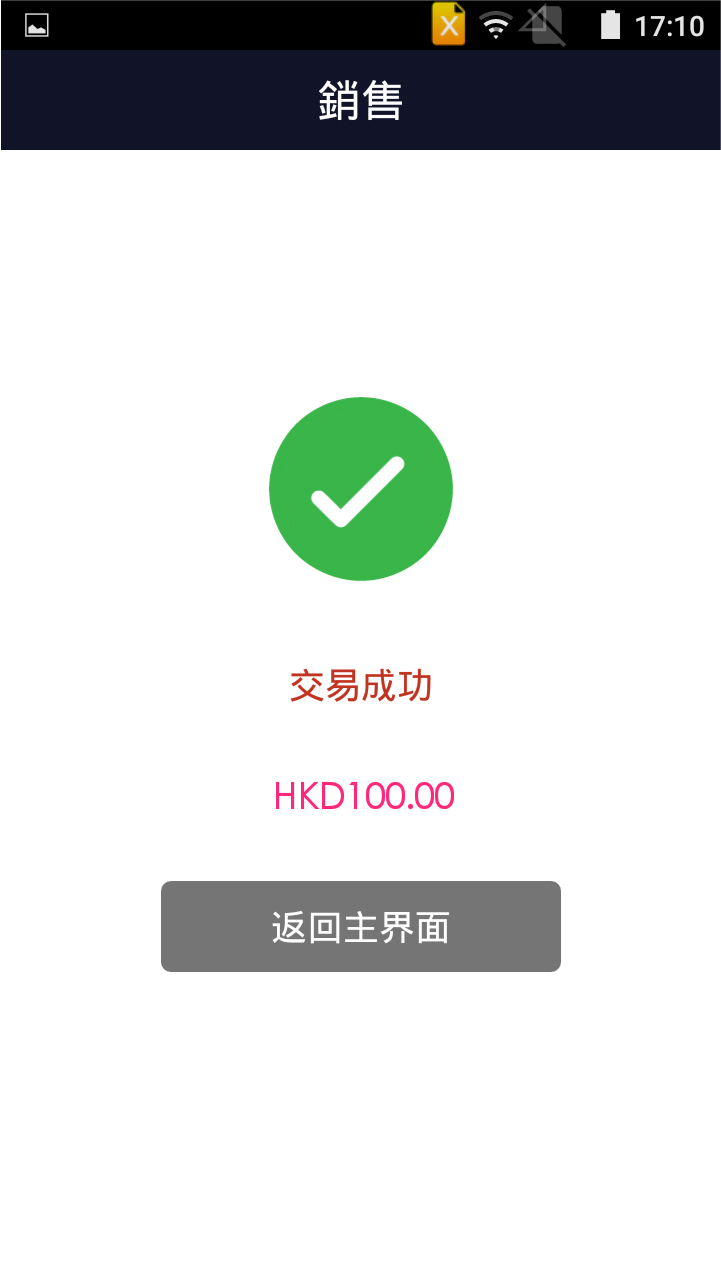
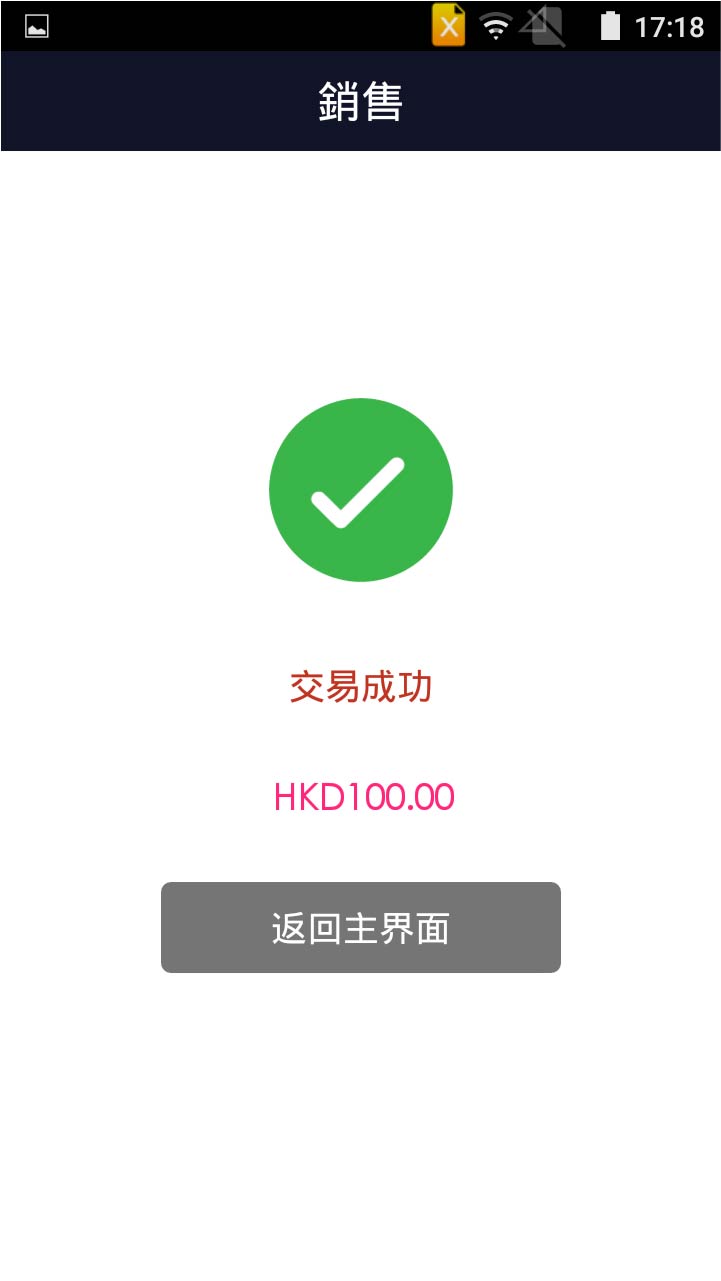
Transaction is completed, and terminal prints out receipt
- Step 1 -
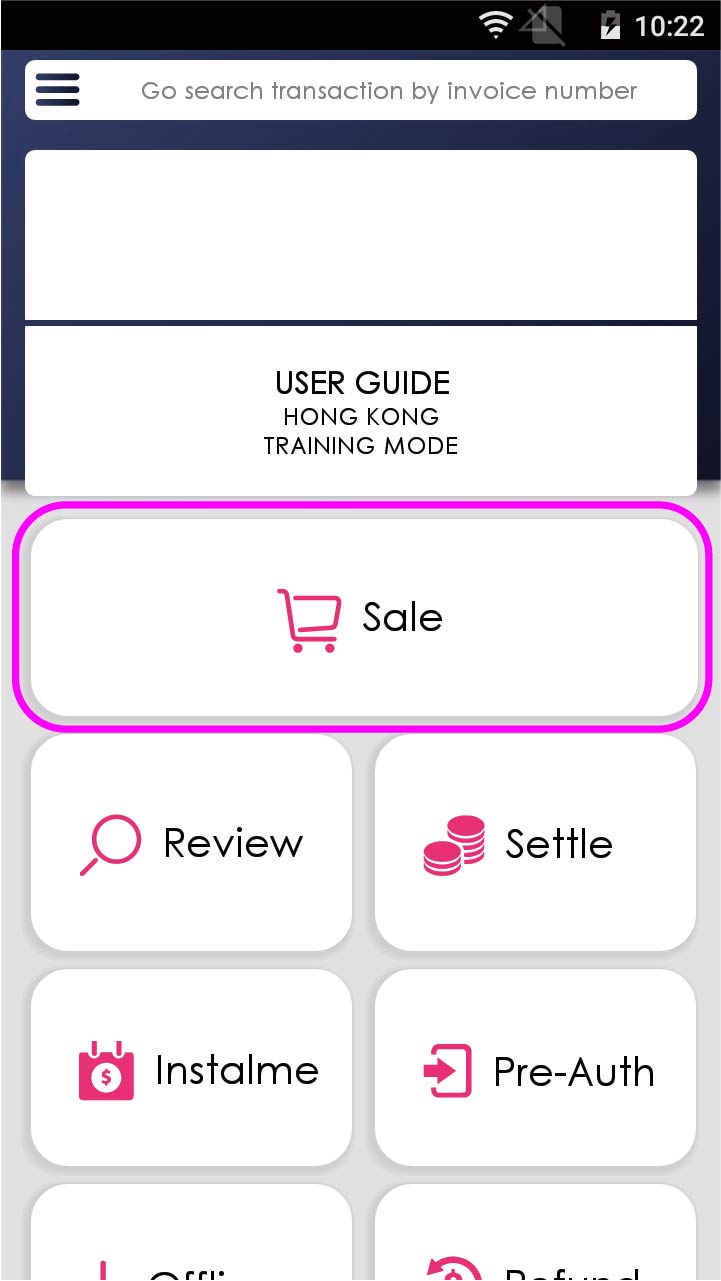
Press [Sale] on menu
- Step 2 -
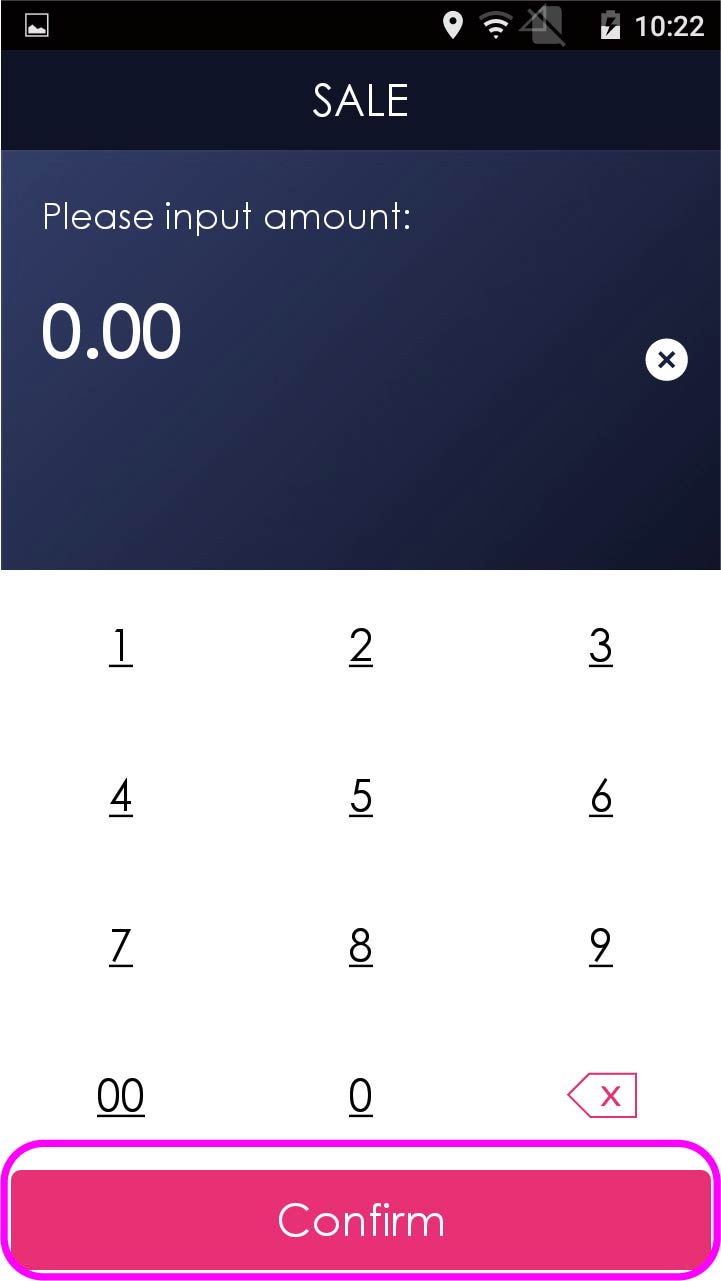
Enter sale amount, and press [Confirm]
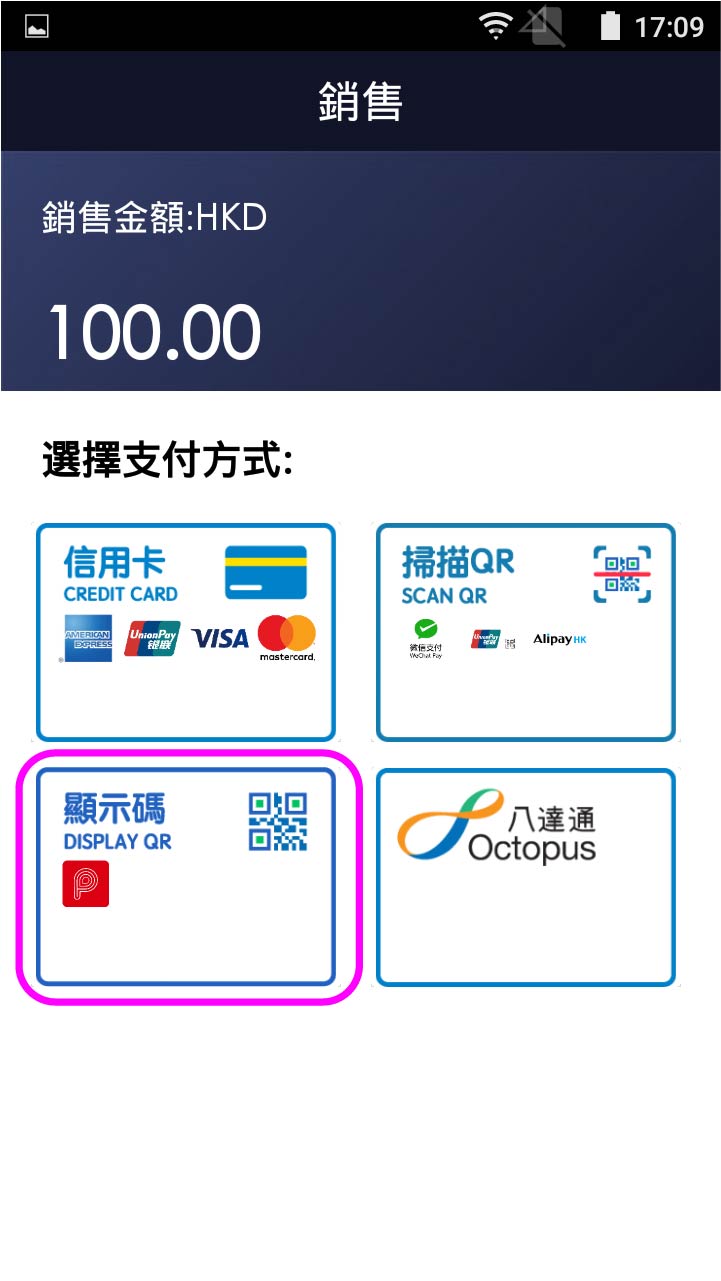
- Step 3 -
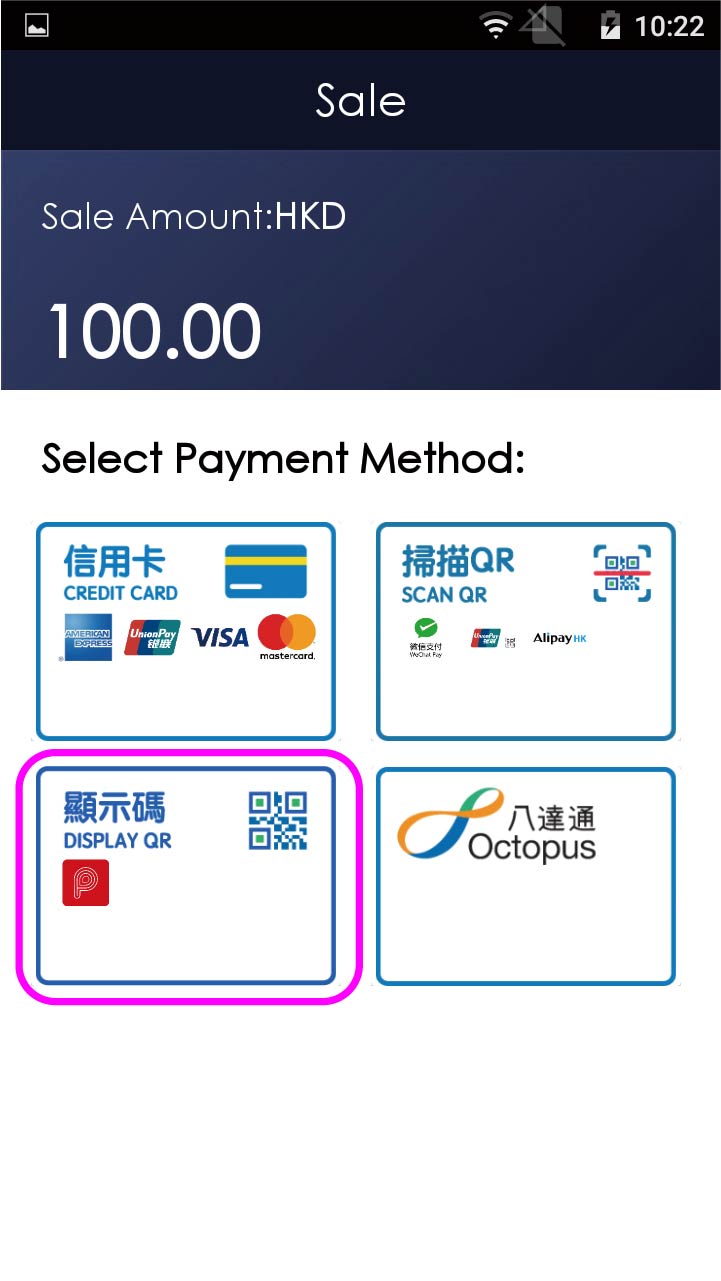
Select to display QR code on terminal
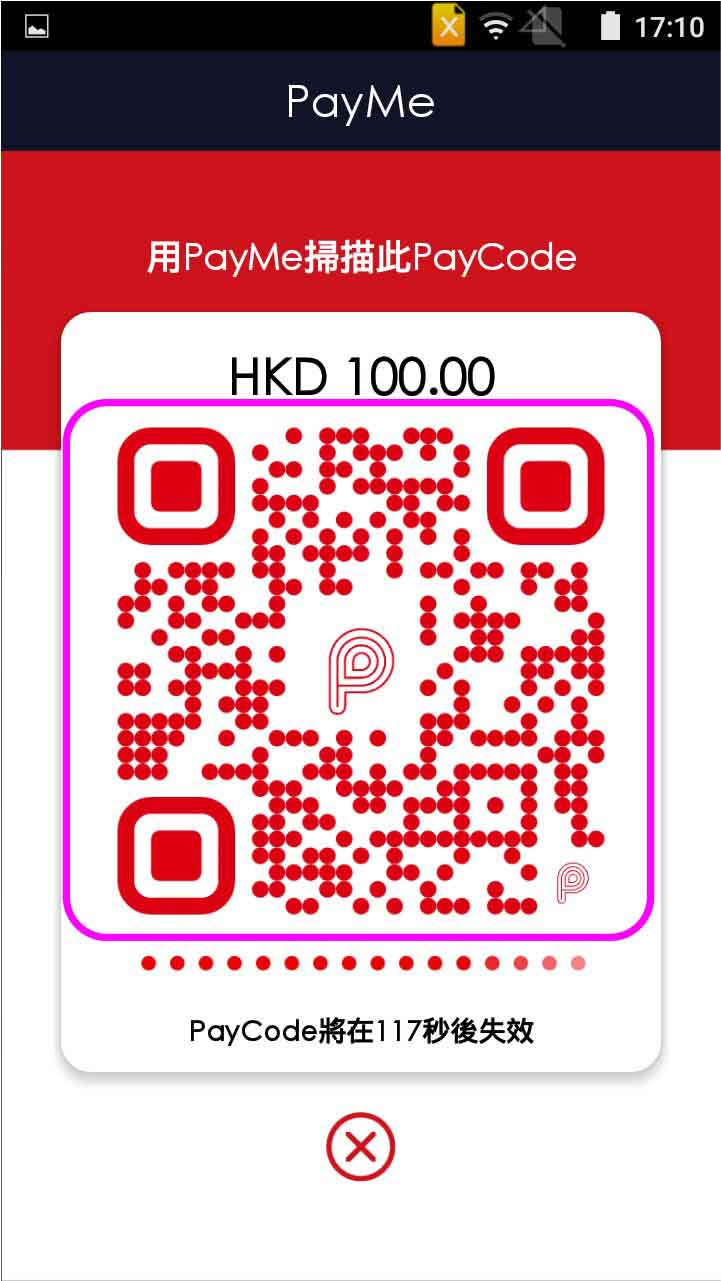
- Step 4 -
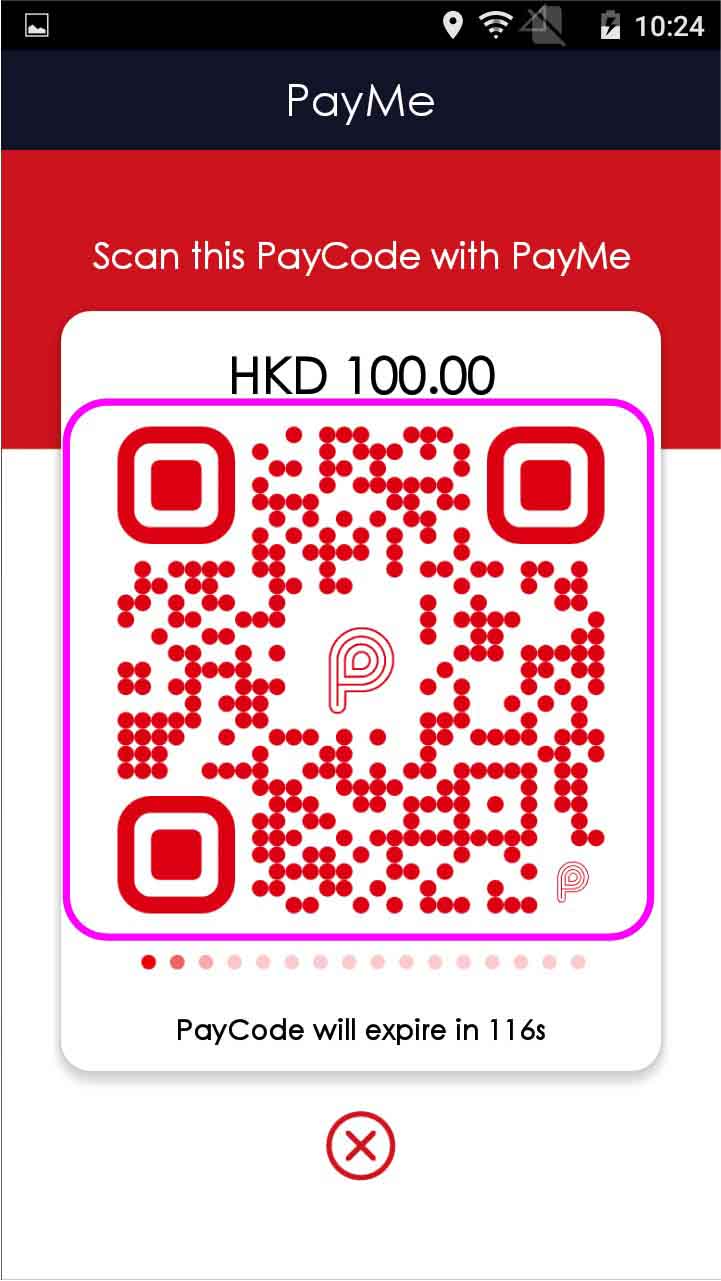
Client scans the QR code and confirm the payment
- Step 5 -
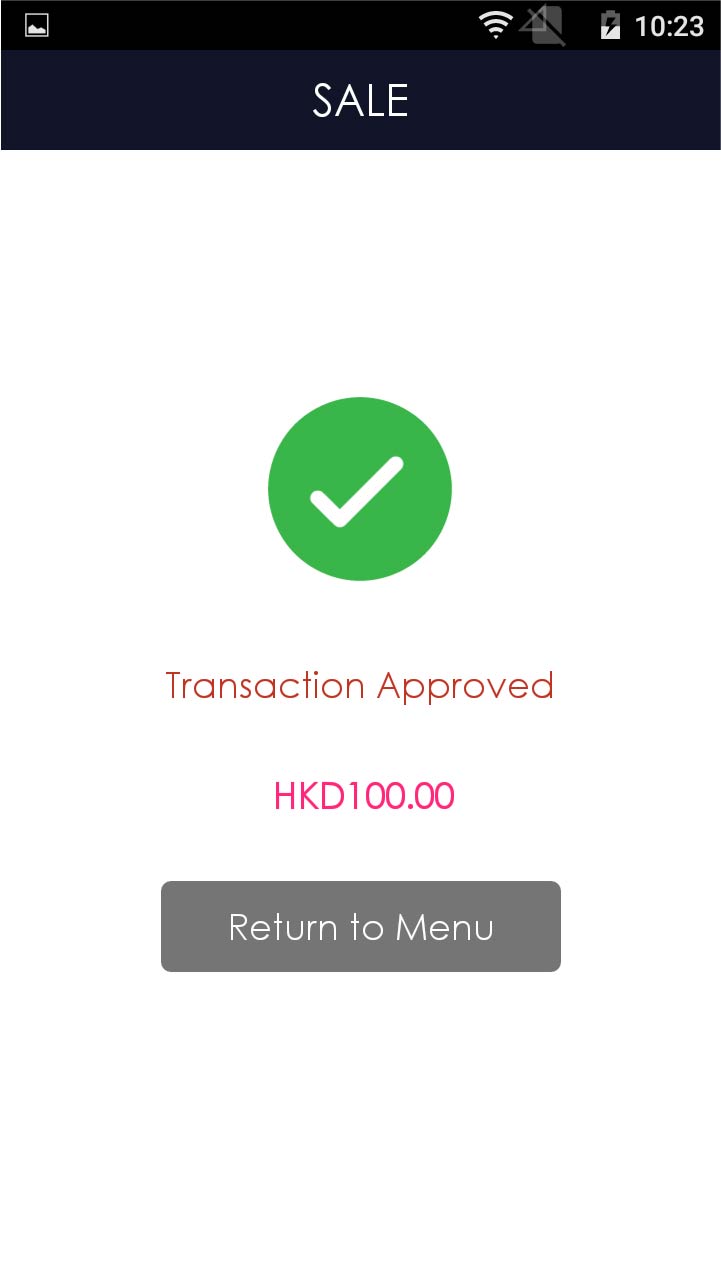
Transaction is completed, and terminal prints out receipt
- Step 1 -
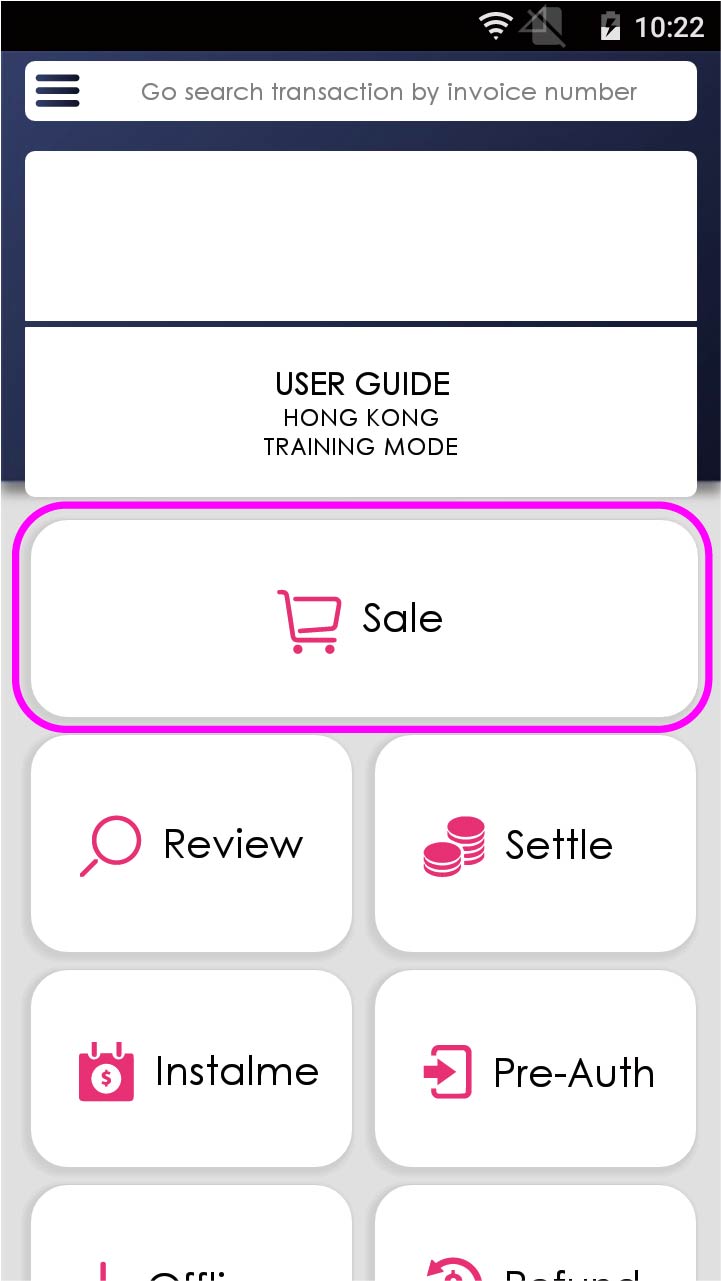
Press [Sale] on menu
- Step 2 -
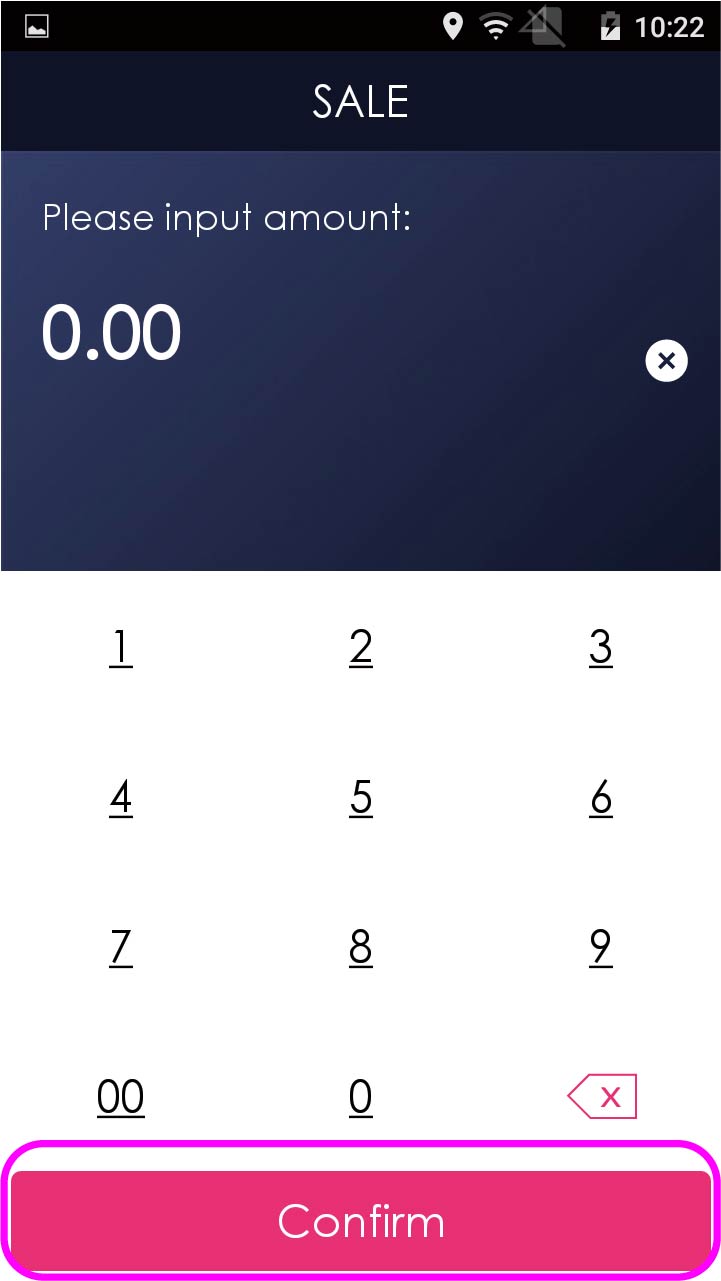
Enter sale amount, and press [Confirm]
- Step 3 -
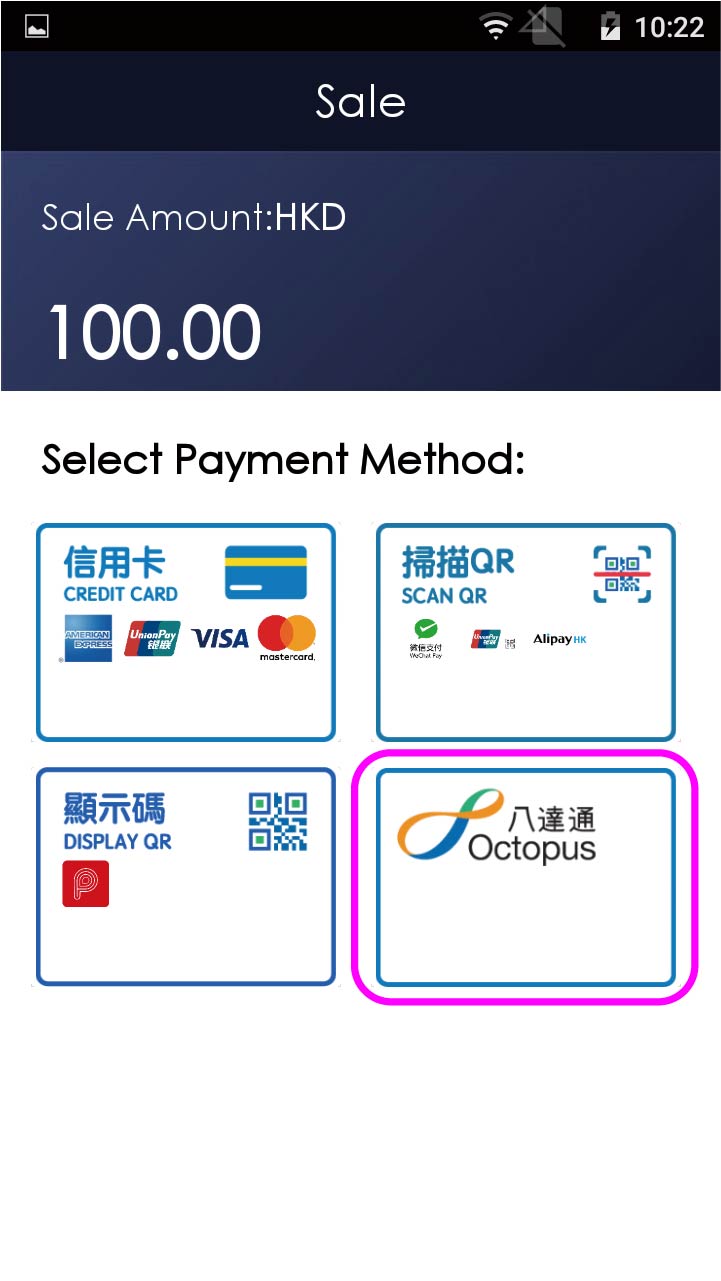
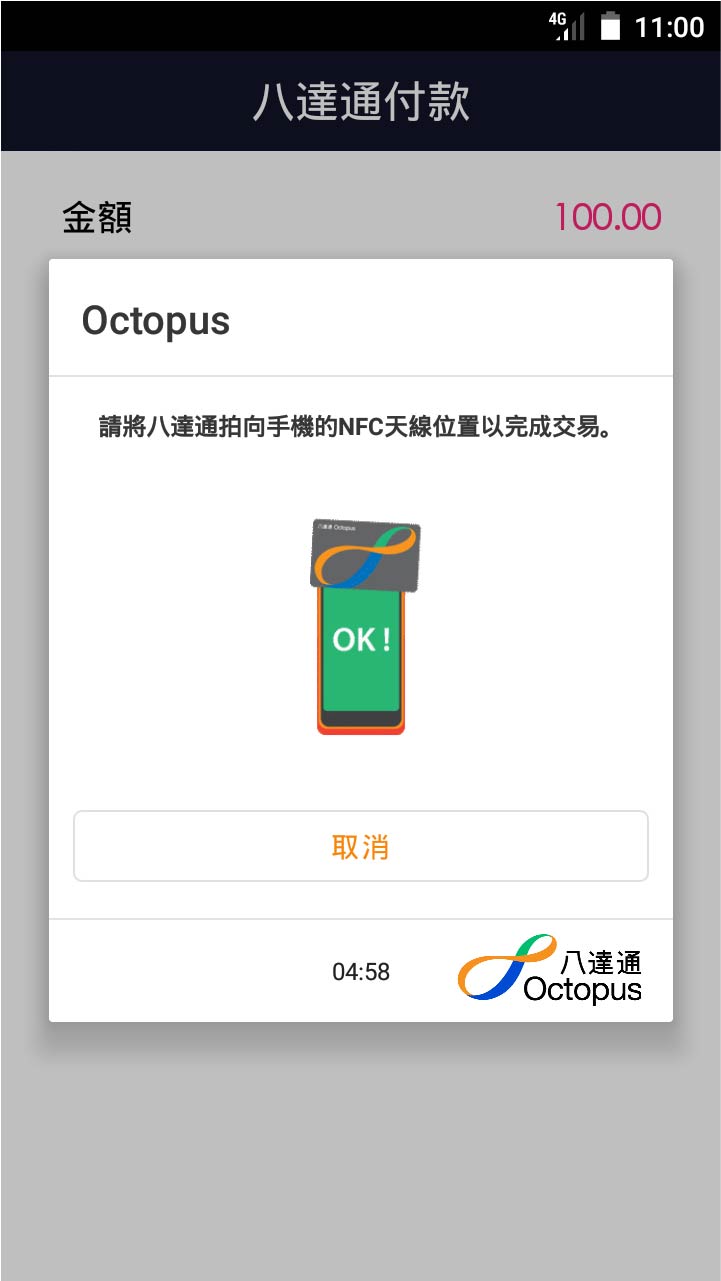
Select Octopus payment
- Step 4 -
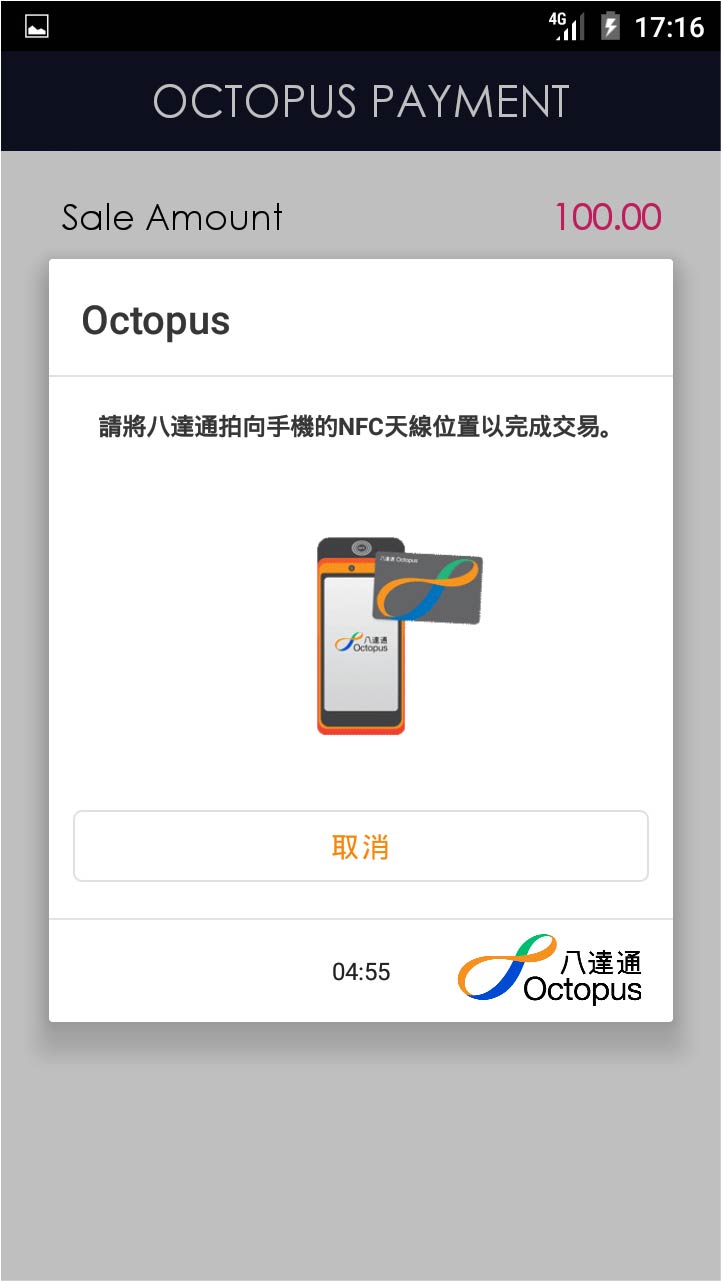
Tap Octopus card on terminal sensor
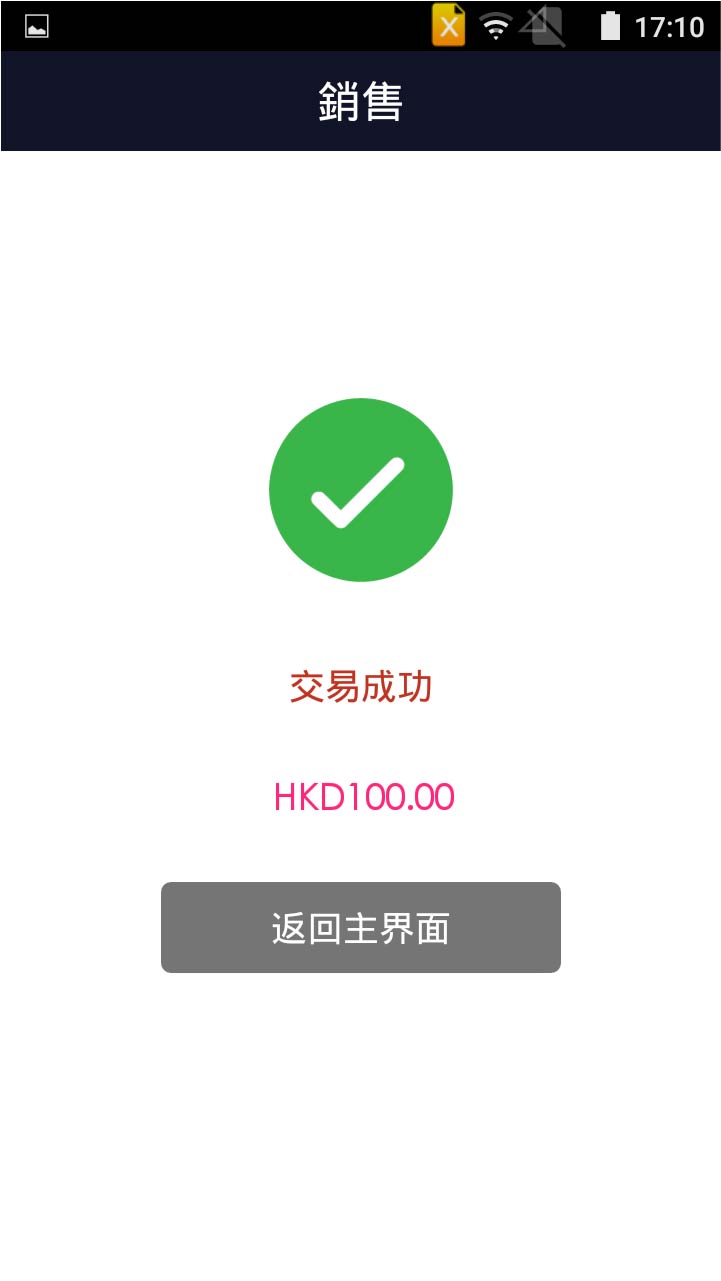
- Step 5 -
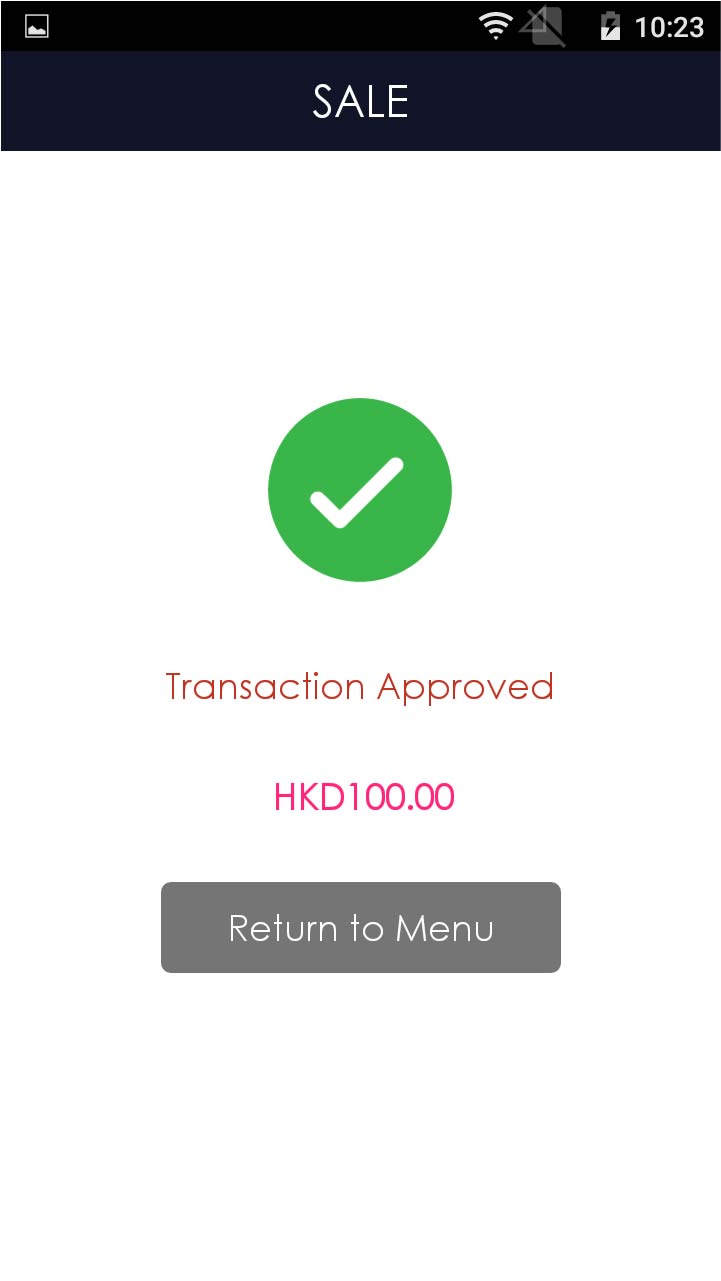
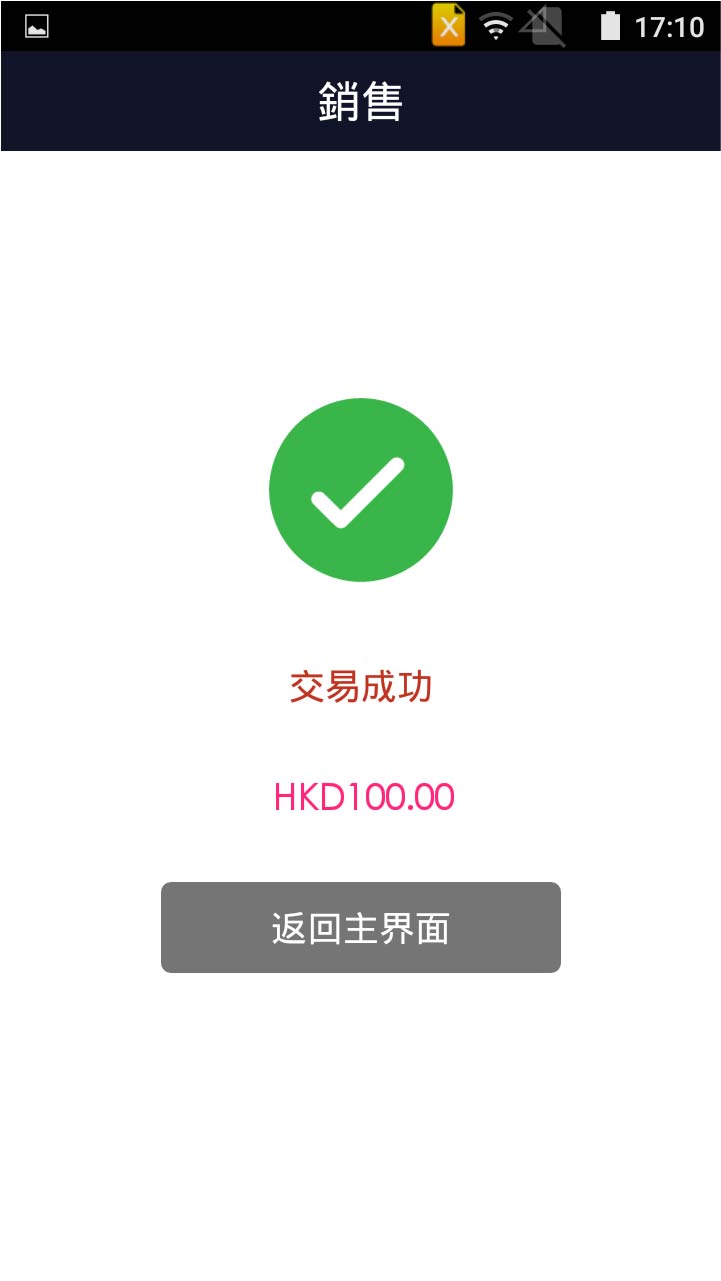
Transaction is completed, and terminal prints out receipt
- Step 1 -
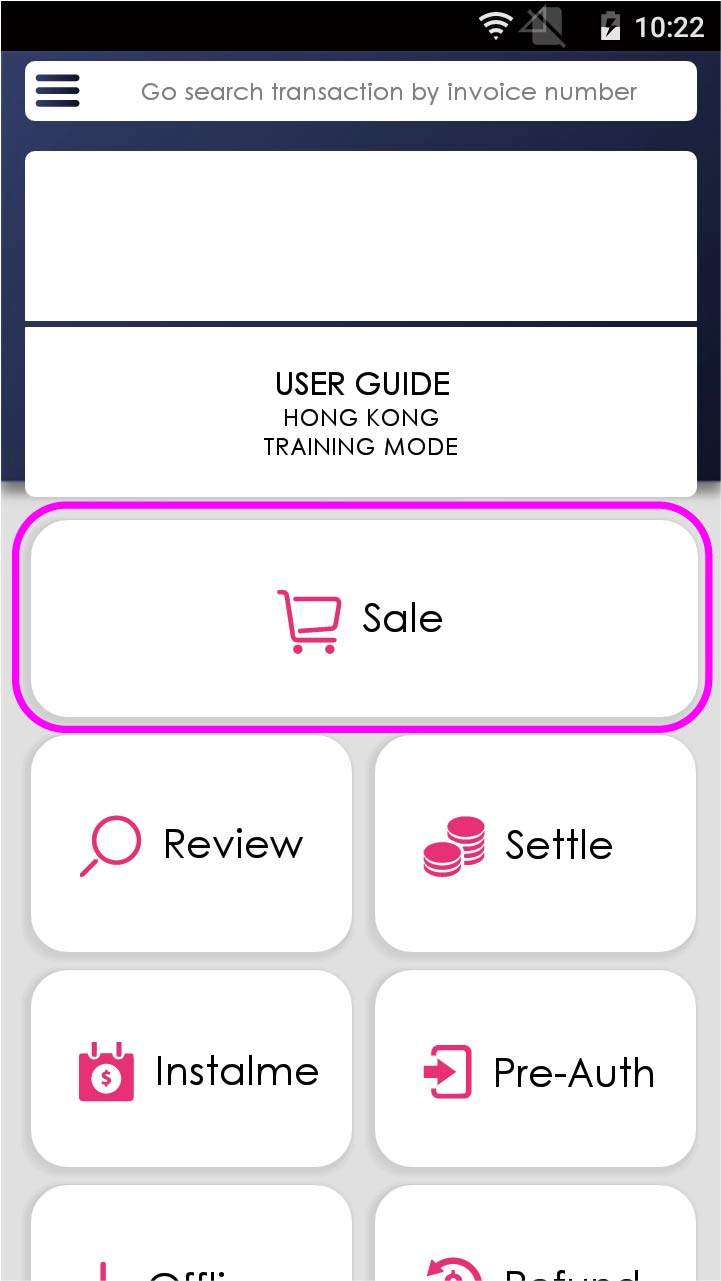
Press [Sale] on menu
- Step 2 -
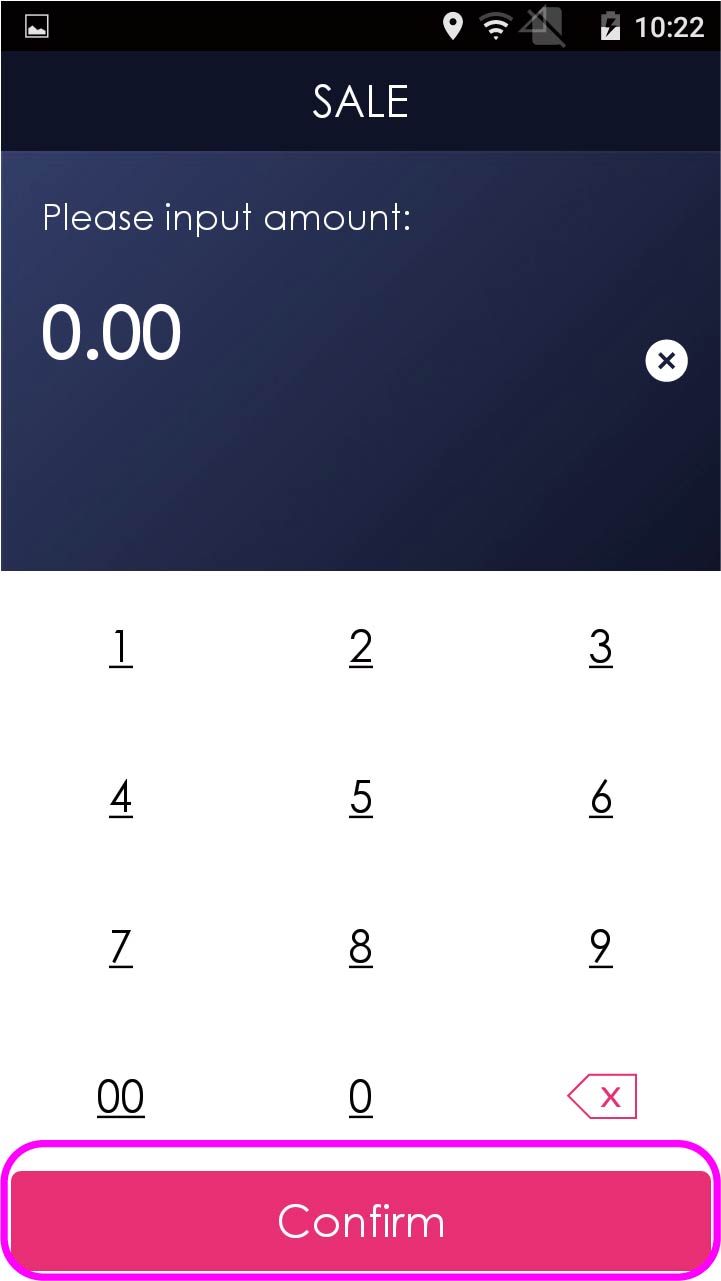
Enter sale amount, and press [Confirm]
- Step 3 -
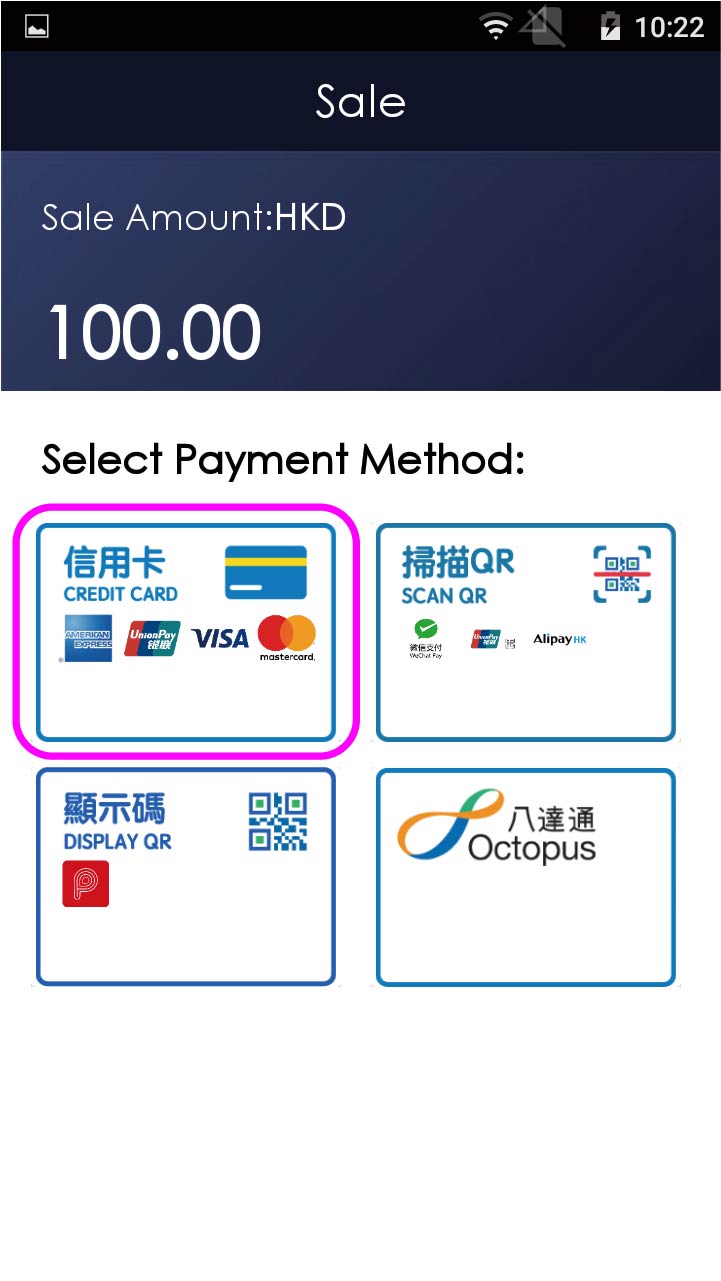
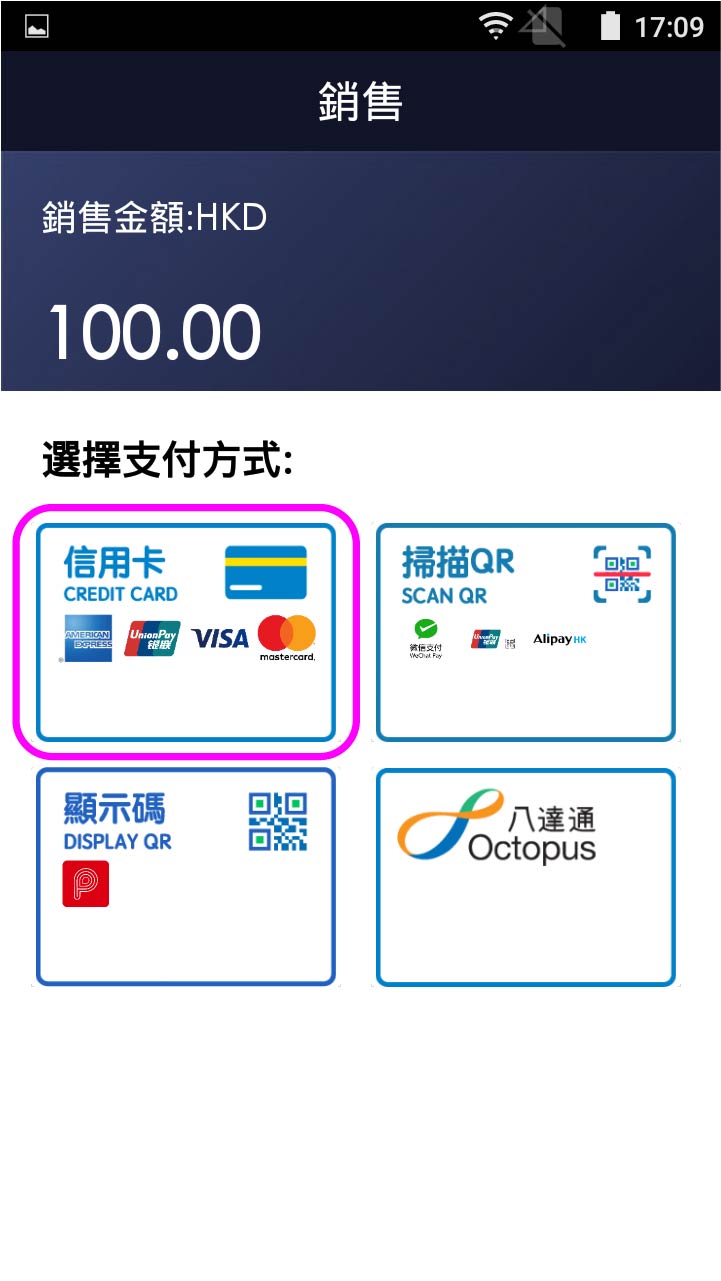
Select credit card payment
- Step 4 -
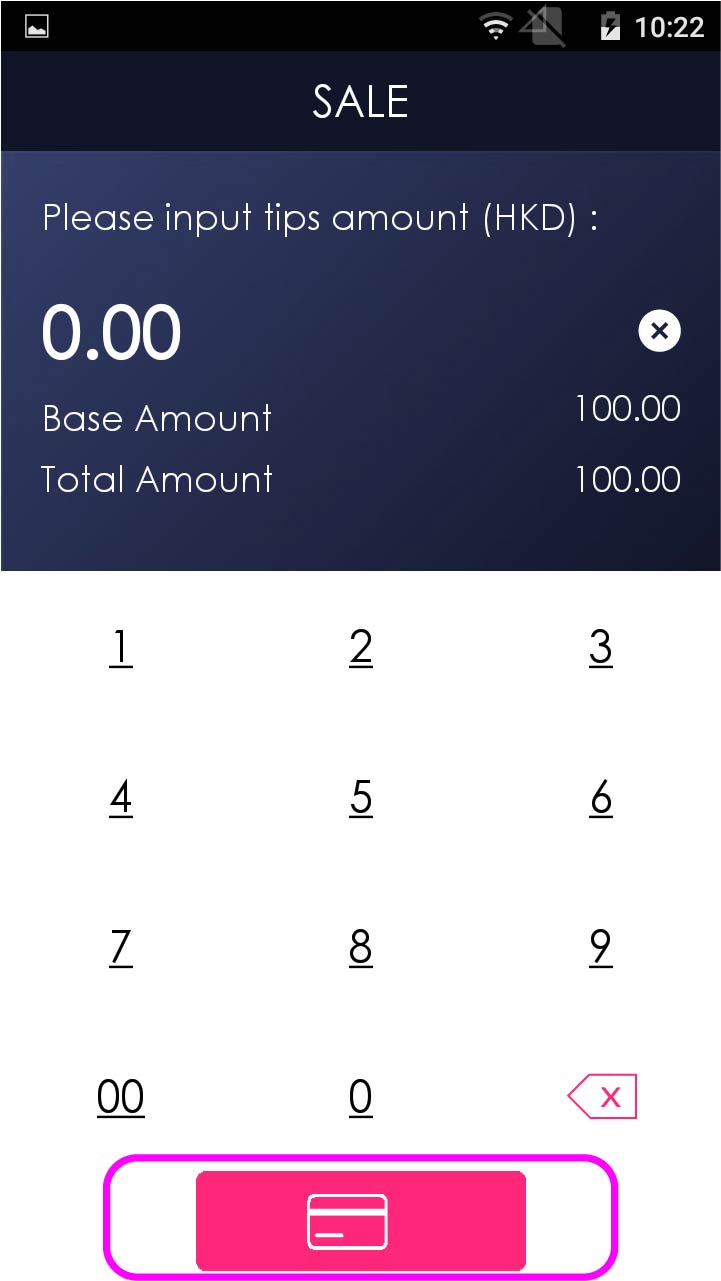
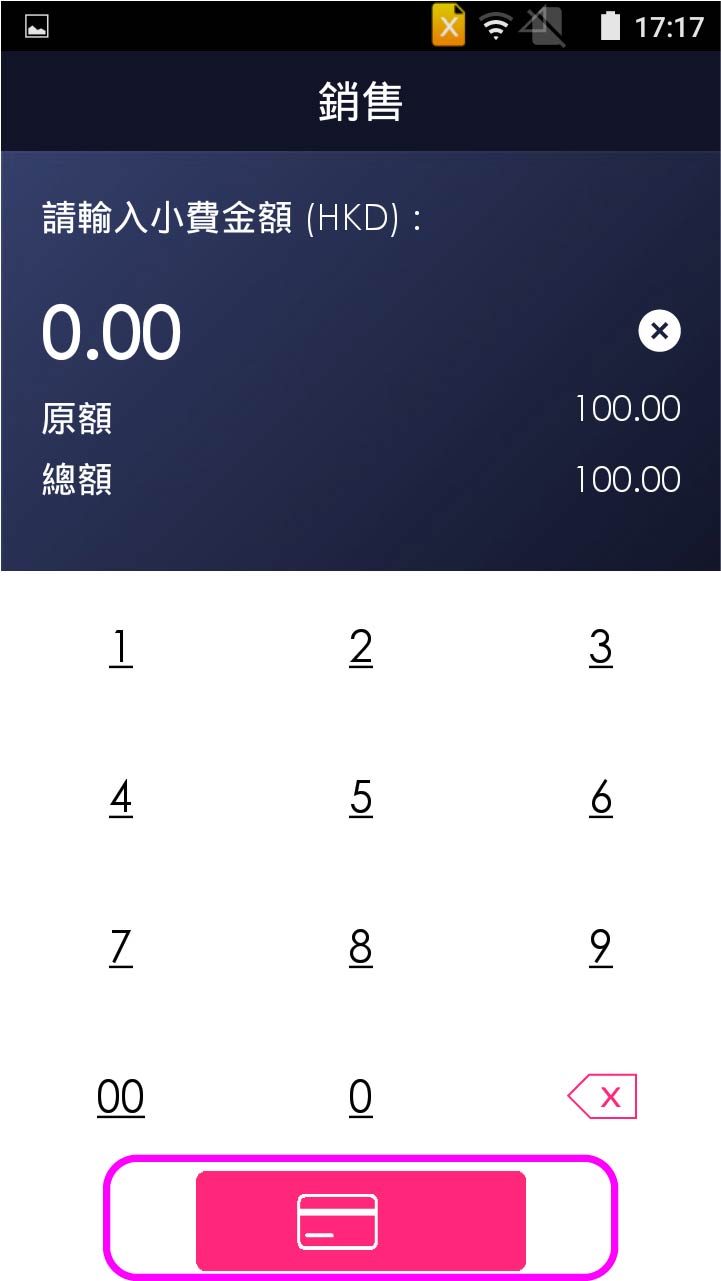
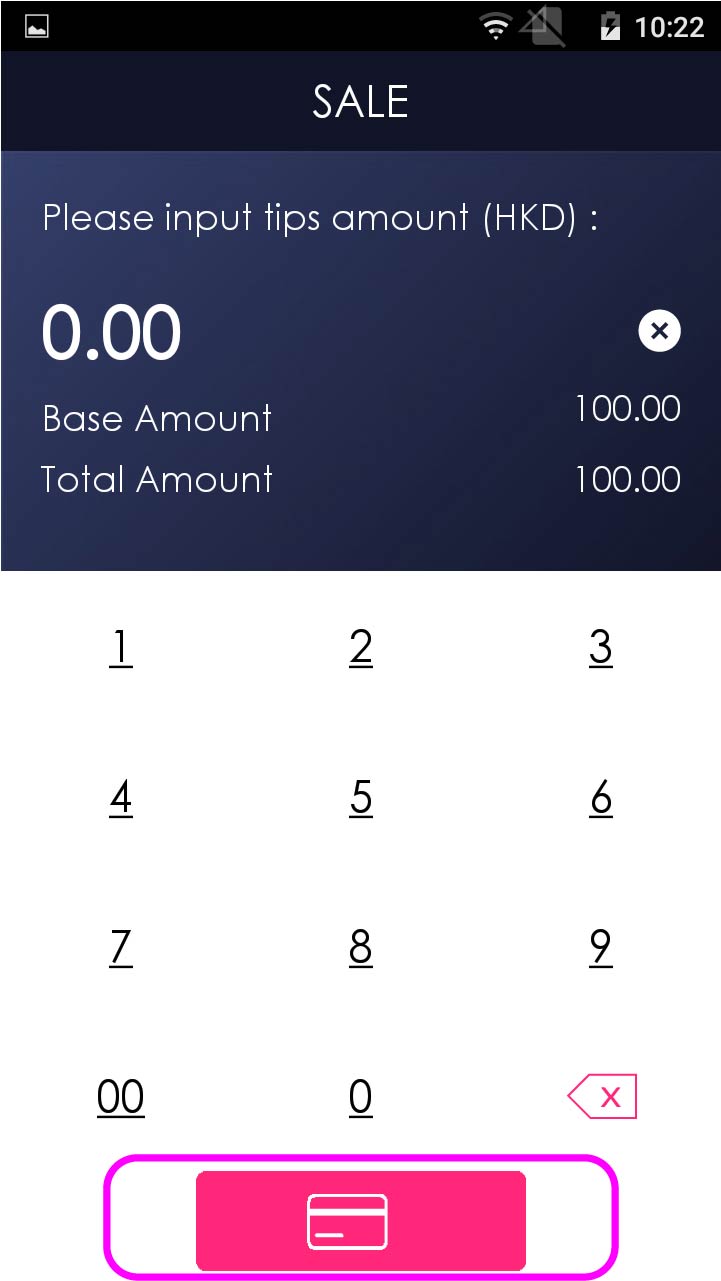
Enter tips amount (If any), and confirm credit card payment
- Step 5 -
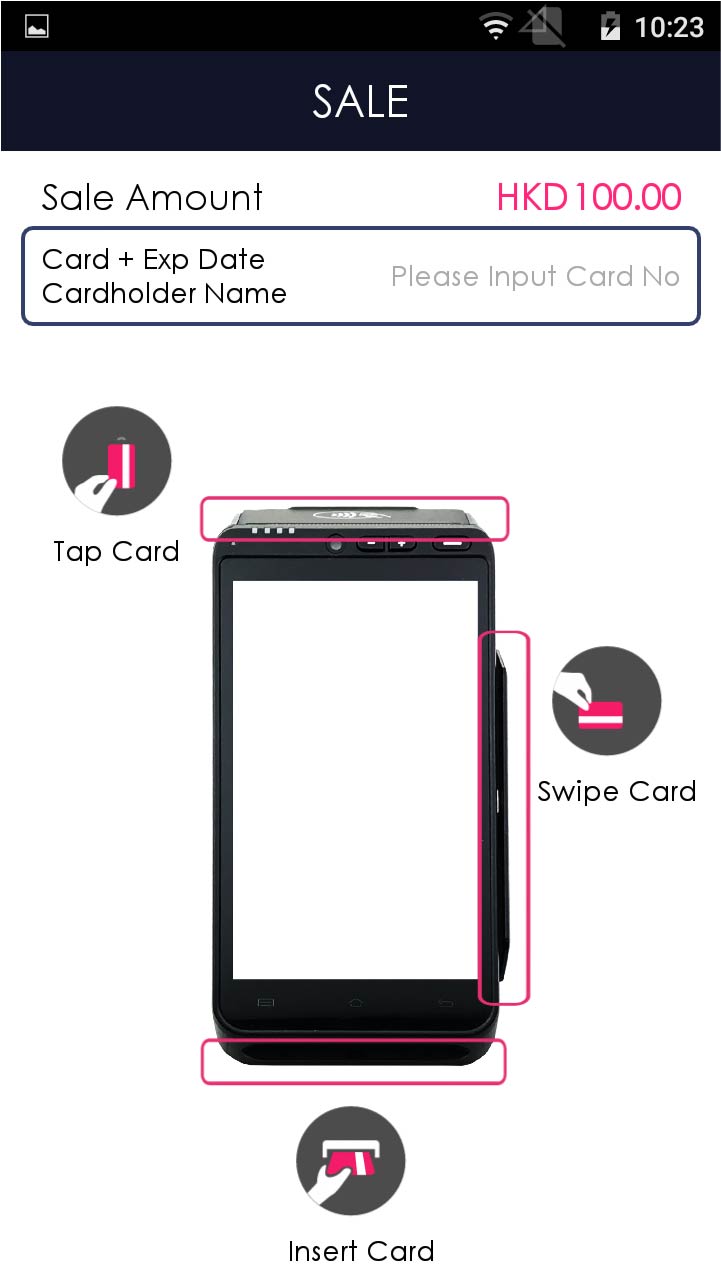
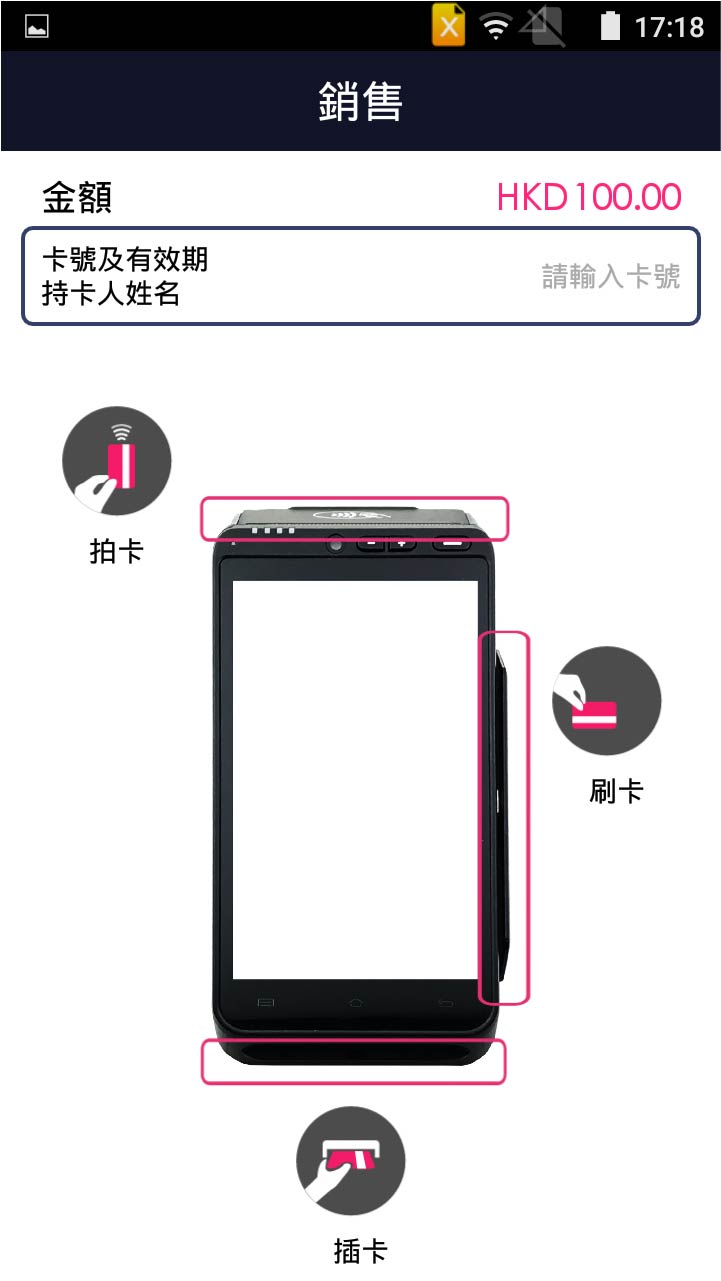
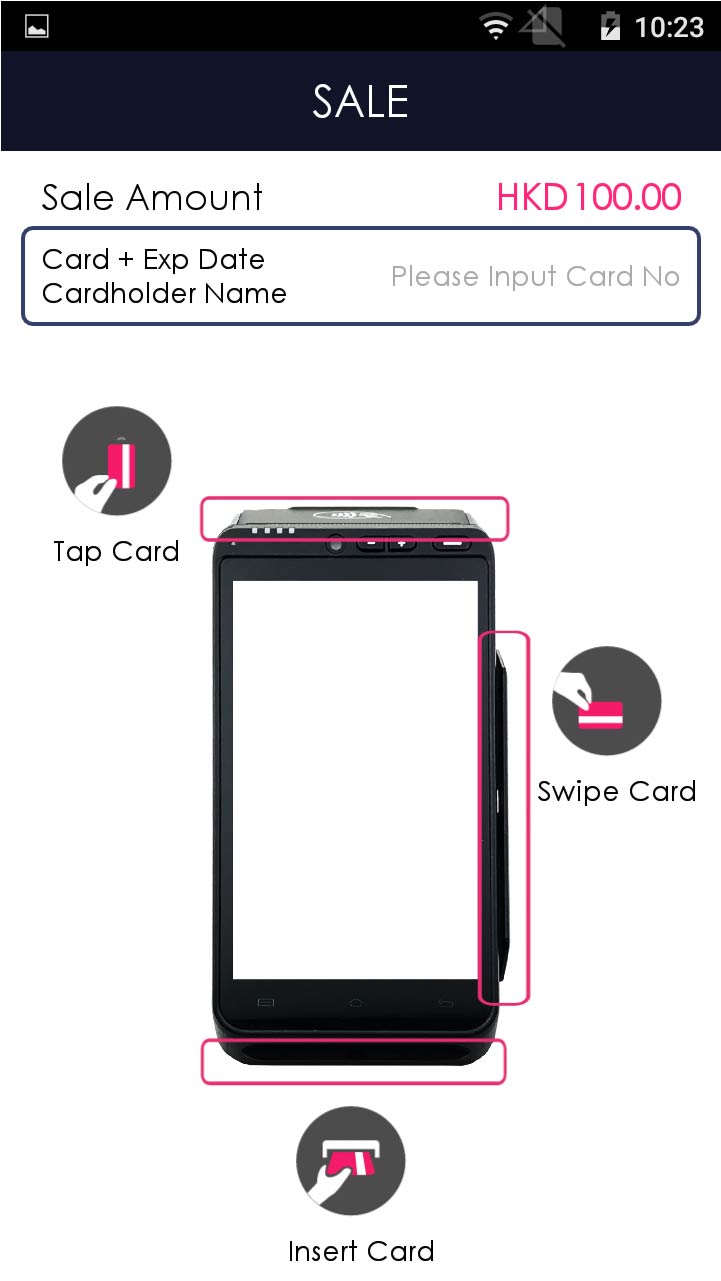
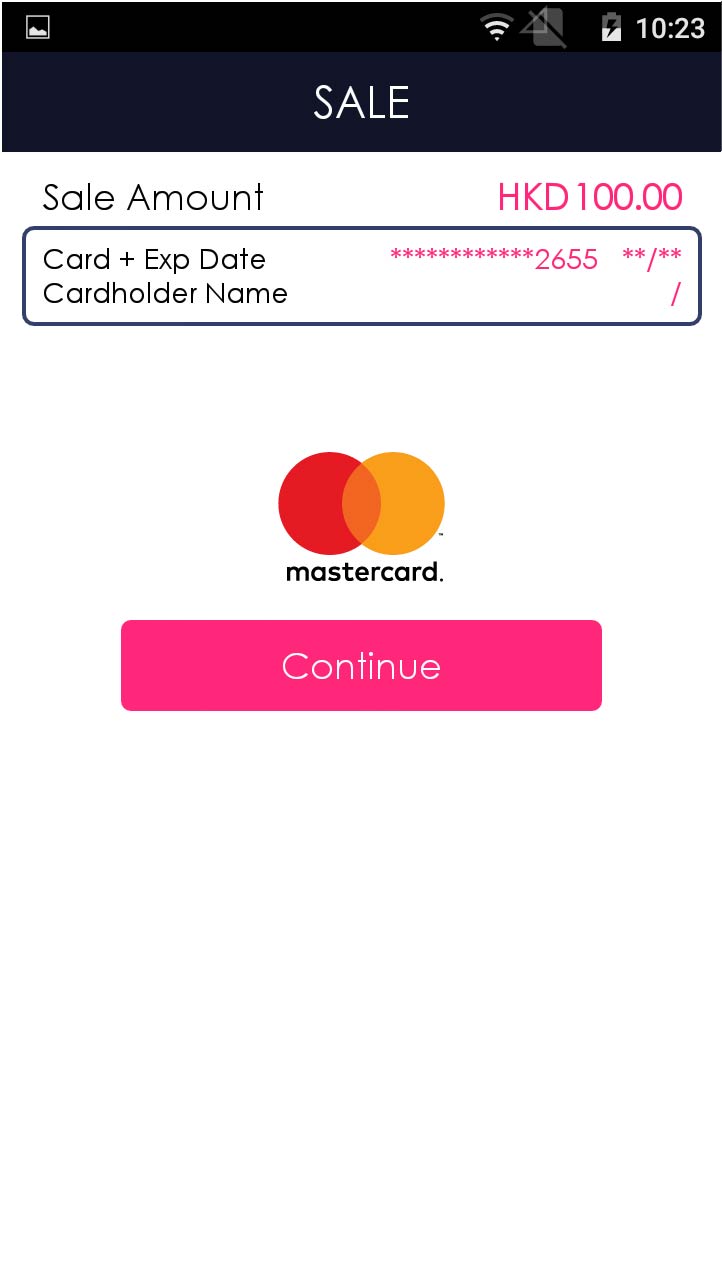
Insert/tap/swipe card OR mobile payment OR manually enter the card number & expiry date
- Step 6 -
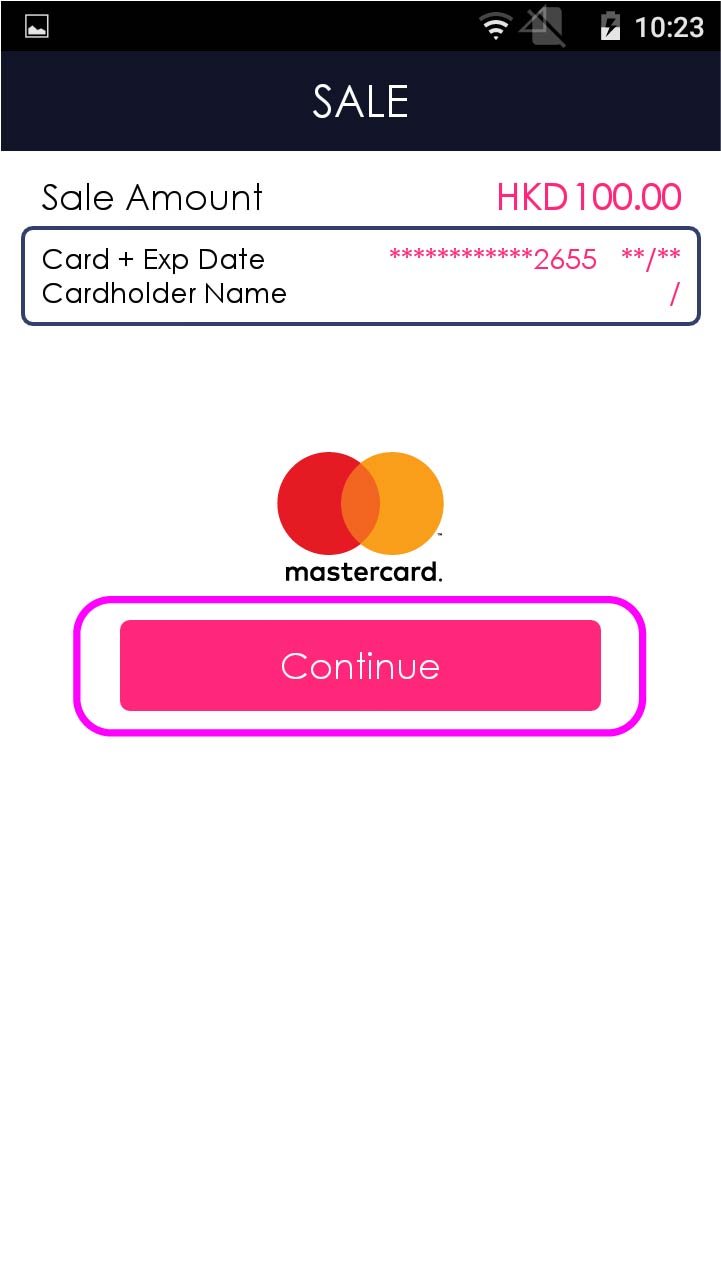
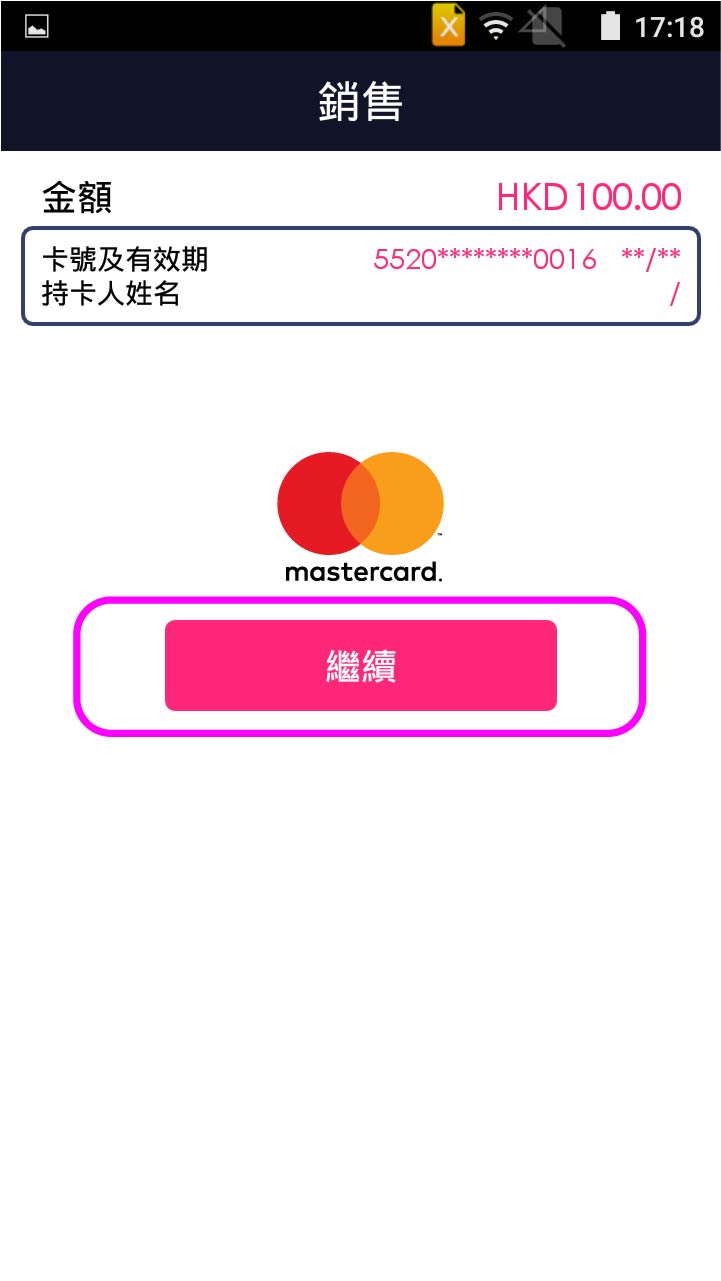
Press [Continue] to confirm the payment (If any)
- Step 7 -
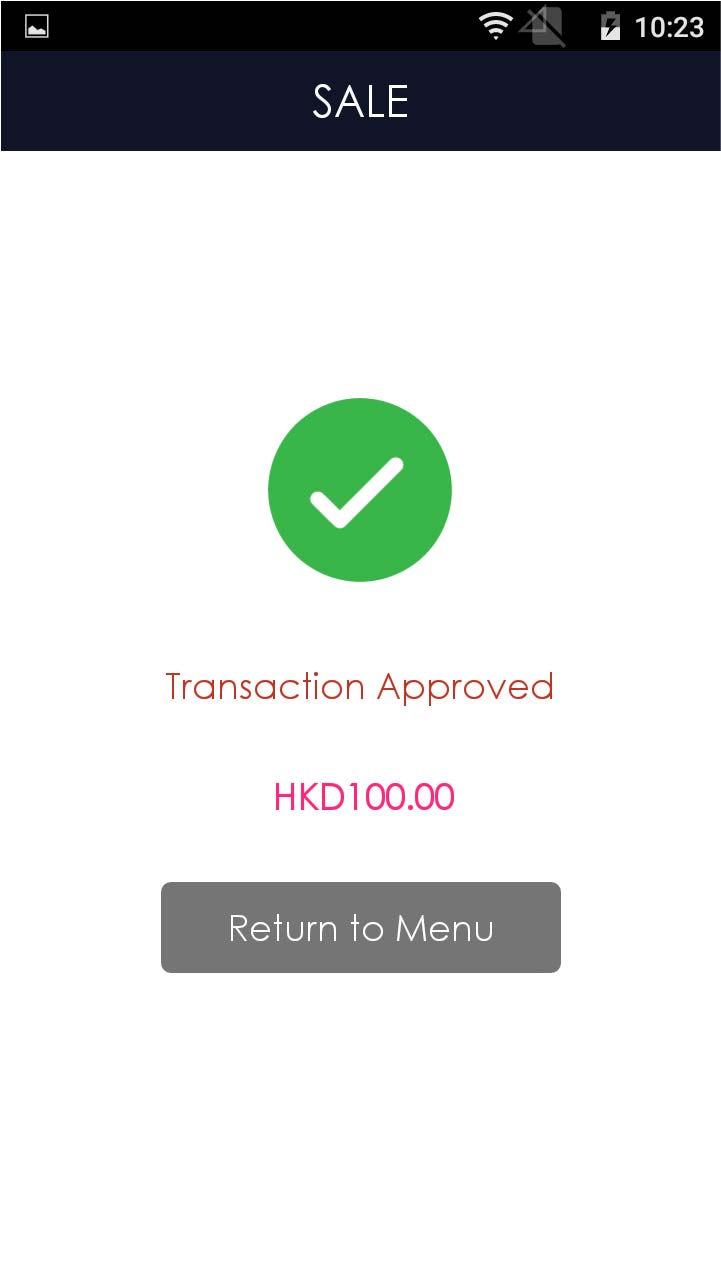
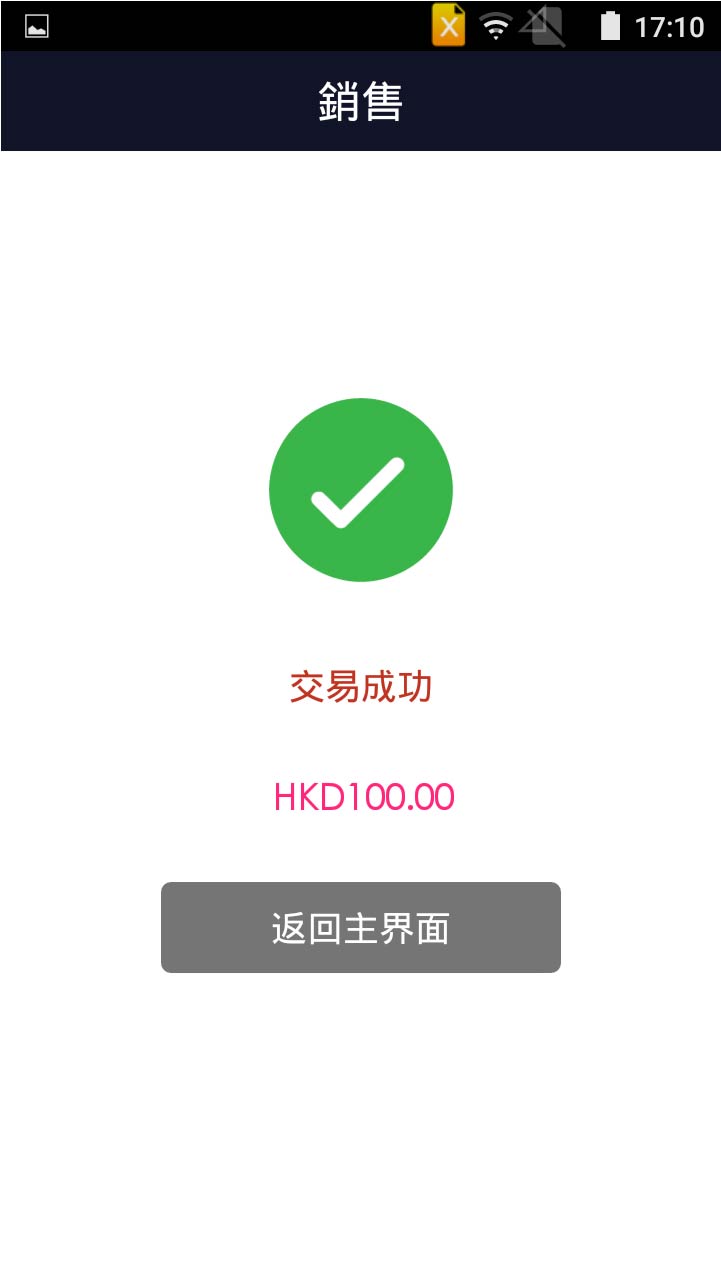
Transaction is completed, and terminal prints out receipt
- Step 1 -
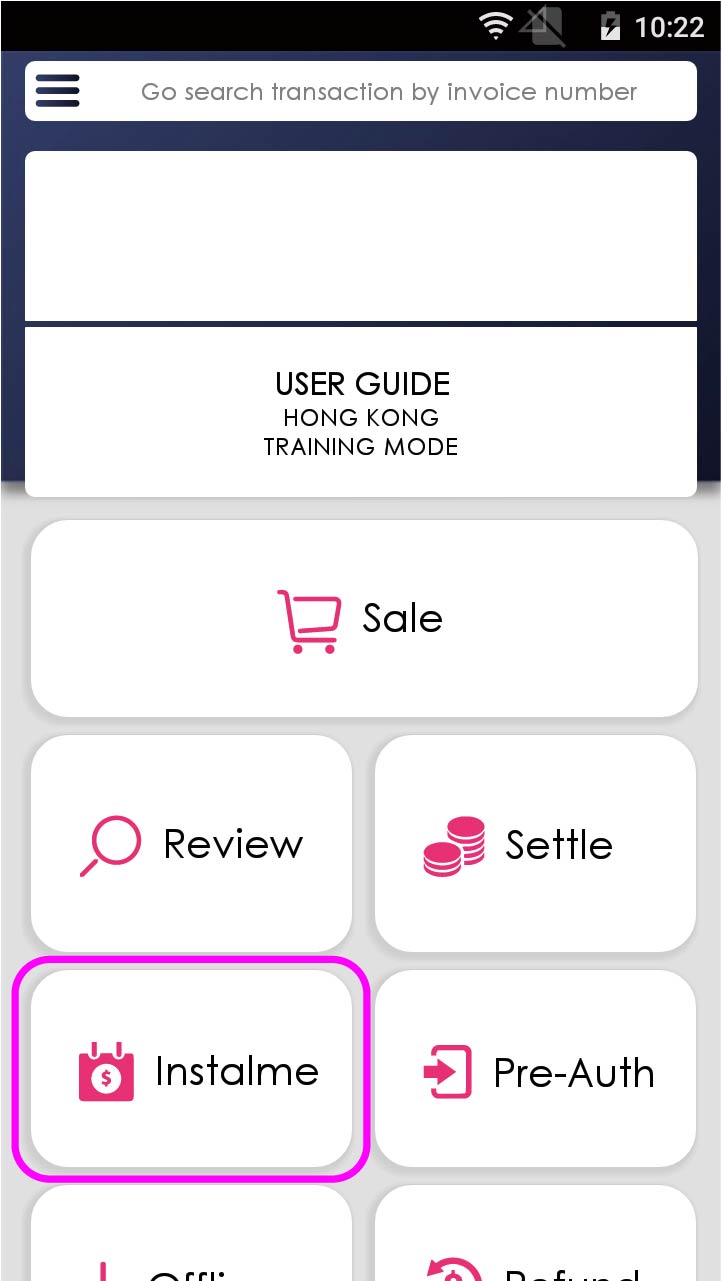
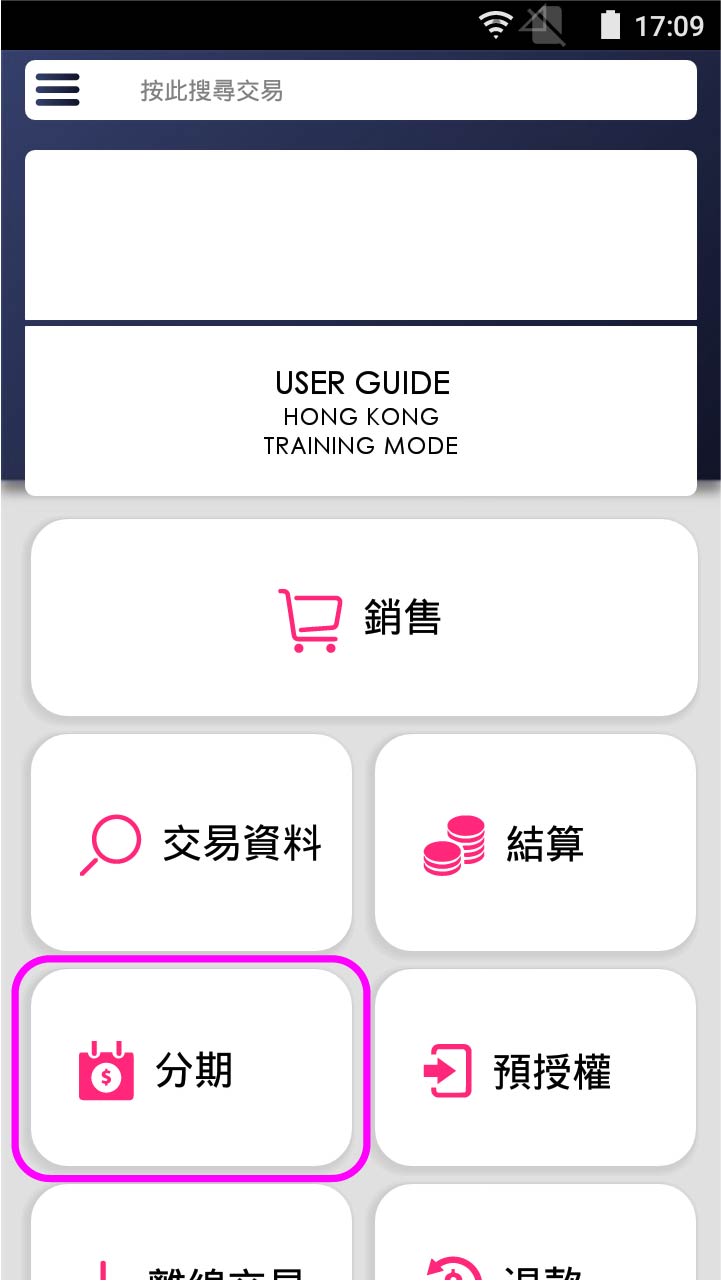
Press [Instalment] on menu
- Step 2 -
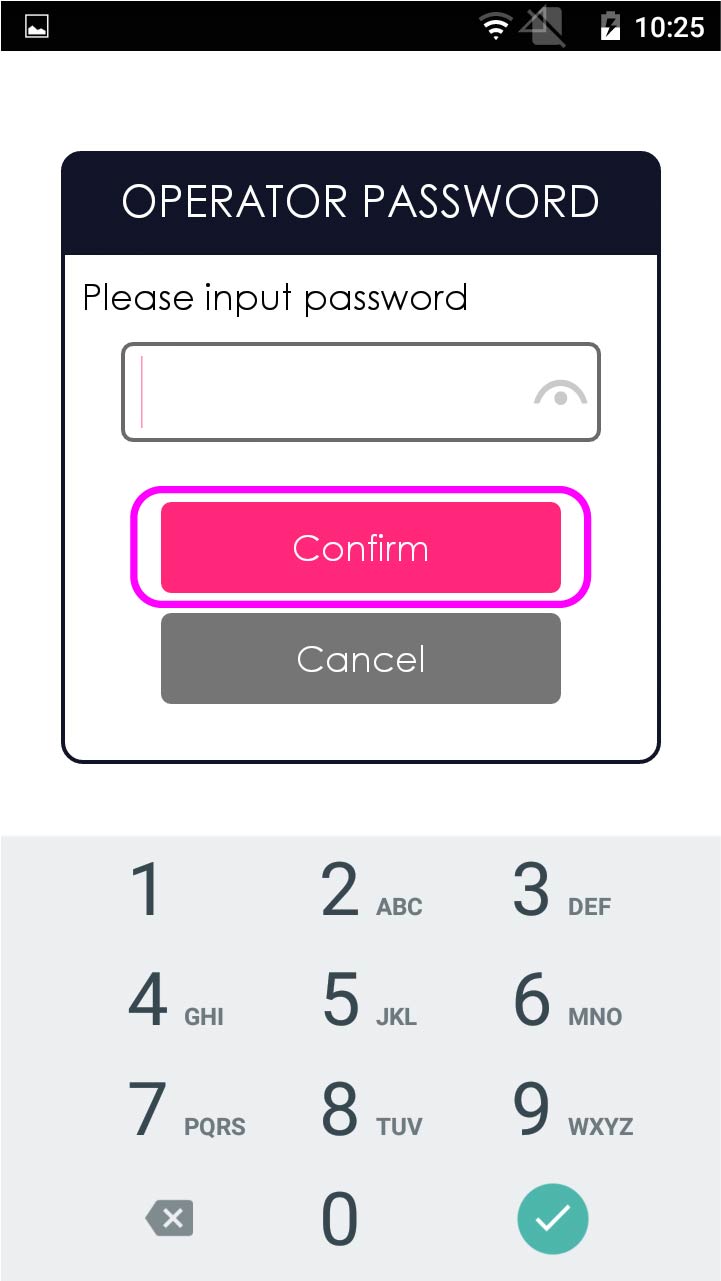
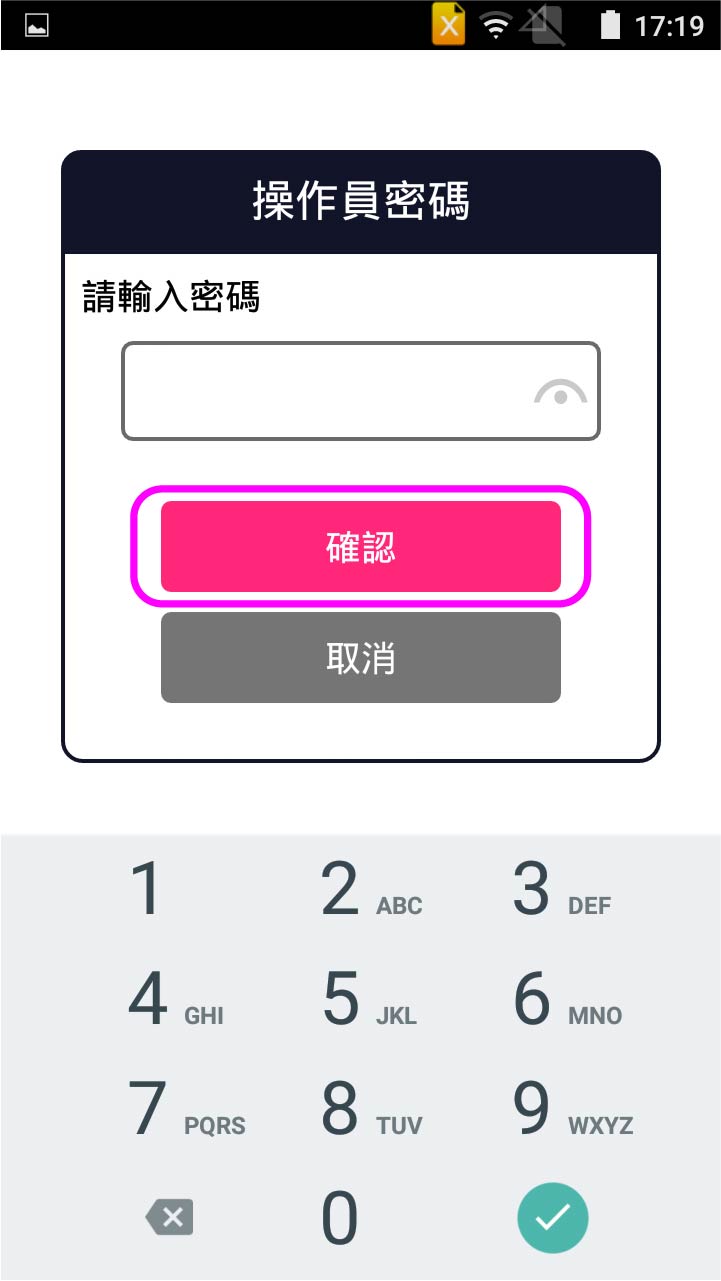
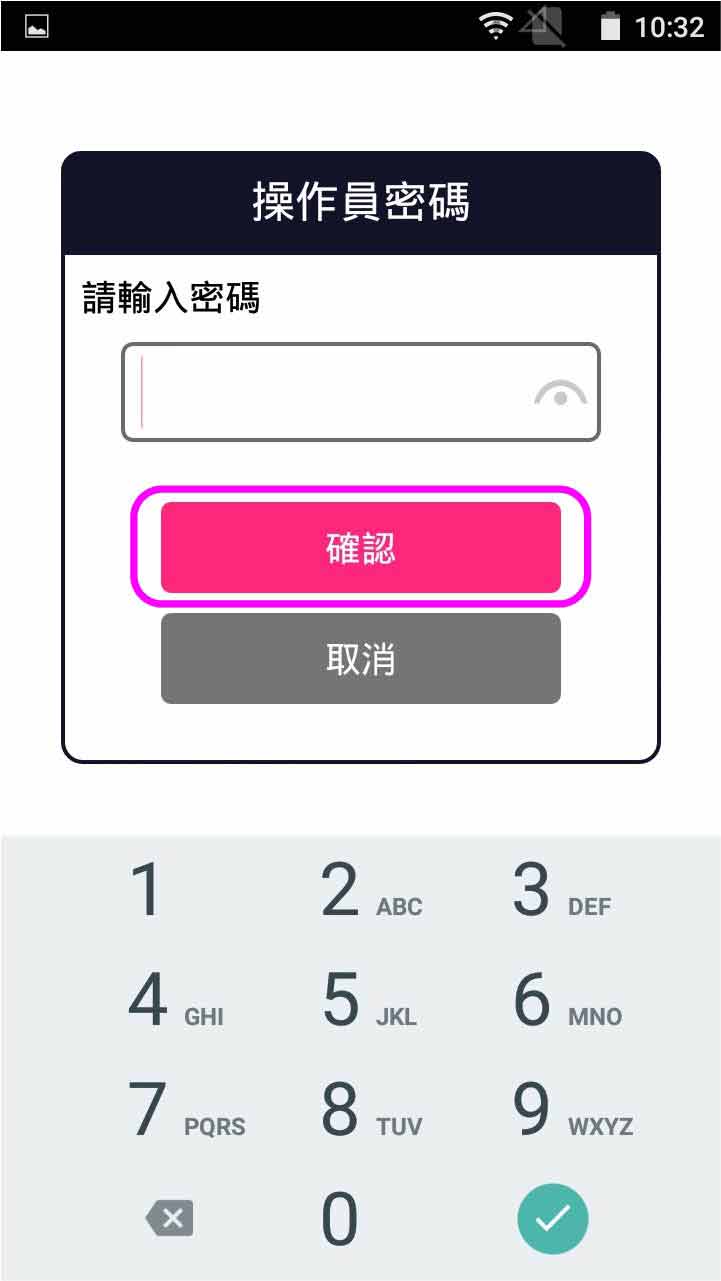
Enter operator password, and press [Confirm]
- Step 3 -
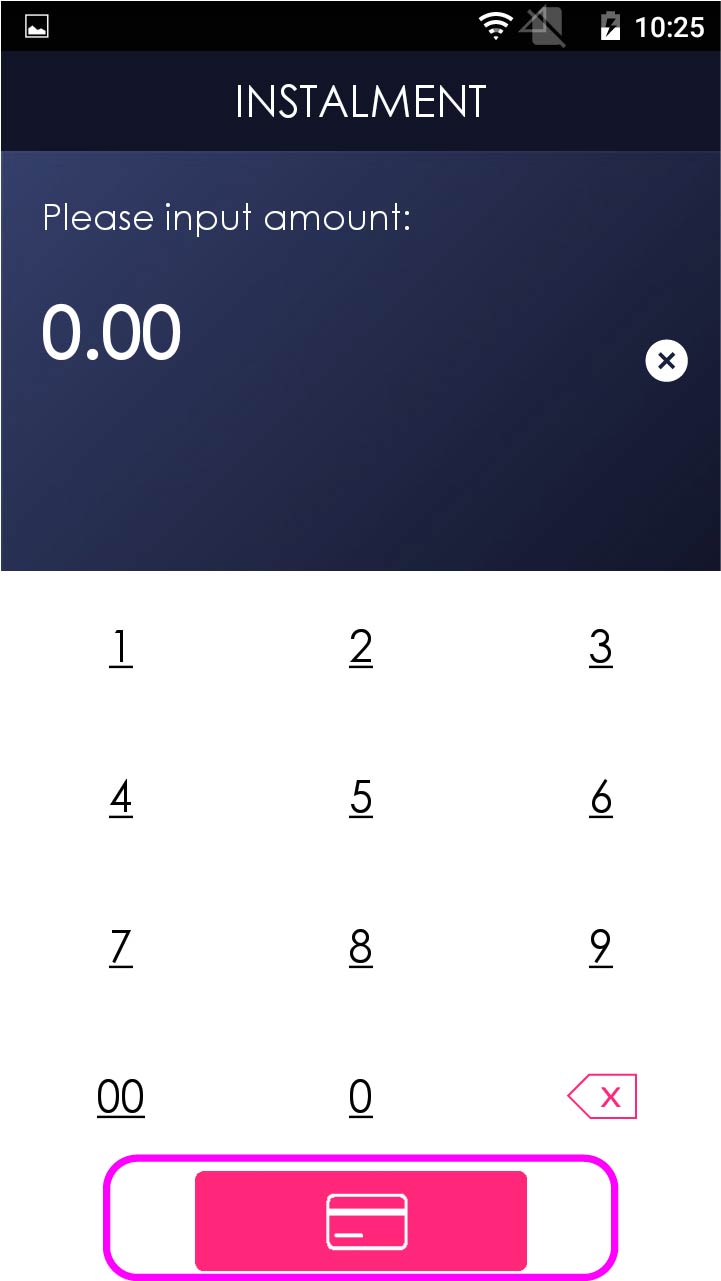
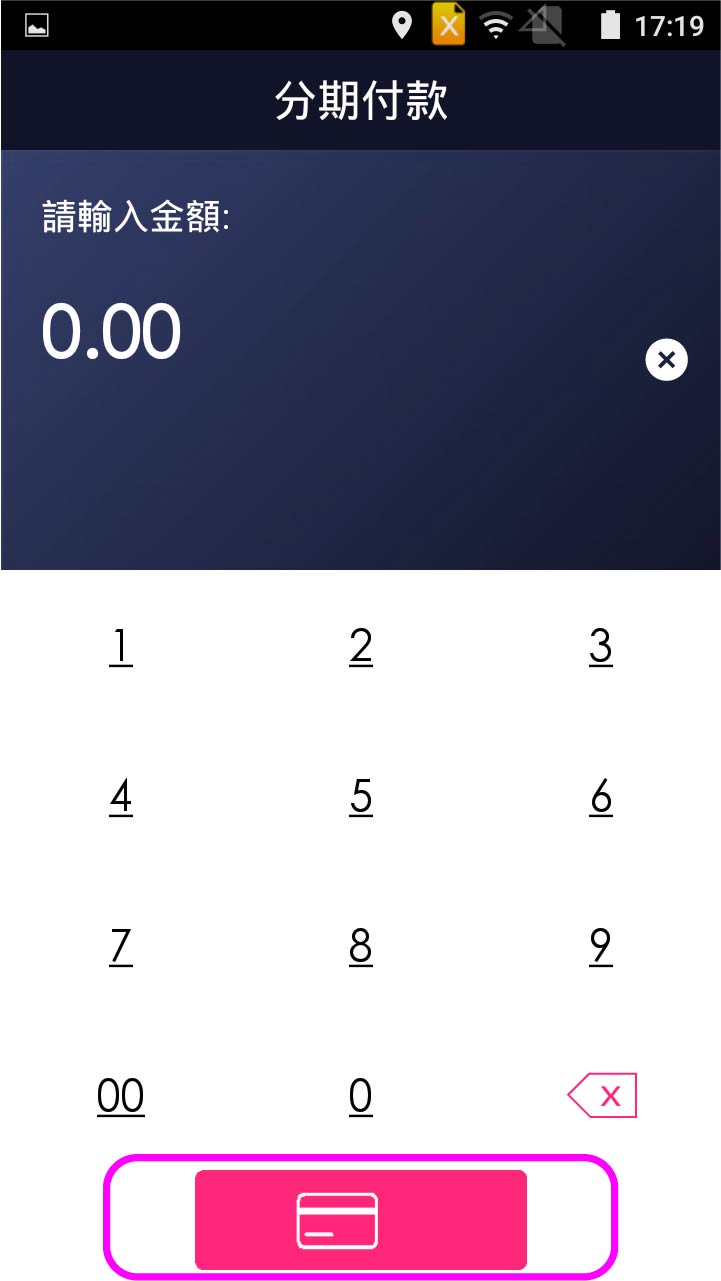
Enter sale amount of instalment, and select credit card payment
- Step 4 -
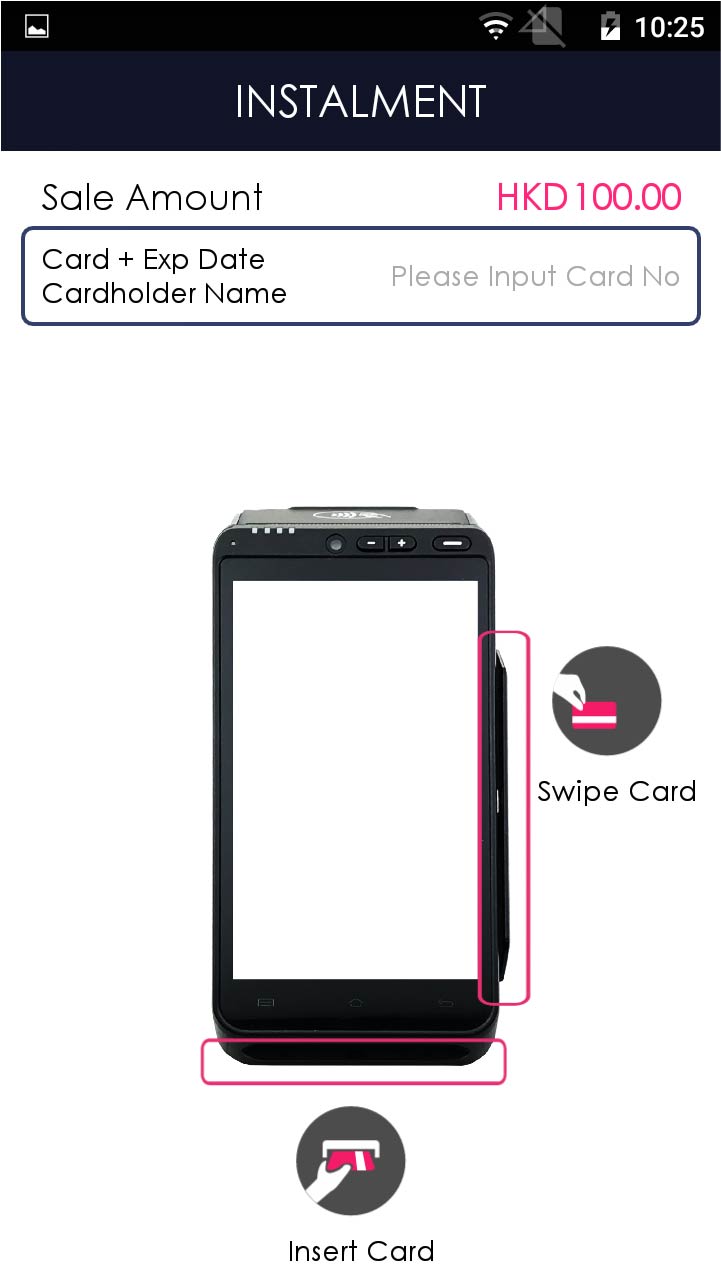
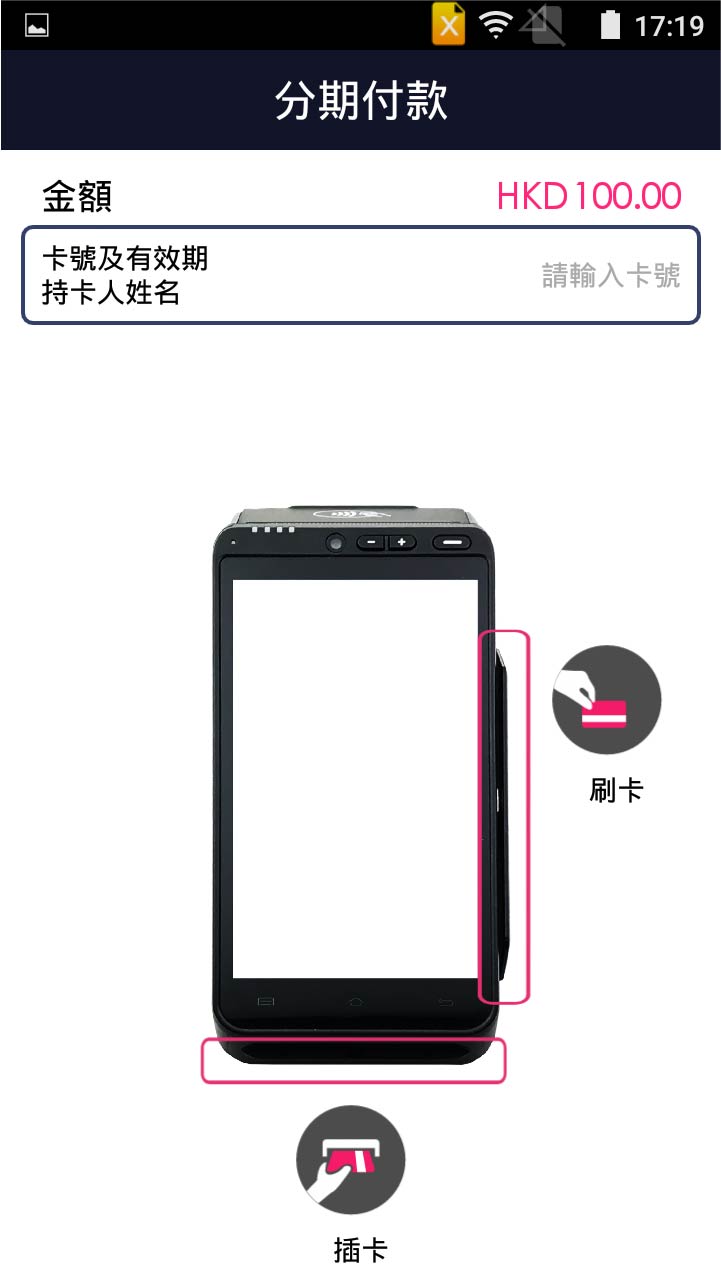
Insert/swipe card QR manually enter card number & expiry date
- Step 5 -
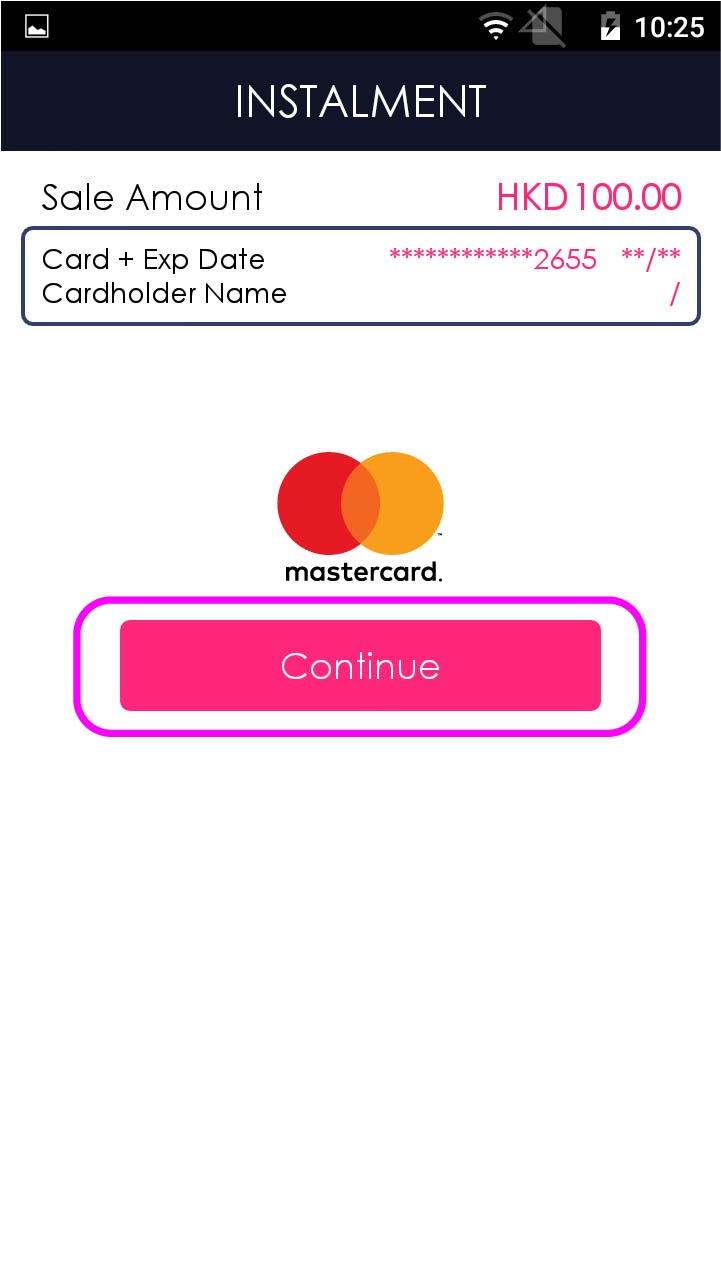
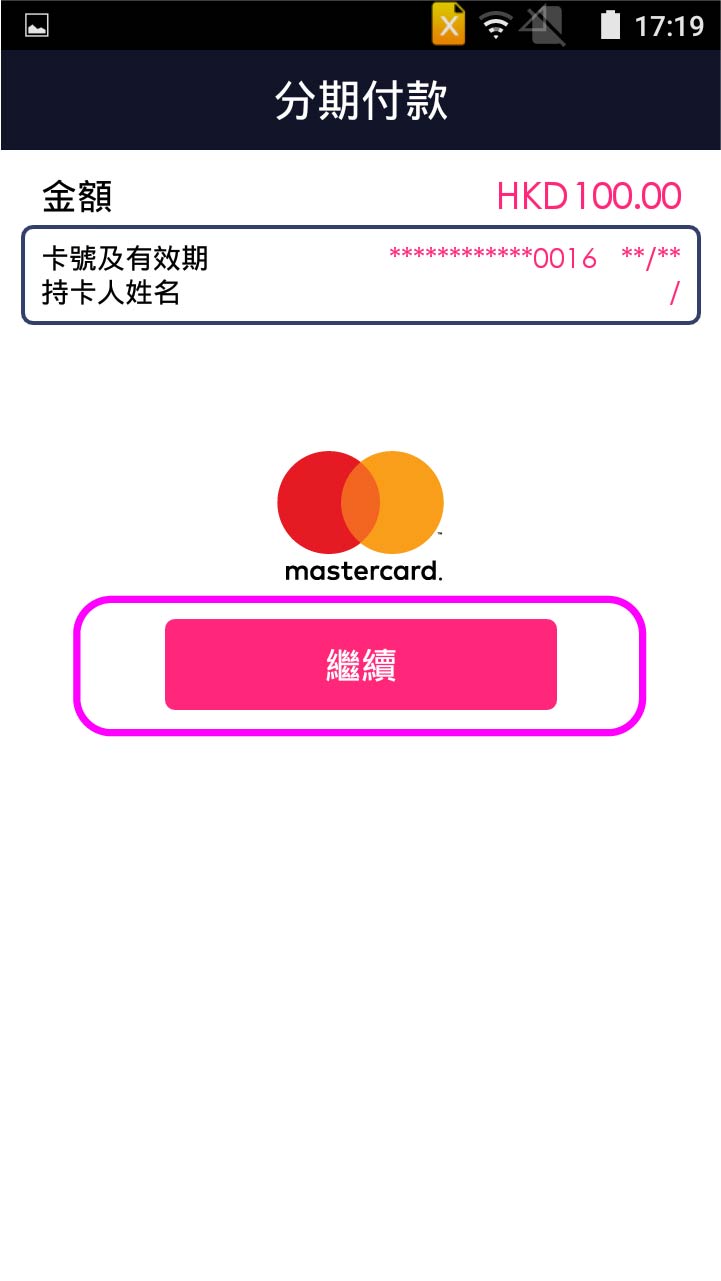
Press [Continue]
- Step 6 -
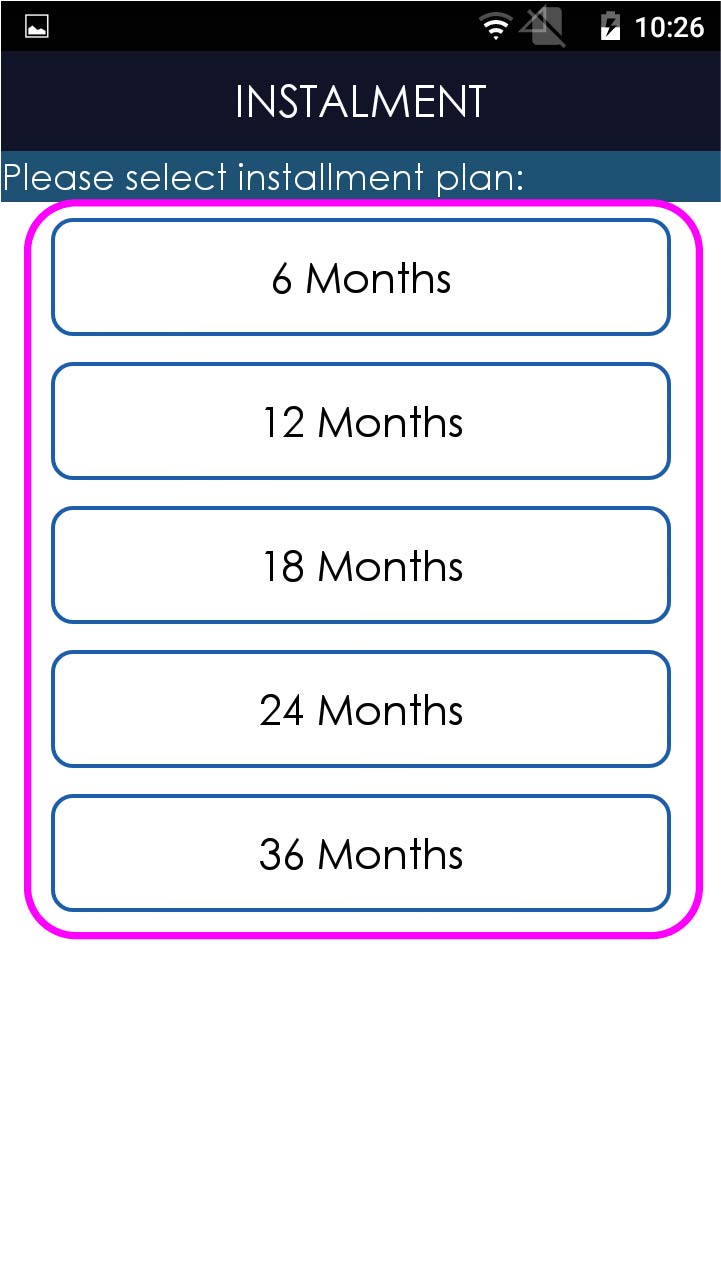
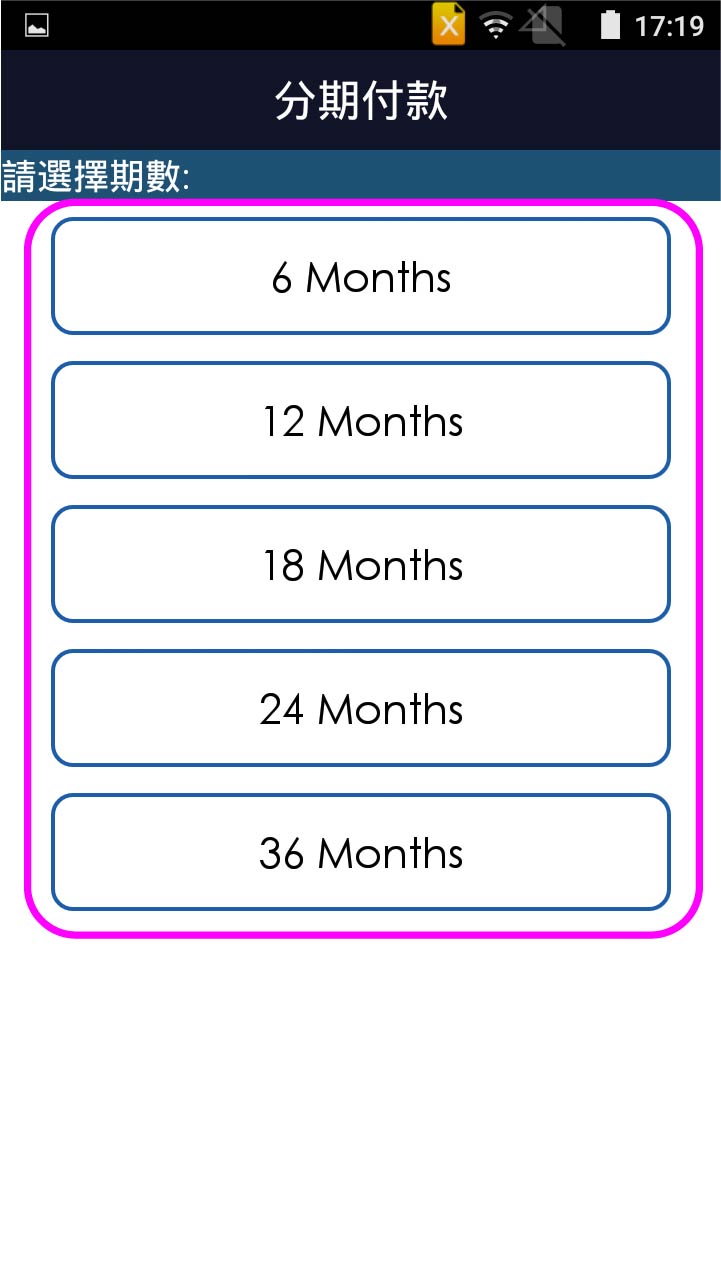
Select instalment plan
- Step 7 -
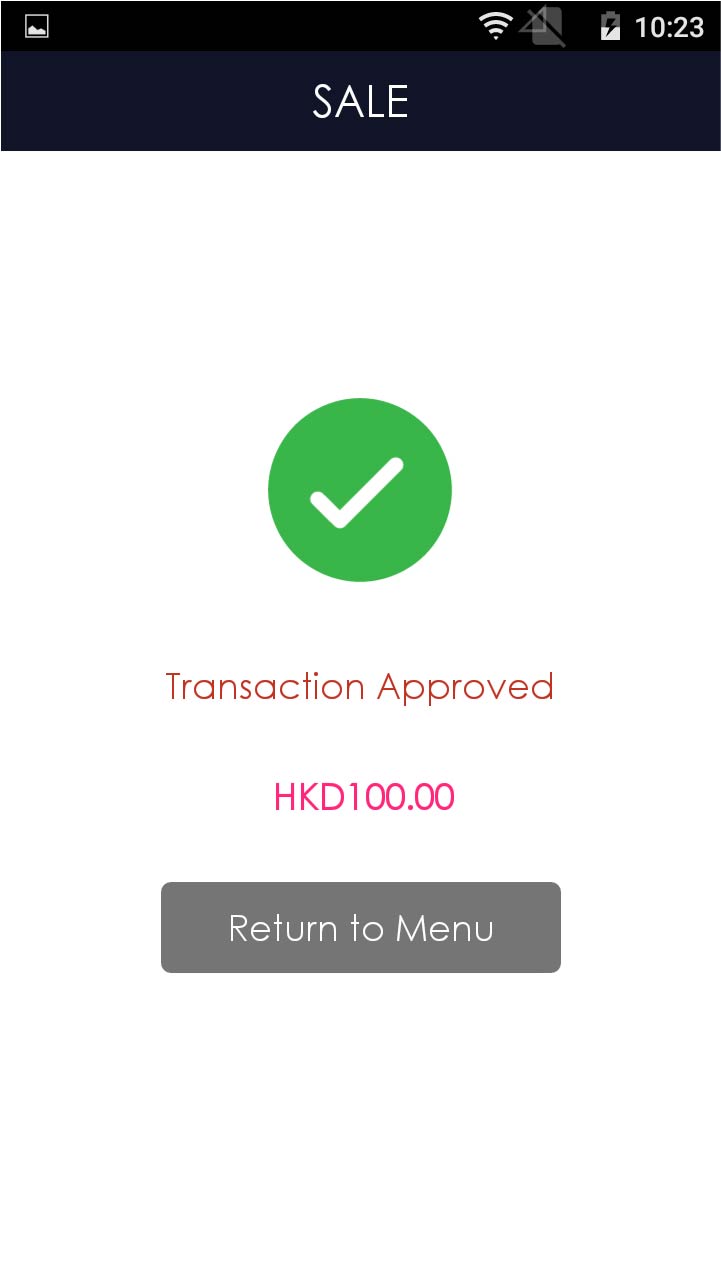
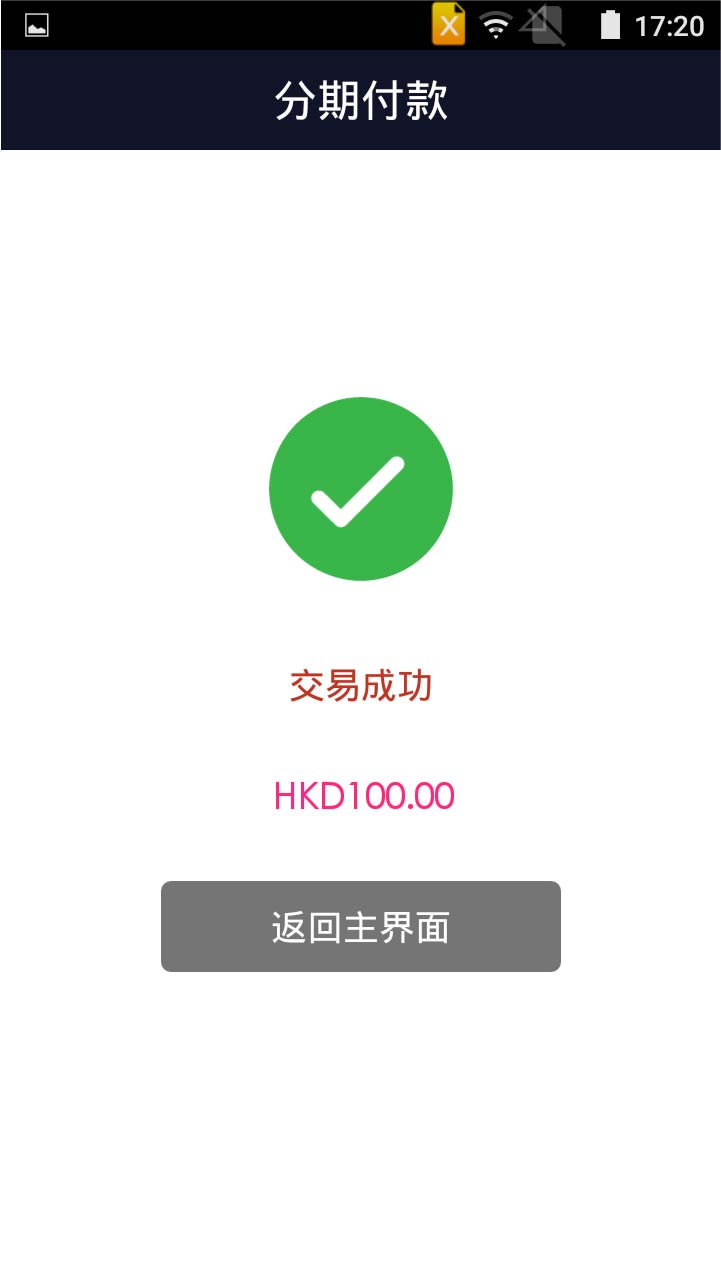
Transaction is completed, and terminal prints out receipt
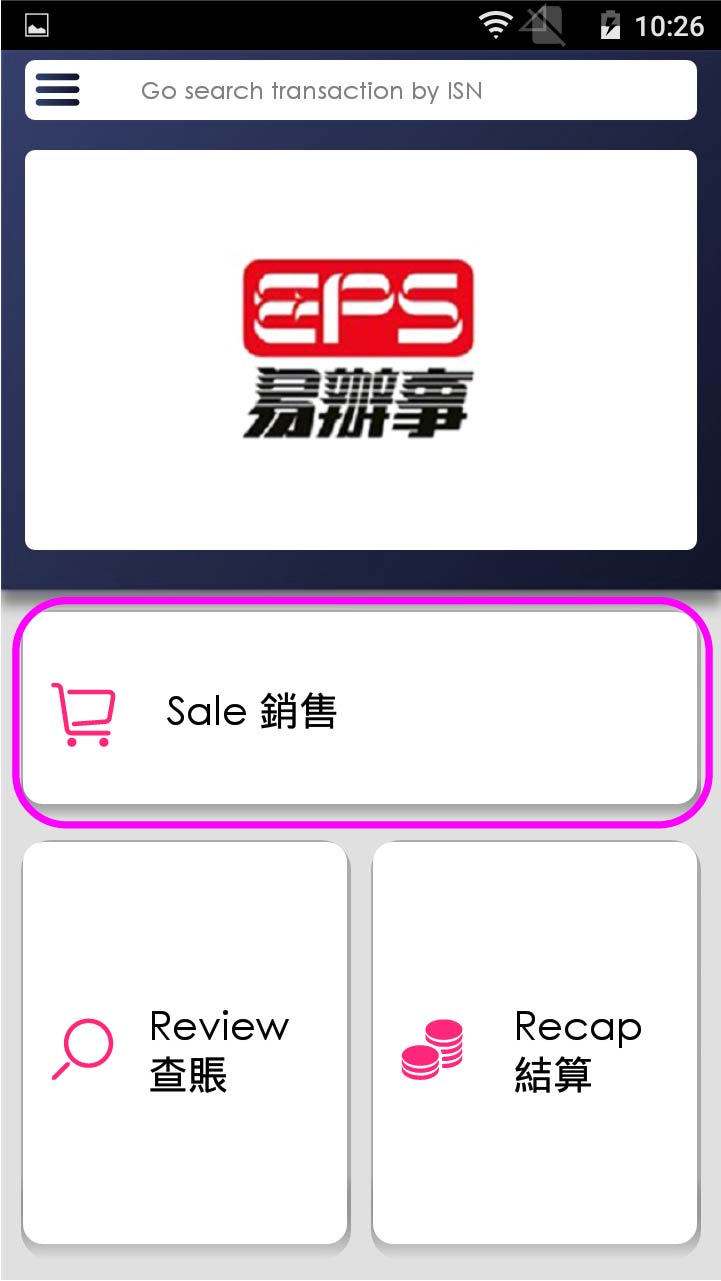
- Step 1 -
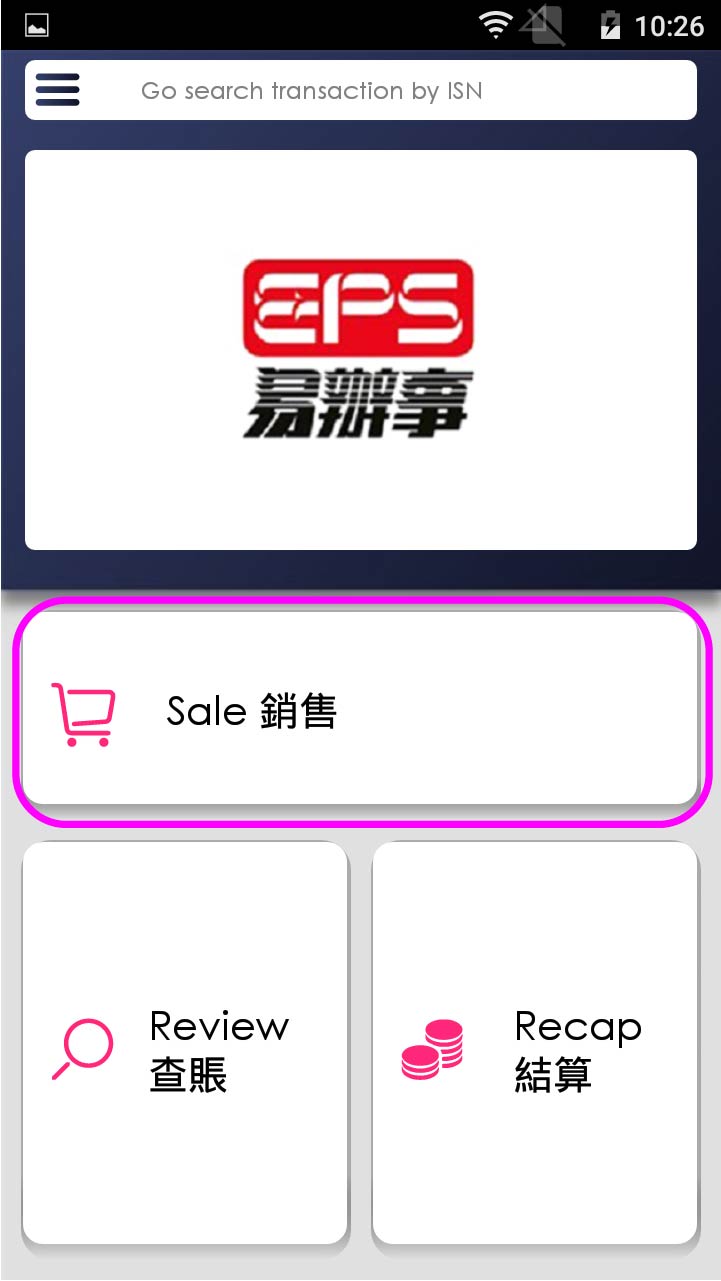
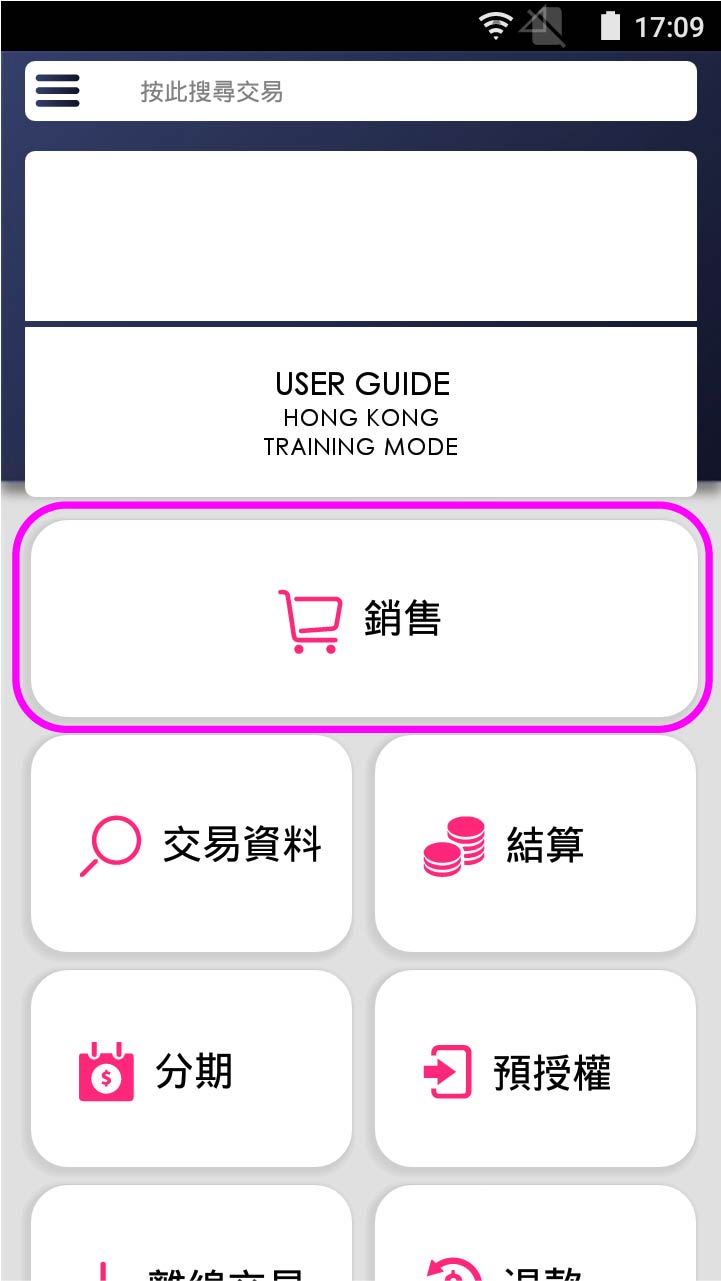
Press [Sale] on menu
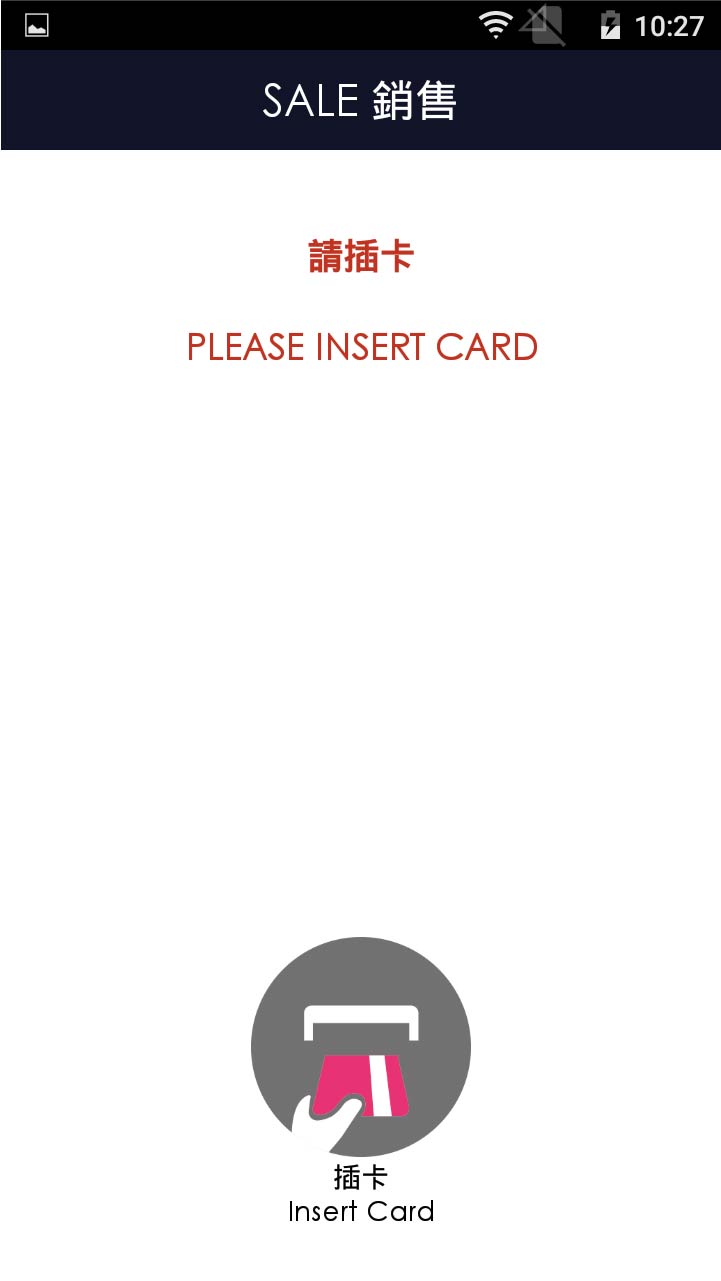
- Step 2 -
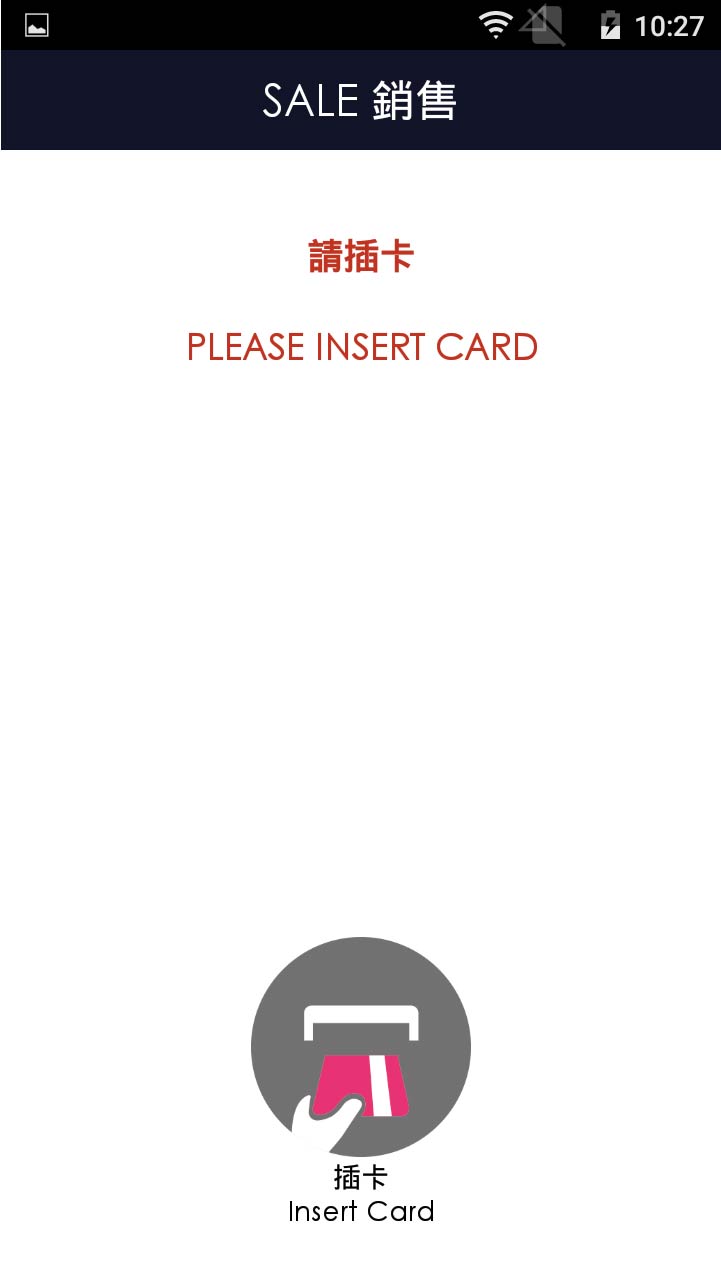
Please swipe card, then insert card
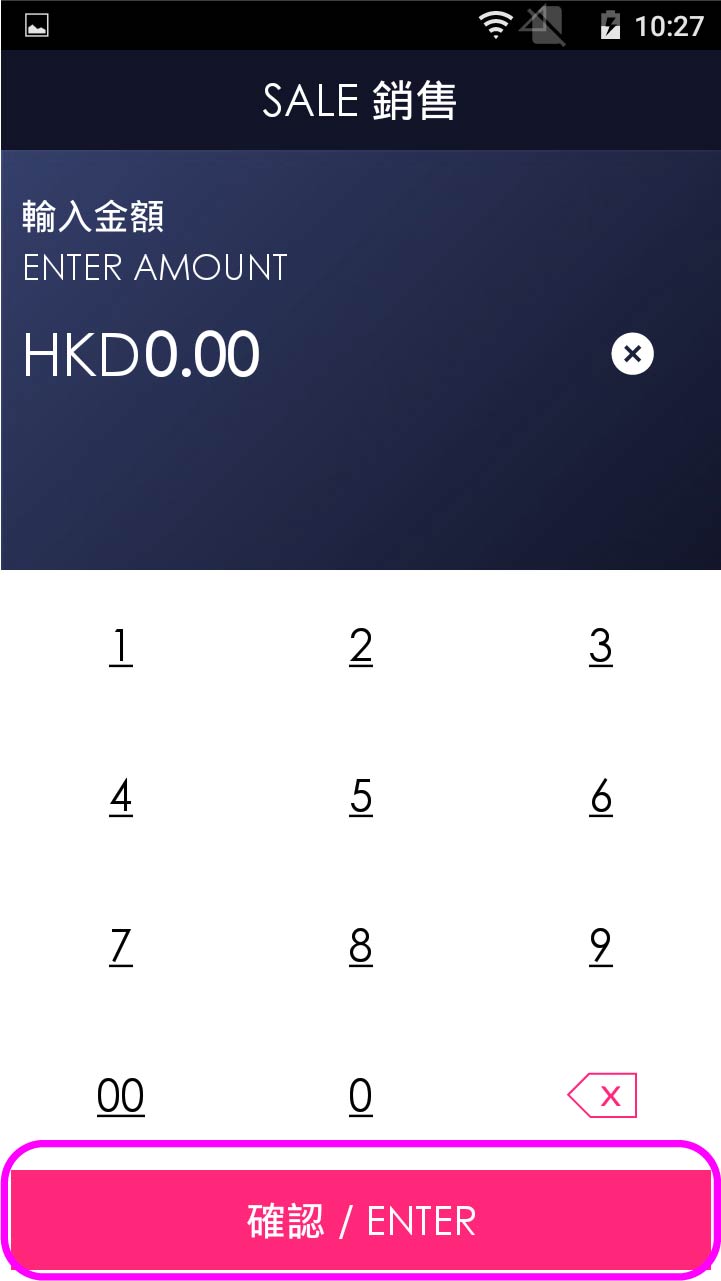
- Step 3 -
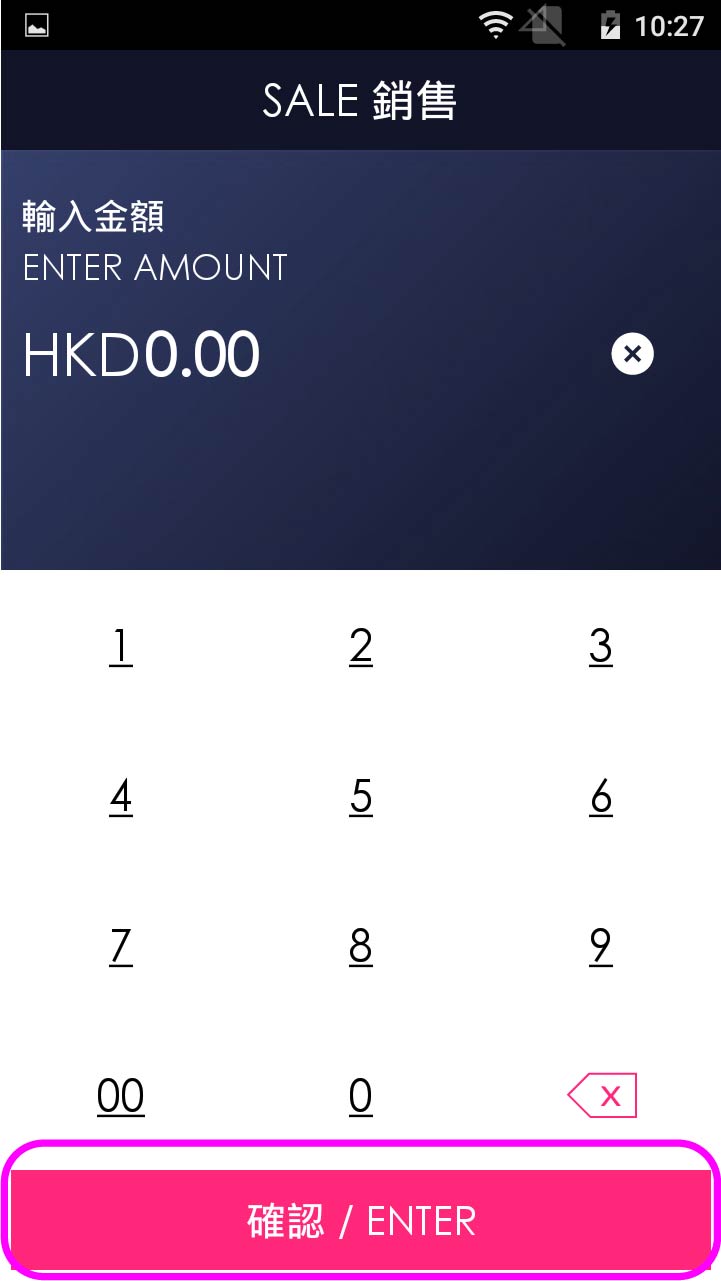
Enter sale amount, and press [Enter]
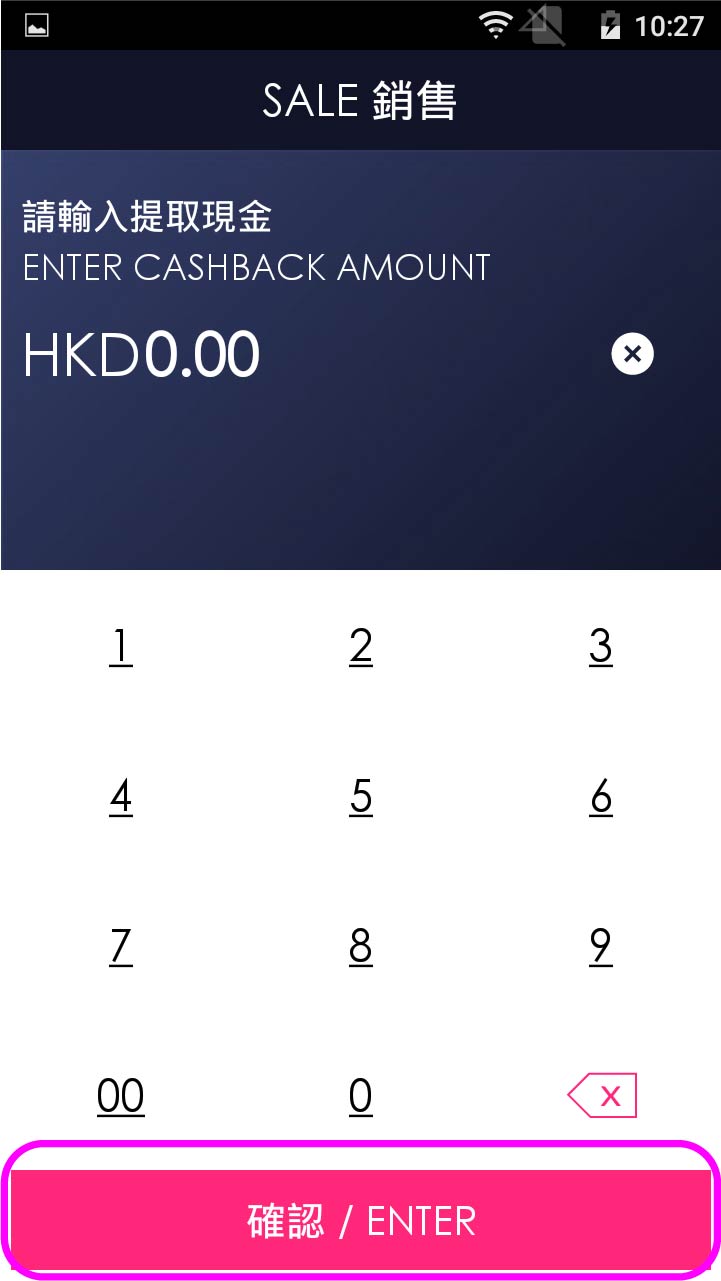
- Step 4 -
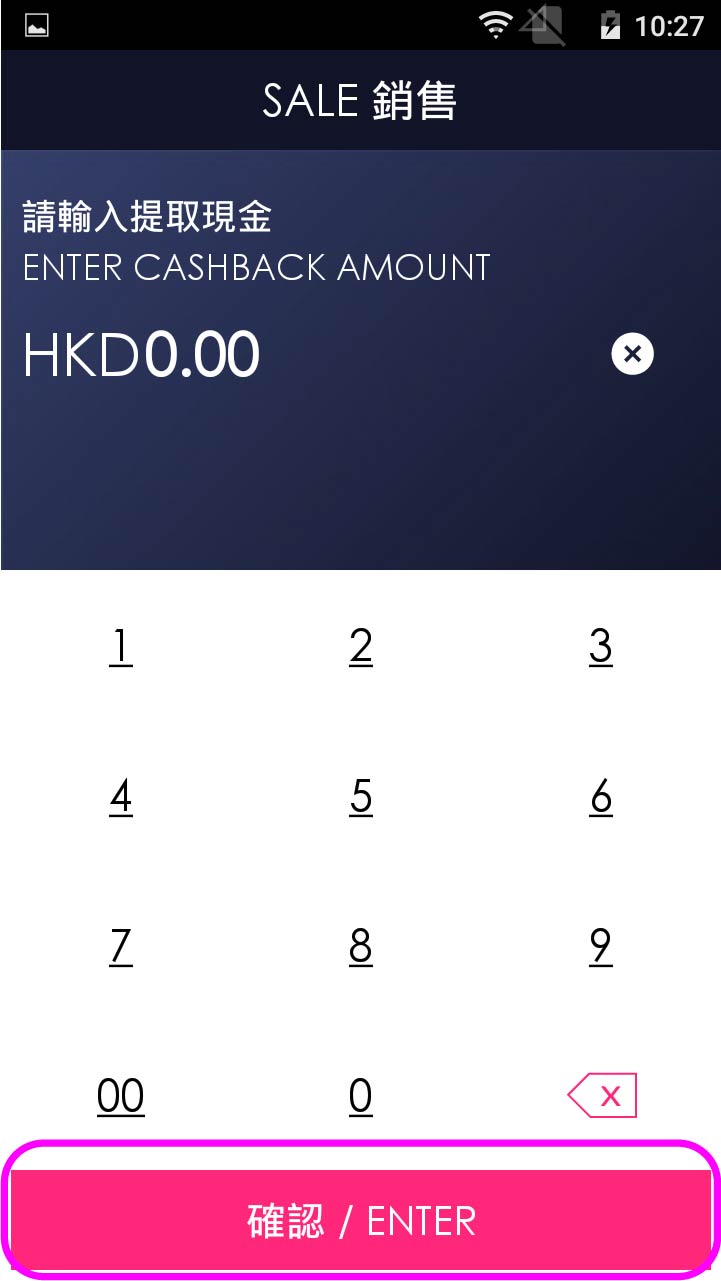
Enter cash out amount (If any), and press [Enter]
- Step 5 -
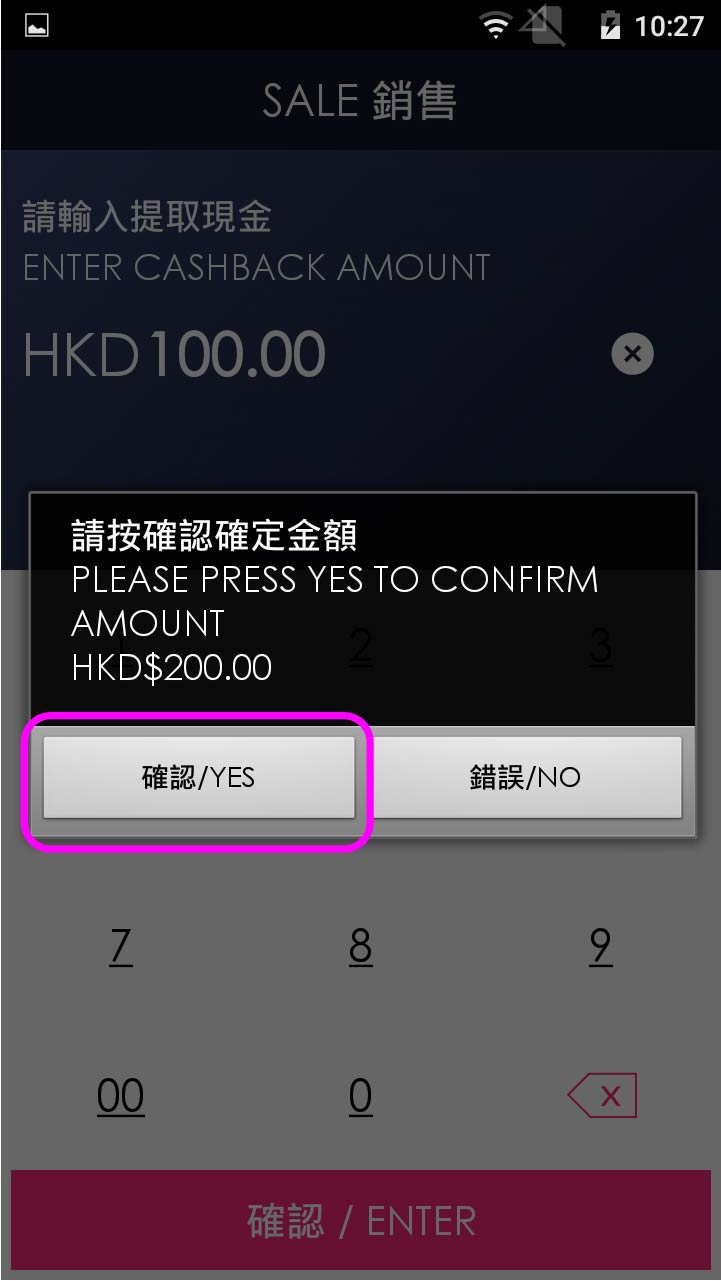
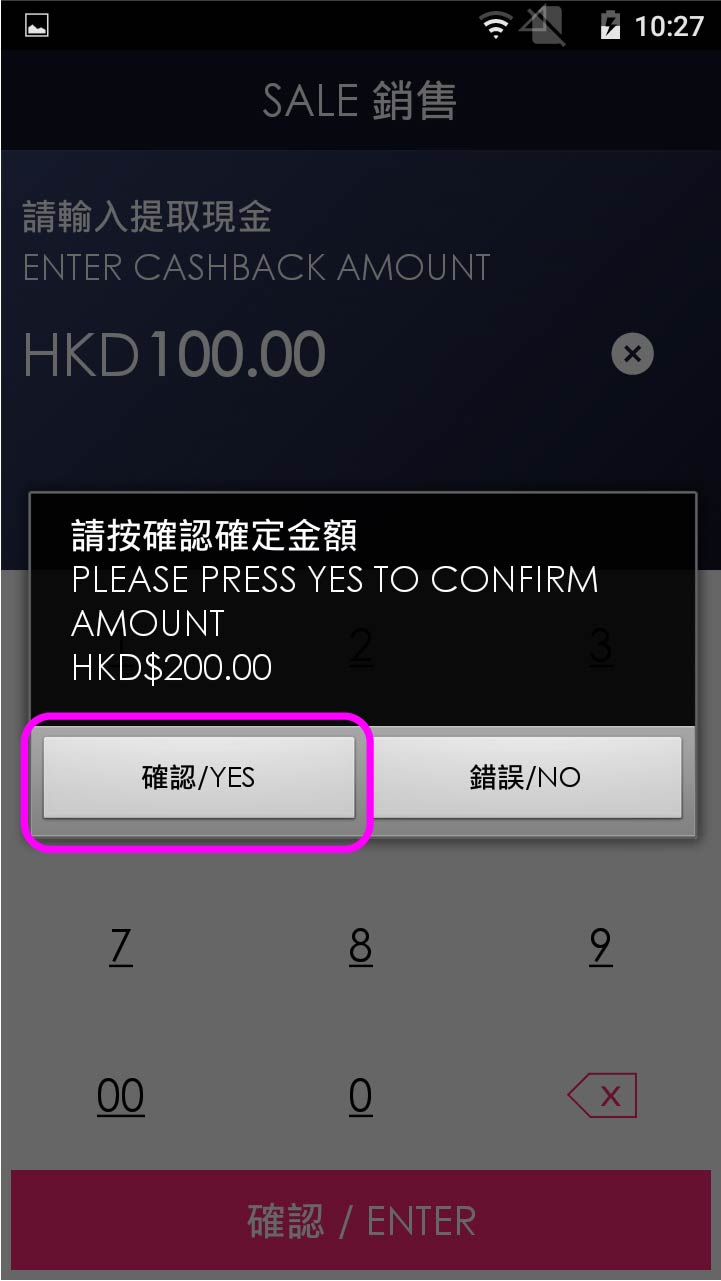
Confirm amount
- Step 6 -
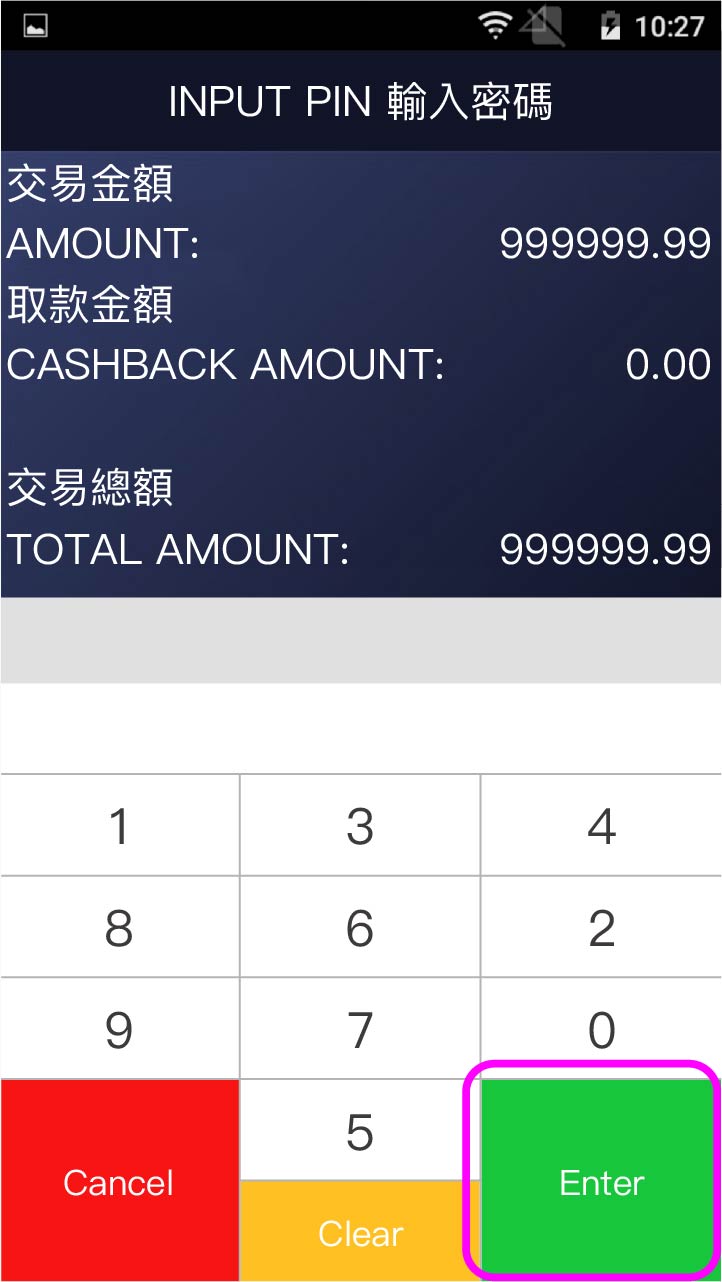
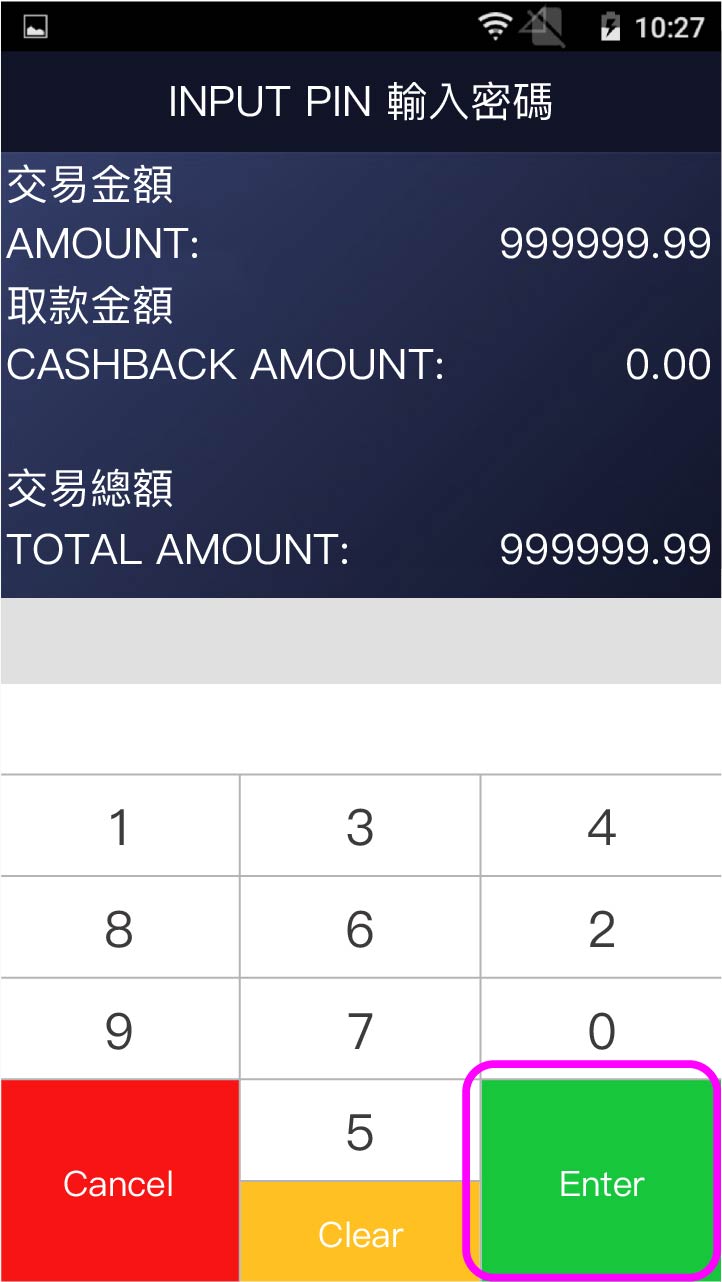
Press [Enter]
- Step 7 -
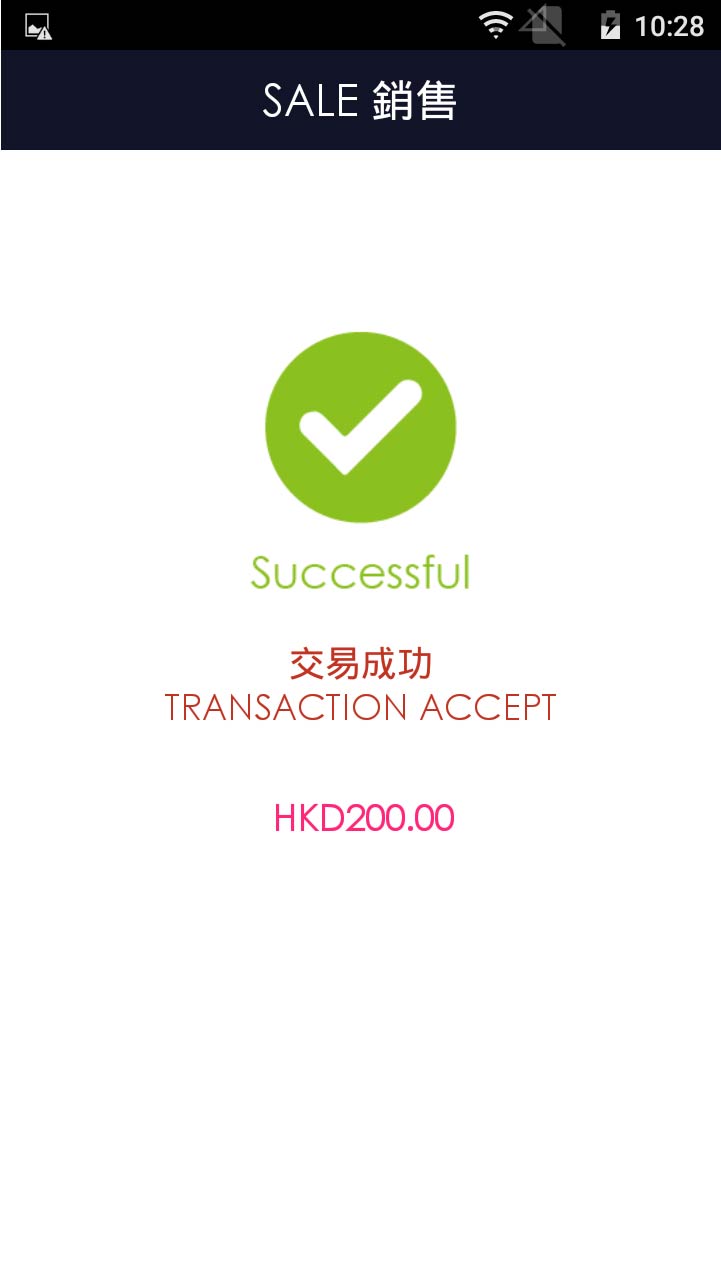
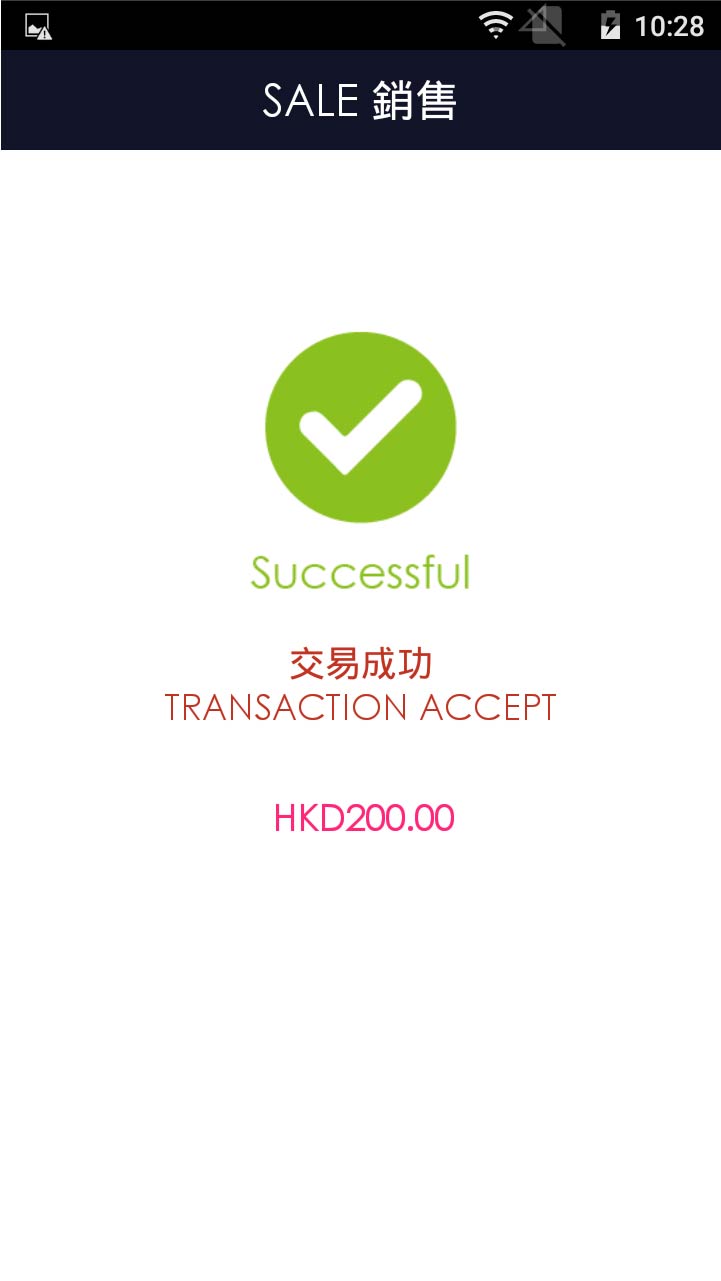
Transcation is completed, and terminal prints out receipt
- Step 1 -
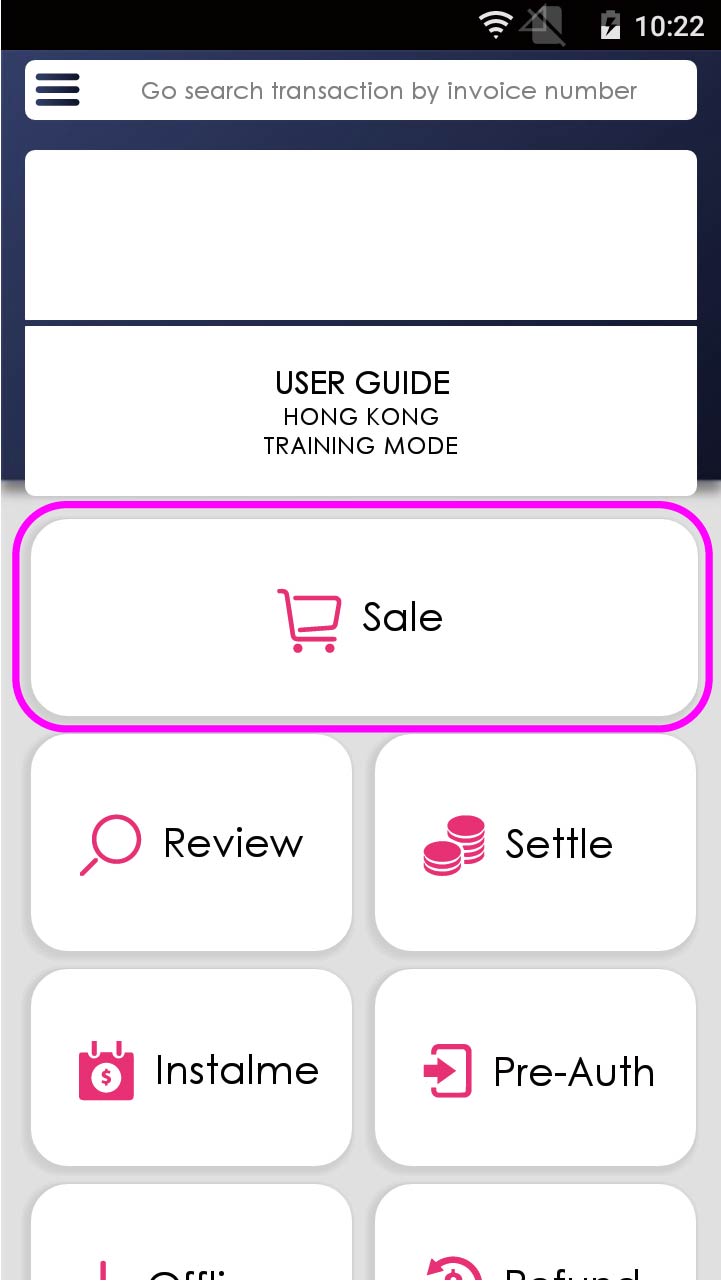
Press [Sale] on menu
- Step 2 -
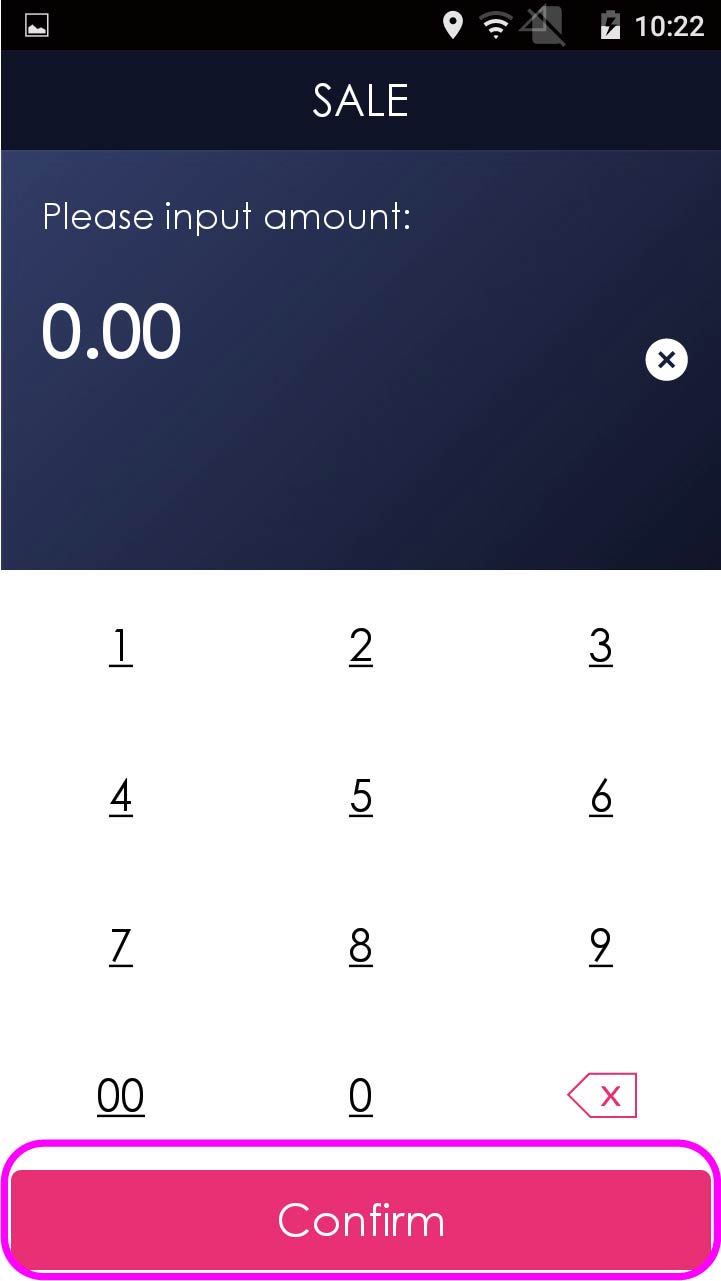
Enter sale amount, and press [Confirm]
- Step 3 -
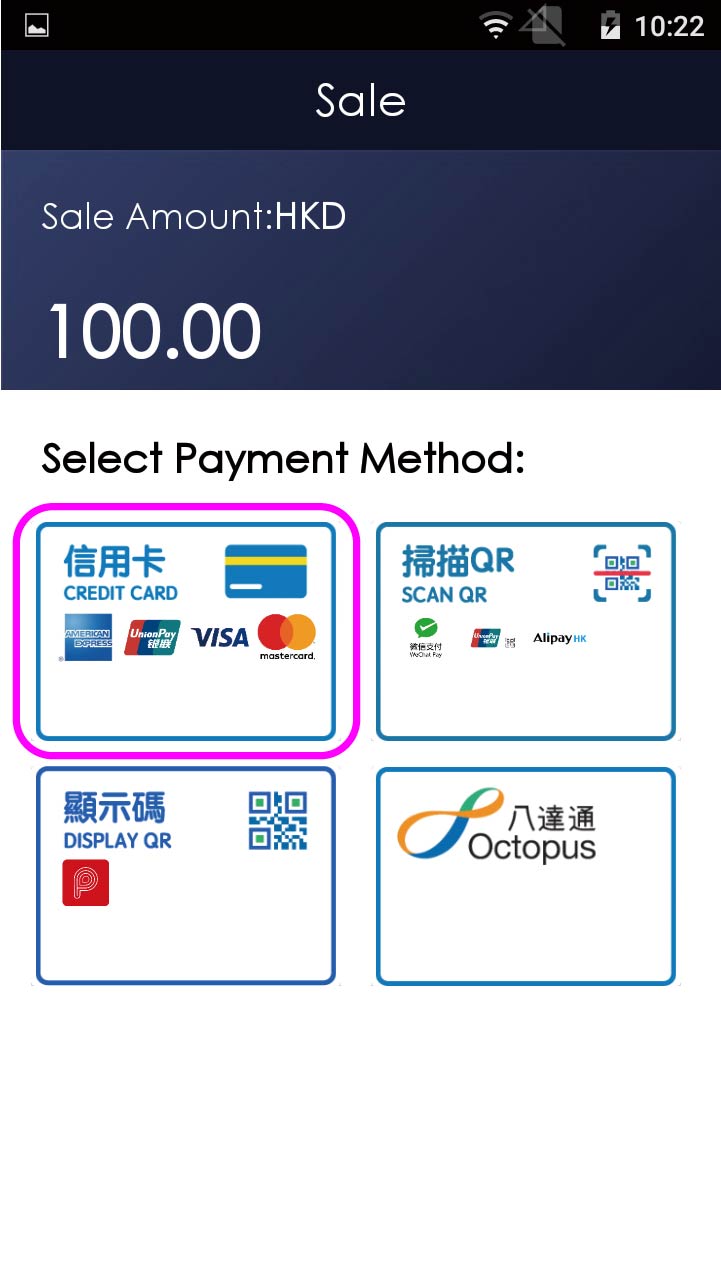
Select credit card payment
- Step 4 -
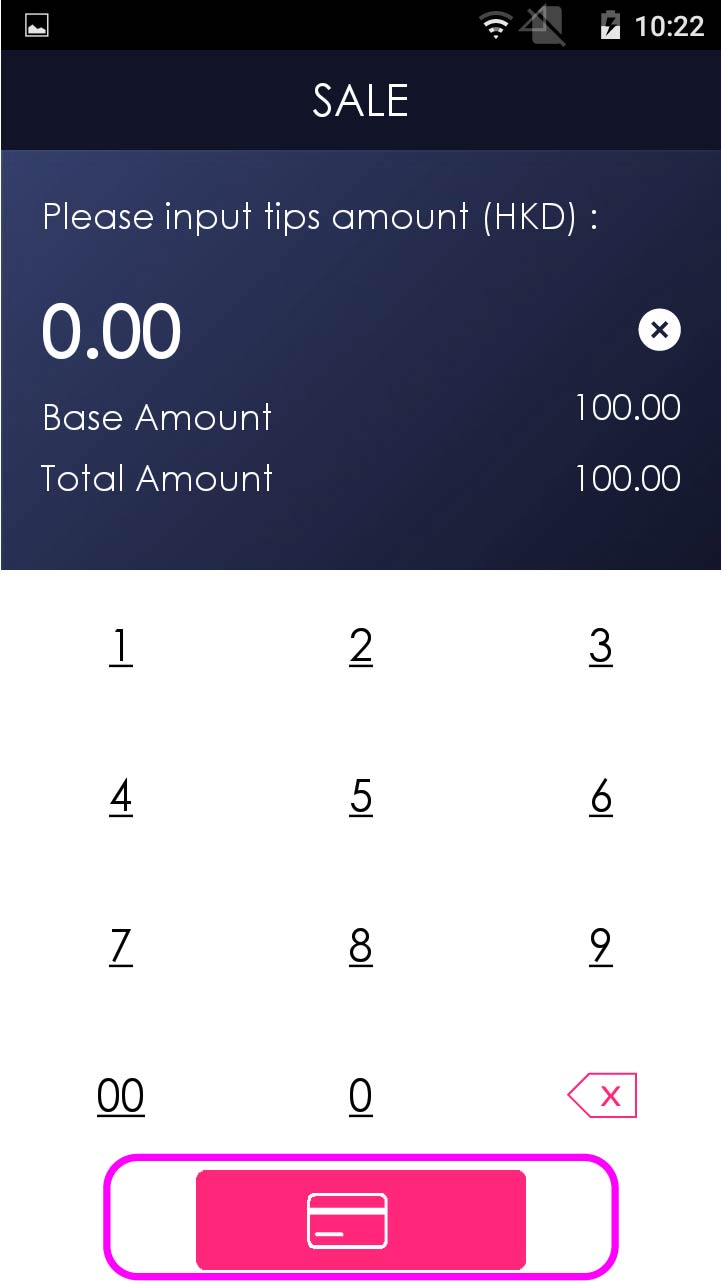
Enter total amount with tips (if any), and select credit card payment
- Step 5 -
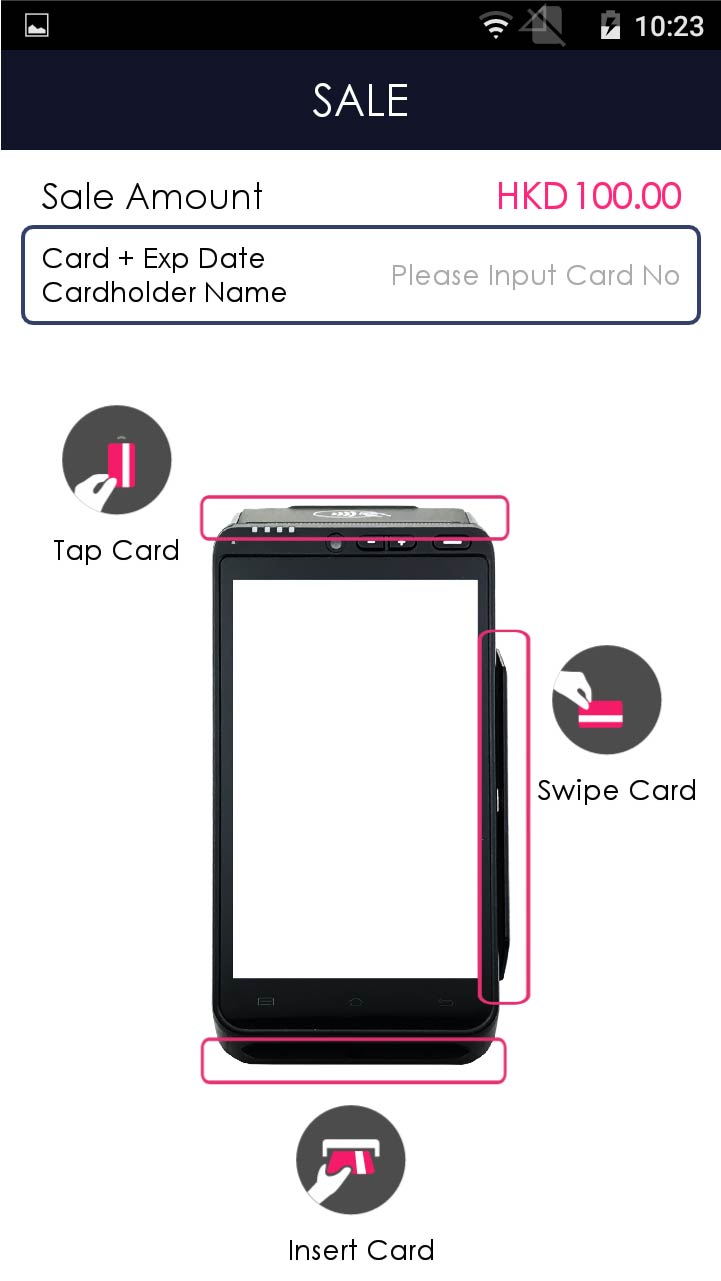
Insert/tap/swipe card OR mobile payment OR manually enter card number & expiry date
- Step 6 -
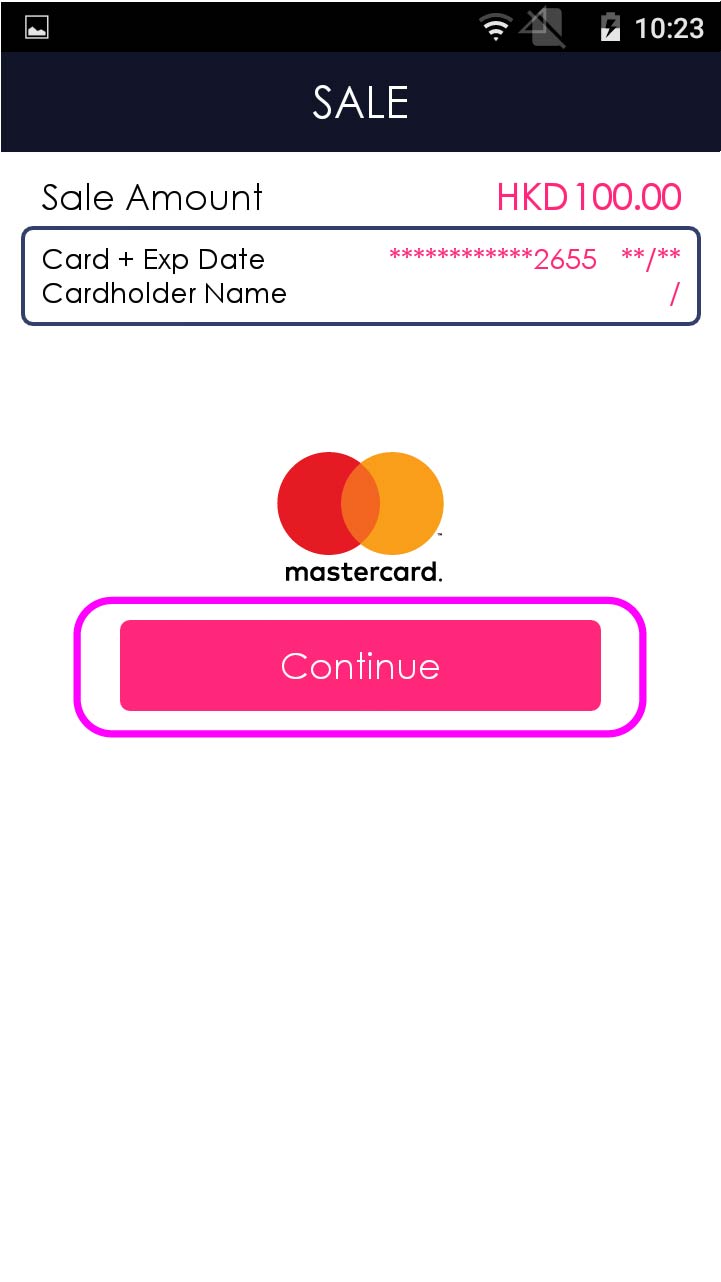
Press [Continue]
- Step 7 -
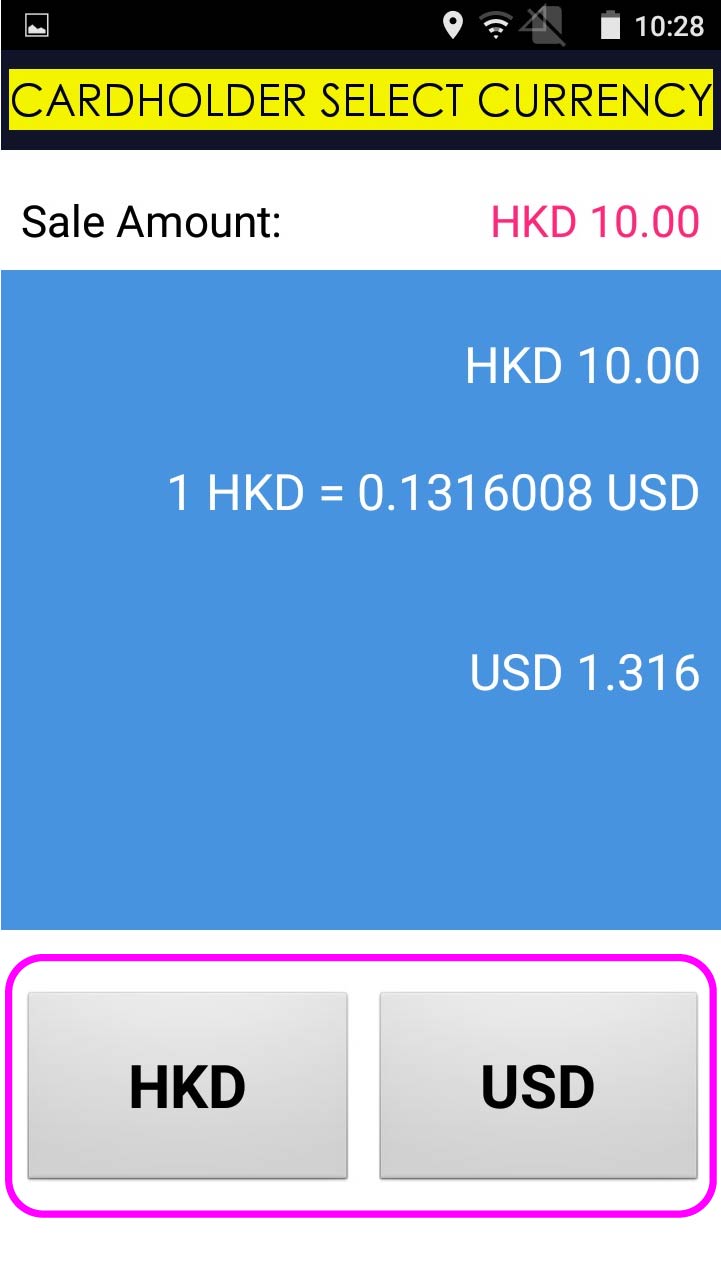
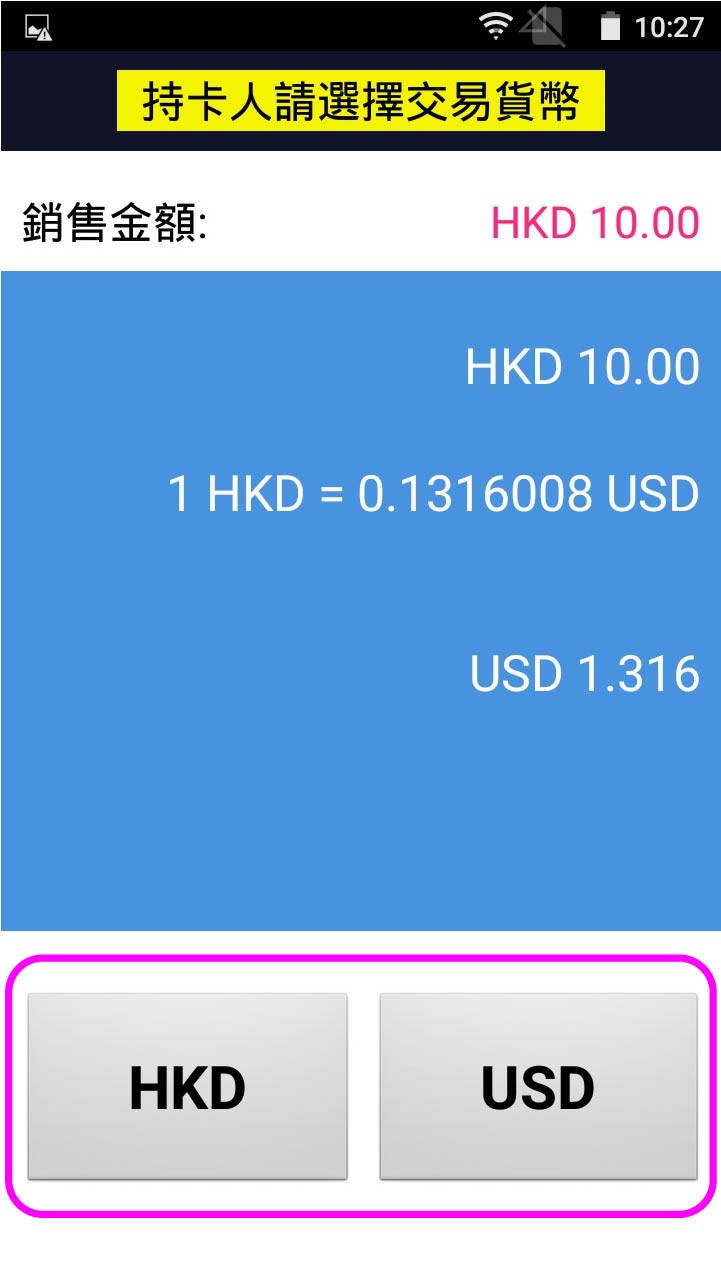
Cardholder chooses transaction currency
- Step 8 -
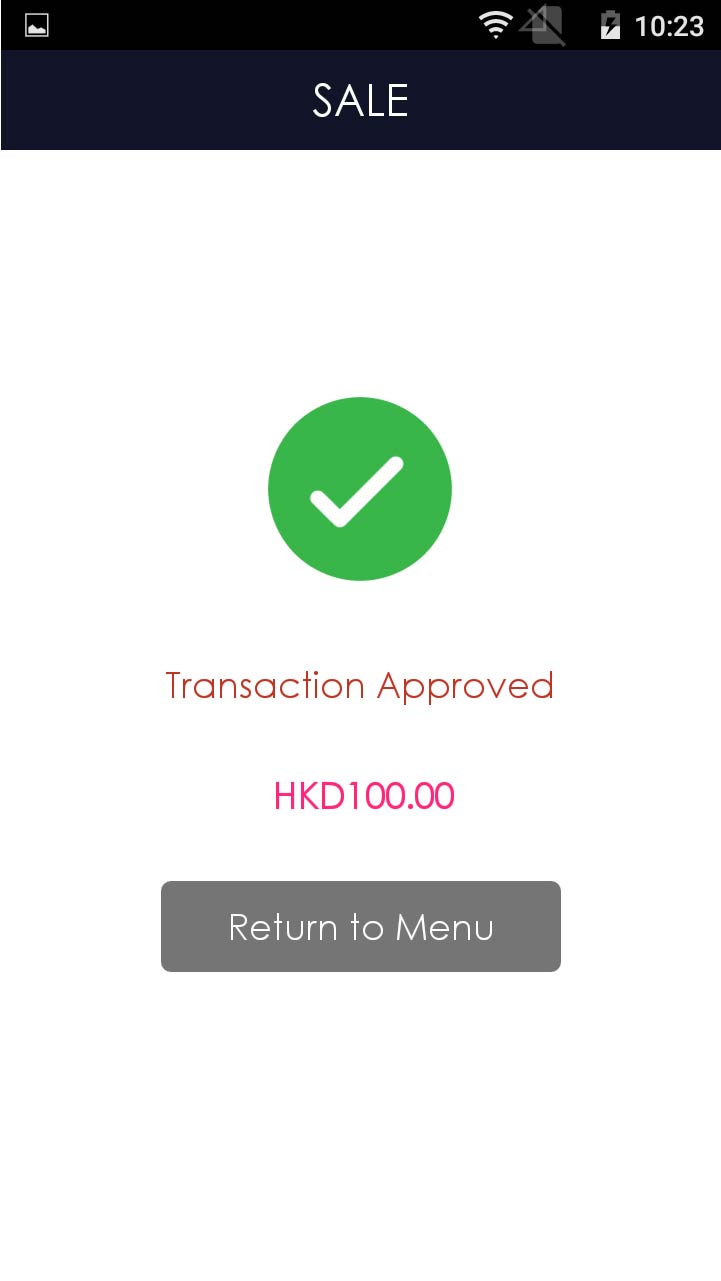
Transcation is completed, and terminal prints out receipt
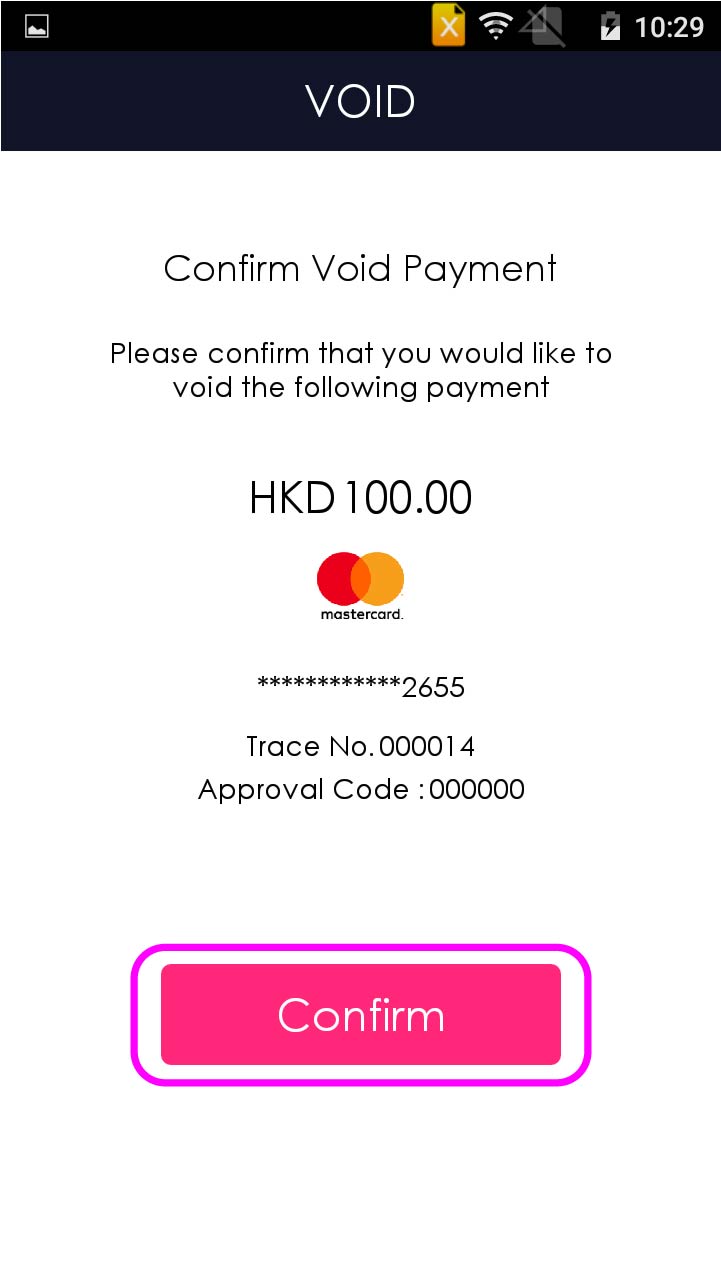
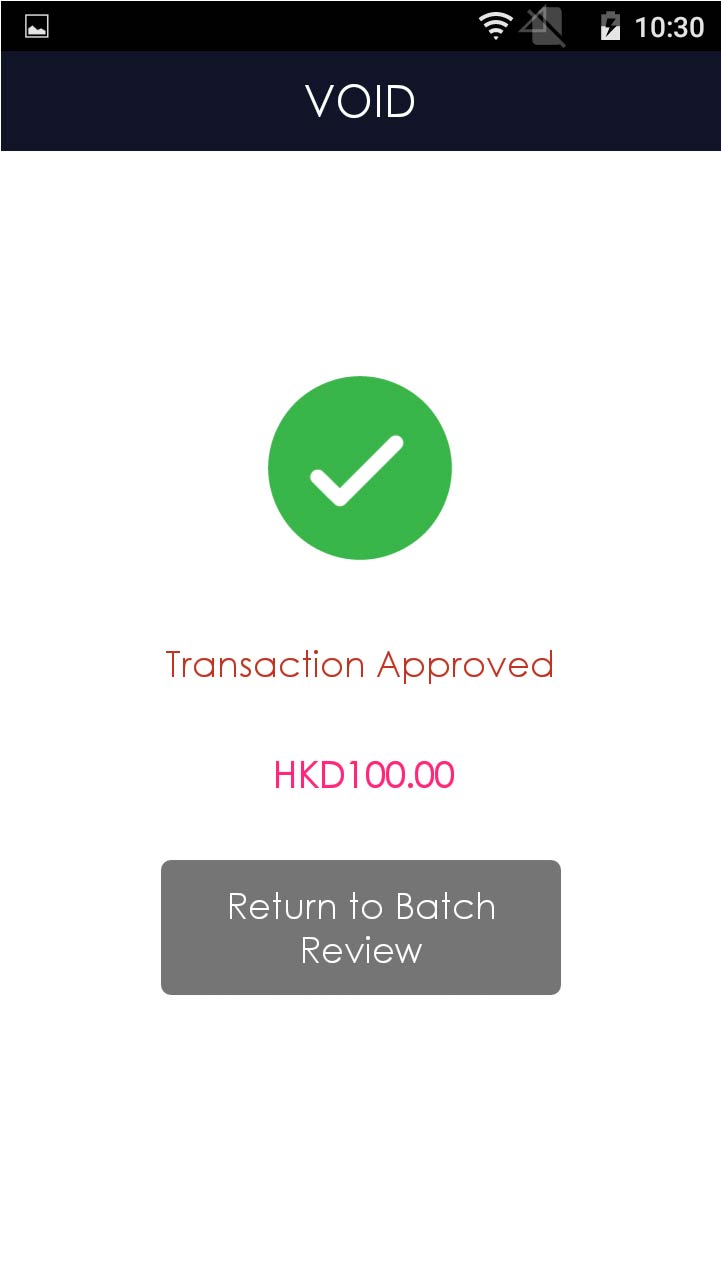
Void
- Step 1 -
<Not applicable to Octopus>
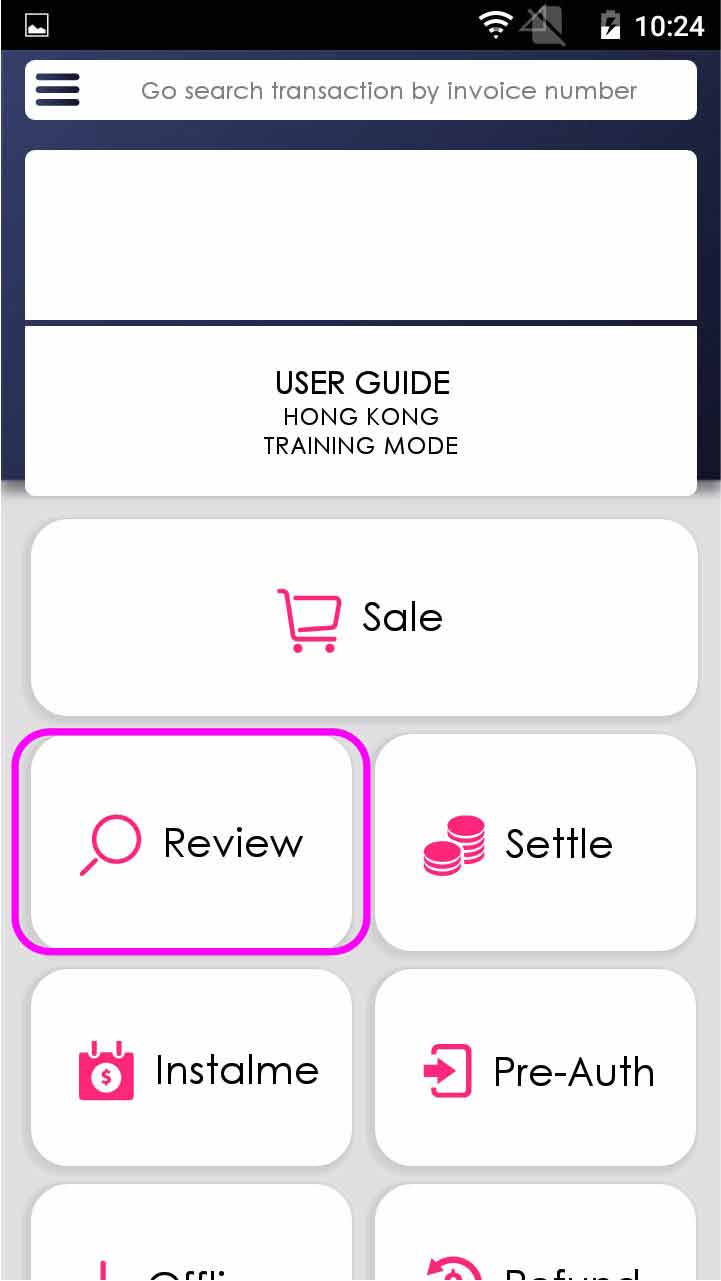
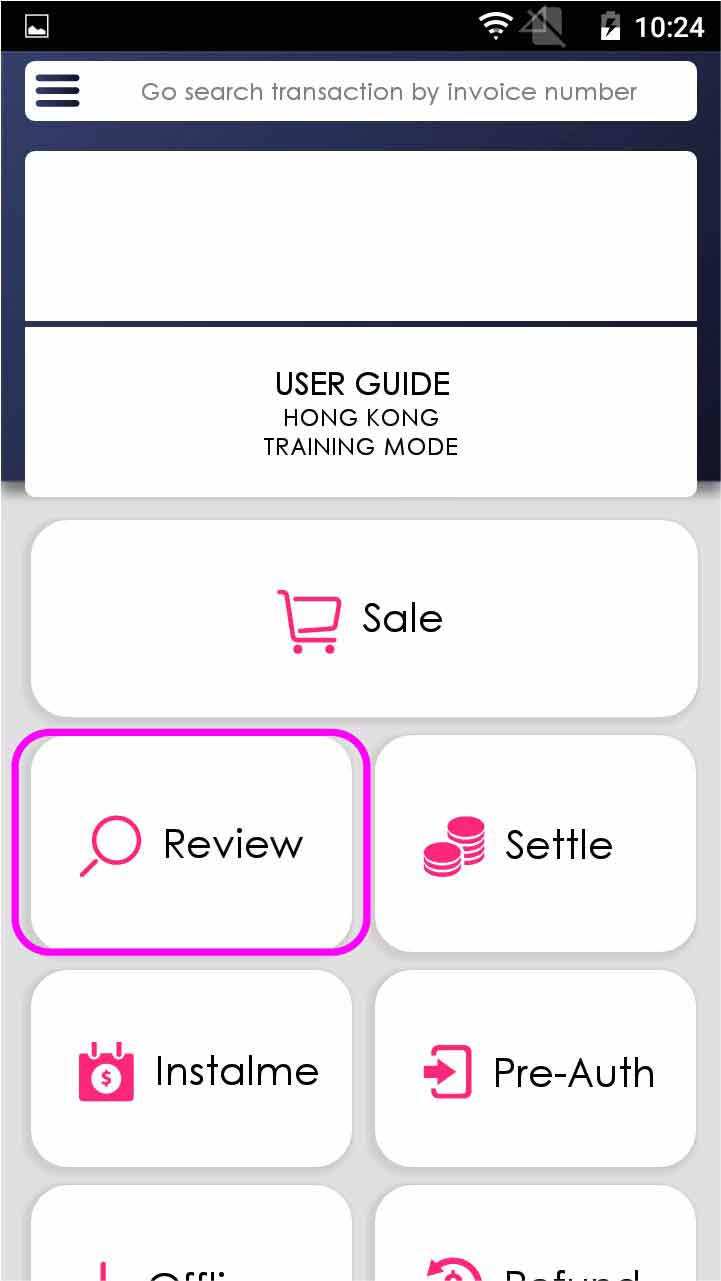
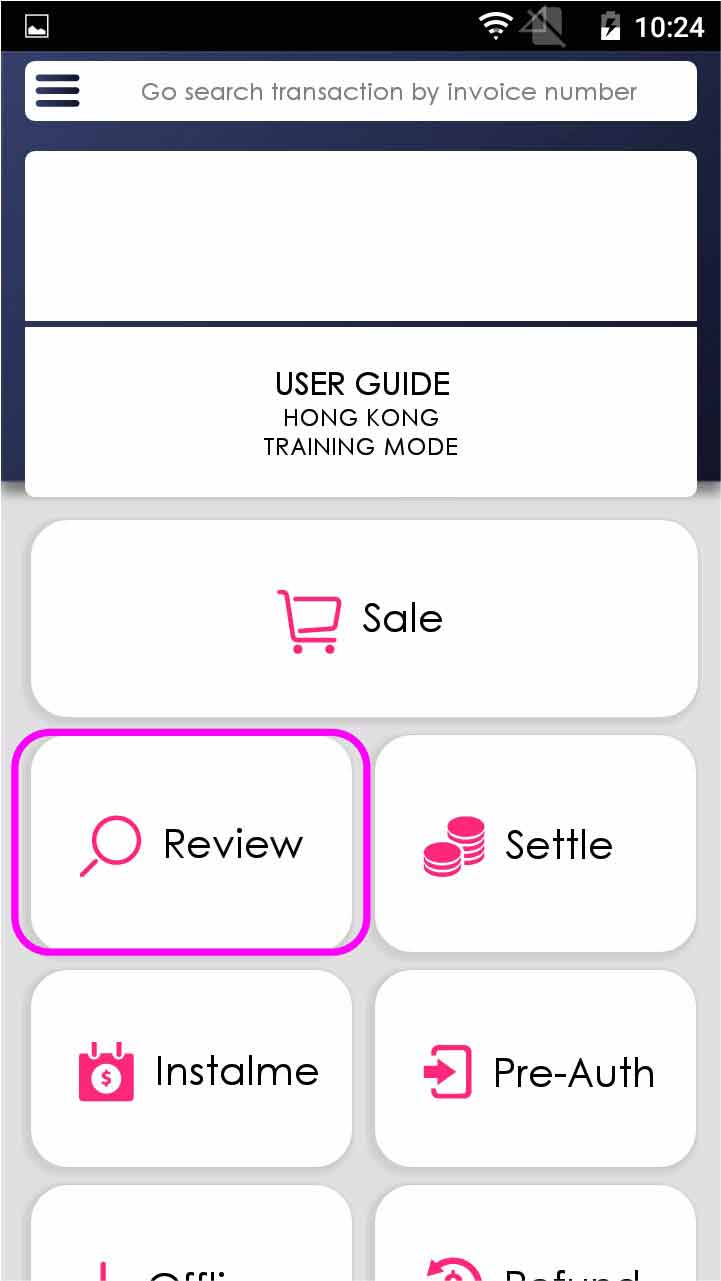
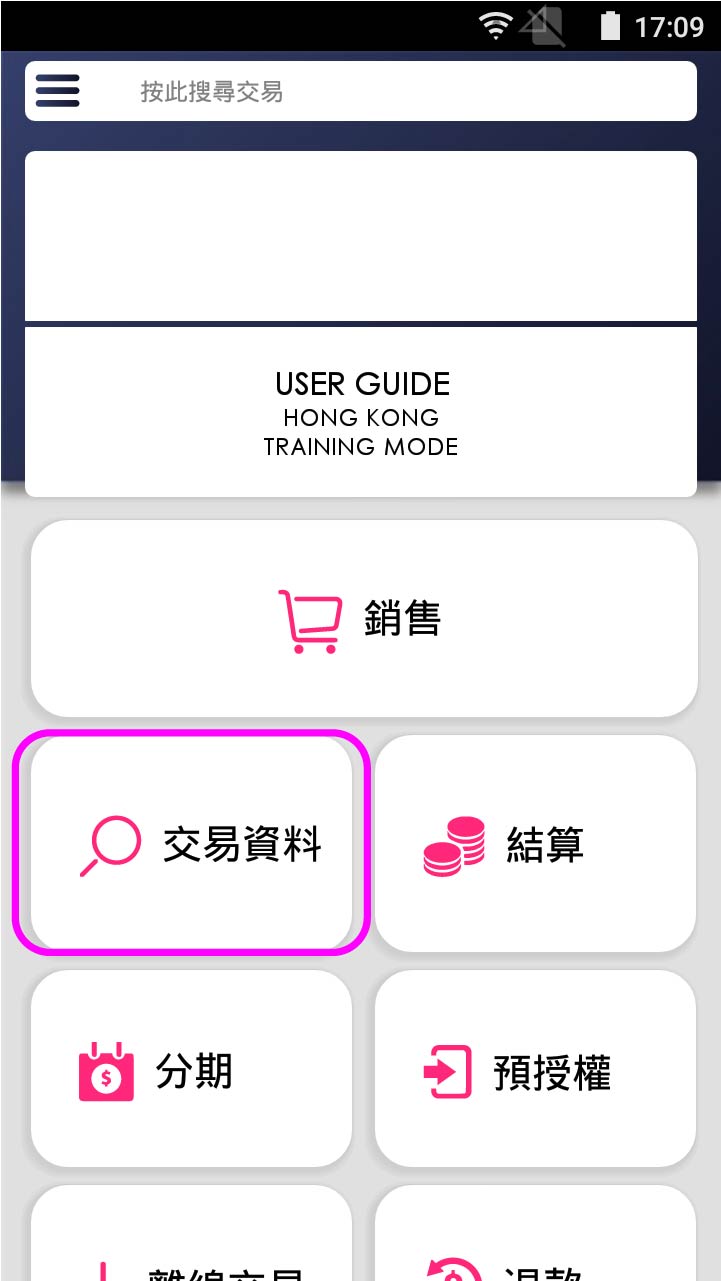
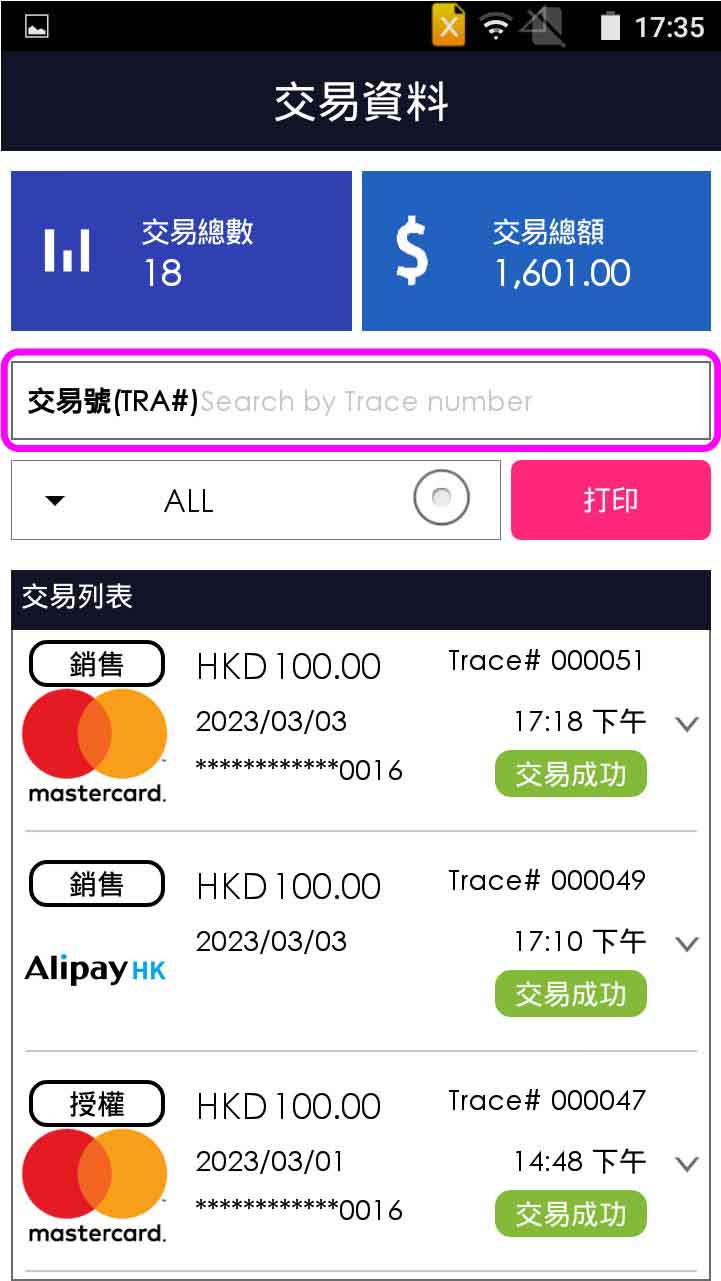
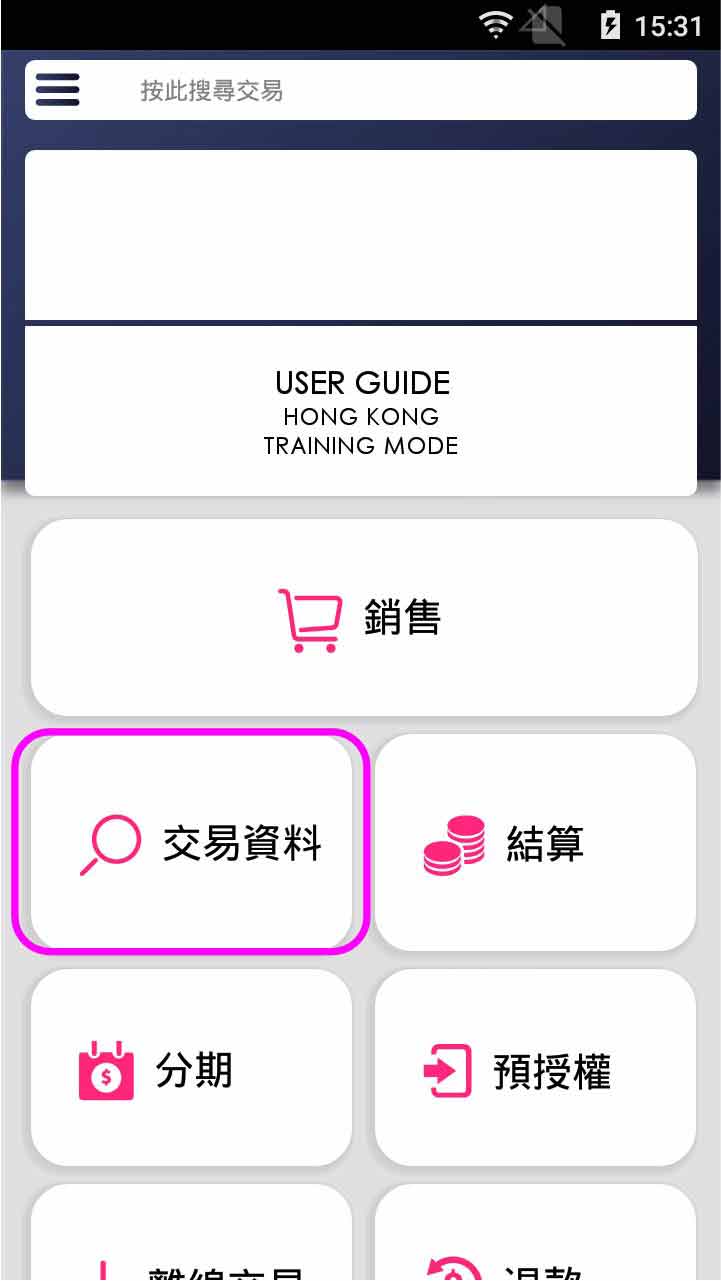
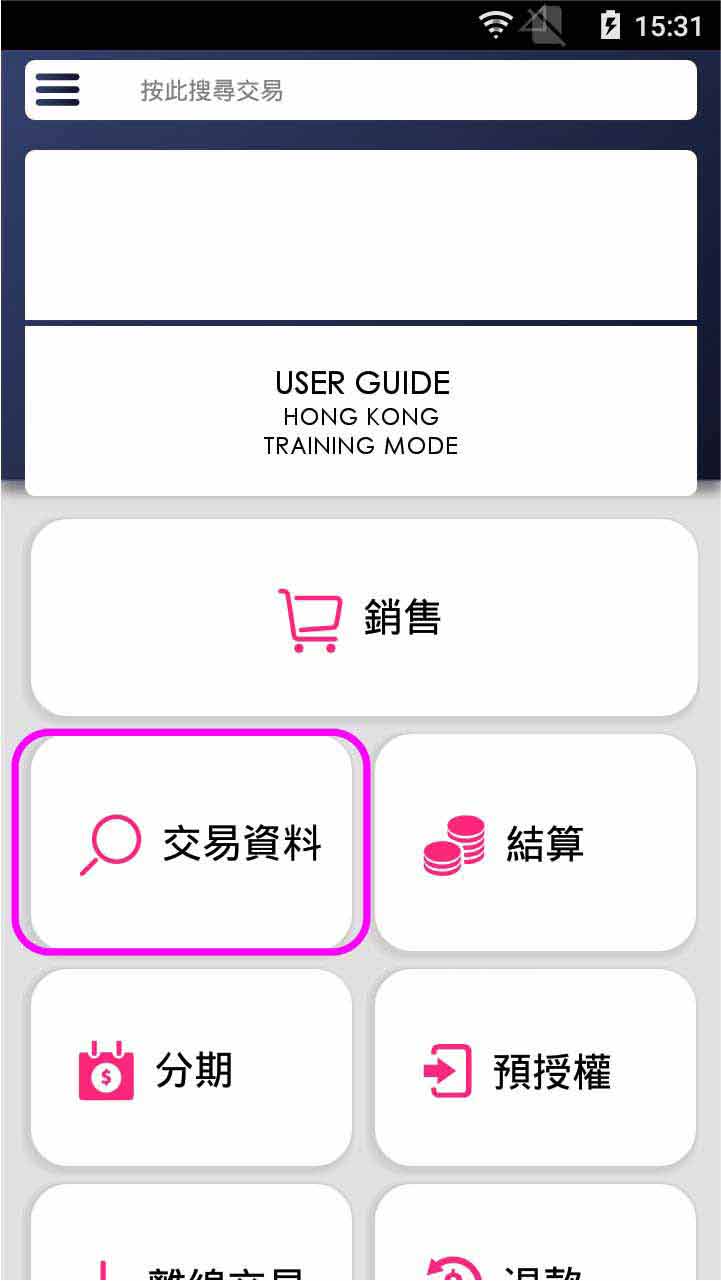
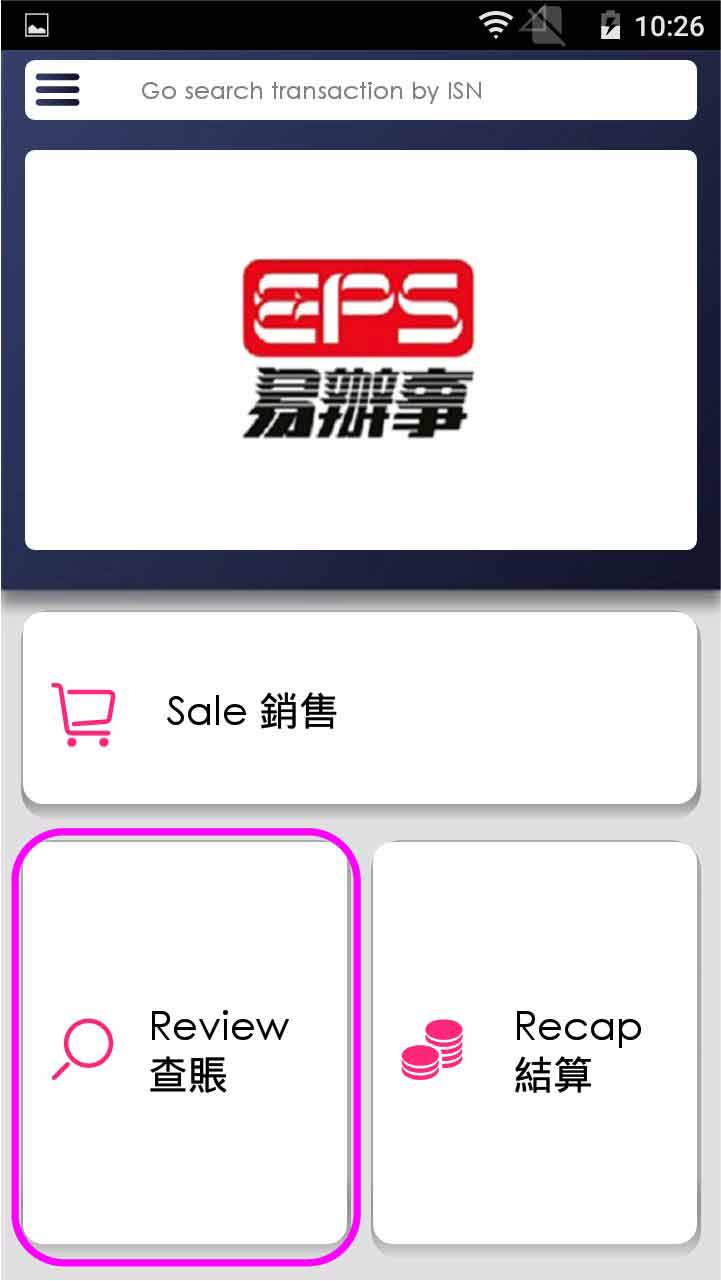
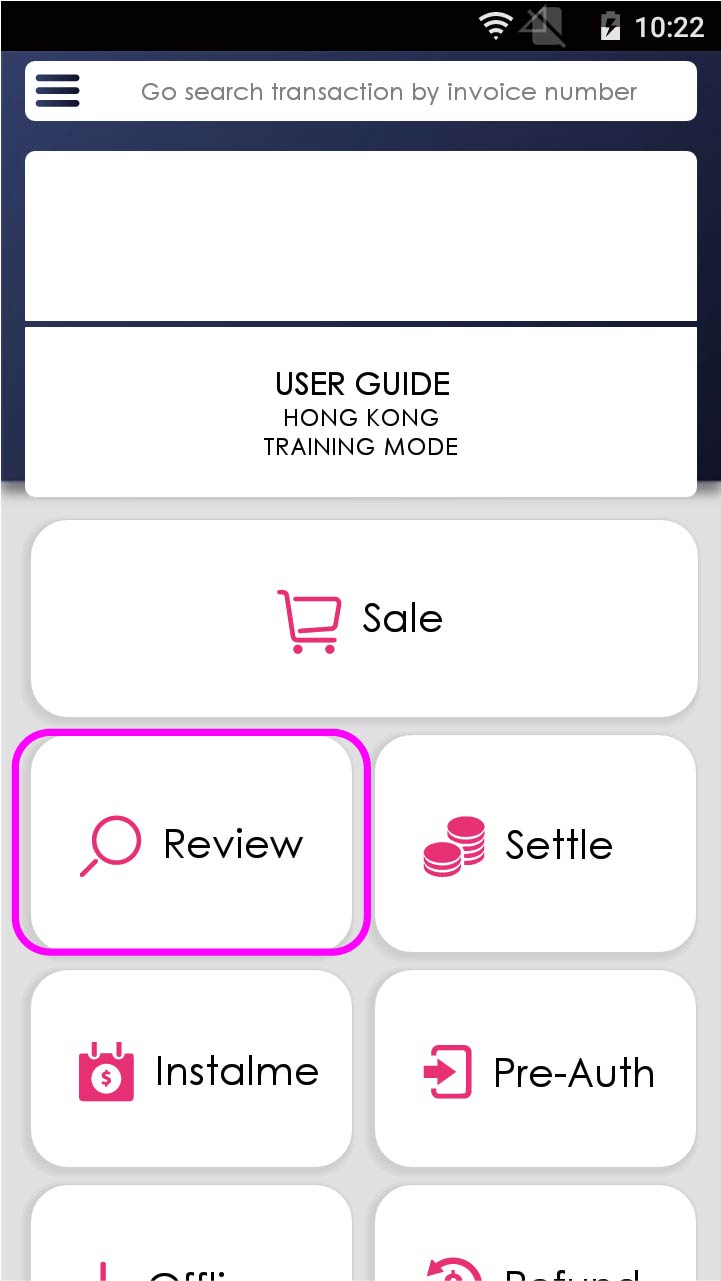
Press [Review] on menu
- Step 2 -
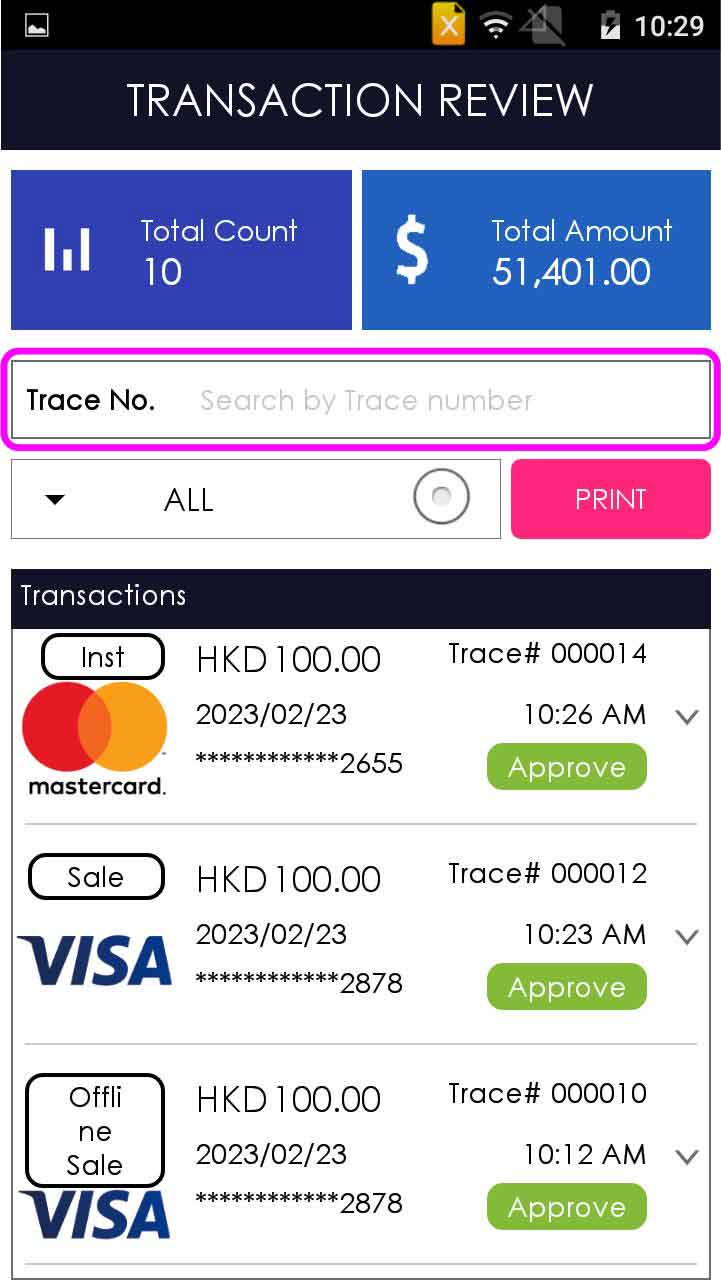
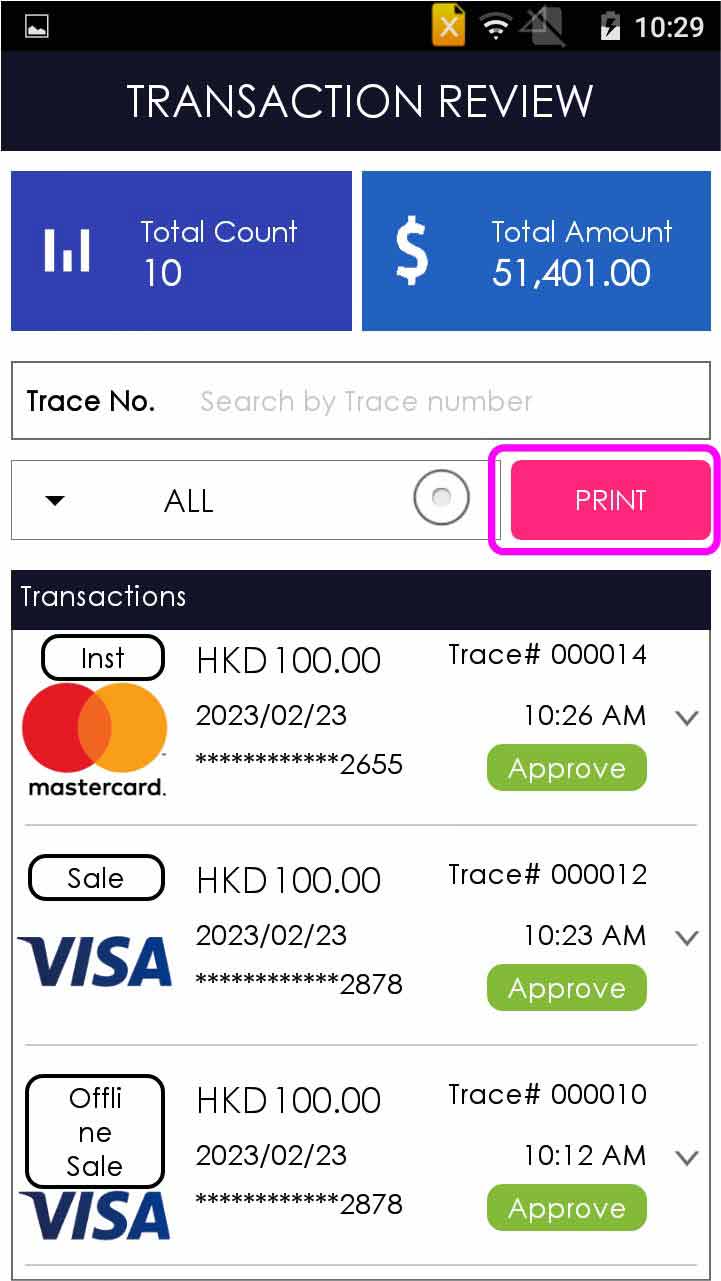
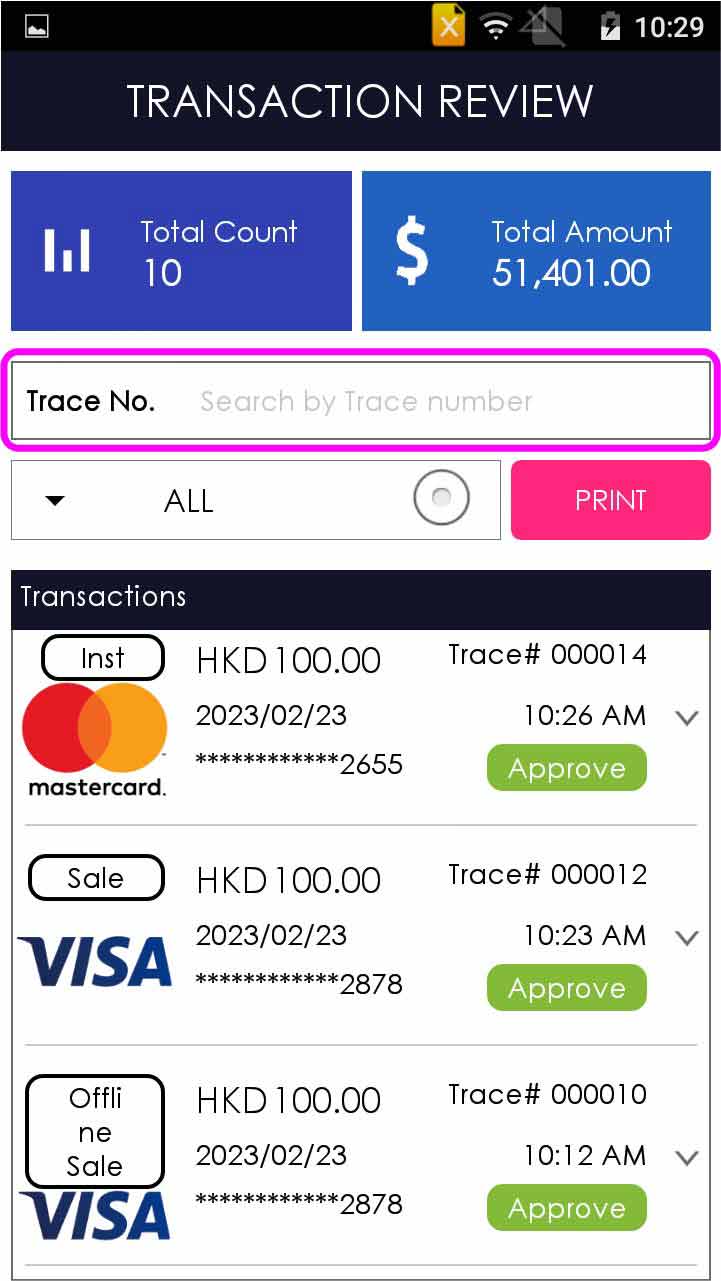
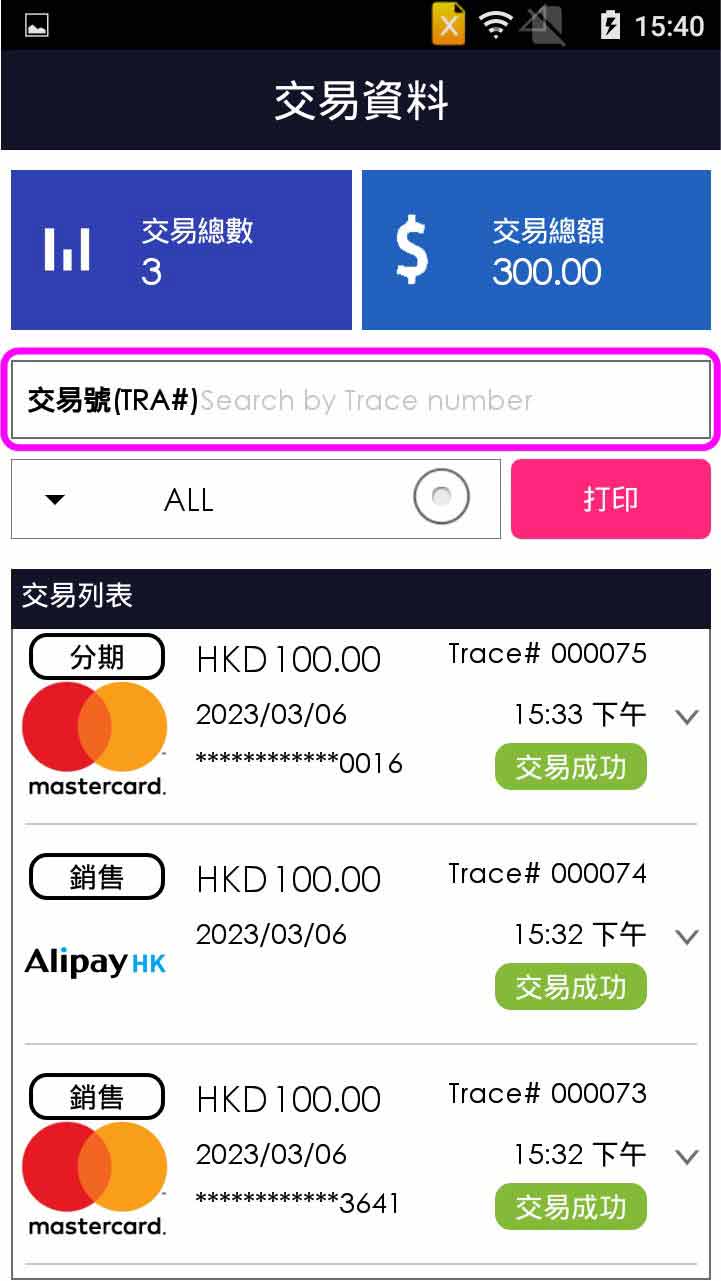
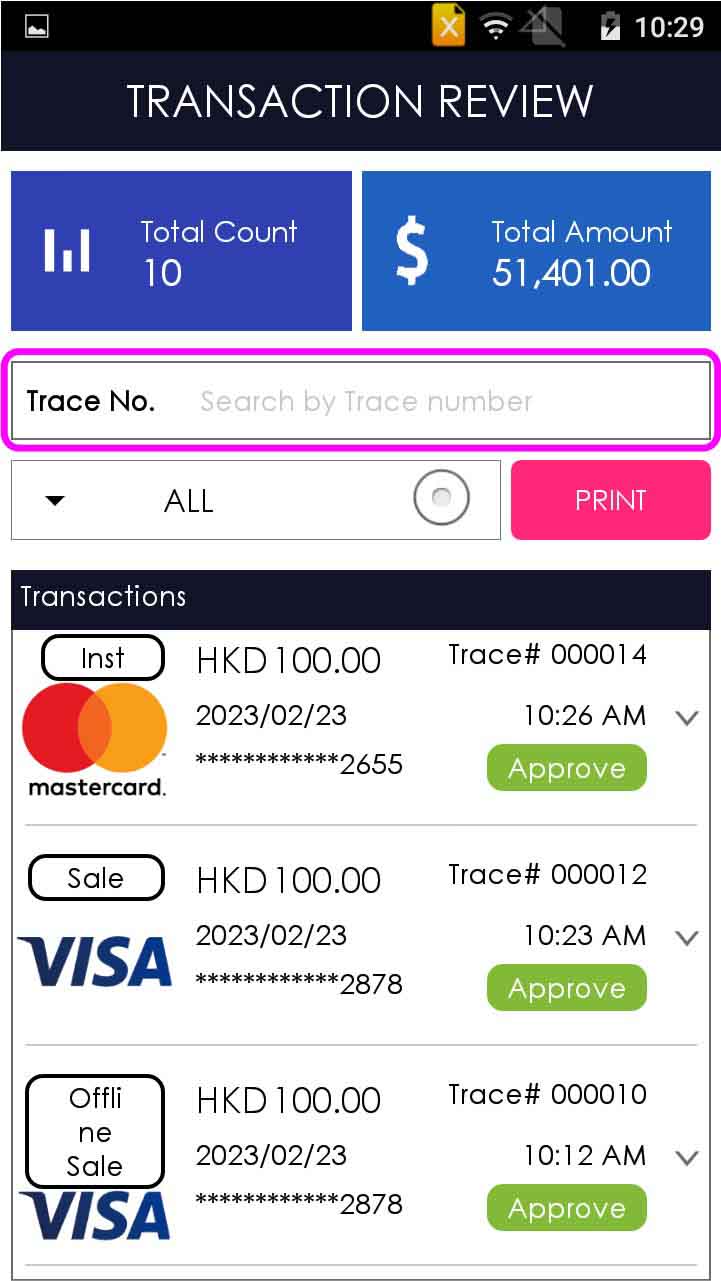
Enter trace number in the “TRACE#” search bar / select transaction directly
- Step 3 -
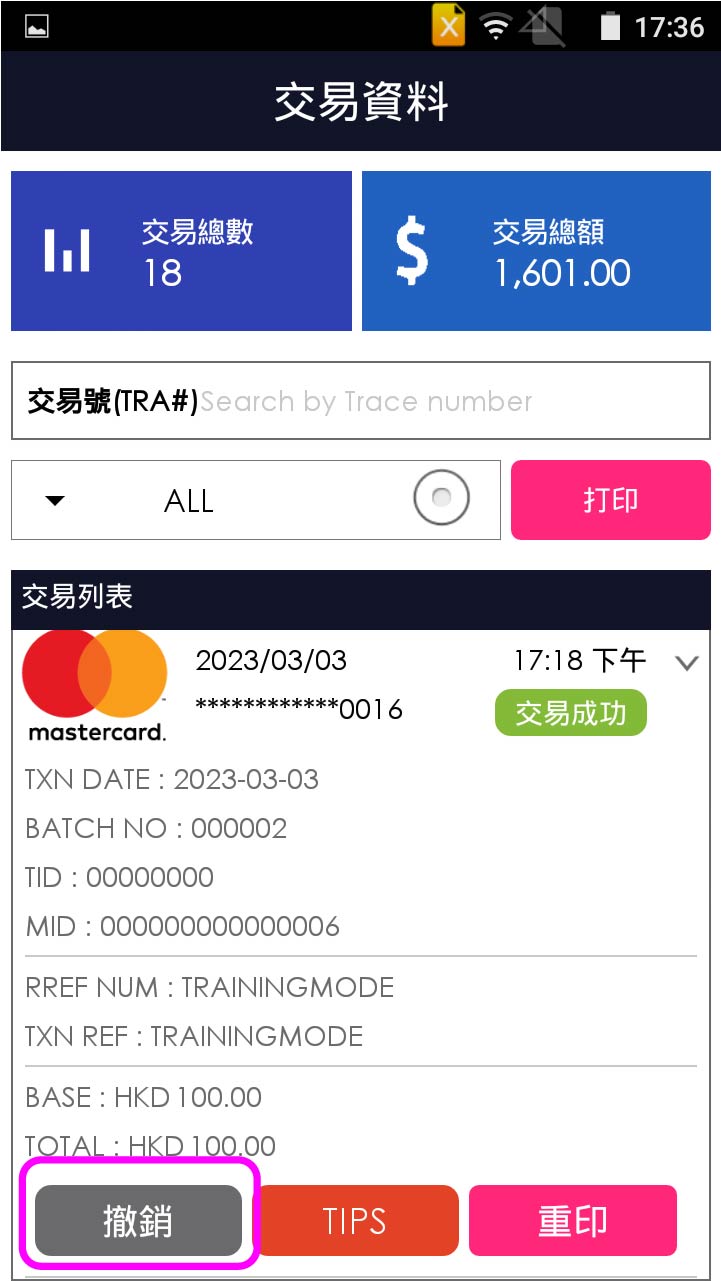
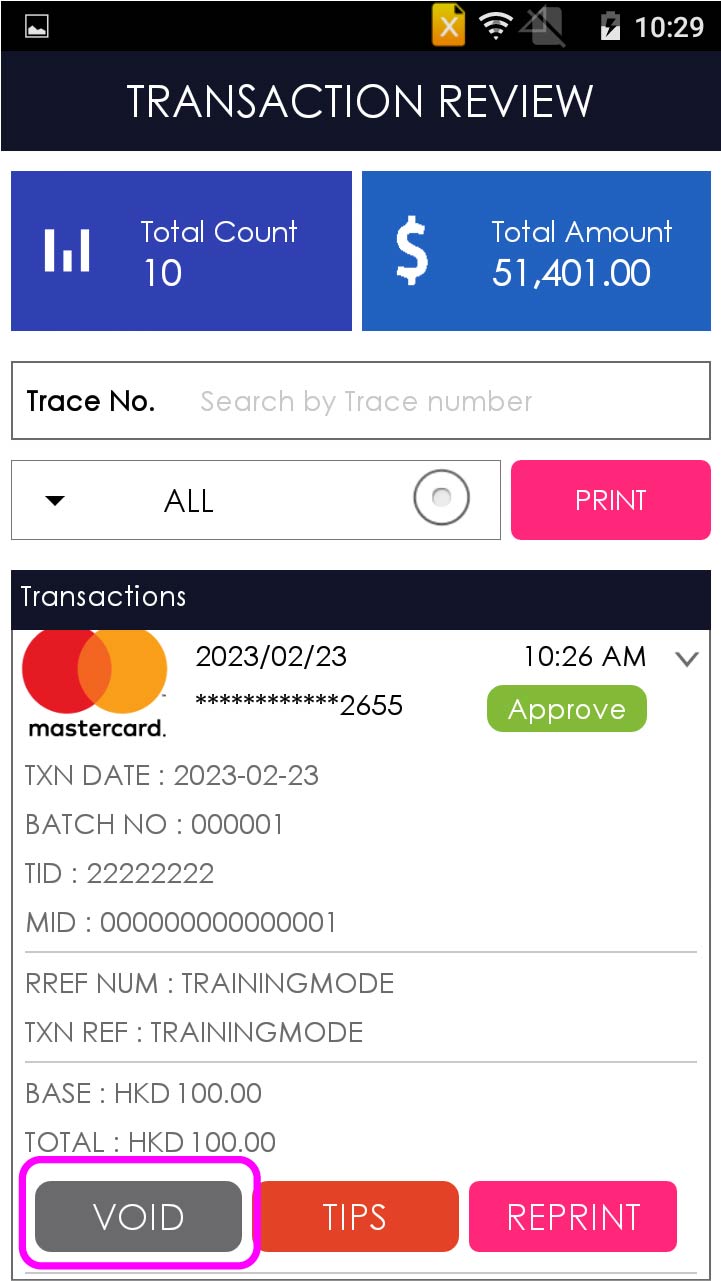
Press [Void]
- Step 4 -
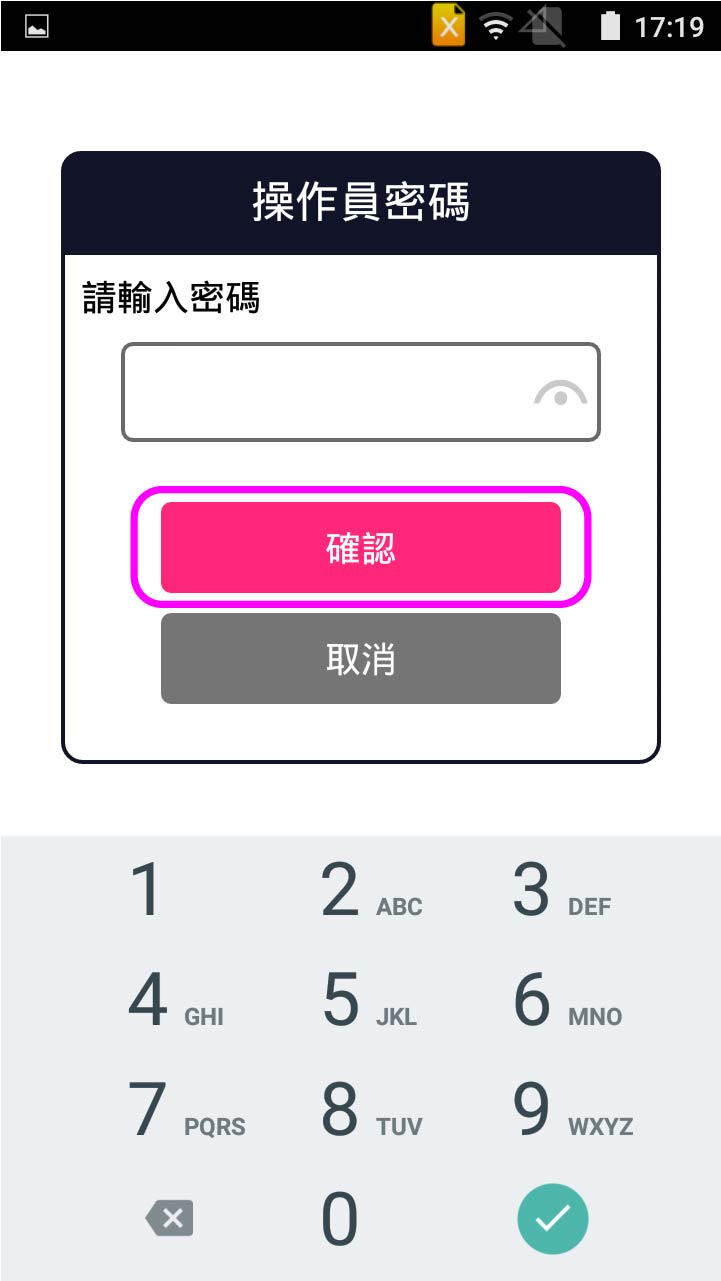
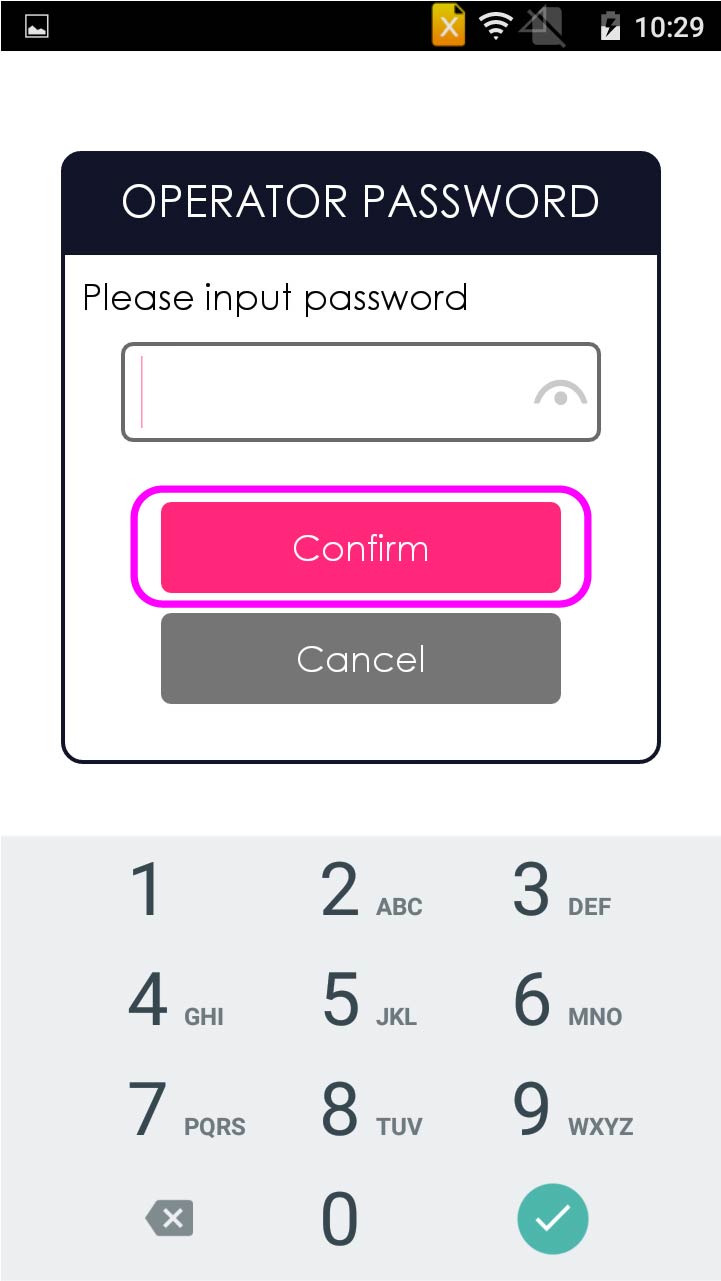
Enter operator password, and press [Confirm]
- Step 5 -
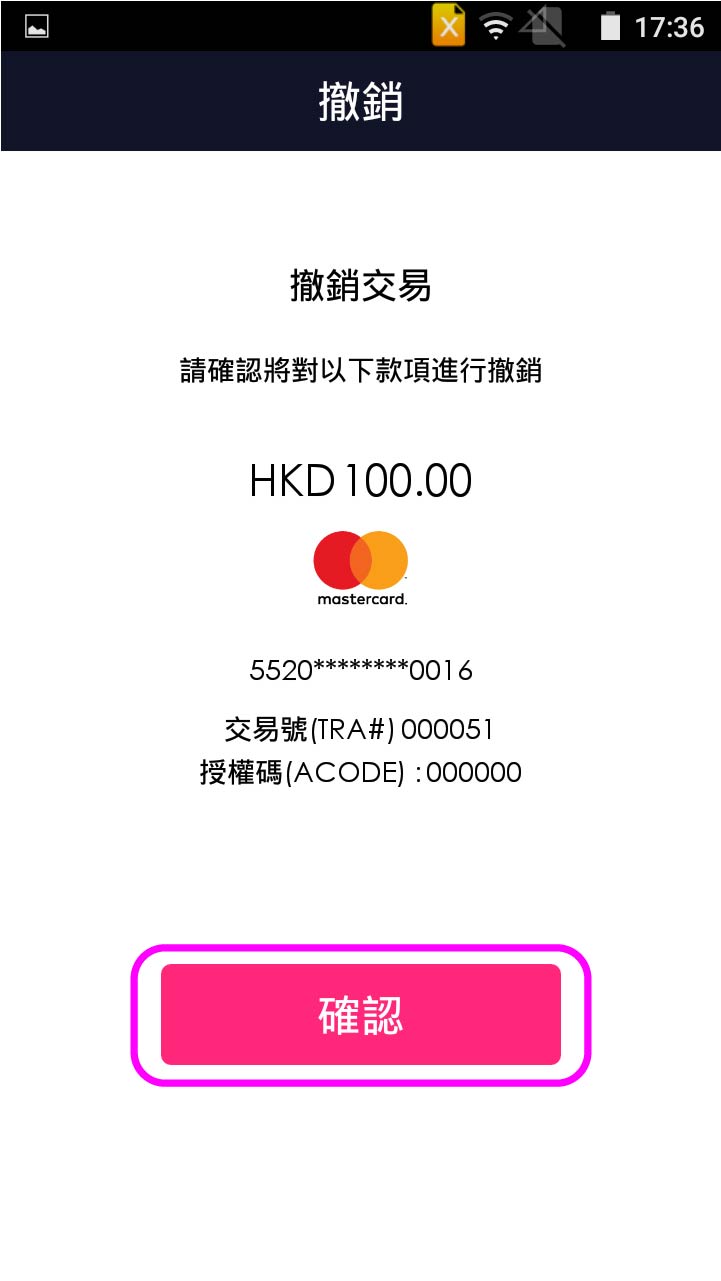
After review transaction detail, press [Confirm]
- Step 6 -
Transaction is completed, and terminal prints out receipt
QR Code Payment -
Scan QR code
QR Code Payment -
Manual Entry
Credit Card Payment
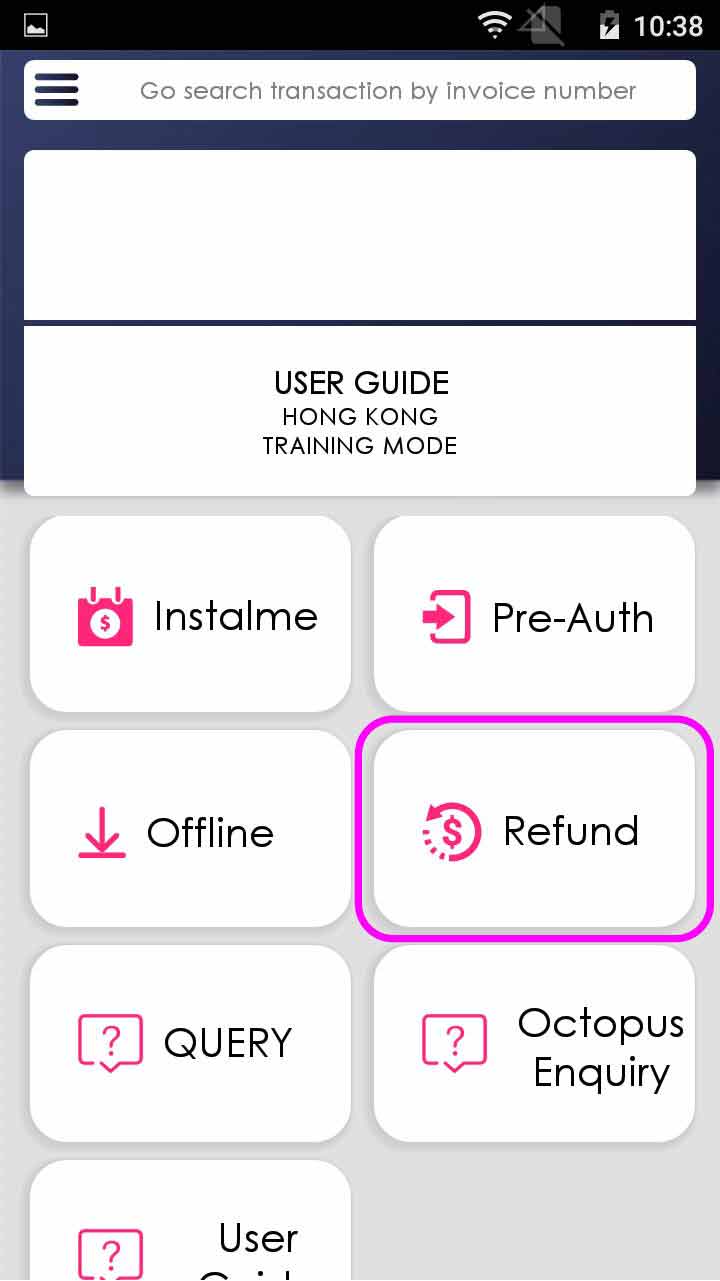
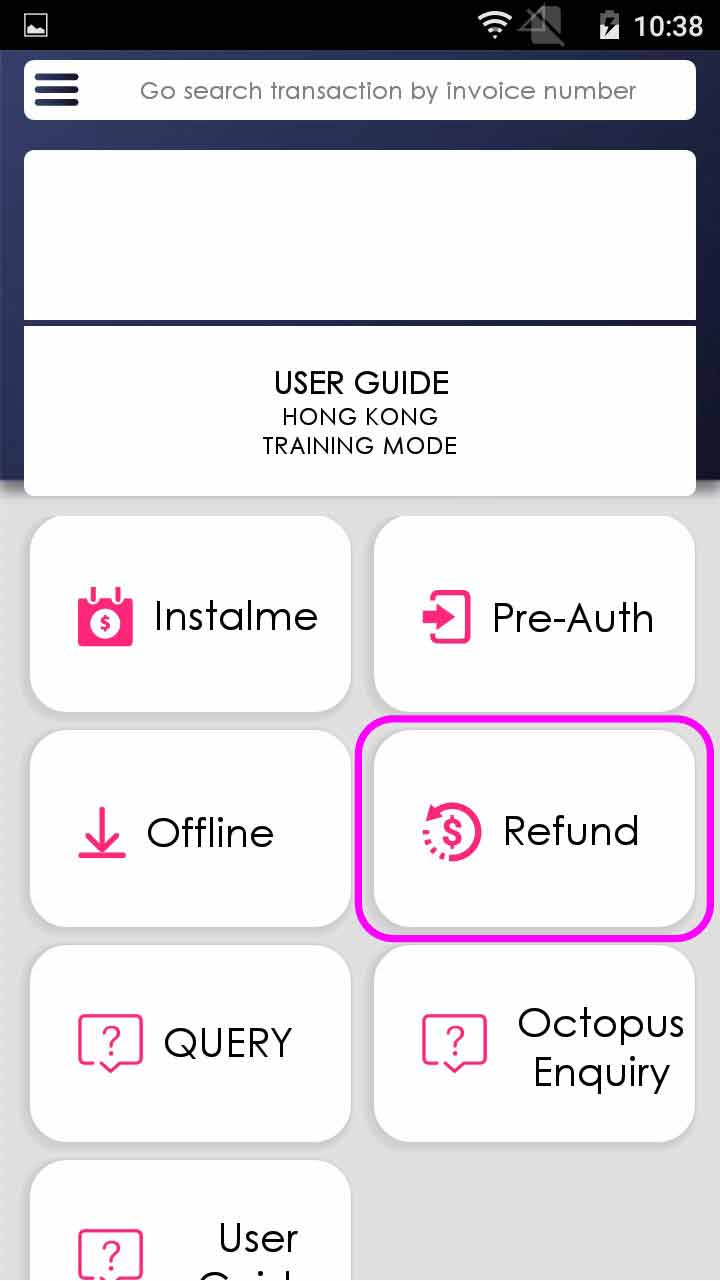
- Step 1 -
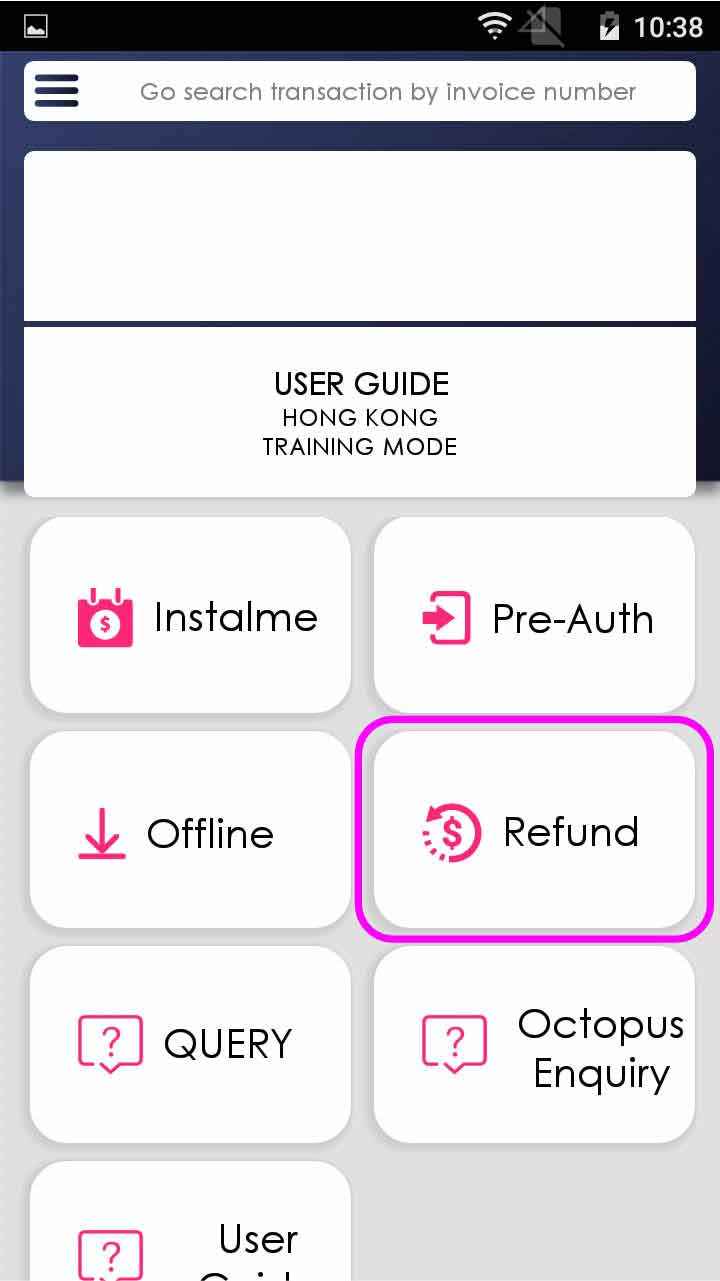
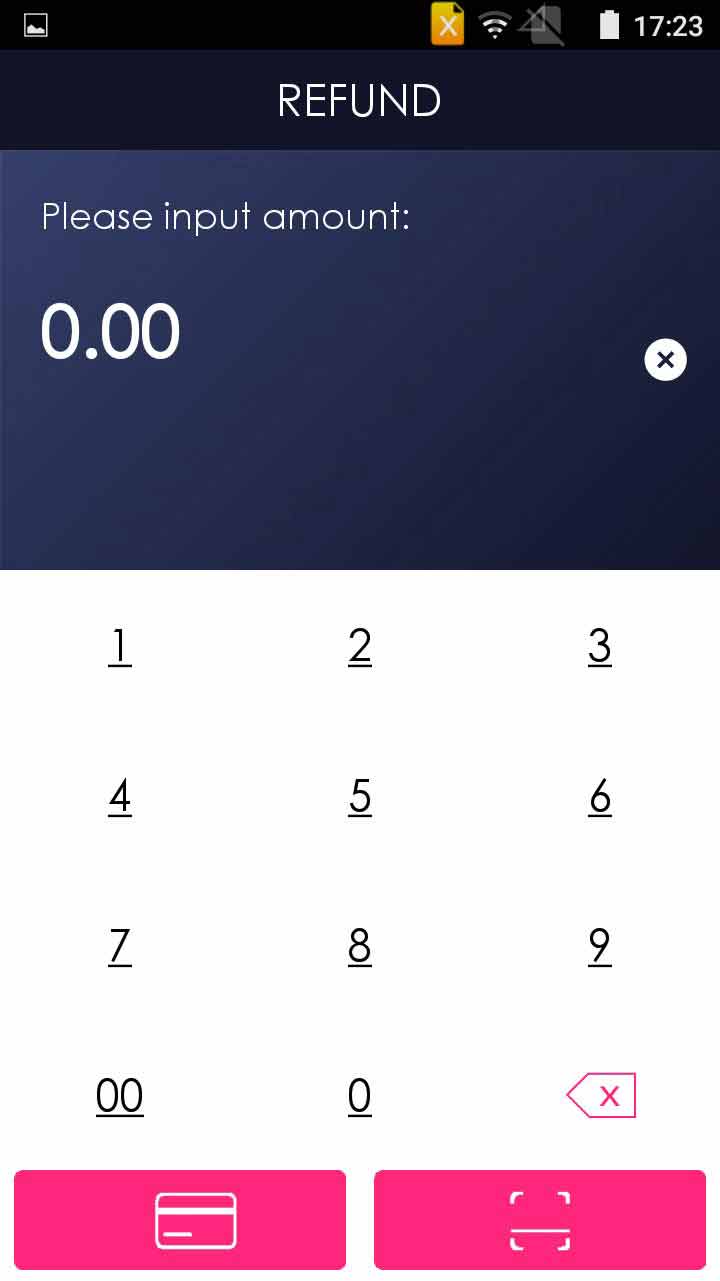
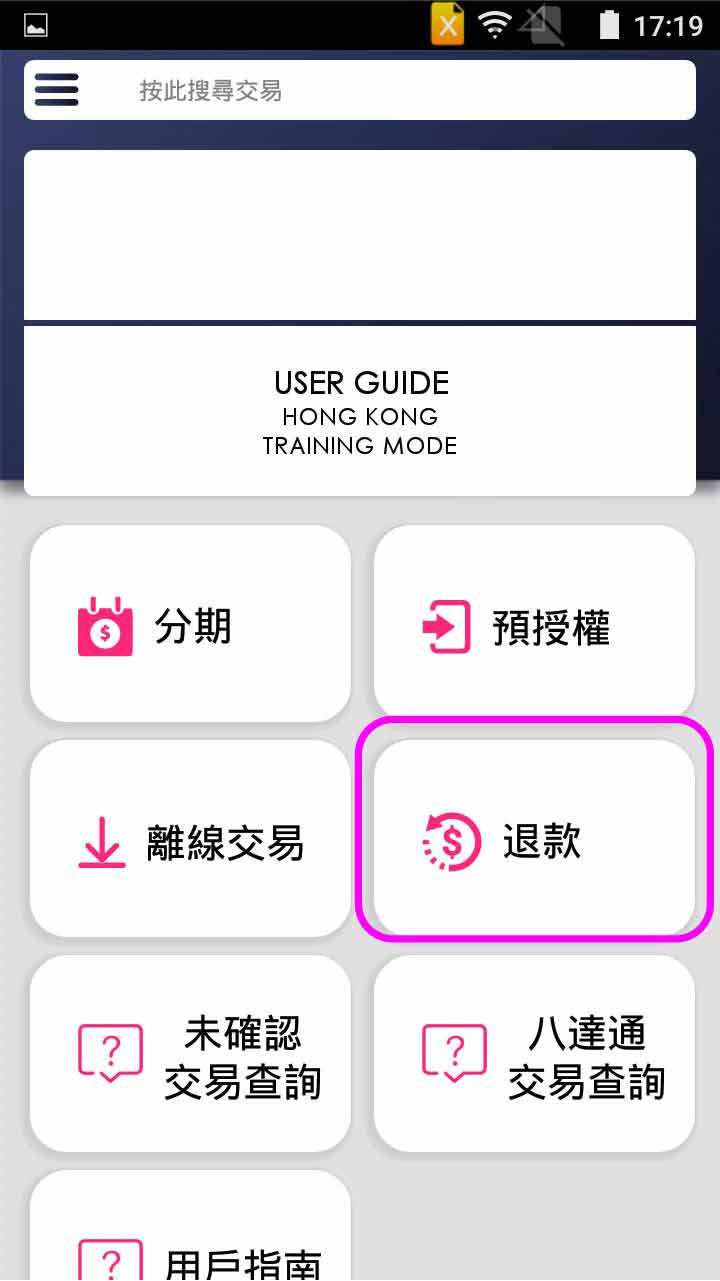
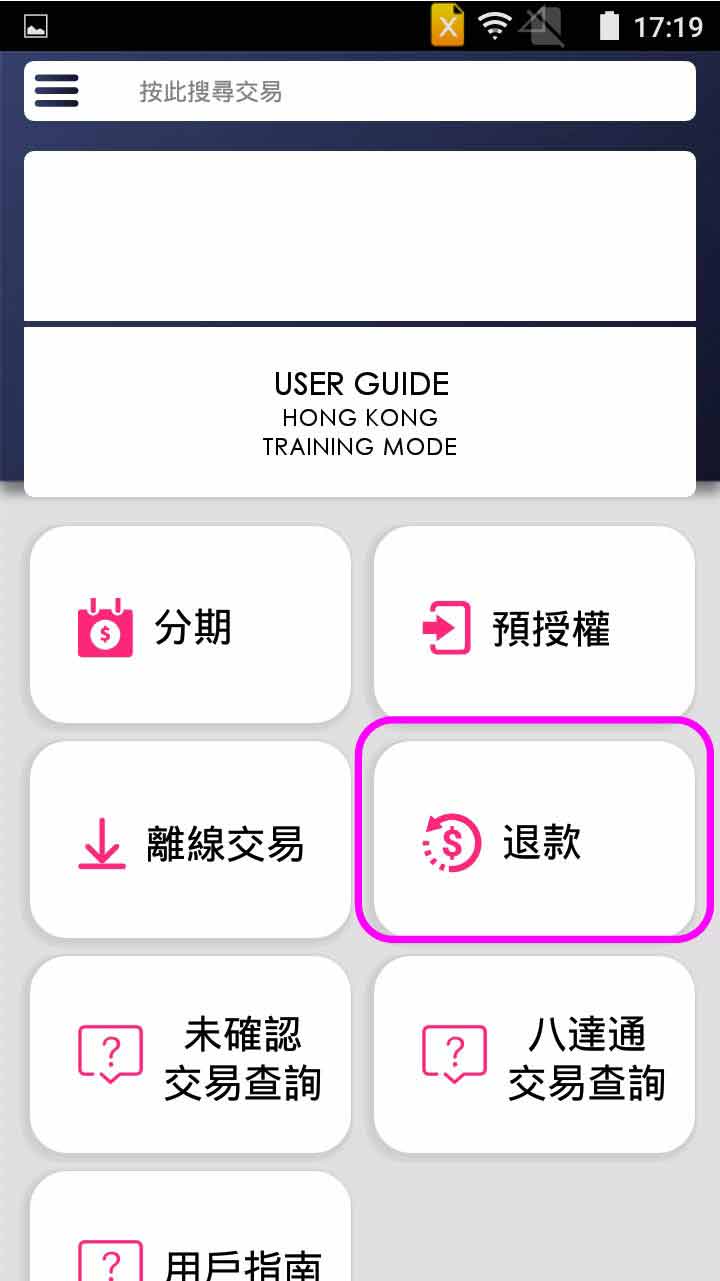
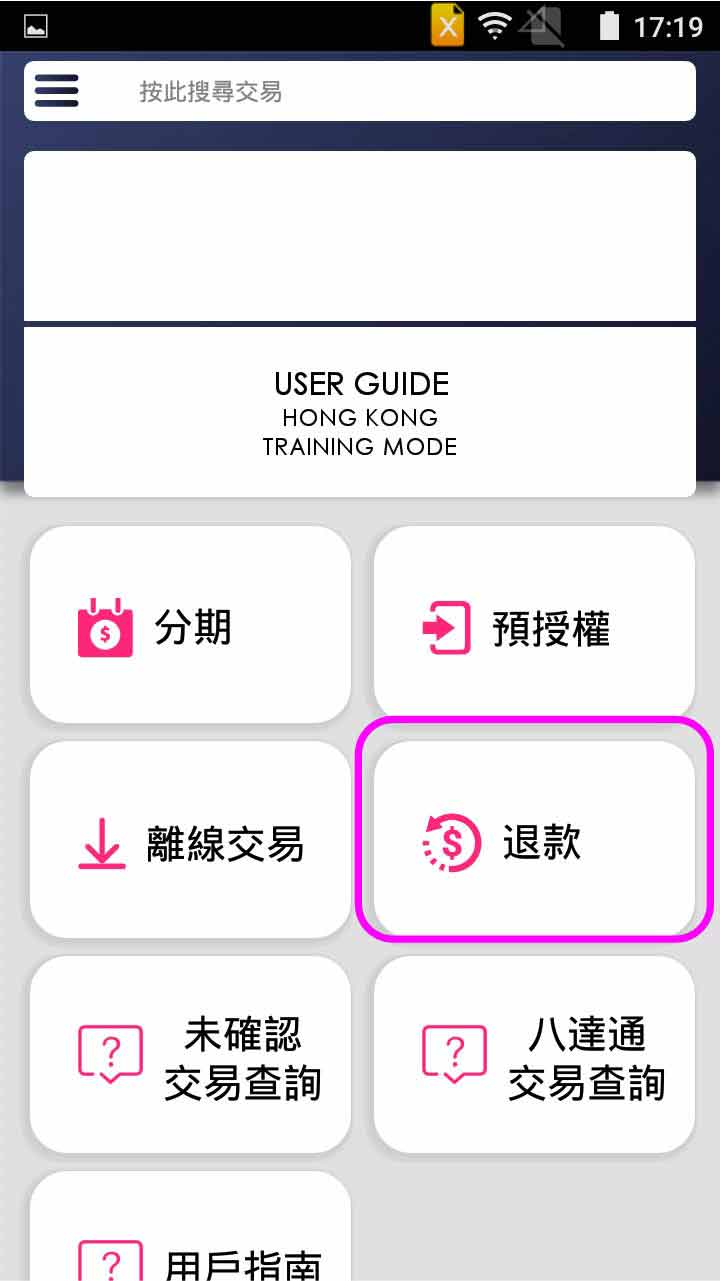
Press [Refund] on menu
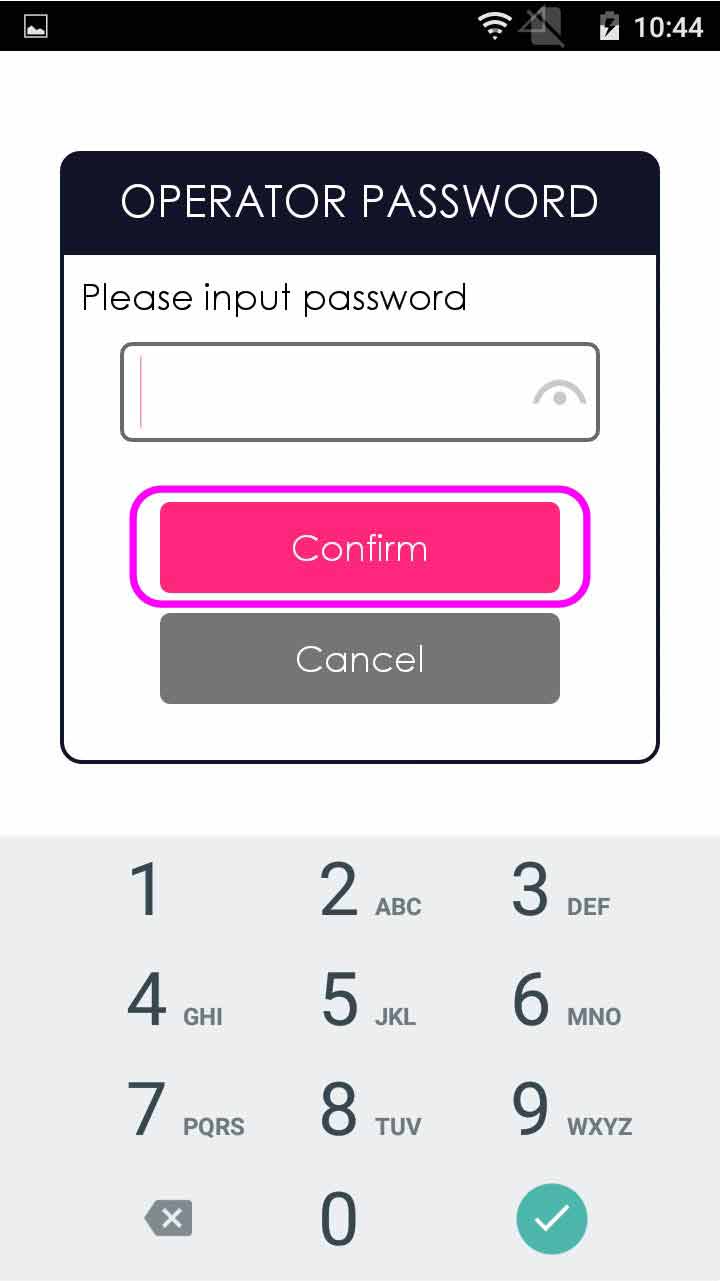
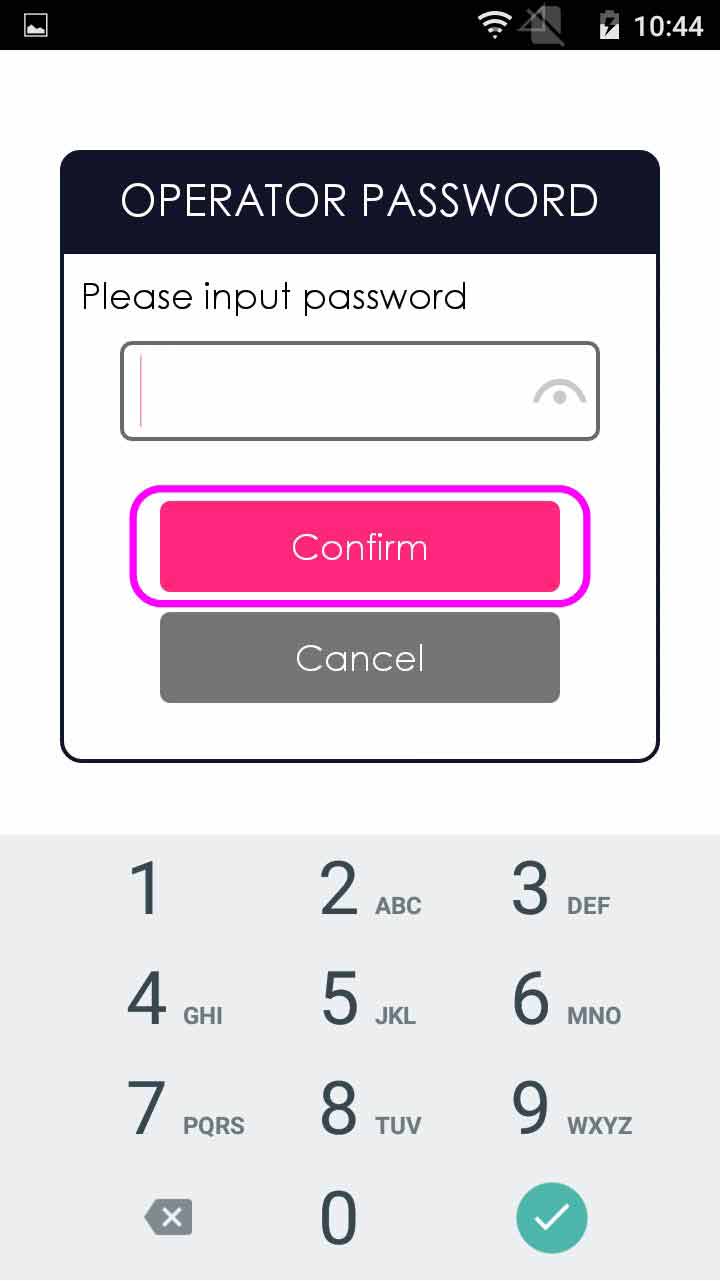
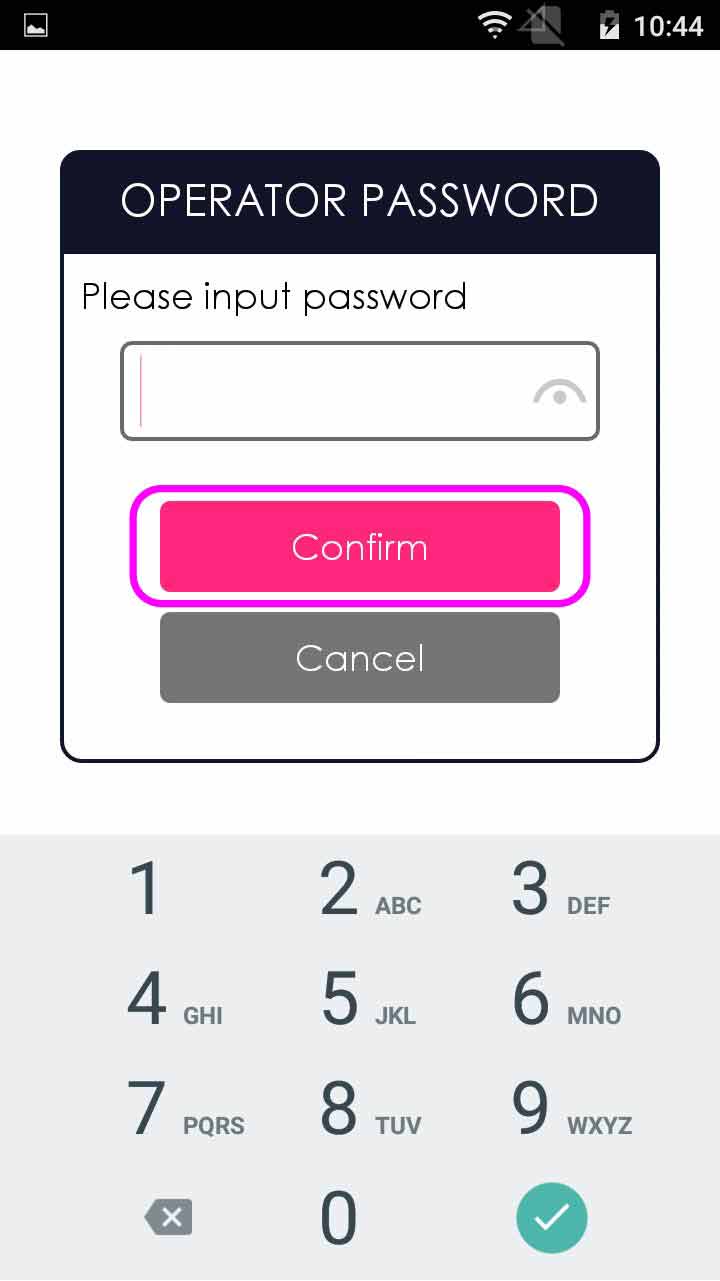
- Step 2 -
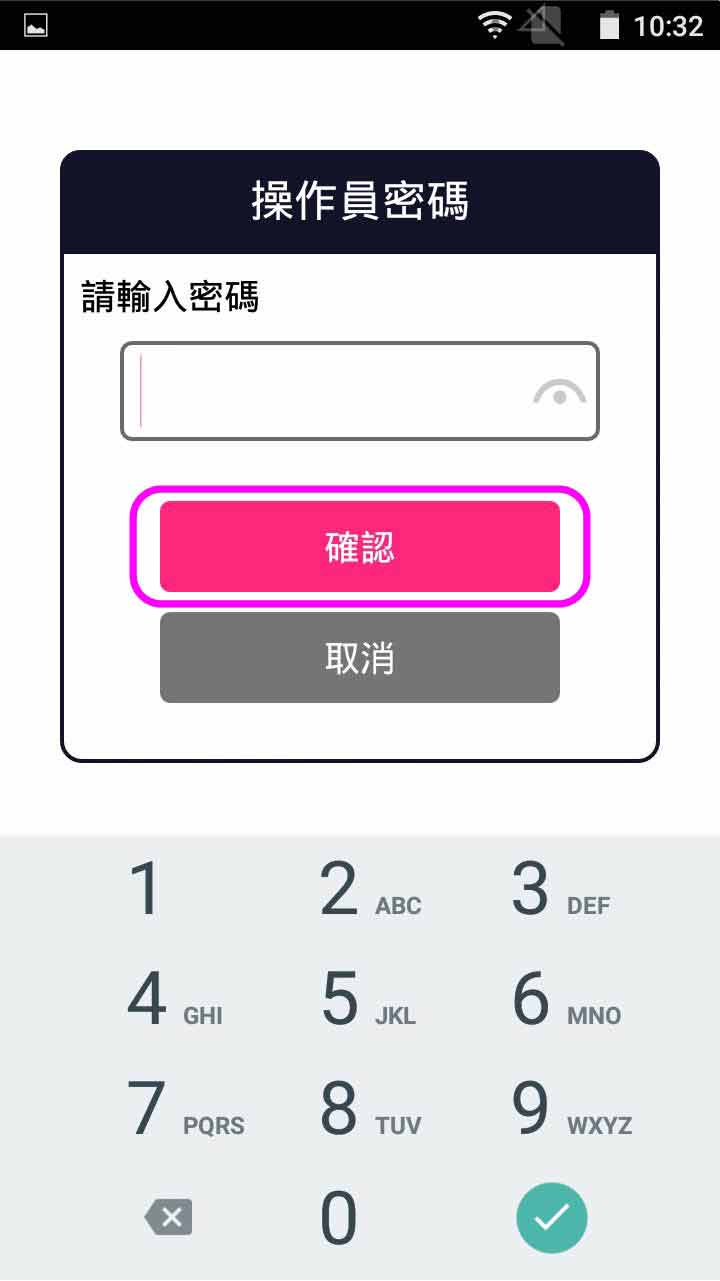
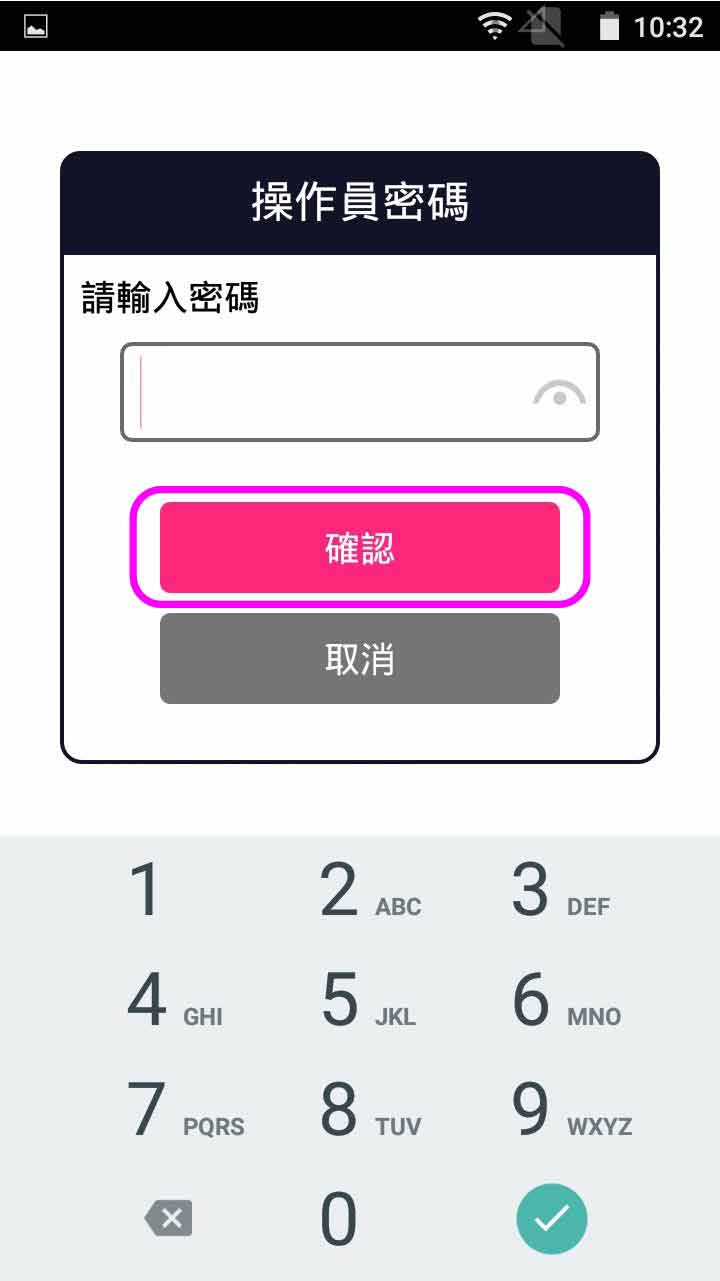
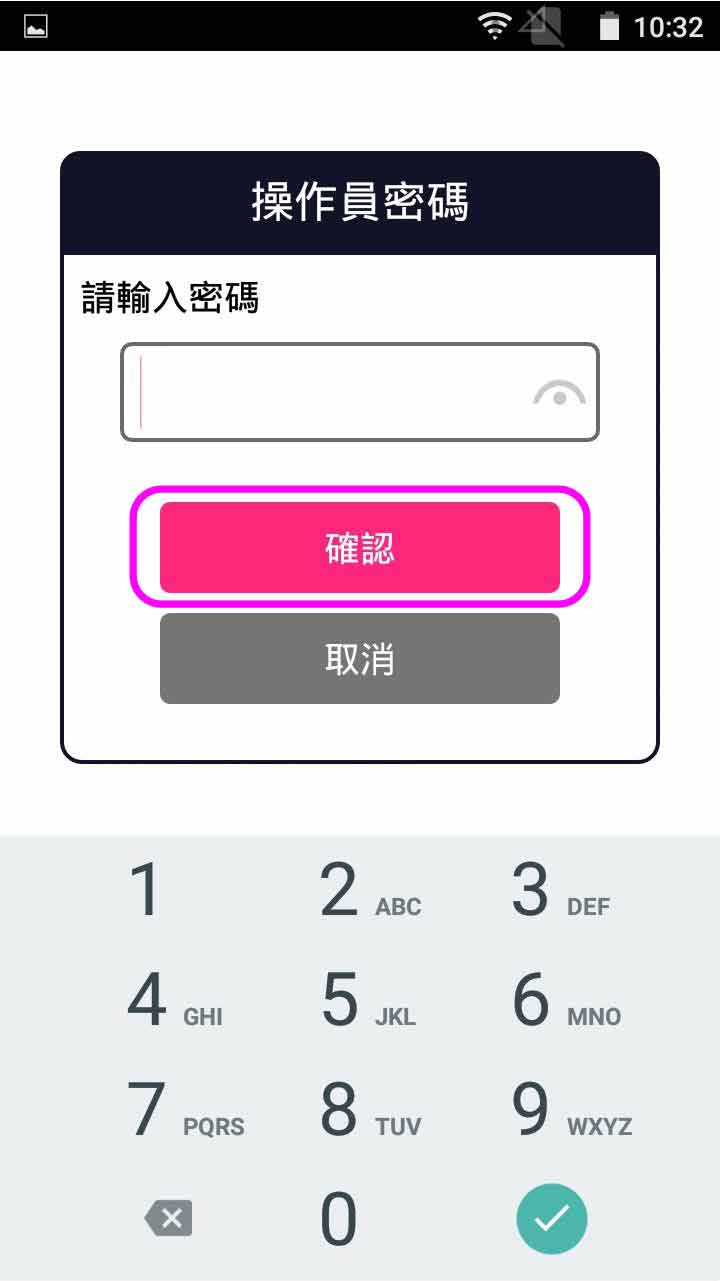
Enter operator password, and press [Confirm]
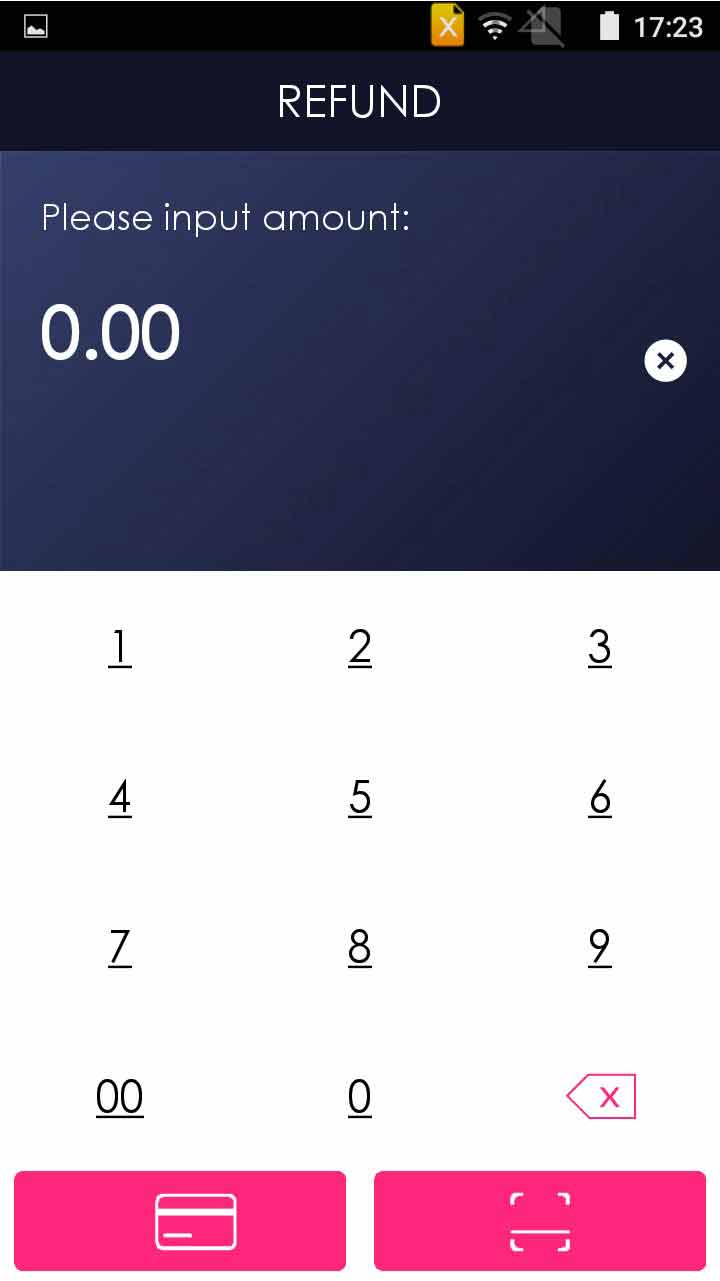
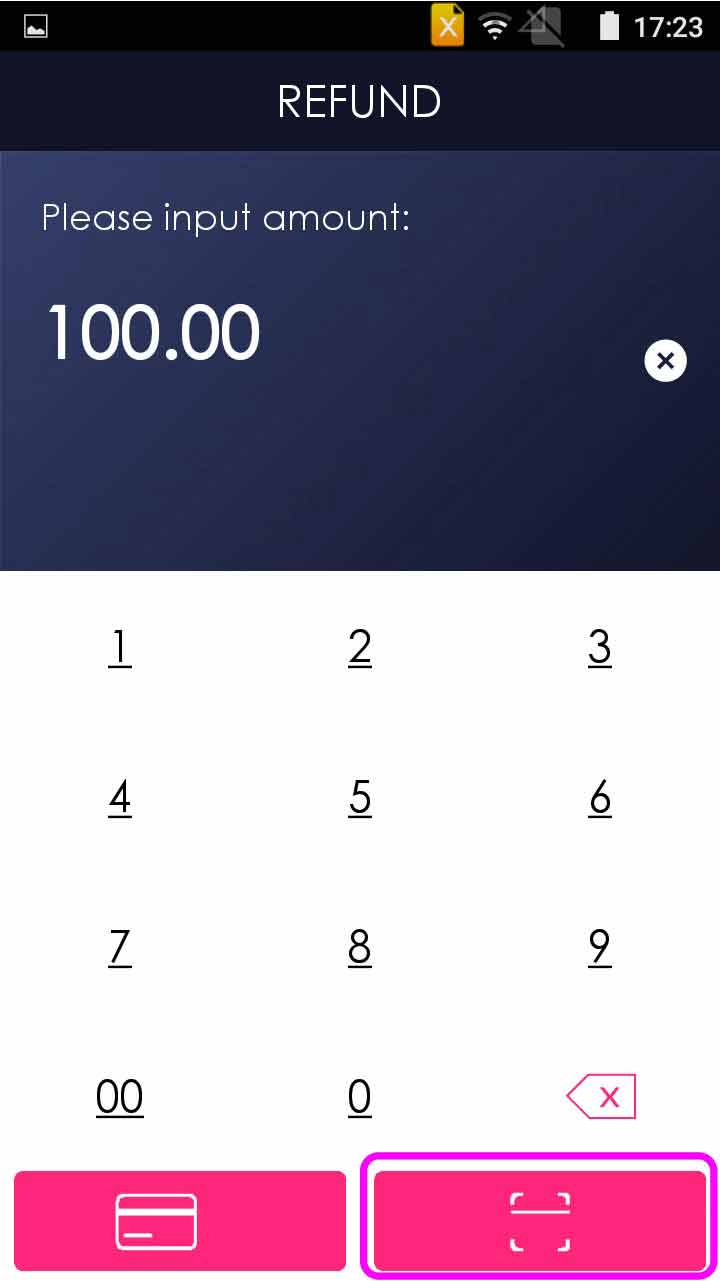
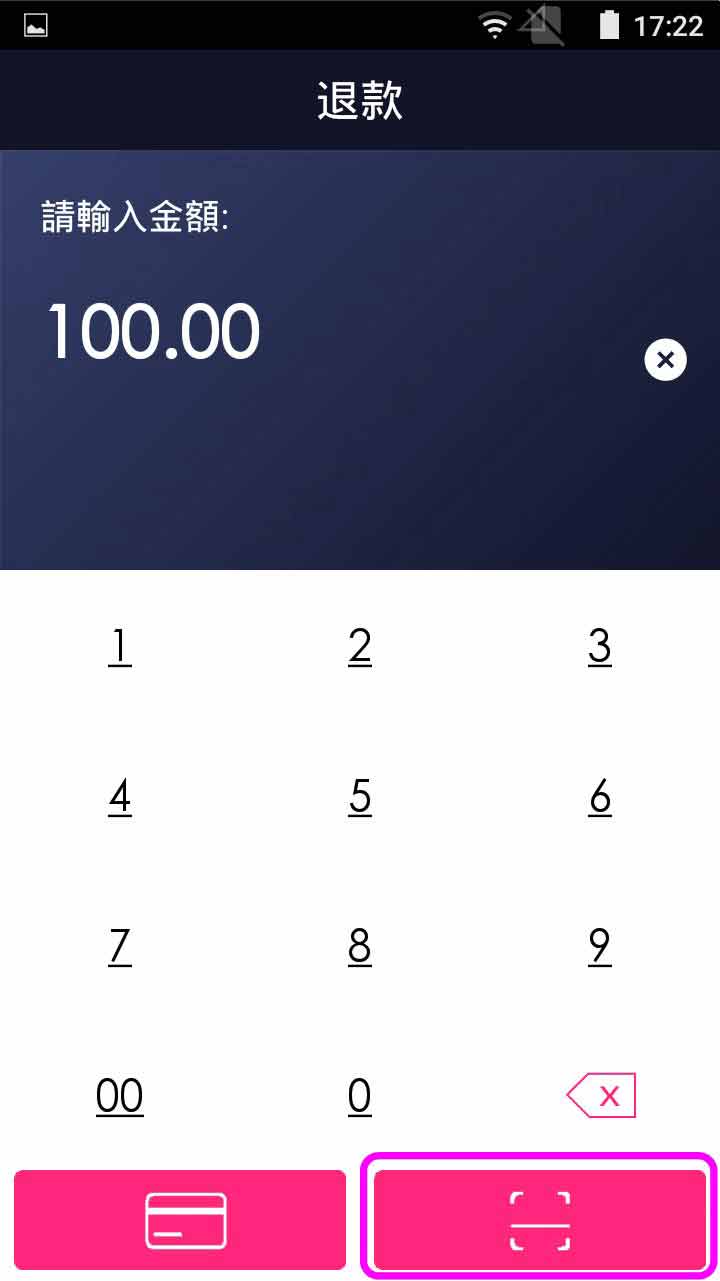
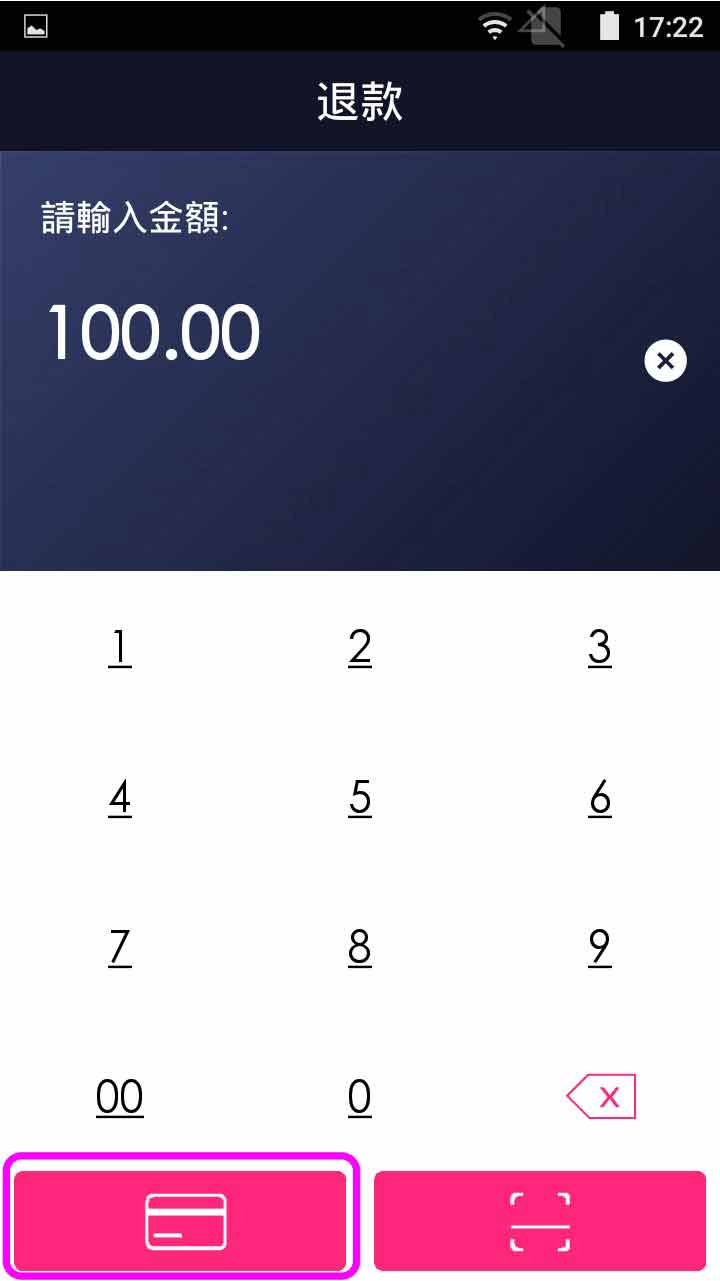
- Step 3 -
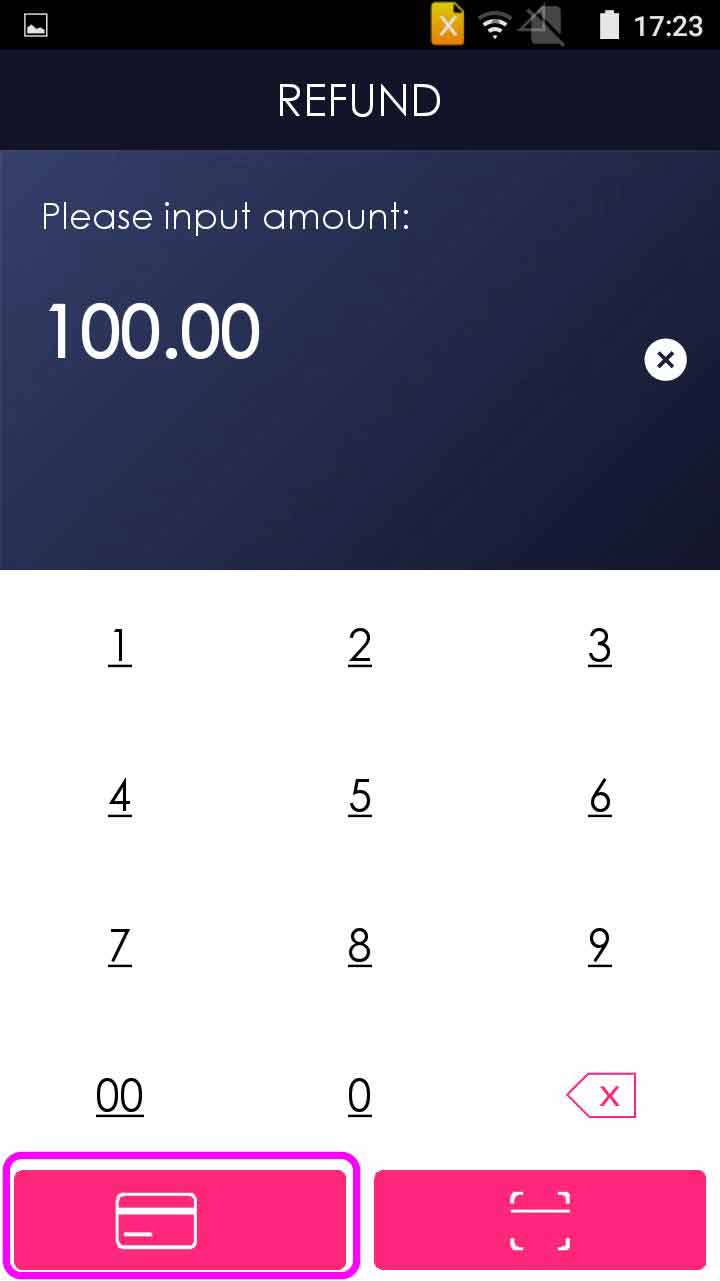
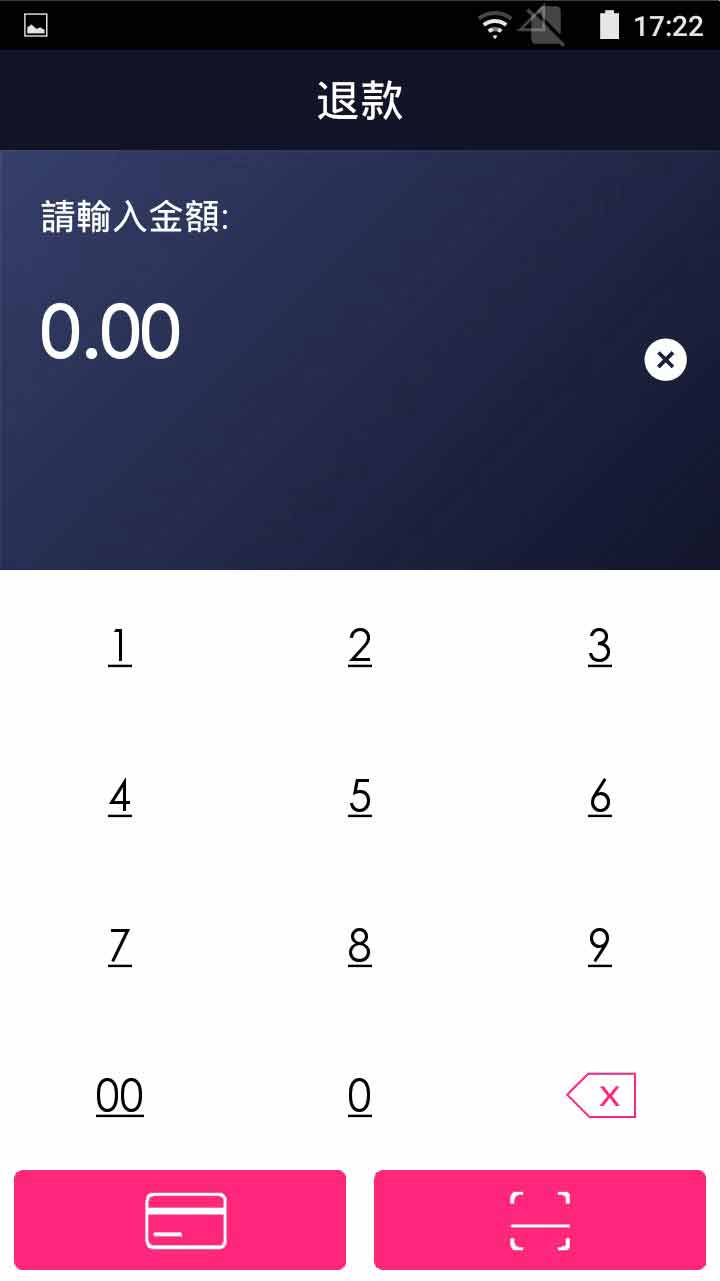
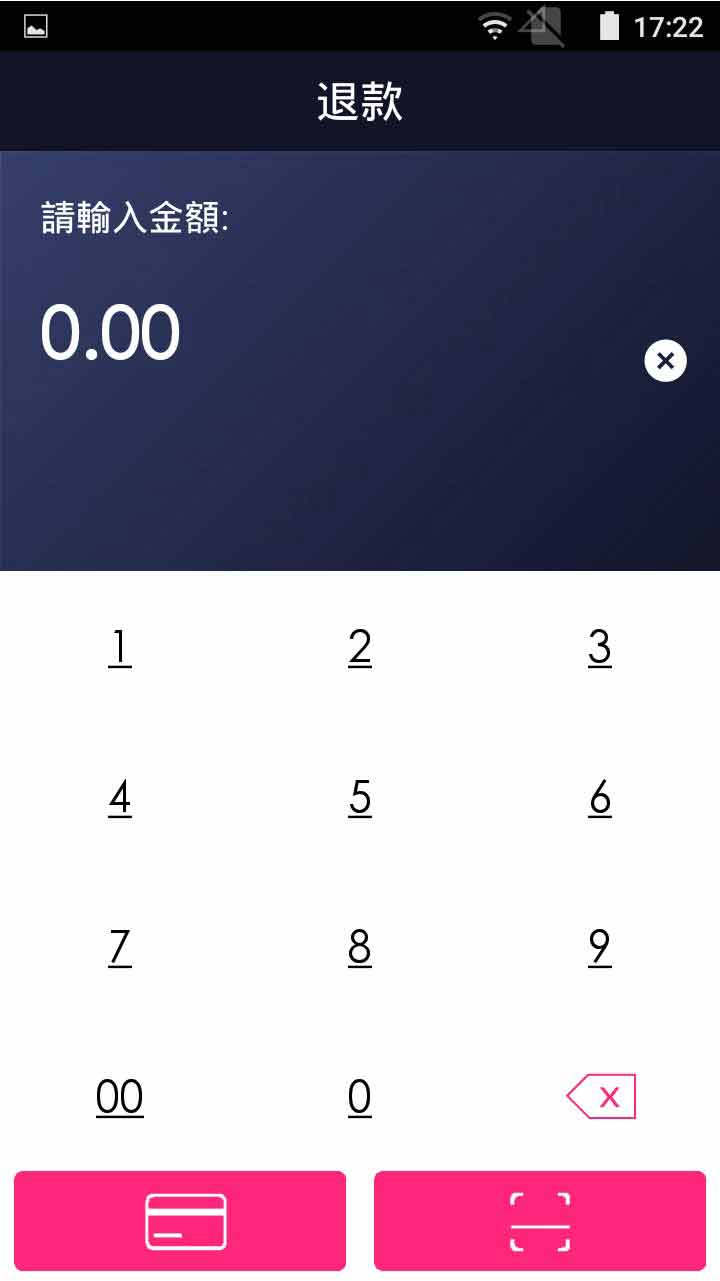
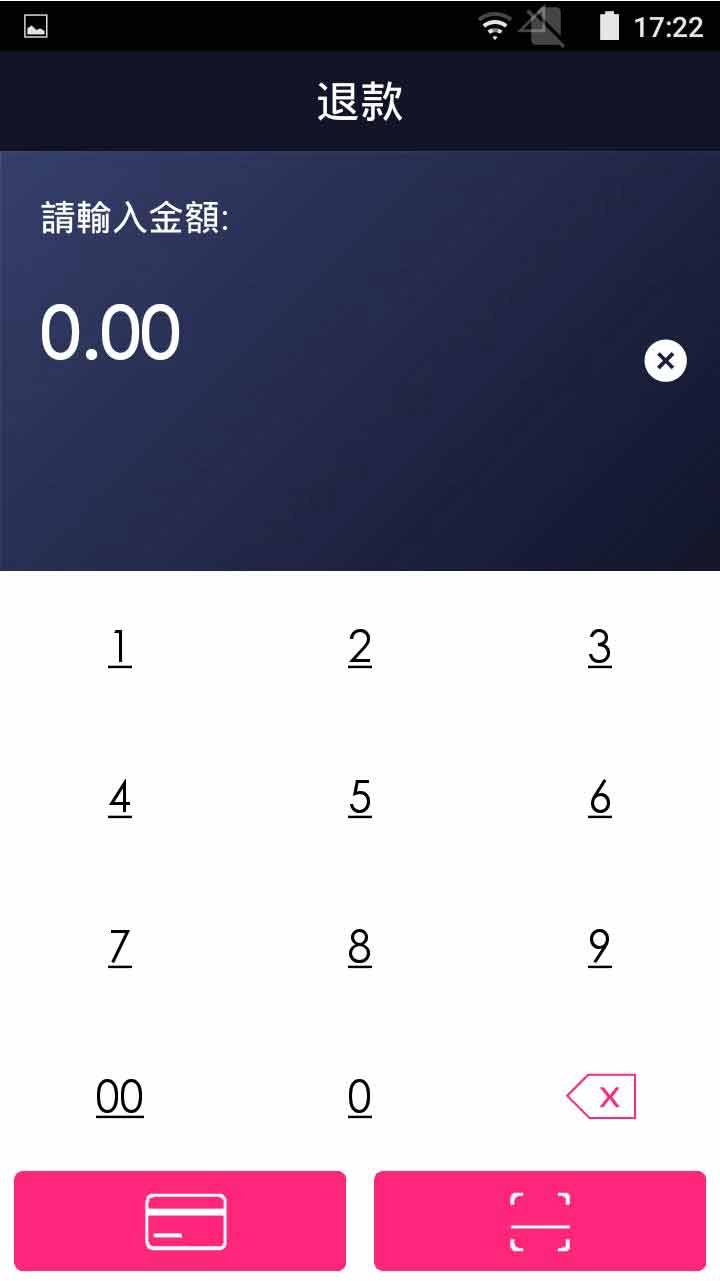
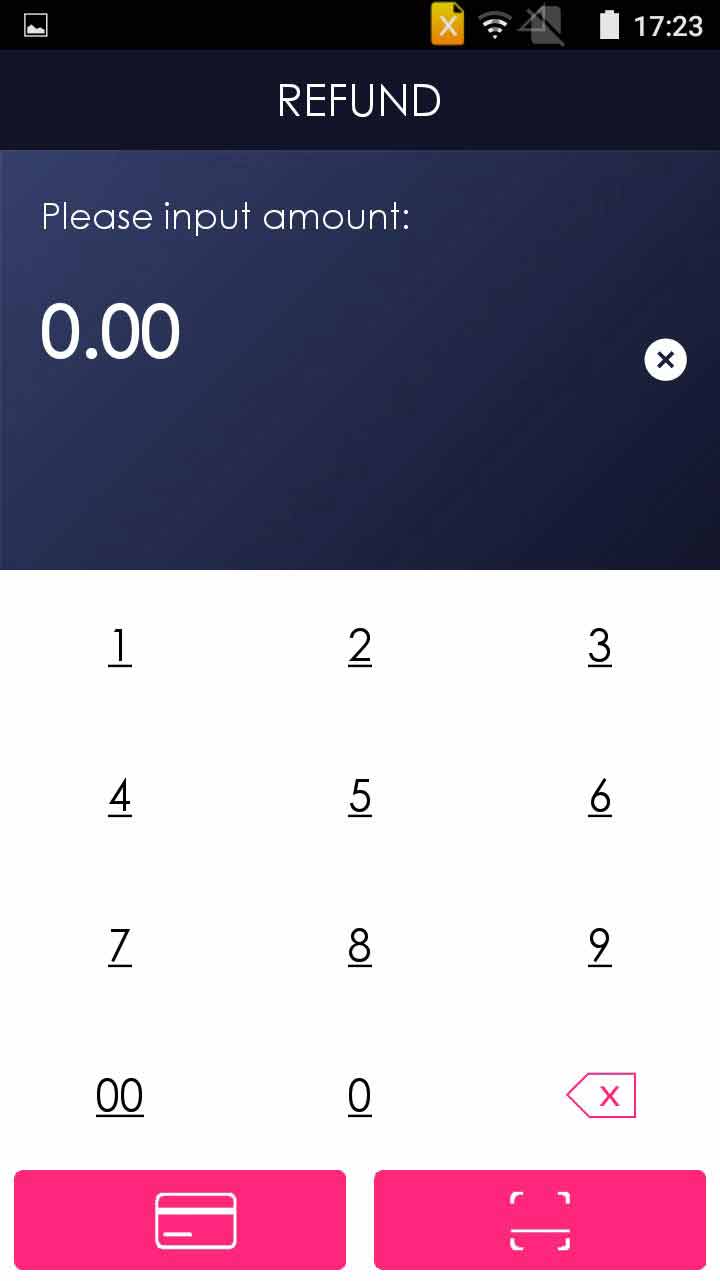
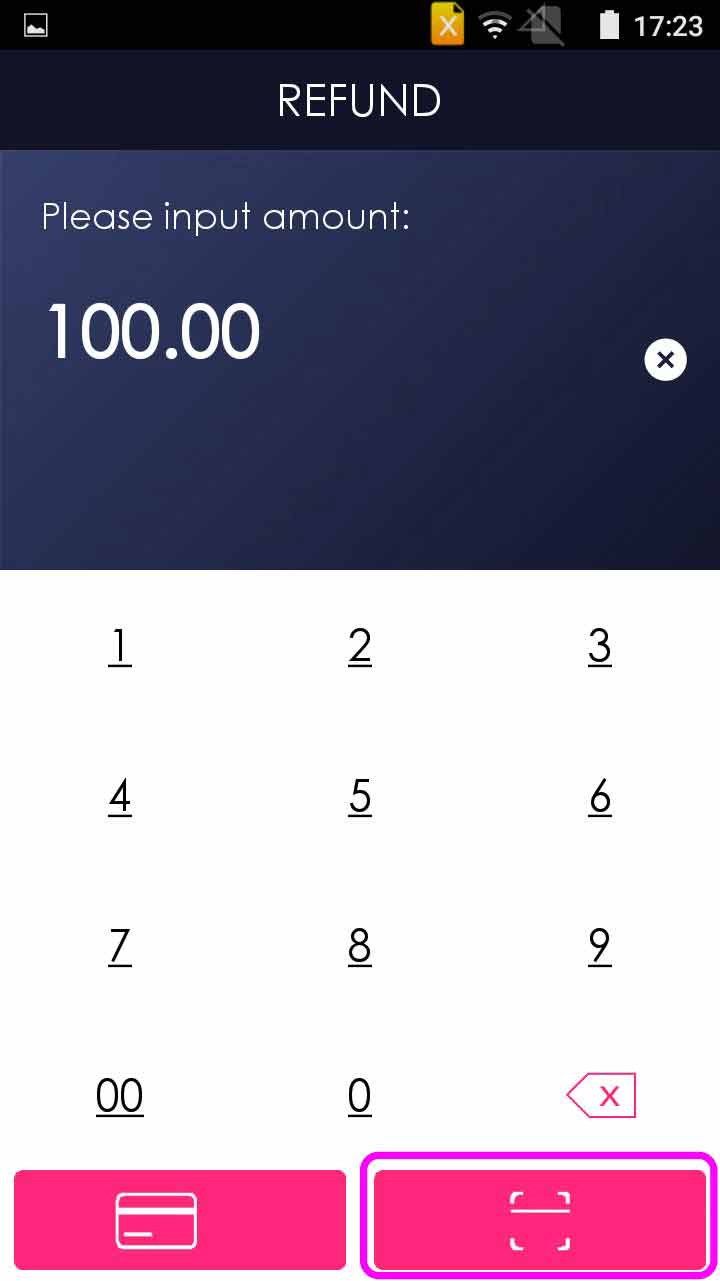
Enter refund amount
- Step 4 -
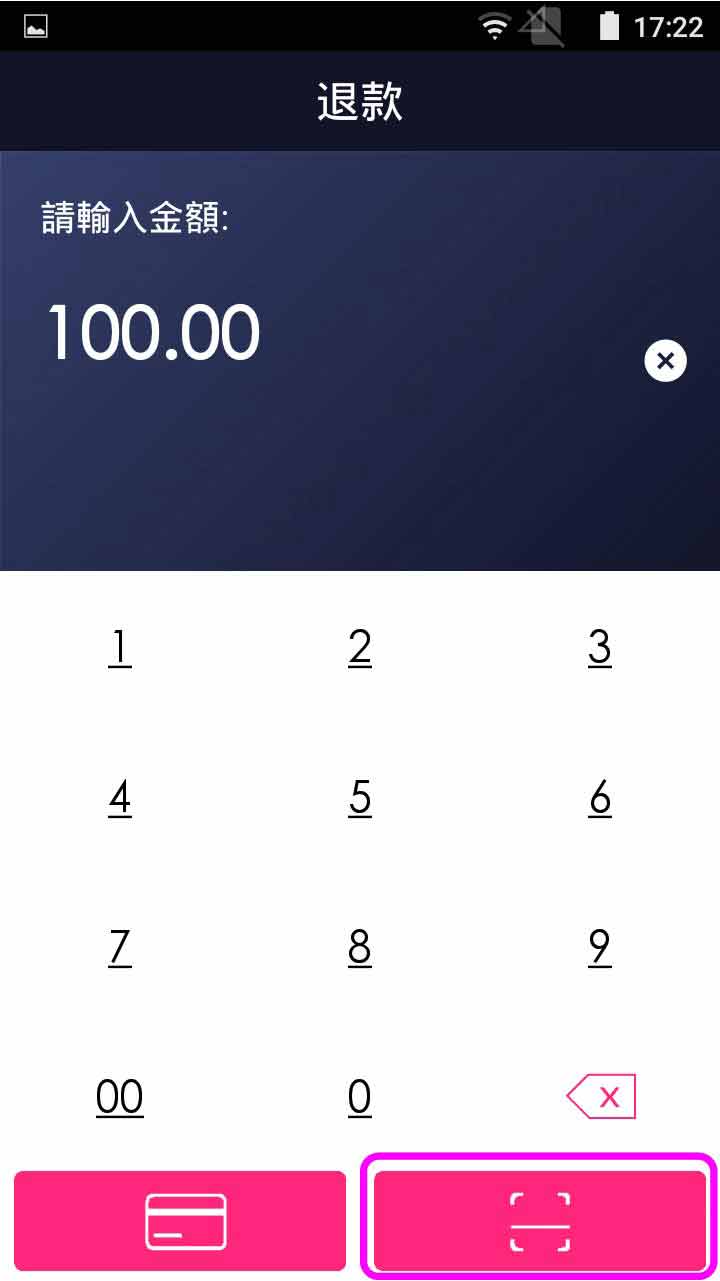
Select QR code scanning
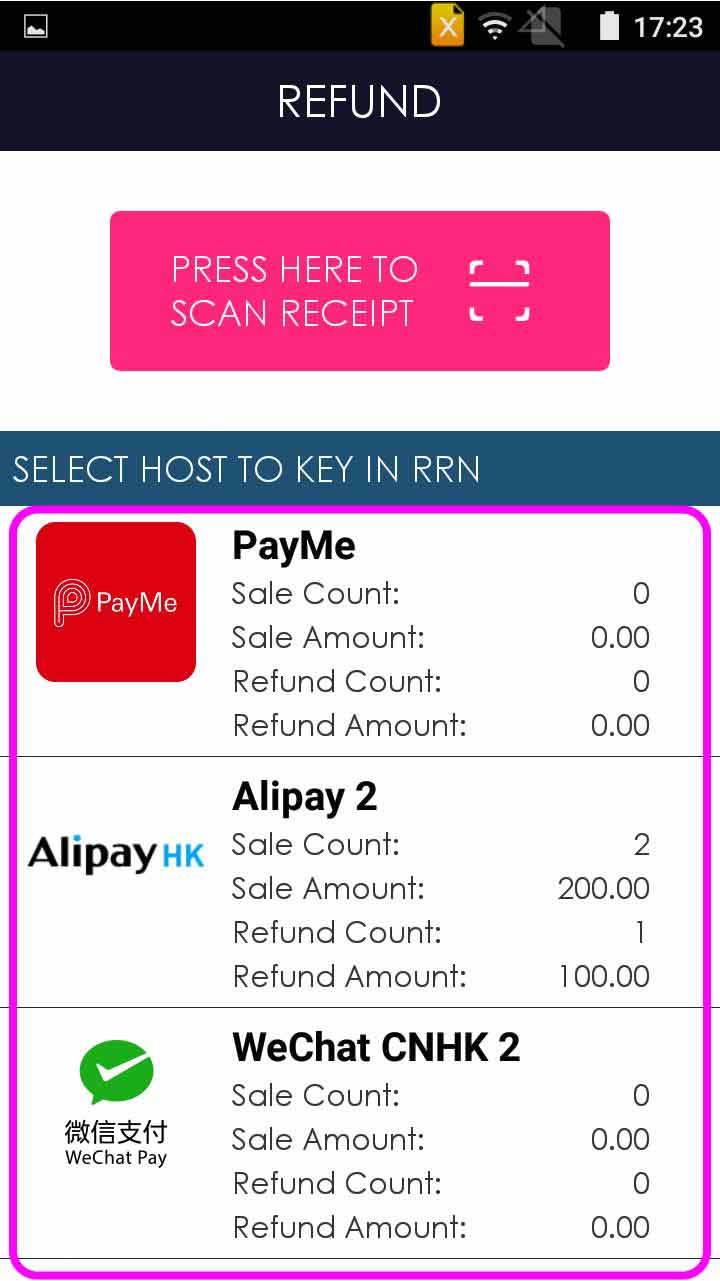
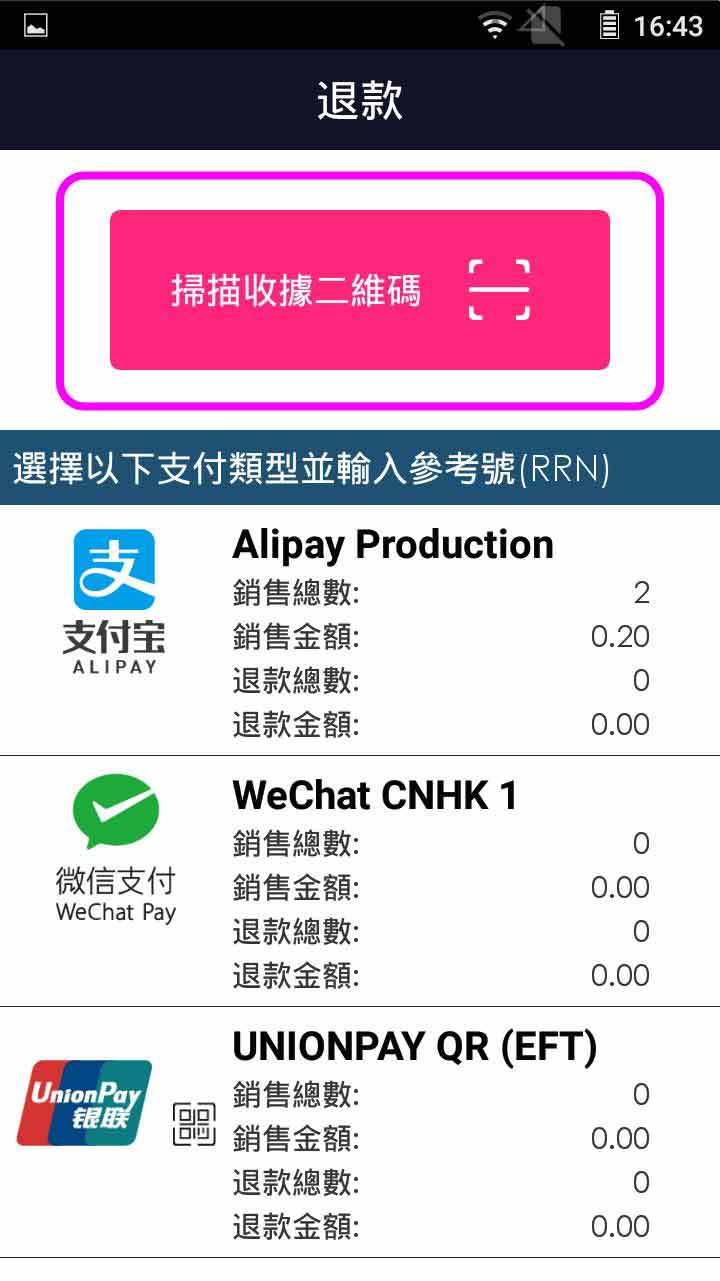
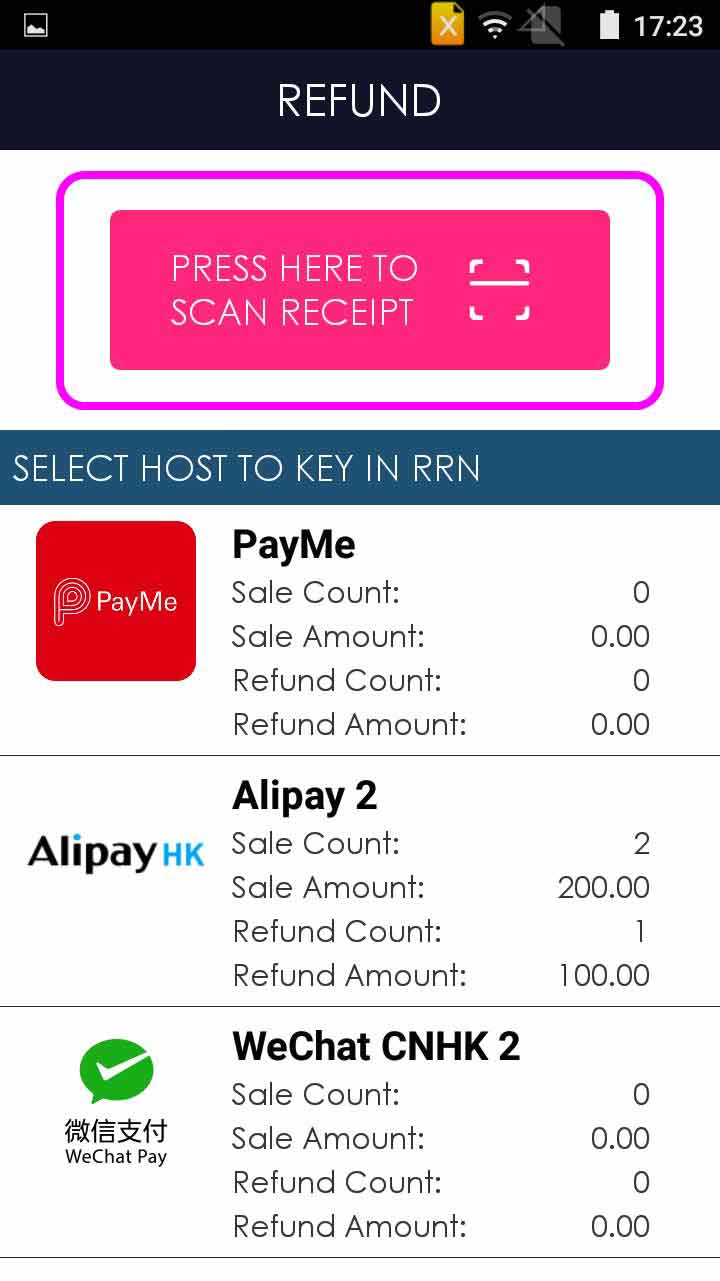
- Step 5 -
Select [PRESS HERE TO SCAN RECEIPT]
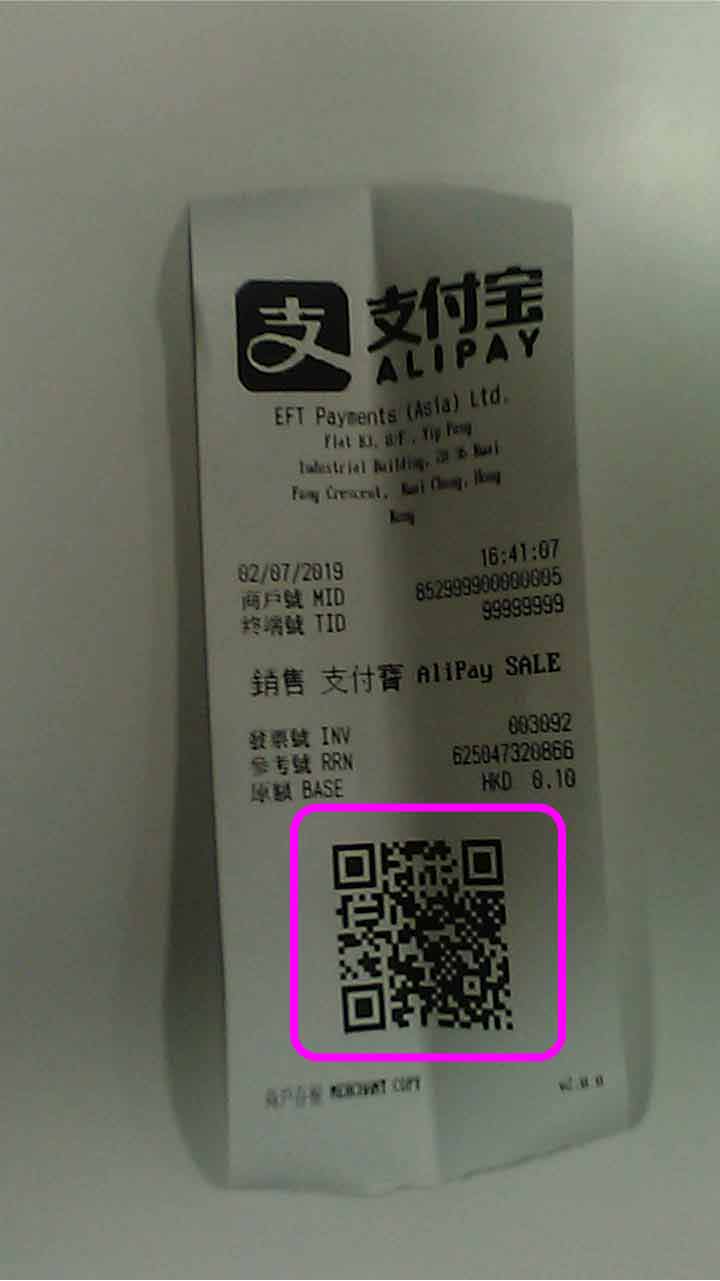
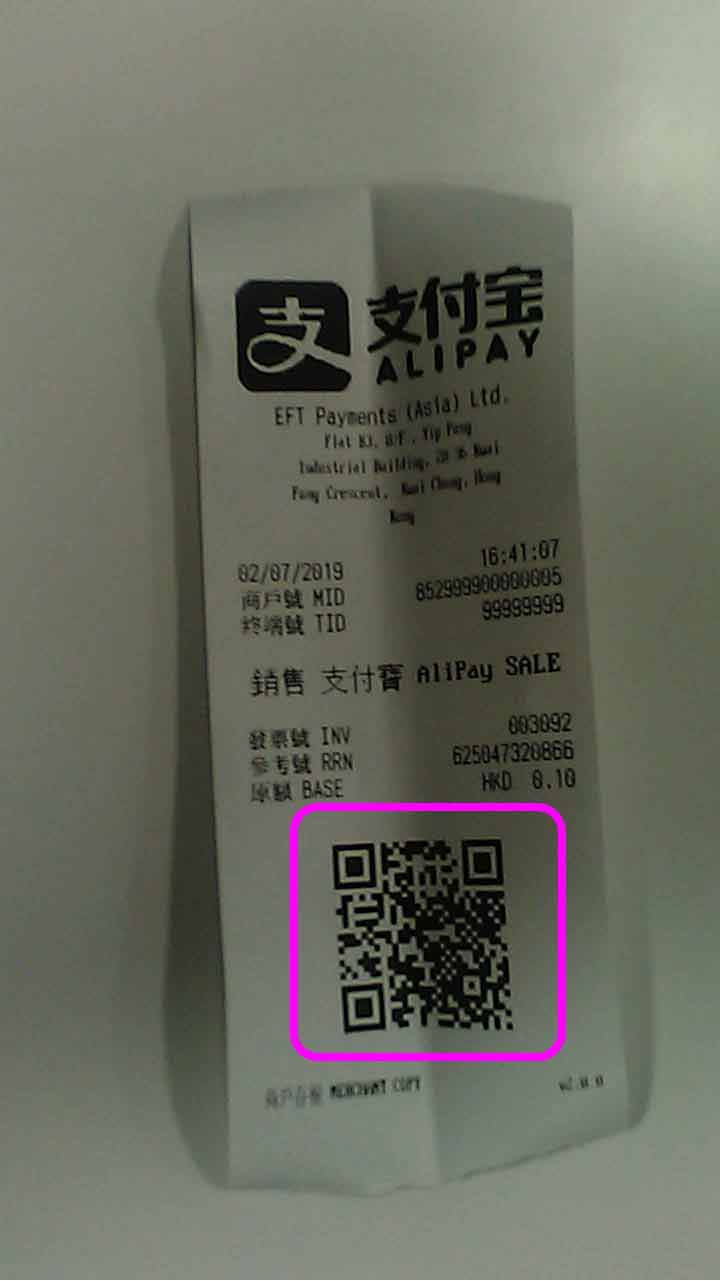
- Step 6 -
Scan QR code on sale receipt
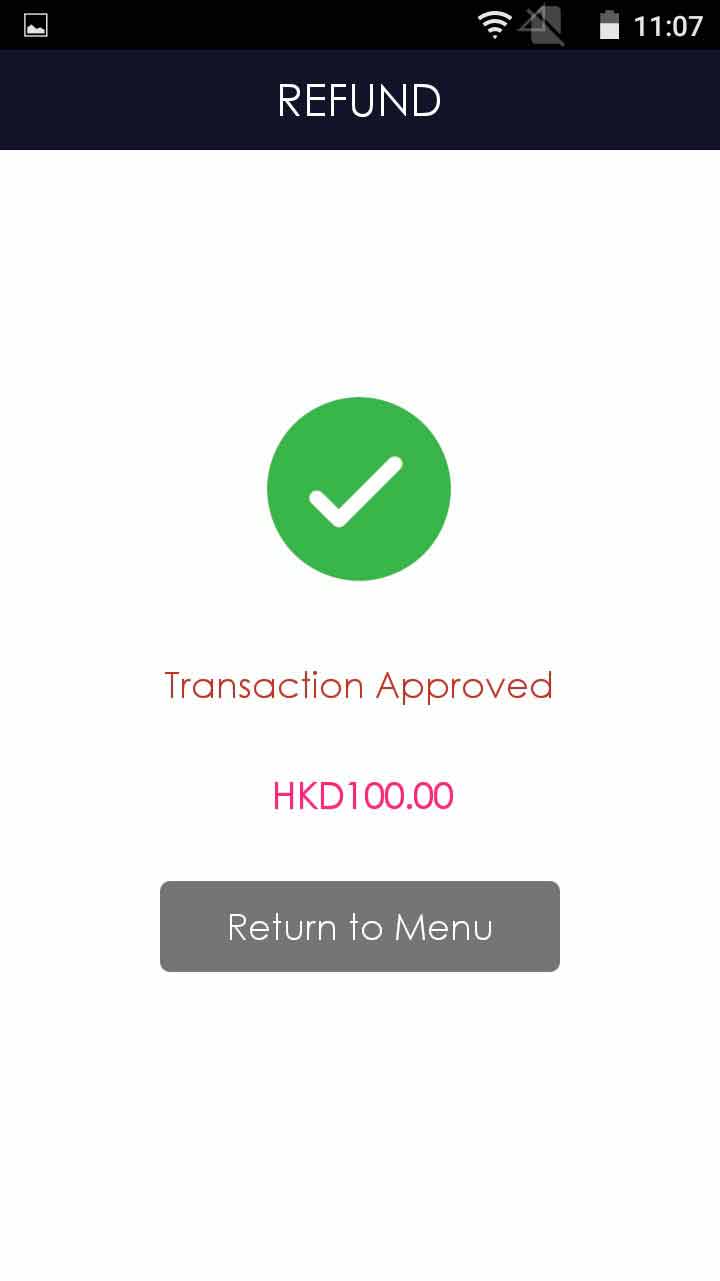
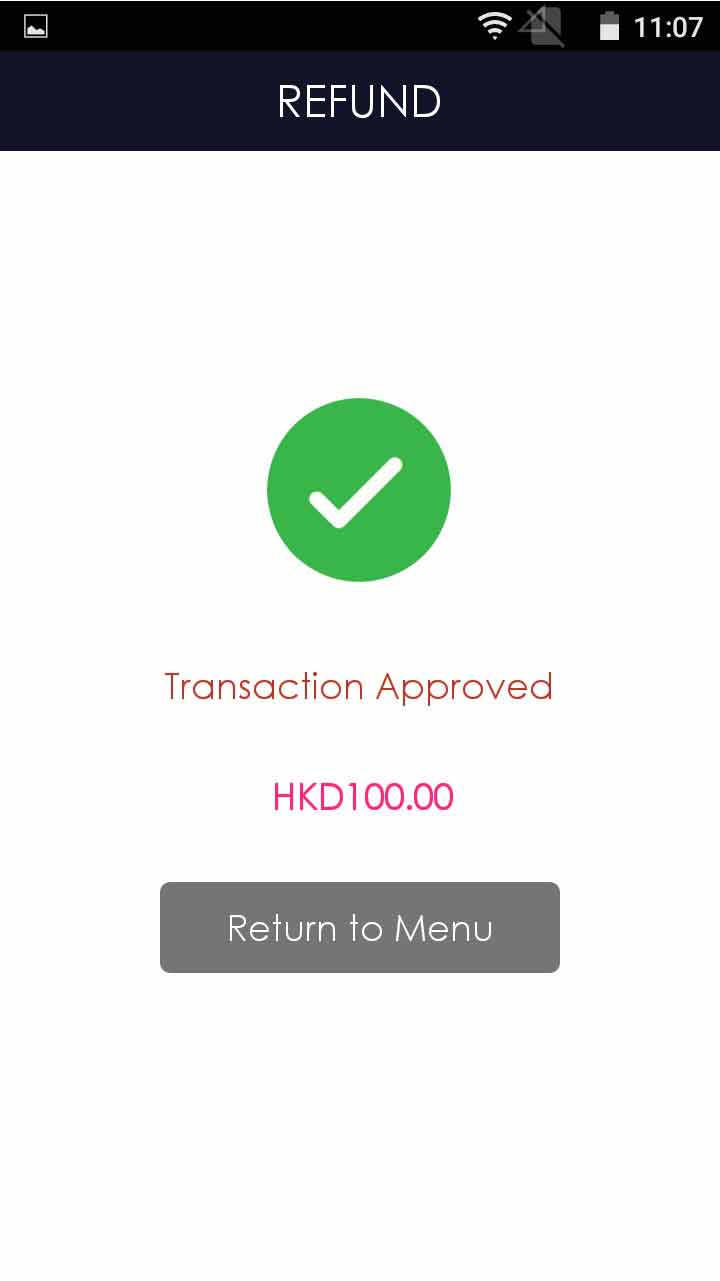
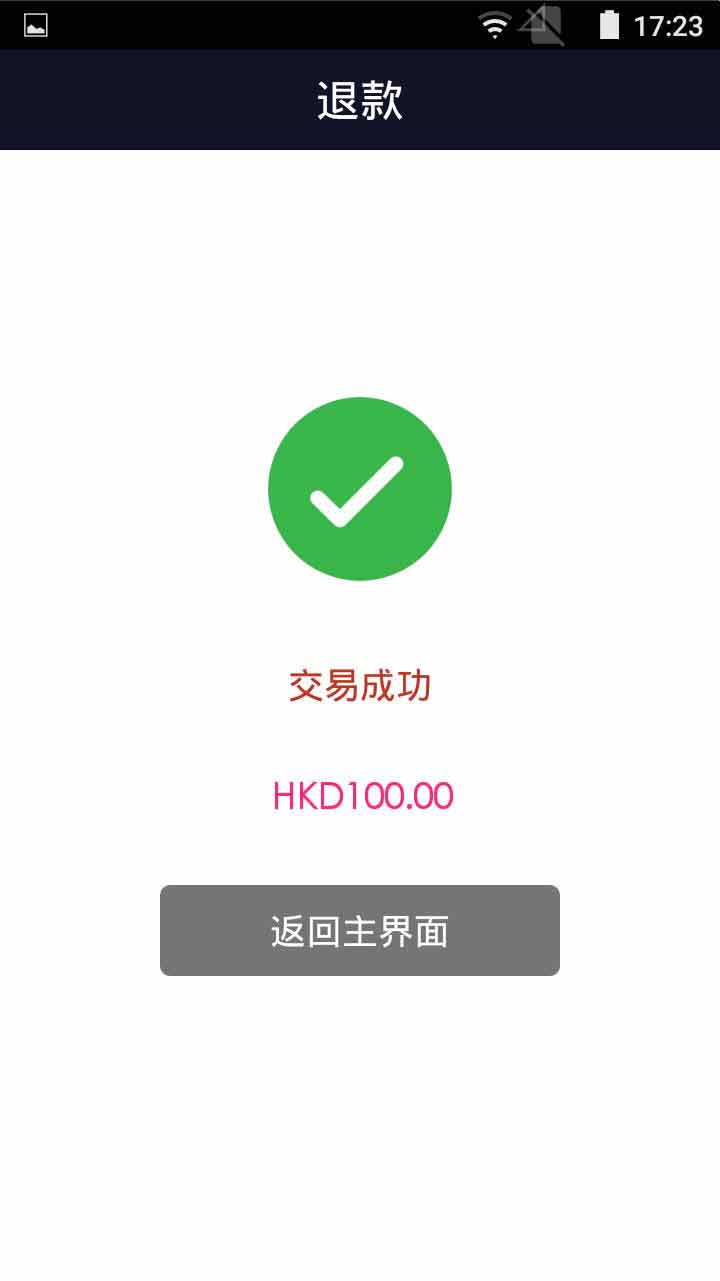
- Step 7 -
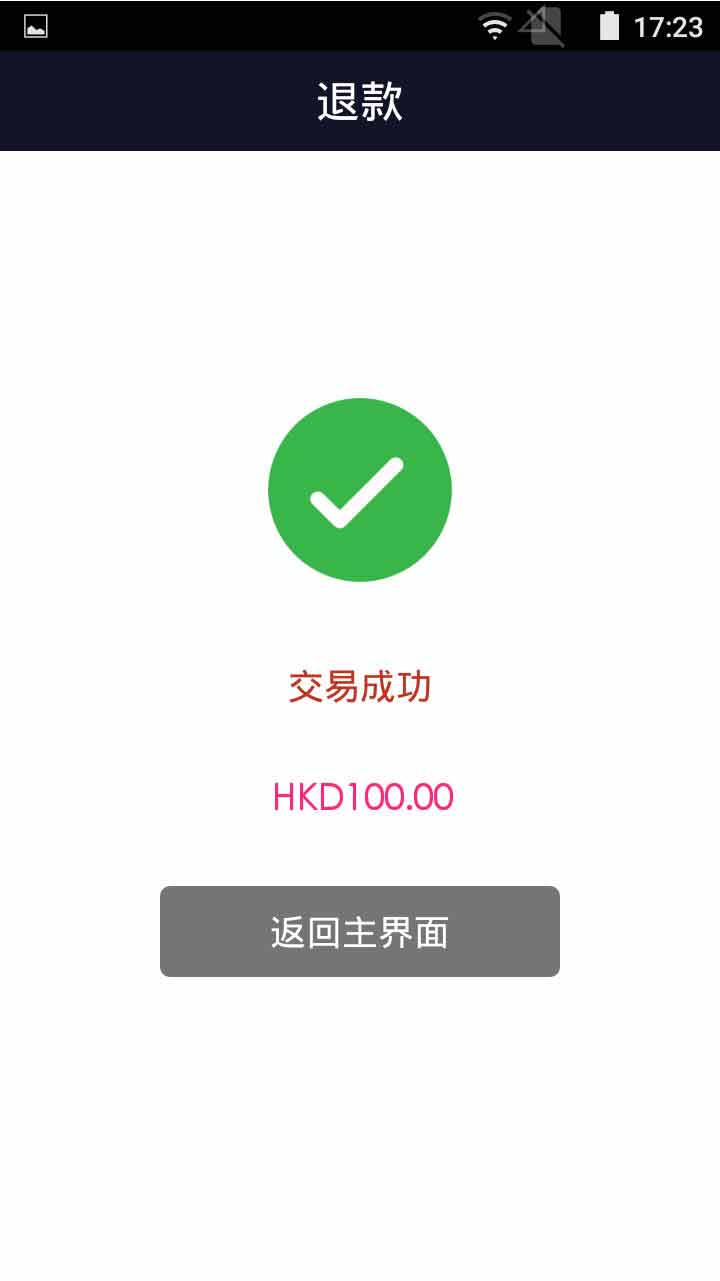
Transaction completed, terminal prints out receipt
- Step 1 -
Press [Refund] on menu
- Step 2 -
Enter operator password, and press [Confirm]
- Step 3 -
Enter refund amount
- Step 4 -
Select QR code scanning
- Step 5 -
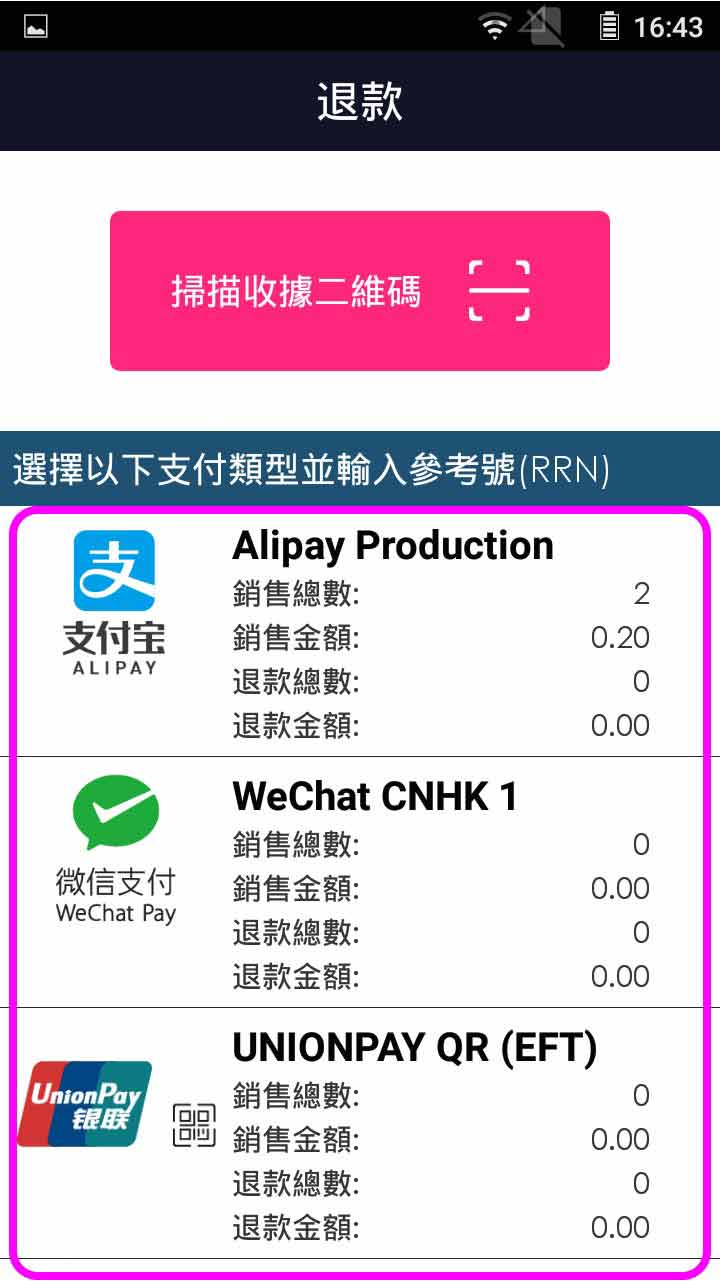
Select host for refund
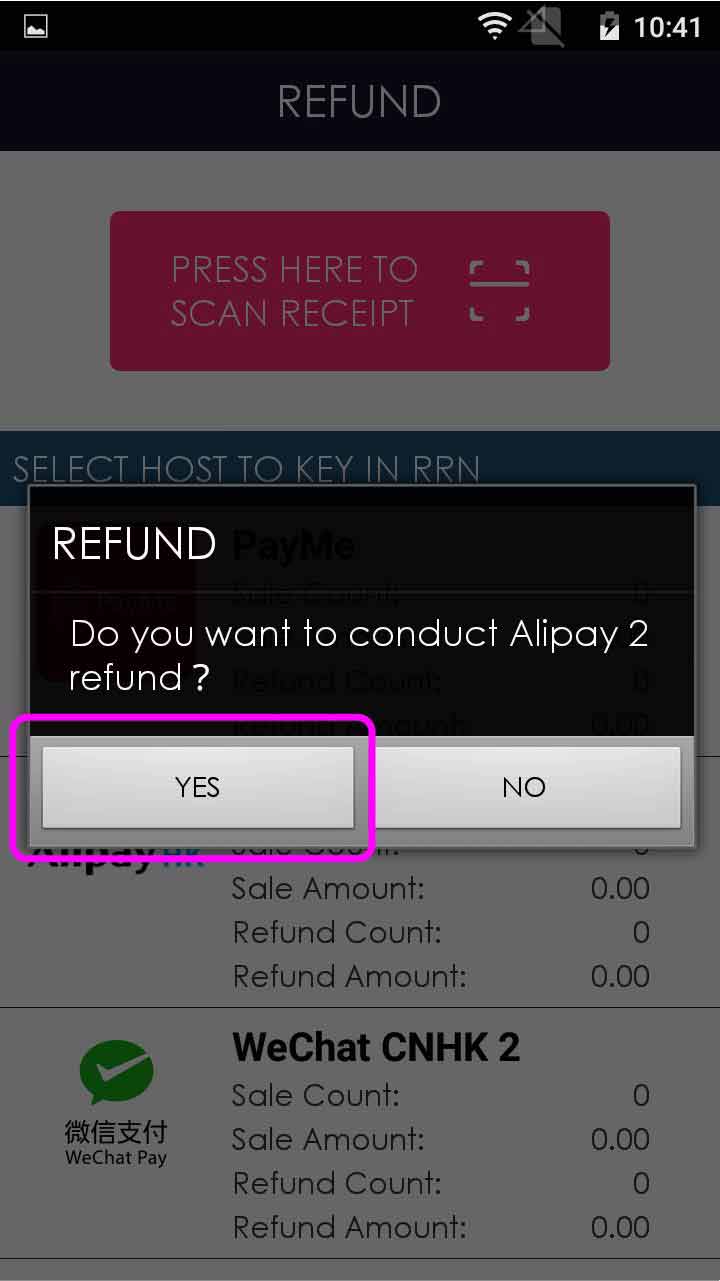
- Step 6 -
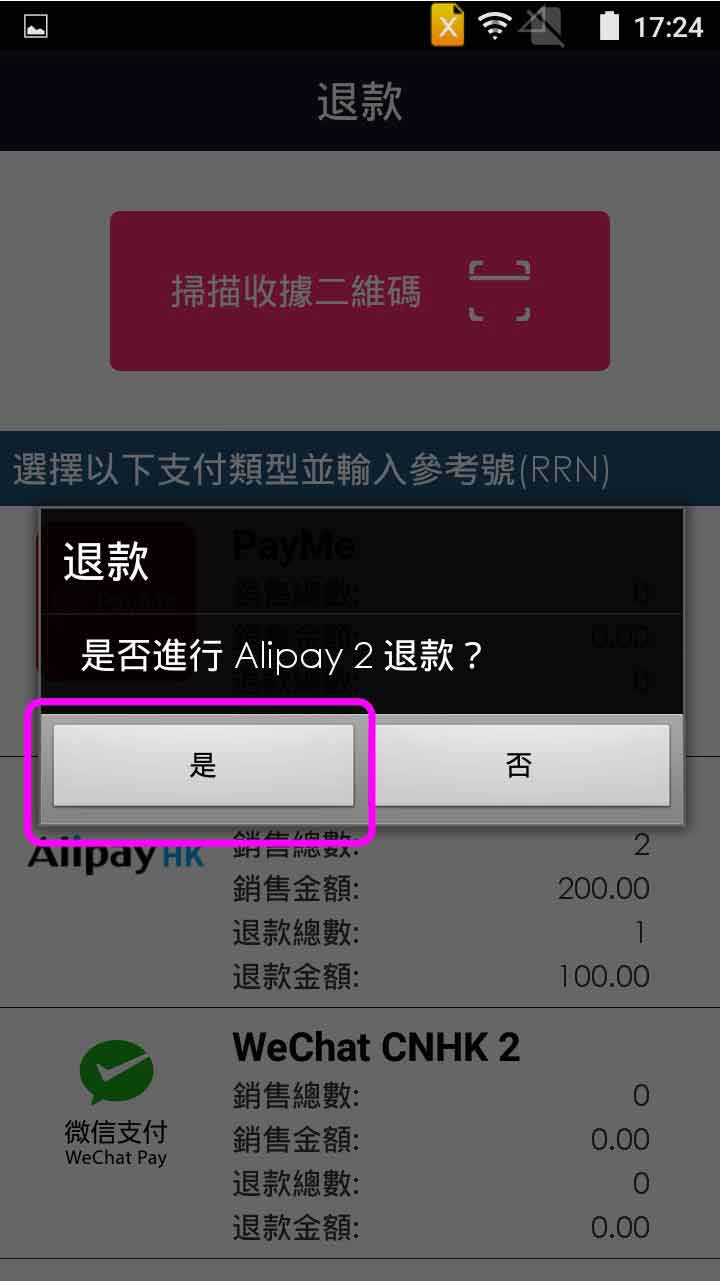
Press [Yes] to confirm the host
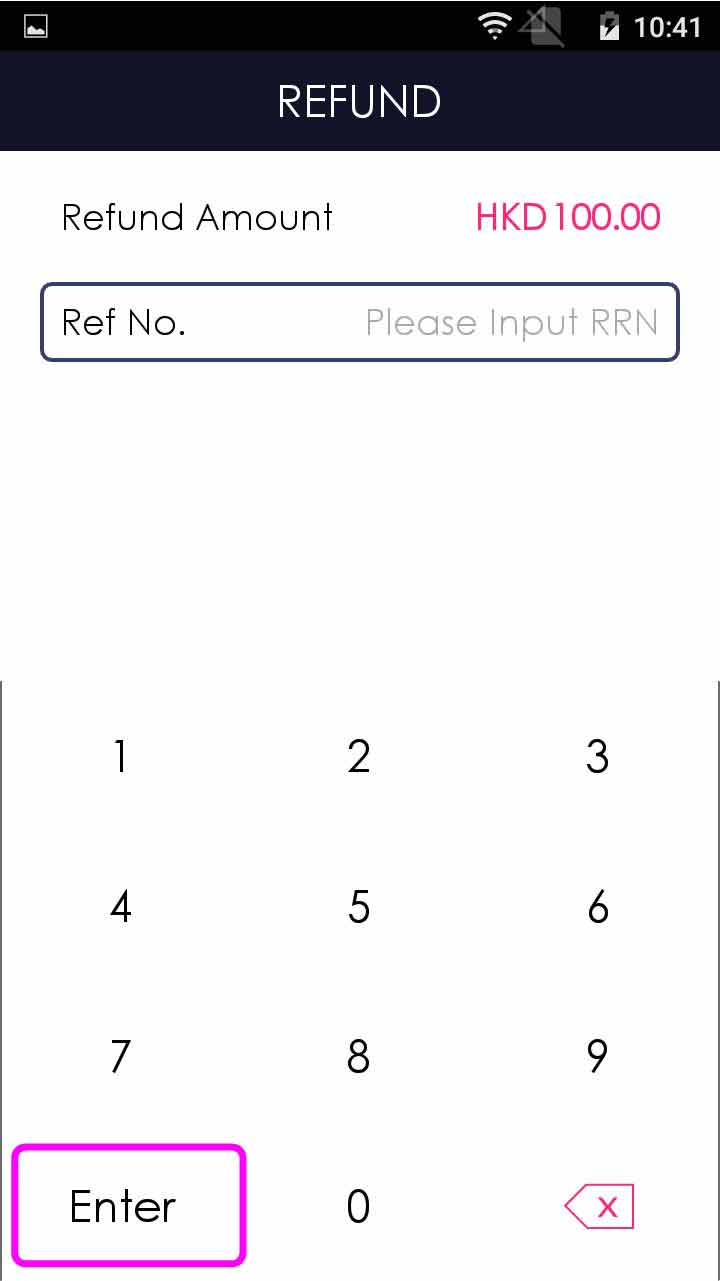
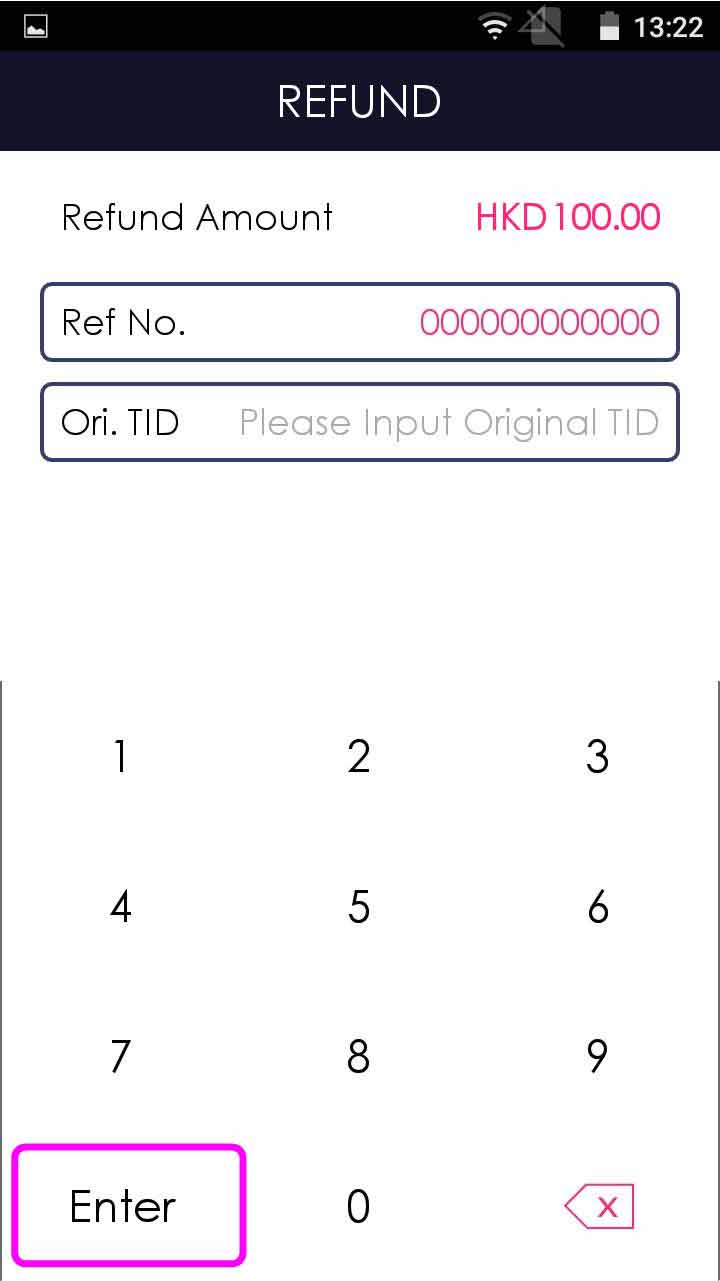
- Step 7 -
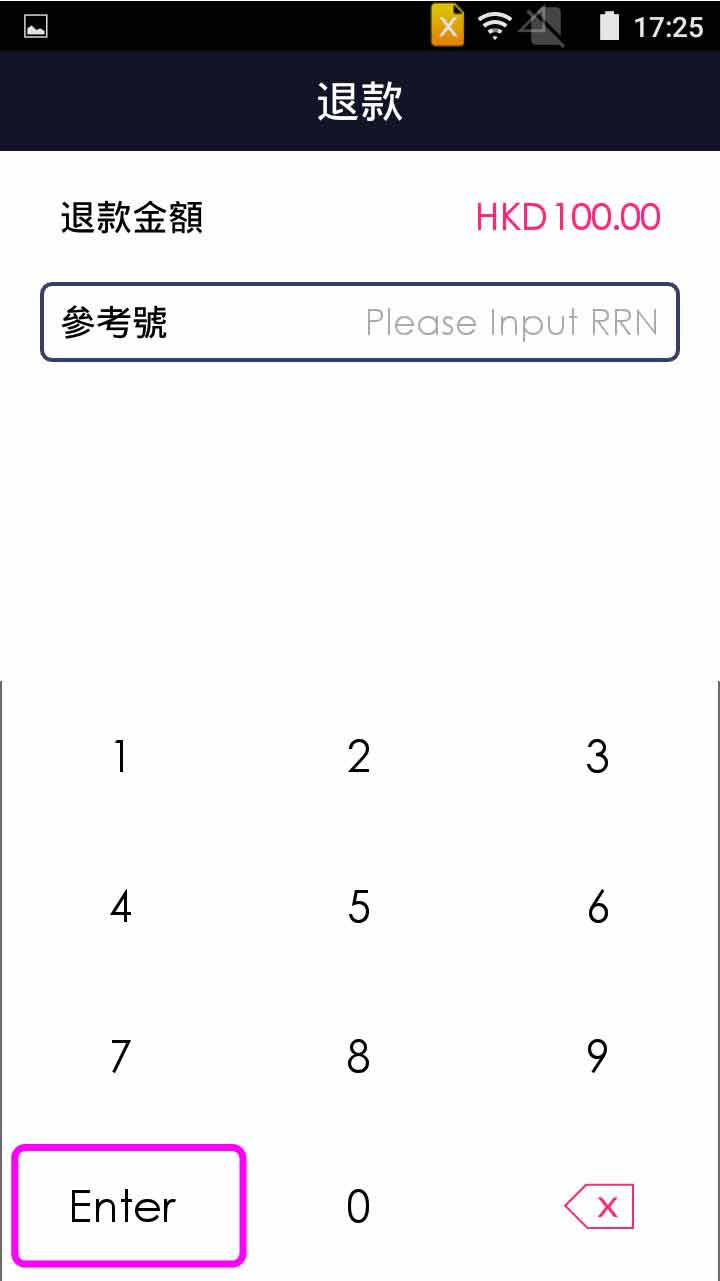
Enter 12 digits reference number (from sales receipt or transaction details),and press [Enter]
- Step 8 -
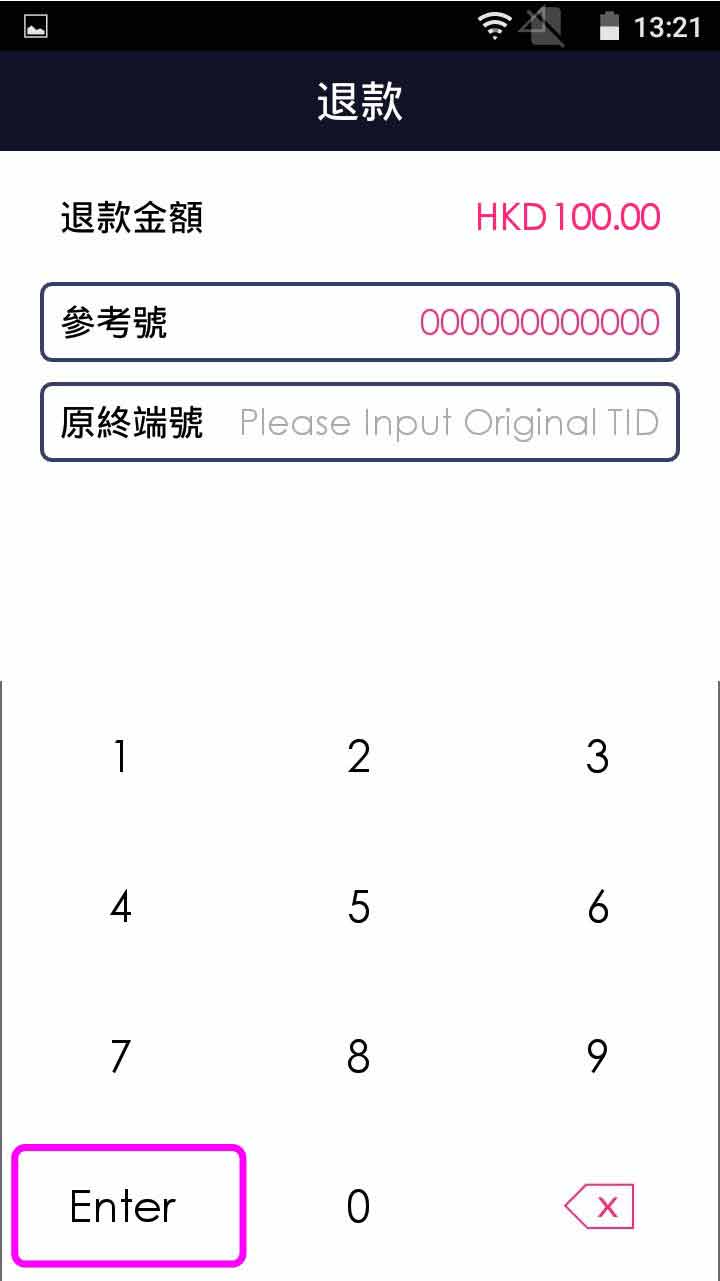
Enter 8 digit of original TID, and press [Enter] (If necessary)
- Step 9 -
Transaction is completed, and terminal prints out receipt
- Step 1 -
Press [Refund] on menu
- Step 2 -
Enter operator password, and press [Confirm]
- Step 3 -
Enter refund amount
- Step 4 -
Select credit card
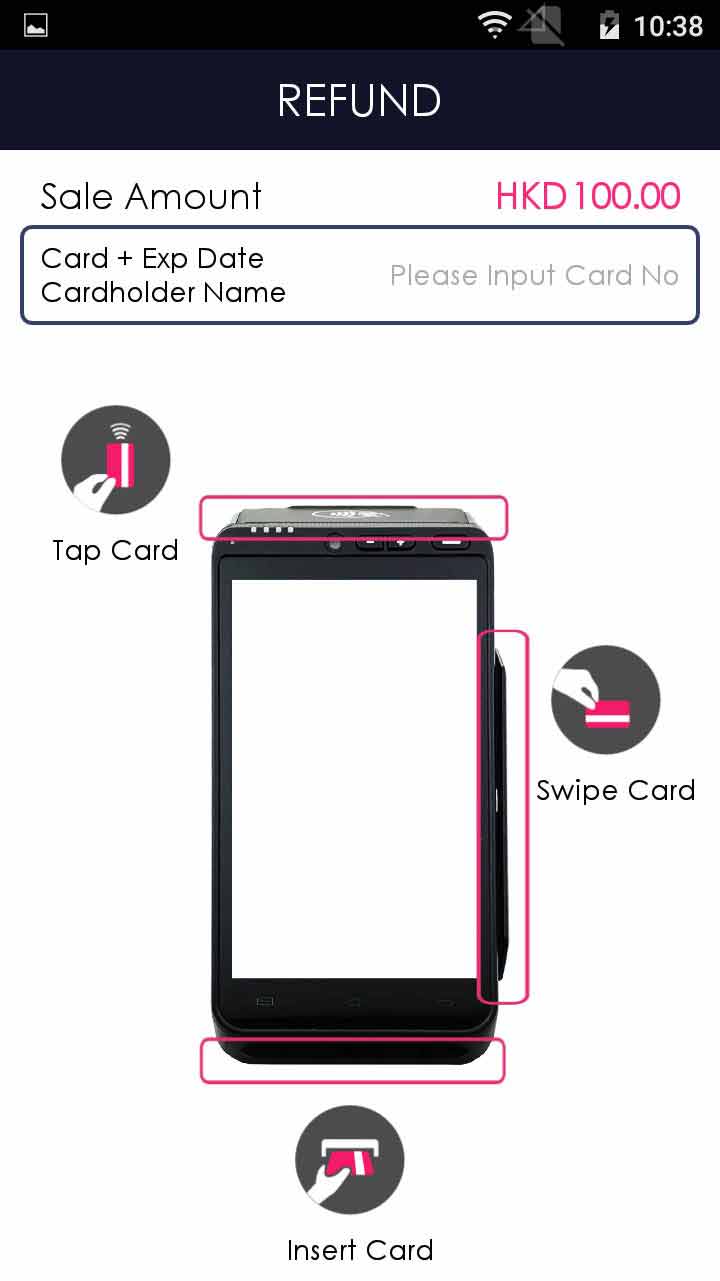
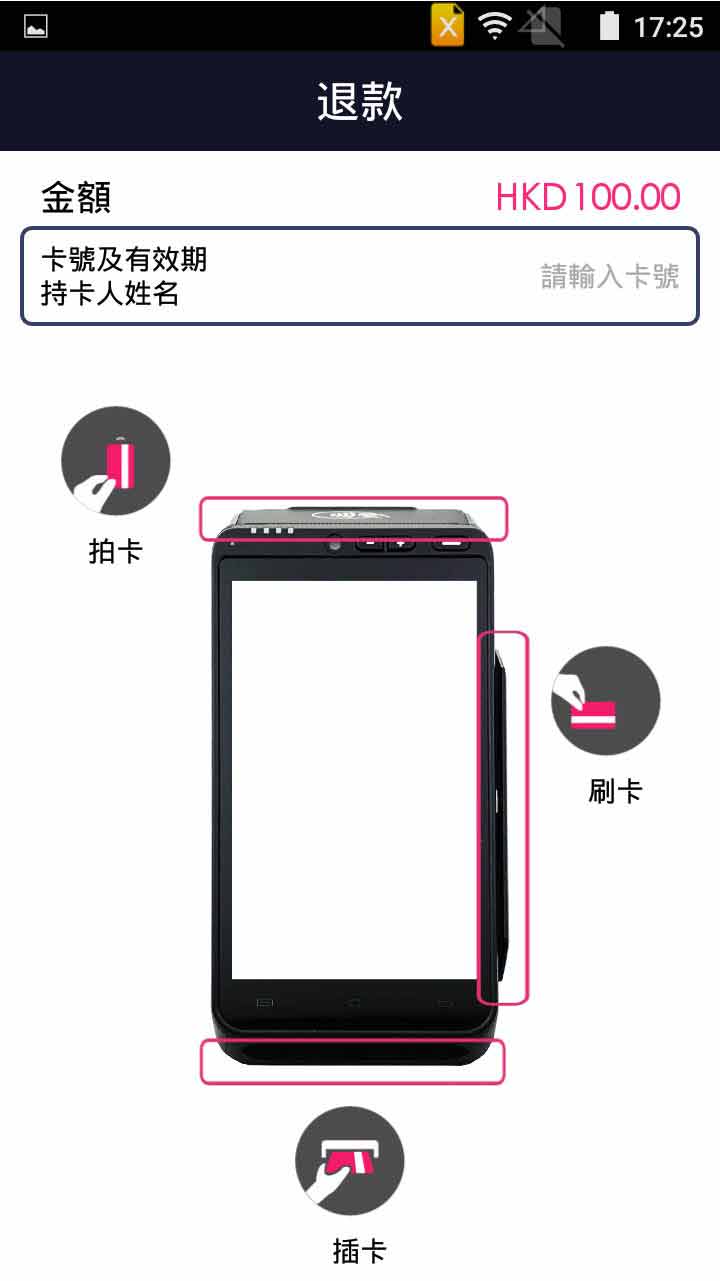
- Step 5 -
Insert/tap/swipe card OR mobile payment OR manually enter the card number & expiry date
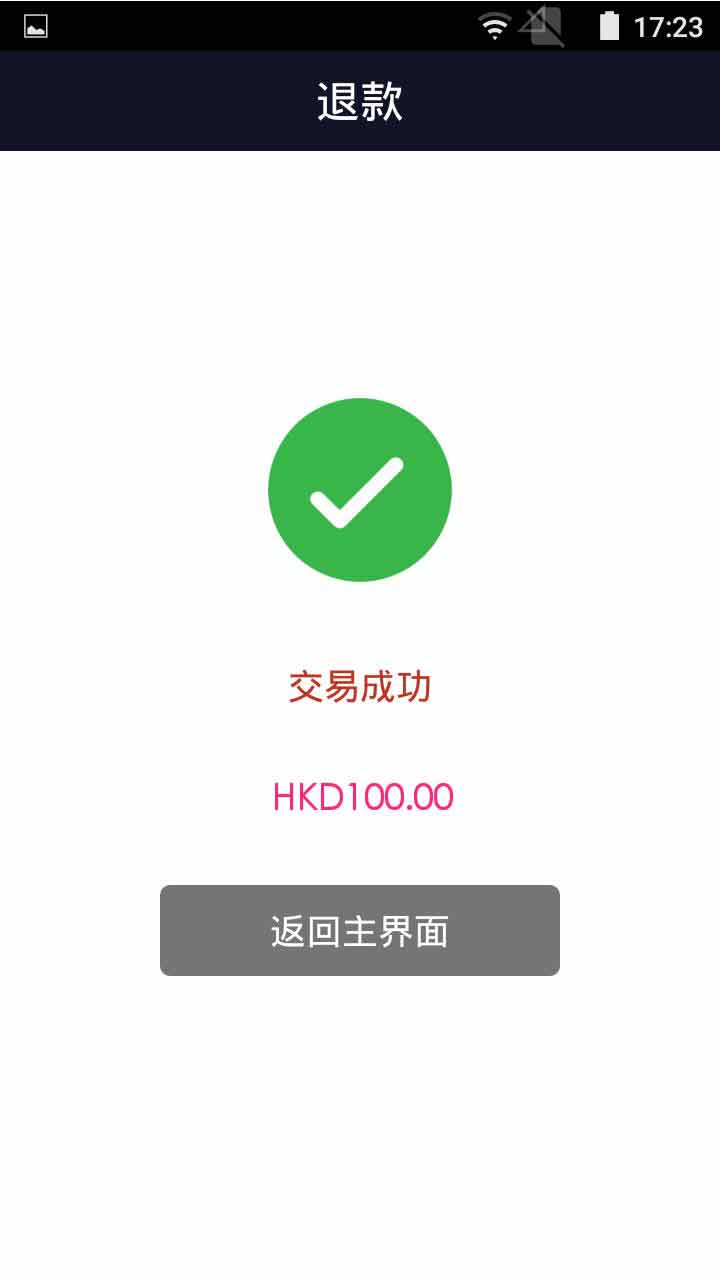
- Step 6 -
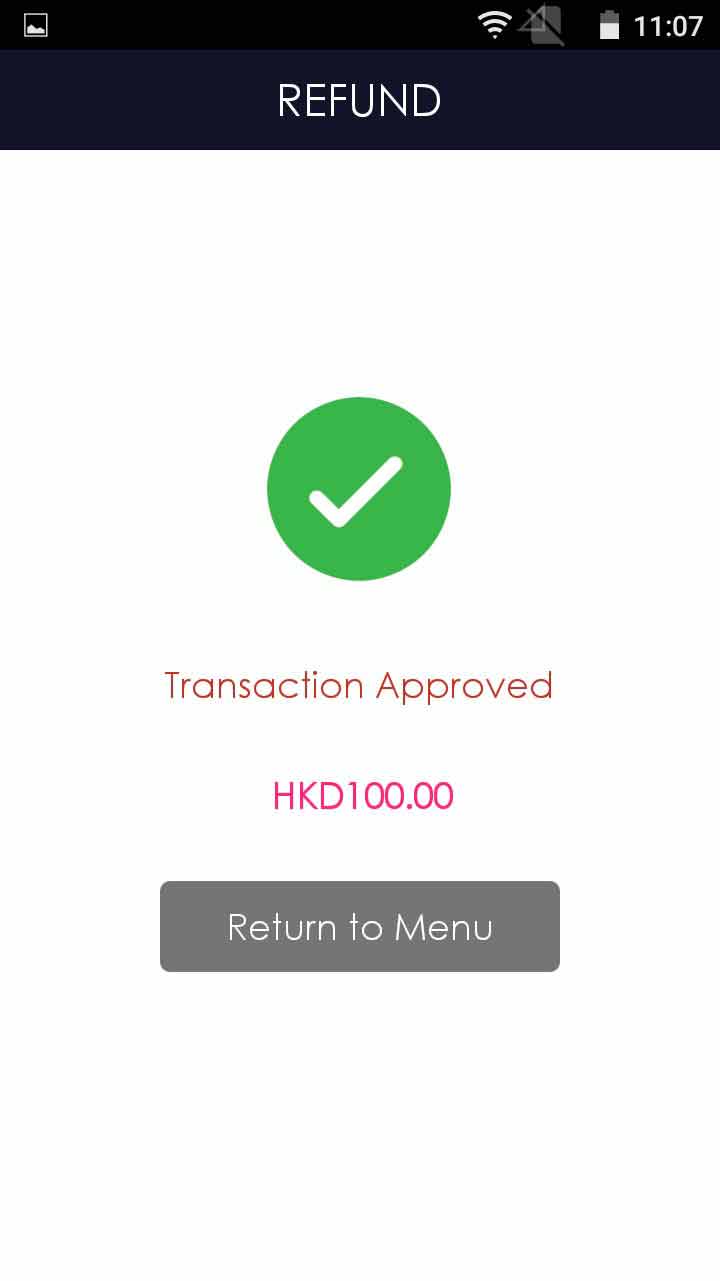
Transaction is completed, and terminal prints out receipt
Scan the barcode of receipt
Inquire the host
- Step 1 -
<Applicable to Alipay & WeChat Pay only>
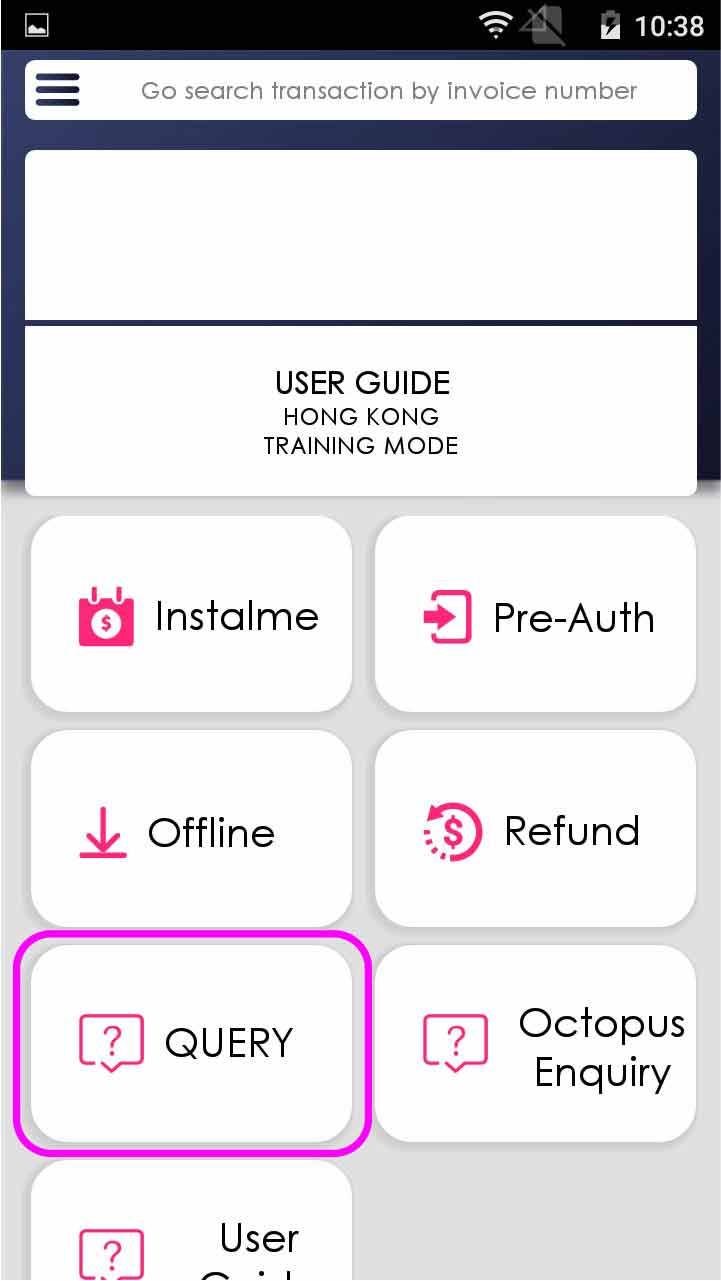
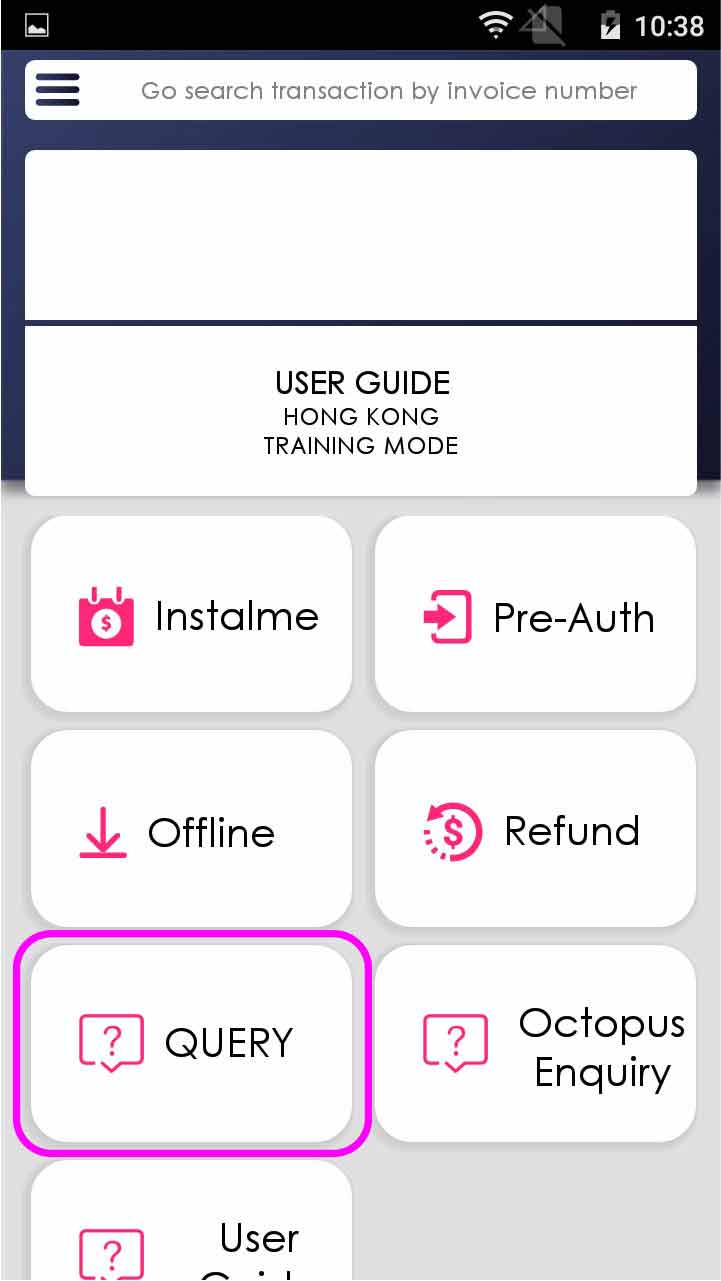
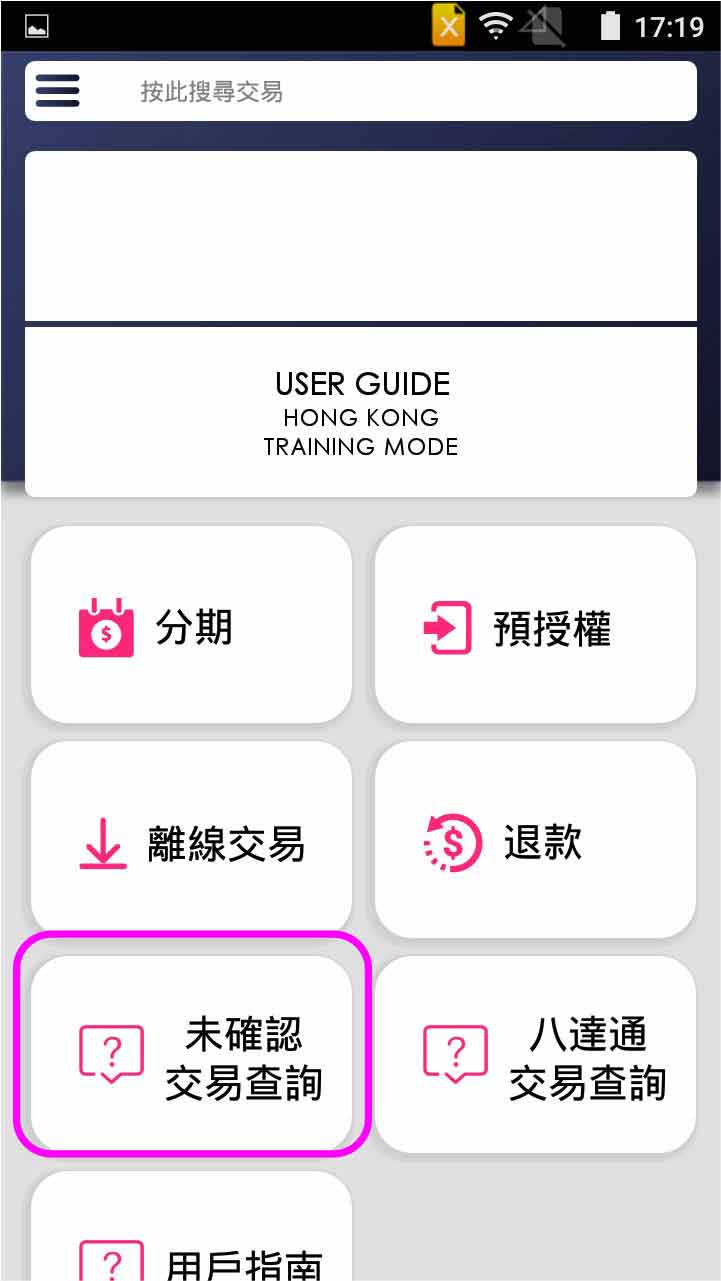
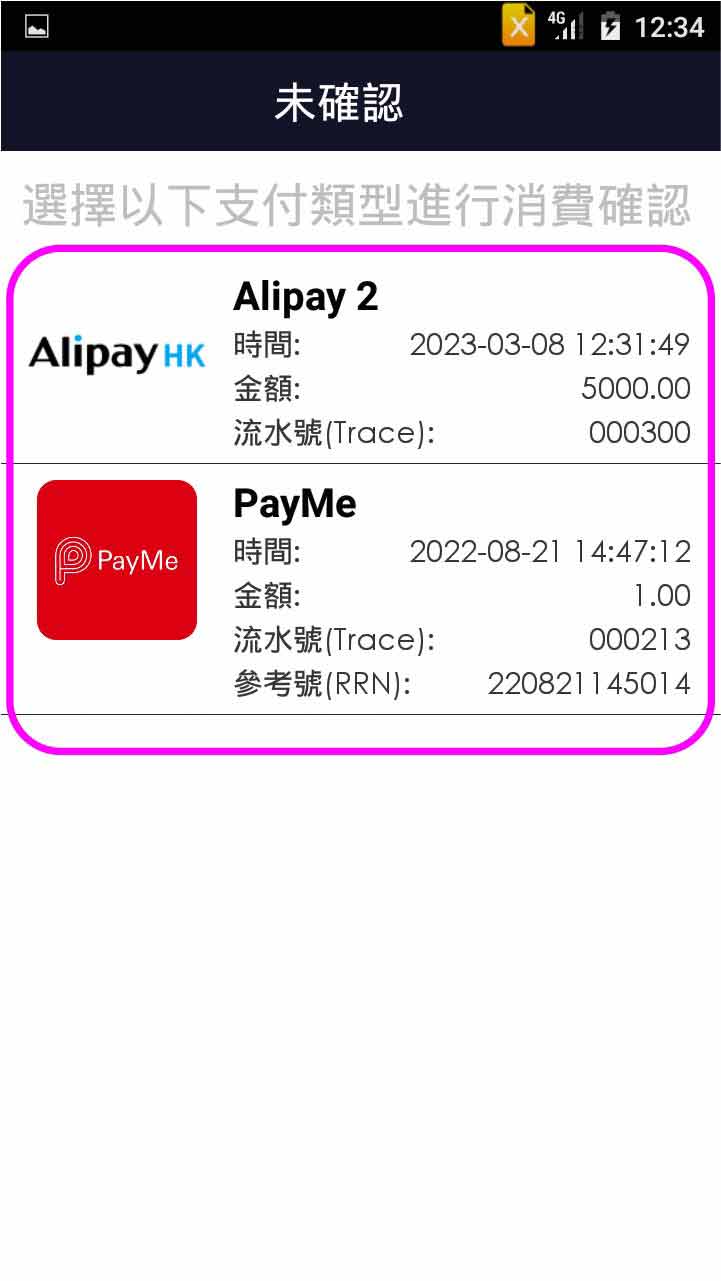
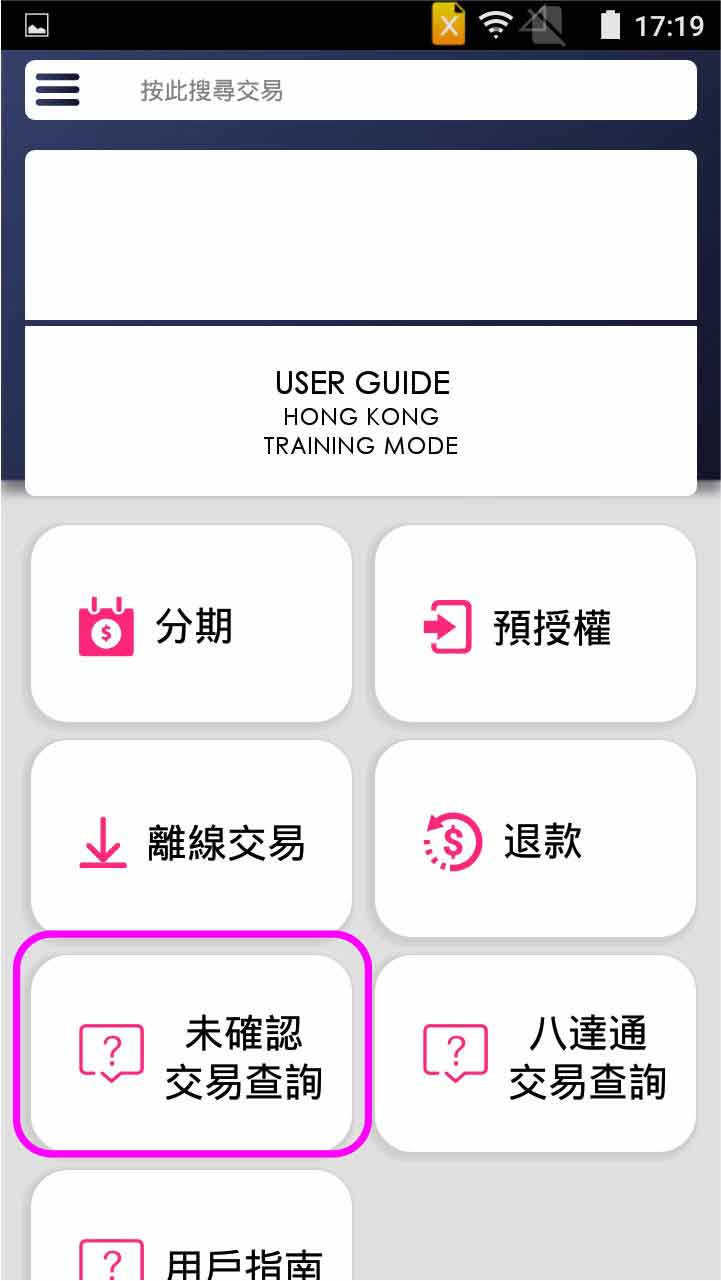
Press [Query] on menu
- Step 2 -
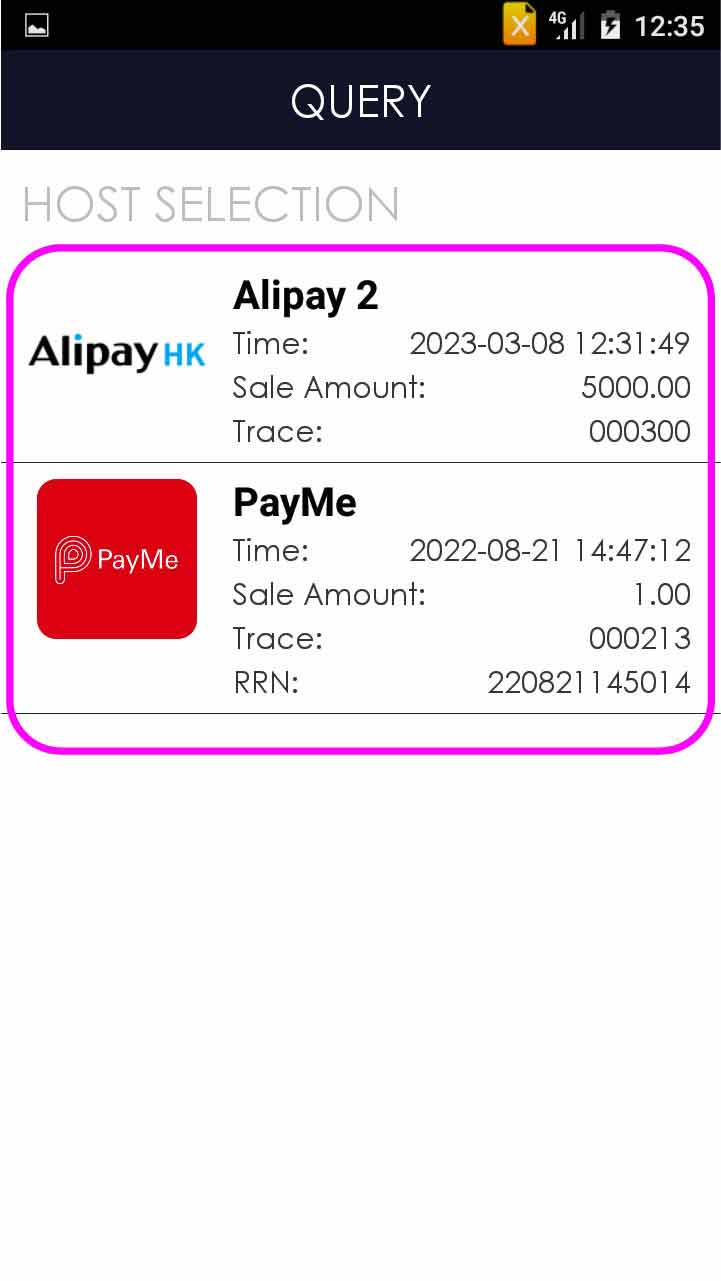
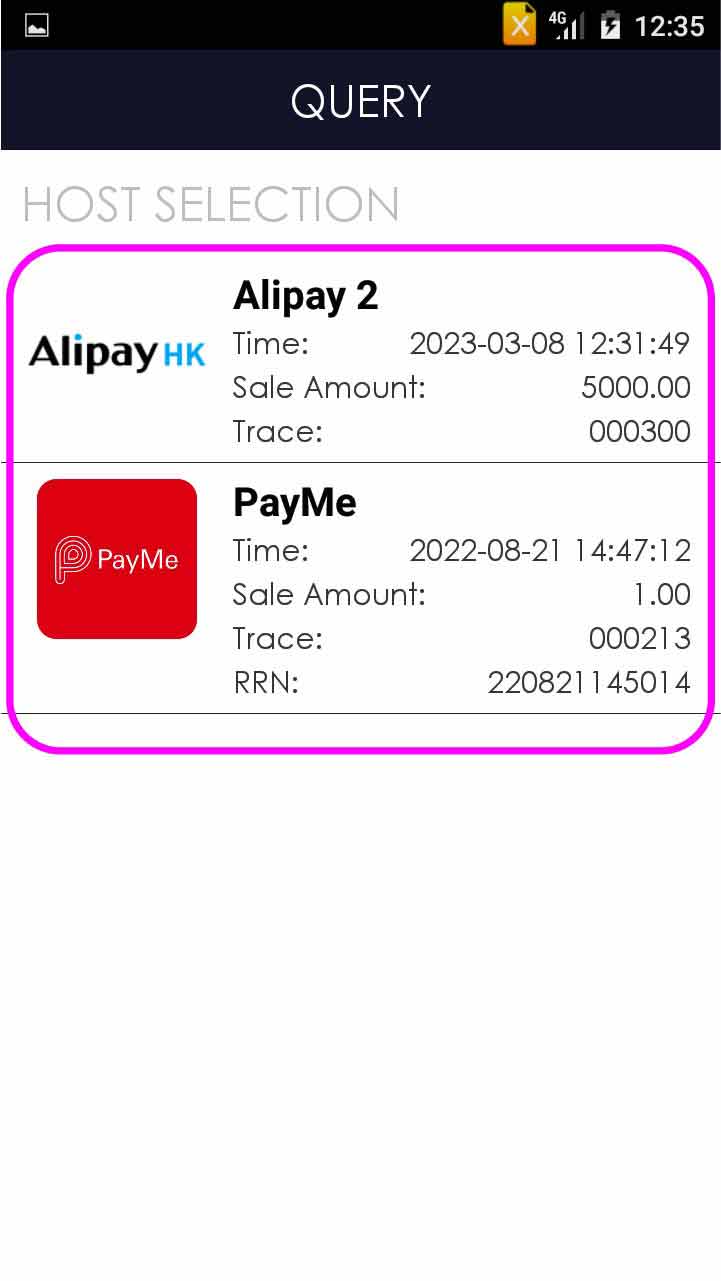
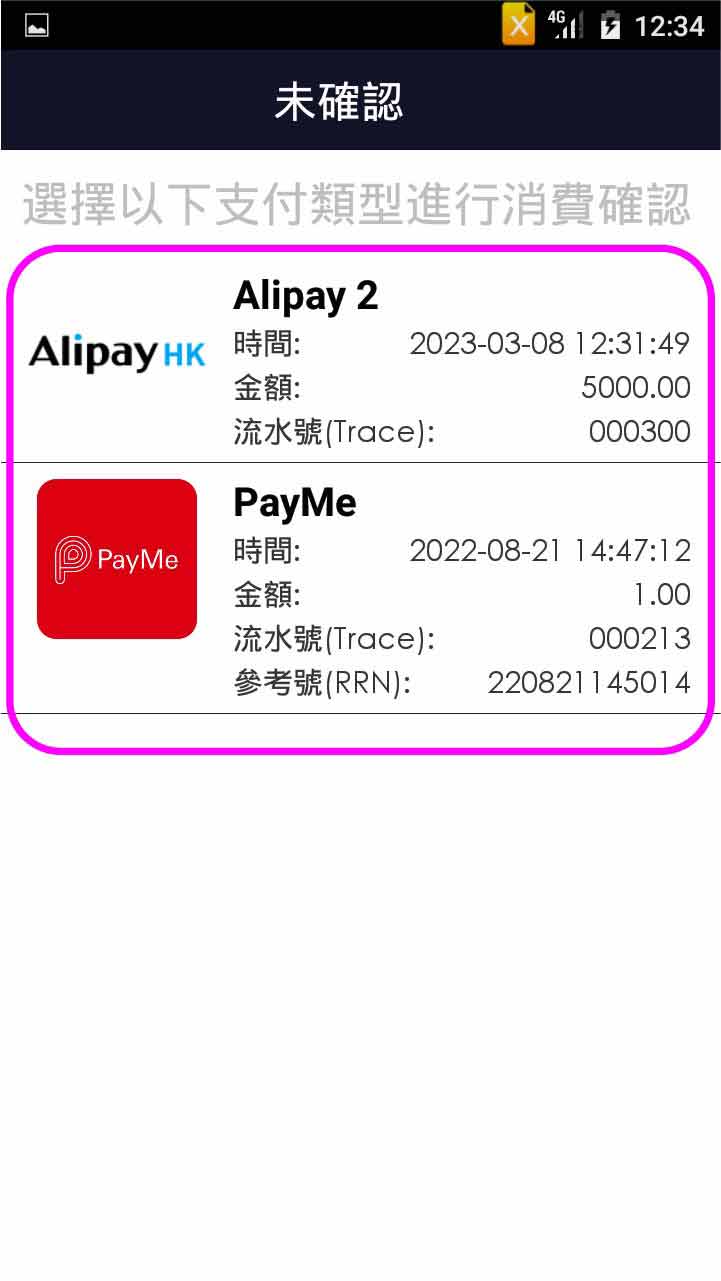
Select the transaction record
- Step 3 -
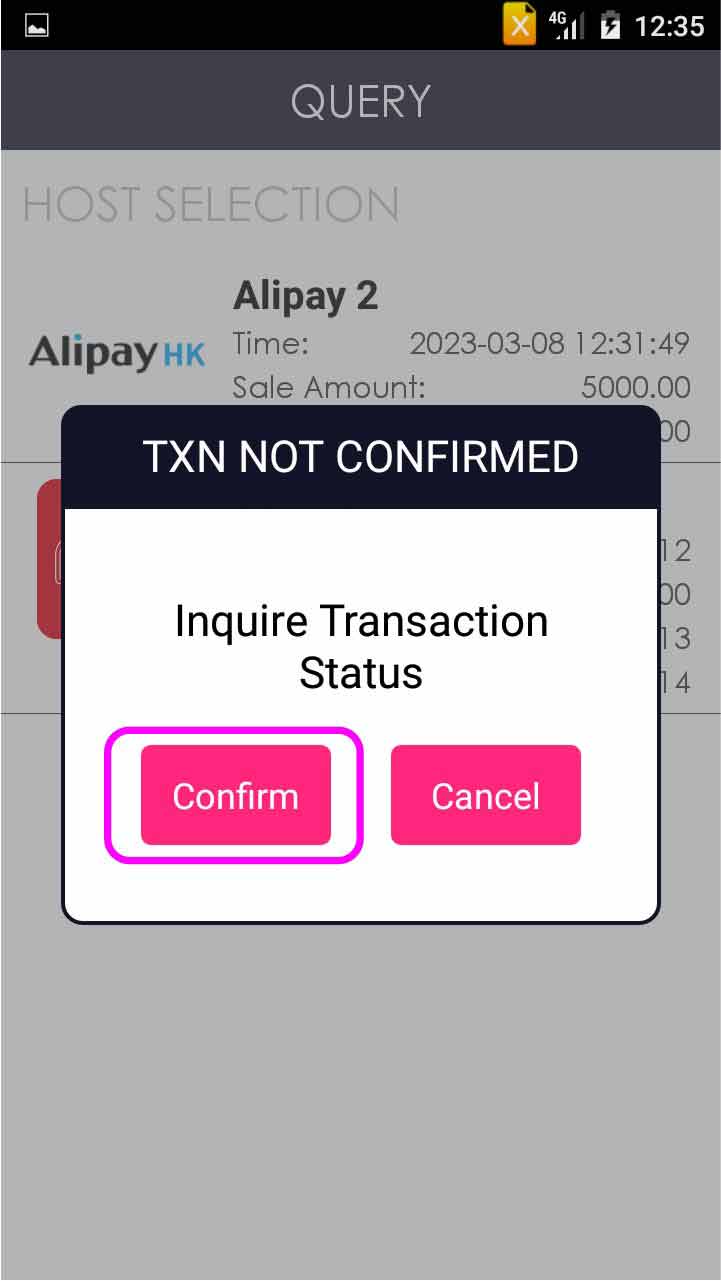
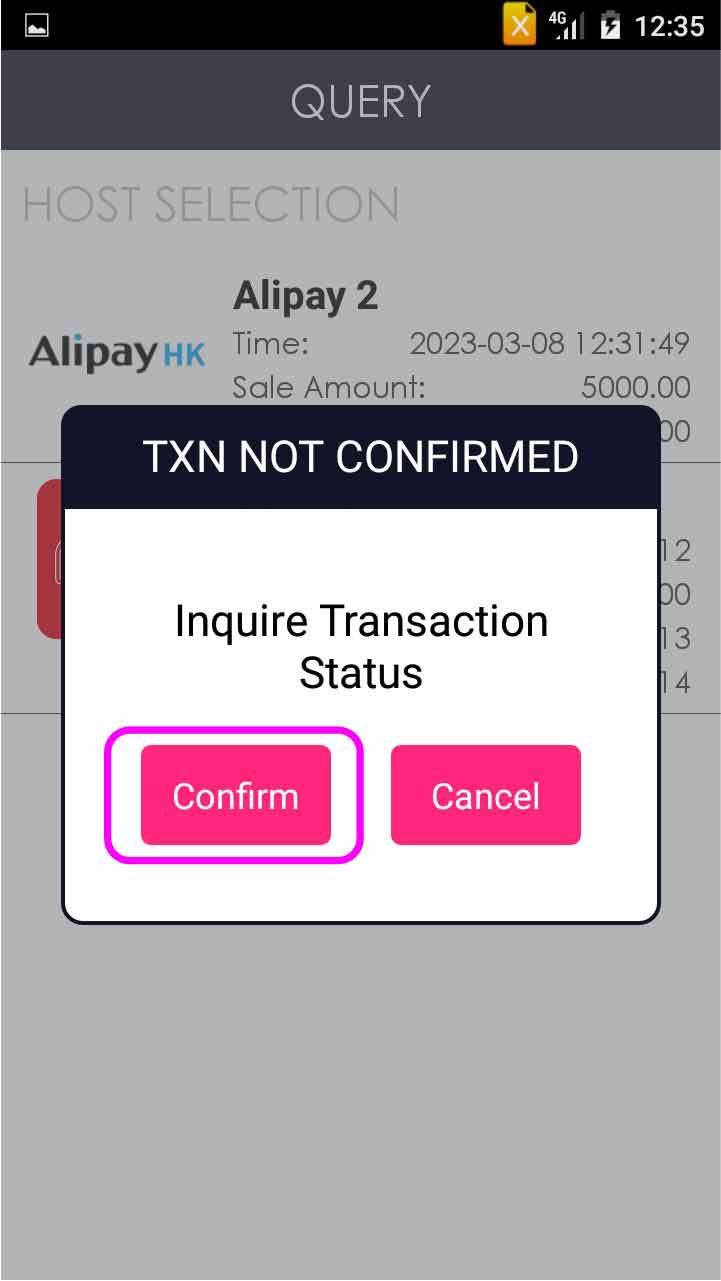
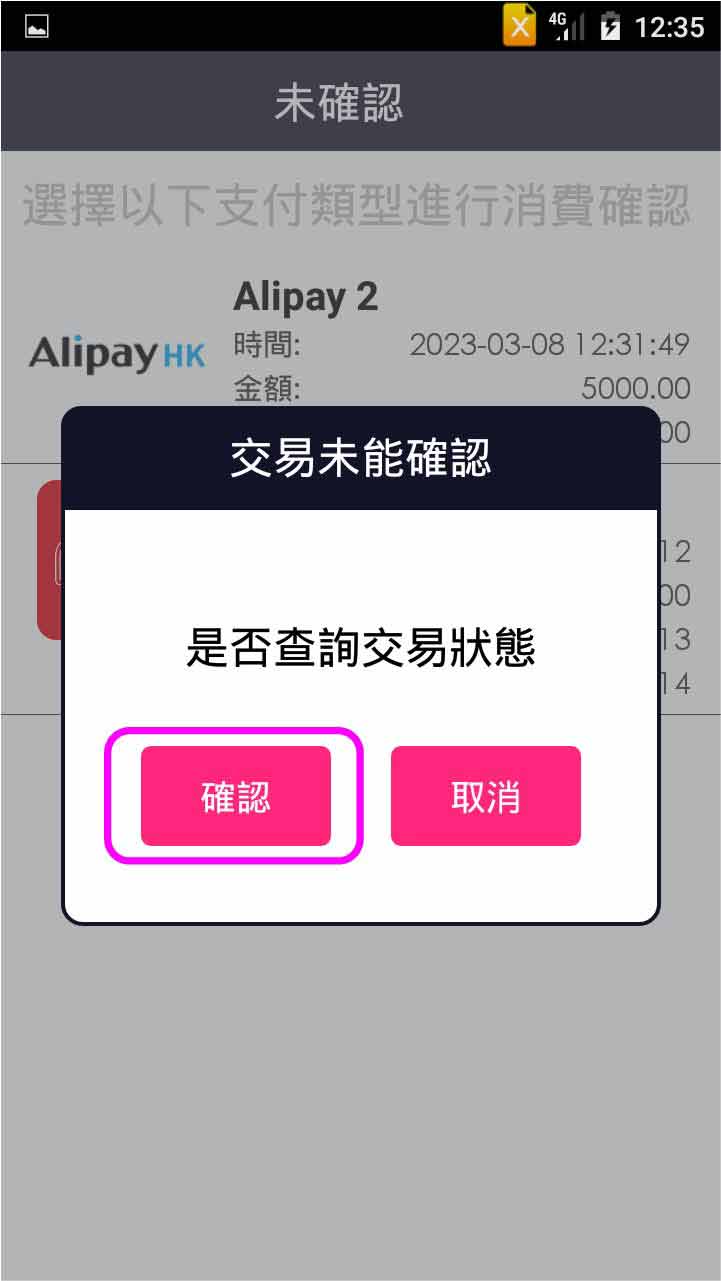
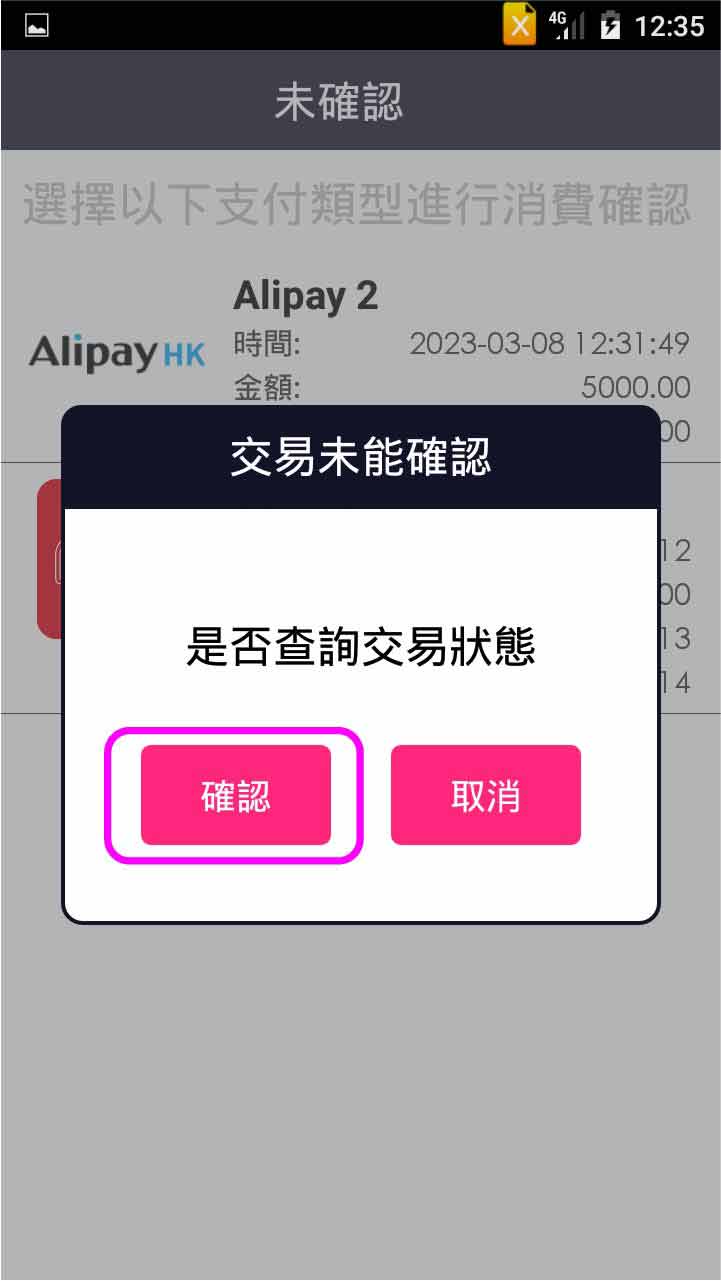
Press [Confirm] in the dialogue box
- Step 4 -
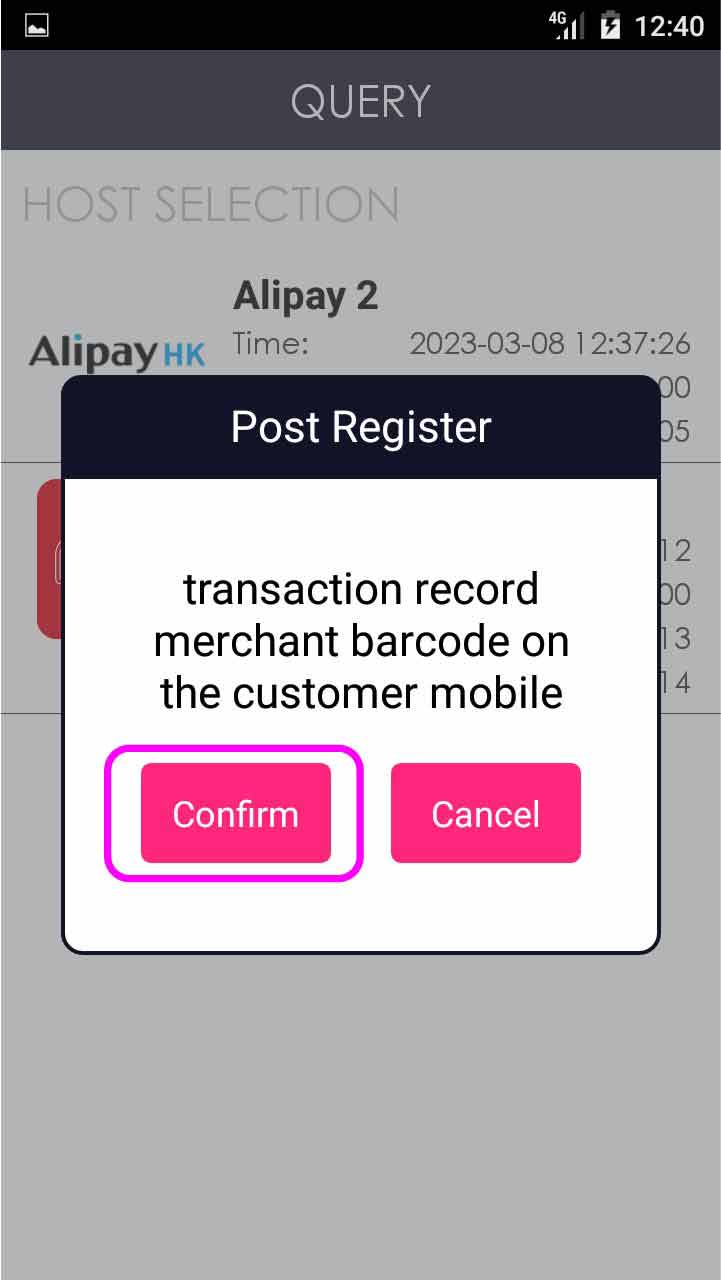
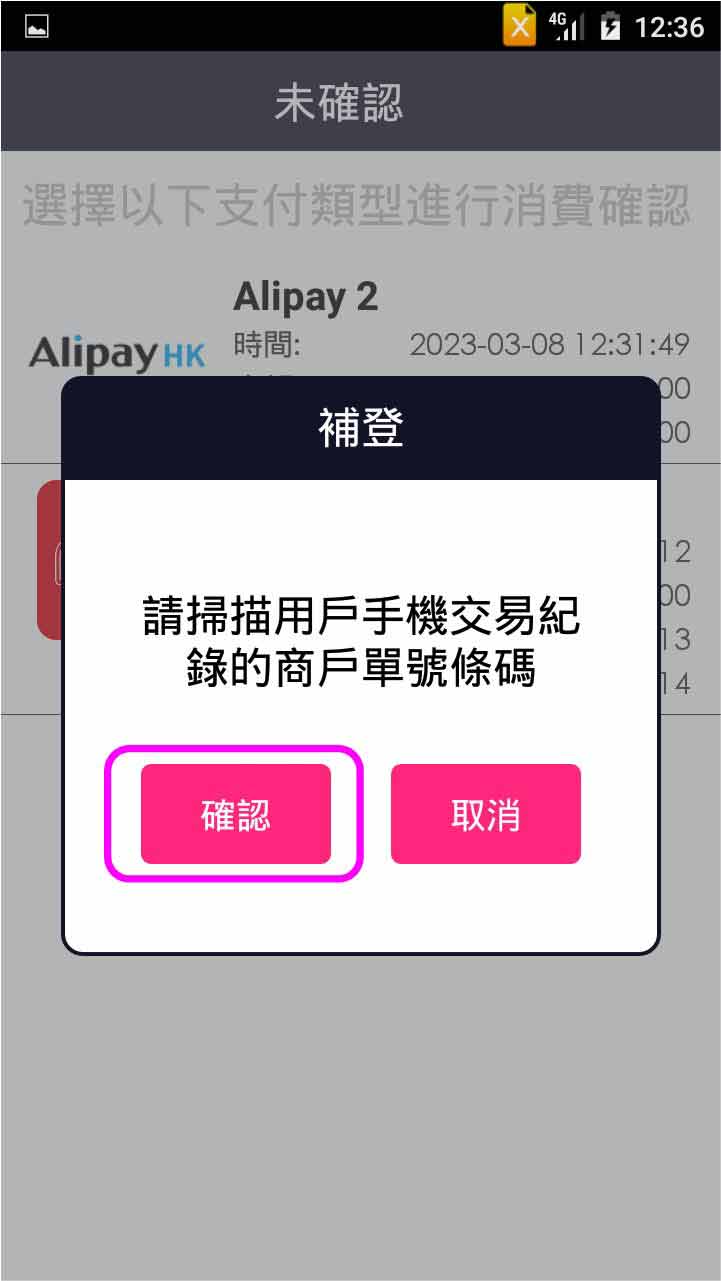
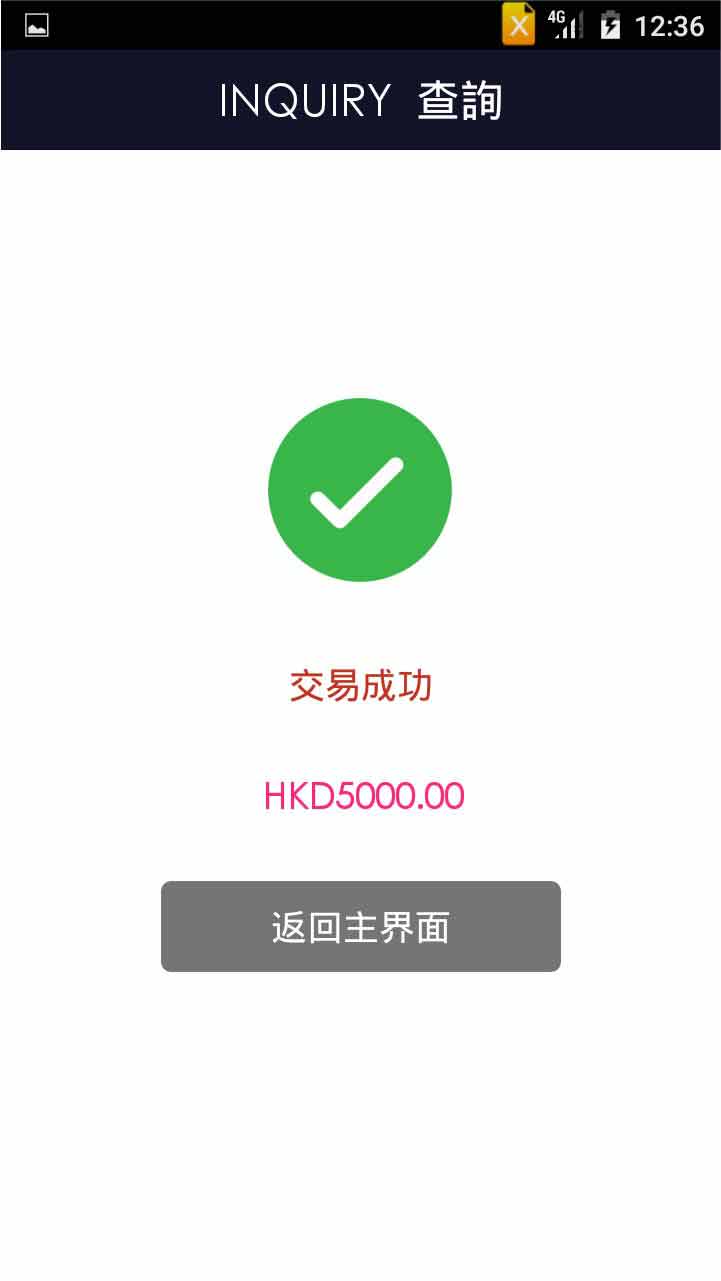
Press [Confirm] to scan the barcode of receipt on customer’s mobile
- Step 5 -
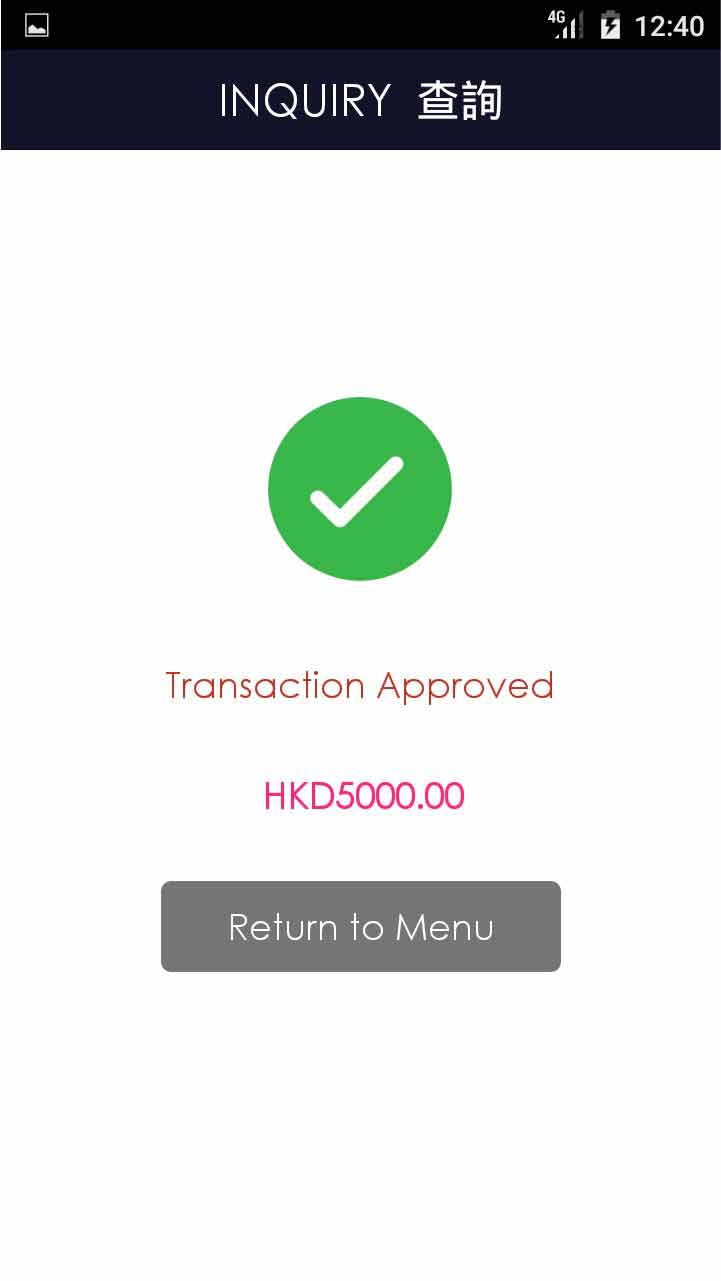
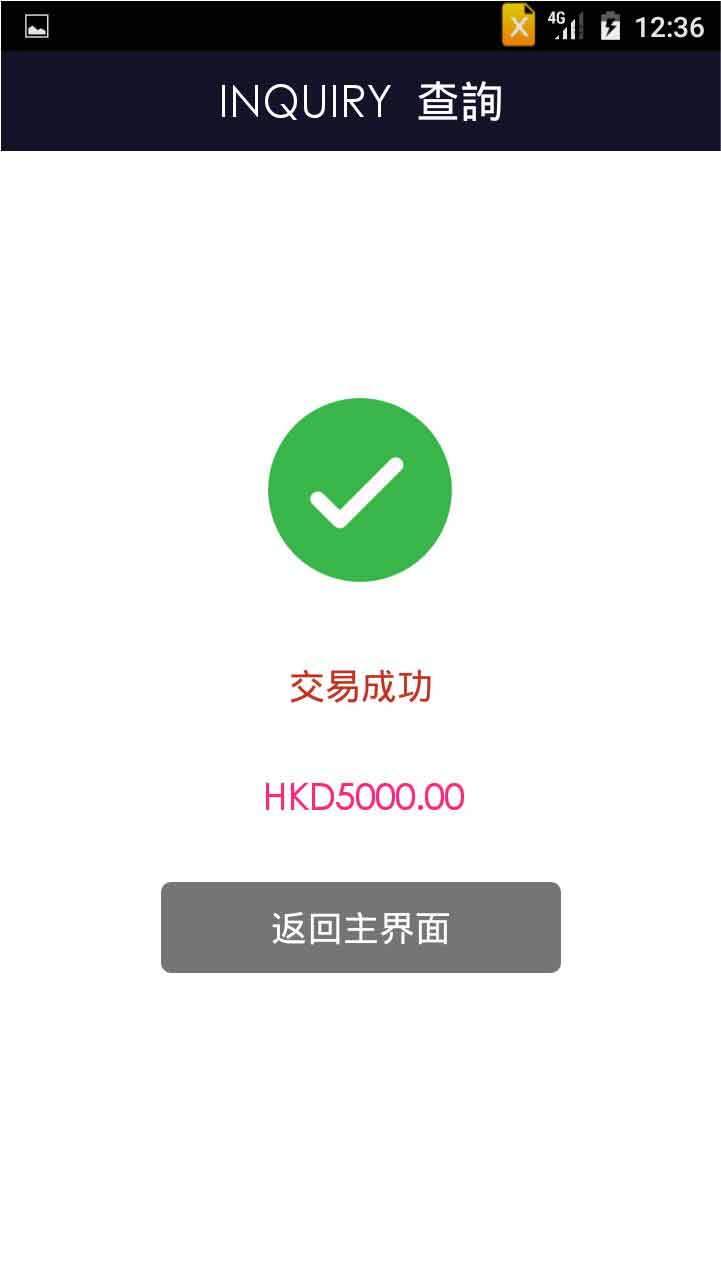
Transaction is completed, and terminal prints out receipt
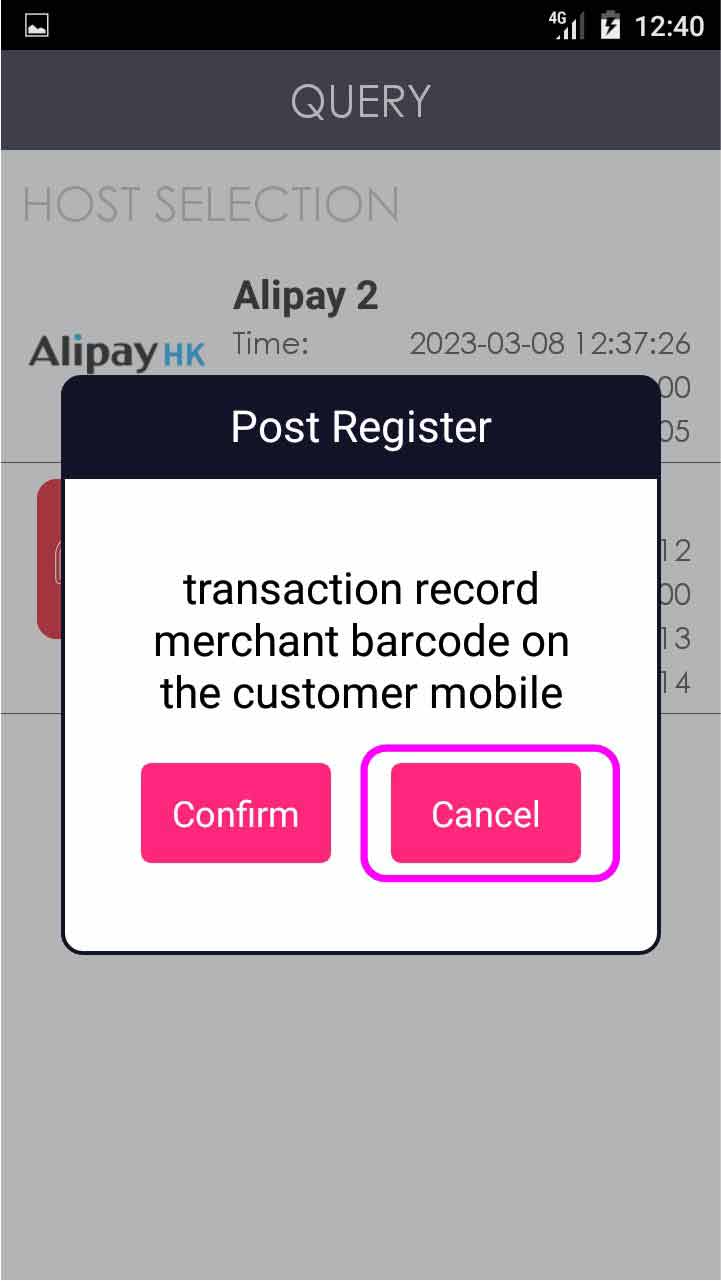
- Step 1 -
Press [Query] on menu
- Step 2 -
Select the transaction record
- Step 3 -
Press [Confirm] in the dialogue box
- Step 4 -
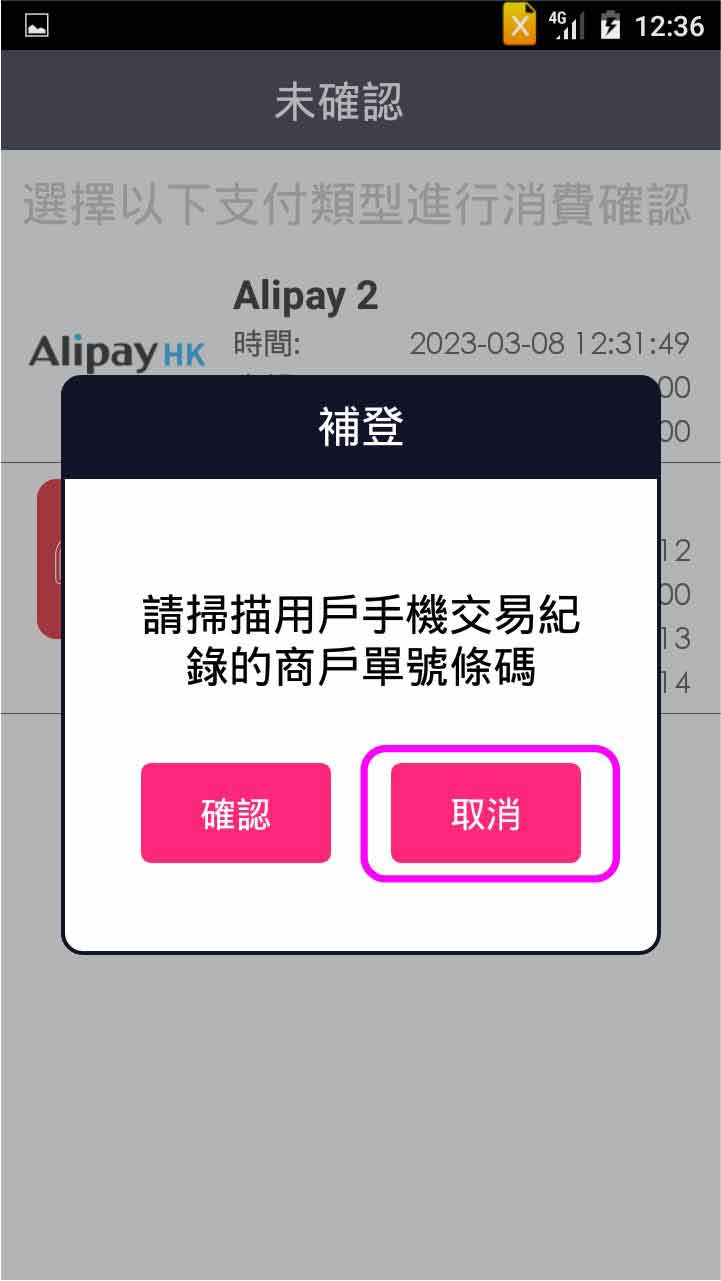
Press [Cancel] and then terminal asks for the result from host automatically
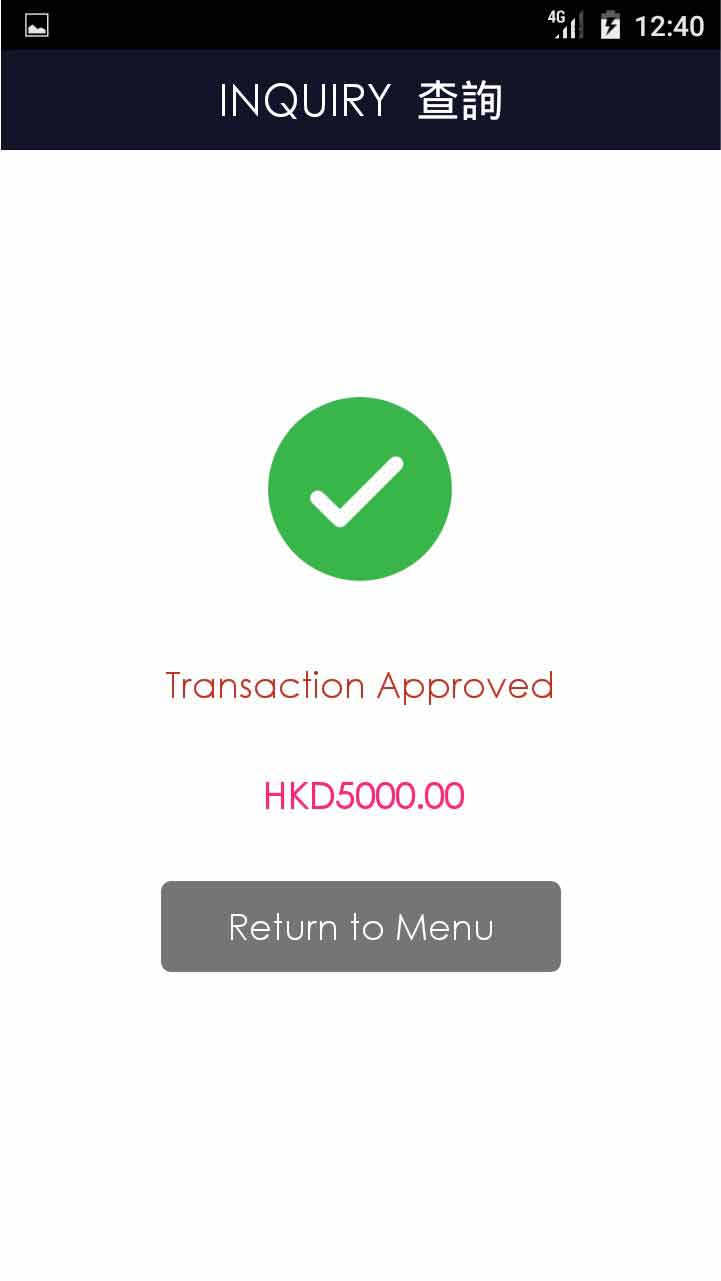
- Step 5 -
Transaction is completed, and terminal prints out receipt
Settlement
EPS Settlement
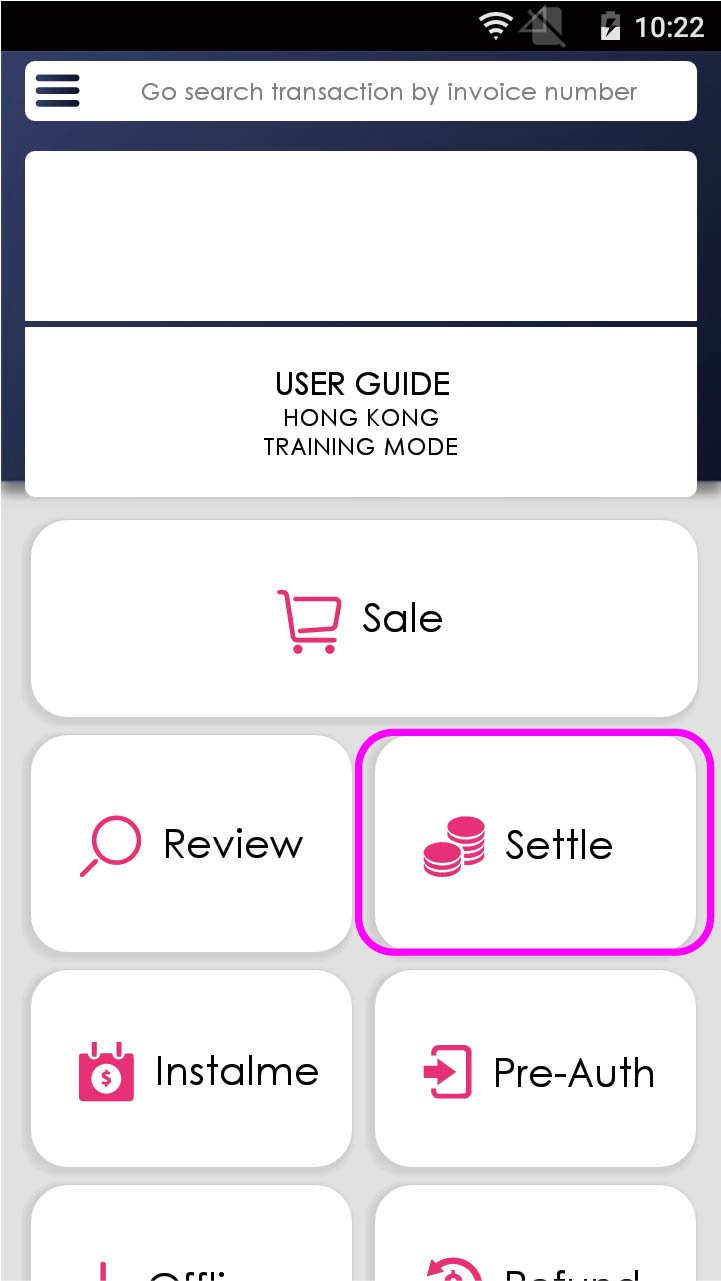
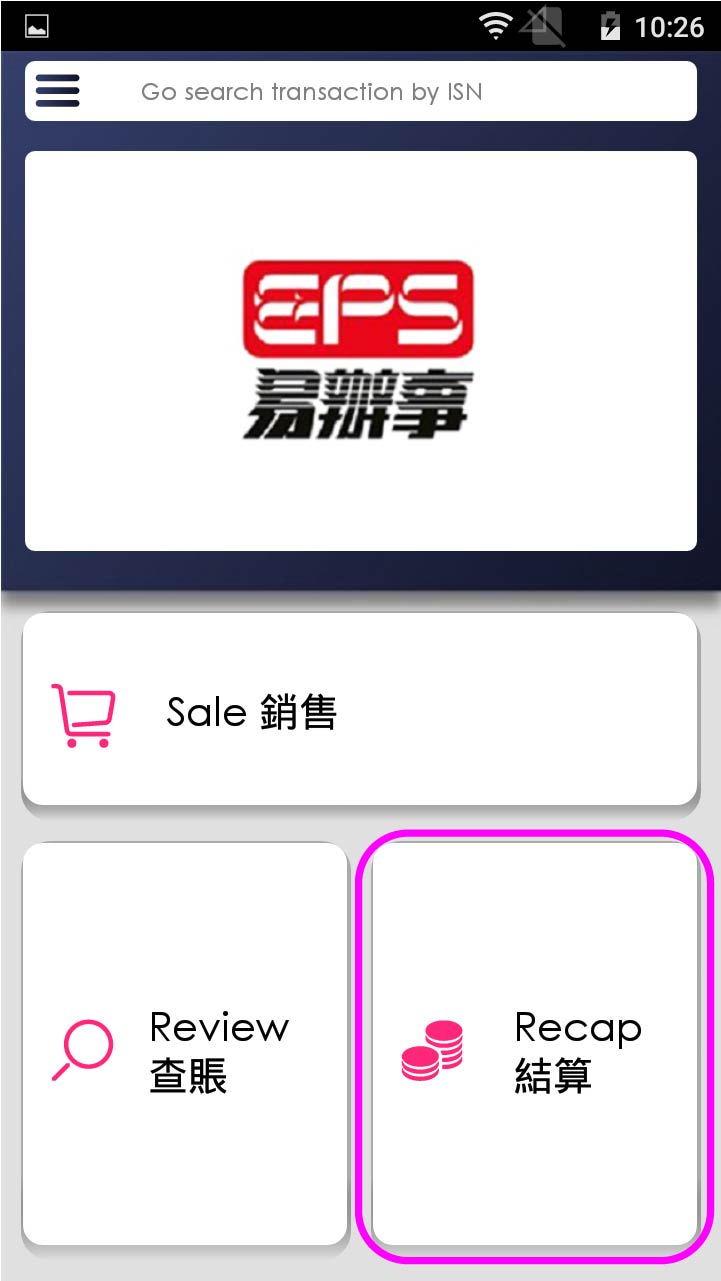
- Step 1 -
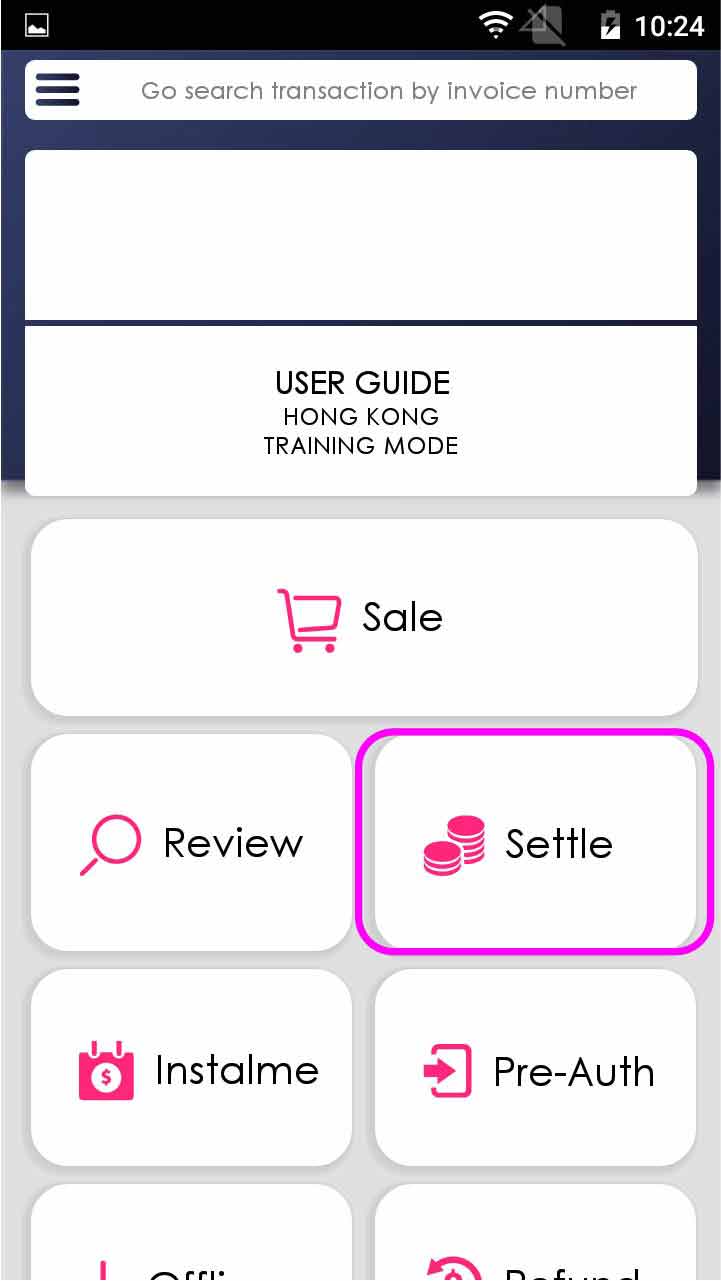
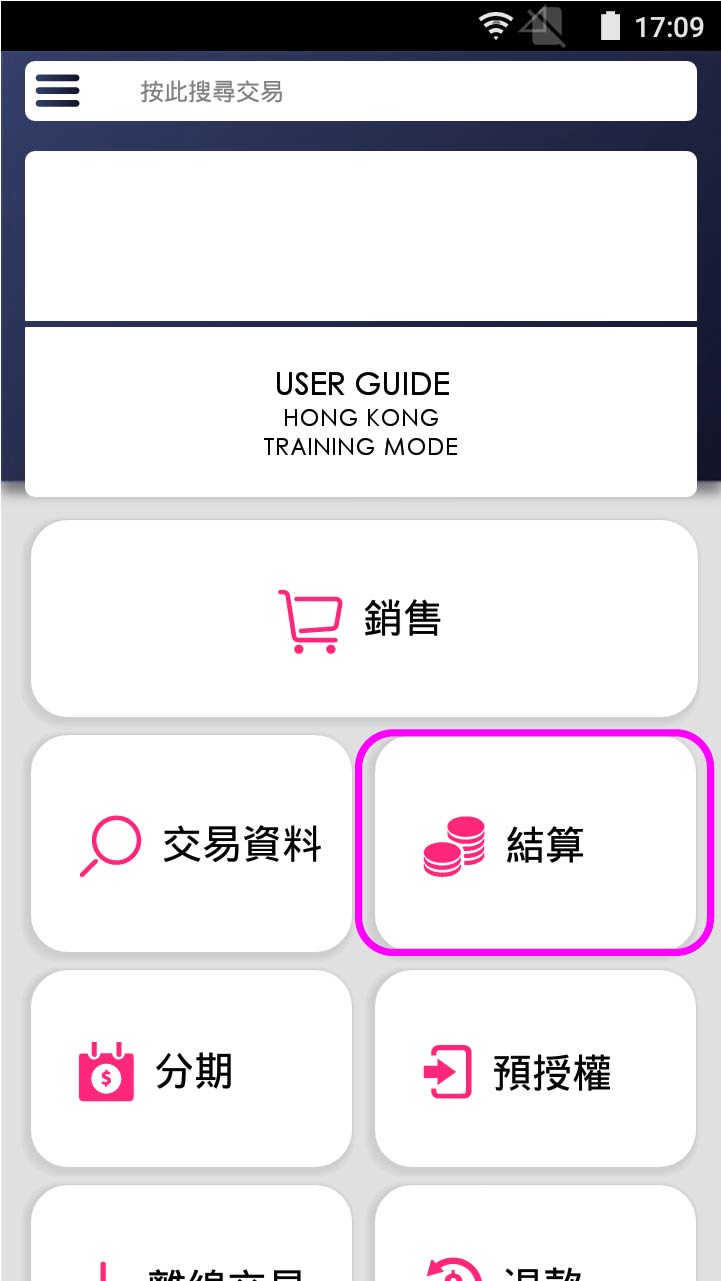
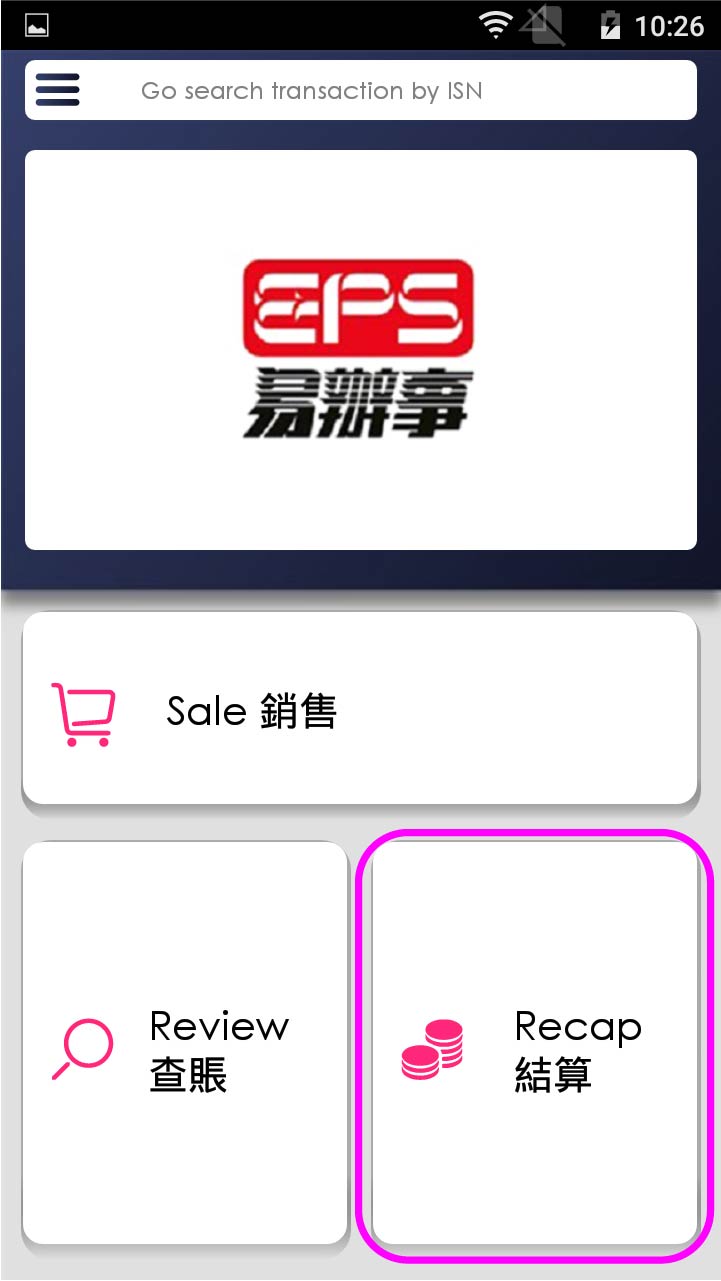
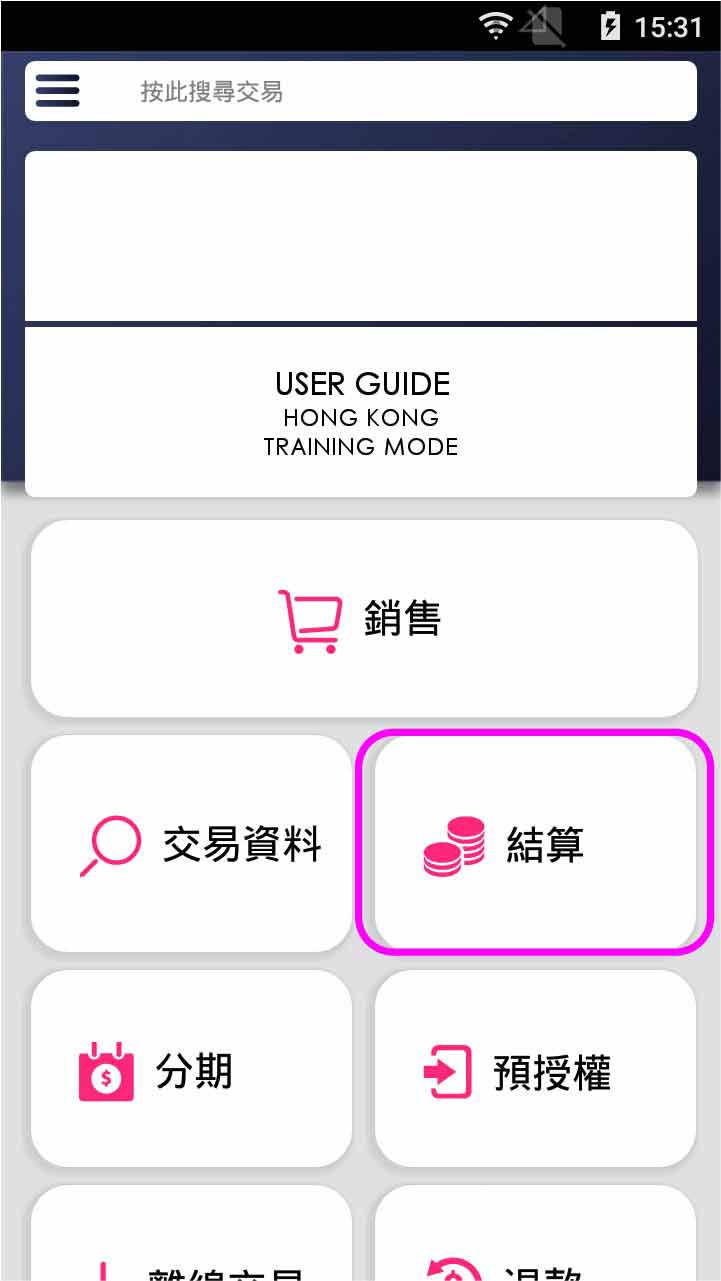
Press [Settle] on menu
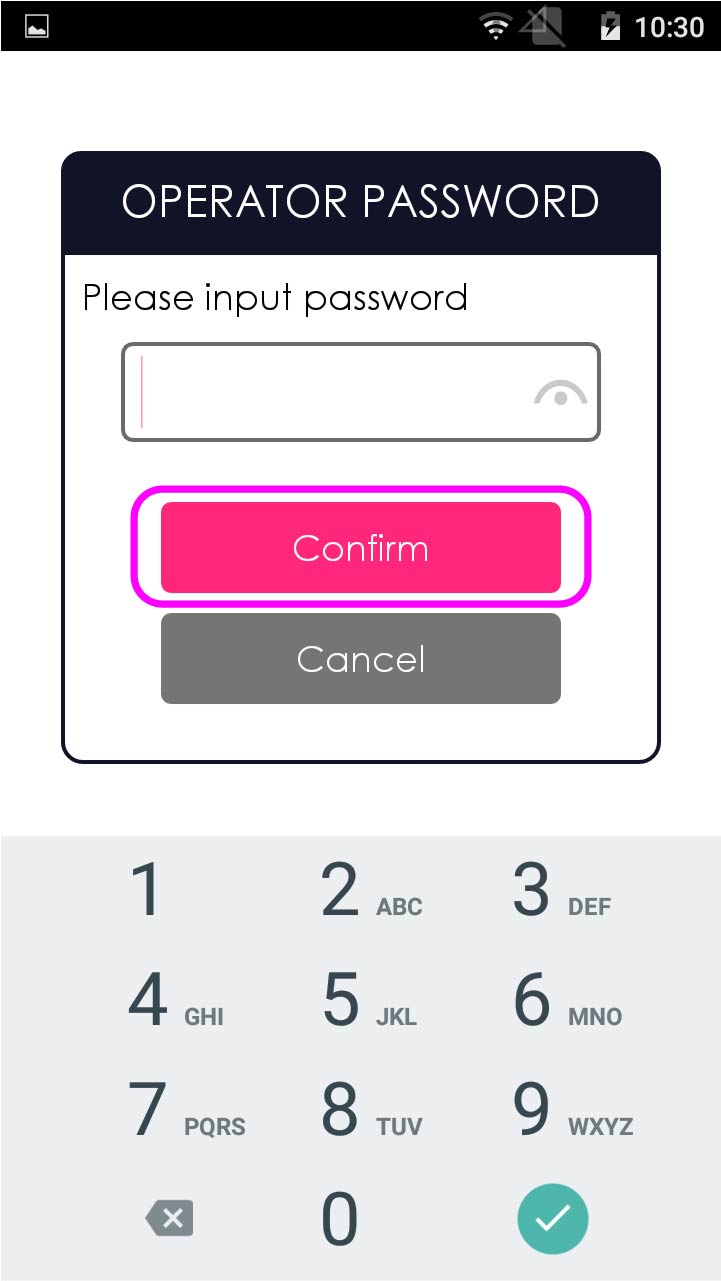
- Step 2 -
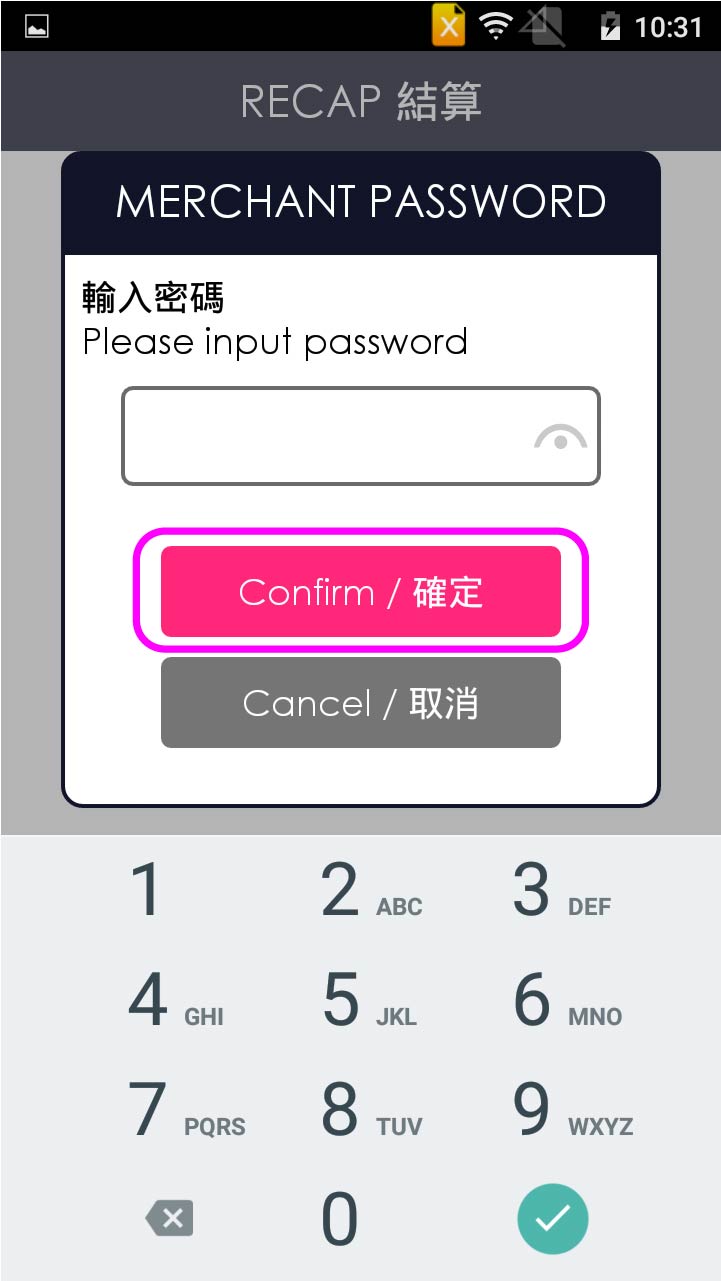
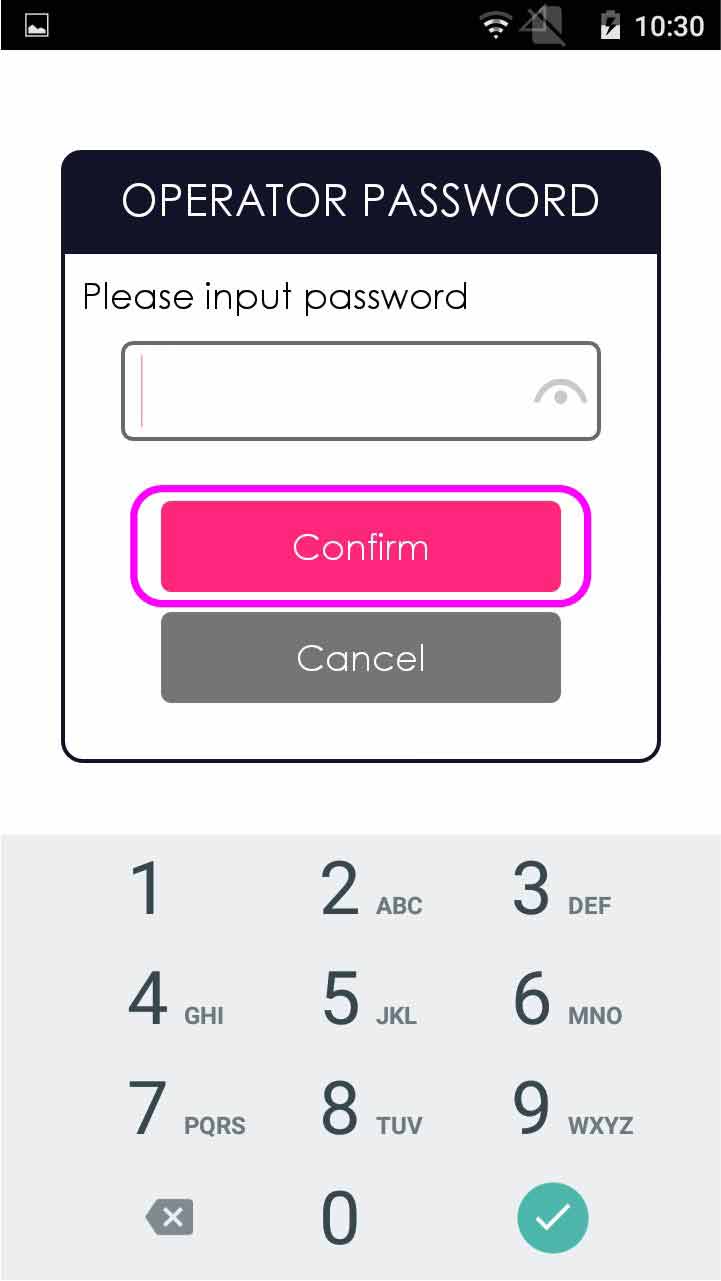
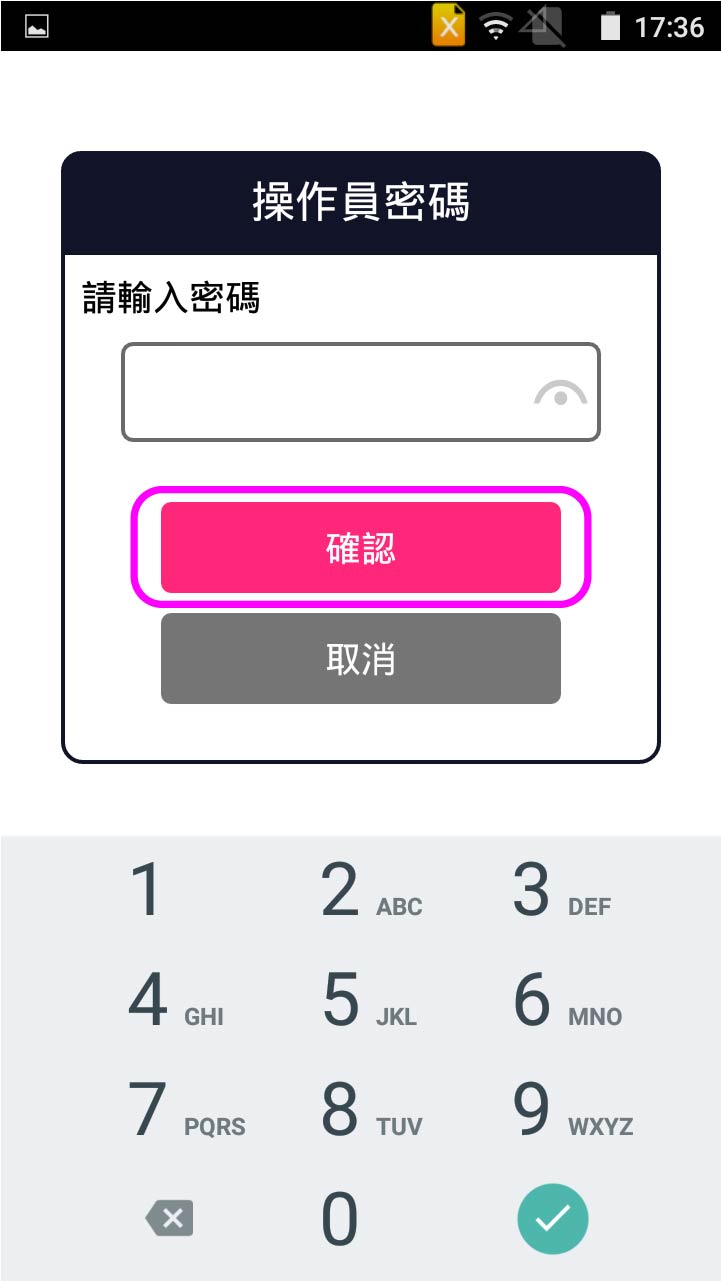
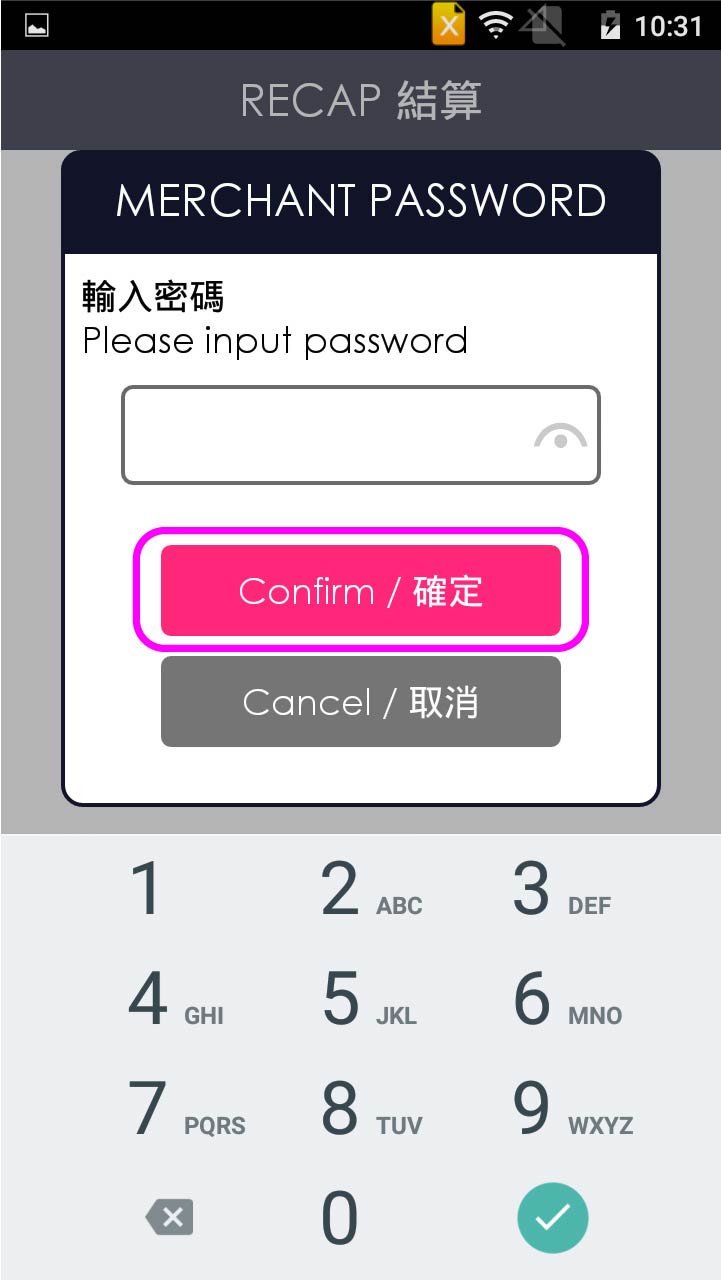
Enter operator password, and press [Confirm]
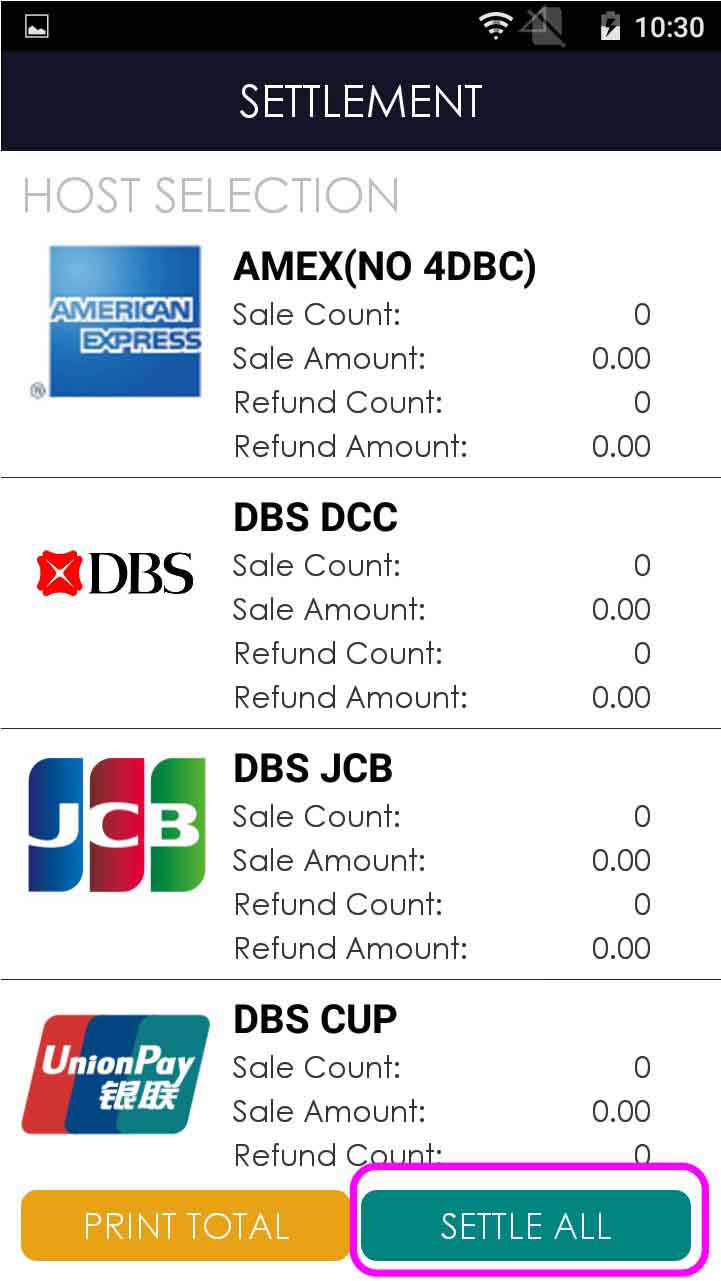
- Step 3 -
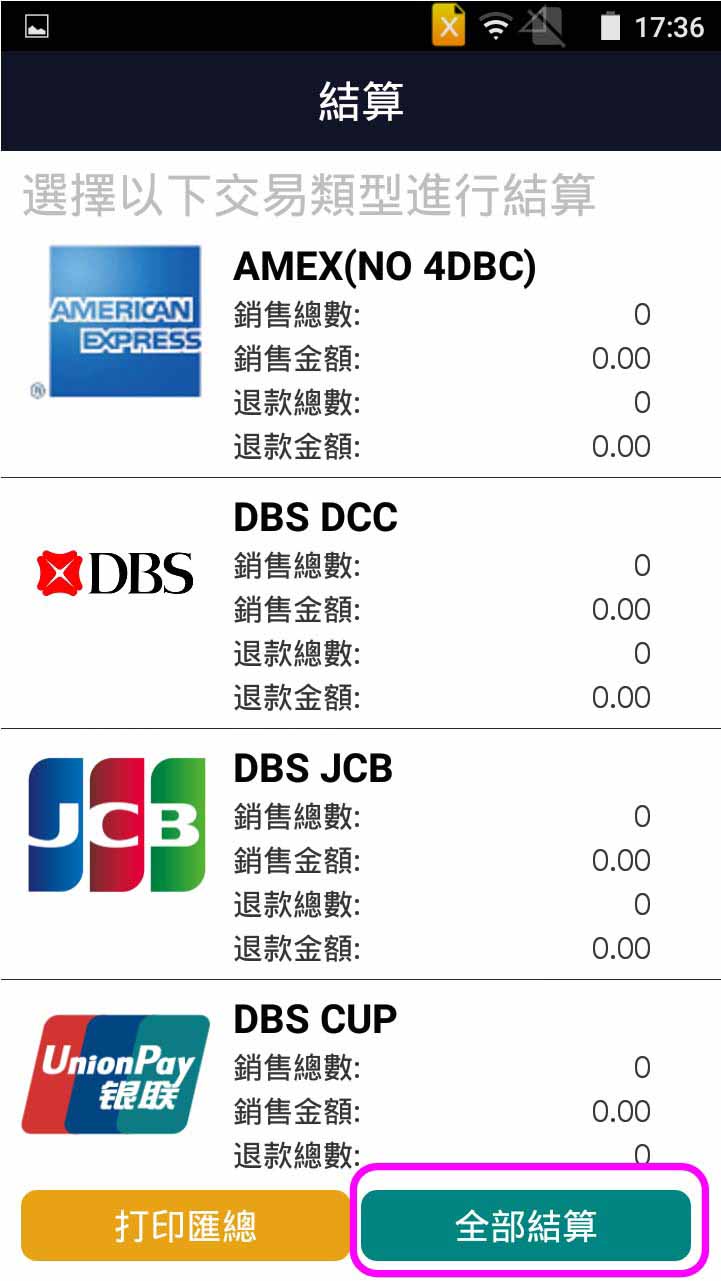
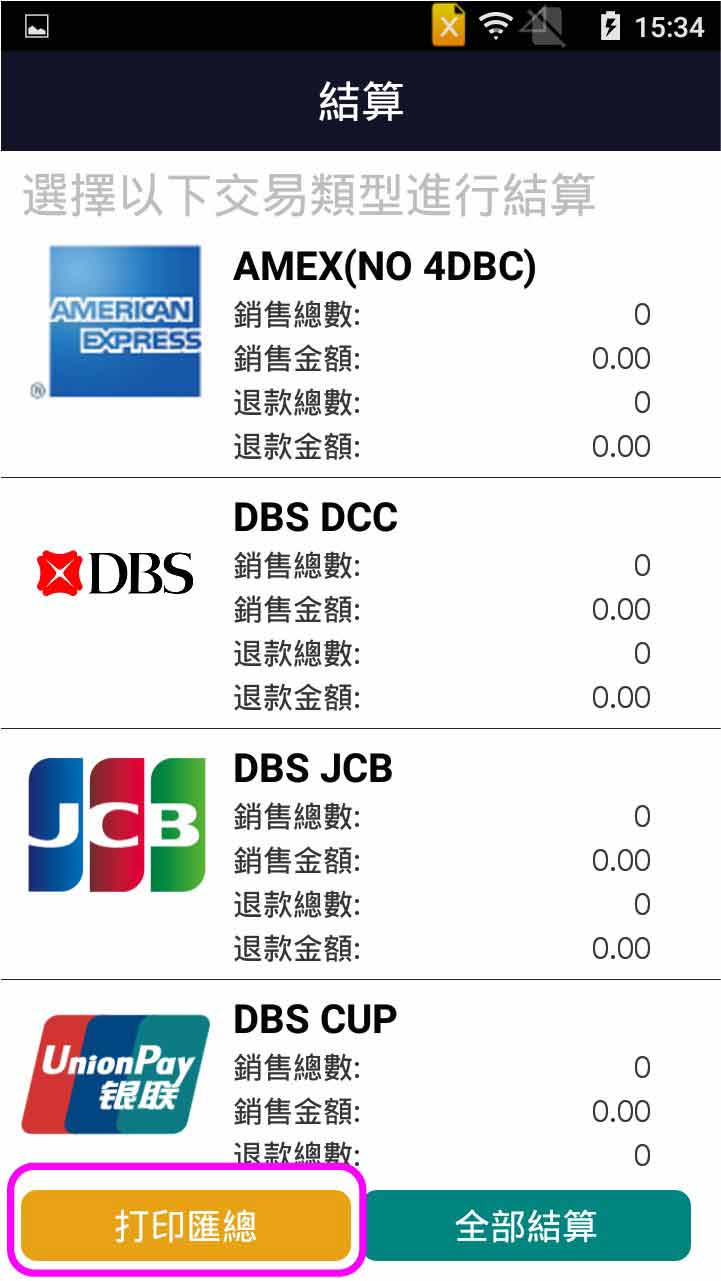
Press [Settle All]
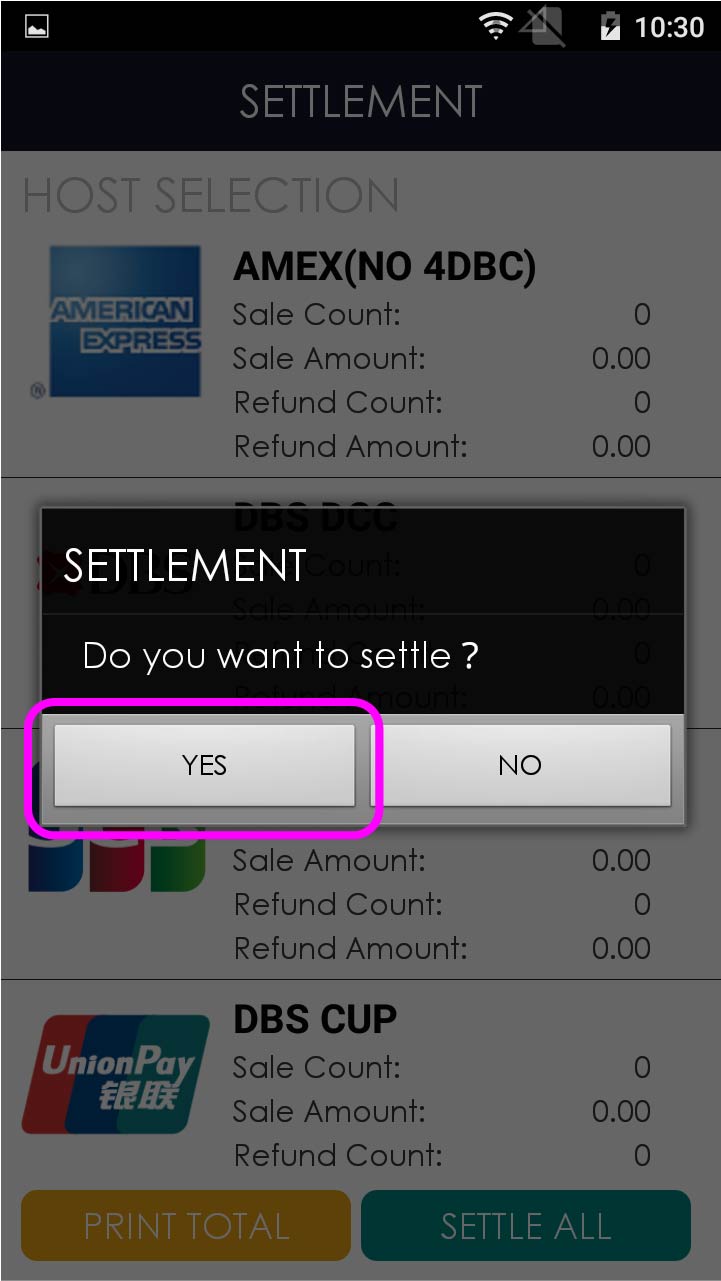
- Step 4 -
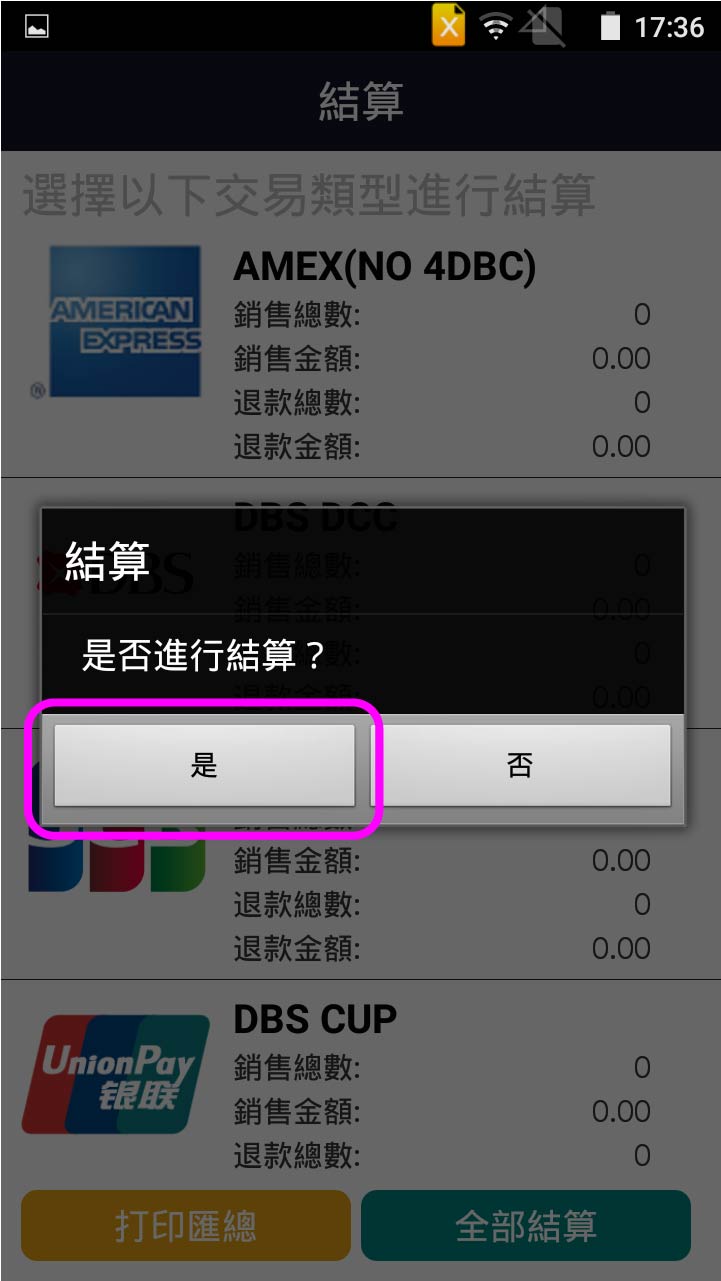
Press [YES] to confirm settlement
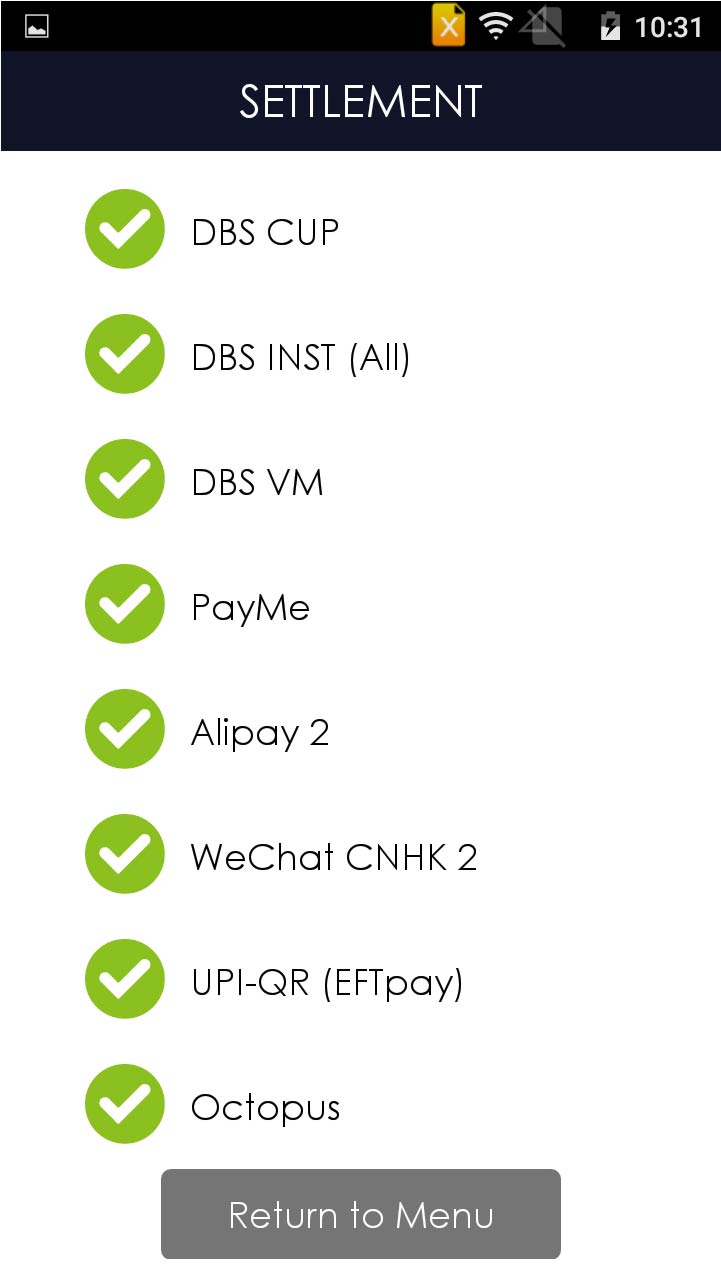
- Step 5 -
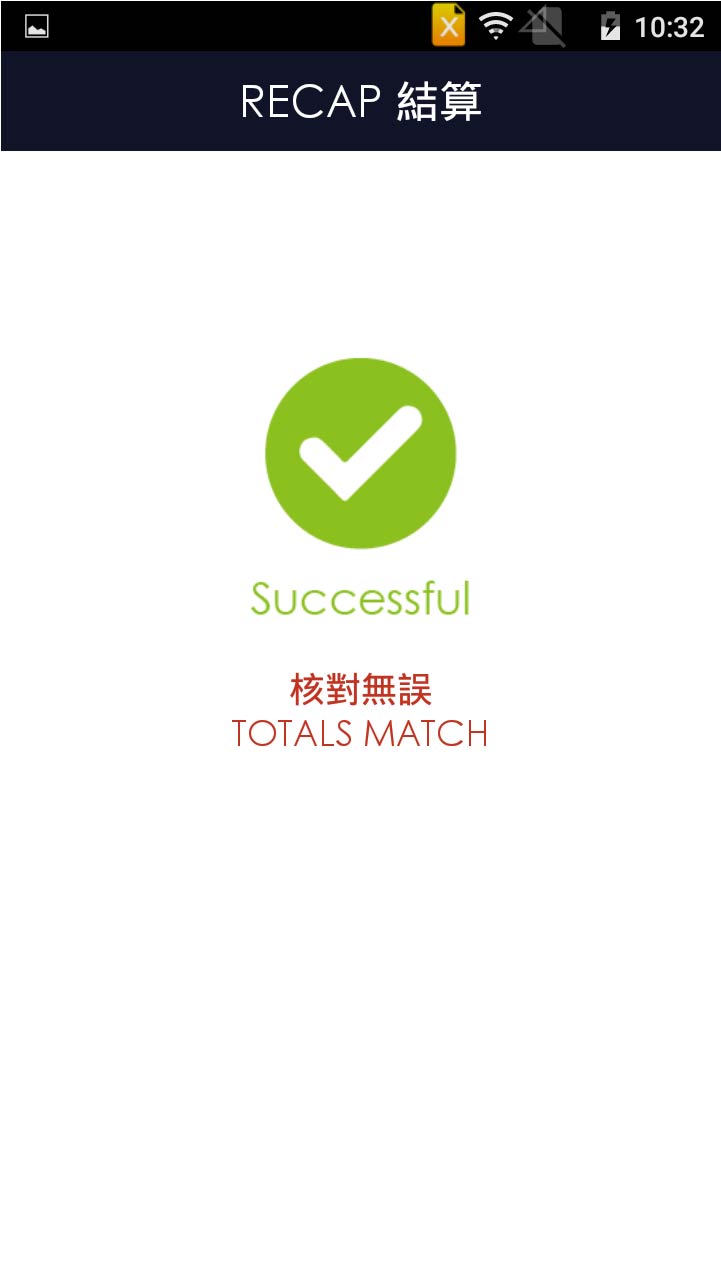
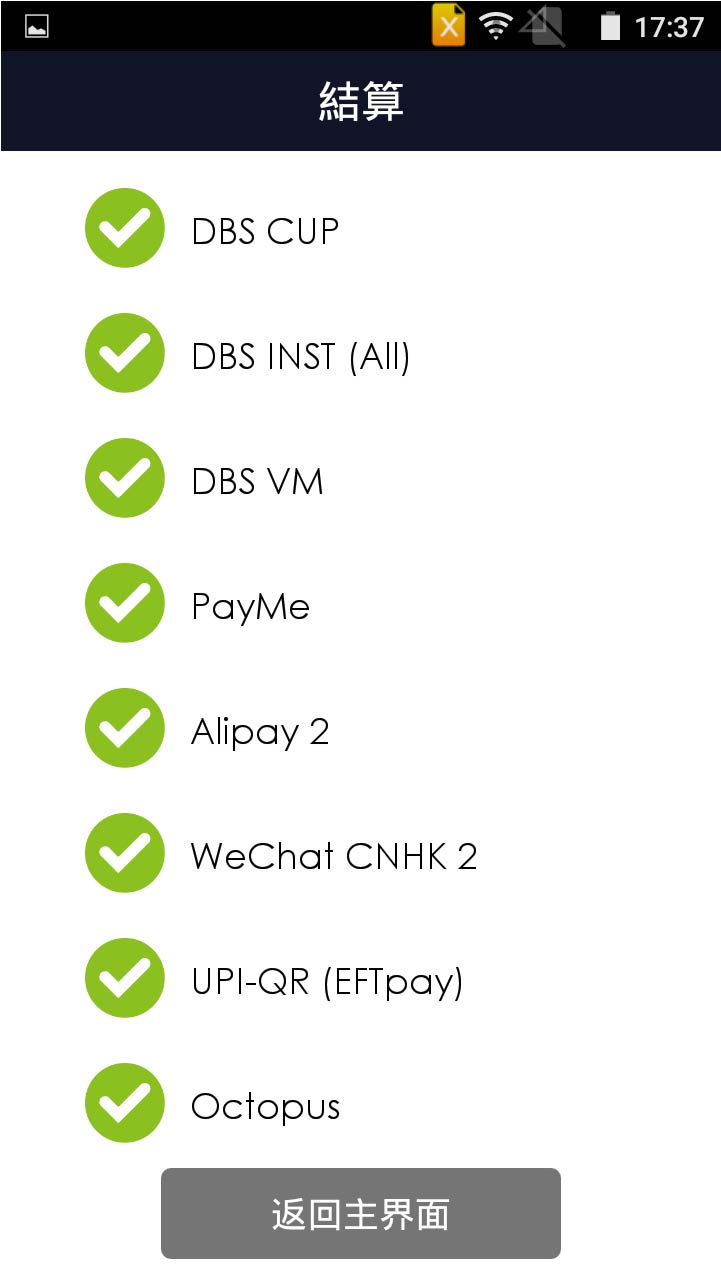
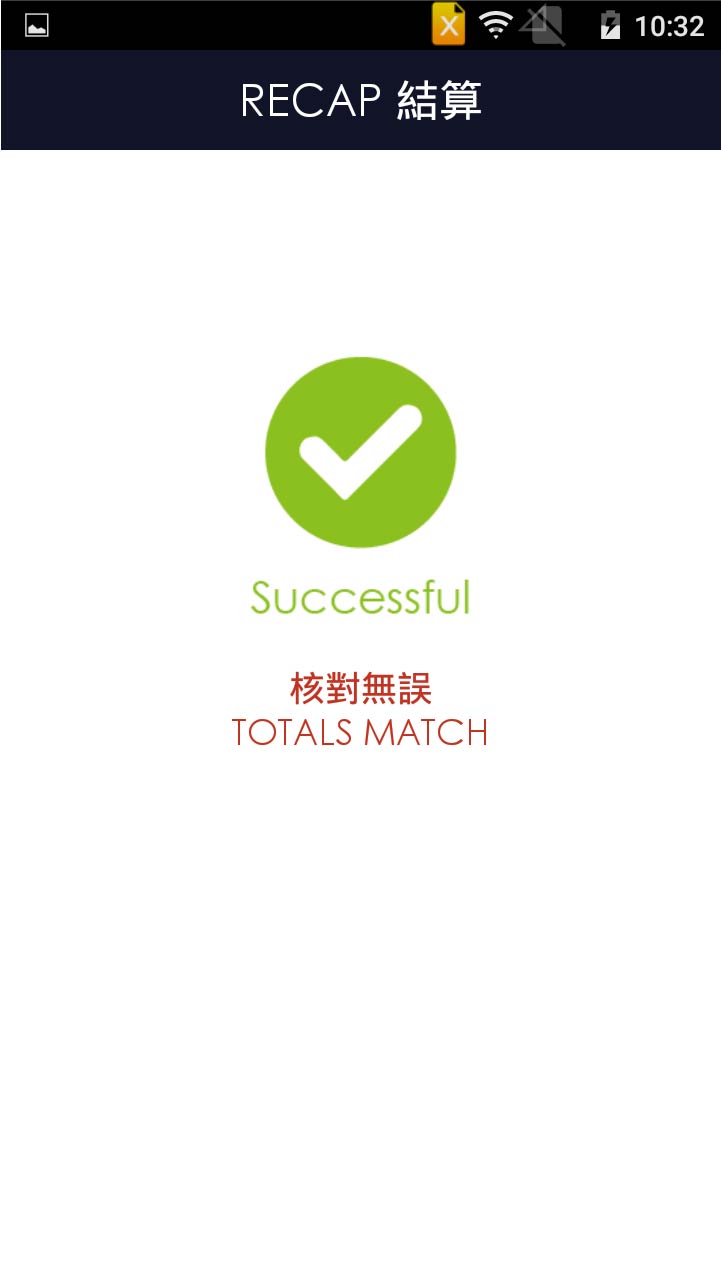
Settlement is completed, and terminal prints out receipt
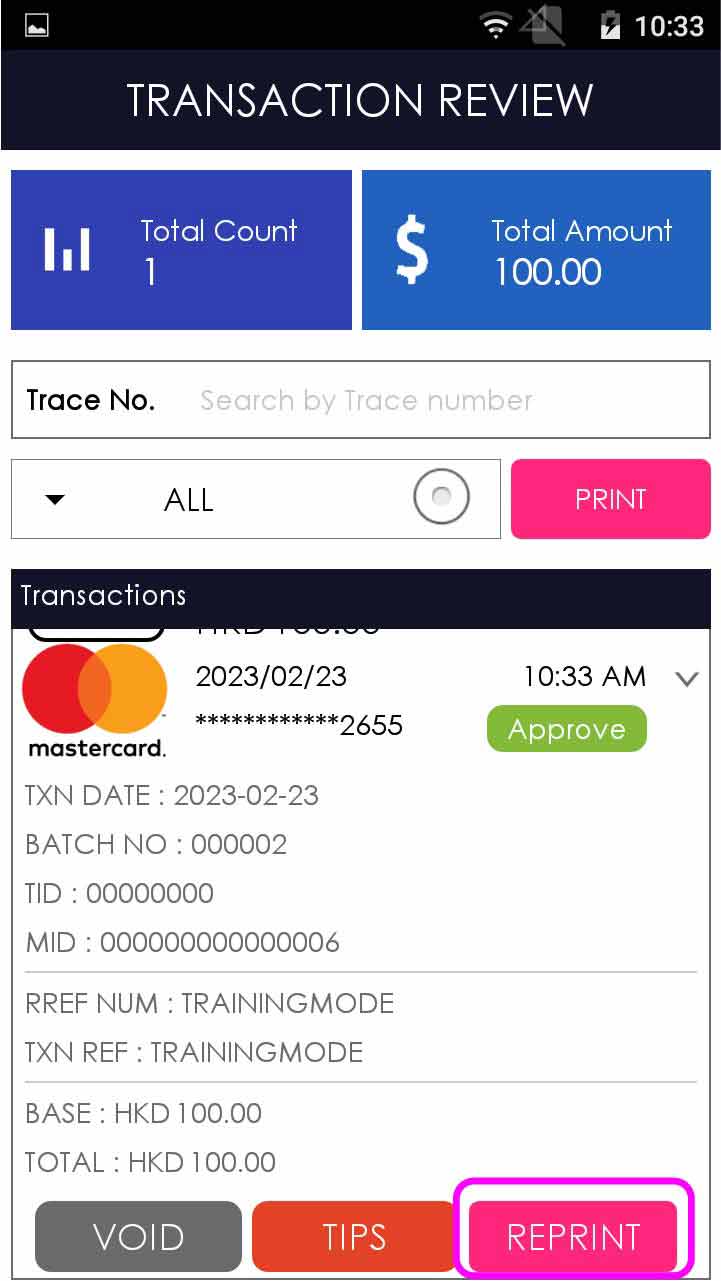
Reprint Transaction Receipt
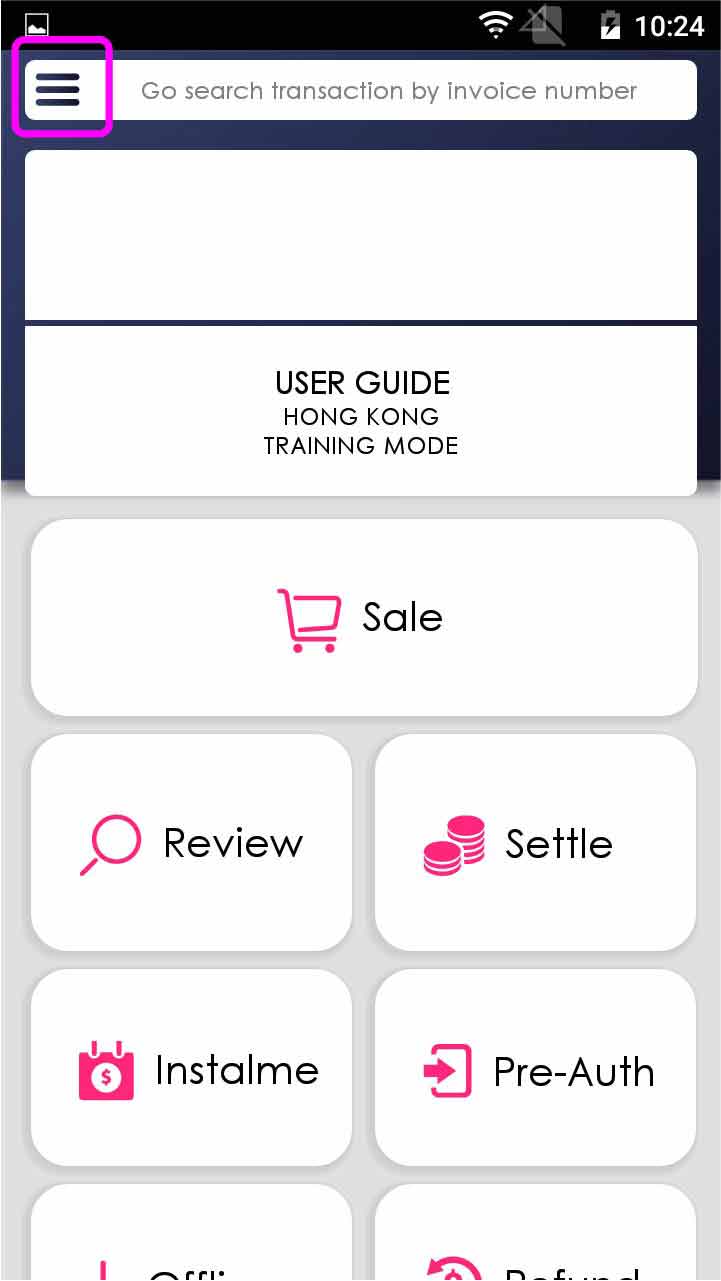
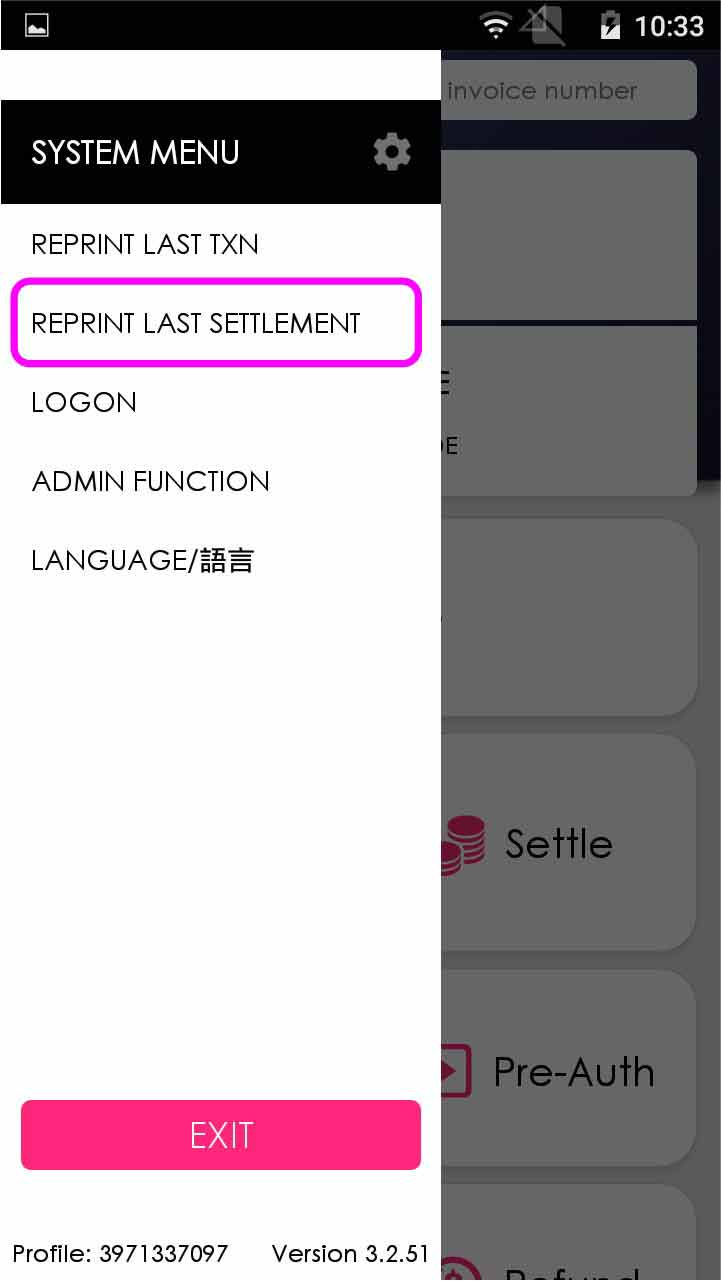
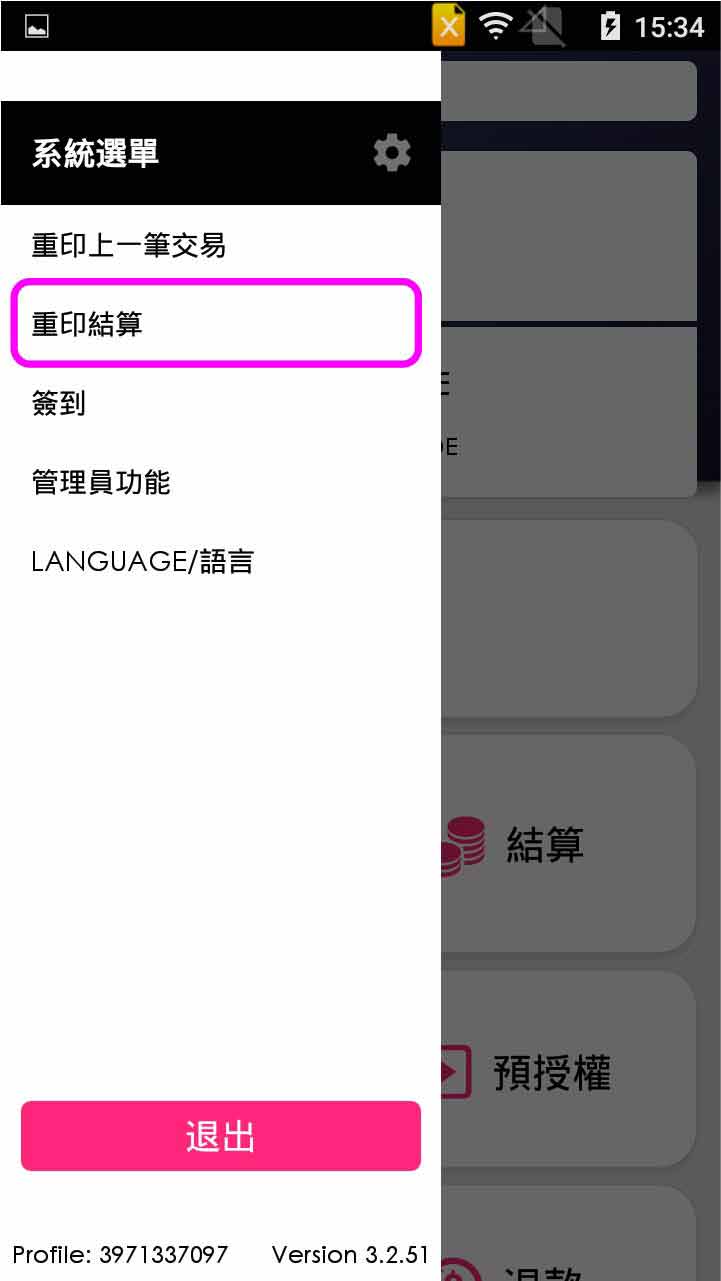
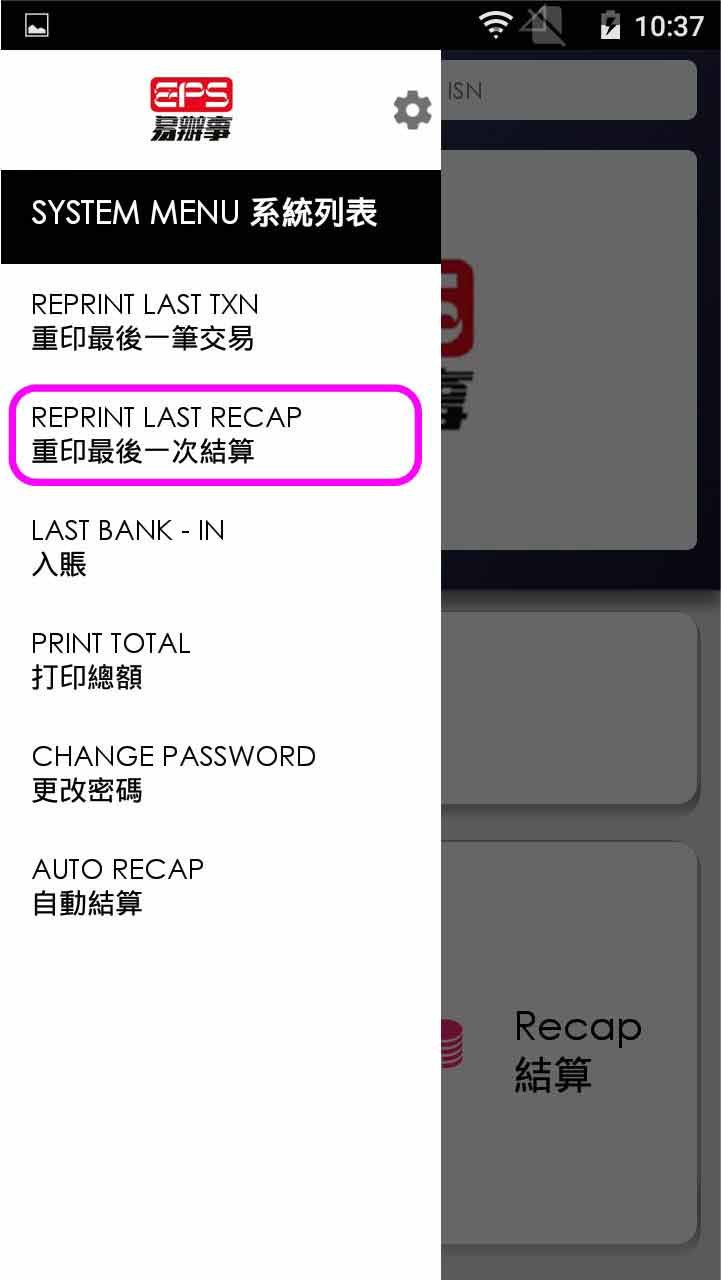
Reprint last settlement
View/Print Detail
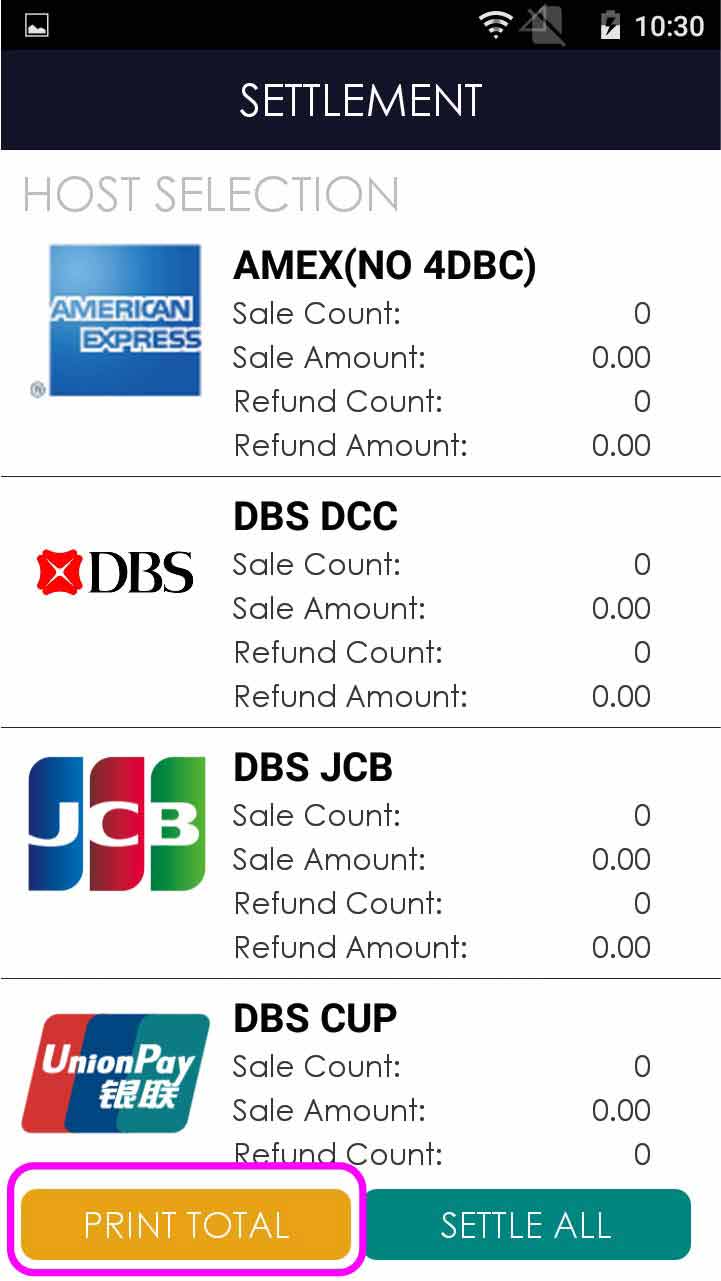
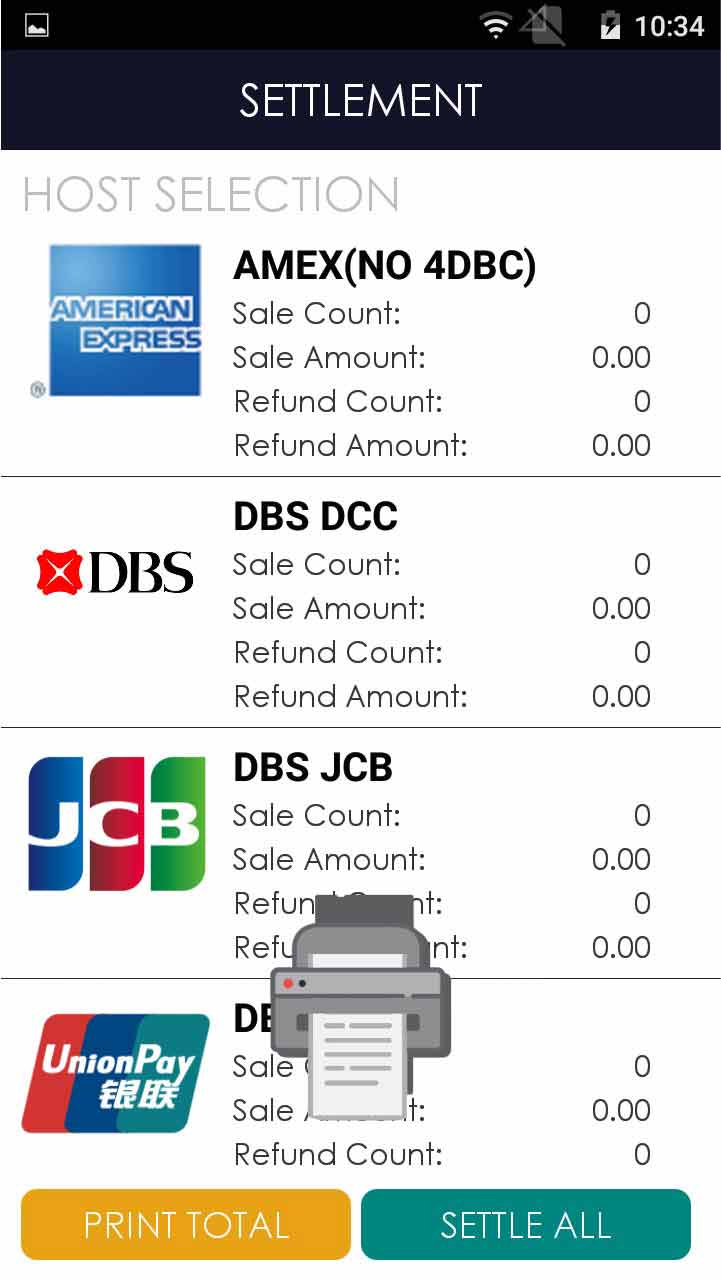
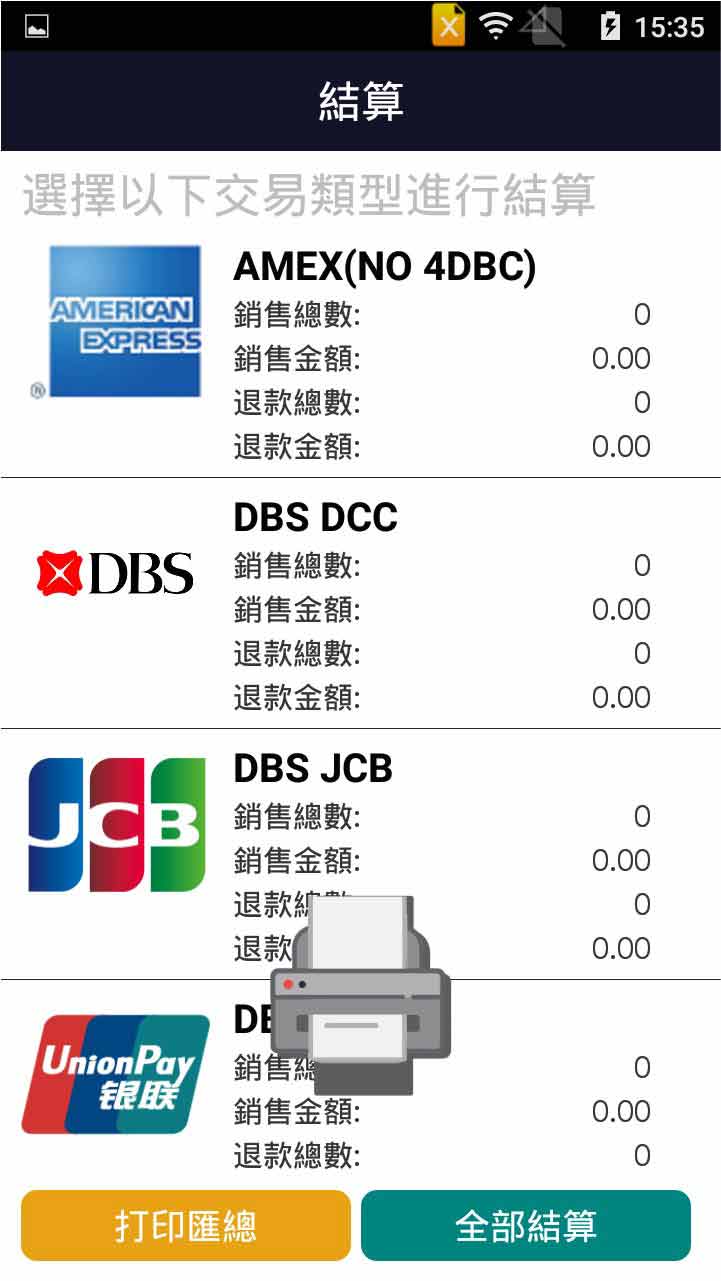
View/Print Total
EPS Transaction Review/Reprint
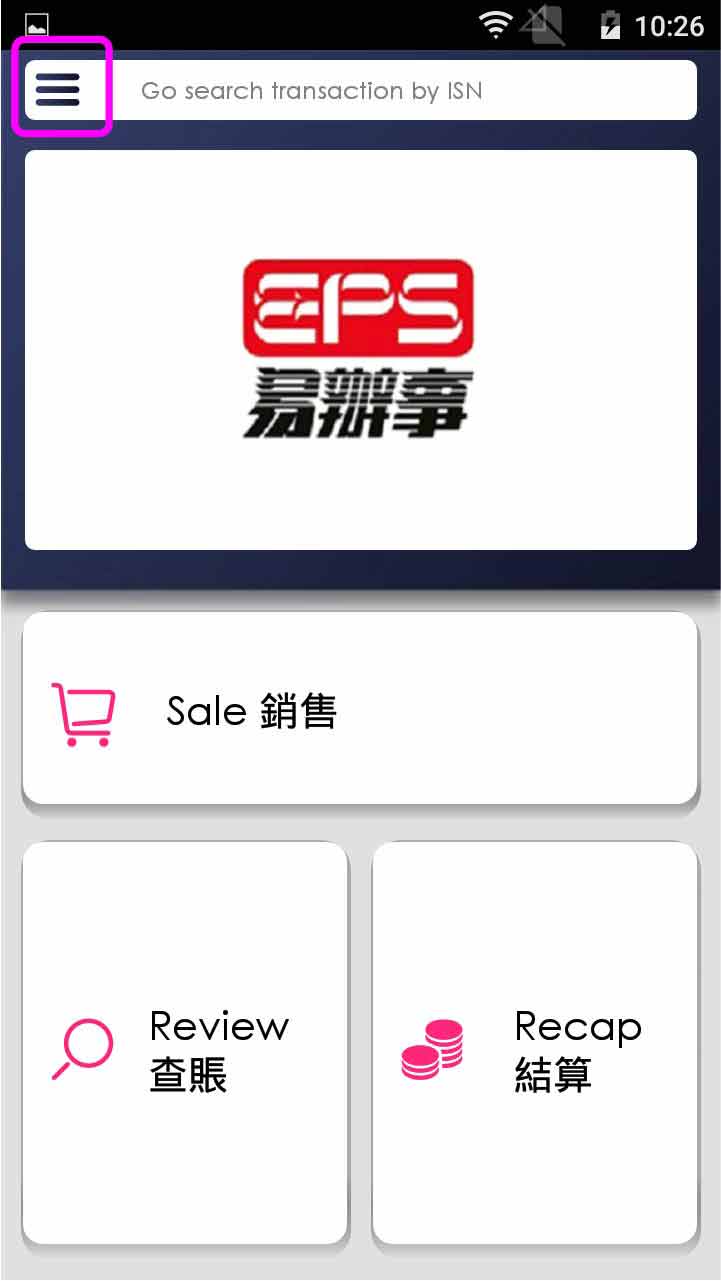
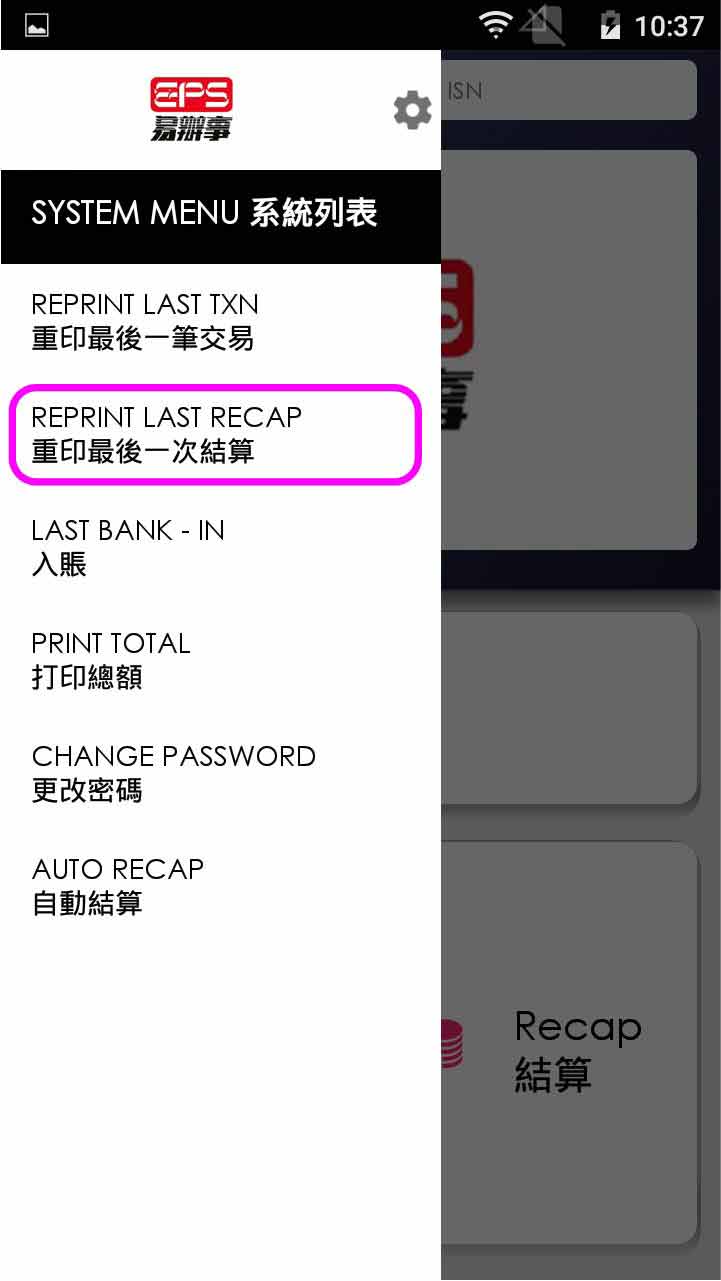
Reprint EPS Settlement
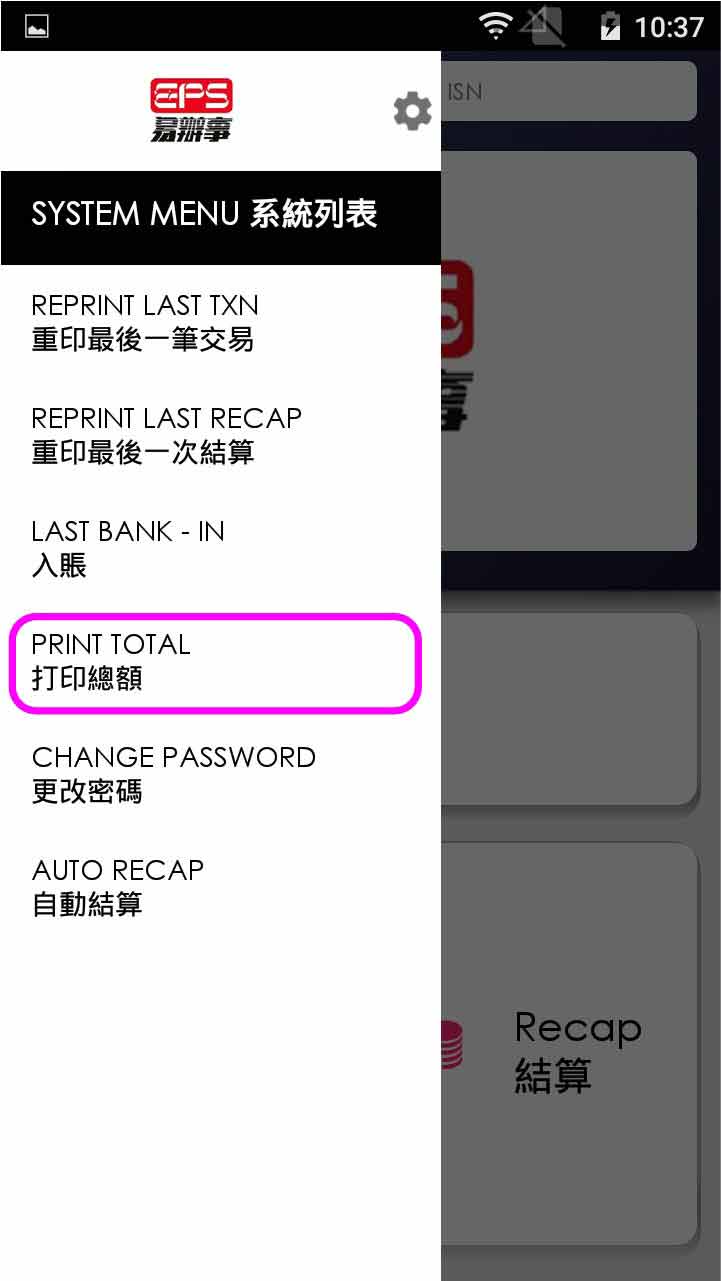
Reprint EPS Transaction Total
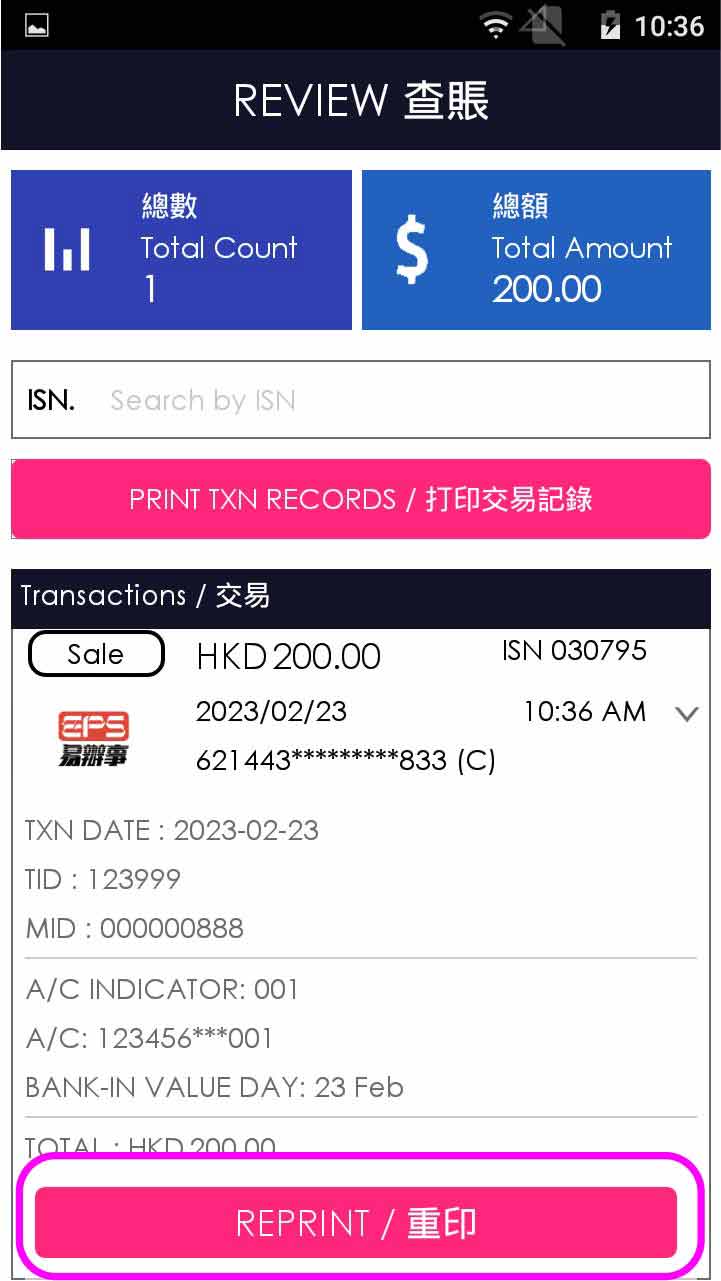
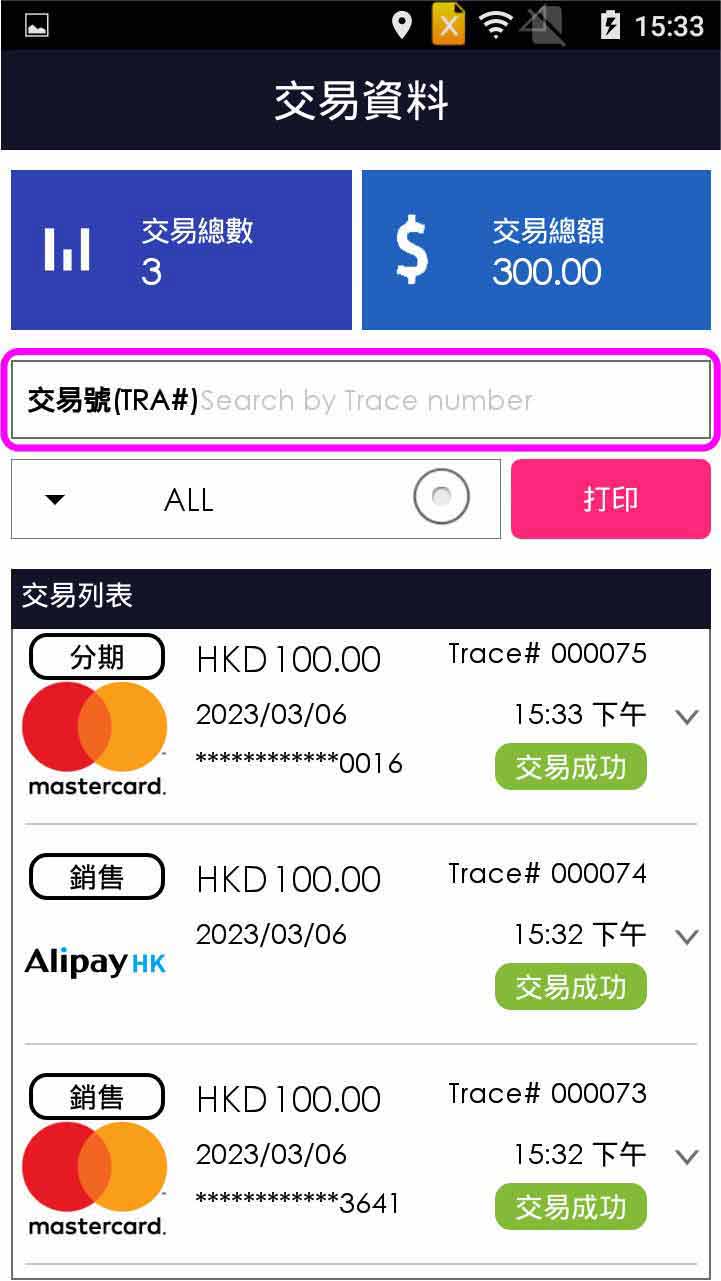
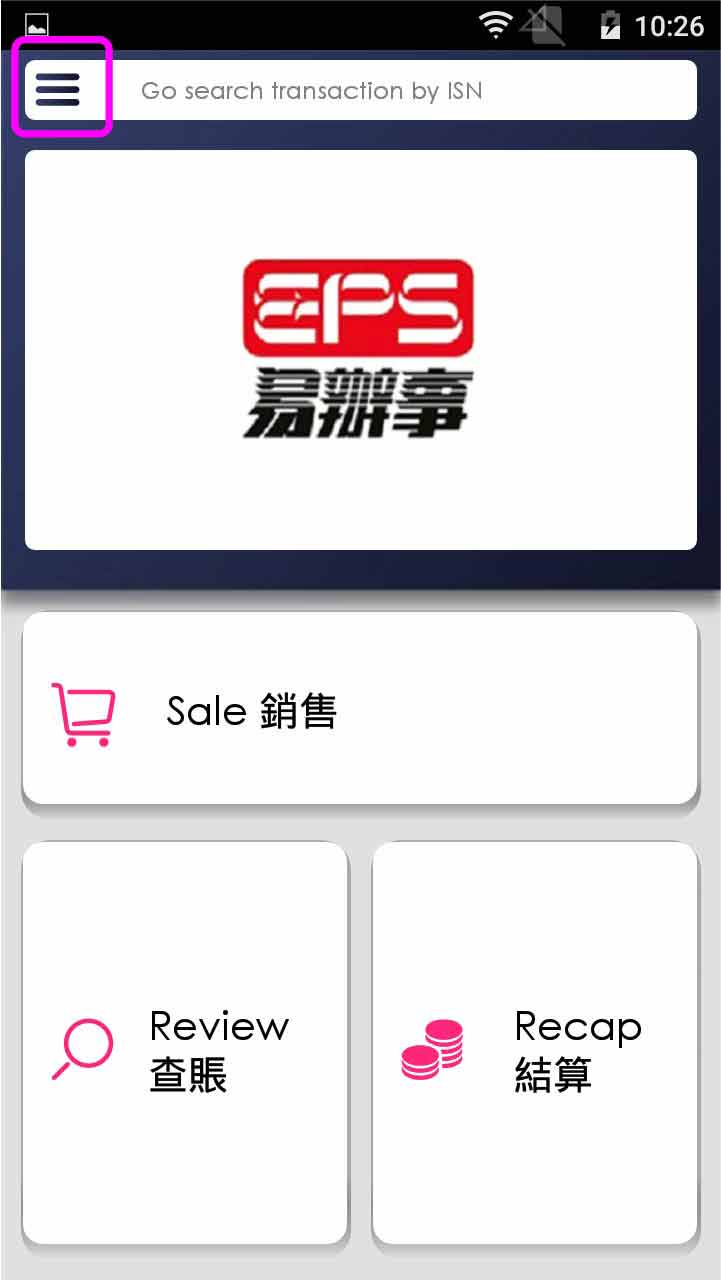
- Step 1 -
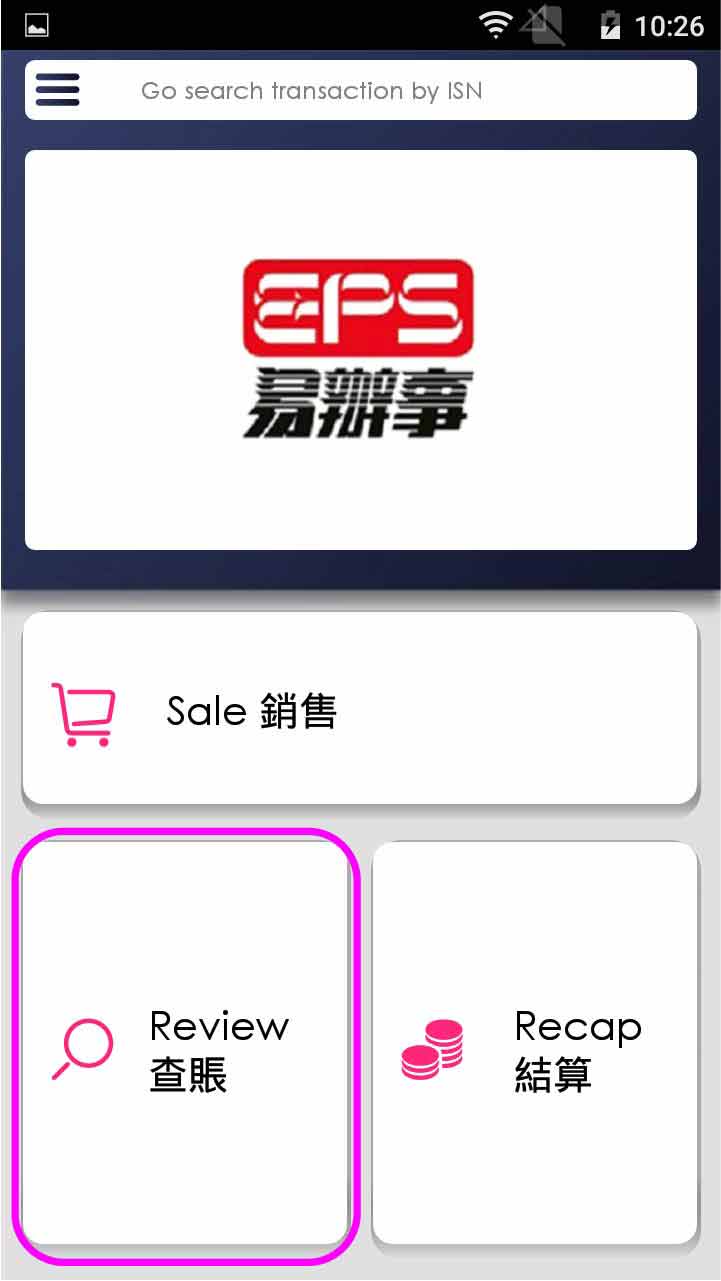
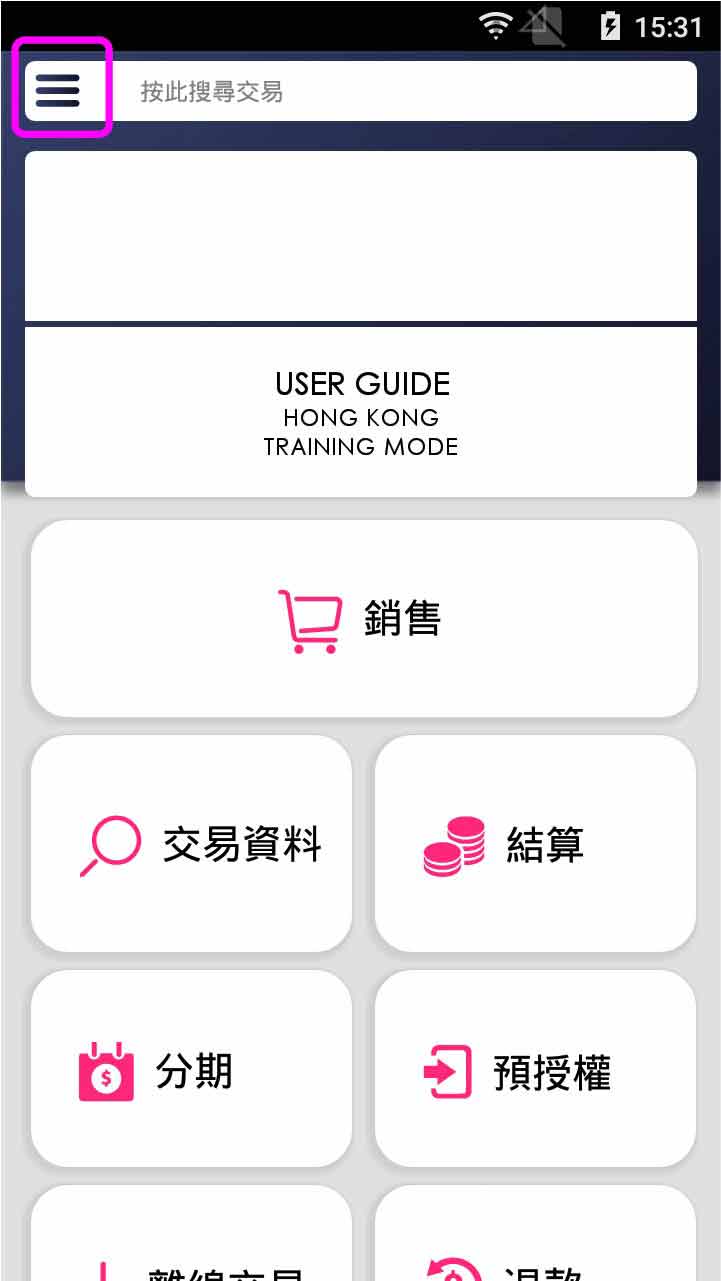
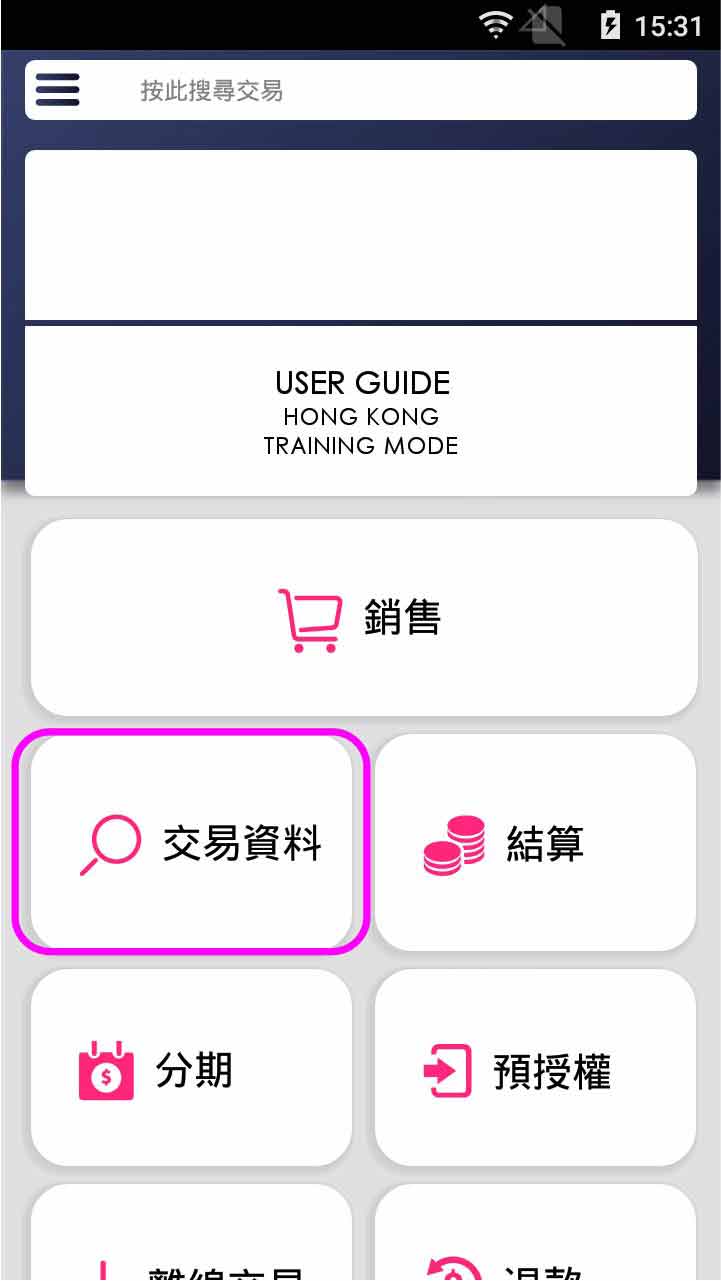
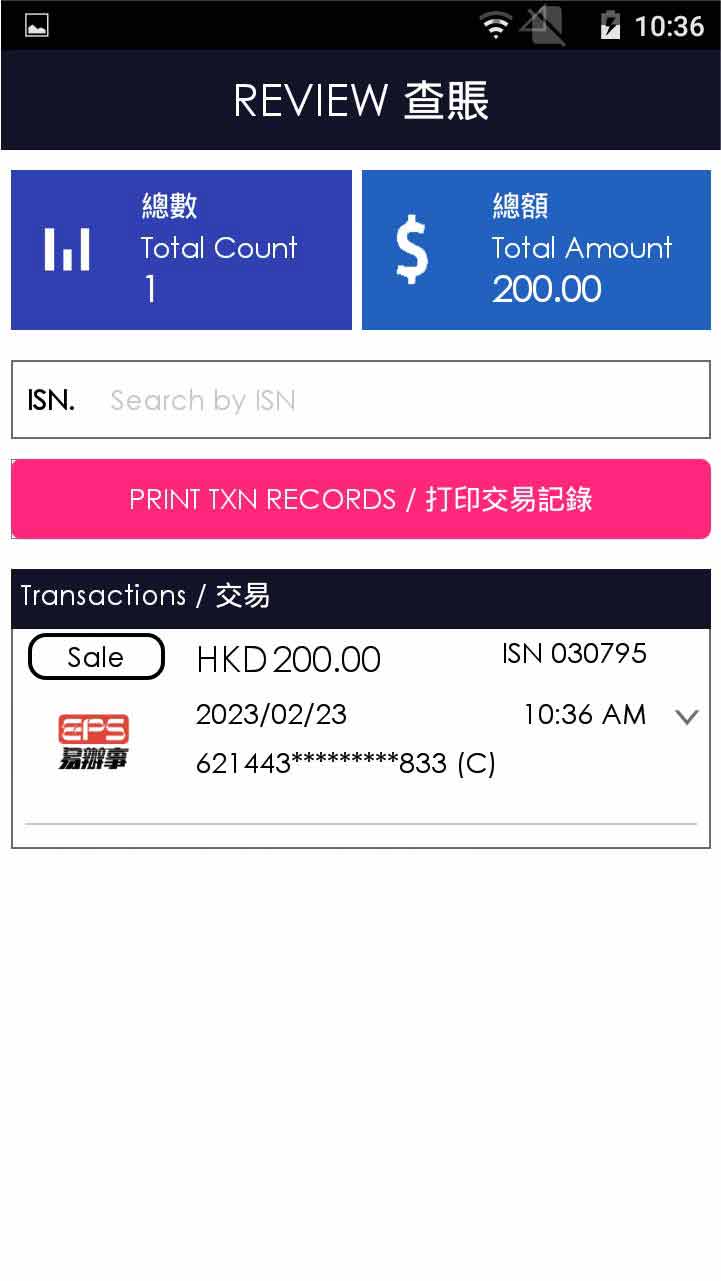
Press [Review] on menu
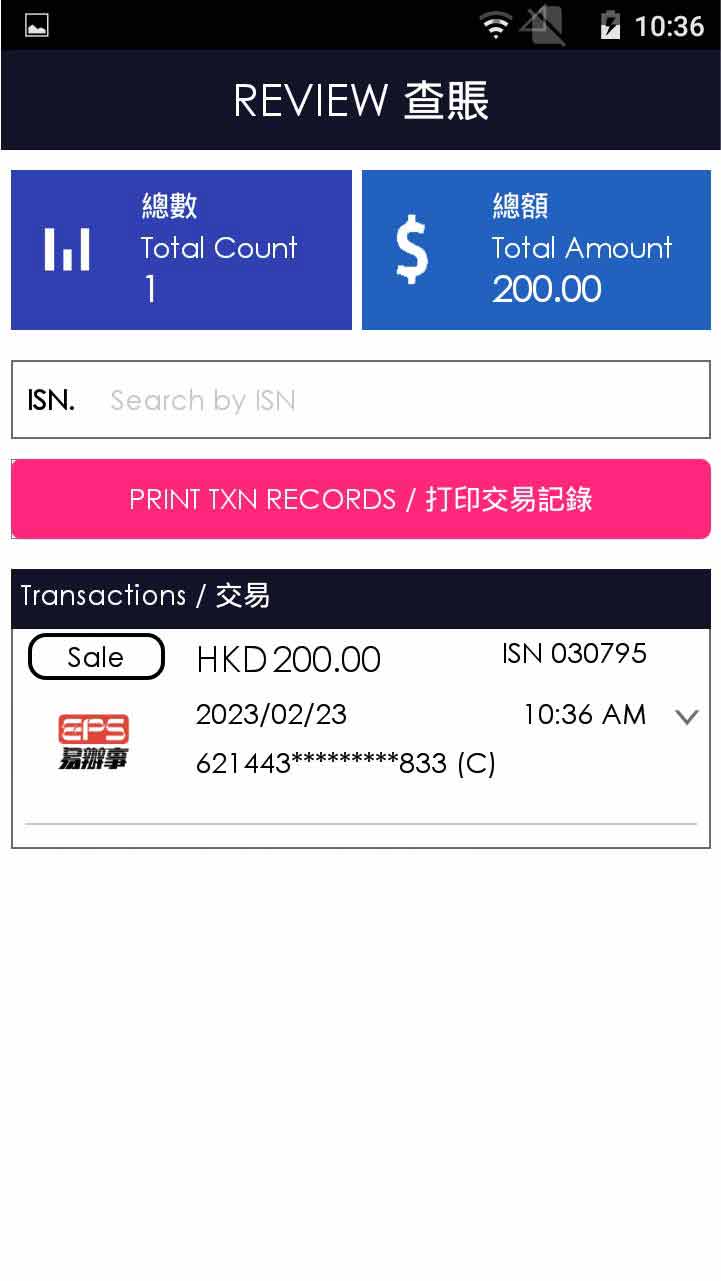
- Step 2 -
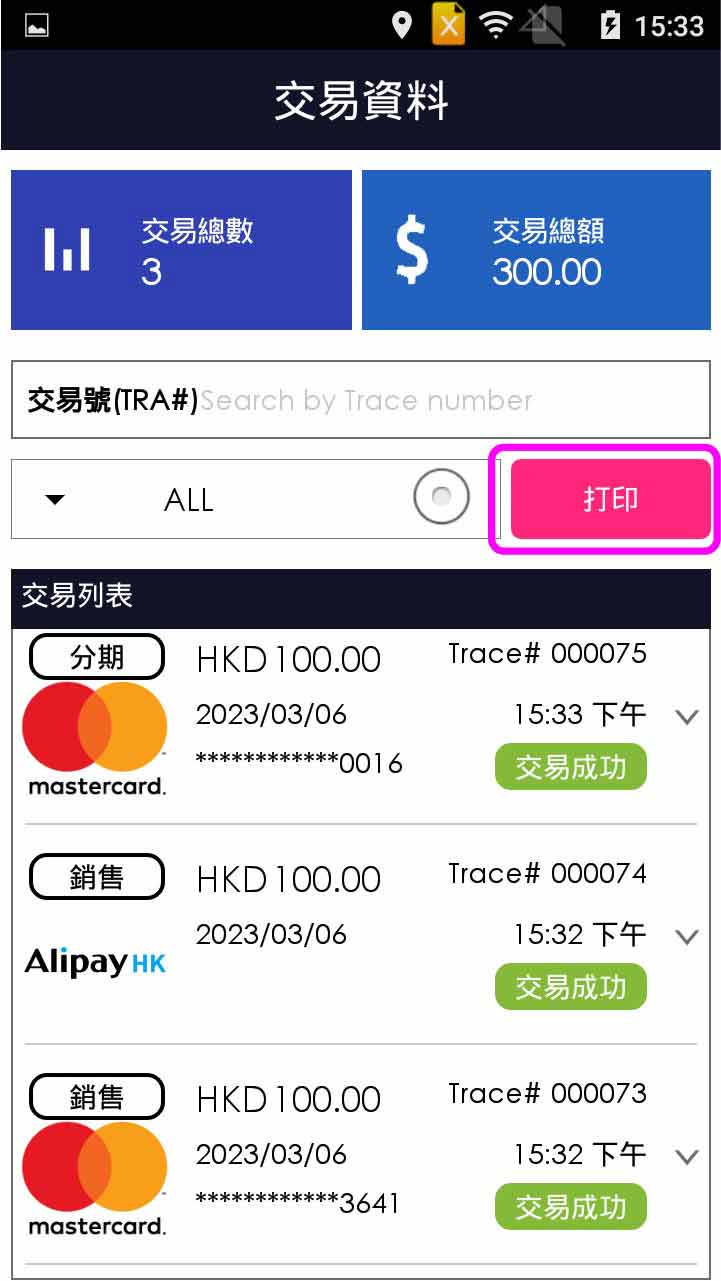
Enter trace number in the “TRACE#” search bar / select transaction directly
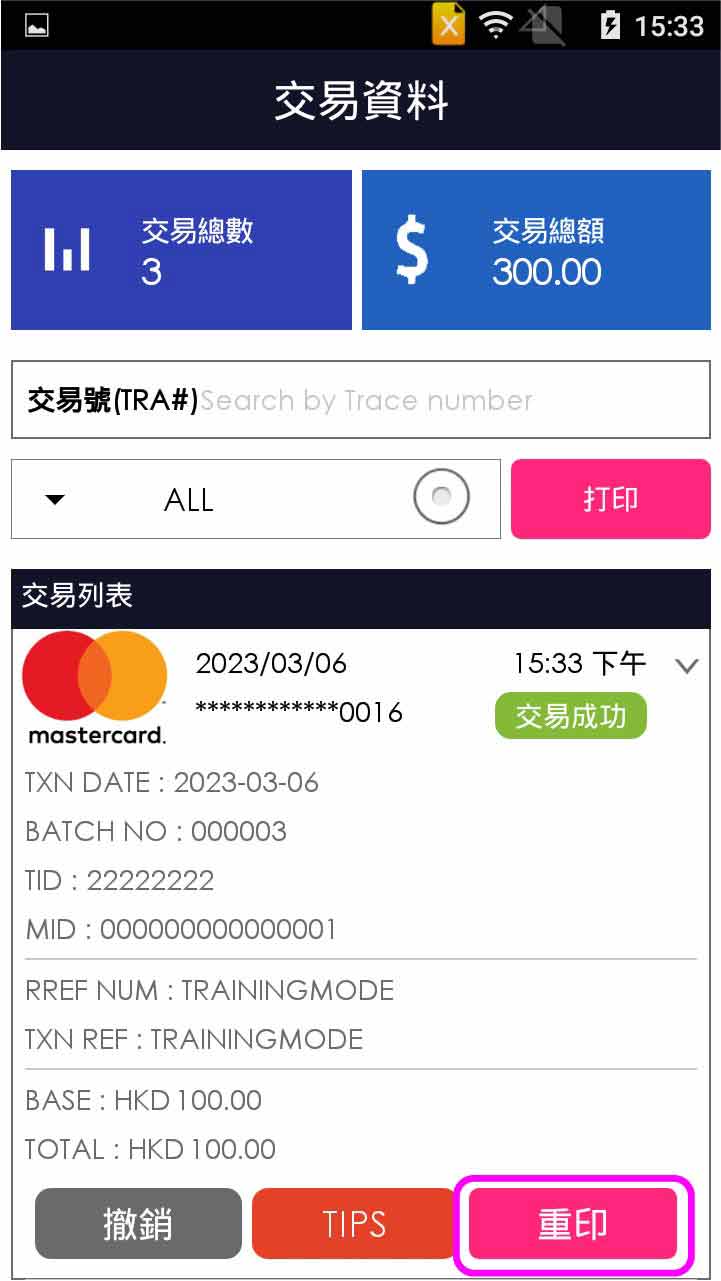
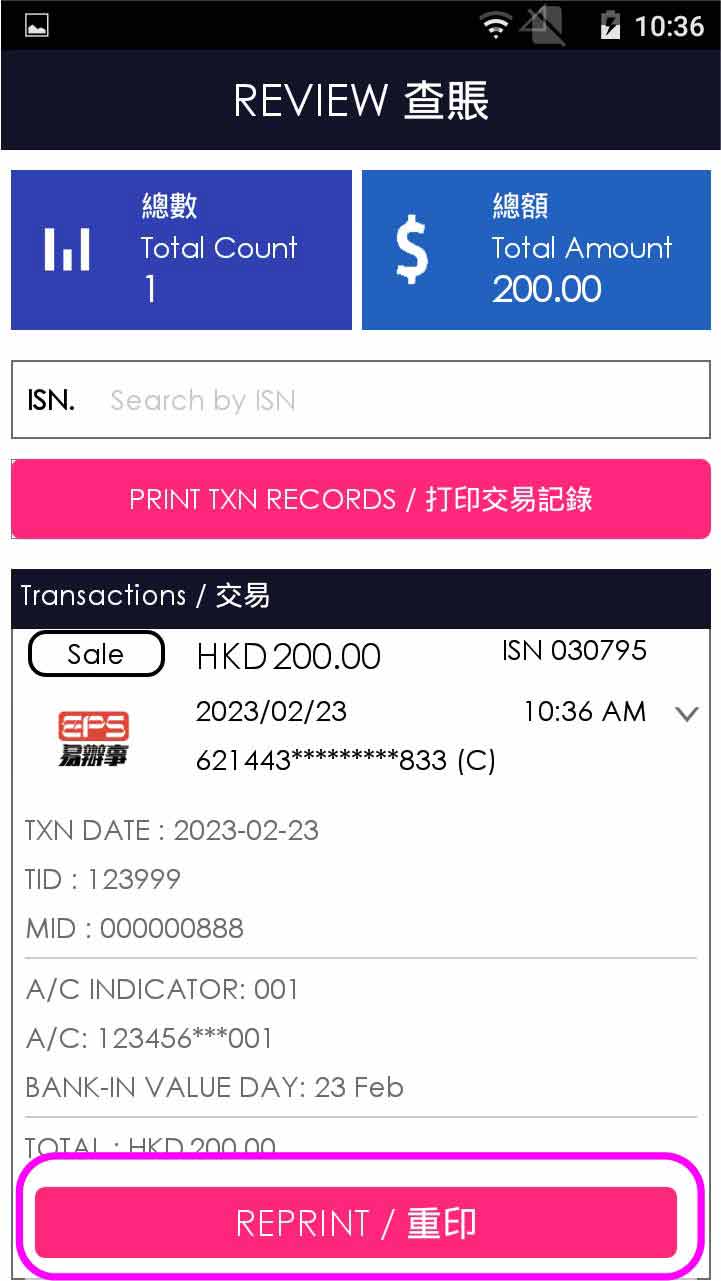
- Step 3 -
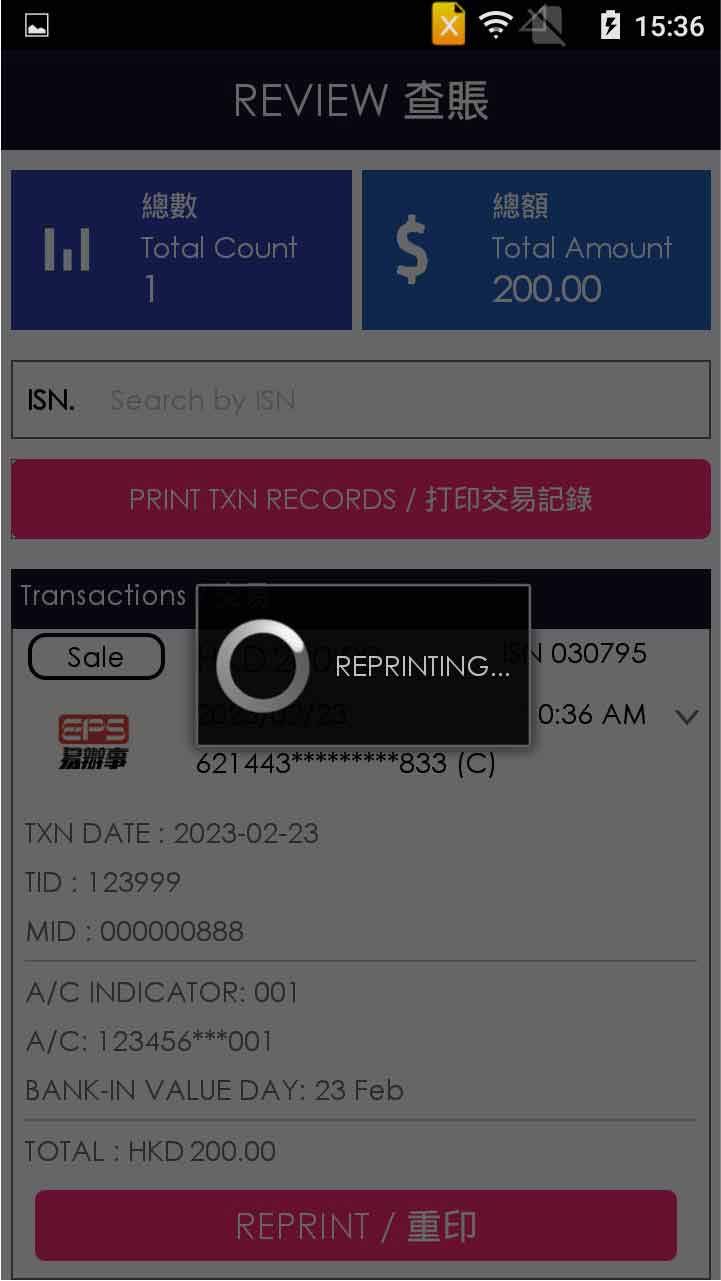
Press [Reprint]
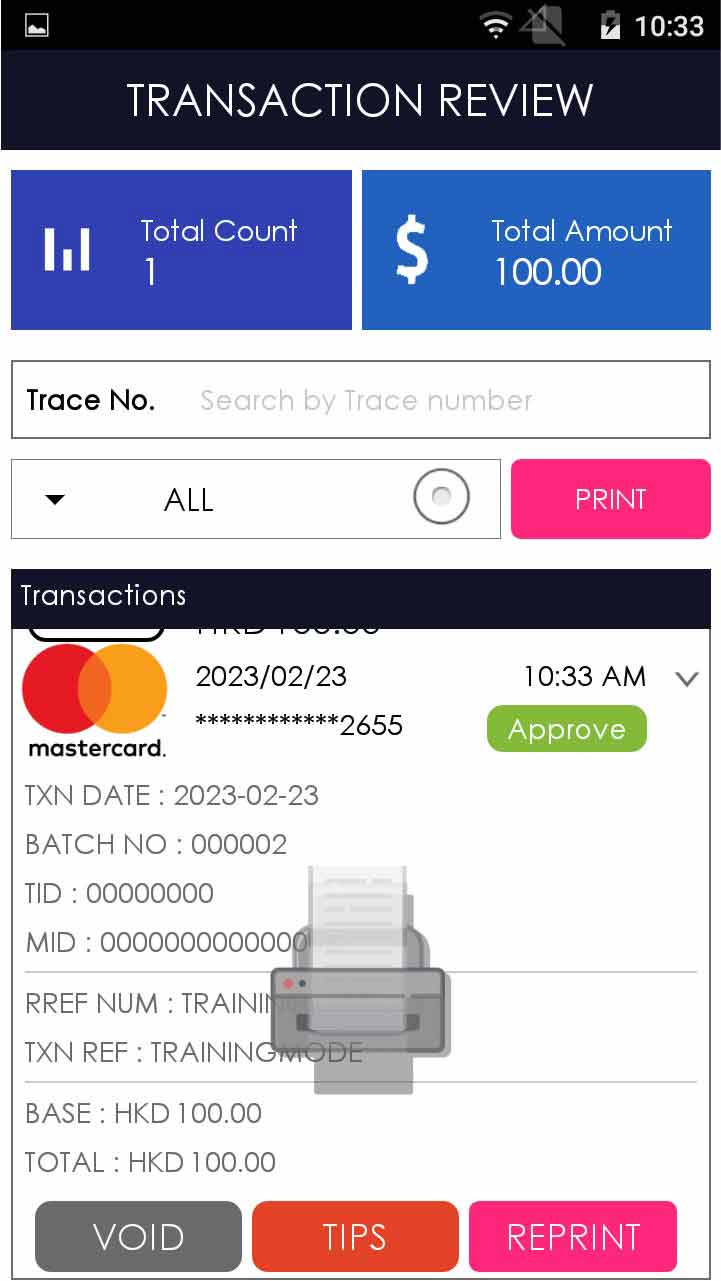
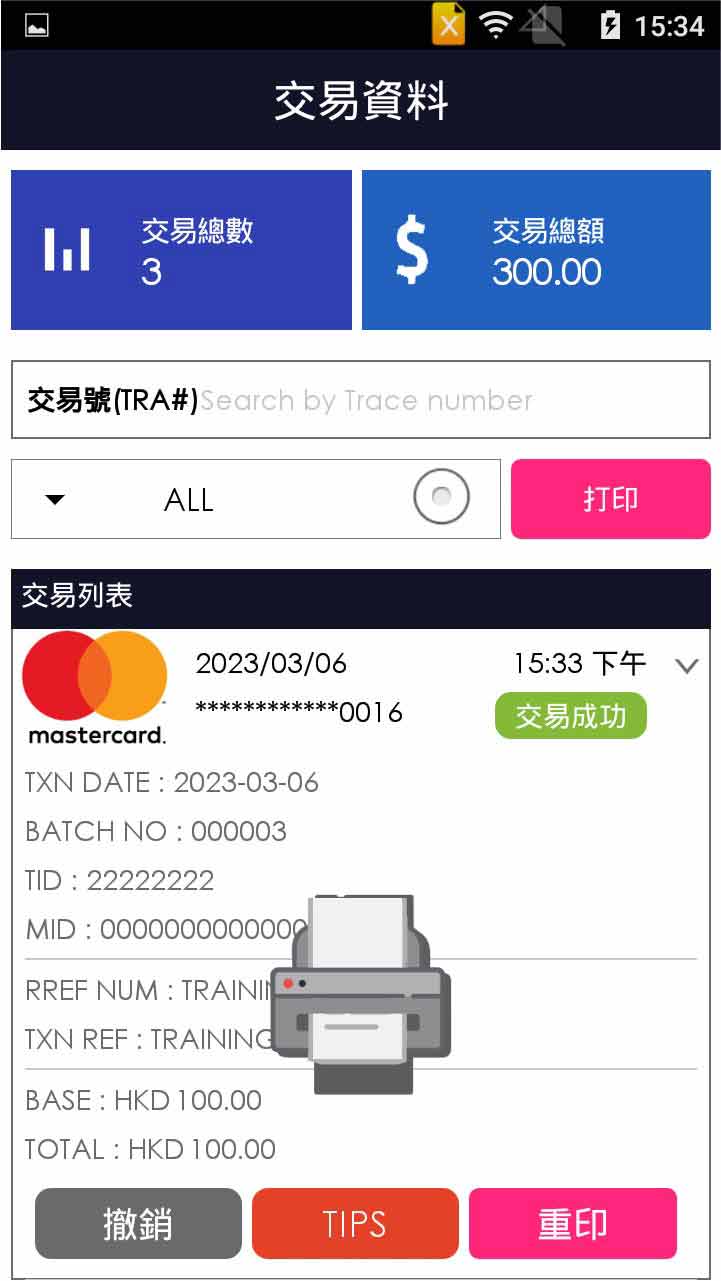
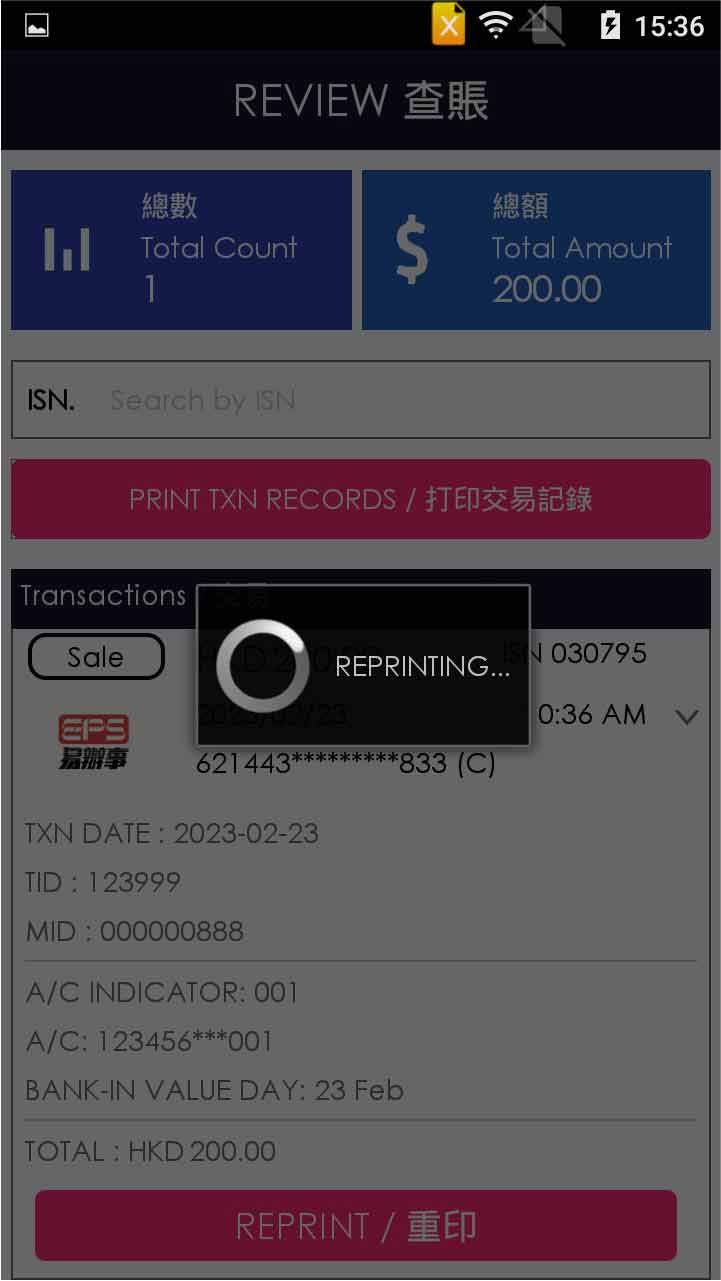
- Step 4 -
Terminal prints out receipt
Tips Adjust
- Step 1 -
Press [Review] on menu
- Step 2 -
Enter trace number in the “TRACE#” search bar / select transaction directly
- Step 3 -
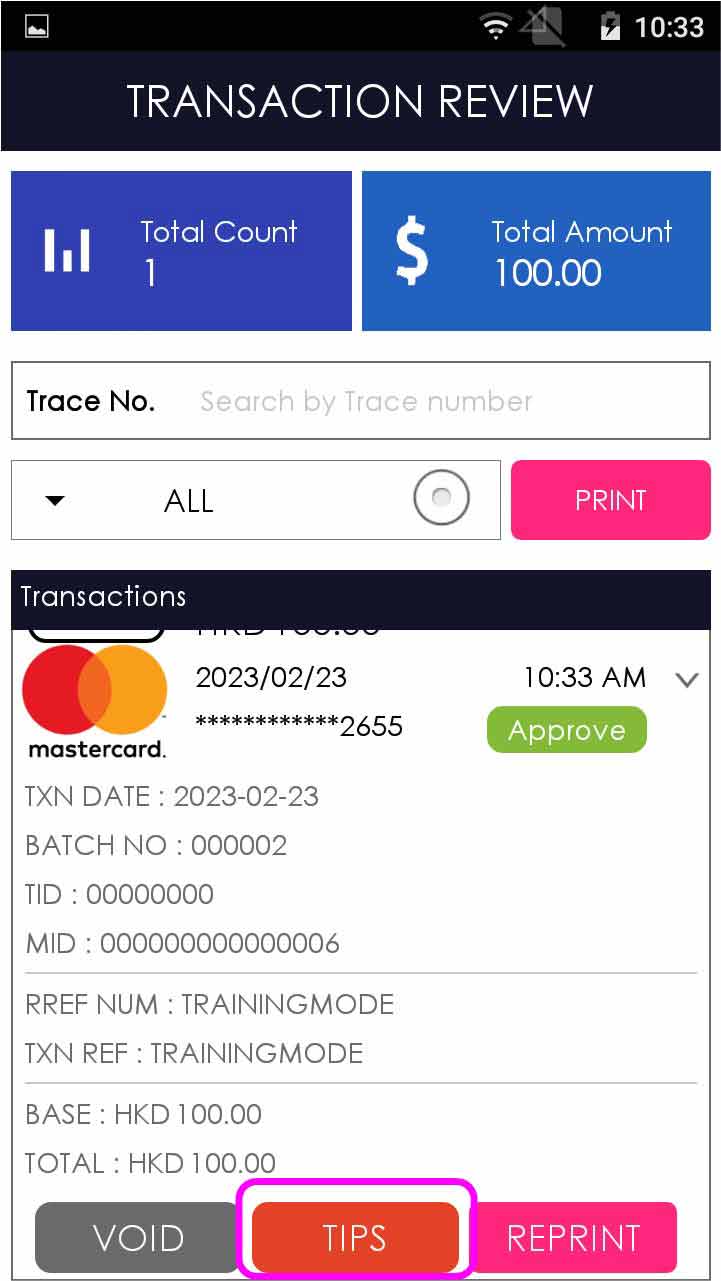
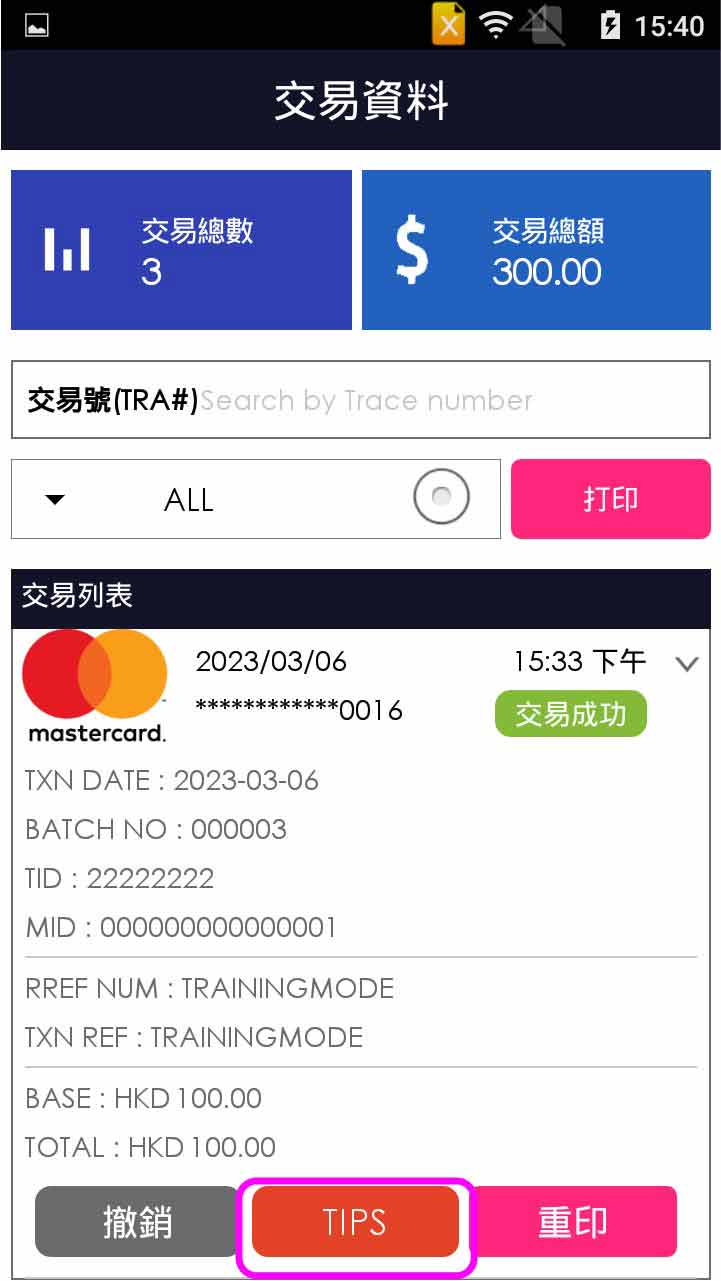
Press on the [TIPS] of the transaction
- Step 4 -
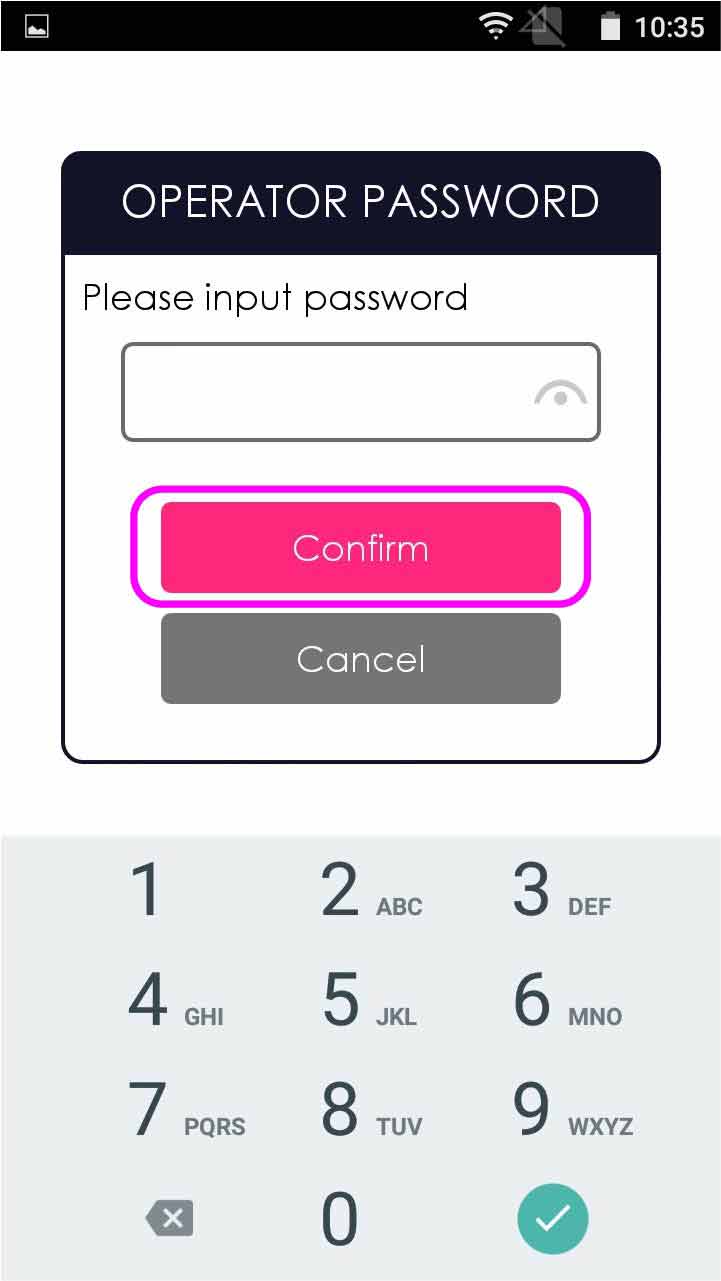
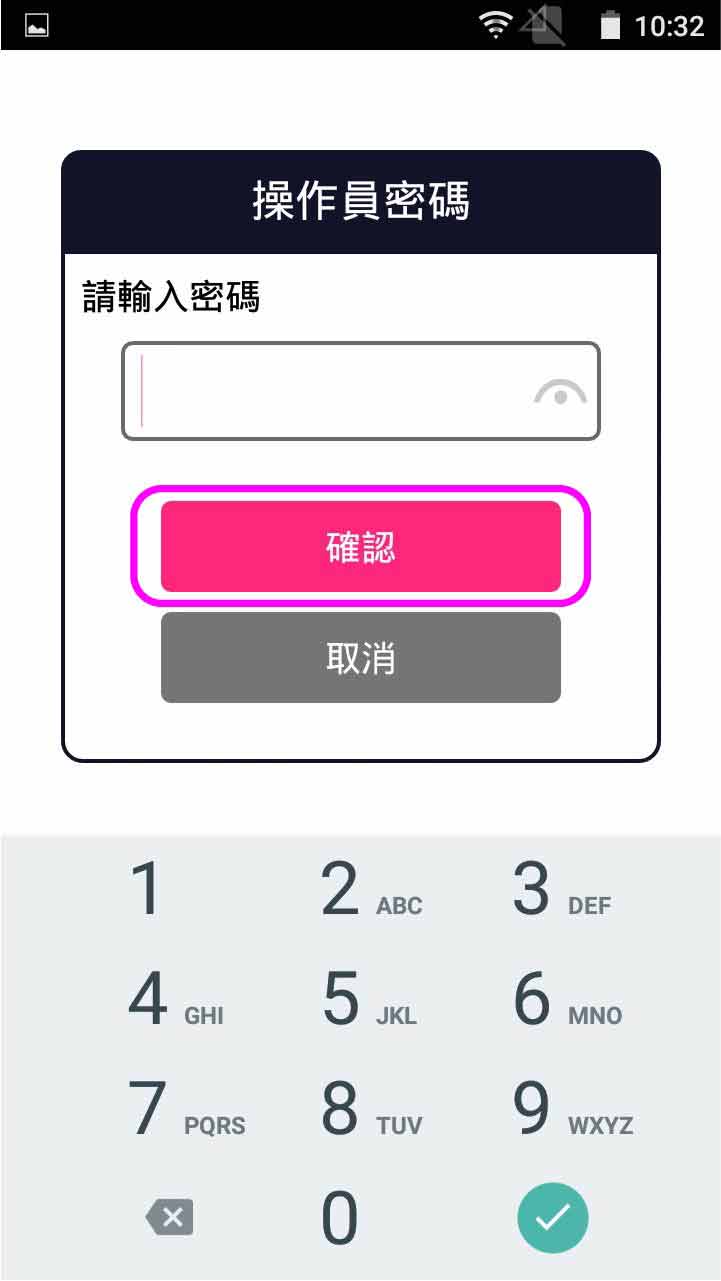
Enter operator password, and press [Confirm]
- Step 5 -
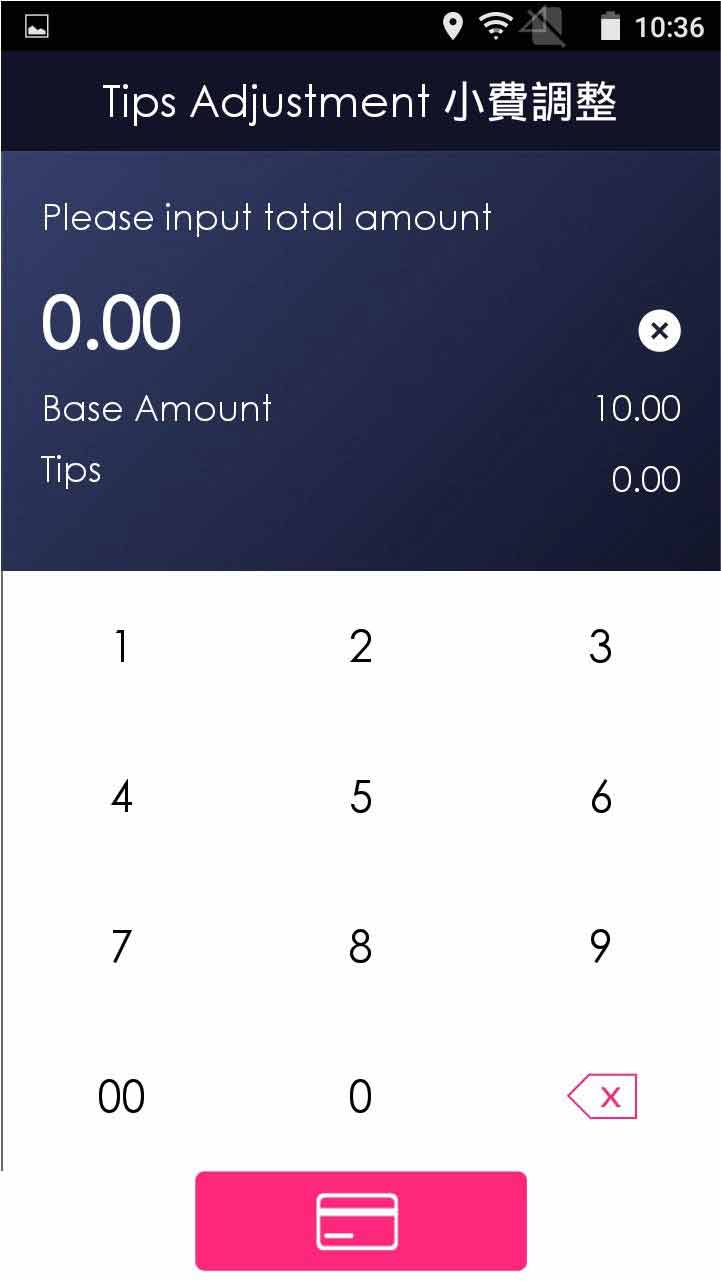
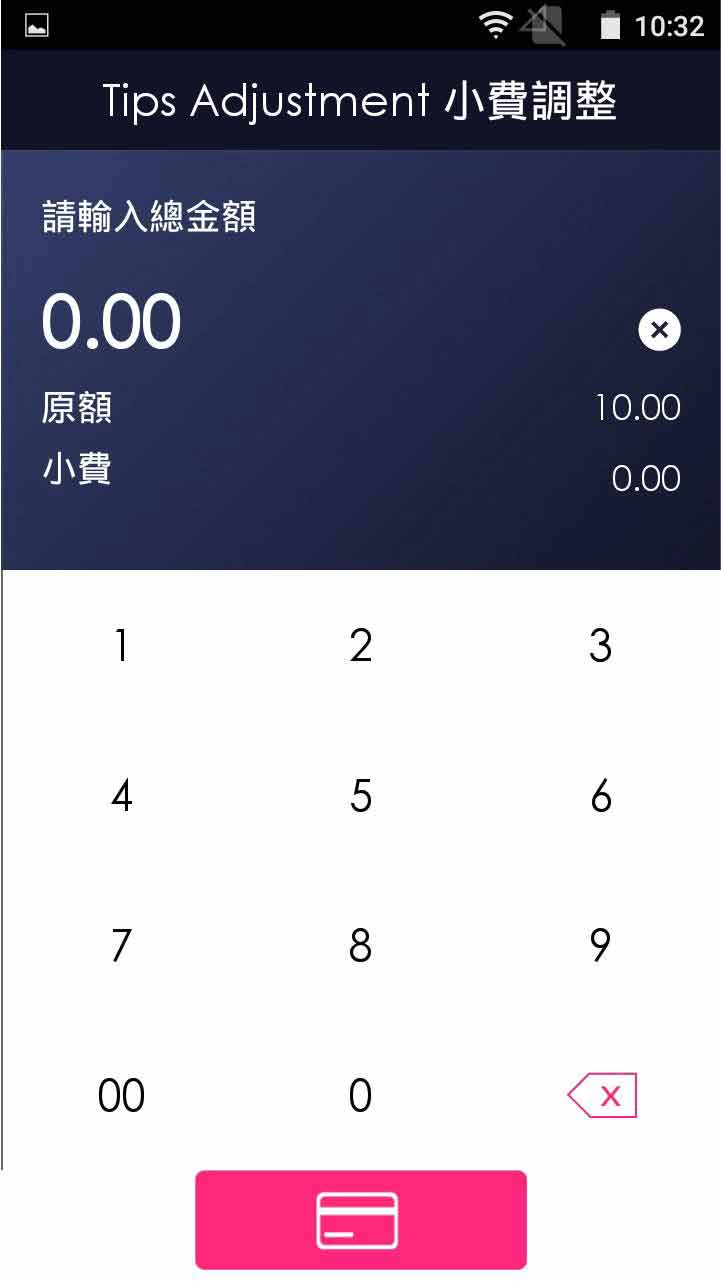
Enter the revised total amount
- Step 6 -
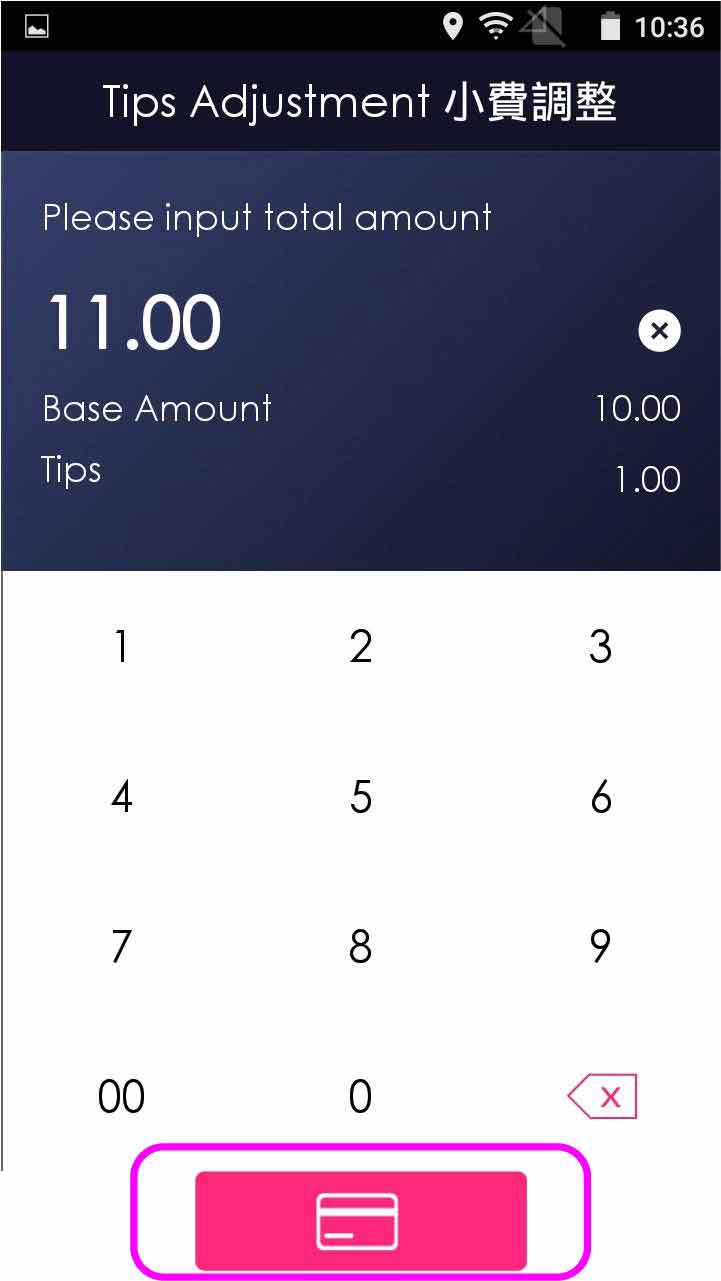
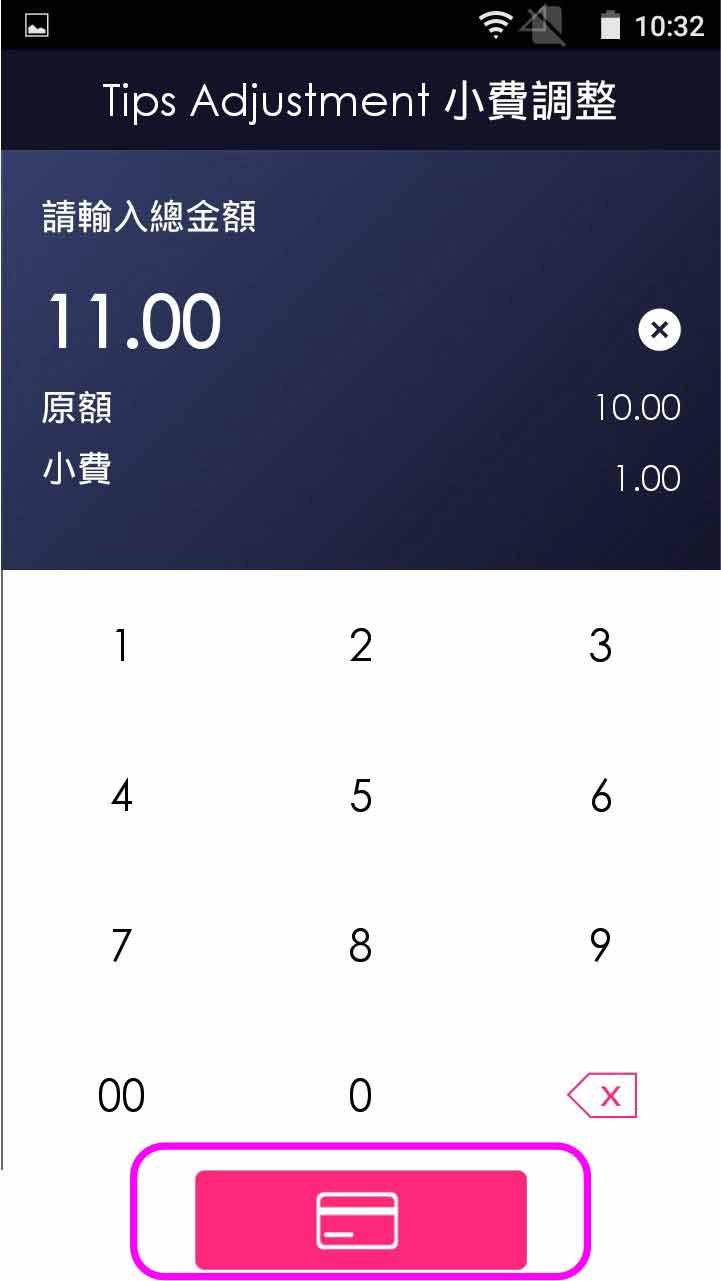
Press [Credit Card] to finish tips adjustment
- Step 7 -
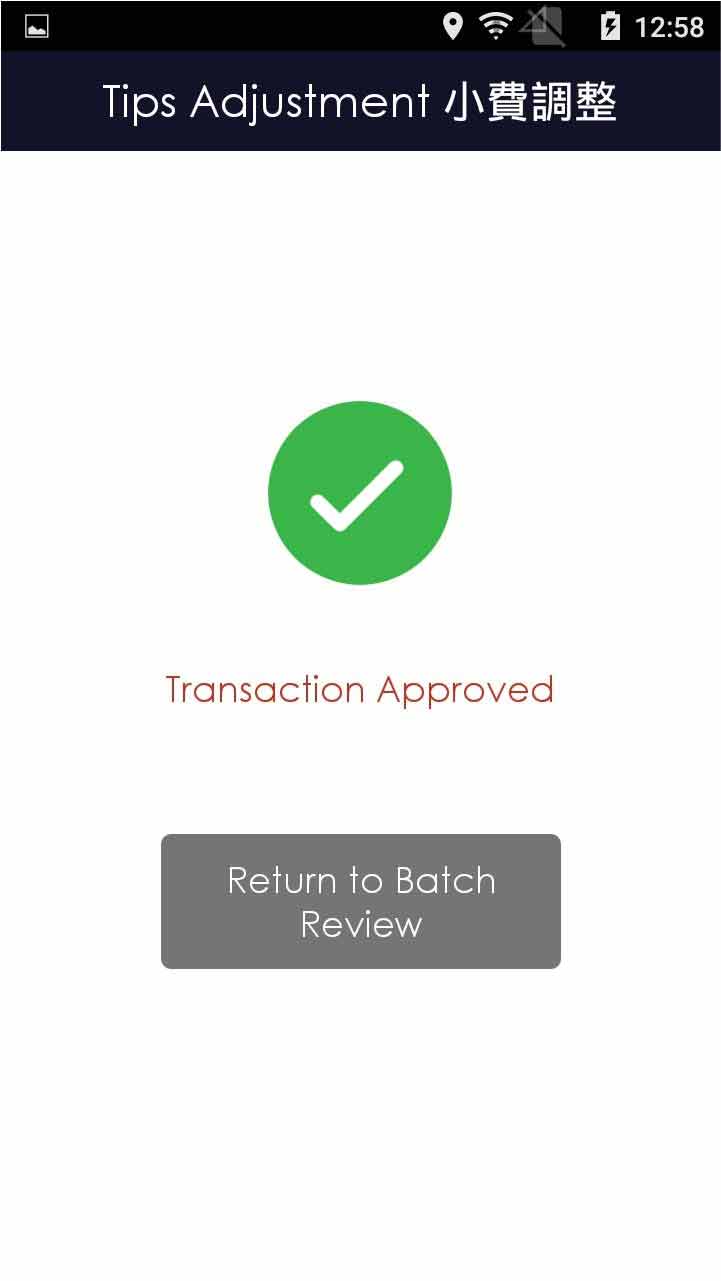
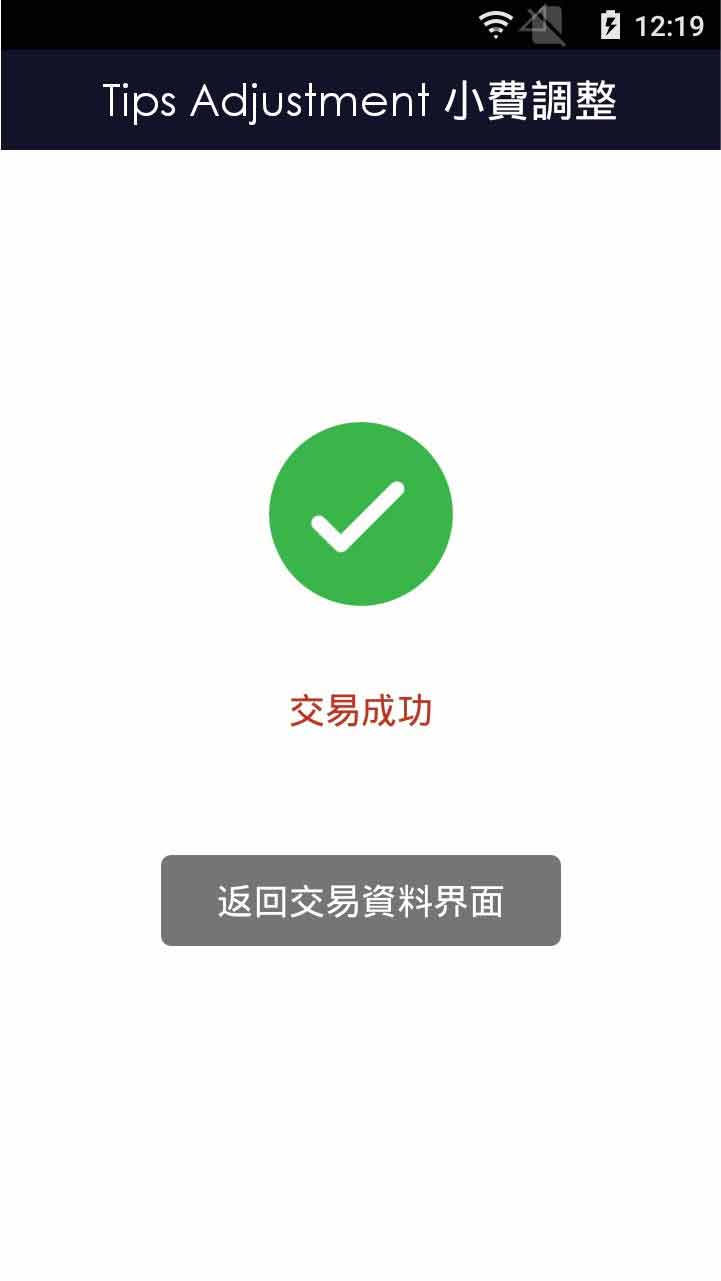
Press [Return to Batch Review] to review transaction
Pre-authorization
Pre-authorization Completion (UnionPay)
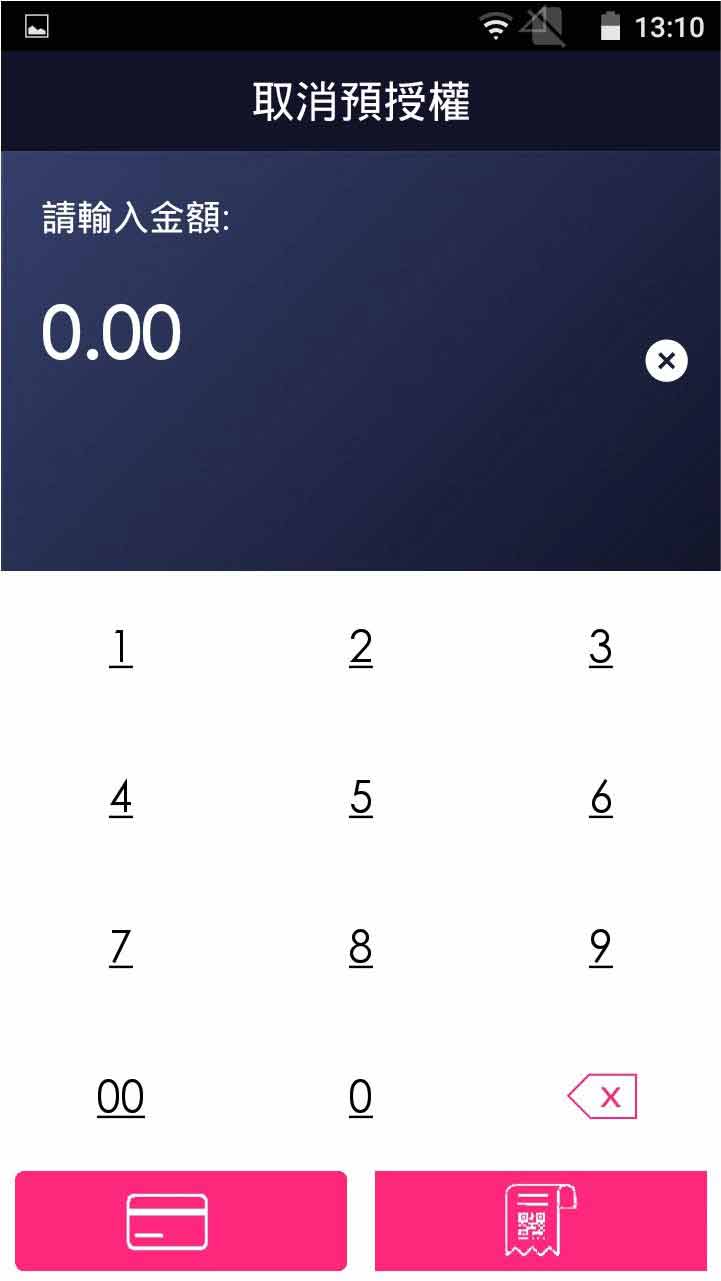
Cancel Pre-authorization (UnionPay)
Cancel Pre-authorization Completion (UnionPay)
Offline
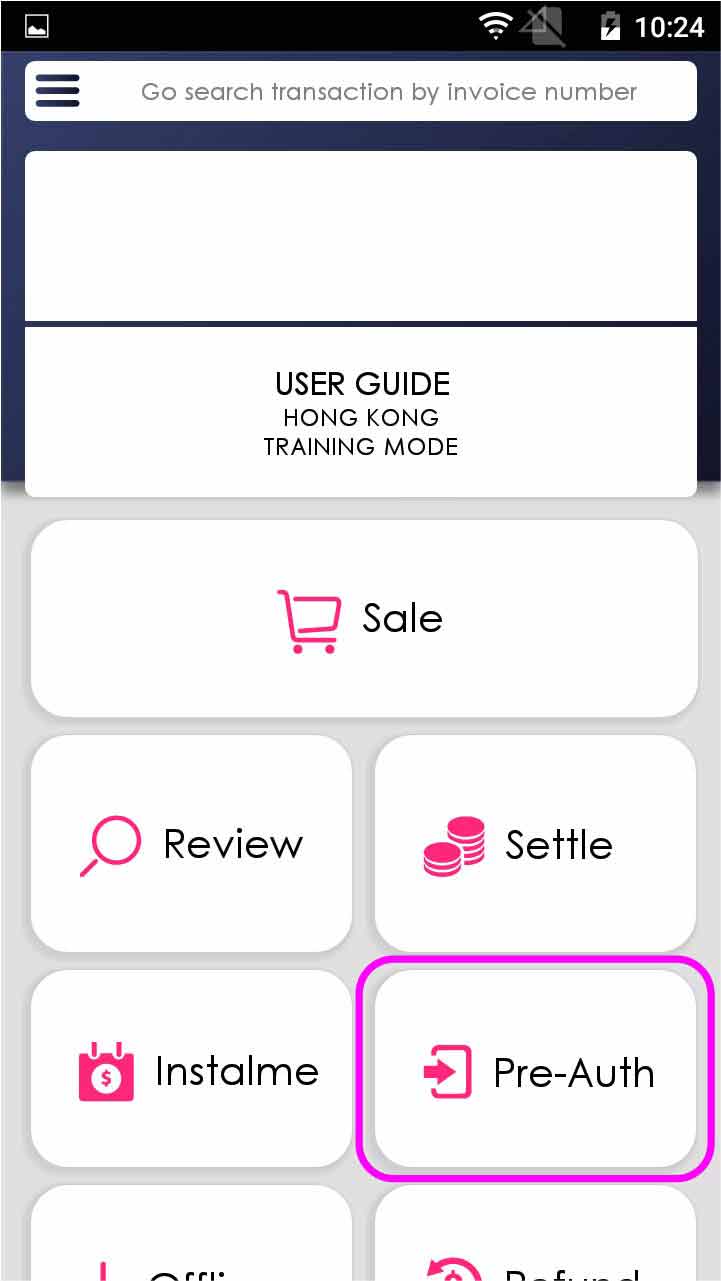
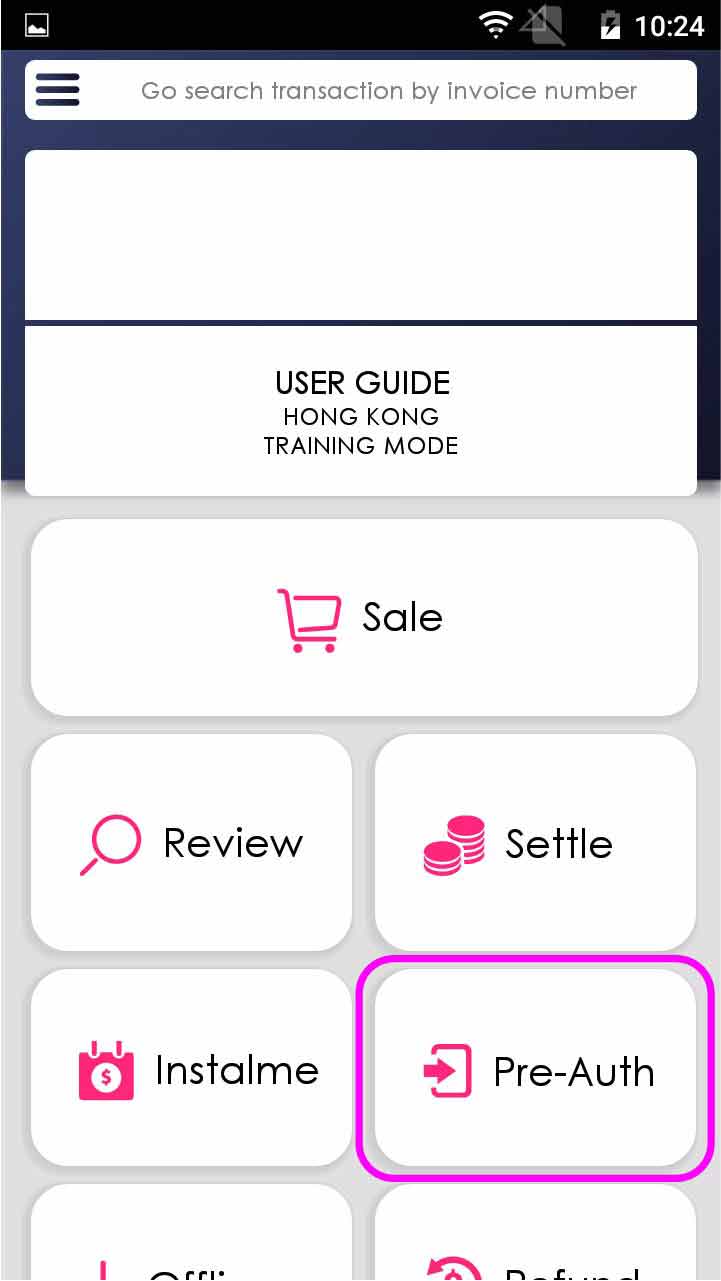
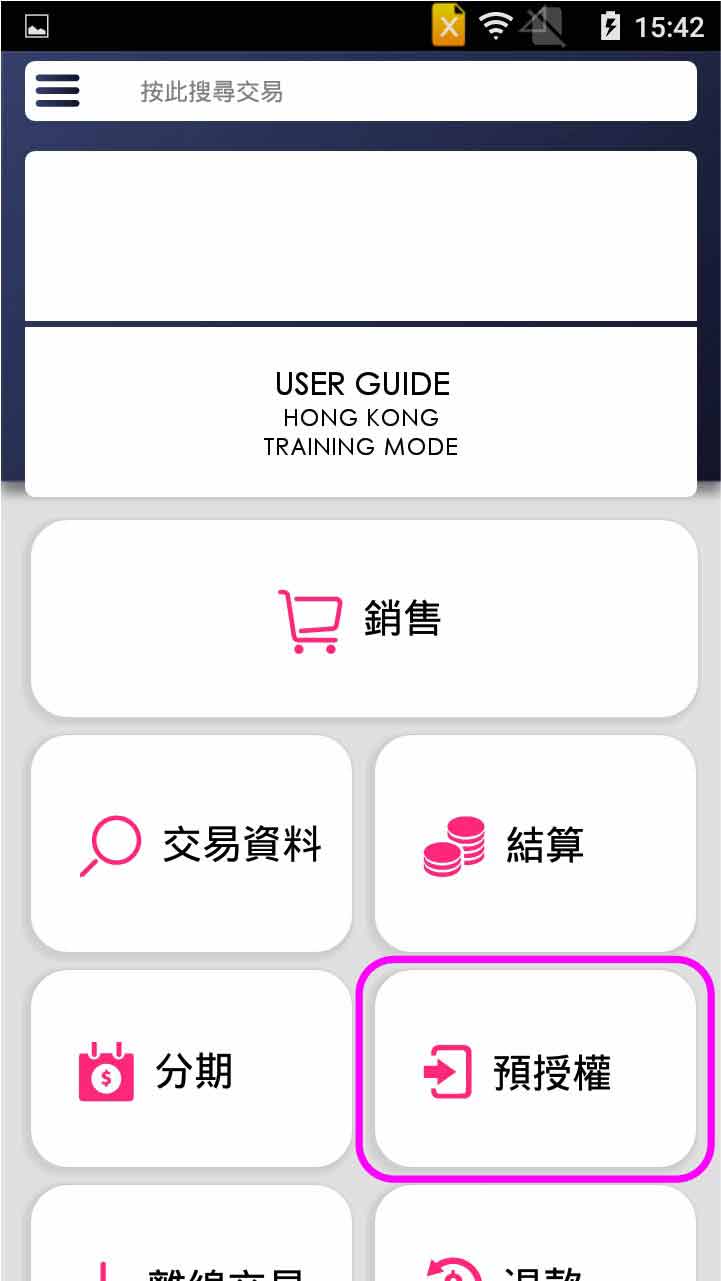
- Step 1 -
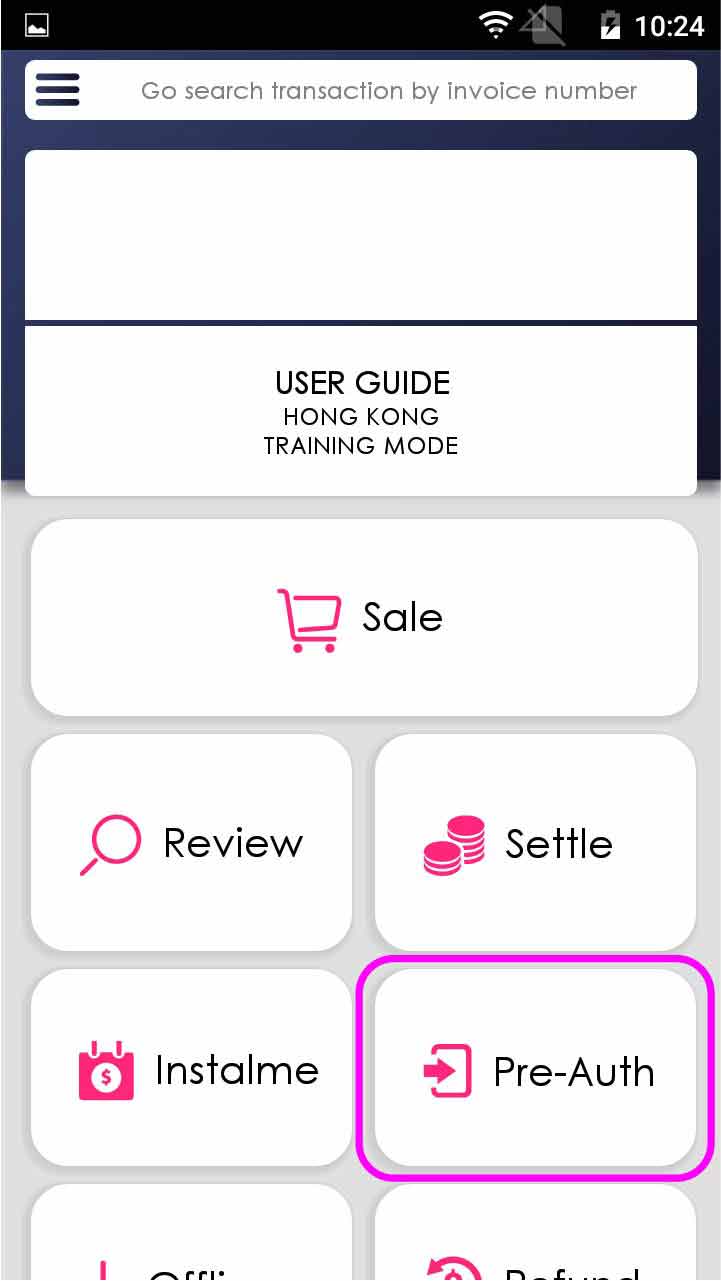
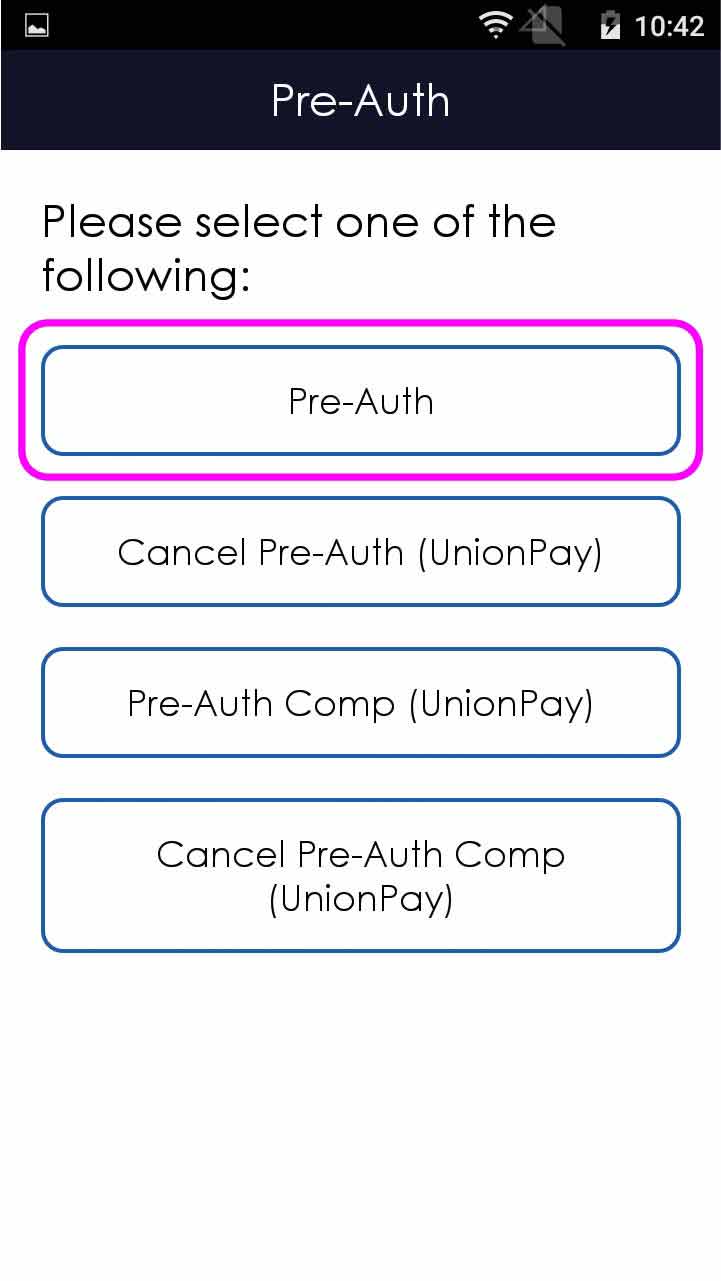
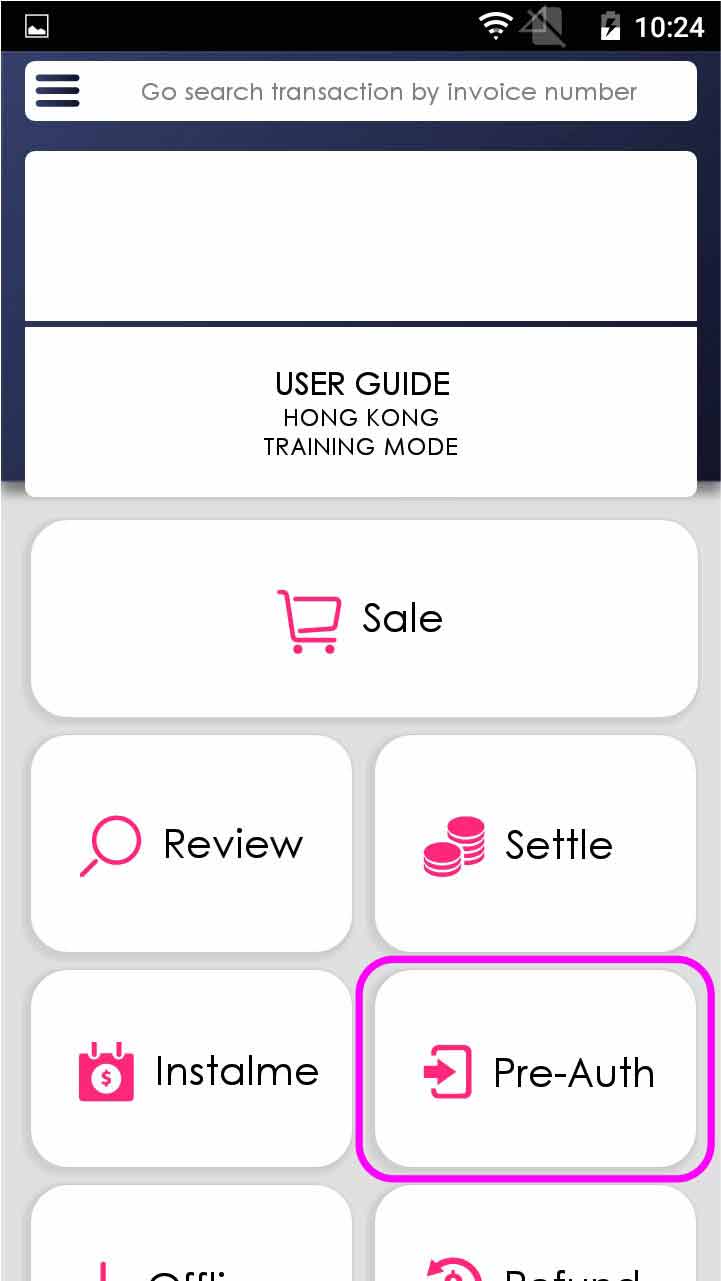
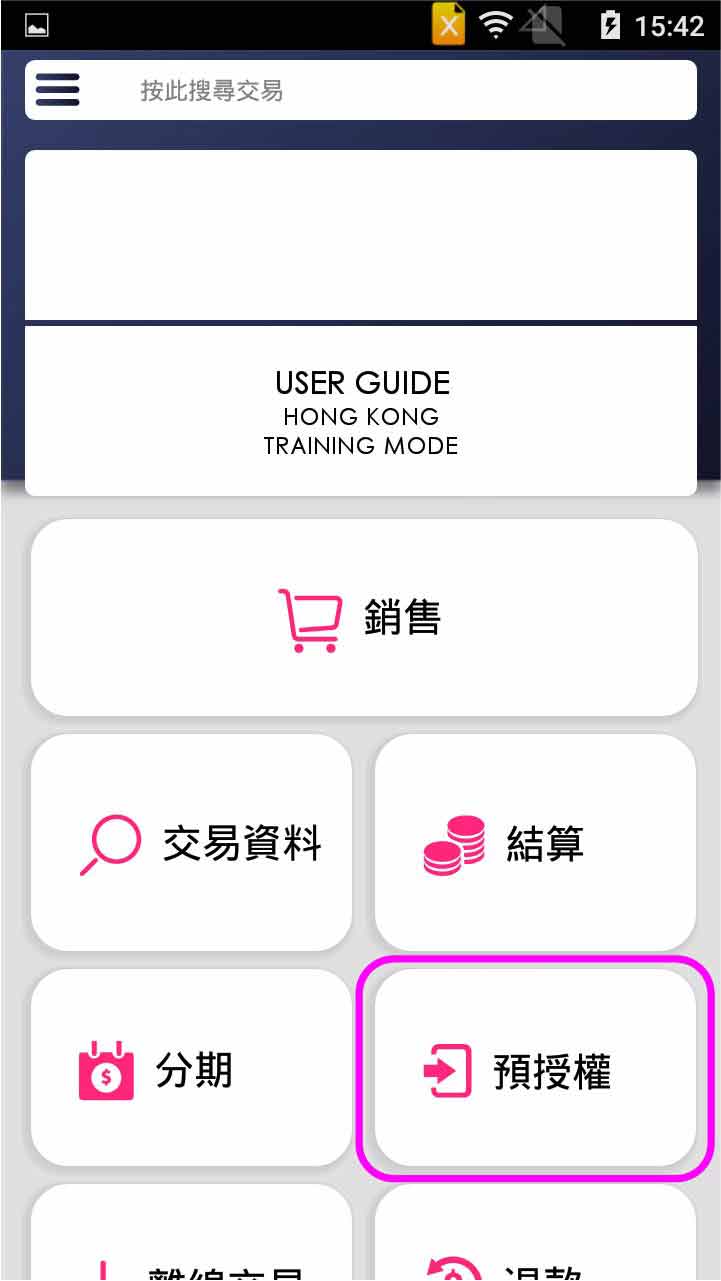
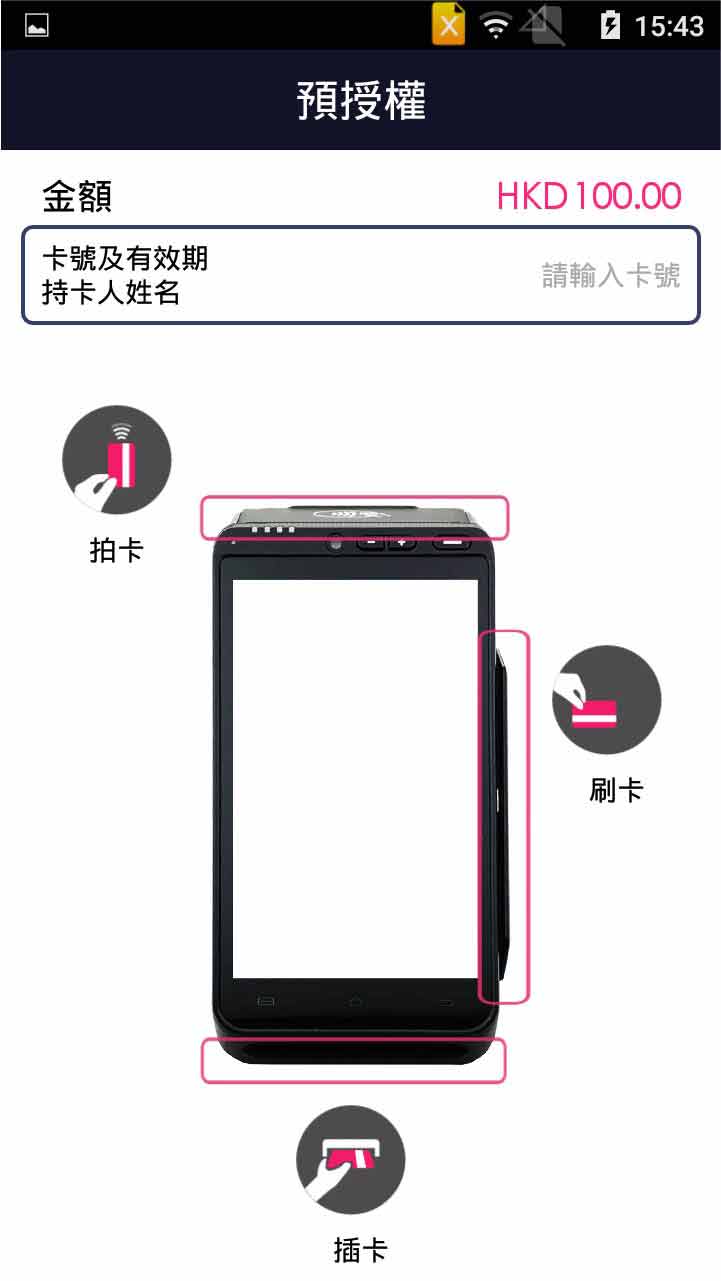
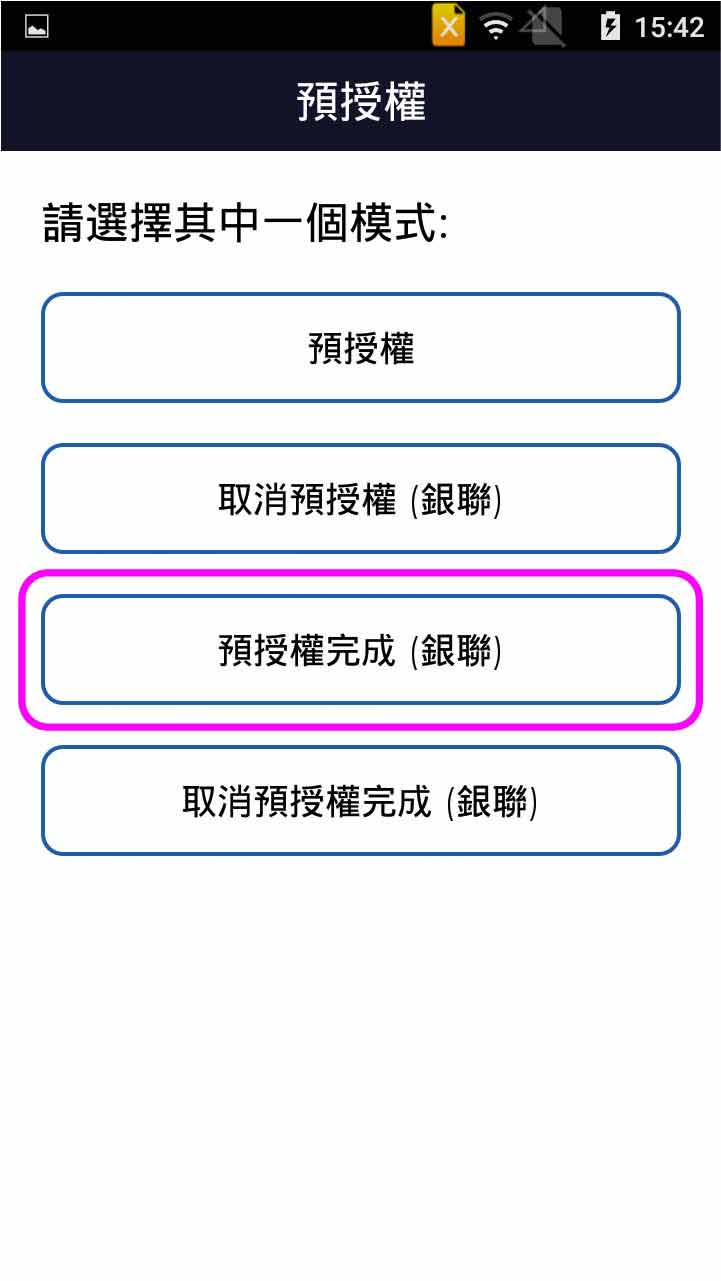
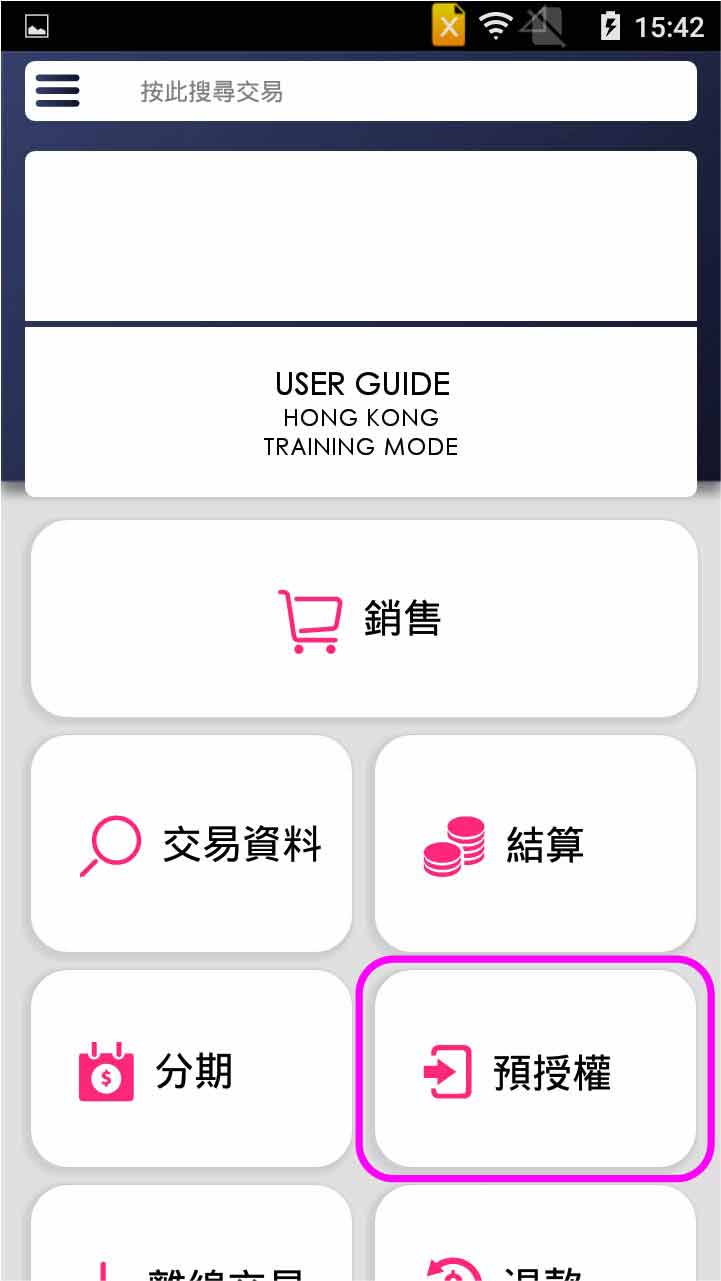
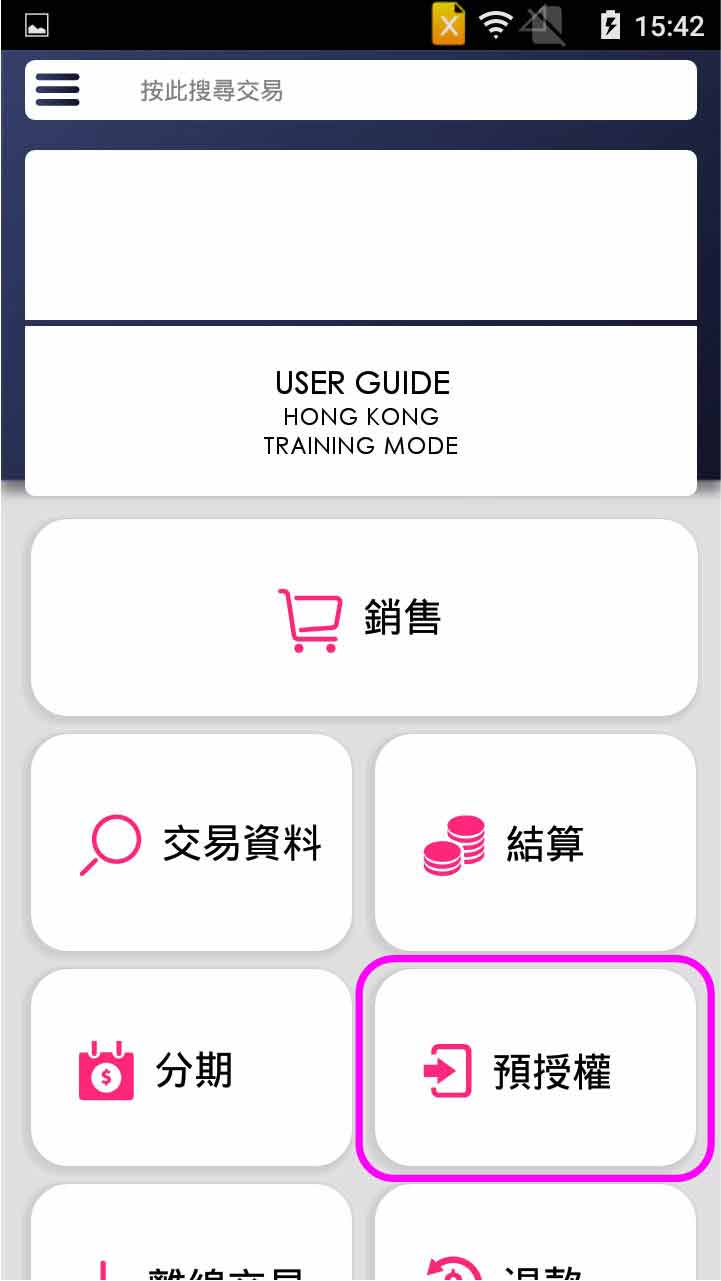
Press [Pre-Auth] on menu
- Step 2 -
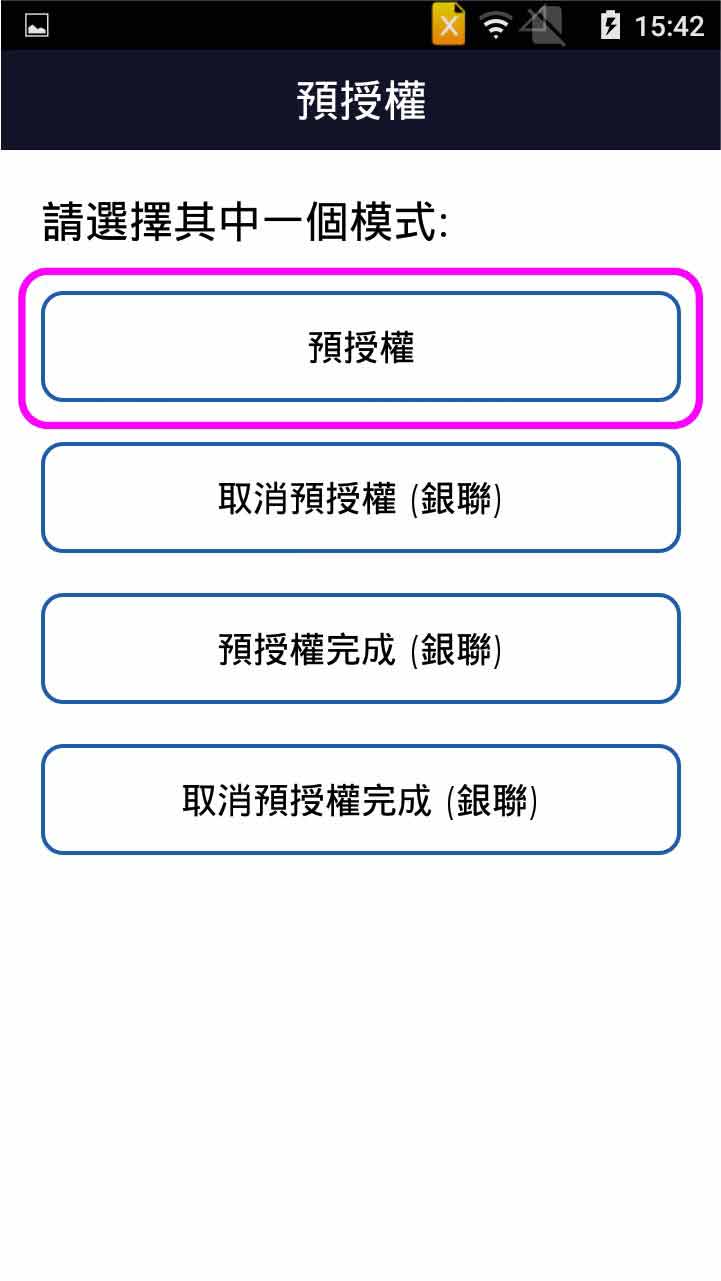
Select [Pre-Auth]
- Step 3 -
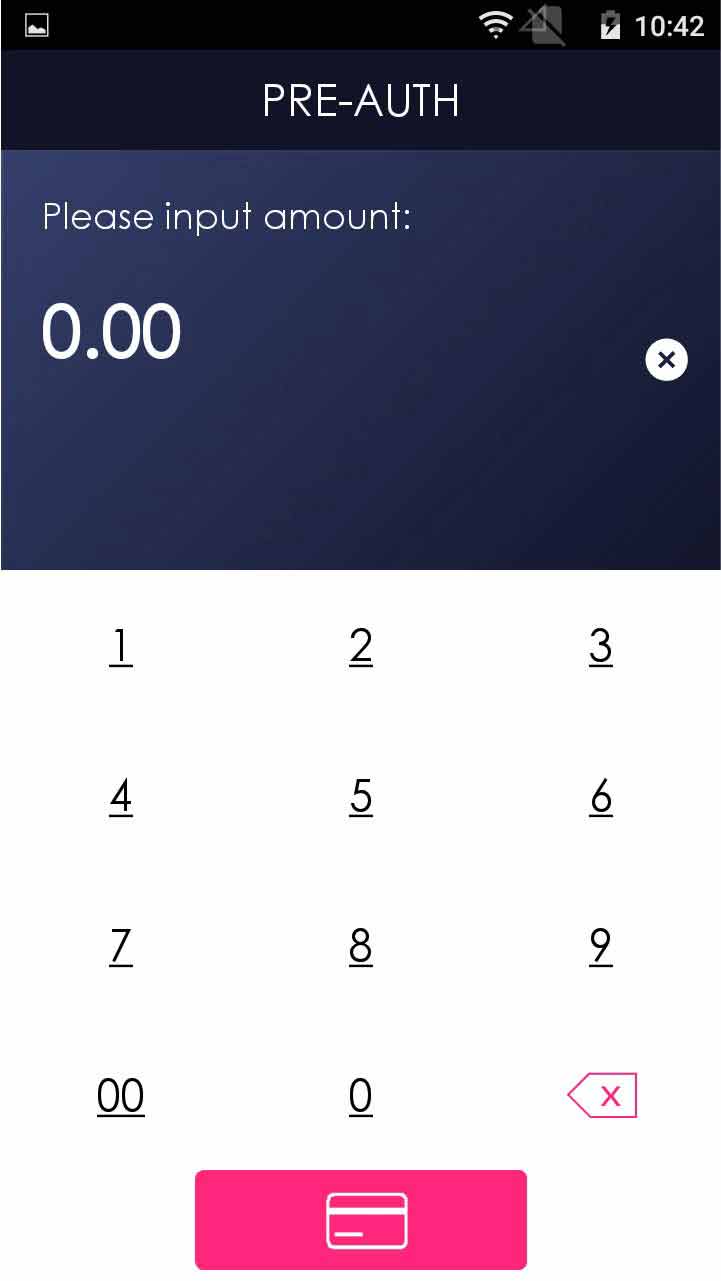
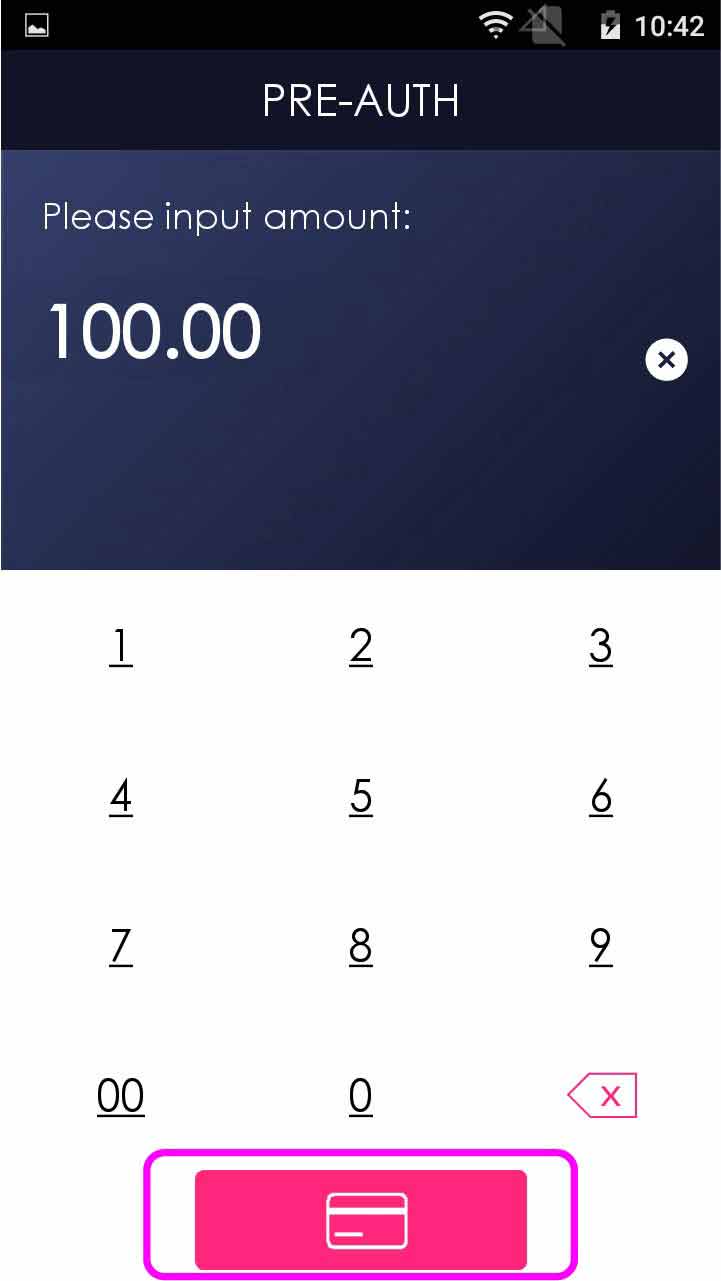
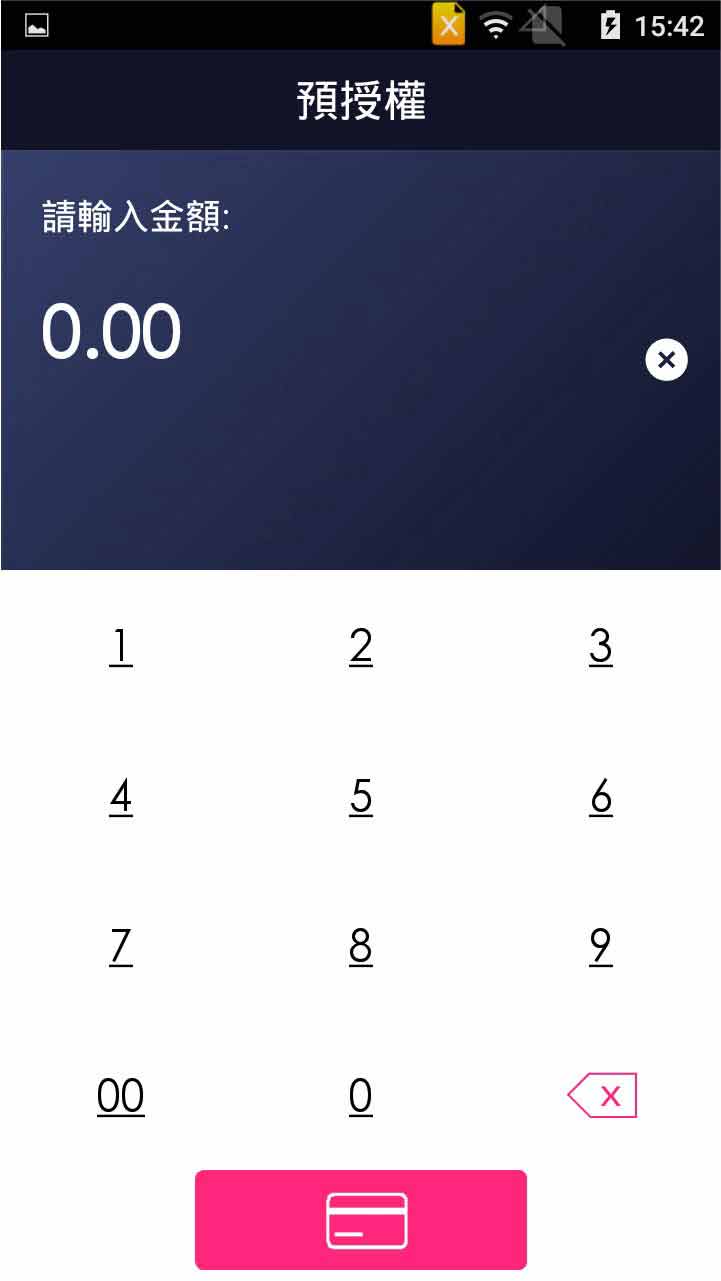
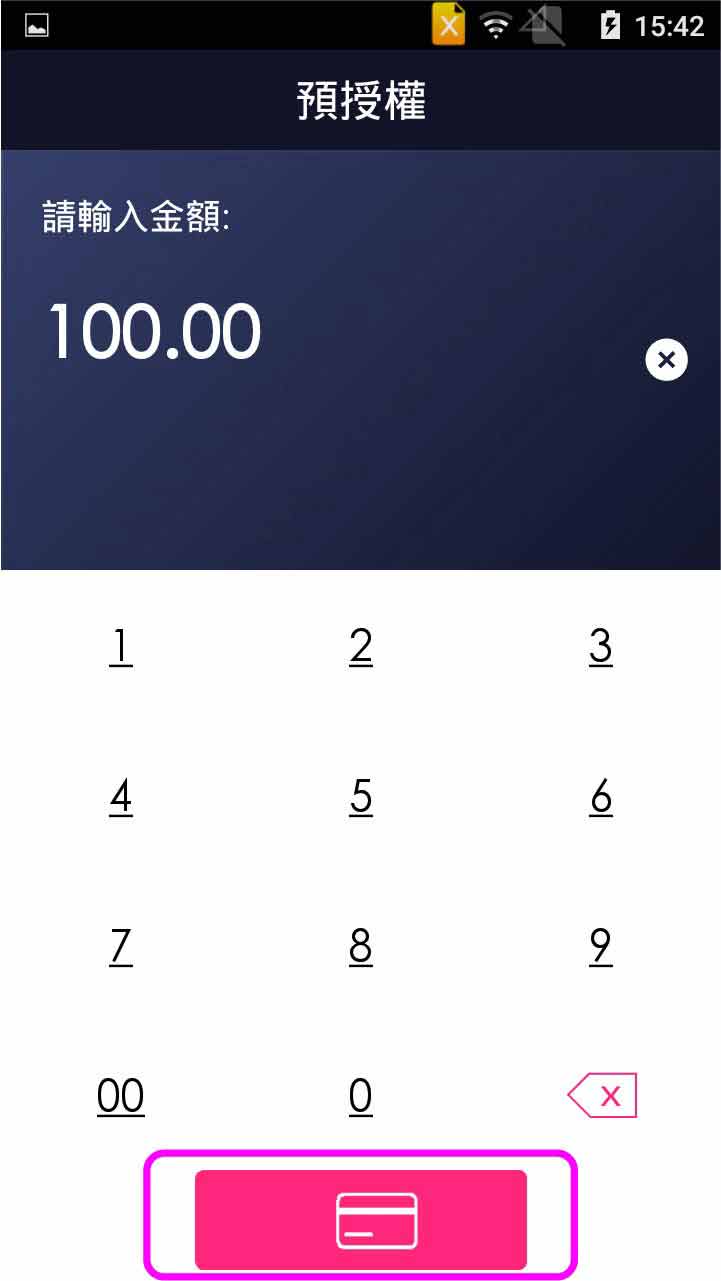
Enter pre-authorized amount
- Step 4 -
Select credit card payment
- Step 5 -
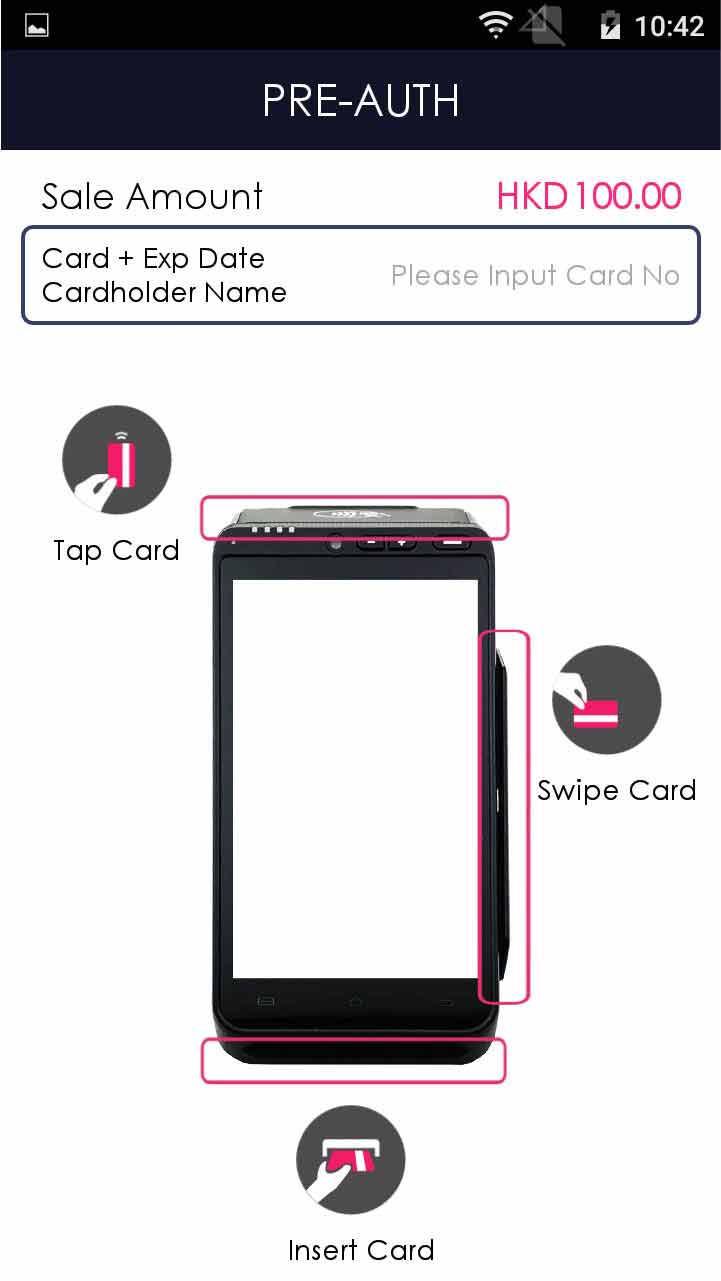
Insert/tap/swipe card OR mobile payment OR manually enter the card number & expiry date
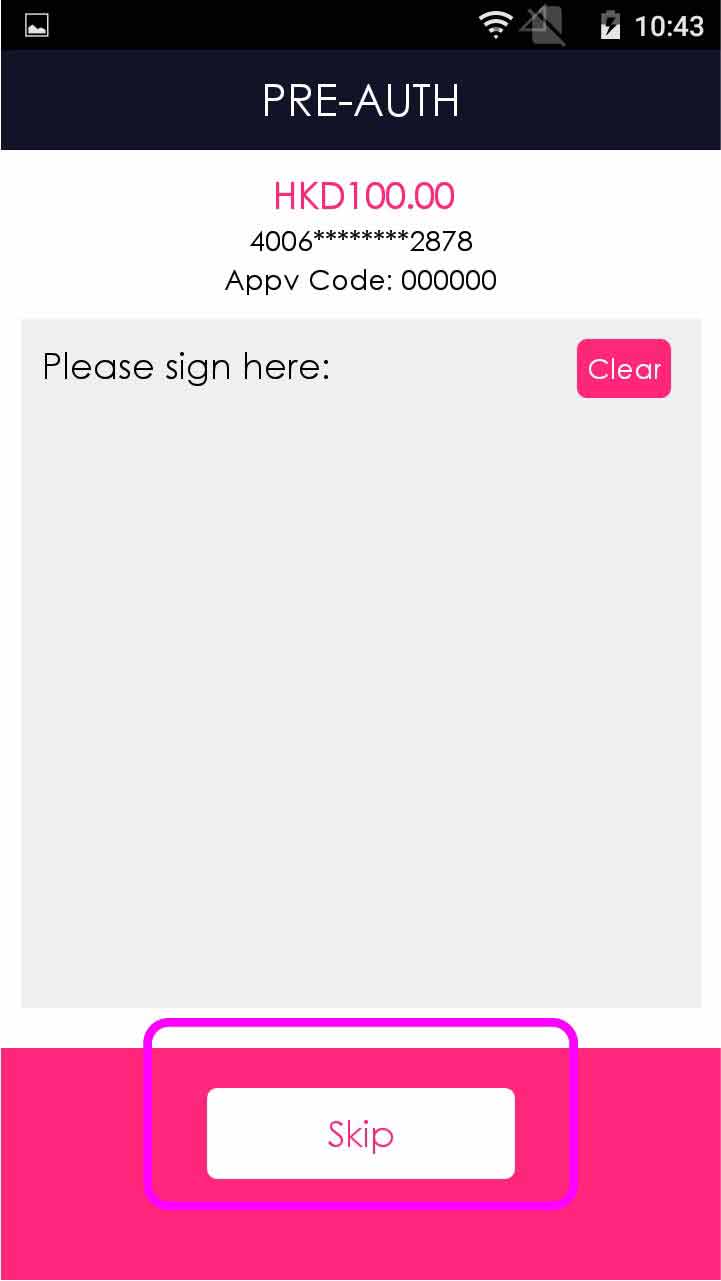
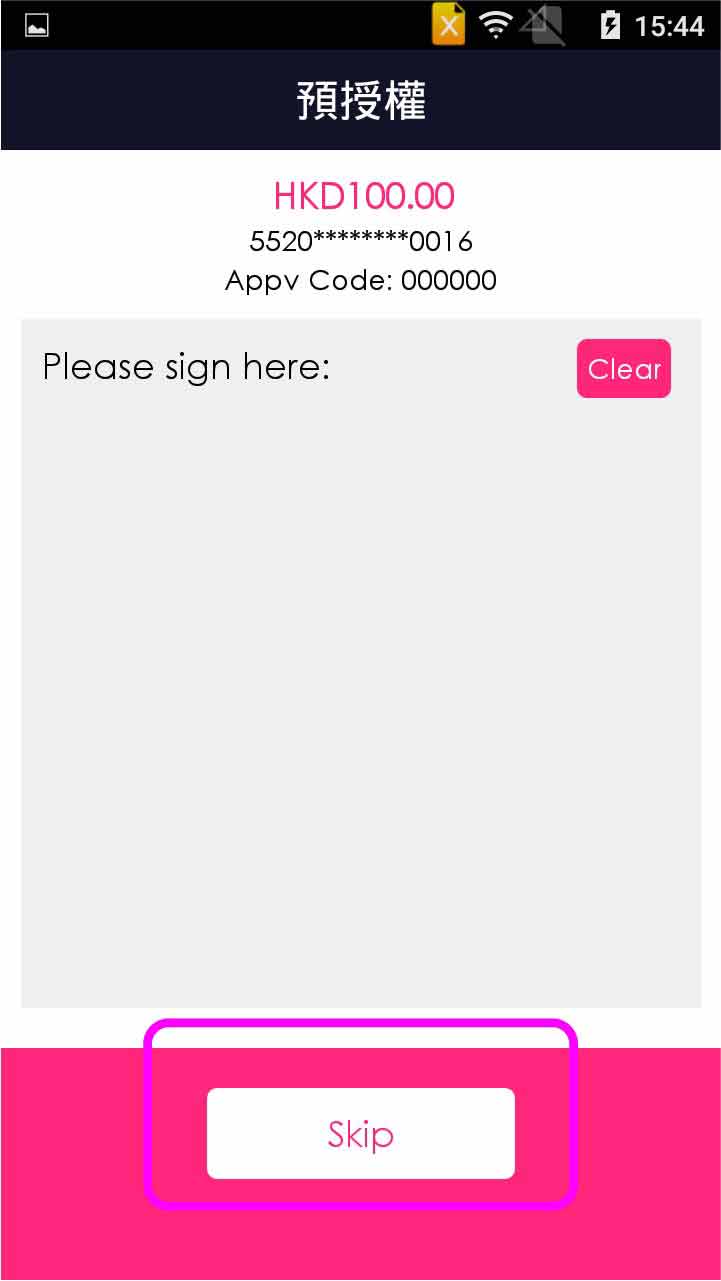
- Step 6 -
If customer’s signature is required, sign an e-signature on terminal OR press [Print Receipt] to print receipt for customer to sign on it
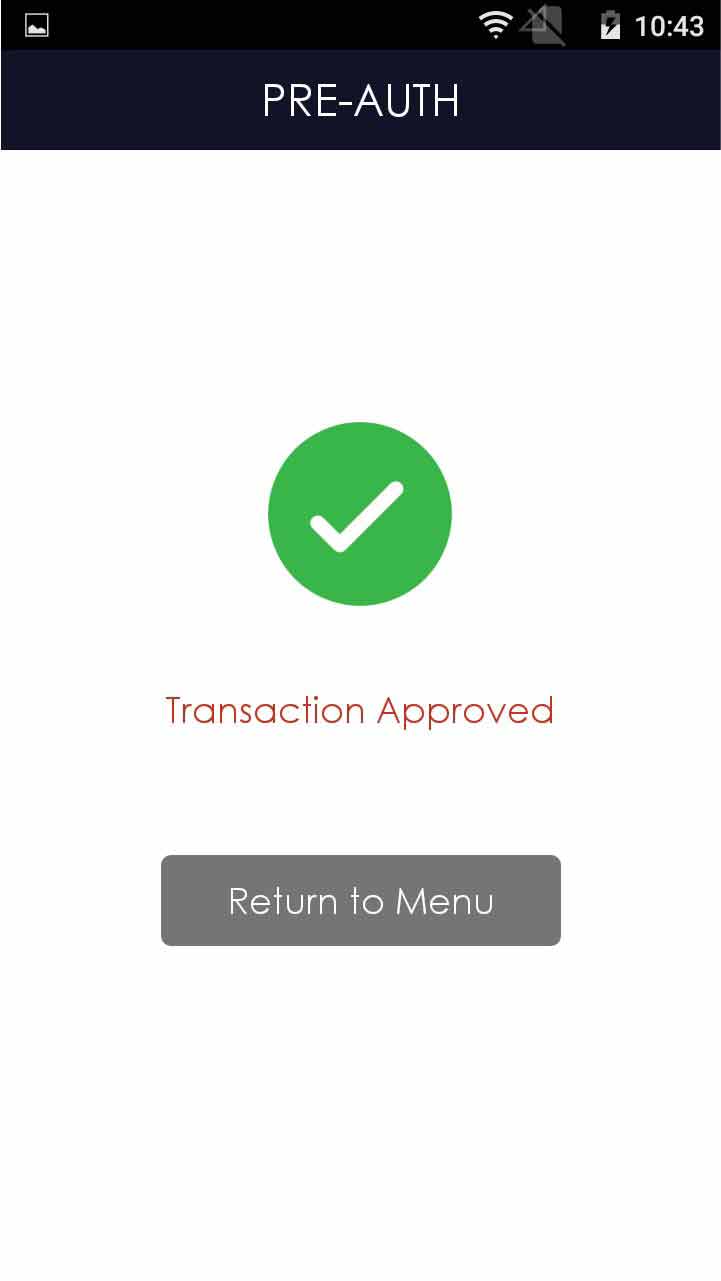
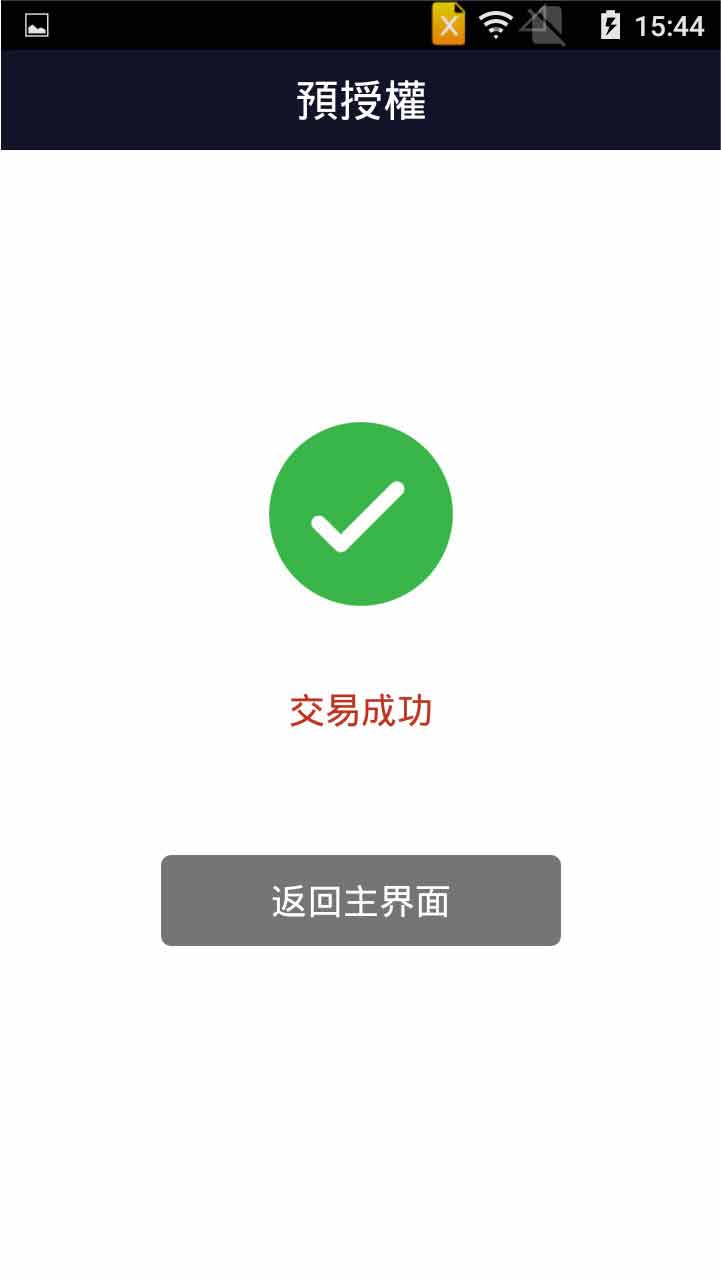
- Step 7 -
Transaction is completed, and terminal prints out receipt
- Step 1 -
Press [Pre-Auth] on menu
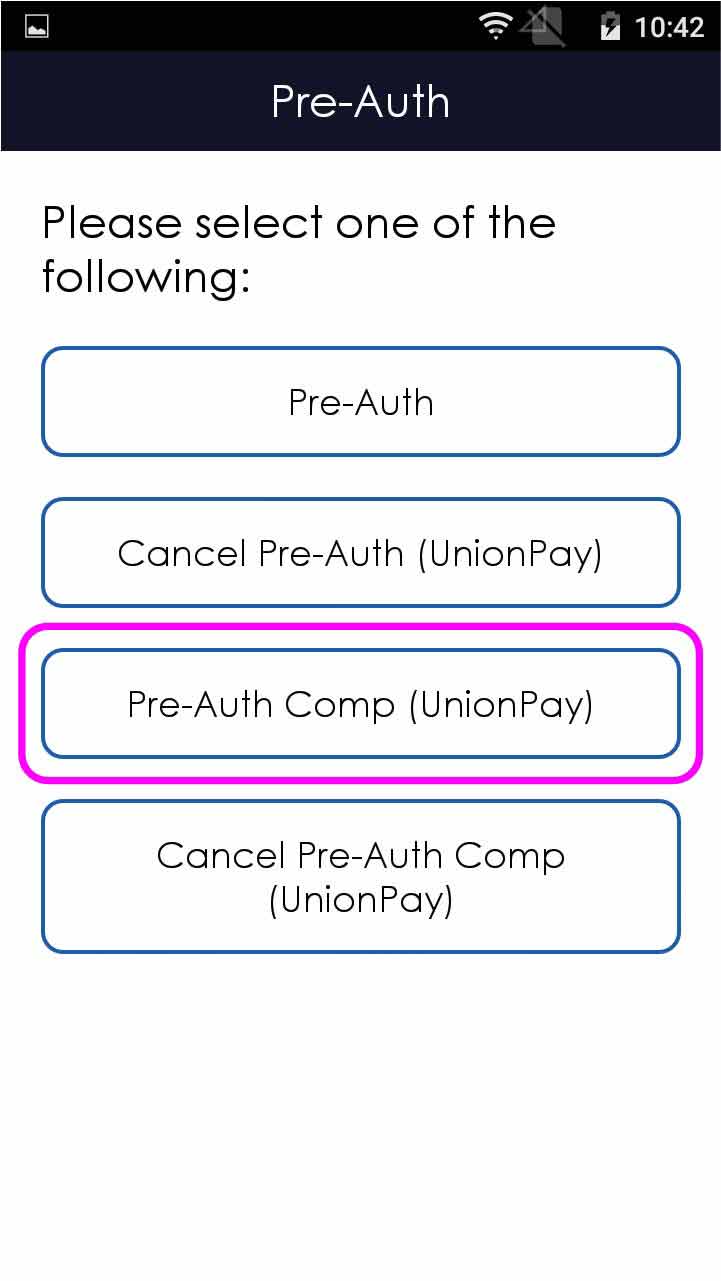
- Step 2 -
Select [Pre-Auth Comp (UnionPay)]
- Step 3 -
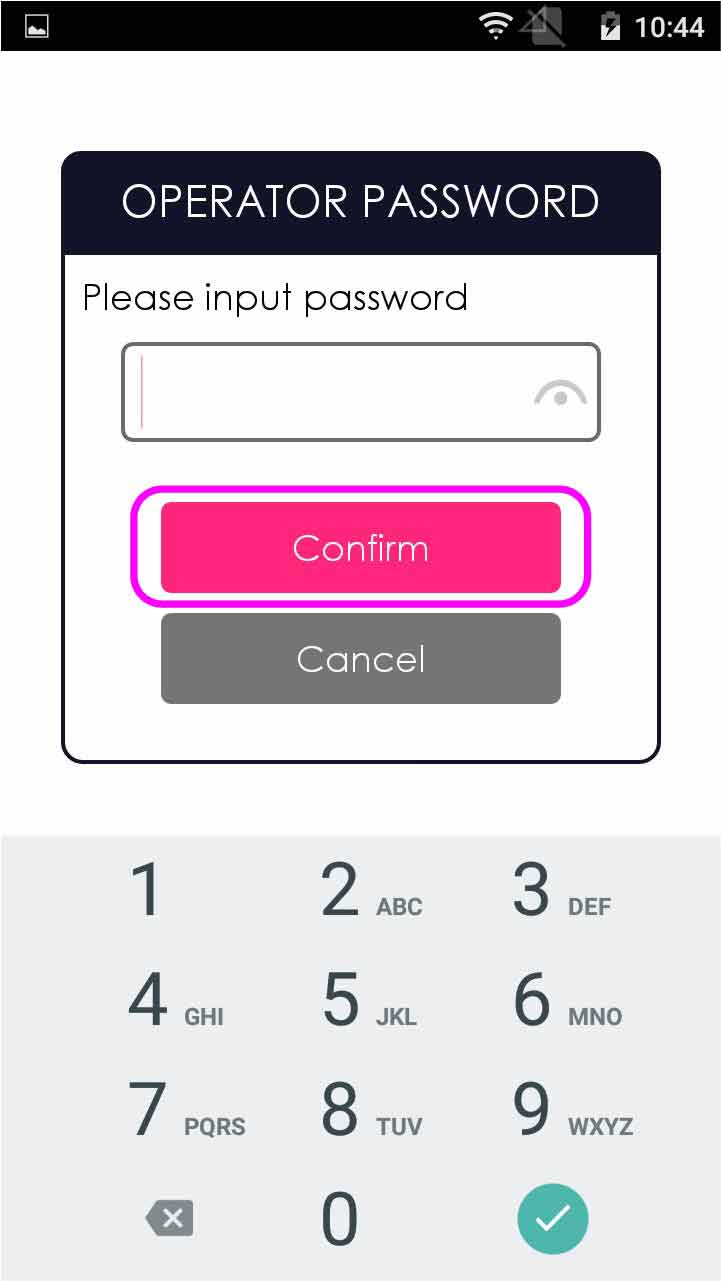
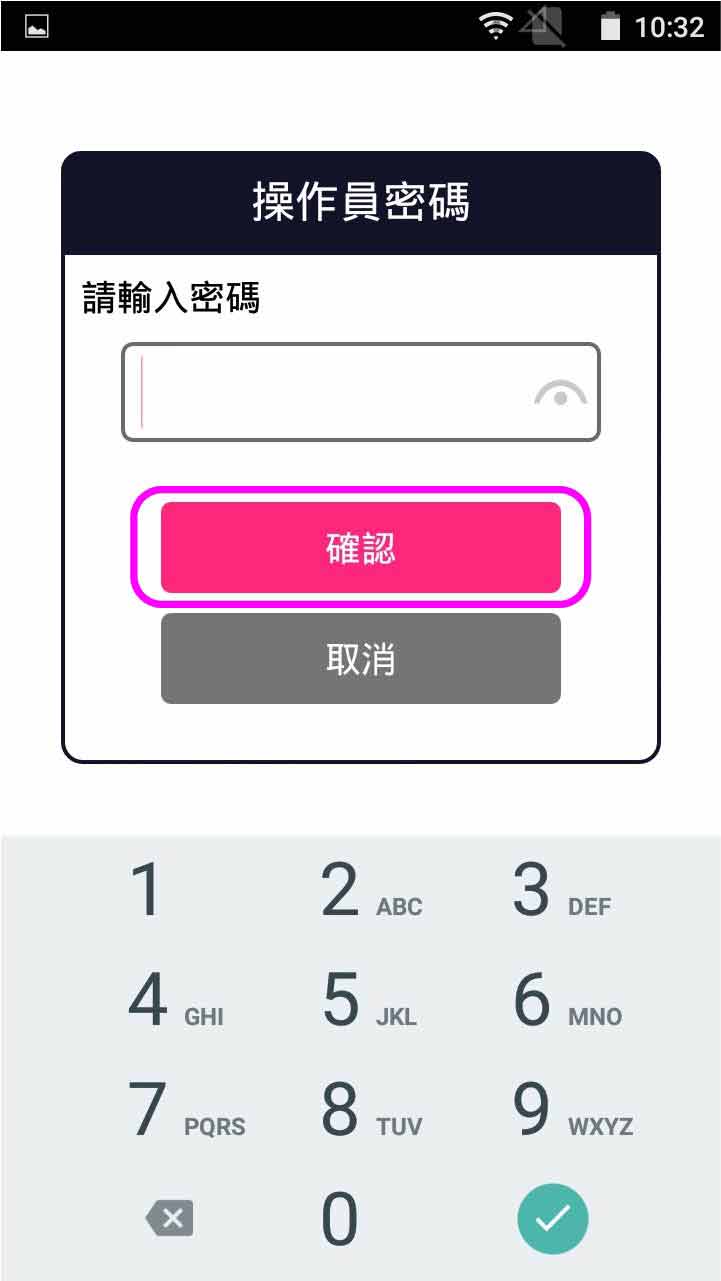
Enter operator password, and press [Confirm]
- Step 4 -
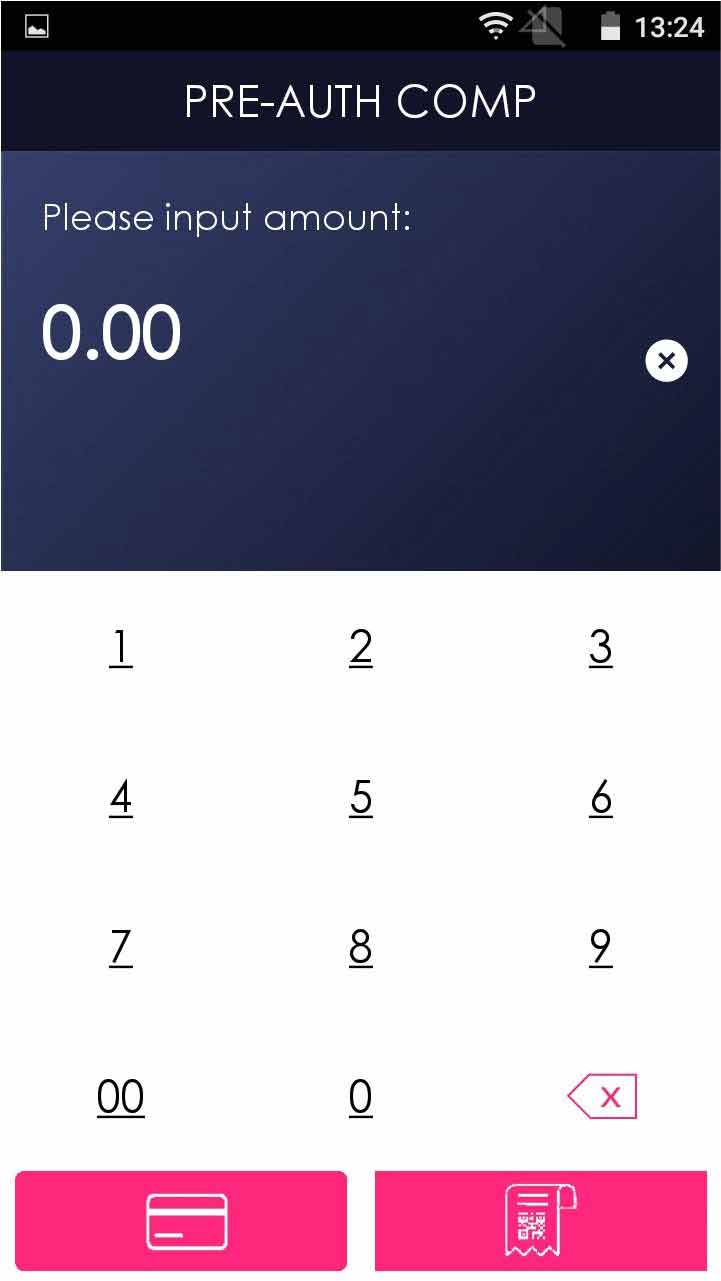
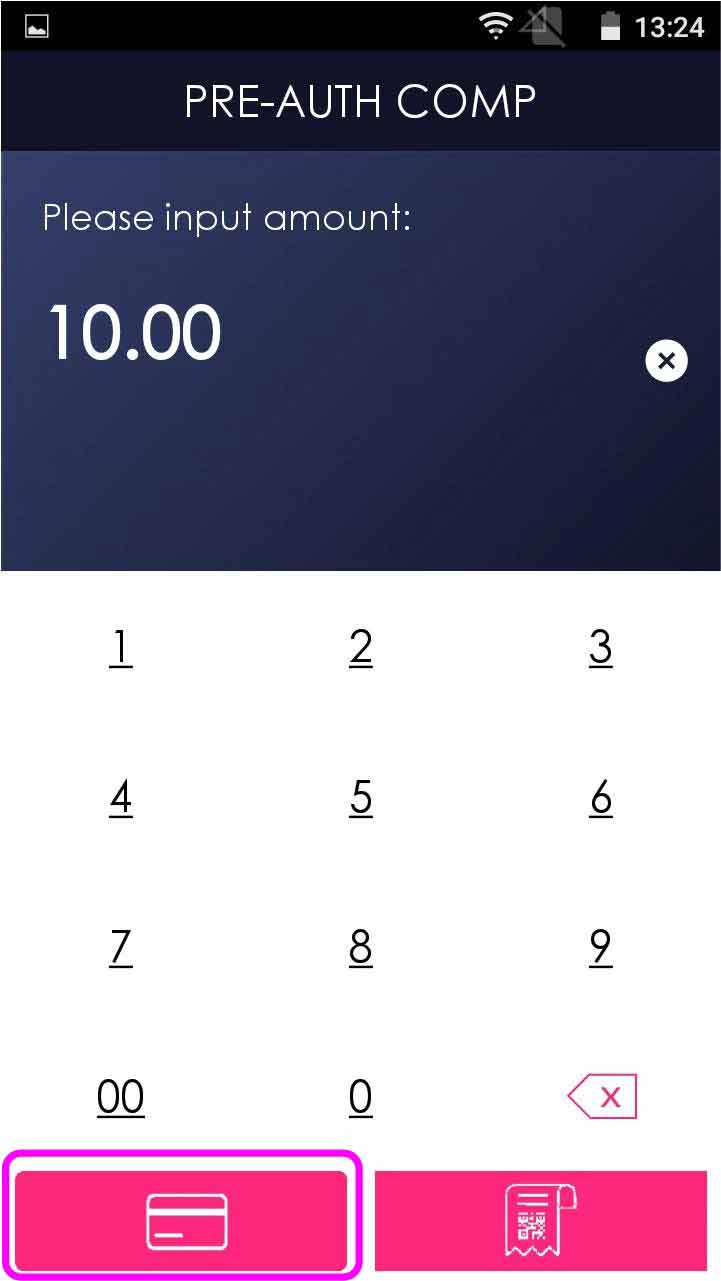
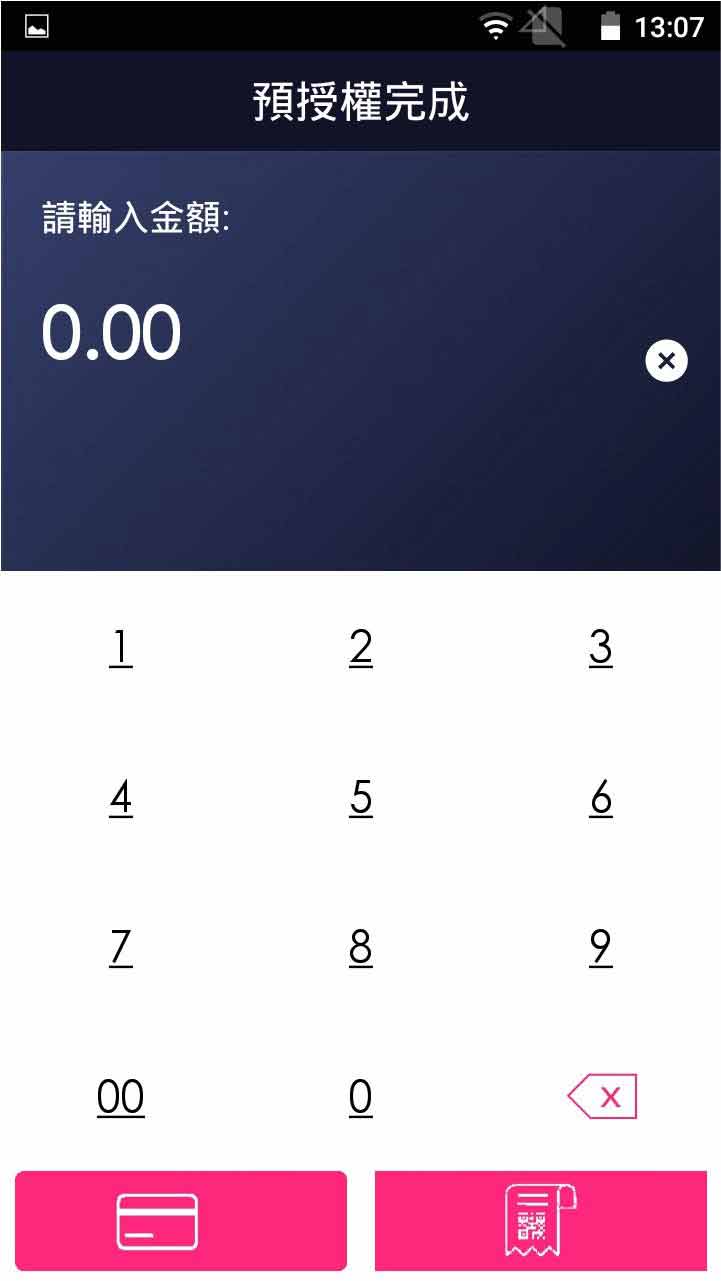
Enter pre-authorized completion amount
- Step 5 -
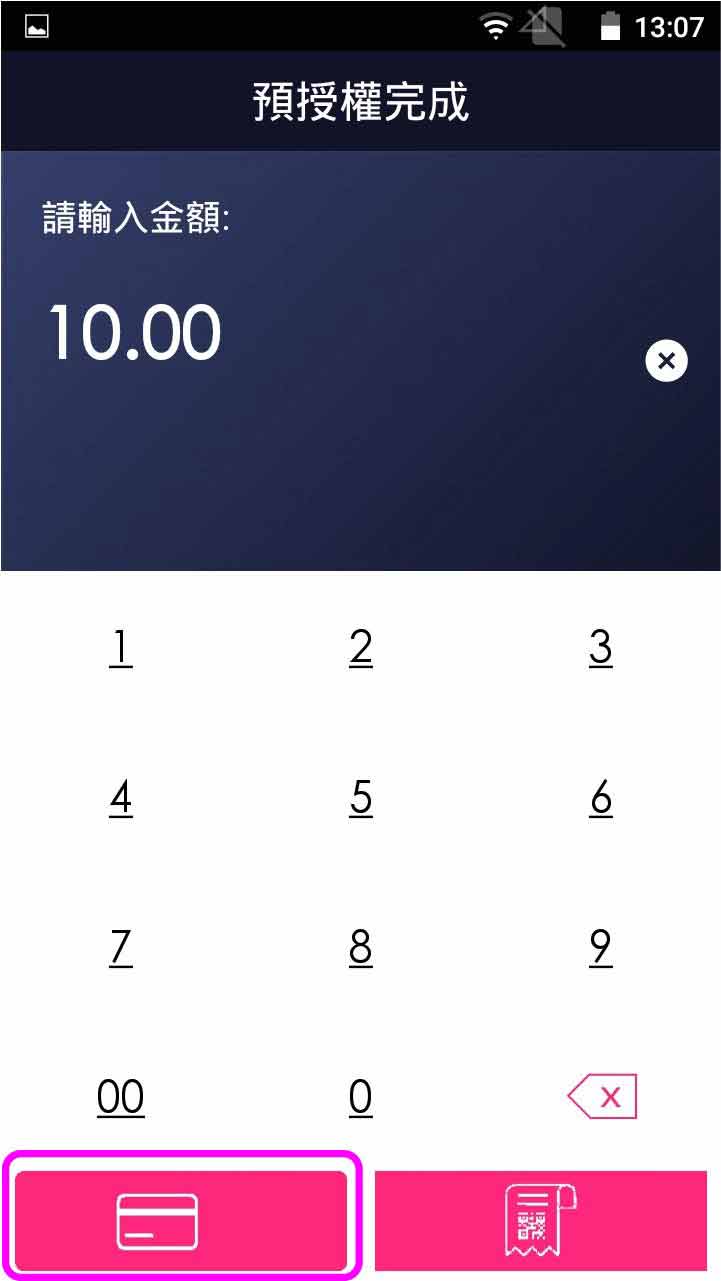
Select credit card payment
- Step 6 -
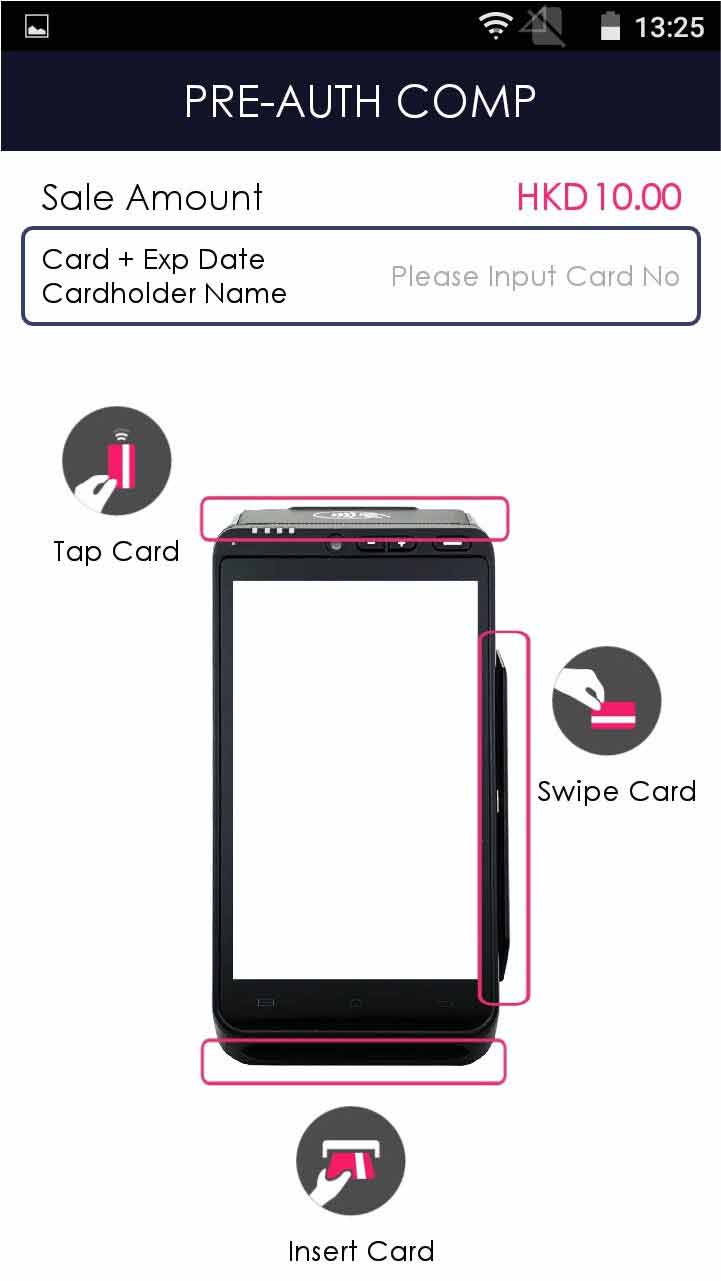
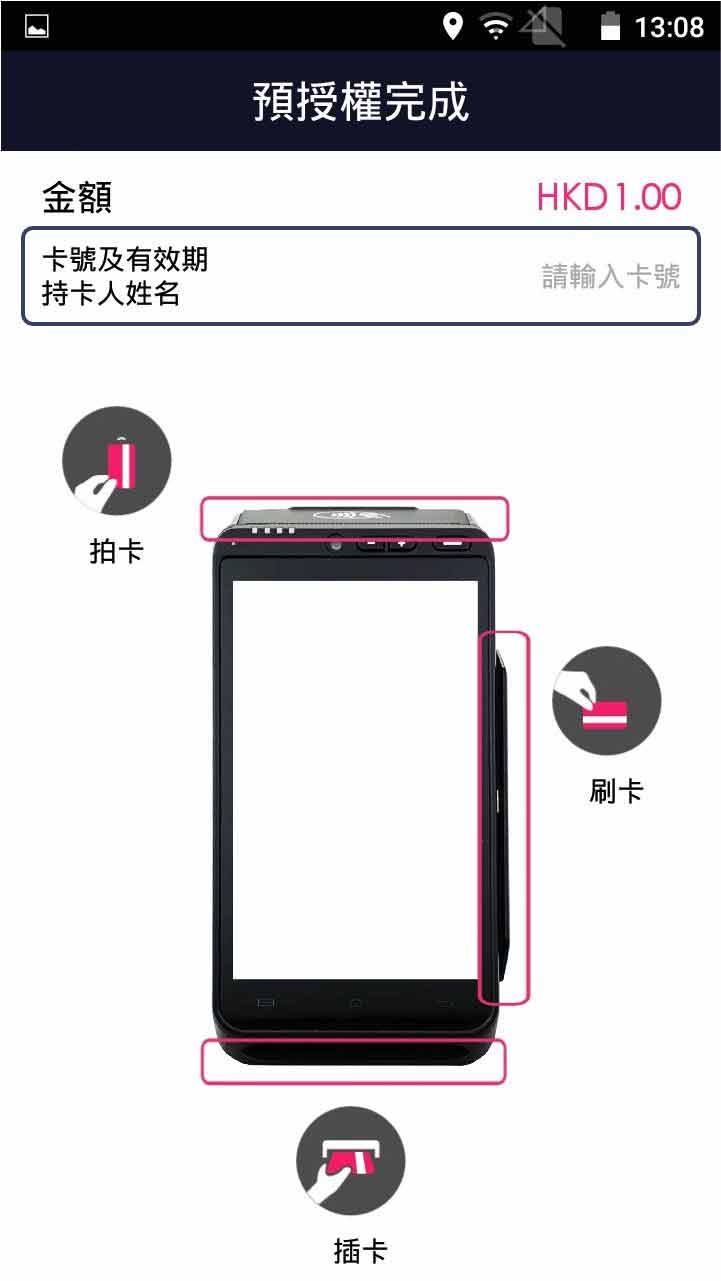
Insert/swipe card OR manually enter the card number & expiry date, press [Continue]
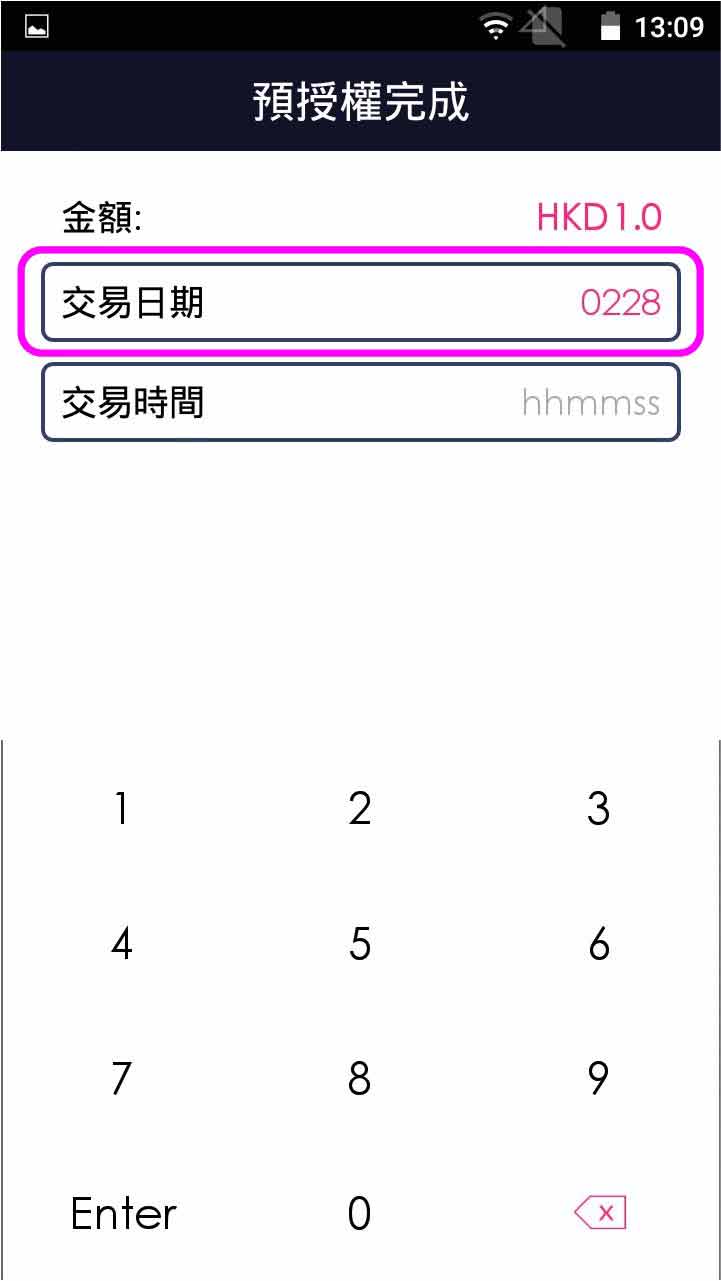
- Step 7 -
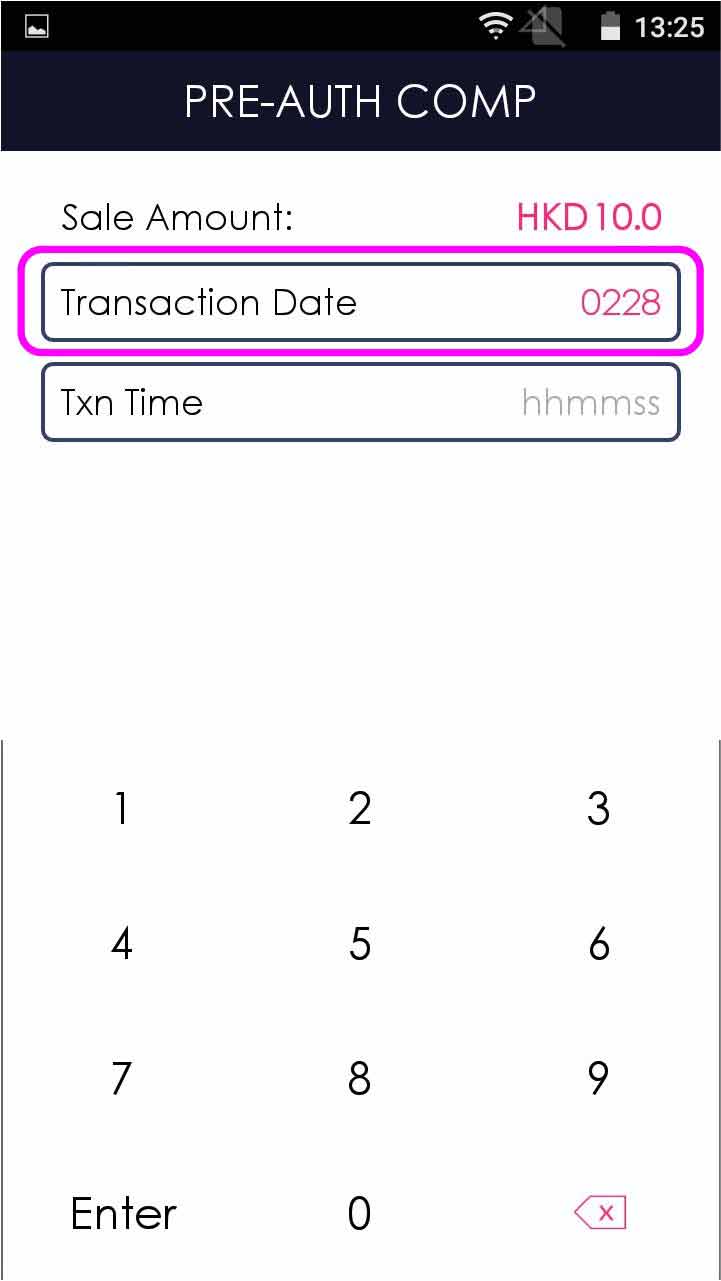
Enter the txn date (mmdd), and press [ENTER]
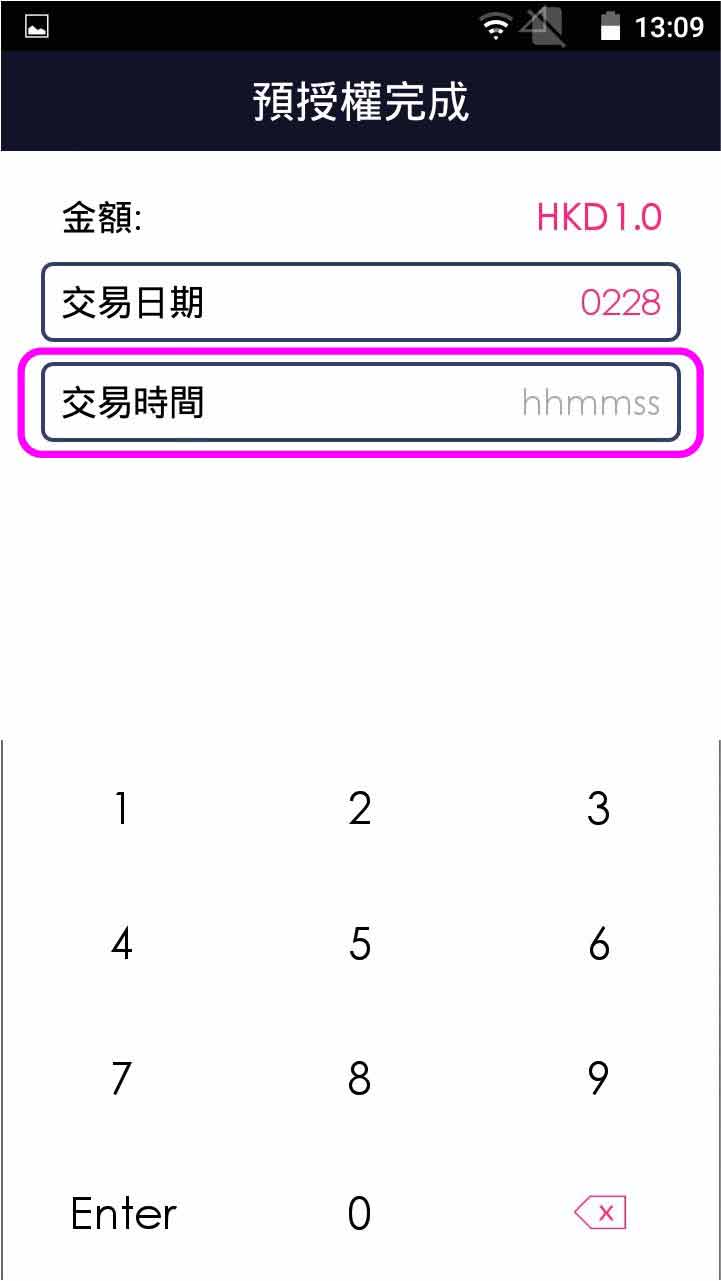
- Step 8 -
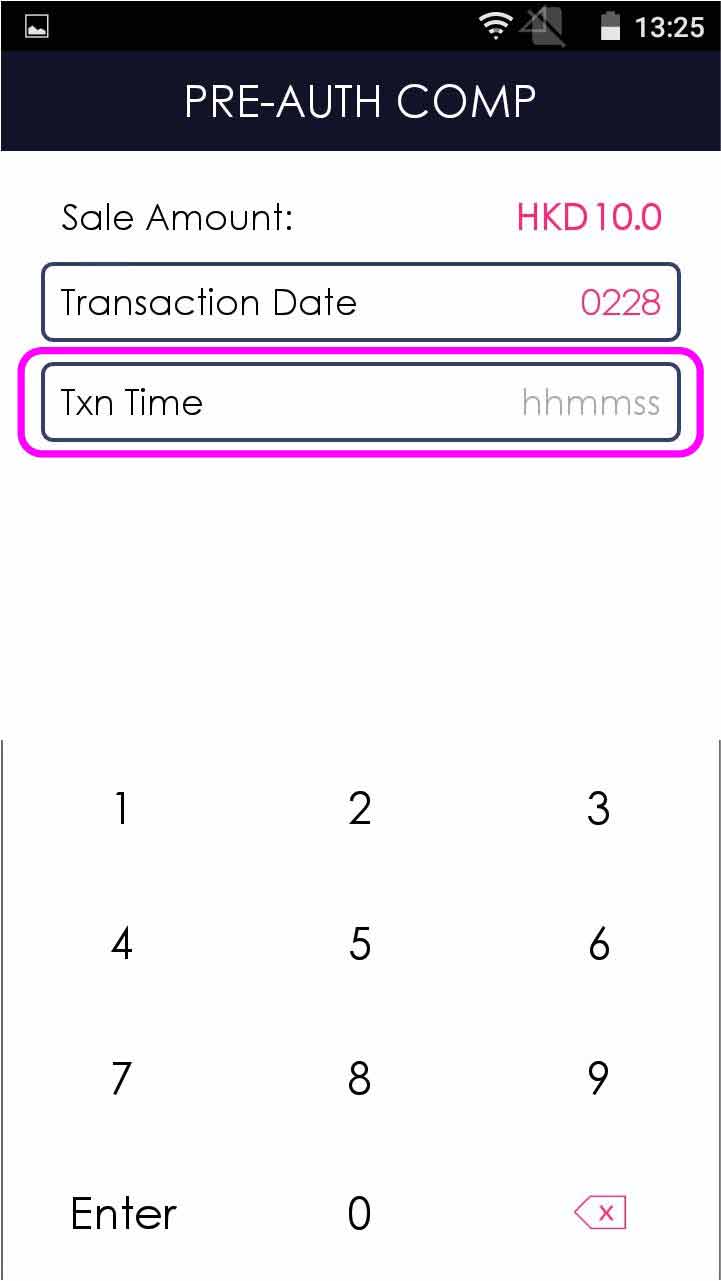
Enter the txn time (hhmmss), and press [ENTER]
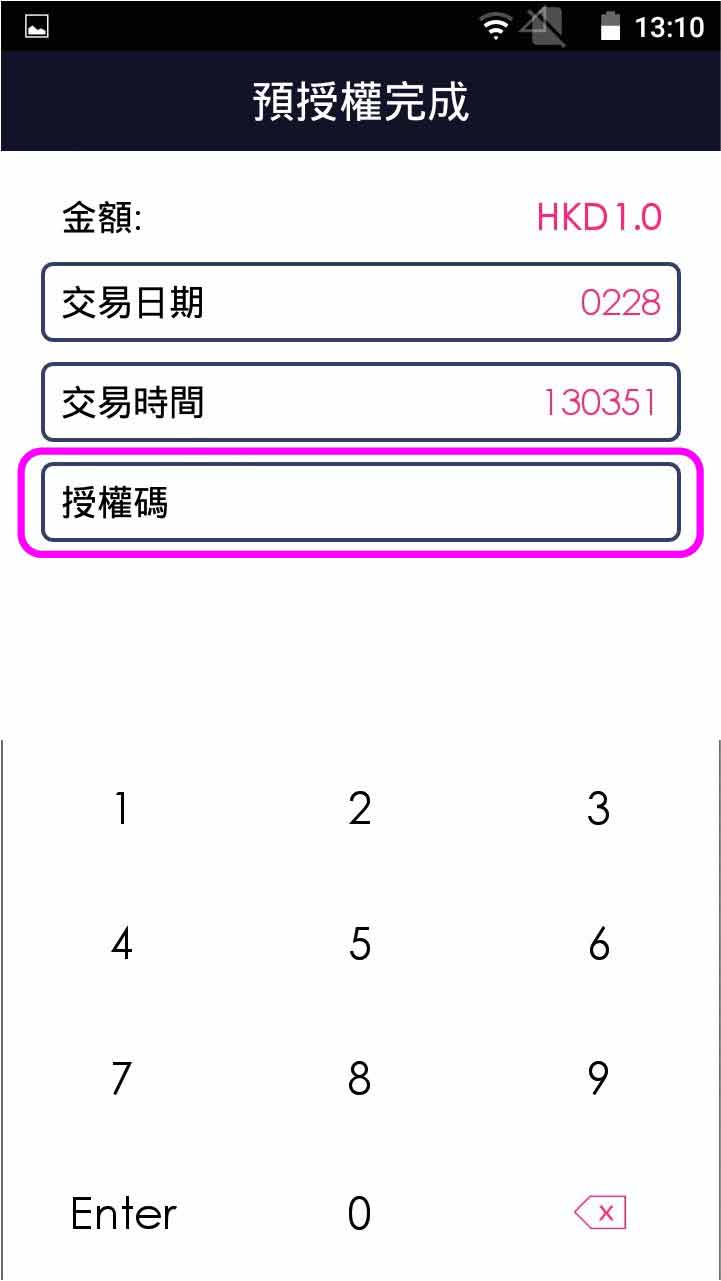
- Step 9 -
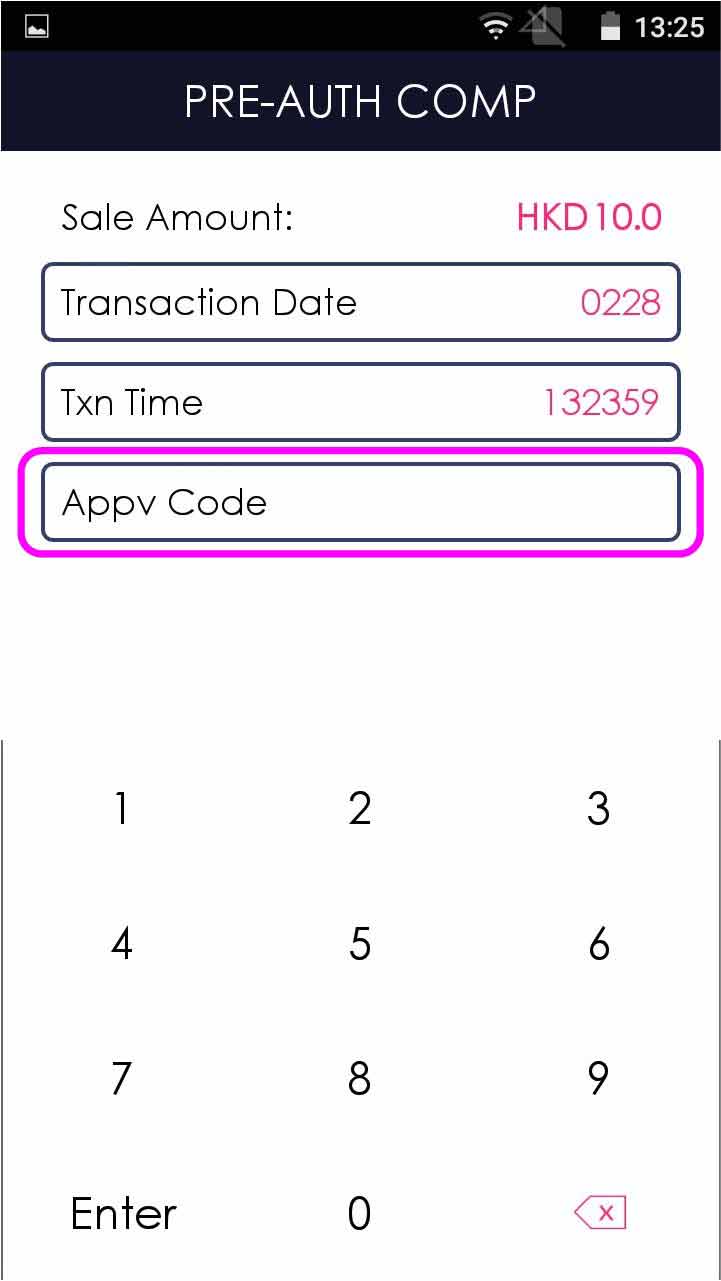
Enter the approval code, and press [ENTER]
- Step 10 -
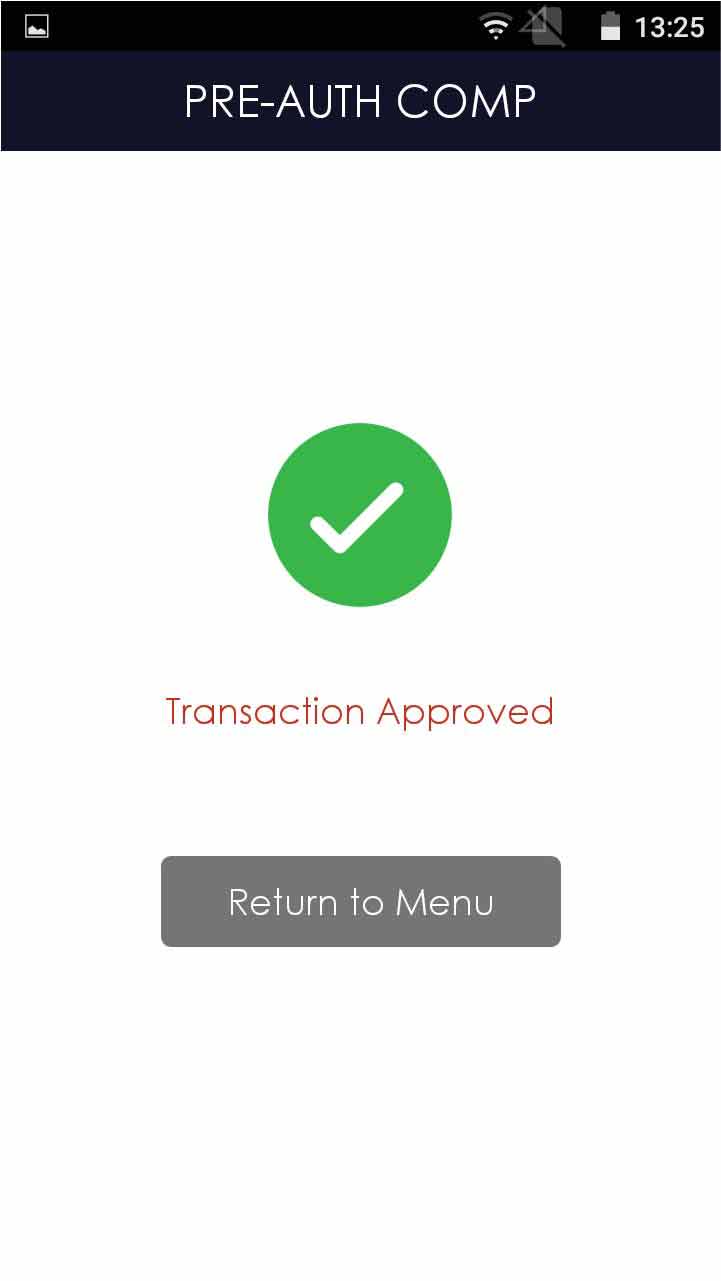
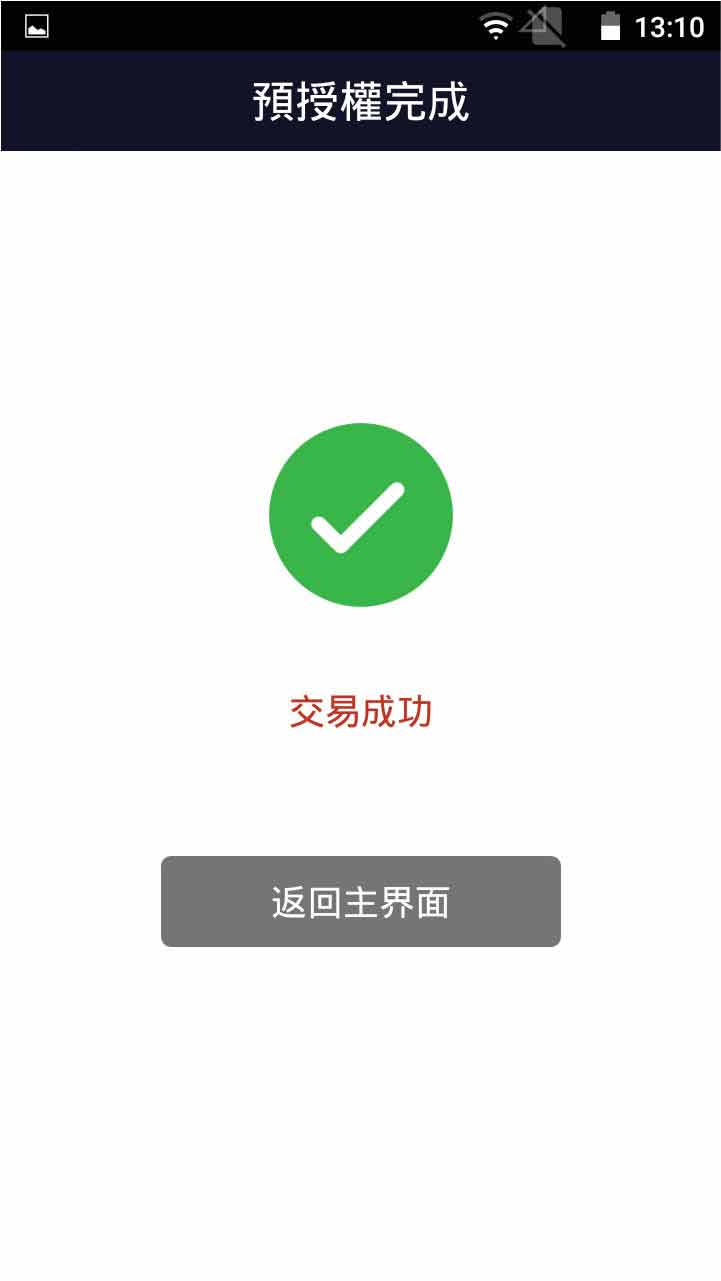
Transaction is completed, and terminal prints out receipt
- Step 1 -
Press [Pre-Auth] on menu
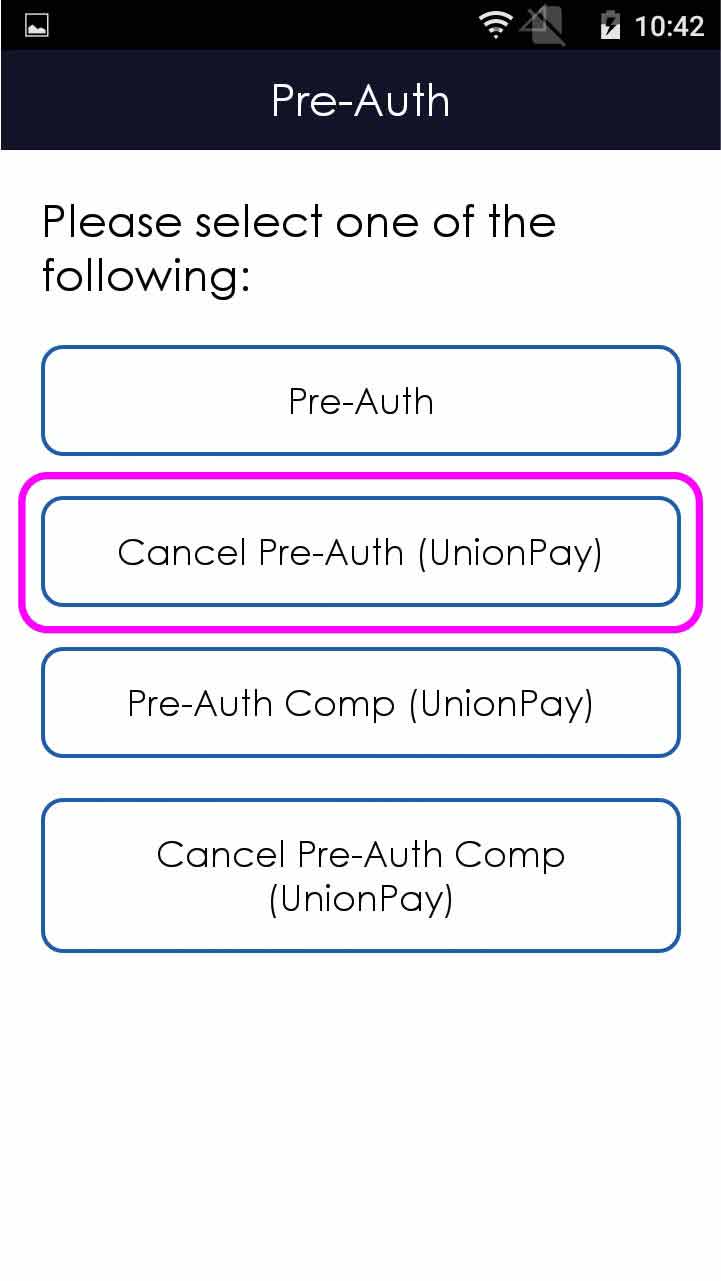
- Step 2 -
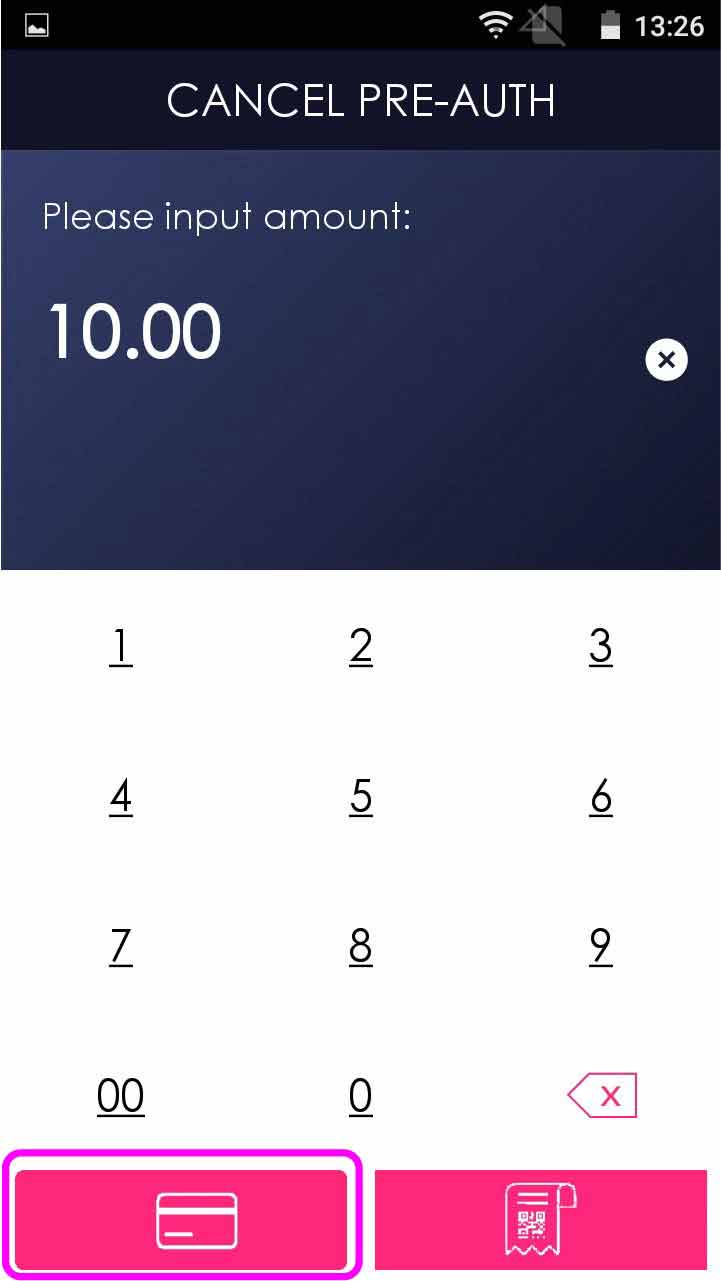
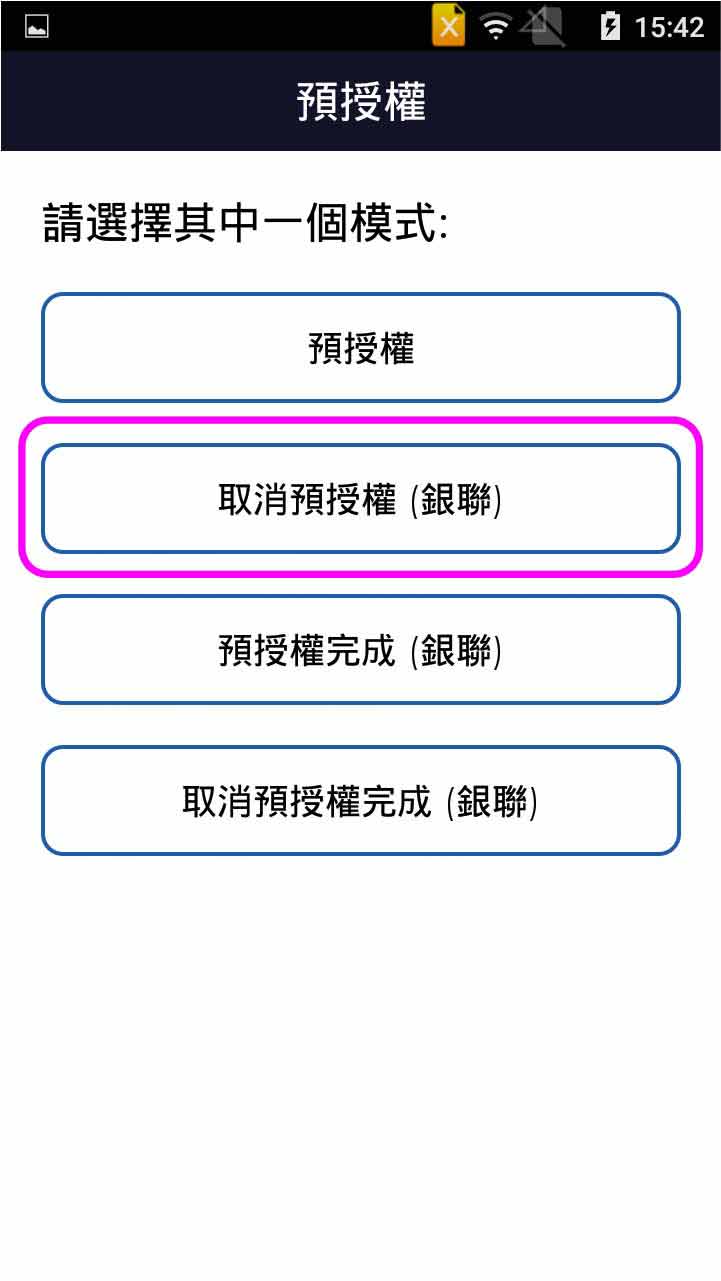
Select [Cancel Pre-Auth (UnionPay)]
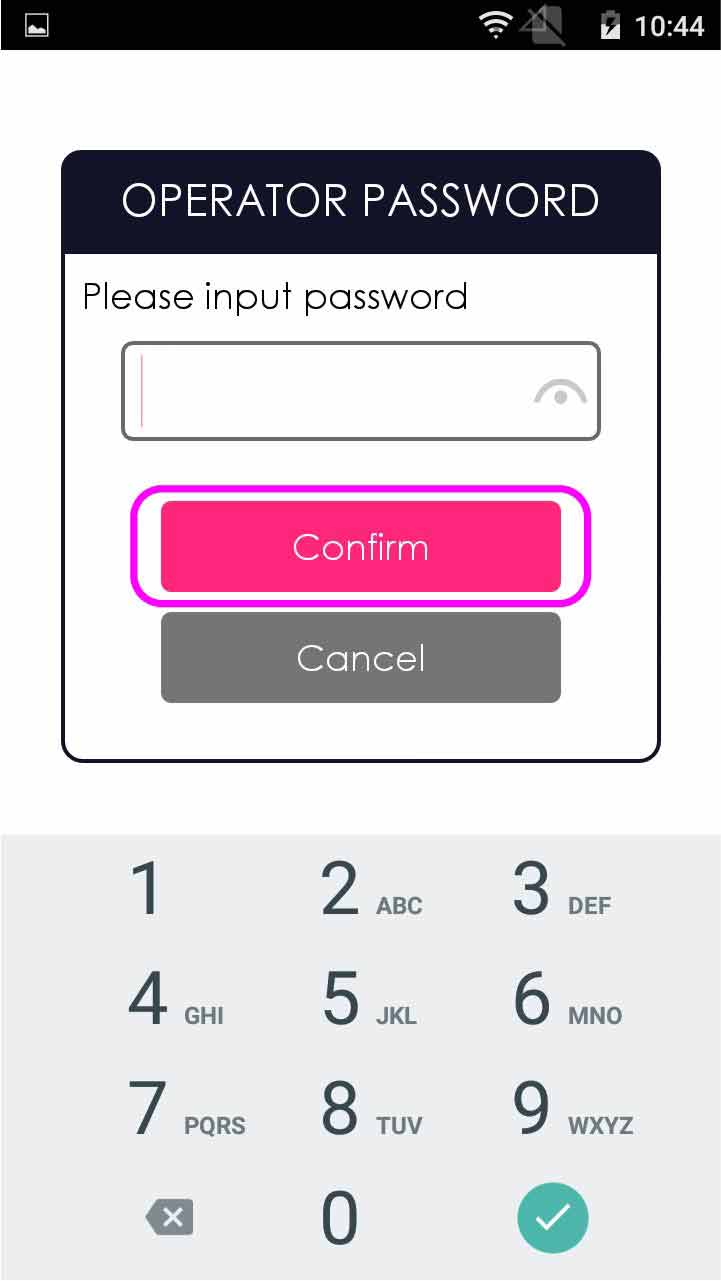
- Step 3 -
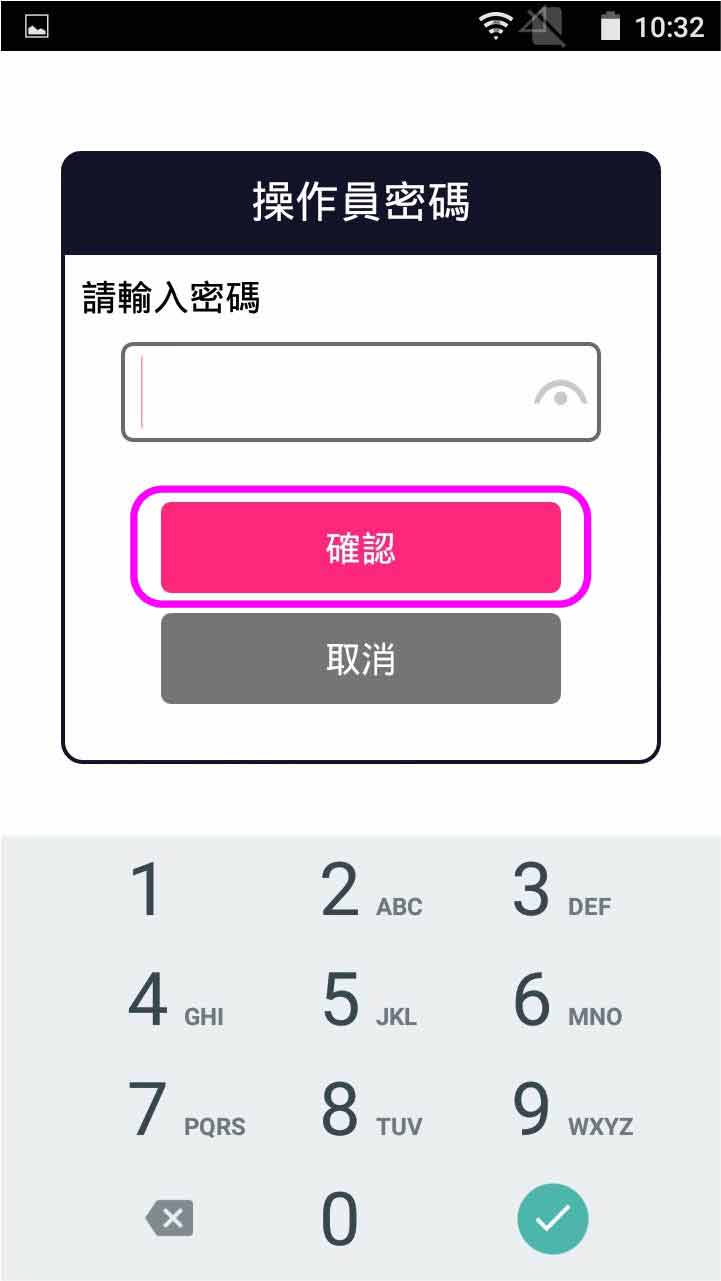
Enter operator password, and press [Confirm]
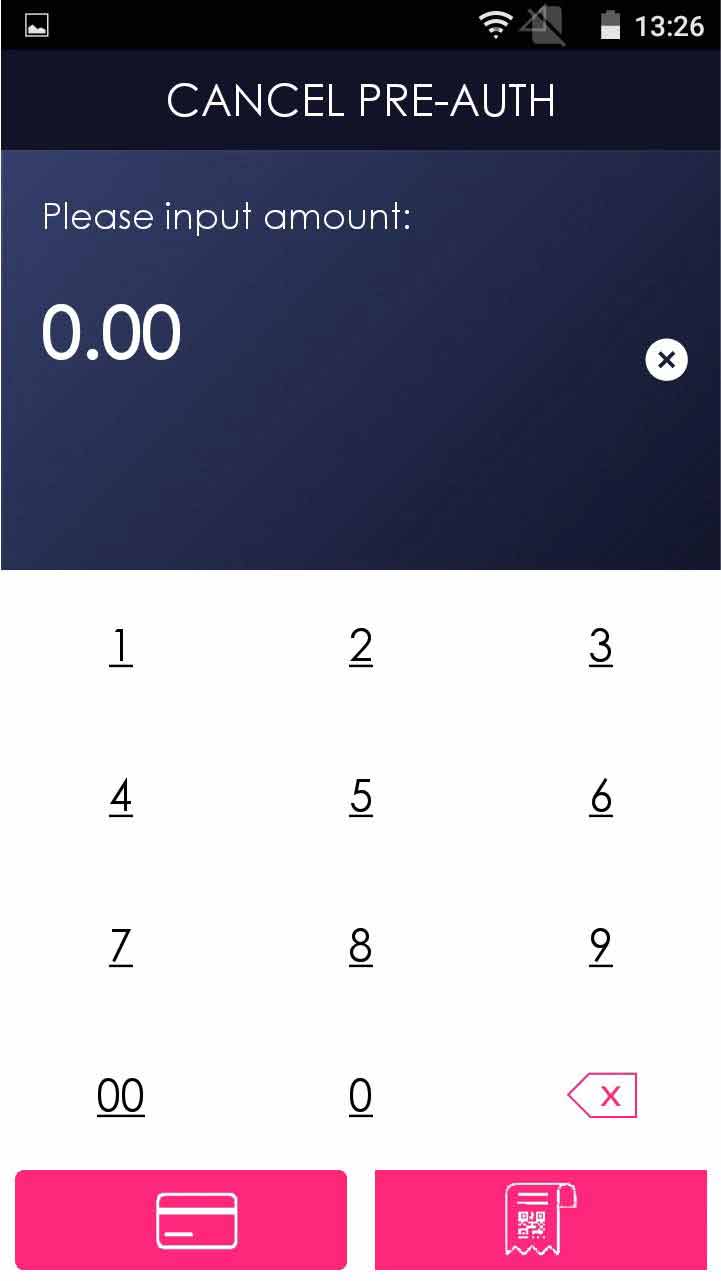
- Step 4 -
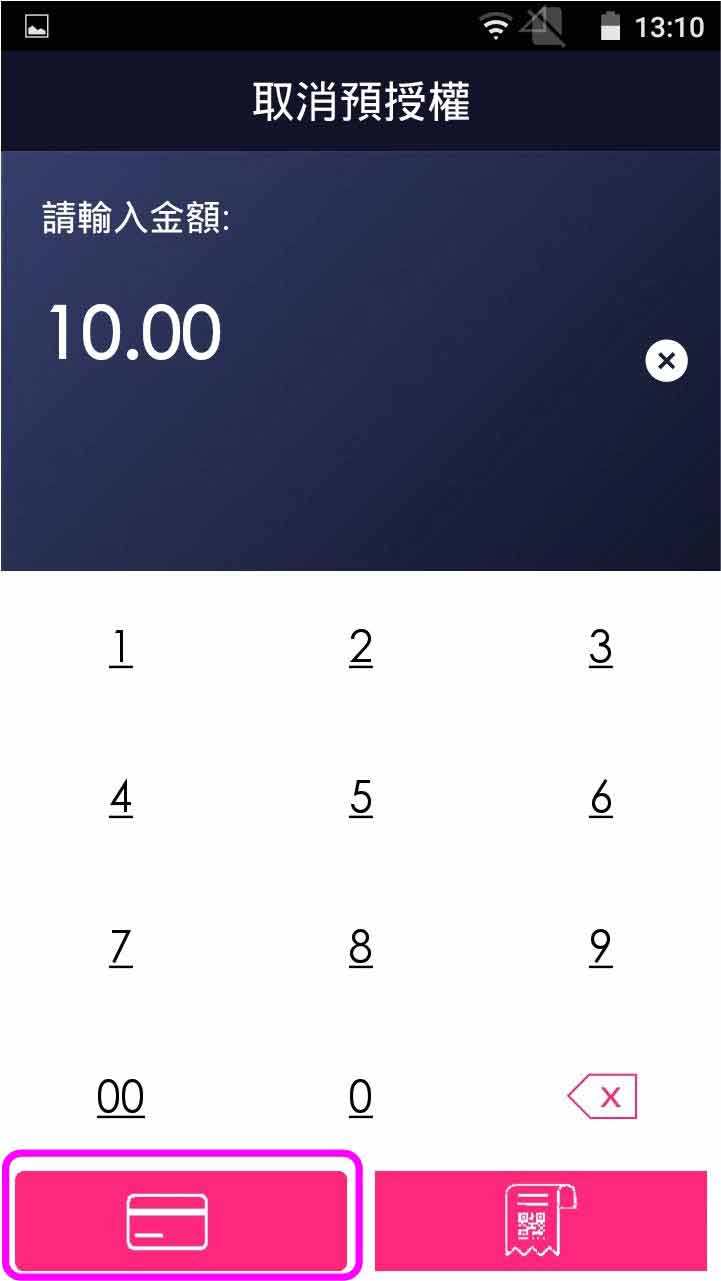
Enter pre-authorized completion amount
- Step 5 -
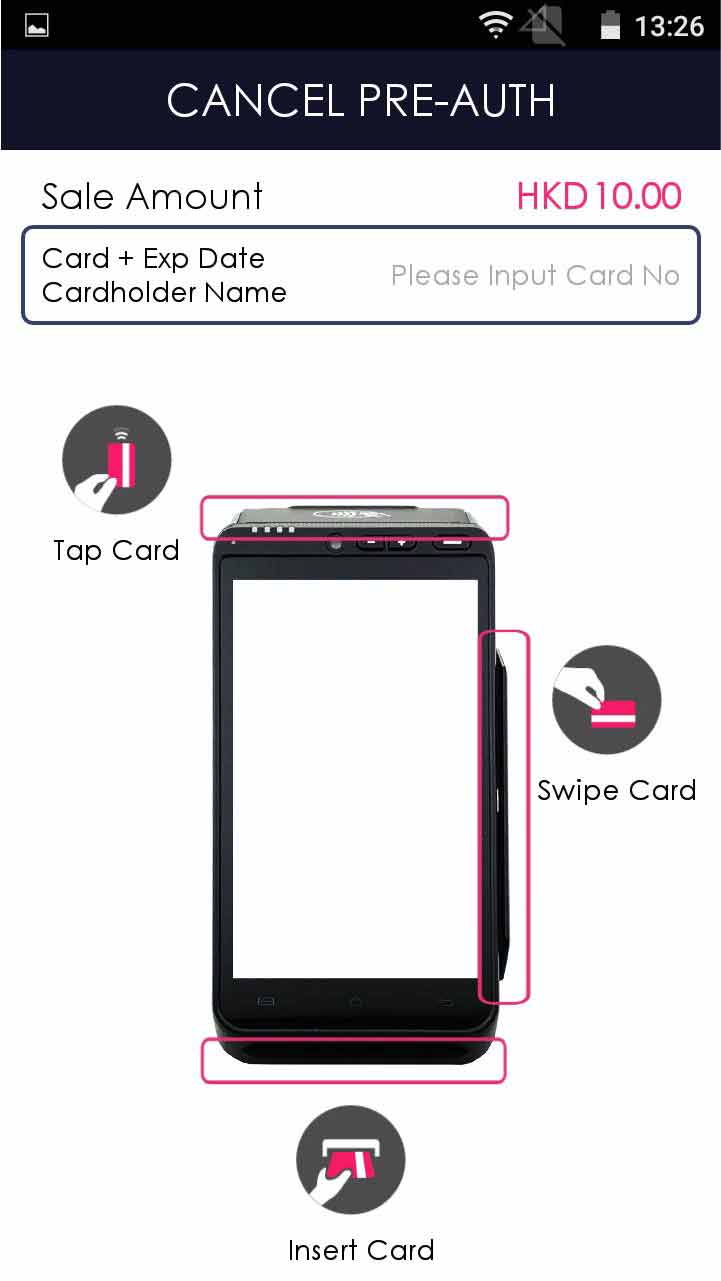
Select credit card payment
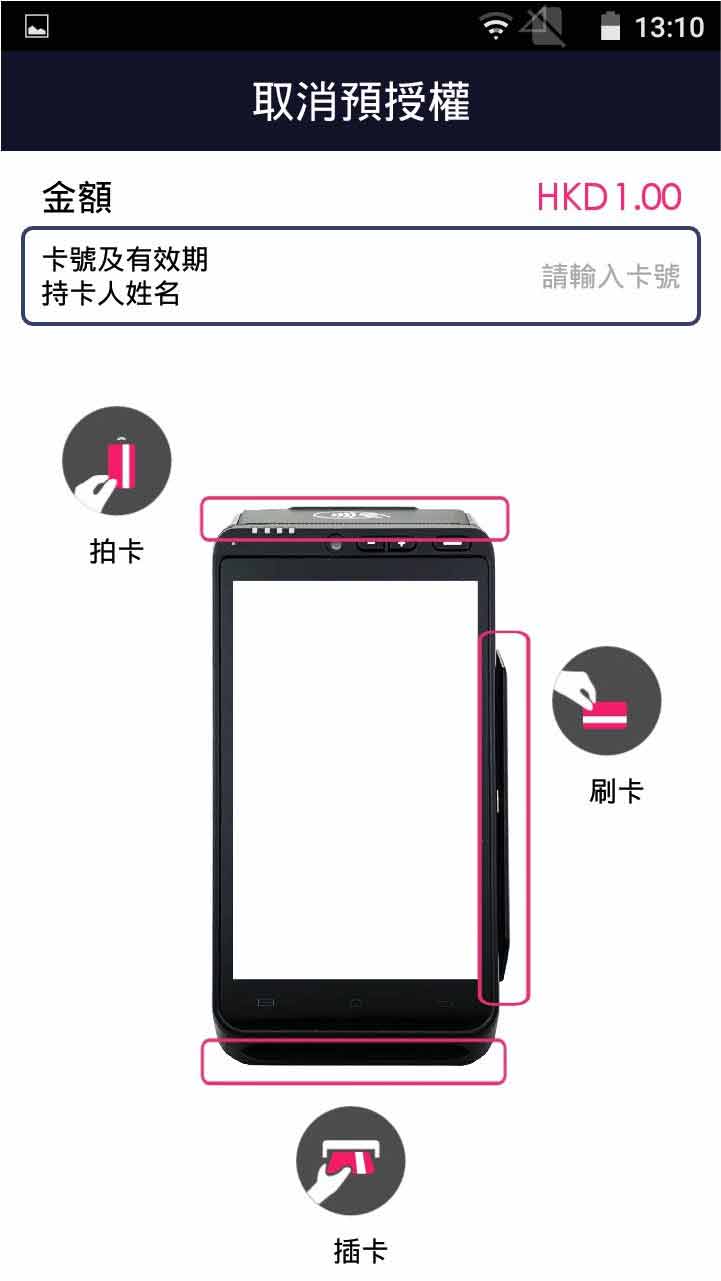
- Step 6 -
Insert/swipe card OR manually enter the card number & expiry date, press [Continue]
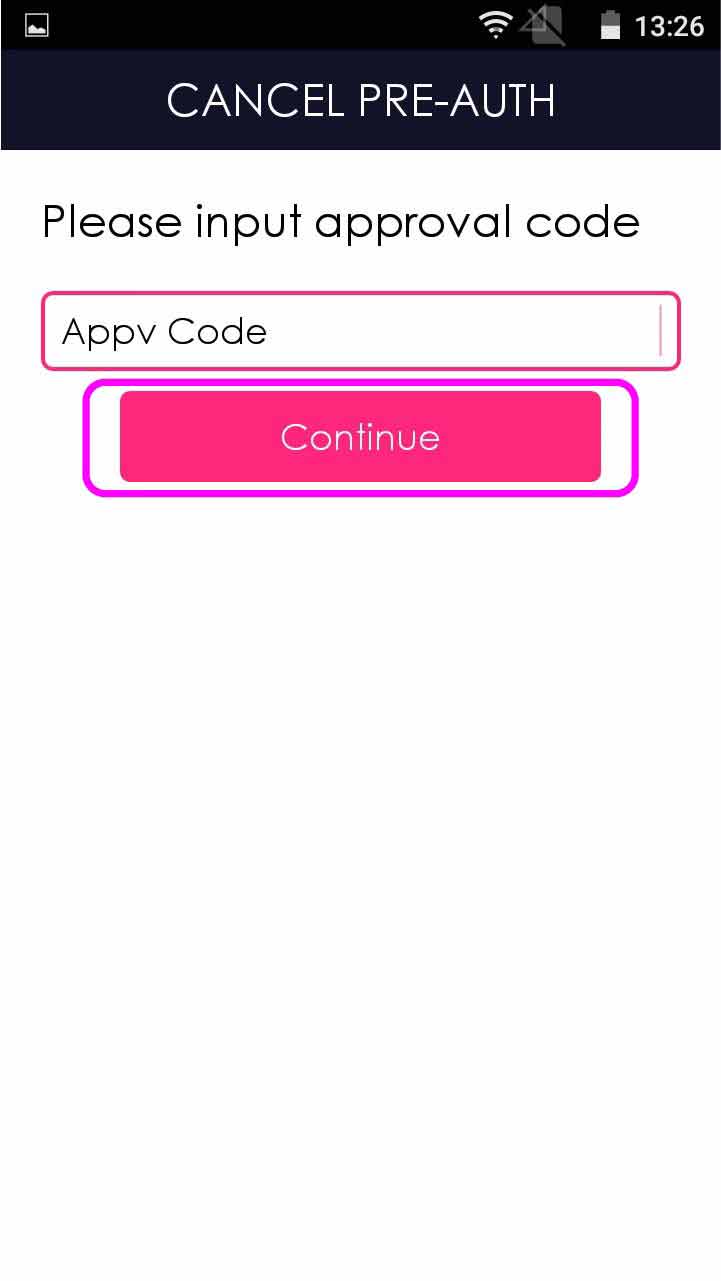
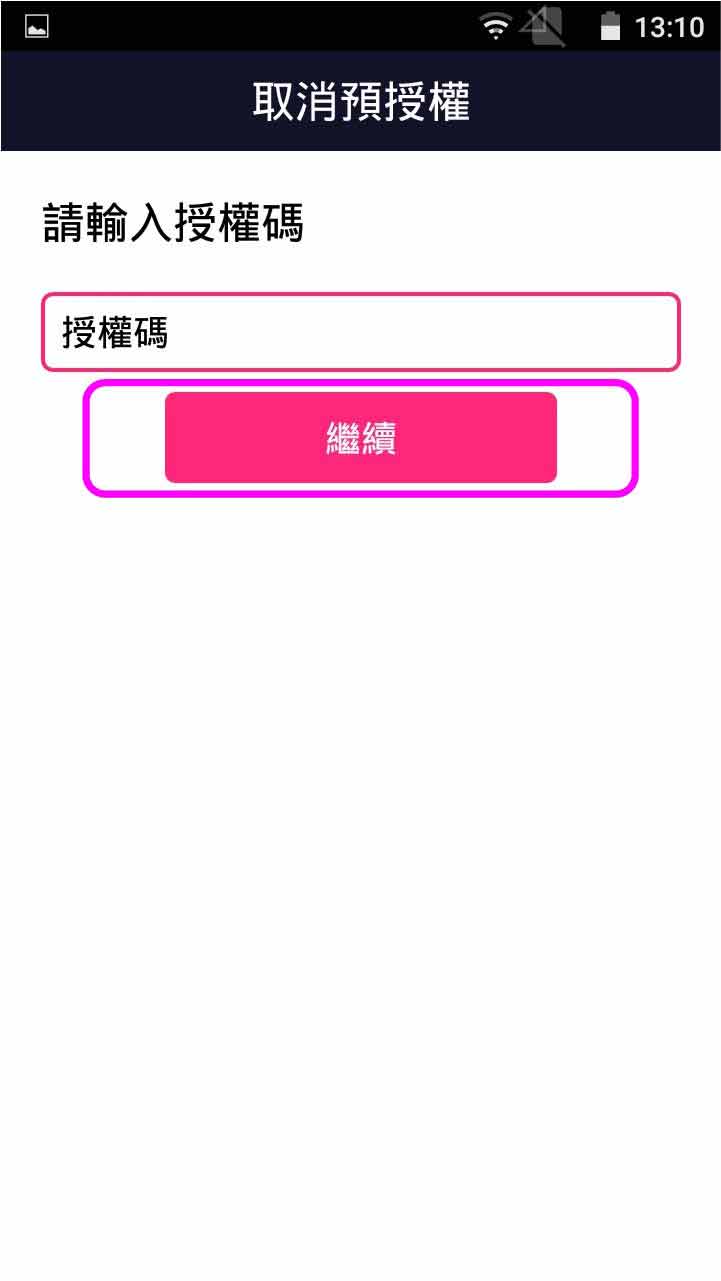
- Step 7 -
Enter the approval code, and press [ENTER]
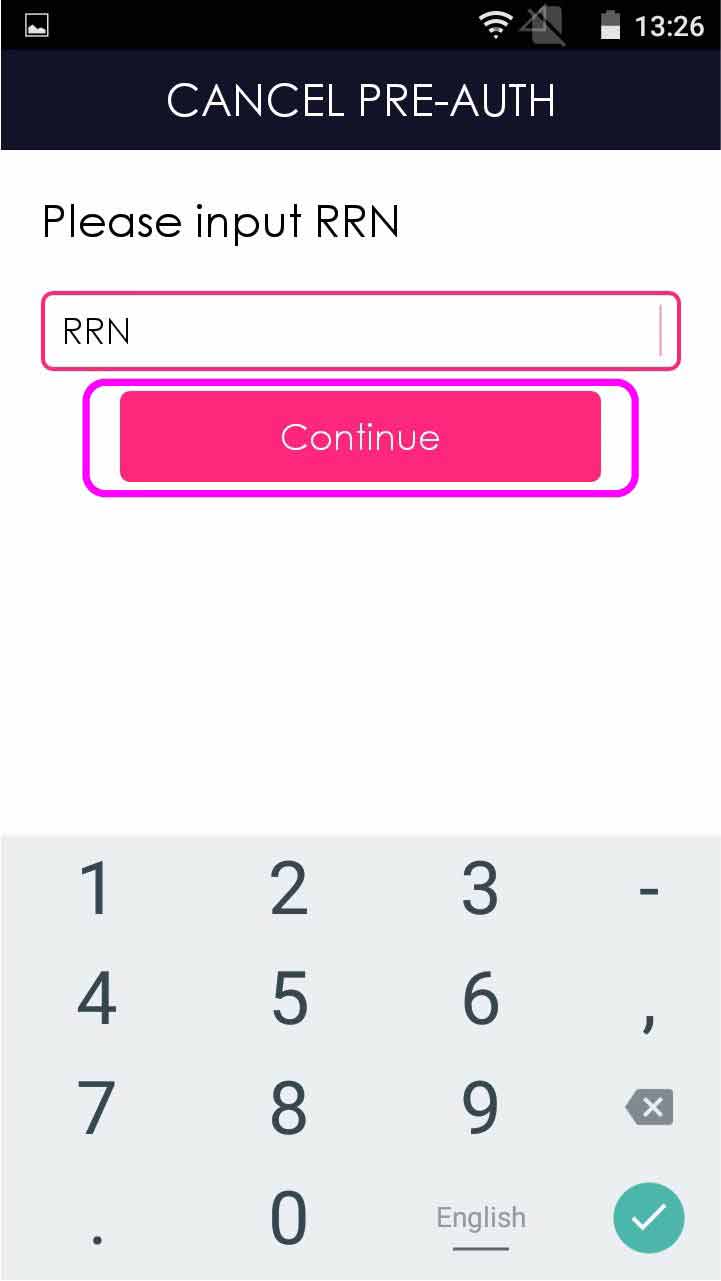
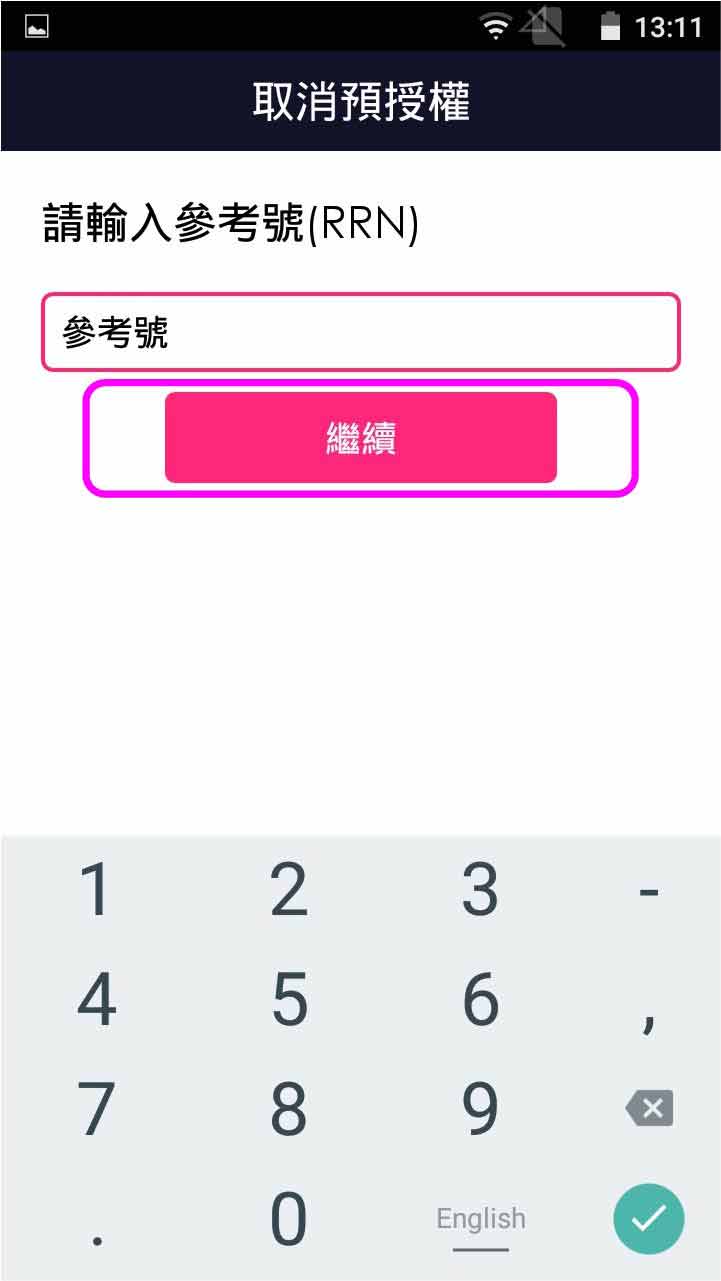
- Step 8 -
Enter the RRN, and press [ENTER]
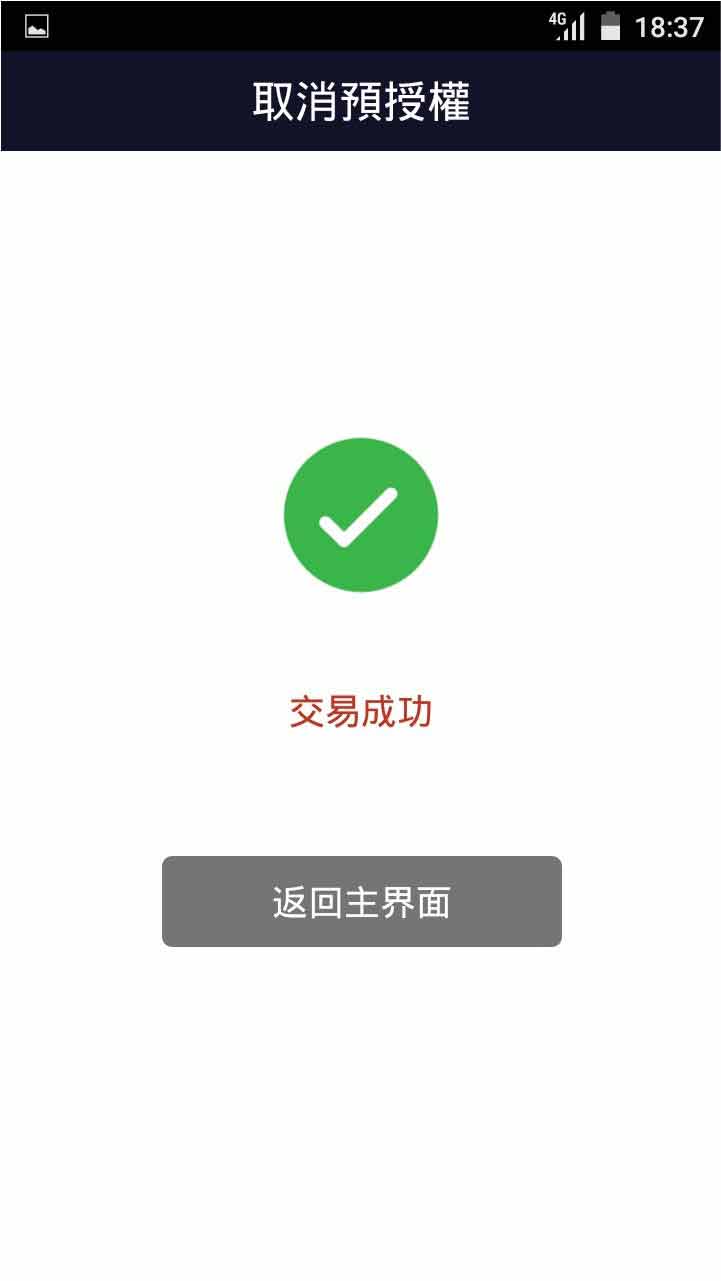
- Step 9 -
Transaction is completed, and terminal prints out receipt
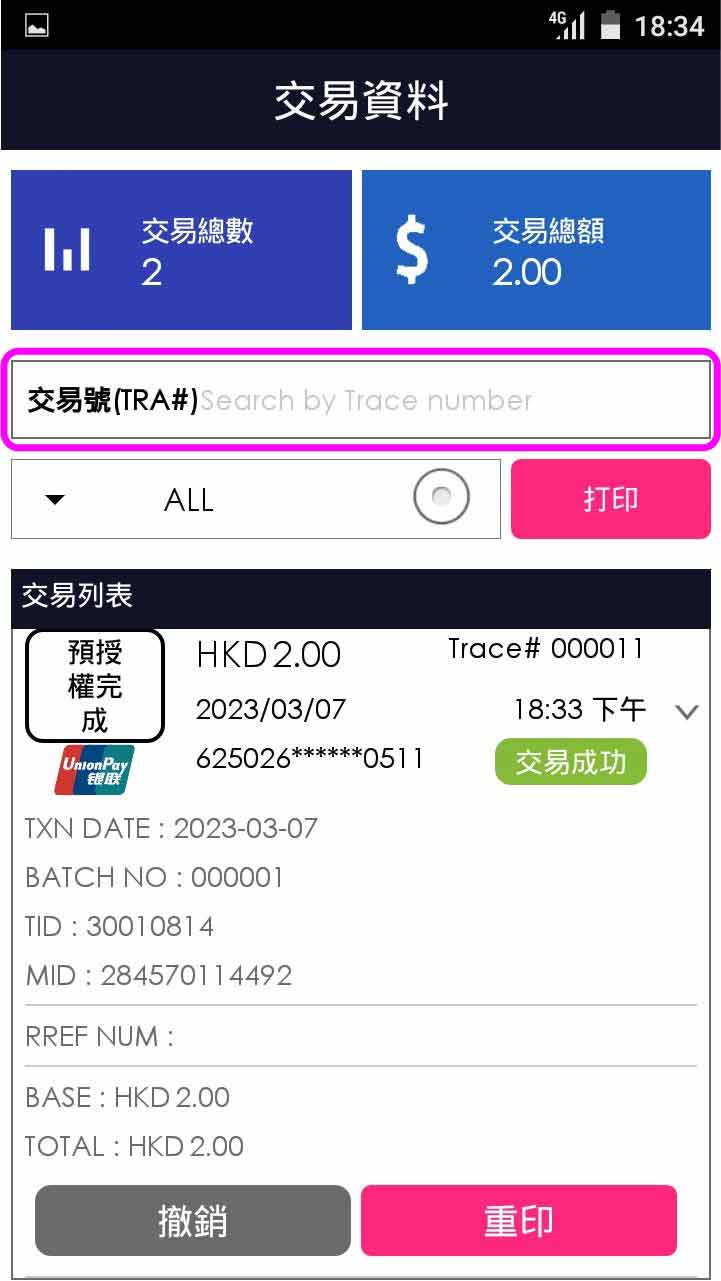
- Step 1 -
Press [Pre-Auth] on menu
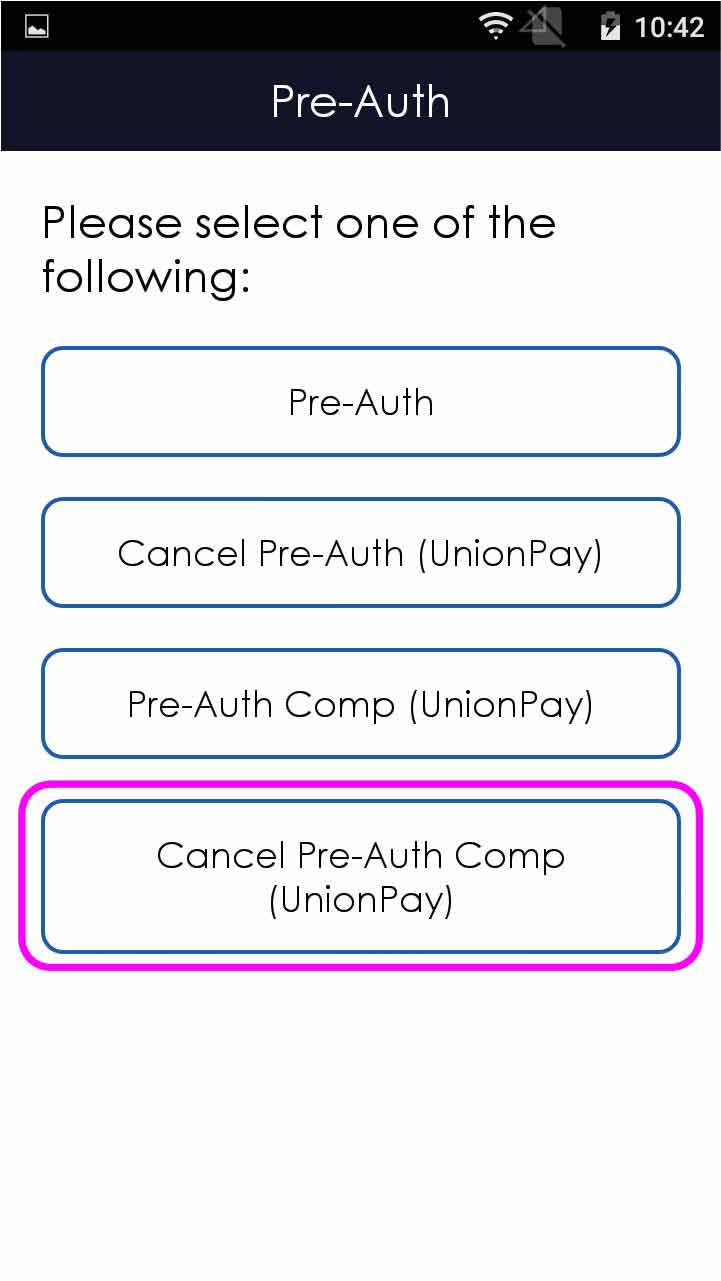
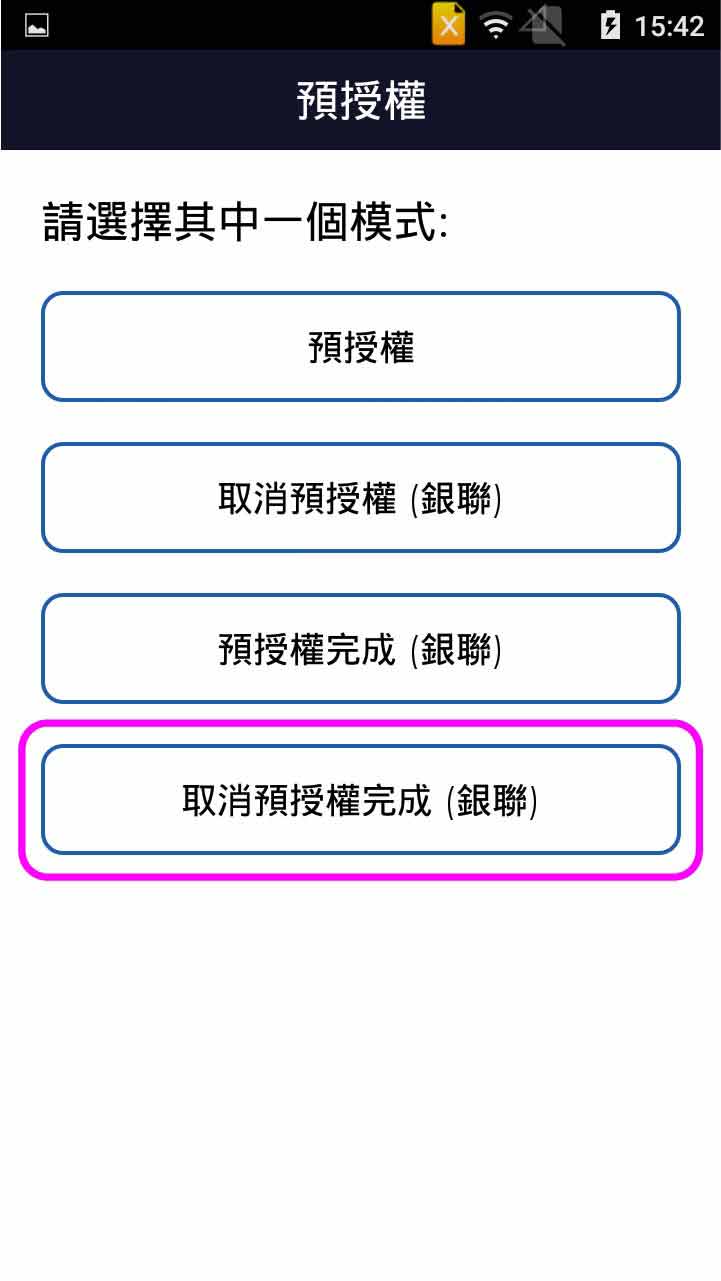
- Step 2 -
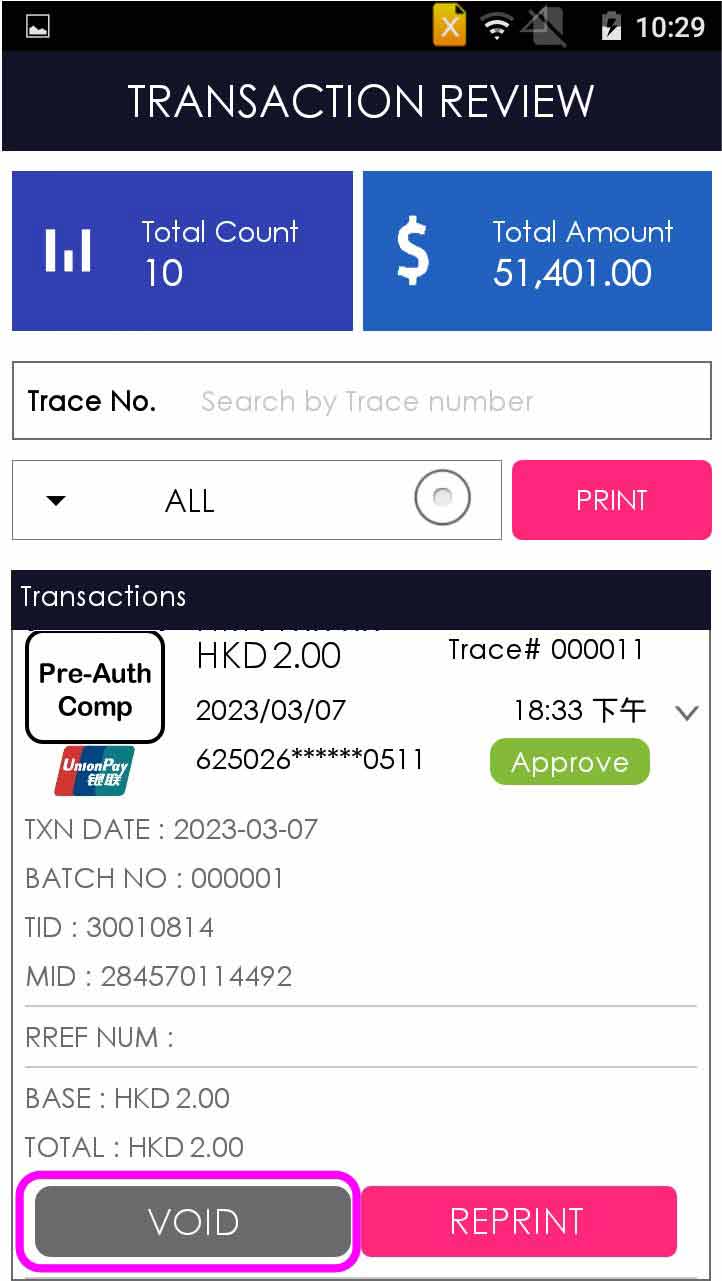
Select [Cancel Pre-Auth Comp (UnionPay)]
- Step 3 -
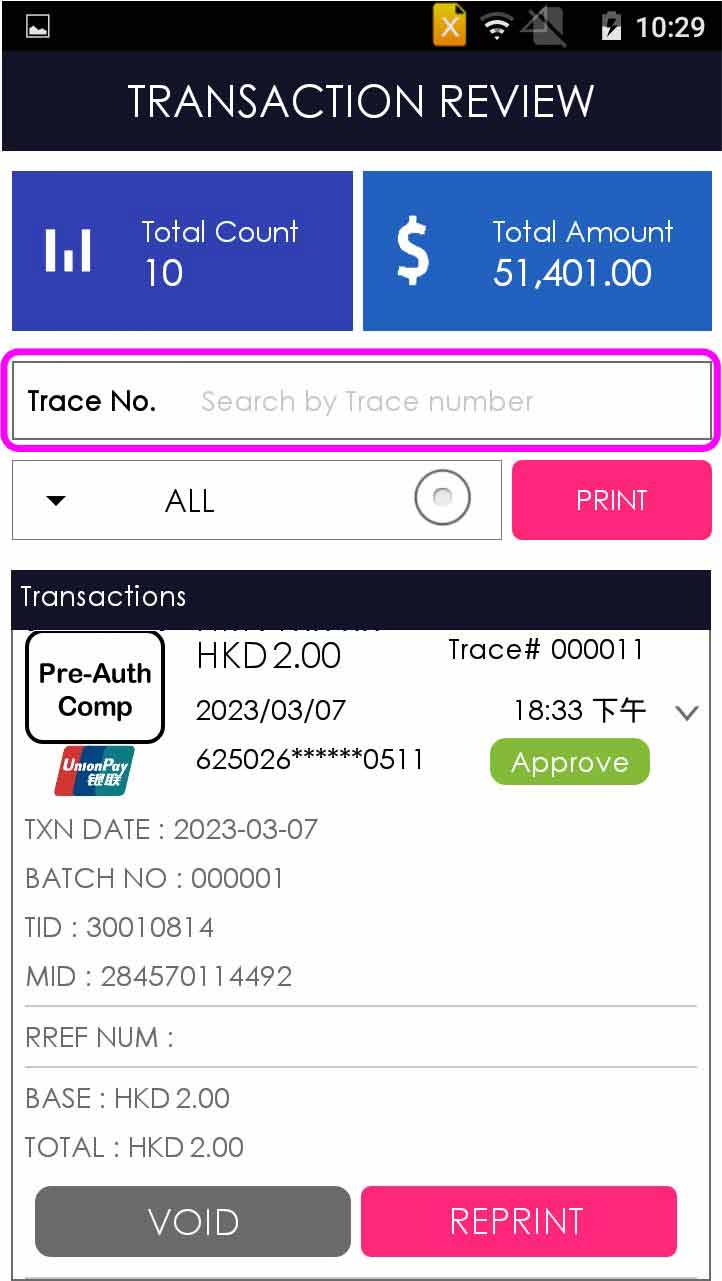
Enter trace number in the “TRACE#” search bar / select transaction directly
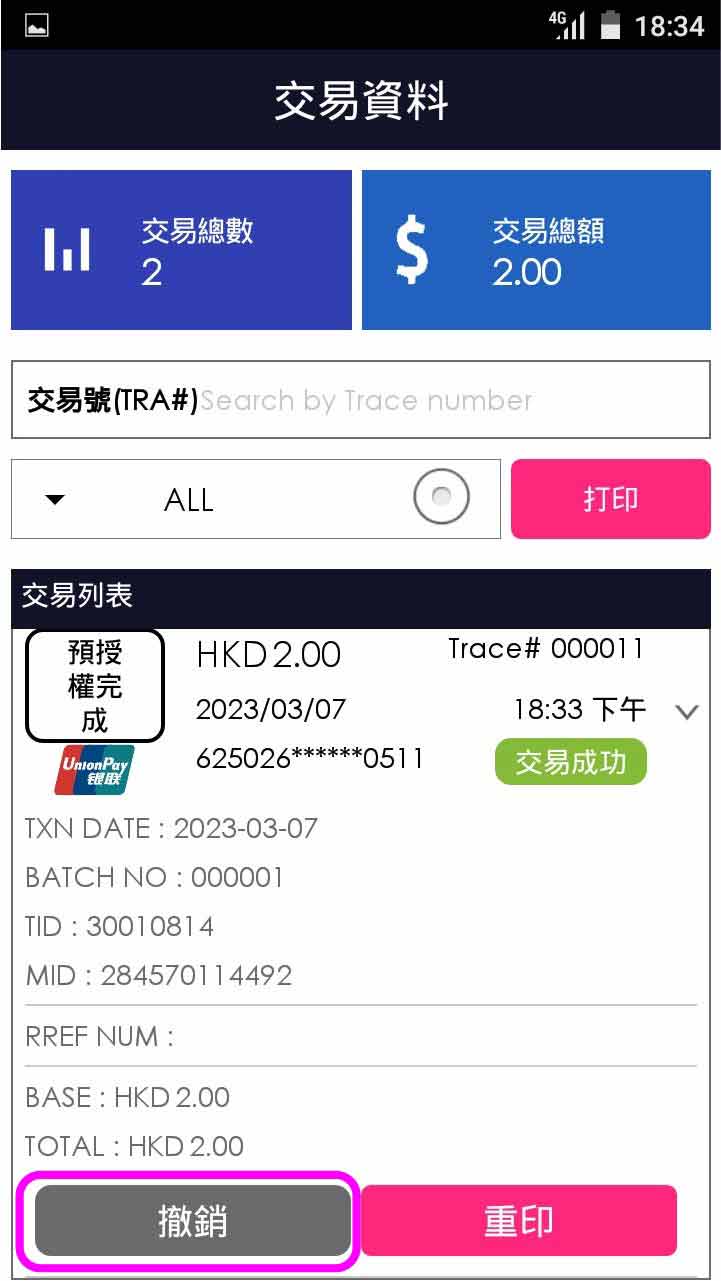
- Step 4 -
Press [Void]
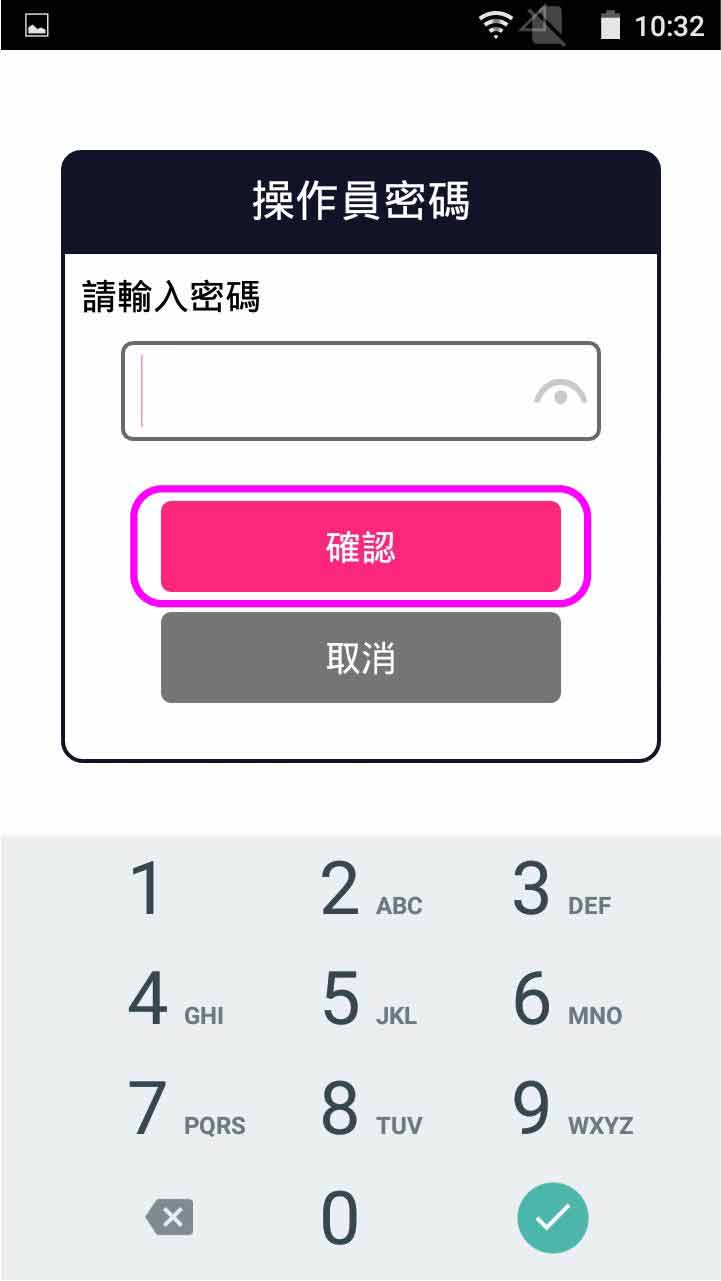
- Step 5 -
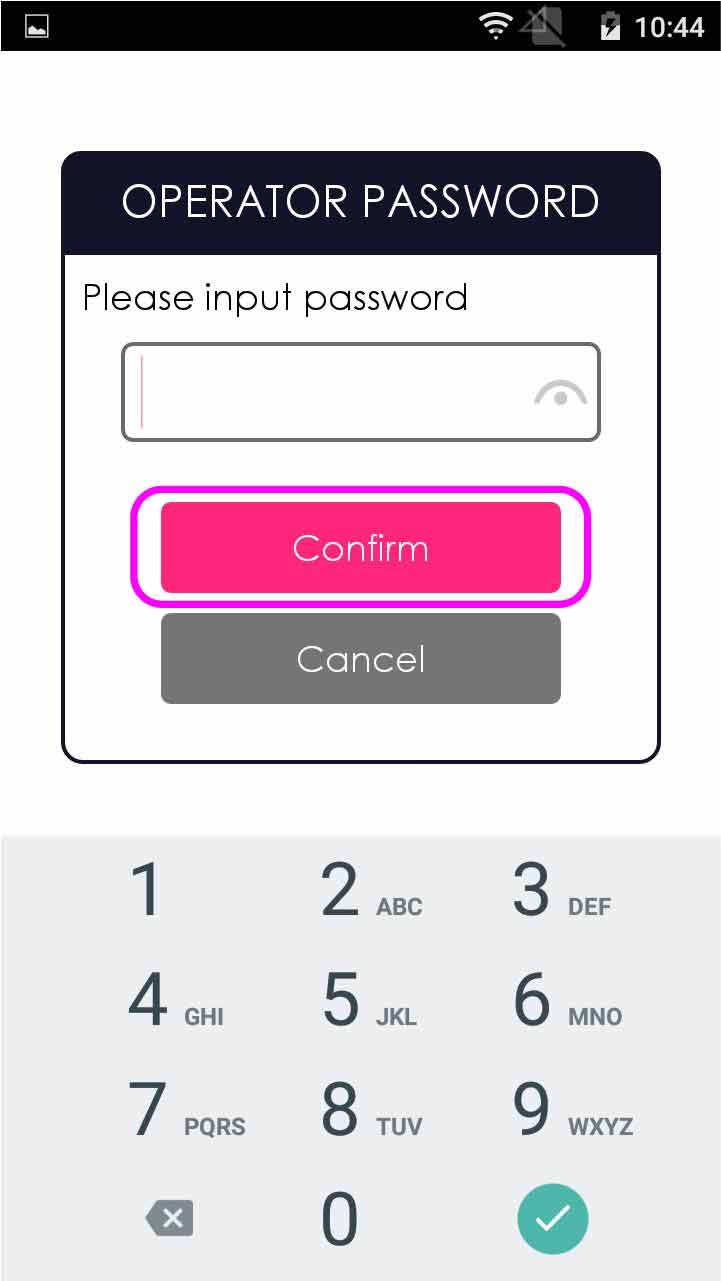
Enter operator password, and press [Confirm]
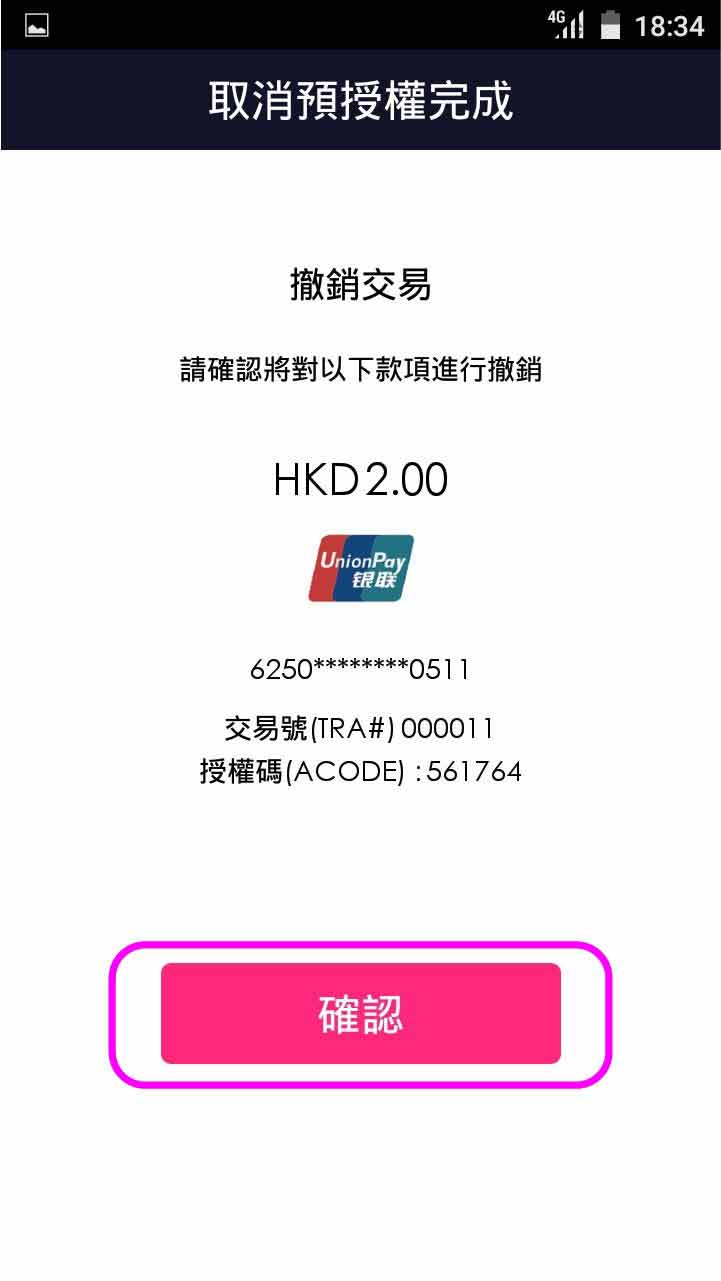
- Step 6 -
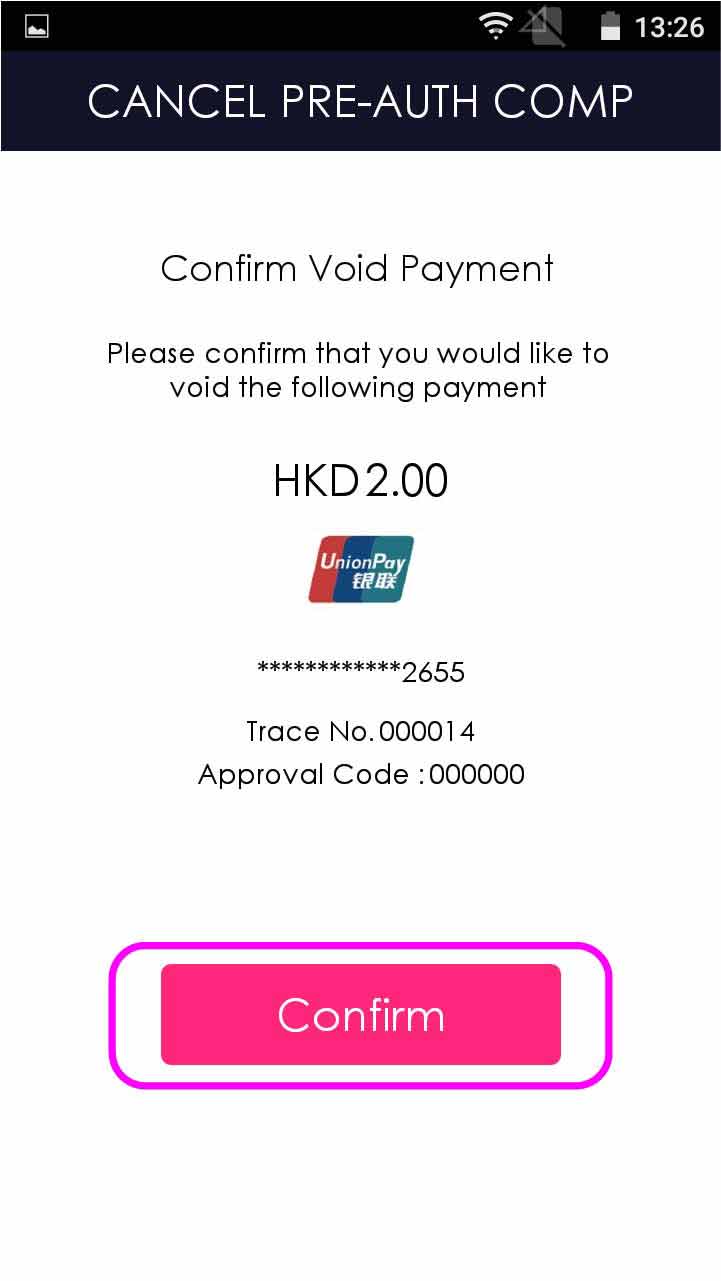
After review transaction detail, press [Confirm]
- Step 7 -
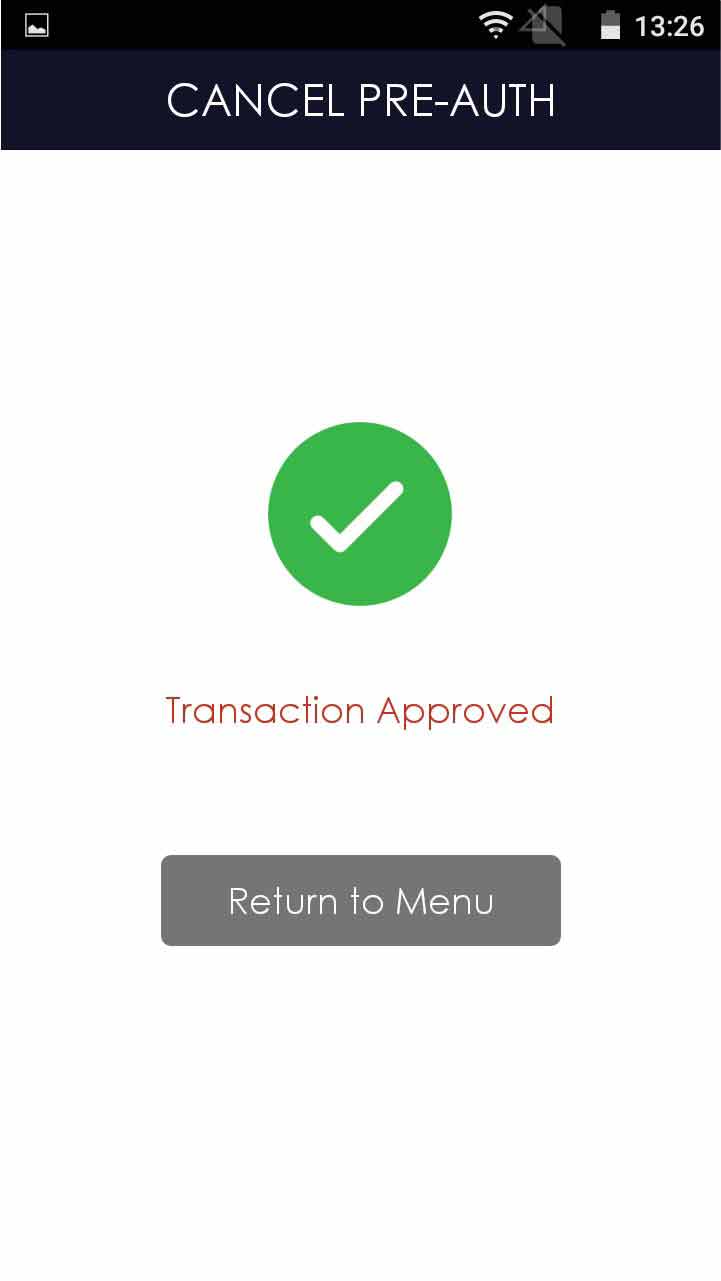
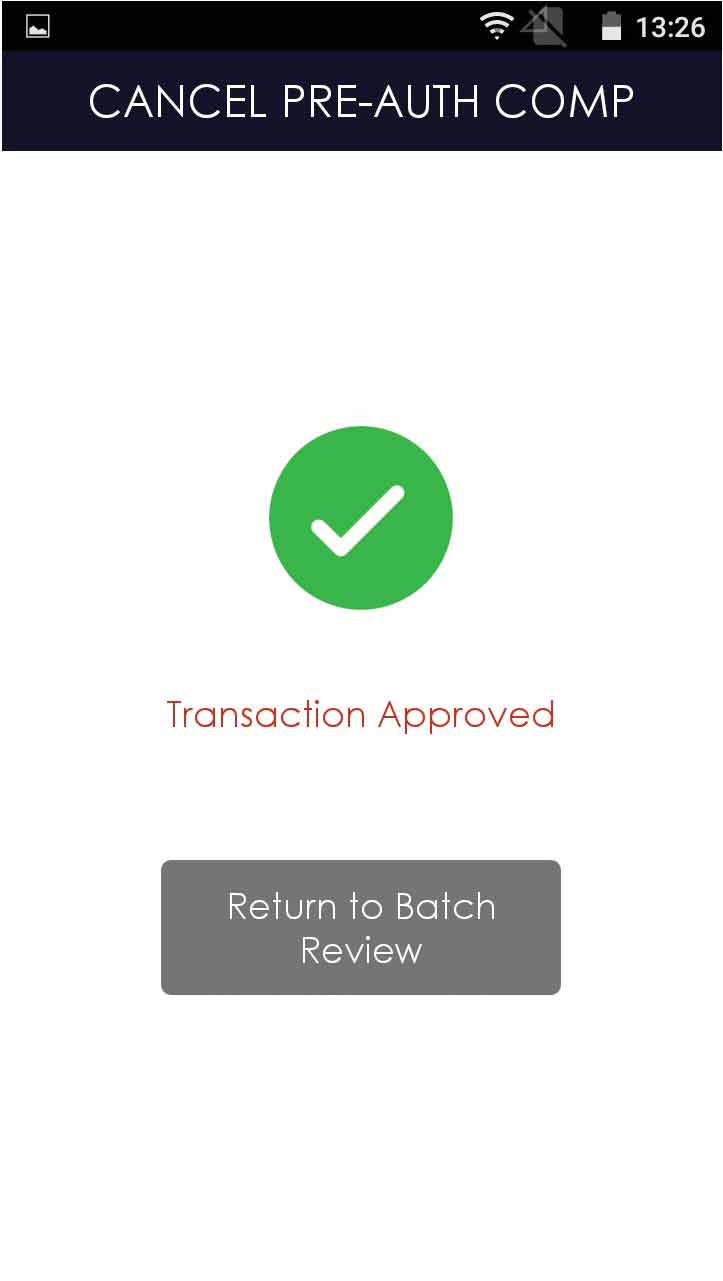
Transaction is completed, and terminal prints out receipt
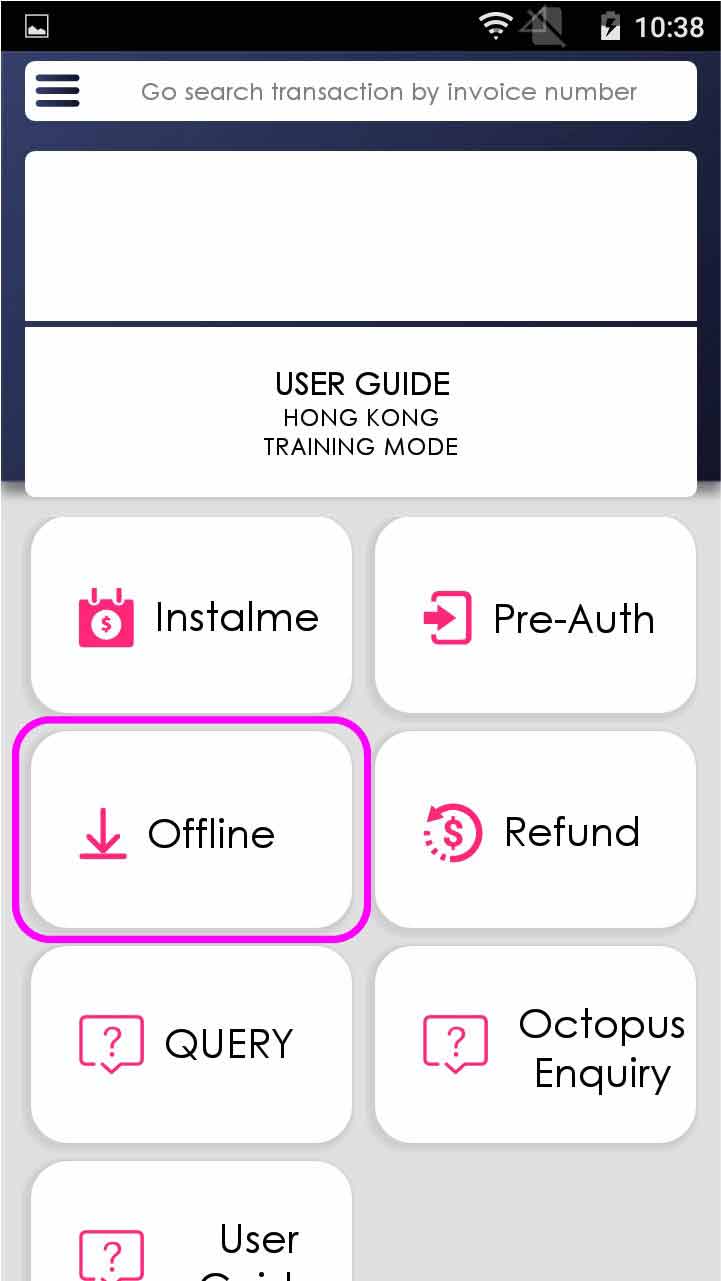
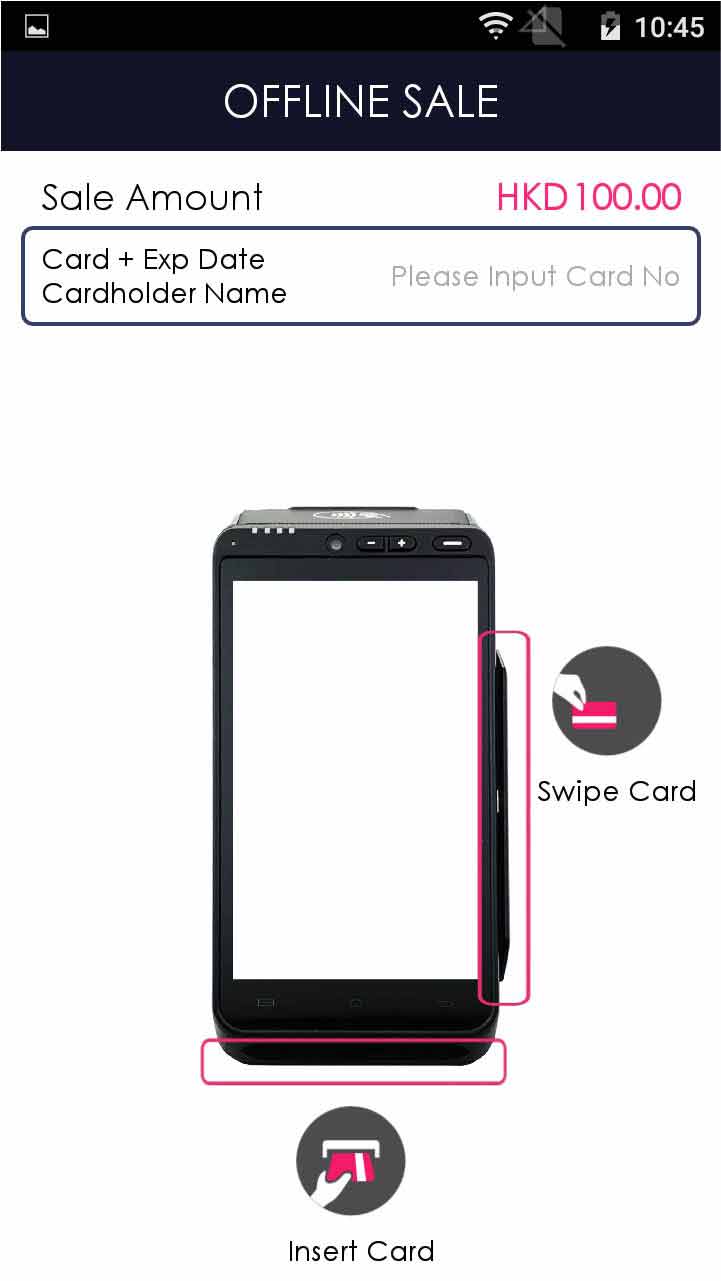
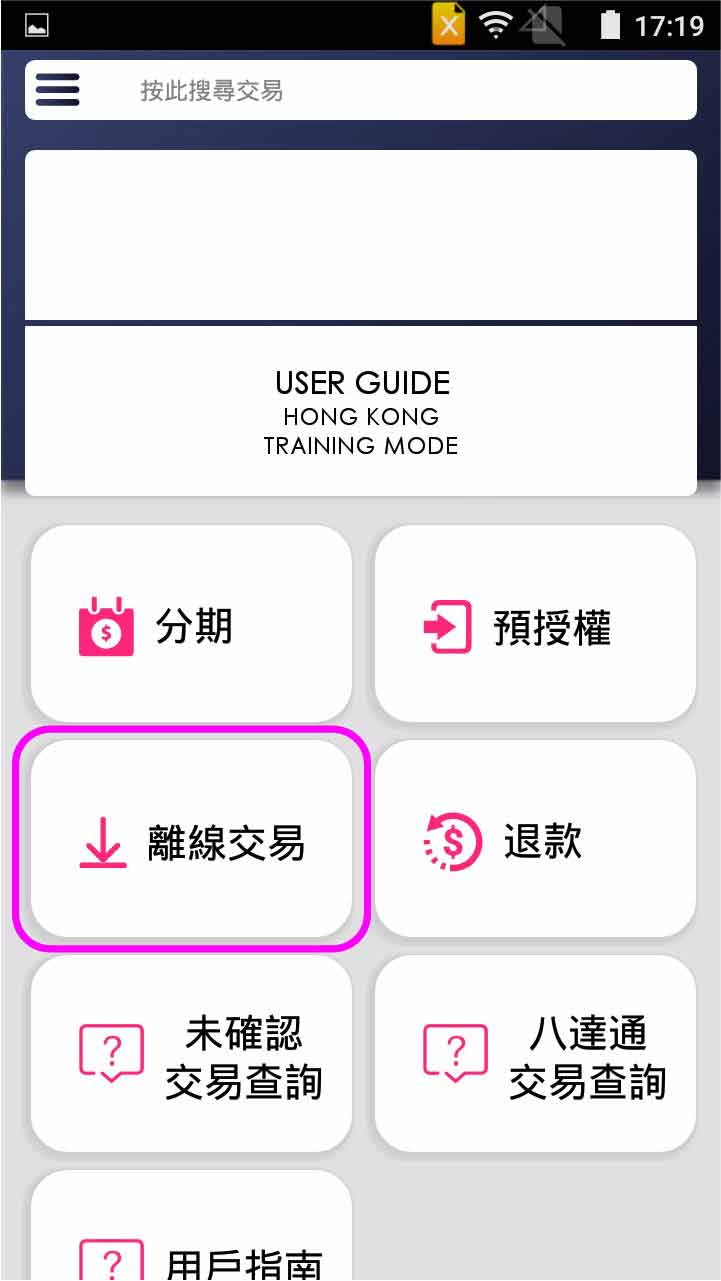
- Step 1 -
Press [Offline] on menu
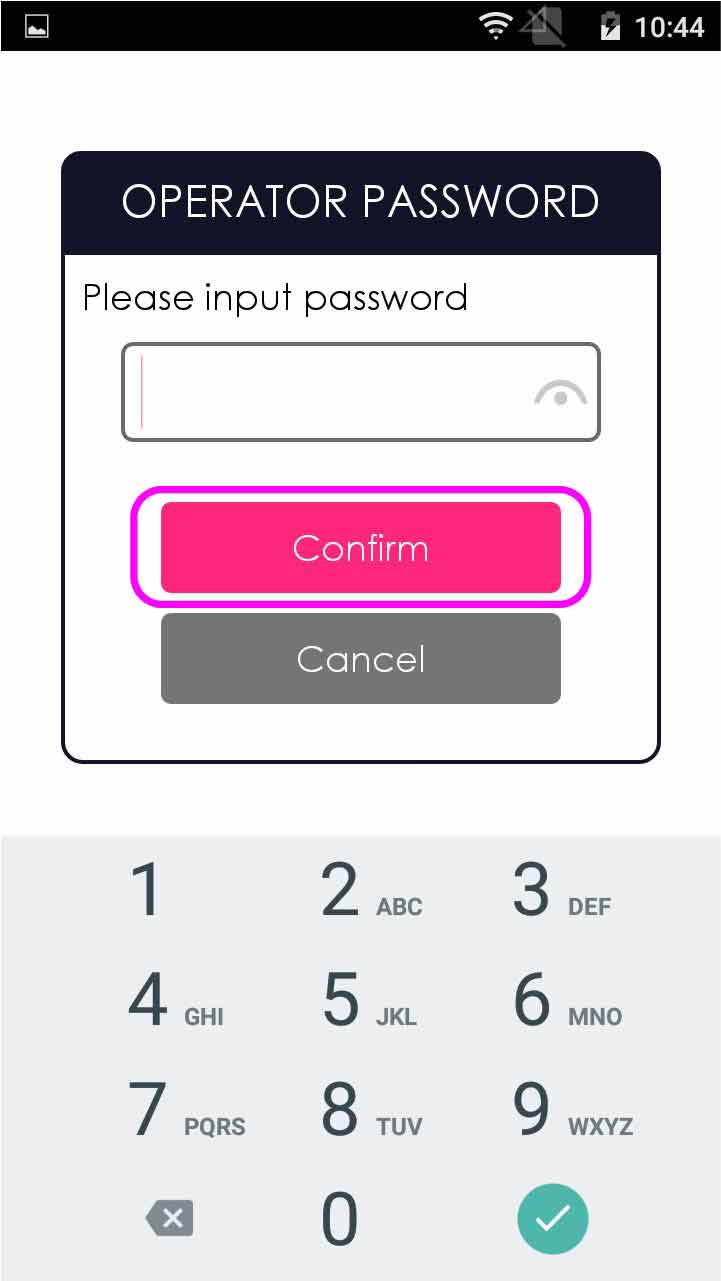
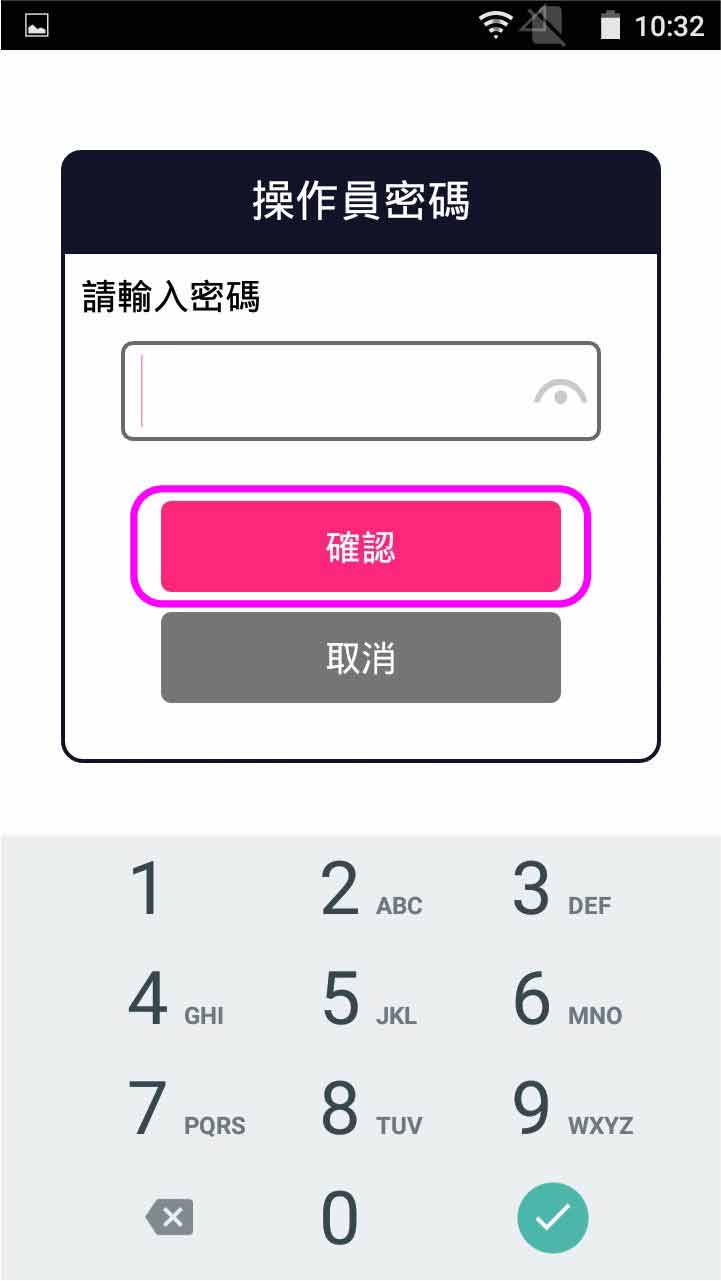
- Step 2 -
Enter operator password, and press [Confirm]
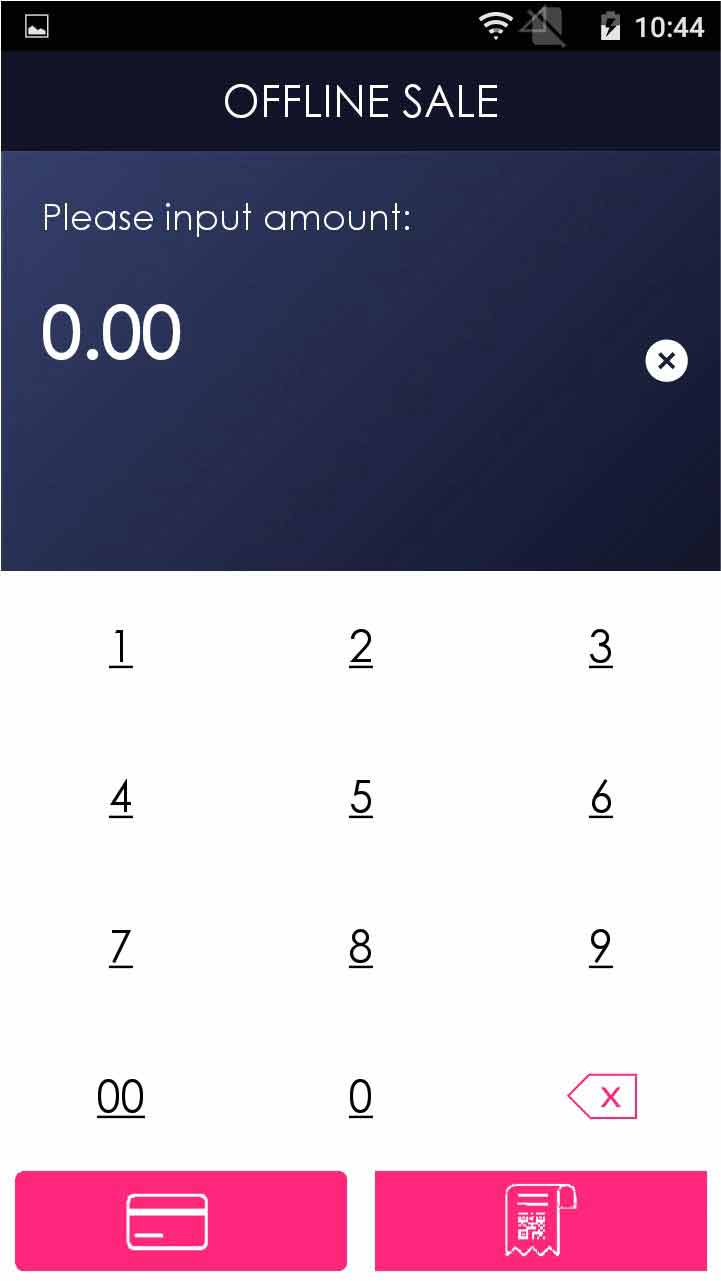
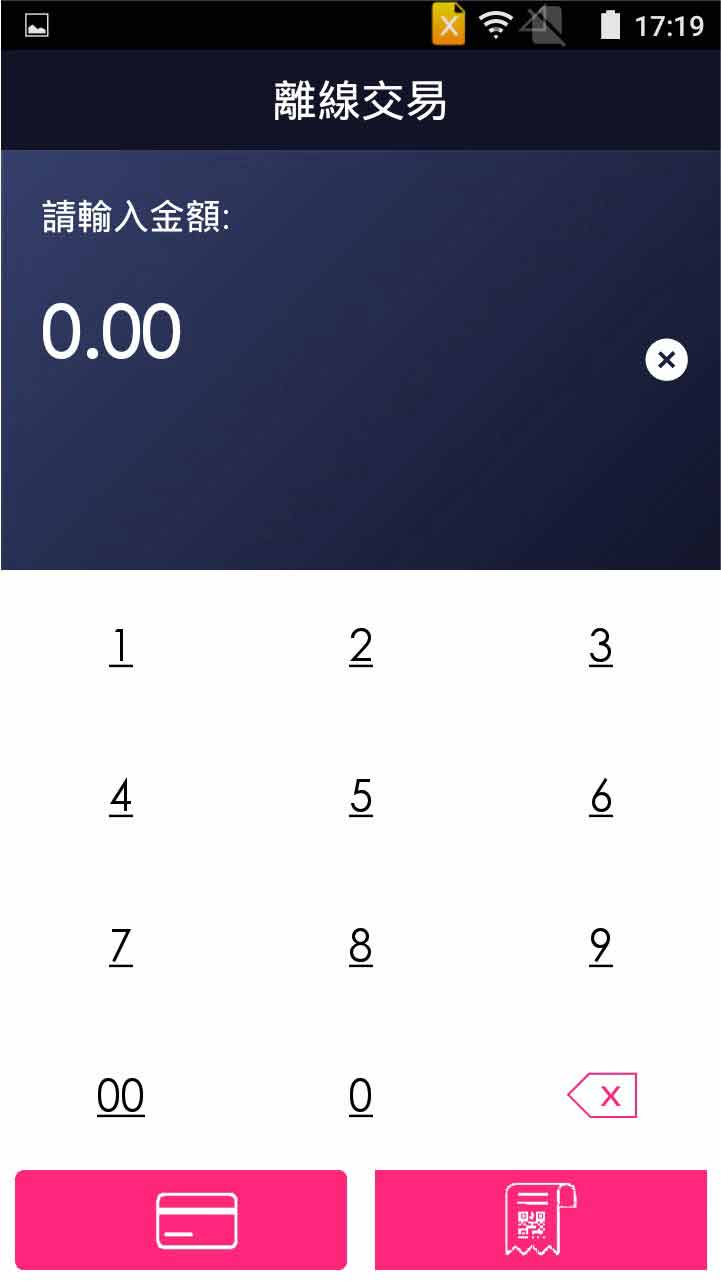
- Step 3 -
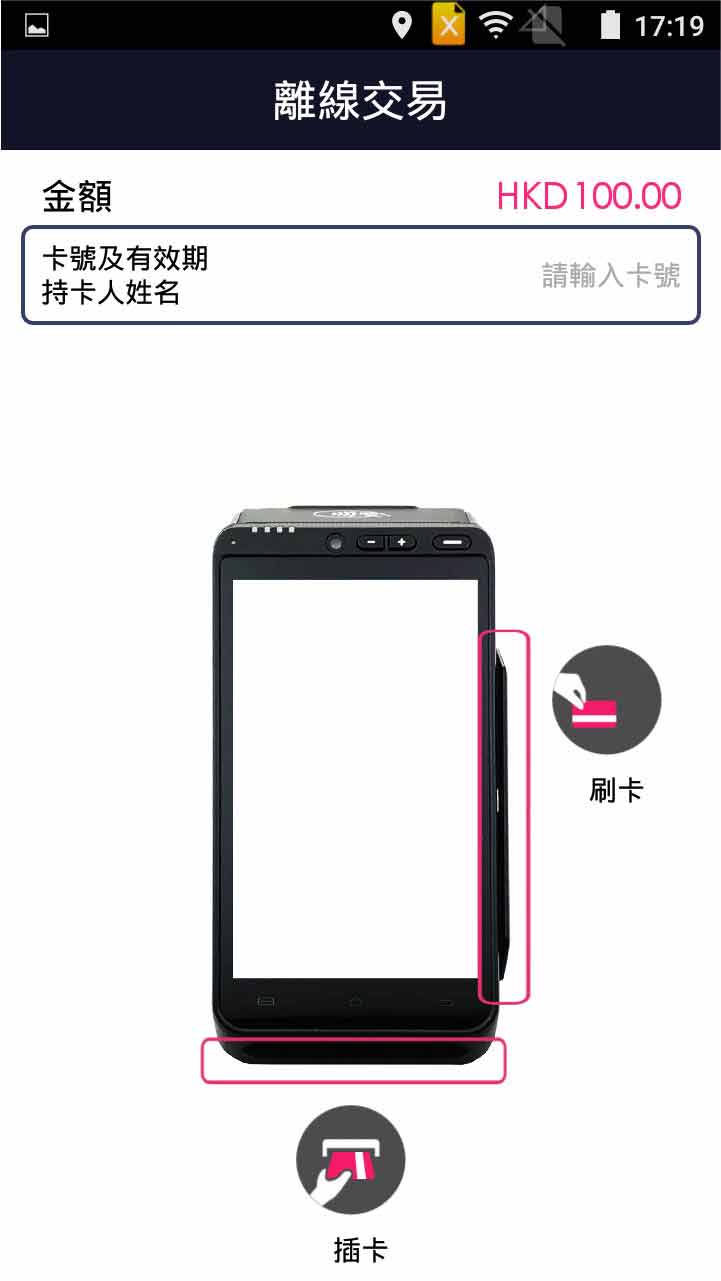
Enter offline sale amount
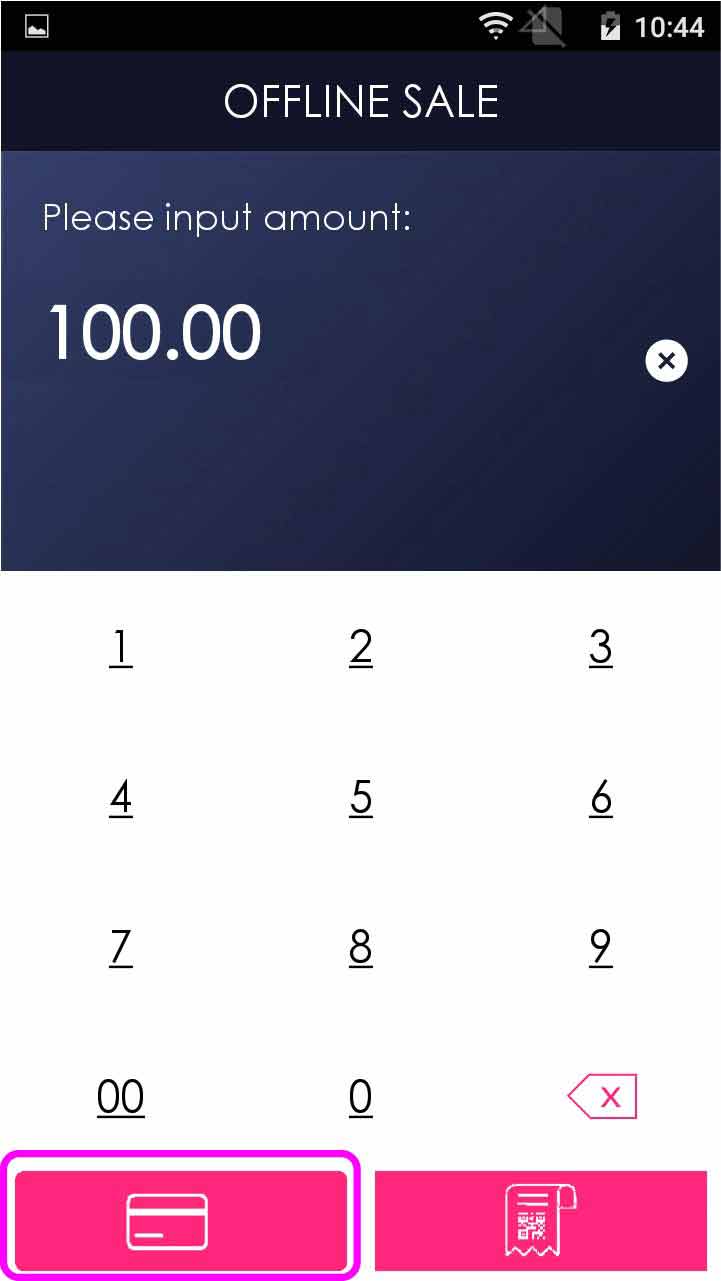
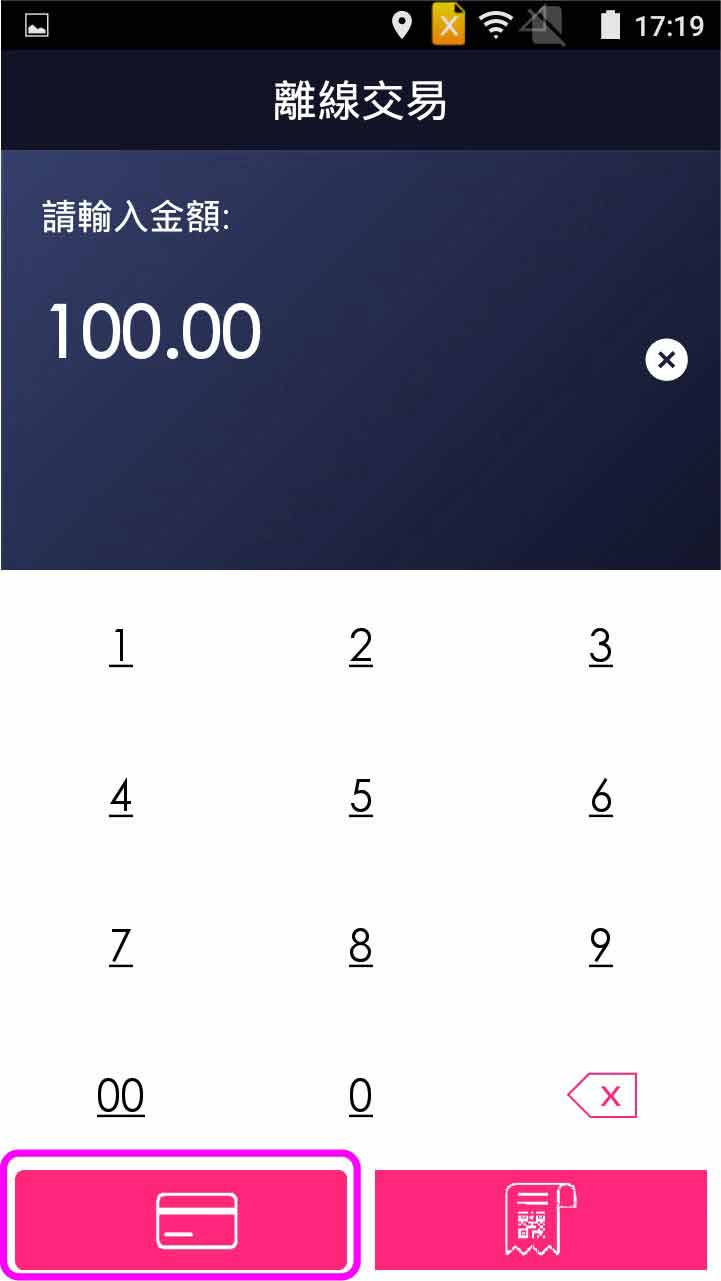
- Step 4 -
Select credit card payment
- Step 5 -
Insert/swipe card OR manually enter card number & expiry date, and press [Confirm]
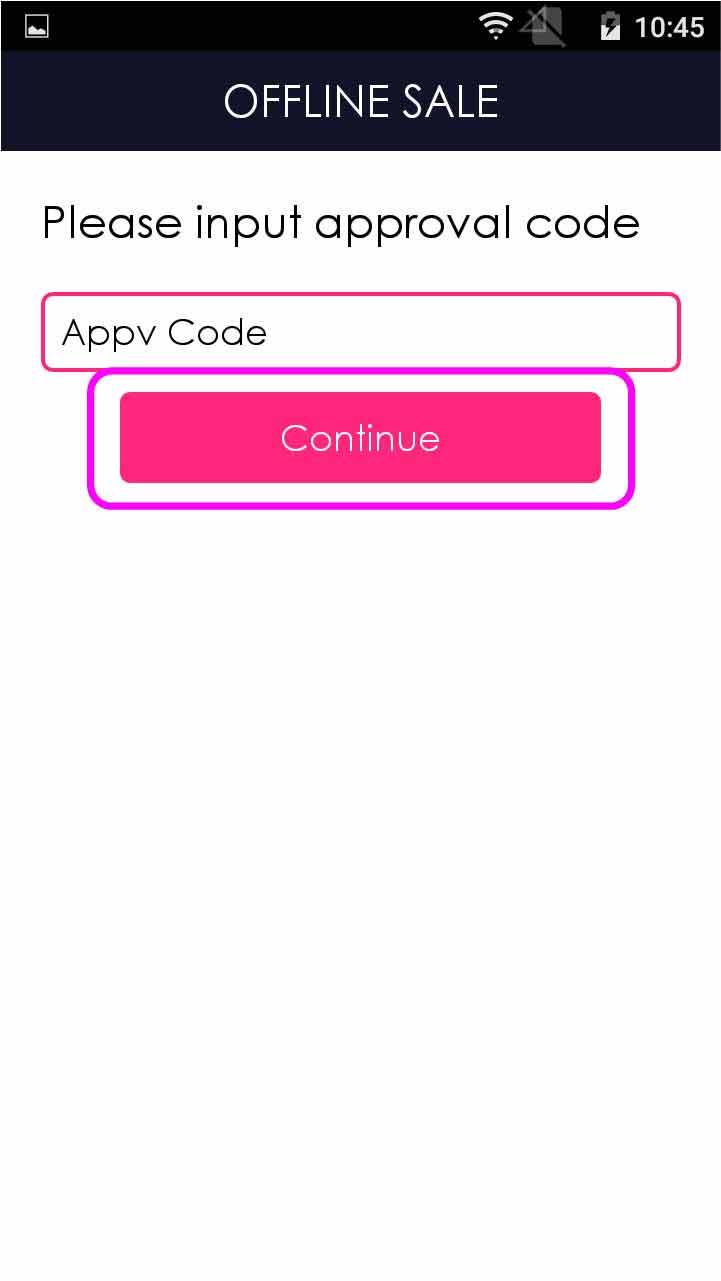
- Step 6 -
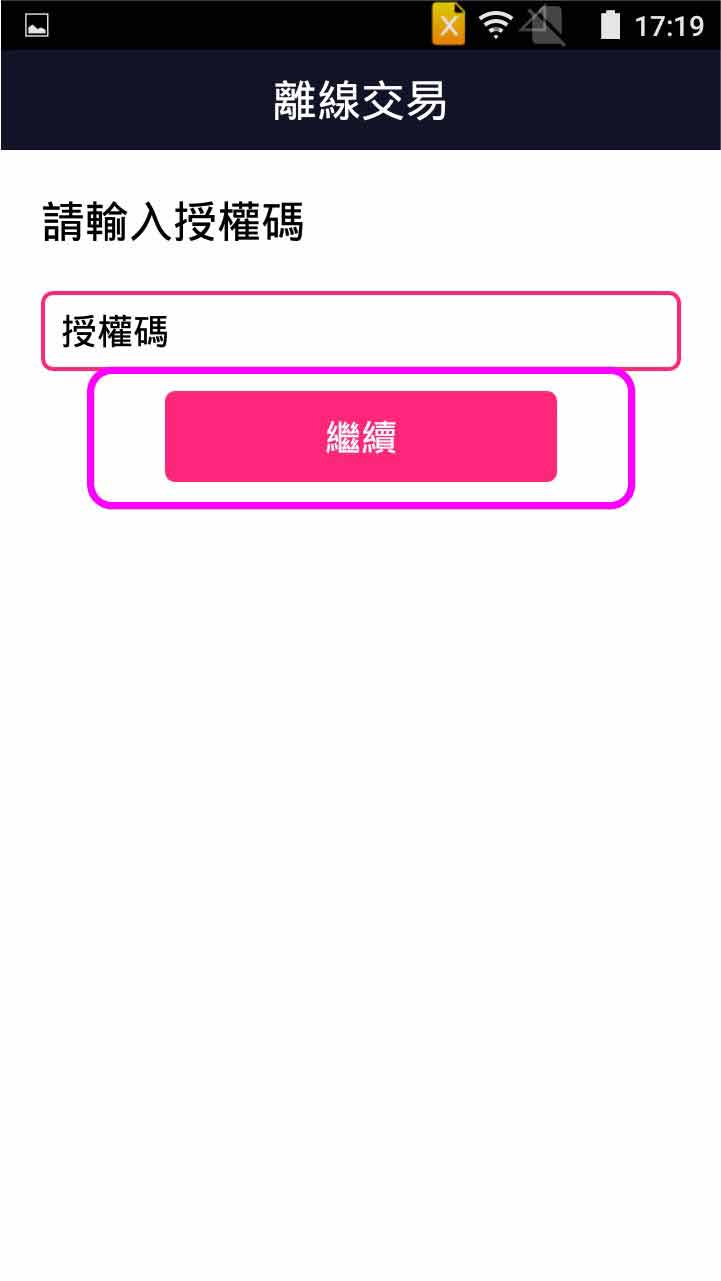
Enter approval code (ACODE) from sales slip
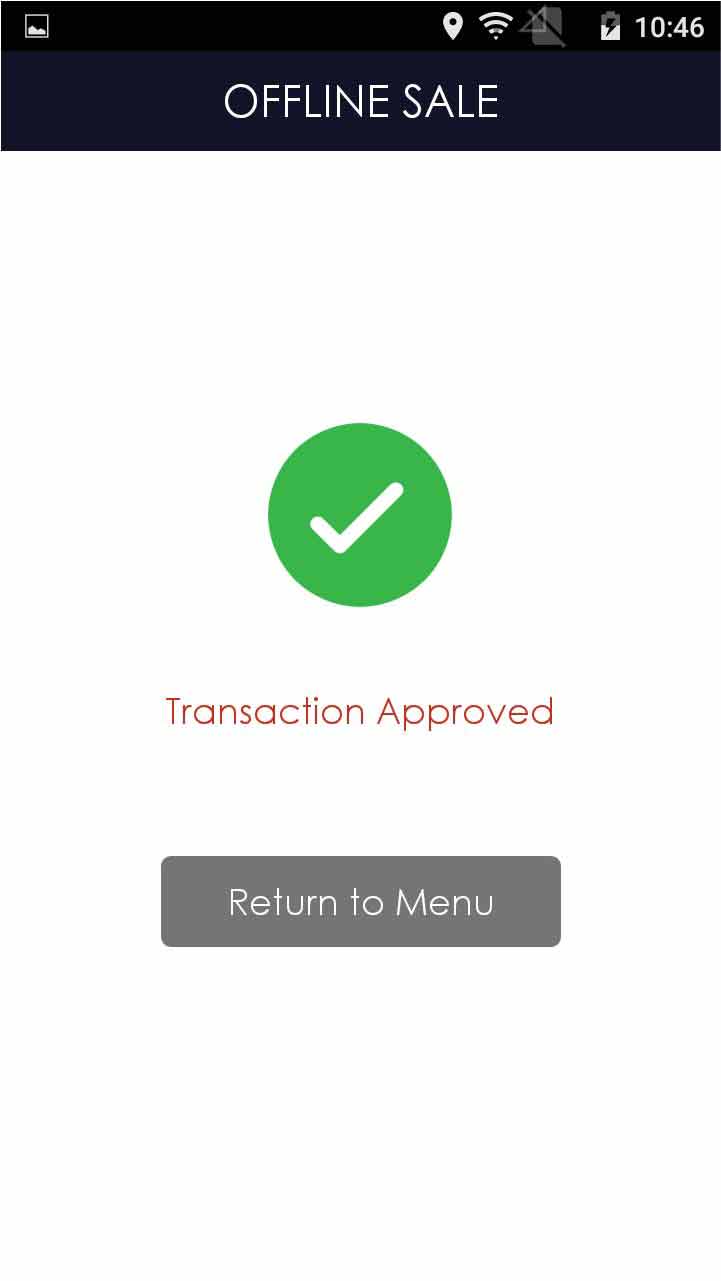
- Step 7 -
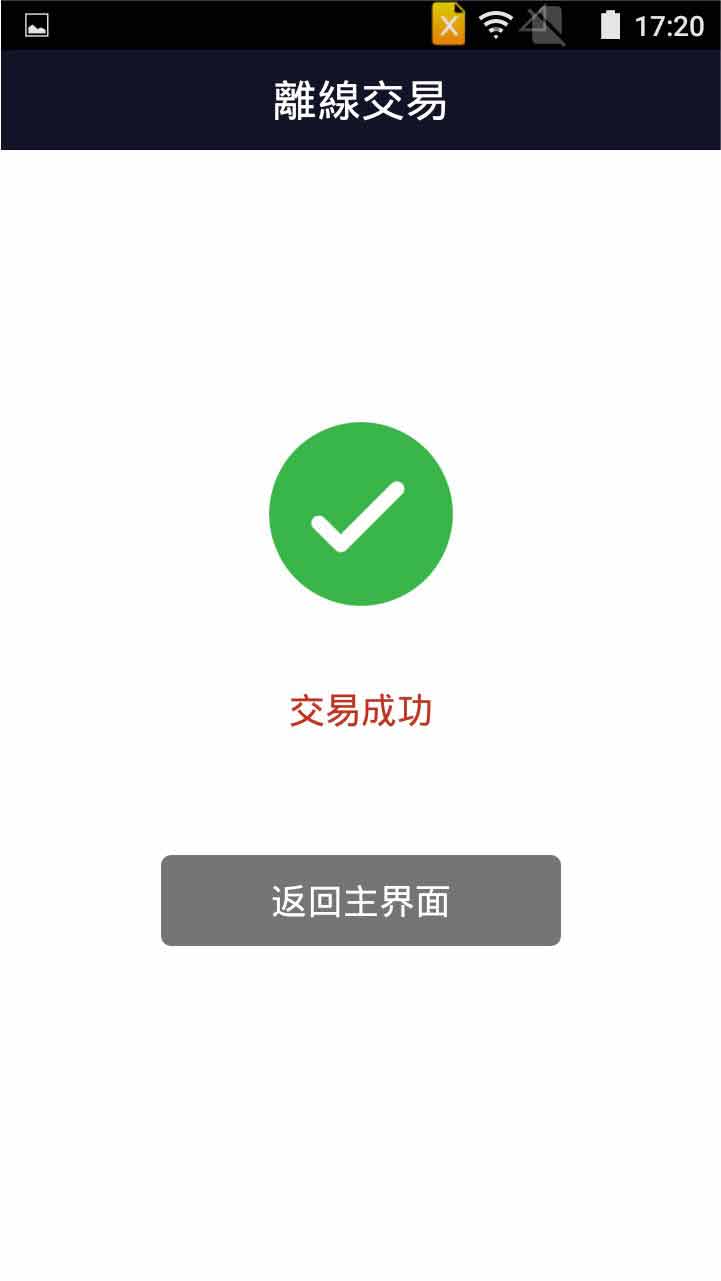
Transaction is completed, and terminal prints out receipt
EN

終端機用戶指南
功能 :
掃描二維碼
顯示二維碼
八達通
信用卡支付
分期
易辦事
外幣銷售
- 步驟 1 -
於主目錄按 [銷售]
- 步驟 2 -
輸入銷售金額,按 [確認]
- 步驟 3 -
選擇掃碼支付
- 步驟 4 -
掃描客人手機上顯示的付款二維碼
- 步驟5 -
交易完成,終端機打印單據
- 步驟 1 -
於主目錄按 [銷售]
- 步驟 2 -
輸入銷售金額,按 [確認]
- 步驟3 -
選擇顯示收款二維碼
- 步驟 4 -
客人手機掃描收款二維碼及確認付款
- 步驟 5 -
交易完成,終端機打印單據
- 步驟 1 -
於主目錄按 [銷售]
- 步驟 2 -
輸入銷售金額,按 [確認]
- 步驟3 -
選擇八達通支付
- 步驟 4 -
把八達通卡拍在終端機感應處上
- 步驟 5 -
交易完成,終端機打印單據
- 步驟 1 -
於主目錄按 [銷售]
- 步驟 2 -
輸入銷售金額,按 [確認]
- 步驟 3 -
選擇信用卡支付
- 步驟 4 -
輸入小費金額 (如有),並確認信用卡支付
- 步驟 5 -
插卡/拍卡/刷卡/流動支付/手動輸入卡號和到期日
- 步驟 6 -
按 [繼續]處理交易 (如有)
- 步驟 7 -
交易完成,終端機打印單據
- 步驟 1 -
於主目錄按[分期]
- 步驟 2 -
輸入操作員密碼,按 [確認]
- 步驟 3 -
輸入分期銷售金額,並選擇信用卡支付
- 步驟 4 -
插卡/刷卡/ 手動輸入卡號及到期日
- 步驟 5 -
按[繼續]
- 步驟 6 -
選擇分期付款計劃
- 步驟 7 -
交易完成,終端機打印單據
- 步驟 1 -
於主目錄按 [銷售]
- 步驟 2 -
請先刷卡,後插卡
- 步驟 3 -
輸入銷售金額,按[確認]
- 步驟 4 -
輸入提取現金(如有),按[確認]
- 步驟 5 -
確認金額
- 步驟 6 -
輸入密碼,按[Enter]
- 步驟 7 -
交易完成,終端機打印單據
- 步驟 1 -
於主目錄按 [銷售]
- 步驟 2 -
輸入銷售金額,按 [確認]
- 步驟 3 -
選擇信用卡支付
- 步驟 4 -
輸入總額連小費(如有),並選擇信用卡支付
- 步驟 5 -
插卡/拍卡/刷卡/流動支付/手動輸入卡號和到期日
- 步驟 6 -
按[繼續]
- 步驟 7 -
持卡人選擇交易貨幣
- 步驟 8 -
交易完成,終端機打印單據
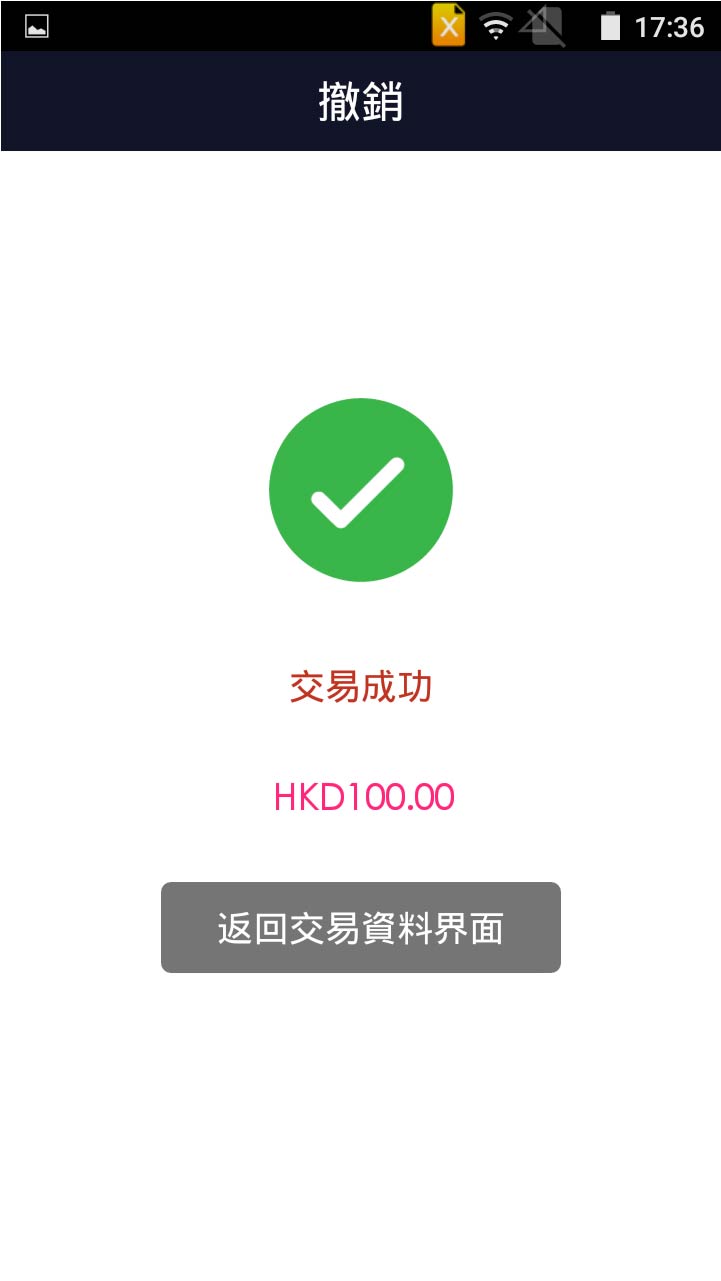
撤銷
- 步驟 1 -
<不適用於八達通>
於主目錄按 [交易資料]
- 步驟 2 -
於「交易號」搜索框內輸入交易號 或 直接點擊該筆交易
- 步驟 3 -
按 [撤銷]
- 步驟 4 -
輸入操作員密碼,按 [確認]
- 步驟 5 -
檢查交易資料後,按 [確認]
- 步驟 6 -
交易完成,終端機打印單據
二維碼交易 -
掃描二維碼
二維碼交易 -
手動輸入
信用卡交易
- 步驟 1 -
於主目錄按 [退款]
- 步驟 2 -
輸入操作員密碼, 按[確認]
- 步驟 3 -
輸入退款金額
- 步驟 4 -
選擇掃碼
- 步驟 5 -
選擇 [掃描收據二維碼]
- 步驟 6 -
掃描銷售收據上的二維碼
- 步驟7 -
交易完成, 終端機打印單據
- 步驟 1 -
於主目錄按 [退款]
- 步驟 2 -
輸入操作員密碼, 按[確認]
- 步驟 3 -
輸入退款金額
- 步驟 4 -
選擇掃碼
- 步驟 5 -
選擇退款的主機
- 步驟 6 -
按 [是] 確認選擇退款的主機
- 步驟 7 -
輸入12位數的參考號碼(在銷售收據或交易記錄),按[Enter]
- 步驟 8 -
輸入8位數的原終端號,按[Enter] (如需要)
- 步驟 9 -
交易完成,終端機打印單據
- 步驟 1 -
於主目錄按 [退款]
- 步驟 2 -
輸入操作員密碼, 按[確認]
- 步驟 3 -
輸入退款金額
- 步驟 4 -
選擇信用卡
- 步驟 5 -
插卡/拍卡/刷卡/流動支付/手動輸入卡號和到期日
- 步驟6 -
交易完成,終端機打印單據
掃描商戶單號條碼
向伺服器查詢
- 步驟 1 -
<只適用於支付寶及微信支付>
於主目錄按 [未確認交易查詢]
- 步驟 2 -
選擇該筆交易記錄
- 步驟 3 -
在對話框中按 [確認]
- 步驟 4 -
按 [確認], 然後掃描客人手機上的商戶單號條碼
- 步驟 5 -
交易完成,終端機打印單據
- 步驟 1 -
於主目錄按 [未確認交易查詢]
- 步驟 2 -
選擇該筆交易記錄
- 步驟 3 -
在對話框中按 [確認]
- 步驟 4 -
按 [取消] ,然後終端機自動向伺服器查詢結果
- 步驟 5 -
交易完成,終端機打印單據
結算
易辨事結算
- 步驟 1 -
於主目錄按 [結算]
- 步驟 2 -
輸入操作員密碼,按 [確認]
- 步驟 3 -
按 [全部結算]
- 步驟 4 -
按 [是] 確認進行結算
- 步驟 5 -
結算完成,終端機打印單據
小費調整
- 步驟 1 -
於主目錄按 [交易資料]
- 步驟 2 -
於「交易號」搜索框內輸入交易號 或 直接點擊該筆交易
- 步驟 3 -
按該筆交易的 [TIPS] 按鈕
- 步驟 4 -
輸入操作員密碼,按 [確認]
- 步驟 5 -
輸入調整後的總金額
- 步驟 6 -
按[信用卡]完成小費調整
- 步驟 7 -
按 [返回交易詳細界面] 回到交易詳細
預授權
預授權完成(銀聯)
取消預授權(銀聯)
取消預授權完成(銀聯)
離線交易
- 步驟 1 -
於主目錄按 [預授權]
- 步驟 2 -
選擇 [預授權]
- 步驟 3 -
輸入預授權金額
- 步驟 4 -
選擇信用卡支付
- 步驟 5 -
插卡/拍卡/刷卡/流動支付/手動輸入卡號和到期日
- 步驟 6 -
如須客人簽署,可選擇電子簽署,或 按[Skip]列印存根並請客人在存根上簽署
- 步驟 7 -
交易完成,終端機打印單據
- 步驟 1 -
於主目錄按 [預授權]
- 步驟 2 -
選擇 [預授權完成(銀聯)]
- 步驟 3 -
輸入操作員密碼,按 [確認]
- 步驟 4 -
輸入預授權完成金額
- 步驟 5 -
選擇信用卡支付
- 步驟 6 -
插卡/刷卡/ 手動輸入卡號及到期日,按[繼續]
- 步驟 7 -
輸入交易日期(月月日日),按[ENTER]
- 步驟 8 -
輸入交易時間(時時分分秒秒),按[ENTER]
- 步驟 9 -
輸入授權碼,按[ENTER]
- 步驟 10 -
交易完成,終端機打印單據
- 步驟 1 -
於主目錄按 [預授權]
- 步驟 2 -
選擇 [取消預授權(銀聯)]
- 步驟 3 -
輸入操作員密碼,按 [確認]
- 步驟 4 -
輸入預授權完成金額
- 步驟 5 -
選擇信用卡支付
- 步驟 6 -
插卡/刷卡/ 手動輸入卡號及到期日,按[繼續]
- 步驟 7 -
輸入授權碼,按[繼續]
- 步驟 8 -
輸入參考號(RRN),按[繼續]
- 步驟 9 -
交易完成,終端機打印單據
- 步驟 1 -
於主目錄按 [預授權]
- 步驟 2 -
選擇 [取消預授權完成(銀聯)]
- 步驟 3 -
於「交易號」搜索框內輸入交易號 或 直接點擊該筆交易
- 步驟 4 -
按 [撤銷]
- 步驟 5 -
輸入操作員密碼,按 [確認]
- 步驟 6 -
檢查交易資料後,按 [確認]
- 步驟 7 -
交易完成,終端機打印單據
- 步驟 1 -
於主目錄按 [離線交易]
- 步驟 2 -
輸入操作員密碼,按 [確認]
- 步驟 3 -
輸入離線交易金額
- 步驟 4 -
選擇信用卡支付
- 步驟 5 -
插卡/刷卡/ 手動輸入卡號及到期日
- 步驟 6 -
輸入存根上的授權碼
- 步驟 7 -
交易完成,終端機打印單據
重印單據
重印上一次結算
查詢/打印明細
查詢/打印匯總
易辦事交易查詢/重印
易辦事重印結算
易辦事打印總額
- 步驟 1 -
於主目錄按 [交易資料]
- 步驟 2 -
於「交易號」搜索框內輸入交易號 或 直接點擊該筆交易
- 步驟 3 -
按 [重印]
- 步驟 4 -
終端機打印單據